
 By saman zahra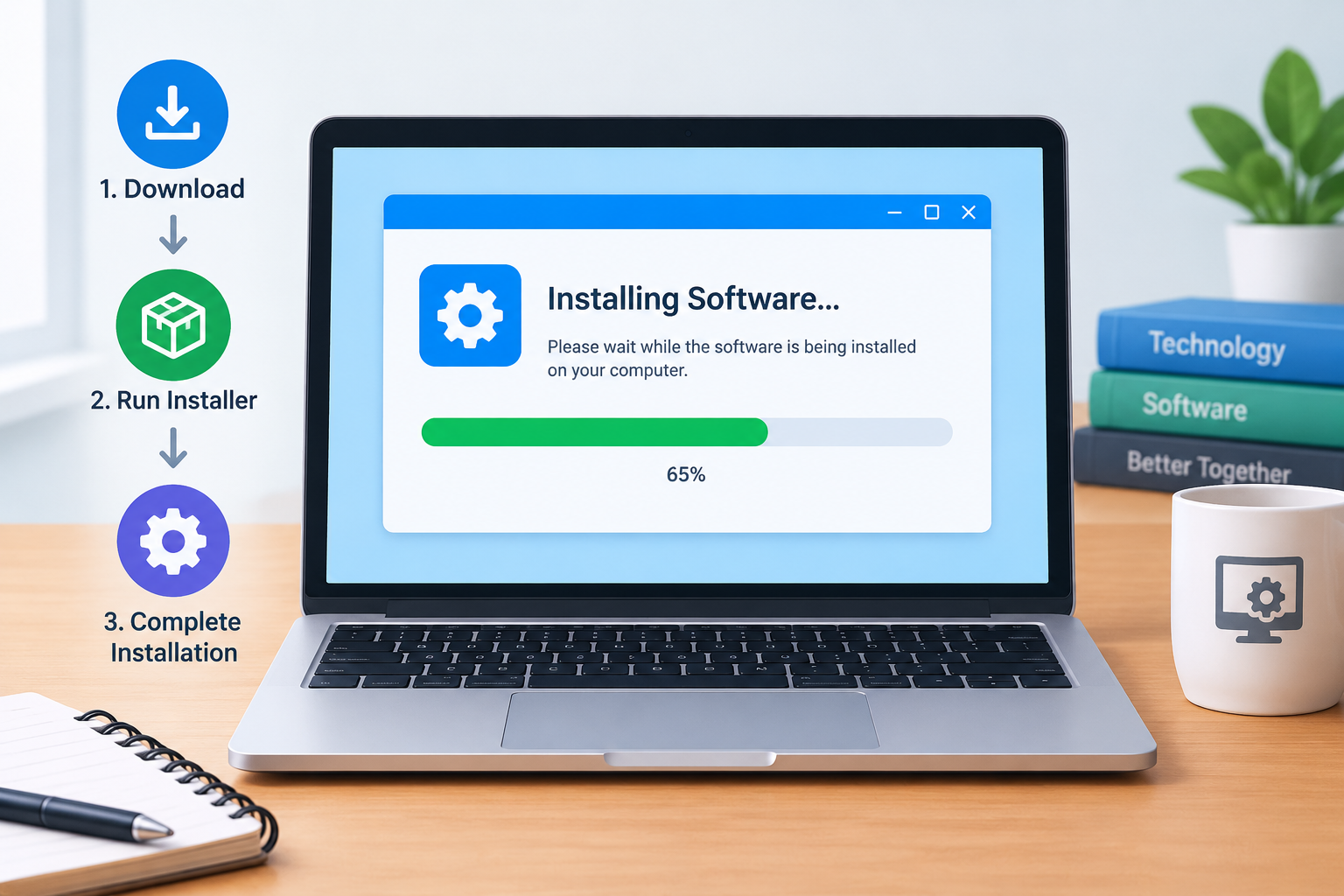
Introduction
Every program on your computer or phone went through an installation process before it could be used. Whether it happened automatically when you tapped a button in an app store or required you to click through a series of screens on your computer, installation is how software goes from a file you downloaded to a program you can actually run.
If you have ever wondered what happens during that process, why software needs to be installed at all, or how to do it correctly and safely on different devices, this guide covers everything you need to know. The explanations here are written for complete beginners with no technical background assumed.
What Is Software Installation?
Software installation is the process of setting up a software program on a computer or device so that it can be run and used.
When software is installed, the installer copies the program’s files to the correct locations on the device, configures settings, registers the software with the operating system, and makes the application accessible to the user. The result is that the software appears in your applications list, app drawer, or start menu and is ready to launch.
There is an important distinction between simply having a software file and having software that is properly installed. A downloaded installer file sitting in your Downloads folder is not the same as installed software. The installation process is what transforms that file into a working application on your system.
Installation processes vary significantly depending on the operating system, the type of software, and how it is distributed. Installing a program on a Windows computer looks different from installing an app on an iPhone, but both accomplish the same goal: making software ready to use on your device.
Simple real-world examples of software installation include:
- Running a downloaded installer to set up Microsoft Word on a Windows PC
- Tapping Install in the App Store on an iPhone to add a new app to your home screen
- Installing a game from a downloaded setup file on your computer
- Adding a browser extension from the browser’s official extension store
To understand what software is more broadly before exploring installation, see What Is Software and How Does It Work?
Why Does Software Need to Be Installed?
Software is not a single file. It is a collection of many files working together, including executable code that runs the program, libraries of shared code that the program depends on, resource files such as images and sounds, configuration files that set up default preferences, and supporting data the program needs to function.
For software to work correctly, these files need to be placed in specific locations where the operating system and the software itself expect to find them. Simply having the files in a random folder is not enough. The operating system needs to know the software exists and where its components are located.
Installation also registers the software with the operating system. This registration allows the software to appear in the applications list, be associated with relevant file types, launch correctly from shortcuts, and be managed properly by system tools.
Some software requires additional components called dependencies, which are libraries or frameworks that the software relies on to function. The installation process installs these alongside the main application.
Installation may also create shortcuts on the desktop or in the Start menu, set up initial user preferences, and configure the software for the specific hardware and system it is being installed on.
It is worth noting that portable software is a specific exception. Portable software is designed to run without installation by storing everything it needs within its own folder. See What Is Portable Software? for more on this alternative approach.
What Happens During Software Installation?
When you run an installer, a series of steps happen either automatically or with your input. Here is what the process typically looks like:
- The user runs the installer or initiates installation through an app store or system mechanism.
- The installer checks system requirements to verify the device meets the software’s minimum specifications.
- A license agreement is presented for the user to read and accept before proceeding.
- The user may choose an installation location or accept the default location suggested by the installer.
- The installer copies the software’s files to the appropriate locations on the device, such as the Program Files folder on Windows or the Applications folder on macOS.
- The software is registered with the operating system, including adding entries to the Windows Registry where applicable, creating file type associations, and registering shortcuts.
- Required dependencies or additional components are installed if the software requires them and they are not already present on the system.
- Shortcuts or application icons are created in the Start menu, desktop, app drawer, or equivalent location for easy access.
- The installation completes and the software may launch automatically or prompt the user to open it manually.
- Some software requires a system restart to complete the installation, particularly software that modifies system-level components.
In most cases, the installer handles all of this automatically. The user typically only needs to make a few decisions, such as accepting the license agreement, choosing optional components, or confirming the installation location. Silent or unattended installations, which are used in enterprise and organizational environments, can complete the entire process without any user interaction by using predefined settings configured by an IT administrator.
Types of Software Installation
Not all installations work the same way. Different installation types serve different purposes.
Standard or Full Installation
The most common type for personal computer software. A standard installation installs all components and features of the software at once. After installation, all features are immediately available without downloading additional parts. This is the default option for most consumer software.
Custom Installation
Custom installation allows the user to choose which components or features to install. This is useful for advanced users who want to exclude features they do not need, save disk space, or configure specific elements of the installation. Professional and enterprise software commonly offers this option.
Minimal Installation
A minimal installation installs only the essential components needed to run the software. Additional features may need to be downloaded separately later if required. This is useful when storage space is limited or when the user only needs the software’s core functionality.
Silent or Unattended Installation
Silent installation runs without displaying the usual dialog boxes or requiring user input. IT administrators use this method to deploy software to many computers simultaneously without needing to sit at each machine and click through installation screens. All settings and options are predefined before the installation runs.
Network Installation
In enterprise environments, software is sometimes installed from a network location rather than a local file. The installer accesses the software files from a shared server on the organization’s network, allowing centralized management and distribution without distributing physical media or individual download links.
App Store Installation
App stores on smartphones and increasingly on desktop platforms provide a streamlined installation experience. The app store handles the download, verification, and installation process automatically. The user simply taps or clicks to install without managing files directly.
Cloud or Web-Based Software
Some software requires no traditional installation at all. Web applications run in a browser and the user accesses them by visiting a website. The software runs on remote servers and is delivered through the browser to the user’s screen.
Examples include Google Docs, Canva, and many other browser-based tools. For more on how browser-based software works, see What Is a Web Browser? and What Is Cloud Computing?
Software Installation on Different Platforms
How to Install Software on Windows
- Download the installer from the official software developer’s website or a trusted source. Save it to a location you can find easily, such as your Downloads folder.
- Locate the downloaded file. It will typically be an EXE or MSI file. EXE files are executable installer programs. MSI files are Windows Installer packages. Both are standard installer formats on Windows.
- Double-click the installer file to start the installation process.
- Respond to the User Account Control prompt. Windows will ask whether you want to allow the program to make changes to your device. Click Yes if you downloaded the installer intentionally from an official source.
- Read and follow the on-screen instructions. Take a moment to read each screen before clicking Next.
- Accept the license agreement if you agree to the terms presented.
- Choose installation options such as the location where the software will be installed. Accepting the default location is appropriate for most users.
- Click Install to begin copying files and completing the setup.
- Wait for the installation to complete. Progress is typically shown on screen.
- Click Finish to close the installer. The software is now accessible from the Start menu or a desktop shortcut.
Software can also be installed through the Microsoft Store on Windows 10 and Windows 11, which simplifies the process to a single click. Microsoft’s official Windows installation documentation is available at learn.microsoft.com.
User Account Control is a Windows security feature that protects your system by requiring confirmation before allowing programs to make changes. A UAC prompt during a deliberate installation is expected. If you see one for software you did not intentionally download, do not proceed.
How to Install Software on Mac
- Download the software from the official developer’s website or the Mac App Store.
- If downloaded as a DMG file, double-click it to open the disk image. A DMG file is a disk image that acts as a virtual drive containing the application.
- Drag the application icon into the Applications folder as shown in the disk image window. This copies the application to the correct location.
- Eject the disk image after copying by clicking the eject button next to it in Finder.
- Open the application from the Applications folder or Launchpad.
- On first launch, macOS may display a dialog asking whether you want to open software downloaded from the internet. Click Open to proceed for software from a known official source.
- Enter your Mac password if prompted to authorize the installation.
Some Mac software uses a PKG file, which is an installer package that guides users through a step-by-step installation wizard similar to Windows.
macOS includes a security feature called Gatekeeper that checks software before allowing it to run. Software that is not signed by a recognized developer may trigger a warning. If you encounter this for software from a known legitimate source, Apple’s official support documentation at support.apple.com explains how to handle it. Approach software from unidentified developers with caution.
How to Install Apps on Android
- Open the Google Play Store on your Android device.
- Search for the app you want to install using the search bar at the top.
- Tap the app in search results to view its full listing and details.
- Tap Install.
- The app downloads and installs automatically. You can monitor progress in the notification bar.
- Tap Open when installation completes, or find the app in your app drawer.
A note on sideloading: Android also allows installing apps from APK files obtained outside the Google Play Store, a process called sideloading. This requires enabling installation from unknown sources for the specific app used to open the APK file. Sideloading carries significant security risks because APK files obtained from unofficial sources are not reviewed by Google for safety. Only sideload APK files from verified official sources where absolutely necessary. For more on Android apps and APK files, see What Is an Android App?
How to Install Apps on iPhone
- Open the App Store on your iPhone.
- Search for the app you want using the search tab.
- Tap the app to view its page and details.
- Tap the download button for free apps, or tap the price button for paid apps.
- Authenticate with Face ID, Touch ID, or your Apple ID password when prompted.
- The app downloads and installs automatically.
- Find the app on your home screen or in the App Library.
iOS only allows app installation through the App Store by default. Apple reviews apps before they are made available in the store, which is a meaningful layer of protection for users. For more on iPhone apps, see What Is an iPhone App?
Software Installation Requirements
Before downloading or purchasing software, understanding what your device needs to support it prevents wasted time and compatibility problems.
System Requirements
System requirements are the minimum hardware and software specifications a device must meet for software to install and run correctly. Software developers publish these requirements on their websites and in product documentation. Common system requirements include:
- Operating system type and minimum version
- Minimum and recommended processor speed and type
- Minimum and recommended RAM
- Available storage space for installation and operation
- Graphics card specifications for visually demanding software
- Internet connection requirements
Always check system requirements before downloading or purchasing software. For more on why this matters, see What Is Software Compatibility?
Storage Space
Software installation requires sufficient available storage space. The installer typically checks available space and warns you if there is not enough. The installed software often occupies more space than the installer file itself, because files are extracted, dependencies are installed, and additional content may be placed on the device during setup.
Administrator Permissions
Many software installations require administrator permissions to place files in protected system locations and make registry changes. On Windows, this is managed through User Account Control prompts. On macOS, a password prompt requests authorization. Users who do not have administrator access on a shared or work device should contact their IT administrator before attempting to install software.
Internet Connection
Some installers are small stub files that download the full software during installation, requiring an active internet connection throughout the process. Others are complete offline installers that contain everything needed and do not require internet access during installation. App store installations always require an internet connection for downloading. Check which type you are dealing with before beginning installation in a location with limited connectivity.
License or Activation
Some commercial software requires a product key, license code, or account sign-in to activate after installation. This verifies that the user has a valid license. Keep any product keys in a safe location after purchase.
Software Installation vs Software Update vs Software Upgrade
| Factor | Software Installation | Software Update | Software Upgrade |
|---|---|---|---|
| Definition | Setting up software on a device for the first time | Modifying existing installed software with fixes or improvements | Transitioning to a significantly new major version |
| Scope | Full initial setup | Targeted changes to existing version | Major version transition |
| Starting point | No existing installation | Software already installed | Software already installed |
| User action | Run installer or use app store | Apply update via update mechanism | Upgrade through installer or system tool |
| Version change | N/A to initial version | Minor or patch level | Major version level |
| Examples | Installing a browser for the first time | Applying a security patch | Moving from Windows 10 to Windows 11 |
Installation puts software on a device for the first time. An update modifies already-installed software with fixes, patches, or minor improvements. An upgrade transitions installed software to a substantially new major version. For a detailed explanation of software updates and what different types of updates mean, see What Does Software Update Mean?
Software Installation and Security
Downloading and installing software is one of the most common ways malicious software reaches user devices. Following these practices significantly reduces the risk:
Download from official sources only. Use the developer’s official website or an official platform store such as the Microsoft Store, Mac App Store, Google Play Store, or Apple App Store. When searching for software online, check the domain of the download page carefully. Unofficial download sites sometimes host modified or malware-infected versions of legitimate software.
Be cautious of search results. Paid search advertisements and unofficial mirrors can appear prominently in search results for popular software. Always navigate to the developer’s official website directly rather than clicking unfamiliar links.
Read every installation screen. Some installers present additional software, toolbar installations, or browser extension offers during setup, often with checkboxes that are pre-selected. Read each screen before clicking Next and decline additions you did not specifically request.
Check file sizes. If a software installer is significantly smaller or larger than expected for what it claims to contain, this may indicate a problem.
Verify file integrity where possible. Some developers publish checksums or digital signatures for their installers. Verifying these confirms the file has not been modified since the developer created it.
Keep security software active. Maintain active and updated antivirus and security software on your device while installing software. For more on protecting your device, see What Is Cybersecurity? and What Is Antivirus Software?
CISA consistently identifies downloading software only from trusted sources as a foundational security practice. Their guidance is available at cisa.gov.
Software Bundling and Potentially Unwanted Programs
Software bundling is a practice where an installer includes additional software that the user did not specifically request alongside the main application being installed. These additions are sometimes called potentially unwanted programs, or PUPs. They may include browser toolbars, search engine modifications, additional utilities, or other applications.
Bundled software is often disclosed during installation, but the disclosures may be presented in a way that makes them easy to miss: small text, pre-selected checkboxes, or options framed as declining something rather than accepting it.
How to protect yourself:
- Choose Custom installation when offered, rather than Express or Recommended. Custom installation typically shows all components being installed and allows you to deselect unwanted additions.
- Read every screen during installation rather than clicking through quickly.
- Look for pre-selected checkboxes that indicate additional software will be installed alongside the main program, and uncheck any you did not request.
- Download from the official developer’s website rather than third-party download aggregator sites. Official sources tend to have cleaner installers with fewer bundling concerns.
- If unwanted software appears after an installation, it can typically be uninstalled through the standard uninstall process, though some PUPs may require additional steps to remove completely.
What Is a Software Installer?
A software installer is a program that manages the process of setting up another software application on a device. The installer handles copying files, configuring settings, creating shortcuts, and registering the software with the operating system, all in an automated sequence that presents the user with a straightforward interface.
Common installer file formats by platform:
| Platform | Installer Formats |
|---|---|
| Windows | EXE (executable installer), MSI (Windows Installer package) |
| macOS | DMG (disk image), PKG (installer package) |
| Linux | DEB (Debian-based systems), RPM (Red Hat-based systems), AppImage, Flatpak, Snap |
| Android | APK (Android Package) |
| iOS | IPA (iOS App Archive, distributed through the App Store) |
App store installations abstract the installer behind a simple tap or click interface. The app store application handles downloading, verifying, and installing the software without the user needing to interact with installer files directly.
Software Installation on Linux
Linux software installation works differently from Windows and macOS and offers more flexibility in how software is obtained and managed.
Most Linux distributions use a package manager, which is a system tool that downloads, installs, updates, and removes software from official repositories. Repositories are curated collections of software packages verified to work with a specific Linux distribution.
Common package managers include:
- APT on Ubuntu and Debian-based distributions
- DNF on Fedora and Red Hat-based distributions
- Pacman on Arch Linux
Software can be installed through the command line using the package manager or through a graphical software center, which provides a user-friendly point-and-click interface to browse and install software from the official repositories.
Newer universal package formats allow software to run across different Linux distributions without being adapted for each one individually:
- Snap packages developed by Canonical run in a sandboxed environment
- Flatpak packages provide cross-distribution compatibility with sandboxing
- AppImage files are self-contained executables that can run without installation from any location
Linux software installation is more varied in approach than Windows or macOS but is designed with security and flexibility in mind. Ubuntu’s official documentation provides detailed guidance for its specific distribution at ubuntu.com.
Understanding Linux software management also connects to the open-source software ecosystem that underpins most Linux distributions. See What Is Open-Source Software? for more on that context.
Common Software Installation Errors and Solutions
Insufficient Storage Space
What happens: The installation fails because the device does not have enough available storage to hold the software files.
Solution: Free up storage space by removing files, applications, or media you no longer need. Check whether the software allows installation to an alternative drive with more space. On smartphones, clearing app caches can also free space.
Incompatible Operating System
What happens: The software requires a different or newer version of the operating system than the one installed on the device.
Solution: Check the software’s system requirements before downloading. If an operating system update is available and appropriate for your device, updating may resolve the requirement. If the device cannot be updated to meet the requirement, an alternative compatible software may be needed. See What Is Software Compatibility? for more on this topic.
Missing Dependencies
What happens: The software requires additional components such as a runtime library or framework that are not present on the device.
Solution: The error message during installation or launch typically identifies what is missing. Install the required dependency from its official source. Do not download dependencies from unofficial sites.
Insufficient Permissions
What happens: The installation requires administrator permissions that the current user account does not have.
Solution: On Windows, right-click the installer and select Run as Administrator if you have administrator credentials available. On macOS, enter an administrator password when prompted. If you are using a work, school, or shared device and do not have administrator rights, contact the IT administrator or device owner.
Corrupted Installer File
What happens: The downloaded installer file is damaged, incomplete, or corrupted, causing the installation to fail or produce errors.
Solution: Delete the downloaded file and download it again from the official source. A fresh download will resolve corruption caused by an interrupted or incomplete download.
Security Software Blocking Installation
What happens: Antivirus or security software identifies the installer as suspicious and blocks it from running or completing.
Solution: First verify that the software is genuinely from an official, legitimate source. If you are confident it is legitimate, check your security software’s documentation for how to create an exception for that specific file. Do not disable your security software entirely in order to install an application.
Installation Freezes or Hangs
What happens: The installation progress stops and the installer becomes unresponsive.
Solution: Wait a reasonable time, as some large installations can appear to stall briefly during intensive operations. If the installer is genuinely frozen after a substantial wait, close it and restart the installation. Ensure no conflicting processes such as another installer or a disk scan are running simultaneously.
How to Uninstall Software
Understanding how to remove software is as important as knowing how to install it. Proper uninstallation removes the program files and cleans up associated registry entries or system configurations.
Uninstalling on Windows
- Open Settings from the Start menu.
- Navigate to Apps or Apps and Features.
- Find the software in the list by scrolling or using the search box.
- Click the software name and select Uninstall.
- Follow any uninstall prompts that appear.
Some software includes its own dedicated uninstaller accessible from the Start menu folder for that application. Using the built-in Windows uninstall process through Settings is recommended over manually deleting program files, which leaves registry entries and configuration files behind.
Uninstalling on Mac
- Open Finder and navigate to the Applications folder.
- Find the application you want to remove.
- Drag it to the Trash or right-click and select Move to Trash.
- Empty the Trash to complete removal.
Some macOS applications leave preference files or support files in other locations such as the Library folder. Applications installed using a PKG installer may have a dedicated uninstaller provided by the developer. For thorough removal, the developer’s documentation may describe additional files to remove.
Uninstalling Apps on Android
From the home screen or app drawer:
- Long-press the app icon.
- Select Uninstall from the menu that appears.
- Confirm the uninstallation.
Through Settings:
- Open Settings.
- Navigate to Apps or Application Manager.
- Select the app from the list.
- Tap Uninstall and confirm.
Uninstalling Apps on iPhone
- Long-press the app icon on the home screen.
- Tap Remove App from the menu that appears.
- Select Delete App and confirm by tapping Delete.
The app and its data are removed from the device. Some apps store data in iCloud separately from the app itself.
Software Installation Best Practices
Following these practices makes software installation safer, smoother, and easier to manage:
- Always download from official sources. Use the developer’s official website or a trusted official platform store. This is the single most important practice for safe installation.
- Check system requirements before downloading. Verify your device meets the software’s specifications before investing time in a download.
- Read each installation screen rather than clicking through without reading. This is how you catch bundled software and understand what you are agreeing to.
- Decline optional bundled software that you did not request. Look for pre-selected checkboxes on installation screens.
- Keep security software active during installation. Do not disable it to install software.
- Back up important data before installing major or system-level software.
- Restart if prompted. Some installations require a restart to complete properly. Do not skip this step.
- Keep software updated after installation. Updates address security vulnerabilities and bugs discovered after release.
- Remove software you no longer use. Outdated unused software with unpatched vulnerabilities is an unnecessary security risk.
- Use official app stores on smartphones for the most straightforward and secure installation experience.
Understanding what software is and how it works in general provides useful context for all of this. See What Is Application Software? for more on the category of programs you install for everyday tasks.
Frequently Asked Questions
What is software installation?
Software installation is the process of setting up a software program on a computer or device so that it can be run and used. It involves copying files to the correct locations, registering the software with the operating system, and making it accessible to the user.
Why does software need to be installed?
Software consists of many files that must be placed in specific locations where the operating system expects to find them. Installation also registers the software, installs dependencies, and creates shortcuts, making the program accessible and functional.
What happens during software installation?
The installer checks system requirements, asks the user to accept a license agreement, copies files to appropriate locations, registers the software with the operating system, installs required dependencies, creates shortcuts, and completes the setup. Some installations require a restart.
How do I install software on Windows?
Download the installer from the official source, double-click the EXE or MSI file, respond to the User Account Control prompt, follow the on-screen steps, and click Finish when complete.
How do I install software on Mac?
Download the software, open the DMG or PKG file, drag the application to the Applications folder for DMG files or follow the wizard for PKG files, and open the application from Applications or Launchpad.
How do I install apps on Android?
Open the Google Play Store, search for the app, tap Install, and the app downloads and installs automatically.
How do I install apps on iPhone?
Open the App Store, search for the app, tap the download button, authenticate with Face ID or Touch ID, and the app installs automatically.
What are system requirements for software?
System requirements are the minimum hardware and software specifications a device must meet for software to install and run correctly. They typically include operating system version, processor, RAM, and storage specifications.
Do I need administrator rights to install software?
Many software installations require administrator permissions to make changes to system folders and the registry. Users without administrator rights on their device should contact an IT administrator before attempting to install software.
What is a software installer?
A software installer is a program that manages the process of setting up another application on a device, handling file copying, configuration, and registration with the operating system automatically.
What is the difference between installation and update?
Installation sets up software on a device for the first time. An update modifies already-installed software with fixes, patches, or improvements to an existing installation.
What is a silent installation?
A silent installation runs without displaying dialog boxes or requiring user input. IT administrators use it to deploy software to many computers simultaneously with predefined settings.
Is it safe to install software from the internet?
Software from official developer websites and trusted platform stores is generally safe. Downloading from unofficial sources, third-party mirrors, or unverified sites carries significant risk of malware.
What is bundled software?
Bundled software refers to additional programs included in an installer alongside the main application, often as optional additions that may be pre-selected. Reading installation screens carefully and choosing Custom installation helps identify and decline unwanted bundled software.
How do I uninstall software?
On Windows, use Settings then Apps. On Mac, drag the application to Trash. On Android, long-press the icon and select Uninstall. On iPhone, long-press the icon and select Remove App.
What should I do if software installation fails?
Check available storage space, verify system requirements are met, try downloading the installer again from the official source, and consult the official support documentation for the specific software.
Can I install software without internet access?
Some installers are complete offline installers that do not require internet access during installation. App store installations always require an internet connection. Check which type your installer is before beginning.
What is an APK file?
An APK file is an Android Package file, which is the installation package format used for Android apps. APKs from the Google Play Store are installed automatically. APKs from other sources require sideloading, which carries security risks.
For further reading, explore What Is an App? for an overview of applications, What Is App Cache? and What Is App Data? to understand what apps store on your device after installation, and What Is a Firewall? for another layer of protection relevant to keeping your device secure when downloading and installing software.
Disclaimer
This article is intended for educational purposes and provides a general overview of software installation for beginners and everyday users. Software installation processes vary between operating systems, software products, versions, and device types. Always refer to official documentation from your operating system or software vendor for specific guidance. Always download software from official and trusted sources. Installing software from unofficial or unknown sources carries significant security risks. Some installation steps described in this article require administrator permissions. If you do not have administrator access on your device, consult the device owner or IT administrator before attempting to install software.
Author: Laraib
Laraib is a technology writer and research contributor covering AI, programming, software, cybersecurity, cloud computing, and the latest developments in technology. She focuses on creating clear, practical, and well-researched content that makes complex tech topics easy to understand.