
 By saman zahra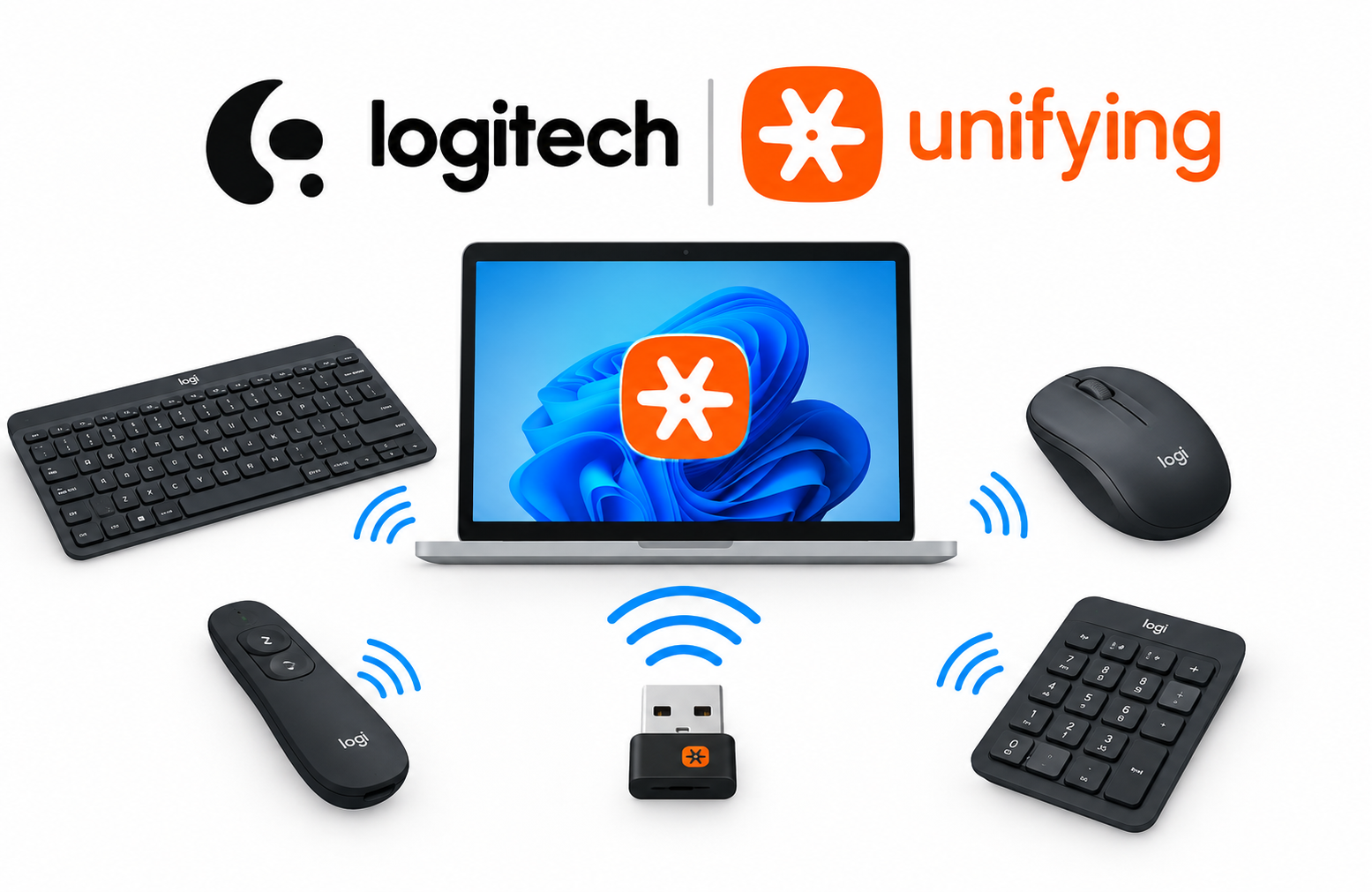
Plugging a separate USB dongle into your laptop for every wireless mouse and keyboard gets messy fast. Logitech Unifying Software was built to fix that by letting several compatible devices share one receiver. This guide covers how to set it up, how to fix common pairing problems, and what Logitech now says about the software’s support status.
Quick Info: The 60-Second Pairing Guide
- Check that your receiver and device carry the orange Unifying logo, a six-point star. Logitech says to look for it on the device and packaging.
- Plug the Unifying receiver into a USB port.
- Get Logitech Unifying Software from Logitech’s own website, because Logitech’s pages say to download from the official site only.
- Open the software and click Next on the Welcome window.
- When the “Restart the device” screen appears, turn the mouse or keyboard off and back on.
- Test the device, then click Yes, Next, and Finish.
Key Takeaways
- Logitech says the software is no longer supported. Logitech’s pages say Unifying Software is no longer supported or maintained, and they recommend Logi Options+ for supported devices.
- One receiver pairs up to six devices. Logitech’s setup page says you can connect up to six compatible devices to one receiver.
- Look for the orange logo. Logitech says Unifying devices carry an orange six-point star logo.
- Logi Bolt does not work with Unifying. Logitech says Bolt products cannot pair with a Unifying receiver, and Unifying products cannot pair with a Bolt receiver.
- USB 3.0 devices can cause interference. Logitech says a USB 3.0 device can cause delayed input, missed keystrokes, or reduced range for a 2.4 GHz receiver.
How This Guide Was Verified
We verified every setup step and compatibility claim in this guide against Logitech’s own support pages where we could, and we label anything else as general knowledge or a report from another site.
Specifically, we checked Logitech’s pages on pairing and unpairing with Unifying Software, the Unifying setup page, Logitech’s articles on Bolt compatibility and the difference between Bolt and Unifying, Logitech’s receiver update page, and Logitech’s article on USB 3.0 interference. We also used reports from Digital Citizen, Wikipedia, and BleepingComputer, and we say so where we do.
This guide compiles documentation. It does not include results from our own testing, and we did not read Logitech engineering documents. Downloading only from Logitech keeps you away from third-party bundles, which may carry unwanted software.
Logitech Wireless Ecosystems: Structural Matrix
| Wireless Standard | Receiver Branding Logo | Maximum Device Allocation Capacity |
|---|---|---|
| Logitech Unifying | Orange six-point star logo | Up to six compatible devices, per Logitech |
| Logi Bolt | A Logi Bolt logo mark on the device and receiver | Not stated on the Logitech pages we read |
| Standard Nano receiver | No Unifying logo | One device, per a Wikipedia article |
1. Receiver Identification and Pairing
Before you install anything, confirm that your gear is Unifying-compatible. Pairing will fail if the receiver and device do not match.
Check the Logo
Logitech’s setup page says to look for the orange Unifying logo, a six-point star, on your device and packaging. Logitech’s Bolt article says to look for a matching logo mark on the bottom of the product to tell Bolt and Unifying apart. Do not assume a receiver is Unifying because it looks similar.
What Unifying Is
Logitech describes Unifying as a proprietary 2.4 GHz radio frequency wireless protocol that it developed. It is separate from Bluetooth, so a Bluetooth-only mouse cannot pair through it.
A Note on Encryption and Security
Logitech’s receiver update page refers to an encryption key used between the device and the receiver. We did not find a Logitech page that states the key size, so we do not repeat the 128-bit figure.
In 2019 a researcher reported vulnerabilities in Unifying receivers. Logitech’s page says exploiting them needs expertise and special equipment, and that an attacker would need to be within about 10 meters. Logitech says firmware updates released since August 2019 address one of them and that it would not fix the others with firmware.
Get the Software
Logitech’s pages say the software is no longer supported or maintained, and they point to Logi Options+ for supported devices. One Logitech article says to get Unifying Software from logitech.com, but does not say whether the download is still available. See Logitech’s official Unifying utility support portal for the current status.
Pair a Device Step by Step
Logitech’s article on adding a device gives these steps.
- Plug the receiver into a USB port.
- Open the software and click Next on the Welcome window.
- When the “Restart the device” screen appears, follow its instructions to power the device off and back on.
- After the device is detected, test it. For a keyboard, type a test message. For a mouse, move it and watch the cursor.
- If it works, click Yes, then Next, then Finish.
If the device does not connect after about a minute, Logitech says to select No, then Next, and start again. Digital Citizen describes the flow slightly differently, so follow the on-screen prompts if they differ.
Windows Support
Digital Citizen says the software works on Windows 10 and Windows 11. Wikipedia says the software is available for Windows and macOS, and that Linux users can use Solaar. We did not find a Logitech page that lists supported operating systems.
Check for Lag and Lockups
If typing lags or the system locks up while you use the software, the cause may be the computer, not the receiver. Our guide on Why Does My Laptop Keep Freezing? explains how to check the system log and test memory and the drive.
2. Clearing a Full Receiver by Unpairing Old Devices
A receiver holds up to six devices. If six are already paired, a new device will not connect.
What Logitech Documents
Logitech’s unpairing article says the receiver can be paired with up to six Unifying devices at a time. It says that if six devices are already paired, a window appears saying the receiver is full.
- Open Logitech Unifying Software and click Next.
- In the full-receiver window, choose the device to remove from the Select product to be replaced list.
- Click Next to unpair it.
- When the device is removed, the software prompts you to pair another device.
About the Advanced Button
Many guides describe an Advanced button that shows paired devices and an Unpair option. Logitech’s article does not mention it, and Digital Citizen’s guide does not cover it. Your software version may include it, but we could not confirm the exact path.
Digital Citizen says unpairing a device frees space on the receiver for others. If you cannot find an unpair option, use the full-receiver route above.
Pair a Replacement
After you remove a device, the software prompts you to pair another one. Follow the same steps as in section 1. Test the new device before you close the software.
If Pairing Still Fails
- Move the receiver to a USB port closer to the device.
- Replace the batteries in the mouse or keyboard.
- Restart the computer and try again.
- Try a different USB port.
Dead batteries are a common cause of pairing trouble, which is general knowledge, not a quote from Logitech.
Speed Up the Rest of Your System
If your computer is slow overall, input can feel late even when the receiver is fine. Our guide How to Speed Up a Laptop covers safe ways to reduce the load. We found no Logitech source linking system resources to input pooling, so treat that as general advice.
3. Fixing Driver and USB Problems on Windows
If Windows does not recognize the receiver, check Device Manager. This section is general Windows knowledge, because we did not find a Logitech page with these exact clicks.
Open Device Manager
- Right-click the Start button and choose Device Manager.
- Expand Universal Serial Bus controllers or Human Interface Devices.
- Look for an entry with a warning triangle, such as a Logitech USB input device.
Entry names differ by receiver and Windows version, so yours may not match.
Reinstall the Device
- Right-click the entry with the warning triangle.
- Choose Uninstall device.
- Unplug the receiver, wait a few seconds, and plug it back in.
- Let Windows reinstall the driver, then test the device.
Logitech’s setup page says the receiver installs drivers automatically on most modern operating systems. If that does not happen, try a different USB port. Microsoft’s official Windows performance support page covers general Windows health checks.
Interference From USB 3.0 Devices
Logitech says that using a USB 2.0 2.4 GHz wireless device on a PC with a USB 3.0 device connected can cause erratic operation from interference. Symptoms include delayed input, missing keystrokes or mouse commands, and reduced operating distance. It says this is most likely with USB 3.0 remote hard drives or flash drives.
Logitech’s fixes are to separate the USB 3.0 and USB 2.0 receivers by as much distance as possible, and to plug the receiver into the USB 2.0 port closest to the wireless device. It also suggests a standard USB extender cable to move the receiver away from the USB 3.0 port.
Logi Bolt Is Different
Logitech says Bolt is a different technology from Unifying, and its Bolt article says Bolt products cannot be paired with a Unifying receiver and vice versa. You can use both at once only if the computer has two free USB-A ports. Logitech recommends plugging in a Bolt receiver first, then turning on the Bolt device.
Before You Contact Support
- Note your device model and receiver type.
- Write down any error message.
- Test the device on another computer.
- Try new batteries.
- Confirm that the receiver and device both carry the same logo.
Common Mistakes That Make Wireless Pairing Fail
- Pairing a Bluetooth-only mouse with the Unifying tool. Unifying is a separate 2.4 GHz protocol.
- Mixing up Bolt and Unifying receivers. Logitech says they cannot cross-pair.
- Plugging the receiver next to a USB 3.0 drive. Logitech says USB 3.0 devices can cause interference. We found no Logitech page that names unshielded external hard drives in particular.
- Forgetting dead batteries. A weak battery can stop a device from connecting.
- Trying to add a seventh device. The receiver holds six, so remove one first.
- Downloading the software from unknown sites. Logitech’s pages say to download from its official site.
- Assuming a Nano receiver can pair many devices. A Wikipedia article says Nano receivers pair with one device.
Frequently Asked Questions
What is Logitech Unifying Software?
It is a utility for pairing compatible Logitech devices to a Unifying receiver. Logitech says it is no longer supported or maintained.
How many devices can one Unifying receiver pair?
Logitech says up to six compatible devices.
Can I pair a Logi Bolt device with a Unifying receiver?
No. Logitech says Bolt devices are not compatible with Unifying receivers, and the reverse.
How do I unpair a device from a Unifying receiver?
Open the software, click Next, choose a device from the Select product to be replaced list, and click Next, as Logitech’s article describes.
What should I use instead of Unifying Software?
Logitech’s pages recommend Logi Options+ for supported devices. Check your device’s support page to see what it supports.
Disclaimer:
This article is for general educational and informational purposes only. It compiles official software workflows and hardware specifications from the support documentation of Logitech. Technical pathways may vary based on your specific computer operating system build, local USB hardware chipsets, or peripheral firmware generation values.