
 By saman zahra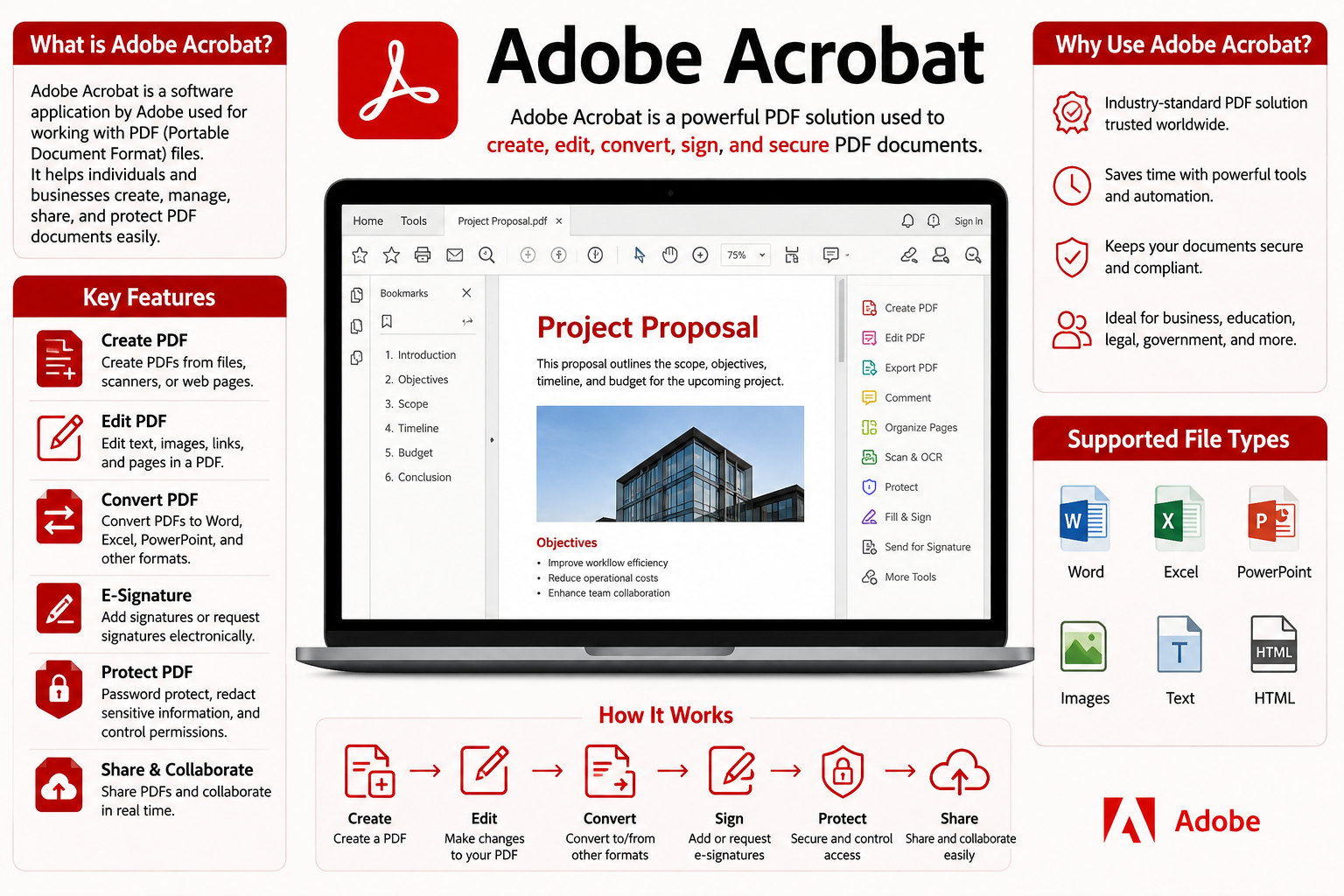
Introduction
Every time you download a job application, open a digital contract, or receive a company invoice by email, you are almost certainly looking at a PDF file. The Portable Document Format has become the universal standard for sharing documents that look identical on every device, regardless of operating system or software. At the center of this world sits Adobe Acrobat, the software that started the PDF revolution and continues to define it more than three decades later.
What is Adobe Acrobat, exactly? It is a family of PDF software applications developed by Adobe Inc. that allows users to create, edit, organize, convert, sign, and securely share PDF documents. Whether you are a student submitting assignments, a lawyer reviewing contracts, a business professional managing invoices, or a remote worker collaborating on shared files, Adobe Acrobat provides the tools you need to work with PDF documents professionally and efficiently.
In this complete guide for 2026, we cover everything you need to know about Adobe Acrobat, from its core features and real-world uses to installation steps, productivity tips, and a clear comparison with competing PDF editors.
Quick Answer (Featured Snippet)
Adobe Acrobat is a PDF software application developed by Adobe Inc. that allows users to create, edit, convert, merge, sign, and secure PDF documents. It comes in two main versions: the free Adobe Acrobat Reader for viewing PDFs, and the paid Adobe Acrobat Pro for full editing and advanced features. Adobe Acrobat is widely used by students, businesses, legal professionals, and government organizations worldwide.
What Is Adobe Acrobat?
Definition
Adobe Acrobat is a comprehensive PDF software suite developed and maintained by Adobe Inc. It enables users to view, create, edit, annotate, convert, merge, compress, sign, and protect PDF files from a single application. Adobe Acrobat is available as a desktop application for Windows and macOS, as mobile apps for iOS and Android, and as a web-based tool through Adobe’s online platform.
The software exists in two primary forms. Adobe Acrobat Reader is the free version designed for viewing and basic interaction with PDF files. Adobe Acrobat Pro is the full-featured paid version that unlocks the complete range of PDF creation, editing, and management tools.
A Brief History
Adobe Inc. invented the PDF format in 1993, and the company released the first version of Acrobat alongside it that same year. The initial vision was straightforward but transformative: create a document format that preserves the exact layout, fonts, and formatting of any file regardless of which device or operating system opens it.
Over the following decades, Adobe continuously expanded Acrobat’s capabilities far beyond simple document viewing. The software gained editing tools, form creation, digital signature support, cloud connectivity, and artificial intelligence features. Today, Adobe Acrobat is recognized globally as the industry standard for professional PDF management, trusted by millions of individuals and organizations across virtually every sector.
Adobe Acrobat vs Adobe Reader
Many people confuse Adobe Acrobat with Adobe Acrobat Reader, but the two serve quite different purposes. Adobe Acrobat Reader is a free application that allows users to open, read, navigate, and print PDF files. It also supports basic form filling and the ability to add a simple signature. However, Reader does not allow users to edit PDF content, create PDFs from other file types, or use advanced features like OCR.
Adobe Acrobat Pro, on the other hand, is the full professional tool. It includes every feature in Reader plus the ability to edit text and images directly in PDFs, create PDFs from virtually any file format, convert PDFs to Word or Excel, merge multiple documents, compress files, apply password protection, perform OCR on scanned documents, and much more.
Why Adobe Acrobat Is Popular
Adobe Acrobat’s popularity stems from its combination of power, reliability, and the simple fact that Adobe invented the PDF format itself. No other software understands PDF structure as deeply or handles complex documents as accurately. Additionally, Adobe’s constant innovation has kept Acrobat relevant through the addition of cloud services, AI-powered tools like Adobe Acrobat AI Assistant, and seamless integration with the broader Adobe Creative Cloud ecosystem.
Key Features of Adobe Acrobat
Adobe Acrobat delivers an extensive set of tools that cover every aspect of professional PDF management. Here is a detailed look at its most important features.
Adobe Acrobat Features Table
| Feature | Description | Available In |
|---|---|---|
| Create PDF | Convert any file into a PDF document | Acrobat Pro |
| Edit PDF | Modify text, images, and layouts directly | Acrobat Pro |
| Convert PDF | Export PDFs to Word, Excel, PowerPoint, and more | Acrobat Pro |
| Merge PDF | Combine multiple documents into one PDF | Acrobat Pro |
| Split PDF | Divide a large PDF into separate smaller files | Acrobat Pro |
| Compress PDF | Reduce PDF file size without quality loss | Acrobat Pro |
| Fill and Sign | Complete and sign forms electronically | Both versions |
| E-Signatures | Request and collect legally binding signatures | Acrobat Pro |
| Password Protection | Encrypt PDFs with password access controls | Acrobat Pro |
| OCR | Convert scanned documents into searchable text | Acrobat Pro |
| Cloud Storage | Store and access documents via Adobe Document Cloud | Both versions |
| Annotations | Add comments, highlights, and sticky notes | Both versions |
| Redaction | Permanently remove sensitive information | Acrobat Pro |
| Compare Documents | Identify differences between two PDF versions | Acrobat Pro |
| AI Assistant | Ask questions and get summaries from PDF content | Acrobat Pro |
Create PDF Files
Adobe Acrobat Pro allows users to create professional PDF documents from virtually any file format. You can convert Microsoft Word documents, Excel spreadsheets, PowerPoint presentations, images, web pages, and even scanned paper documents into properly formatted PDFs with a few clicks. The conversion process preserves the original formatting, fonts, images, and layout with remarkable accuracy.
For example, a teacher can convert an entire course syllabus created in Microsoft Word to a PDF that every student can open identically on any device, whether they use Windows, Mac, or a smartphone. This eliminates the formatting inconsistencies that arise when sharing editable document formats.
Edit PDF Documents
One of Adobe Acrobat Pro’s most valuable capabilities is the ability to edit PDF content directly without converting the file to another format first. Users can modify existing text, change fonts and sizes, replace or add images, rearrange pages, and update links all within the PDF itself.
This feature is particularly useful when you receive a PDF contract with a small error or need to update a company brochure with new contact information. Rather than requesting the original source file and recreating the PDF, you can make the correction directly in Acrobat Pro within minutes.
Convert PDF Files
Adobe Acrobat Pro converts PDFs into fully editable formats including Microsoft Word, Excel, PowerPoint, rich text format, HTML, and image files. The conversion engine preserves tables, columns, fonts, and formatting with a high degree of accuracy, saving users significant time compared to manually retyping document content.
A practical example of this feature is when a client sends you a signed contract as a PDF and you need to extract specific data into a spreadsheet for your records. Acrobat Pro can convert the PDF directly to Excel, placing tabular data into the correct cells automatically.
Merge and Split PDFs
Adobe Acrobat Pro makes it straightforward to combine multiple PDF files into a single organized document. You can arrange the files in any order, add blank pages between sections, and create a professional final document from dozens of separate sources. This is especially valuable for assembling legal briefs, project reports, or employee handbooks from separately created sections.
Conversely, the Split PDF feature allows you to divide a large document into smaller files, extracting specific page ranges or chapters. For instance, a publisher might split a full book PDF into individual chapter files for distribution to different editorial reviewers.
Compress PDF Files
Large PDF files containing high-resolution images, embedded fonts, and complex graphics can quickly reach file sizes that make email delivery difficult and slow document loading. Adobe Acrobat Pro includes a compression tool that intelligently reduces file size while maintaining acceptable visual quality. Users can choose between different compression levels depending on whether the final document will be viewed on screen, printed at high quality, or distributed digitally.
Fill and Sign Forms
Both Adobe Acrobat Reader and Acrobat Pro allow users to fill out PDF forms electronically. You can type directly into form fields, select checkboxes, choose from dropdown menus, and add your signature without printing a single page. Acrobat automatically detects form fields in most PDF documents and makes them interactive.
This feature has become essential for HR departments sending onboarding forms to new employees, financial institutions distributing account opening forms, and government agencies providing digital applications to citizens.
Electronic Signatures
Adobe Acrobat Pro includes a powerful electronic signature system called Adobe Acrobat Sign, which allows users to request legally binding electronic signatures from others. You can send a document to multiple recipients in a specified signing order, track the signing progress in real time, receive automatic notifications when each person signs, and store the completed signed document securely in Adobe Document Cloud.
Electronic signatures created through Adobe Acrobat Sign are legally valid in most countries under legislation such as the U.S. ESIGN Act and the EU eIDAS Regulation. Law firms, real estate agencies, and financial services companies use this feature extensively to eliminate paper-based signing workflows.
Password Protection
Adobe Acrobat Pro provides two levels of password security for PDF documents. An opening password prevents anyone from viewing the document without the correct password. A permissions password controls what users can do with the document, including whether they can print it, copy text from it, edit it, or add annotations. This dual-layer protection makes Acrobat Pro an essential tool for sharing confidential business documents, sensitive financial reports, and proprietary research.
OCR – Optical Character Recognition
When you scan a paper document and save it as a PDF, the result is essentially a photograph of the page. The text appears visually but cannot be searched, selected, or edited because the computer recognizes it as an image rather than text. Adobe Acrobat Pro’s Optical Character Recognition feature analyzes scanned document images and converts them into fully searchable, selectable, and editable text.
This capability is transformative for organizations that need to digitize large archives of paper records. A law firm, for example, can scan decades of paper case files, run OCR through Acrobat Pro, and make every document fully searchable by client name, case number, or any keyword within seconds.
Cloud Storage and Sharing
Adobe Acrobat integrates with Adobe Document Cloud, giving users the ability to store PDF files securely in the cloud and access them from any device. Documents stored in Document Cloud can be shared with specific people using permission-controlled links, opened on mobile devices through the Adobe Acrobat mobile app, and synced automatically across all connected devices. This cloud integration makes collaborative document review and approval workflows smooth and efficient for distributed teams.
Benefits of Adobe Acrobat
Using Adobe Acrobat brings a wide range of practical advantages across personal, educational, and professional contexts.
Adobe Acrobat Benefits Checklist
| Benefit | Description |
|---|---|
| Universal File Format | PDFs look identical on every device and operating system |
| Professional Document Quality | Preserves exact formatting, fonts, and layouts |
| Secure Document Sharing | Password protection and encryption protect sensitive files |
| Legally Valid E-Signatures | Collect binding signatures without printing or mailing |
| Time-Saving Editing | Edit PDF content directly without reformatting from scratch |
| File Size Reduction | Compress large files for easy email delivery and storage |
| OCR Technology | Converts scanned paper documents into searchable digital text |
| Multi-Format Conversion | Converts PDFs to Word, Excel, PowerPoint, and more |
| Cloud Accessibility | Access documents from any device through Adobe Document Cloud |
| Mobile Support | Full-featured mobile apps for iOS and Android |
| Document Organization | Merge, split, reorder, and manage PDF pages easily |
| Collaboration Tools | Comment, annotate, and review documents with teams |
| AI-Powered Assistance | Get instant document summaries and ask questions using AI |
| Form Creation | Build interactive forms that others complete digitally |
| Redaction | Permanently remove sensitive information before sharing |
| Version Comparison | Identify exactly what changed between two document versions |
| Audit Trails | Track who signed or modified a document and when |
| Accessibility Features | Create tagged PDFs that work with screen readers |
| International Compliance | Meets legal standards for electronic signatures globally |
| Brand Credibility | Professional PDF documents reinforce business credibility |
| Batch Processing | Apply actions to multiple PDFs simultaneously to save time |
| Long-Term Archiving | PDF/A format ensures documents remain readable indefinitely |
Common Uses of Adobe Acrobat
Adobe Acrobat serves a remarkably diverse range of users across many different fields and workflows.
Students use Adobe Acrobat Reader to open and annotate course materials, textbook PDFs, and research papers. Students with access to Acrobat Pro can merge multiple research sources into a single organized document, add highlighting and comments while studying, and submit assignments as professionally formatted PDF files that instructors can open without compatibility issues.
Teachers and Educators create interactive PDF worksheets, quizzes, and handouts that students can fill out digitally. Teachers also use Acrobat Pro to compile course packets from multiple sources, add annotations and feedback to submitted student work, and distribute protected reading materials that prevent unauthorized editing.
Businesses rely on Adobe Acrobat for virtually every document-heavy workflow. Sales teams send proposals and contracts for electronic signature. Finance departments create and distribute invoices, financial statements, and reports. HR professionals manage employee onboarding forms, policy documents, and performance review templates. Marketing teams create product brochures, catalogs, and presentations in PDF format for consistent delivery across all channels.
Legal Professionals depend on Adobe Acrobat as a daily essential tool. Lawyers use Acrobat Pro to review, annotate, and redact sensitive information from discovery documents. Law firms collect binding electronic signatures on contracts, agreements, and settlement documents. Court filing systems in many jurisdictions require PDF submissions, making Acrobat an indispensable part of legal practice management.
Government Organizations use Adobe Acrobat to create accessible forms for citizens, manage official documents, and maintain secure digital archives. Many government agencies mandate PDF format for official filings and communications because of its reliability and tamper-evident properties when properly secured.
Freelancers use Adobe Acrobat to send professionally formatted proposals, invoices, and project deliverables to clients. A freelance graphic designer, for instance, can deliver final artwork as a high-quality PDF, collect a signed contract through Adobe Acrobat Sign, and invoice the client, all within the same software platform.
Remote Workers benefit enormously from Adobe Acrobat’s cloud features, electronic signature capabilities, and mobile app support. Team members in different time zones can review and annotate shared PDF documents simultaneously, sign agreements without scheduling in-person meetings, and access important files from any device wherever they work.
Adobe Acrobat Reader vs Adobe Acrobat Pro
Understanding the difference between these two versions helps you choose the right tool for your specific needs.
Adobe Acrobat Reader vs Adobe Acrobat Pro Comparison Table
| Feature | Adobe Acrobat Reader | Adobe Acrobat Pro |
|---|---|---|
| Cost | Free | Paid subscription |
| View PDF Files | Yes | Yes |
| Print PDF Files | Yes | Yes |
| Add Comments and Highlights | Yes | Yes |
| Fill PDF Forms | Yes | Yes |
| Basic Signature | Yes | Yes |
| Edit PDF Text and Images | No | Yes |
| Create PDF from Other Files | No | Yes |
| Convert PDF to Word/Excel | No | Yes |
| Merge Multiple PDFs | No | Yes |
| Split PDF Pages | No | Yes |
| Compress PDF Files | No | Yes |
| OCR on Scanned Documents | No | Yes |
| Advanced E-Signatures | Limited | Full Adobe Acrobat Sign |
| Password Protection | No | Yes |
| Redact Sensitive Information | No | Yes |
| Compare Two Documents | No | Yes |
| AI Assistant | Limited | Full access |
| Cloud Storage | Limited | Full Document Cloud access |
| Best For | Casual readers, students | Professionals, businesses |
For most occasional users who simply need to open, read, and print PDF documents, Adobe Acrobat Reader provides everything necessary at no cost. However, anyone who regularly creates, edits, or manages PDF documents in a professional context will find that Acrobat Pro pays for itself quickly through the time it saves.
Adobe Acrobat vs Other PDF Editors
While Adobe Acrobat is the market leader, several strong competitors offer compelling alternatives depending on your budget and specific needs.
Adobe Acrobat Alternatives Comparison Table
| Software | Key Strength | OCR | E-Signatures | Platform | Pricing Model |
|---|---|---|---|---|---|
| Adobe Acrobat Pro | Most comprehensive, industry standard | Yes | Yes (Acrobat Sign) | Windows, Mac, Mobile, Web | Subscription |
| Foxit PDF Editor | Fast performance, MS Office-like interface | Yes | Yes | Windows, Mac, Mobile | Subscription / One-time |
| Nitro PDF | Strong business features, team collaboration | Yes | Yes | Windows, Web | Subscription / One-time |
| PDFgear | Free, full-featured editor | Yes | Basic | Windows, Mac, Mobile | Free |
| Smallpdf | Easy web-based tools, no installation needed | Yes | Basic | Web, Desktop | Free / Subscription |
| PDF-XChange Editor | Lightweight, powerful annotation tools | Yes | Basic | Windows | Free / Paid |
Foxit PDF Editor is the strongest direct competitor to Adobe Acrobat Pro, offering a familiar Microsoft Office-style ribbon interface, fast performance, and comprehensive editing tools. It tends to cost less than Acrobat Pro while covering most business PDF needs effectively.
Nitro PDF focuses strongly on business team collaboration features and workflow automation, making it a good choice for mid-sized organizations looking for a cost-effective Acrobat alternative with solid e-signature capabilities.
PDFgear stands out as a genuinely capable free PDF editor that covers basic editing, OCR, and conversion without charging anything, making it an excellent starting point for budget-conscious users.
Smallpdf delivers a clean, browser-based experience ideal for users who occasionally need PDF tools without installing software. Its free tier handles basic conversions and compression, while the paid tier adds more advanced features.
PDF-XChange Editor is particularly strong for power users who need extensive annotation and markup tools on Windows at a lower price point than Adobe Acrobat Pro.
How to Install Adobe Acrobat
Installing Adobe Acrobat is a simple process that most users complete in under ten minutes.
System Requirements
Before installing Adobe Acrobat, verify that your device meets the minimum system requirements for 2026.
- Operating System: Windows 10 or later (64-bit), macOS 11 Big Sur or later
- Processor: 1.5 GHz or faster processor
- RAM: 2 GB minimum (4 GB or more recommended for optimal performance)
- Storage: 4.5 GB of available hard disk space
- Screen Resolution: 1024 x 768 minimum
- Internet: Required for installation, activation, and cloud features
- Browser: Current version of Chrome, Firefox, Edge, or Safari for web-based features
Download
Always download Adobe Acrobat from the official Adobe website at adobe.com/acrobat to ensure you receive authentic, secure software. Navigate to the Acrobat product page and choose either the free Reader download or begin a trial or subscription for Acrobat Pro. Adobe also offers a seven-day free trial of Acrobat Pro, which is an excellent way to explore the full feature set before committing to a subscription.
Installation
After downloading the installer file, run it with administrator privileges on Windows or double-click the package on macOS. The installer will guide you through a straightforward setup process. On Windows, you may see a User Account Control prompt asking for permission to make changes; click Yes to continue. The installation typically completes within five minutes depending on your internet speed and system performance.
Sign In
After installation, open Adobe Acrobat and sign in with your Adobe ID. If you do not have an Adobe account, create one for free on the Adobe website. Your Adobe ID links your software license, cloud storage, and subscription status to your account, allowing you to access Acrobat on multiple devices within your plan’s device limits.
Updates
Adobe Acrobat updates automatically by default when connected to the internet. To check for updates manually, open Acrobat and navigate to Help in the menu bar, then select Check for Updates. Keeping Acrobat updated is important for both security and access to the latest features, including AI tools and new file format support.
Tips for Using Adobe Acrobat More Efficiently
Getting the most out of Adobe Acrobat becomes much easier once you know the right techniques and shortcuts.
Adobe Acrobat Productivity Tips Checklist
| Tip | How It Helps |
|---|---|
| Learn keyboard shortcuts (Ctrl+F to search, Ctrl+D for document properties) | Speeds up common tasks without navigating menus |
| Use the Action Wizard for repetitive tasks | Automates multi-step processes across batches of documents |
| Enable Reading Mode for distraction-free viewing | Removes toolbars for cleaner document reading |
| Use OCR immediately after scanning | Makes scanned documents searchable and editable right away |
| Organize the Tools panel with your most-used features | Reduces time spent searching for tools in menus |
| Use the Comment and Markup tools for review | Provides clear, organized feedback on shared documents |
| Set up a default save location in Document Cloud | Ensures documents sync automatically to the cloud |
| Use Preflight to check PDF quality before printing | Detects errors in print-ready PDFs before sending to a printer |
| Add bookmarks to long documents | Helps readers navigate complex reports and manuals quickly |
| Use the Accessibility Checker | Ensures PDFs work correctly with screen reading software |
| Set document properties and metadata | Improves document searchability and professional presentation |
| Use Compare Documents before finalizing contracts | Catches unintended changes between document versions |
| Redact sensitive information permanently | Removes private data from PDFs shared externally |
| Create PDF templates for frequently used forms | Saves significant time on recurring document creation |
| Use the Combine Files tool with the right page order | Creates clean, organized multi-section documents quickly |
| Enable auto-tagging when creating PDFs | Improves document accessibility without manual effort |
| Use the Reduce File Size option before emailing | Prevents email attachment rejection due to file size limits |
| Add a digital signature field before sending for review | Streamlines the signing process for recipients |
| Use the Find and Replace tool to update repeated text | Makes global text changes across long documents in seconds |
| Utilize the Adobe Acrobat mobile app for on-the-go review | Allows document approval and signing without a desktop computer |
| Use PDF portfolios for related document collections | Organizes multiple PDFs into a single professional package |
| Apply consistent page numbering using the Header and Footer tool | Creates professionally formatted multi-page documents automatically |
Common Adobe Acrobat Problems and Solutions
Even experienced Adobe Acrobat users encounter occasional issues. Here are the most common problems and how to resolve them quickly.
Slow Performance
If Adobe Acrobat runs slowly or takes a long time to open documents, the most common causes are insufficient RAM, too many open browser tabs or applications competing for memory, or a corrupted preferences file. First, close unnecessary applications to free up system memory. Then clear Acrobat’s cache by navigating to Edit, Preferences, General, and clicking the Purge Cache button. If performance remains poor, try repairing the Acrobat installation through the Help menu.
PDF Not Opening
If a PDF fails to open or displays a blank page, the file may be corrupted, incompatible with your version of Acrobat, or protected with permissions your account does not have. First, try opening the file in Adobe Acrobat Reader online at acrobat.adobe.com to check if the file itself is the problem. If other PDFs open normally, request a new copy of the specific file from its source.
Printing Problems
When PDFs do not print correctly or print pages appear different from the screen view, try selecting Print as Image in the print dialog’s Advanced options. This method renders each page as a rasterized image before sending it to the printer, bypassing font and rendering issues. Also ensure your printer driver is updated and that you are printing at the correct paper size and orientation settings.
Activation Issues
If Adobe Acrobat displays an activation error or asks you to sign in repeatedly, sign out of your Adobe account completely through the Help menu and then sign back in. If the problem persists, verify that your Adobe subscription is active and not expired in your Adobe account management page at adobe.com. Running Adobe Acrobat as administrator on Windows resolves some activation-related permission issues.
Update Errors
When updates fail to install, close all Adobe applications completely before attempting the update again. On Windows, also temporarily disable your antivirus software during the update process, as security software occasionally interferes with Adobe’s update installer. If updates continue to fail, download the latest full installer directly from Adobe’s website and run it over the existing installation.
OCR Not Working
If the OCR feature produces poor results or fails to recognize text accurately, ensure the scanned document has sufficient resolution, ideally at least 300 DPI. Very low-resolution scans produce blurry images that even the best OCR engine cannot read accurately. Also verify that you have selected the correct language setting for OCR, particularly when processing documents in languages other than English.
Frequently Asked Questions
What is Adobe Acrobat?
Adobe Acrobat is a PDF software application developed by Adobe Inc. that allows users to create, edit, convert, merge, compress, sign, and secure PDF documents. It is available in a free version called Adobe Acrobat Reader for basic viewing and a paid version called Adobe Acrobat Pro that includes the full range of PDF creation and editing tools.
Is Adobe Acrobat free?
Adobe Acrobat Reader, the version for viewing and basic interaction with PDFs, is completely free to download and use. Adobe Acrobat Pro, which includes all editing, conversion, OCR, and advanced e-signature features, requires a paid subscription. Adobe offers a seven-day free trial of Acrobat Pro so users can evaluate the full feature set before subscribing.
What is Adobe Acrobat Reader?
Adobe Acrobat Reader is the free, lightweight version of Adobe’s PDF software. It allows users to open, view, navigate, print, and add basic annotations to PDF documents. Reader also supports filling out PDF forms and adding simple signatures. It does not include editing, PDF creation, or advanced features, which are reserved for Adobe Acrobat Pro.
What is Adobe Acrobat Pro?
Adobe Acrobat Pro is the full-featured, subscription-based version of Adobe’s PDF management software. It includes all Reader capabilities plus the ability to create PDFs from any file format, edit text and images directly in PDFs, convert PDFs to editable Word and Excel files, perform OCR on scanned documents, apply password protection, collect legally binding electronic signatures, and use AI-powered document assistance.
Can Adobe Acrobat edit PDFs?
Yes, Adobe Acrobat Pro can edit PDF documents directly. You can modify existing text, change fonts and formatting, replace or resize images, delete or reorder pages, update hyperlinks, and restructure document layouts without converting the file to another format. This feature is available in Acrobat Pro but not in the free Acrobat Reader.
Can Adobe Acrobat convert Word to PDF?
Yes, Adobe Acrobat Pro can convert Microsoft Word documents, Excel spreadsheets, and PowerPoint presentations to PDF with high formatting accuracy. You can also perform the reverse conversion, transforming a PDF back into an editable Word document that preserves tables, columns, and most formatting elements. This two-way conversion capability makes Acrobat Pro an essential bridge between PDF and Office document workflows.
Is Adobe Acrobat safe?
Yes, Adobe Acrobat is safe software when downloaded from the official Adobe website. Adobe maintains a strong security posture through regular updates that patch vulnerabilities and through built-in security features like Protected Mode on Windows, which runs Acrobat in a sandboxed environment to prevent malicious PDFs from harming your system. Always download Acrobat from adobe.com to avoid counterfeit or malware-infected versions.
Adobe Acrobat vs Adobe Reader?
Adobe Acrobat Reader is the free viewing tool, while Adobe Acrobat Pro is the comprehensive paid editing platform. Reader suits casual users who only need to open and read PDFs. Acrobat Pro suits anyone who creates, edits, converts, or manages PDF documents professionally. Most business and professional users find that Acrobat Pro’s capabilities justify its subscription cost through the significant time it saves.
What is OCR in Adobe Acrobat?
OCR stands for Optical Character Recognition. In Adobe Acrobat Pro, the OCR feature analyzes scanned document images and converts the visual text in those images into actual machine-readable text. After OCR processing, the document becomes fully searchable, and you can select, copy, and edit the text just as you would in any digital document. OCR is invaluable for digitizing paper records and making scanned archives searchable.
Can I sign documents electronically with Adobe Acrobat?
Yes, both Adobe Acrobat Reader and Acrobat Pro support electronic signing. Reader allows users to add a basic signature to a document. Acrobat Pro includes the full Adobe Acrobat Sign feature, which enables users to send documents to multiple signers in a specified order, track signing progress, set automatic reminders, and store completed signed documents with a legally compliant audit trail.
Can students use Adobe Acrobat?
Absolutely, Adobe Acrobat is valuable for students at every level. Adobe Acrobat Reader is completely free and covers most student needs for reading, annotating, and printing course materials. Adobe also offers significant discounts on Acrobat Pro through its student and teacher edition, and many universities provide institutional licenses that give enrolled students free access to the full Acrobat Pro feature set.
Is Adobe Acrobat available on Mac?
Yes, Adobe Acrobat is fully supported on macOS. Both Acrobat Reader and Acrobat Pro are available for Mac computers running macOS 11 Big Sur or later. The Mac version offers the same core features as the Windows version, with a native macOS interface that integrates with system features like Touch ID for authentication and system-level sharing options.
Is Adobe Acrobat worth buying?
For anyone who regularly creates, edits, manages, or collects signatures on PDF documents in a professional context, Adobe Acrobat Pro is absolutely worth the investment. The time saved through direct PDF editing, seamless format conversion, and digital signature workflows quickly outweighs the subscription cost. For casual users who only need to read and print PDFs occasionally, the free Acrobat Reader is entirely sufficient.
What are the best Adobe Acrobat alternatives?
The best alternatives to Adobe Acrobat Pro include Foxit PDF Editor for a powerful and more affordable option, PDFgear for a capable free solution, Nitro PDF for business team environments, Smallpdf for browser-based occasional use, and PDF-XChange Editor for Windows users who need strong annotation tools at a lower price. None of these fully matches Adobe Acrobat Pro’s depth, but several cover most common use cases effectively.
Which version of Adobe Acrobat should I choose?
Choose Adobe Acrobat Reader if you only need to view, print, and occasionally annotate PDF documents, as it is completely free and covers those needs perfectly. Choose Adobe Acrobat Pro if you regularly create PDFs from other file formats, need to edit existing PDF content, convert PDFs to Word or Excel, collect electronic signatures, or process scanned documents with OCR. Most professionals, business users, and anyone handling document-heavy workflows will benefit significantly from Acrobat Pro.
People Also Ask
What is Adobe Acrobat?
Adobe Acrobat is a PDF software suite developed by Adobe Inc. that enables users to create, edit, convert, merge, sign, and secure PDF documents. It is available in a free viewer version called Acrobat Reader and a full-featured paid version called Acrobat Pro.
Is Adobe Acrobat free?
Adobe Acrobat Reader is completely free. Adobe Acrobat Pro requires a paid subscription but includes a seven-day free trial. Adobe also offers discounted pricing for students, teachers, and enterprise organizations.
What is the difference between Adobe Acrobat Reader and Acrobat Pro?
Acrobat Reader is the free version for viewing, printing, and basic annotation of PDFs. Acrobat Pro is the paid version that adds full editing, PDF creation, format conversion, OCR, advanced e-signatures, password protection, and AI-powered document tools.
Can Adobe Acrobat edit PDFs?
Yes, Adobe Acrobat Pro can edit PDF text, images, and page layouts directly within the PDF without converting the file to another format first. This feature is not available in the free Acrobat Reader version.
Can Adobe Acrobat convert files to PDF?
Yes, Adobe Acrobat Pro converts Word documents, Excel spreadsheets, PowerPoint presentations, images, web pages, and many other file formats into PDF. It also converts PDFs back to editable Microsoft Office formats and other file types.
Is Adobe Acrobat safe?
Yes, Adobe Acrobat downloaded from the official Adobe website is safe and includes security features like Protected Mode sandboxing on Windows. Regular updates address security vulnerabilities and keep the software protected against new threats.
What is OCR in Adobe Acrobat?
OCR, or Optical Character Recognition, is a feature in Acrobat Pro that analyzes scanned document images and converts the text within them into searchable, selectable, and editable digital text. It is essential for digitizing paper records and making scanned archives searchable.
Can I sign documents electronically with Adobe Acrobat?
Yes, Adobe Acrobat supports electronic signatures in both the free Reader and the paid Pro version. Acrobat Pro includes Adobe Acrobat Sign for collecting legally binding signatures from multiple parties with full audit trail documentation.
What are the best Adobe Acrobat alternatives?
The strongest alternatives include Foxit PDF Editor, PDFgear, Nitro PDF, Smallpdf, and PDF-XChange Editor. Each offers different strengths in terms of pricing, platform availability, and feature depth compared to Adobe Acrobat Pro.
Is Adobe Acrobat worth it?
For professionals, businesses, legal teams, and anyone who regularly works with PDF documents beyond simple viewing, Adobe Acrobat Pro delivers substantial value through its comprehensive editing, conversion, e-signature, and AI-powered tools that save significant time and effort every day.
Final Thoughts
Adobe Acrobat has earned its position as the world’s leading PDF management solution through more than three decades of continuous innovation, reliability, and genuine utility. From the invention of the PDF format itself to the latest AI-powered document assistance tools, Adobe has consistently stayed ahead of user needs and industry demands.
Understanding what Adobe Acrobat is and how to use it effectively opens up significant advantages in any document-heavy workflow. Whether you are a student organizing research materials, a lawyer collecting binding signatures, a business professional sending polished proposals, or a remote worker collaborating on shared documents across time zones, Adobe Acrobat delivers the right tools to handle every PDF task with professionalism and confidence.
The free Adobe Acrobat Reader provides an excellent starting point for anyone new to PDF software. For those who need more power, Adobe Acrobat Pro remains the benchmark against which every other PDF editor is measured. Its depth of features, ease of use, cross-platform availability, and continuous development make it a worthy investment for virtually any professional or organizational context.
If you work with PDF documents regularly and have not yet explored everything Adobe Acrobat Pro can do, take advantage of the seven-day free trial and discover just how much more efficient your document workflows can become.
References
- Adobe Inc. (2026). Adobe Acrobat Official Website. https://www.adobe.com/acrobat
- Adobe Inc. (2026). Adobe Help Center – Acrobat Documentation. https://helpx.adobe.com
- Adobe Inc. (2026). Adobe Learn – Acrobat Tutorials and Training. https://www.adobe.com/learn
Technology Disclaimer
This article is for educational and informational purposes only. Adobe Acrobat, Adobe Acrobat Reader, Adobe Acrobat Pro, Adobe Acrobat Sign, Adobe Document Cloud, Adobe Creative Cloud, and all other Adobe product names and trademarks mentioned in this article belong to Adobe Inc. All features, pricing, subscription details, system requirements, and availability described in this article are based on information available at the time of writing and may change over time without notice. Always refer to Adobe’s official website at adobe.com for the most current and accurate product information. TechOriginHub is not affiliated with or endorsed by Adobe Inc.