
 By saman zahra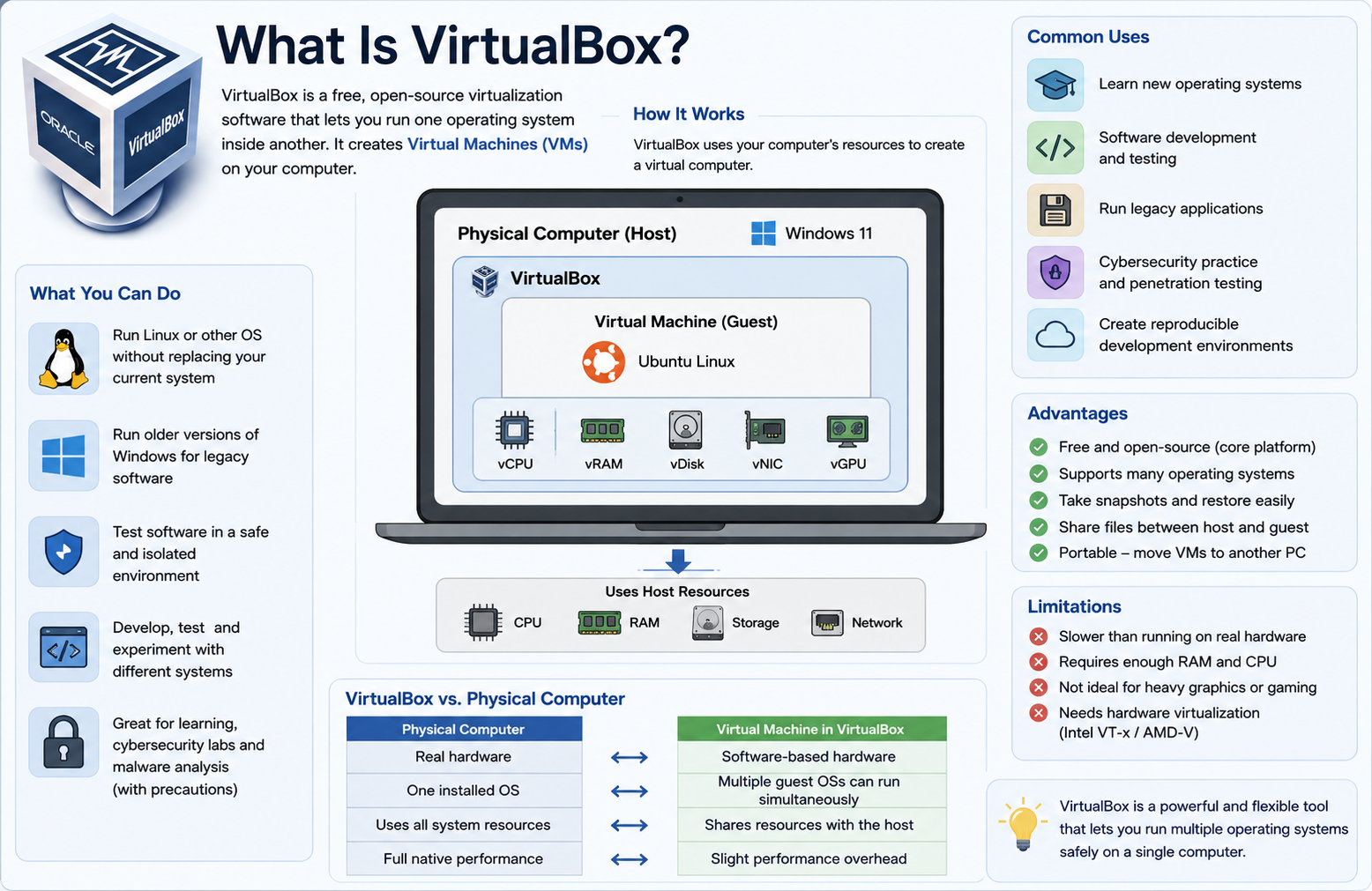
Introduction
Imagine running Windows, Linux, and macOS all on the same computer at exactly the same time, switching between them in seconds without rebooting or buying additional hardware. That is precisely what VirtualBox makes possible. What is VirtualBox, exactly? It is a free, open-source virtualization software application developed by Oracle Corporation that allows you to run multiple operating systems simultaneously on a single physical machine.
Virtualization technology was once reserved for large enterprise data centers and highly specialized IT professionals. Today, however, VirtualBox has brought that power to everyday users, students, developers, and home lab enthusiasts around the world. Whether you want to safely test software, learn Linux without touching your main system, set up a cybersecurity lab, or simply run a legacy application that only works on an older operating system, VirtualBox gives you a practical and completely free way to do all of it.
In this comprehensive guide, we cover everything you need to know about VirtualBox in 2026, from how it works and what it can do, to step-by-step installation instructions and a head-to-head comparison with its main competitors.
Quick Answer (Featured Snippet)
VirtualBox is a free, open-source virtualization software developed by Oracle Corporation. It allows users to run multiple operating systems, called virtual machines, on a single physical computer simultaneously. VirtualBox supports Windows, macOS, Linux, and Solaris as host systems. It is widely used by students, developers, IT professionals, and cybersecurity researchers for testing, learning, and safe experimentation.
What Is VirtualBox?
Definition
VirtualBox is a type 2 hypervisor and cross-platform virtualization application that enables you to create and run virtual machines on your existing computer. A virtual machine is essentially a software-based computer that behaves exactly like a real physical machine. It has its own virtual CPU, memory, storage, network card, and other hardware components, all simulated by VirtualBox.
You install VirtualBox on your current computer just like any other application. From there, you can create as many virtual machines as your hardware resources allow. Each virtual machine runs independently and can have its own completely separate operating system and installed software.
A Brief History
VirtualBox was originally developed by a German software company called Innotek GmbH and first released in January 2007. Sun Microsystems acquired Innotek in 2008 and continued developing the product under the name Sun VirtualBox. Then in 2010, Oracle Corporation acquired Sun Microsystems and rebranded the software as Oracle VirtualBox, which is the name it carries today.
Despite multiple ownership changes, VirtualBox has always remained free and open-source under the GNU General Public License. Oracle continues to actively develop and maintain VirtualBox, releasing regular updates that add new features, improve performance, and expand hardware compatibility.
Oracle VirtualBox Overview
Oracle VirtualBox is available for Windows, macOS, Linux, and Solaris host operating systems. It supports a wide range of guest operating systems including virtually all versions of Windows, dozens of Linux distributions, FreeBSD, OpenBSD, Solaris, and even some older operating systems. This broad compatibility is one of the primary reasons VirtualBox has become the most widely used free virtualization platform in the world.
Why VirtualBox Is Popular
VirtualBox earns its popularity through a combination of qualities that no paid competitor fully matches in a free package. First, it is completely free with no feature restrictions on the core platform. Second, it supports an exceptionally wide range of host and guest operating systems. Third, its active development community and comprehensive documentation make it accessible even to complete beginners who have never used virtualization software before.
How Does VirtualBox Work?
Virtual Machines
A virtual machine is a self-contained computing environment created entirely in software. When you run a virtual machine in VirtualBox, your computer creates an isolated workspace that functions exactly like a separate physical computer. The virtual machine has its own simulated processor, RAM, hard disk, network adapter, and other hardware components.
Think of it this way. Your physical computer is like an apartment building, and each virtual machine is a completely separate apartment inside it. Each apartment has its own furniture, rules, and occupants, but they all share the same building infrastructure.
Hypervisor Explained
VirtualBox uses a technology called a hypervisor to manage virtual machines. A hypervisor is software that sits between the physical hardware and the virtual machines, allocating resources and managing how each virtual machine accesses the underlying hardware. VirtualBox specifically functions as a Type 2 hypervisor, meaning it runs on top of an existing operating system rather than directly on the hardware.
When you run a virtual machine, VirtualBox intercepts the guest operating system’s hardware requests and translates them into instructions that your real hardware can execute. This translation process happens so rapidly that the guest operating system typically cannot tell the difference between virtual and physical hardware.
Host and Guest Operating Systems
In VirtualBox terminology, two key terms define the relationship between your real computer and your virtual machines. The host operating system is the actual operating system installed on your physical computer, such as Windows 11 or Ubuntu Linux. The guest operating system is the operating system you install and run inside VirtualBox, such as running Ubuntu Linux inside a Windows 11 host.
Your host system maintains full control over the physical hardware at all times. The guest operating system operates within the boundaries that VirtualBox establishes, sharing the host’s resources according to the limits you configure for each virtual machine.
Virtual Hardware
VirtualBox presents a standardized set of virtual hardware to each guest operating system. This virtual hardware includes a virtual CPU with configurable core count, virtual RAM with a user-defined allocation, virtual hard disk drives stored as files on your host system, virtual network adapters supporting multiple connectivity modes, virtual USB controllers, virtual graphics adapters, and virtual audio devices.
Because the guest operating system interacts with standardized virtual hardware rather than your actual physical components, the same virtual machine image can run on completely different physical computers without any modifications.
Key Features of VirtualBox
VirtualBox delivers an impressive range of features that rival many commercial virtualization products. Here are more than 20 key features that make it stand out.
VirtualBox Features Table
| Feature | Description |
|---|---|
| Multi-OS Support | Runs Windows, Linux, macOS, Solaris, and more as guest systems |
| Snapshots | Saves the current state of a VM for instant rollback |
| Shared Folders | Transfers files between host and guest operating systems |
| USB Device Support | Connects USB devices directly to virtual machines |
| Clipboard Sharing | Copies and pastes text and files between host and guest |
| Drag and Drop | Moves files between host and guest with simple drag gestures |
| Guest Additions | Installs performance drivers for improved VM experience |
| Virtual Disk Management | Creates, resizes, and manages virtual hard disk files |
| Multiple Networking Modes | Supports NAT, Bridged, Host-Only, and Internal networking |
| Encryption | Encrypts virtual machine disks for data security |
| Teleportation | Moves running VMs between hosts without shutdown |
| Remote Display Protocol | Accesses virtual machines remotely over a network |
| Seamless Mode | Integrates guest application windows into the host desktop |
| Scaled Display | Adjusts VM display resolution to any window size |
| Virtual CPU Control | Allocates multiple CPU cores to individual virtual machines |
| RAM Allocation | Sets specific memory limits for each virtual machine |
| 3D Acceleration | Enables limited 3D graphics support in guest systems |
| Command-Line Interface | Manages VMs through VBoxManage for automation and scripting |
| OVF/OVA Support | Imports and exports virtual machines in standard formats |
| Guest OS Auto-Detection | Automatically suggests optimal settings during VM creation |
| Audio Virtualization | Routes audio between host and guest operating systems |
| PAE and NX Support | Enables advanced processor features for compatible guests |
Benefits of VirtualBox
Using VirtualBox provides a wide range of practical advantages for users across every skill level and use case.
VirtualBox Benefits Checklist
| Benefit | Description |
|---|---|
| Completely Free | No cost, no license fees, no feature restrictions on core software |
| Open Source | Community-driven development with full source code transparency |
| Cross-Platform | Runs on Windows, macOS, Linux, and Solaris hosts |
| Risk-Free Experimentation | Tests software and configurations without affecting your main system |
| Multiple OS Access | Runs Windows, Linux, macOS, and others simultaneously |
| Snapshot Protection | Instantly reverts to a clean state after testing or errors |
| Cost Savings | Eliminates the need to buy additional physical computers |
| Isolated Environments | Keeps each virtual machine completely separate for security |
| Educational Value | Provides hands-on learning for IT, networking, and cybersecurity |
| Software Compatibility | Runs legacy applications that no longer work on modern systems |
| Development Flexibility | Creates consistent development environments across team members |
| Easy Backup | Copies entire virtual machines as single files for reliable backup |
| Portability | Moves virtual machines between computers quickly and easily |
| Hardware Independence | Runs the same VM on different physical machines without modification |
| No Dual Boot Required | Eliminates the need to partition disks for multiple operating systems |
| Active Community | Benefits from a large, helpful user community and extensive documentation |
| Regular Updates | Receives consistent feature improvements and security patches |
| Scalability | Supports running multiple virtual machines simultaneously |
| Lab Environments | Creates complex multi-machine network labs on one computer |
| No Internet Required | Sets up and uses virtual machines fully offline after installation |
What Can You Use VirtualBox For?
VirtualBox serves an extraordinarily wide range of practical purposes across personal, educational, and professional contexts.
Software Testing: Developers and quality assurance engineers use VirtualBox to test applications across different operating system versions without maintaining a collection of physical test machines. For example, a developer can run Windows 7, Windows 10, and Windows 11 virtual machines simultaneously to verify their application works correctly on each version.
Learning Linux: VirtualBox is one of the most popular ways for Windows users to start learning Linux without any risk to their existing system. You can install Ubuntu, Fedora, Debian, or any other Linux distribution inside VirtualBox and experiment freely. If something breaks, simply restore a snapshot and start fresh.
Running Older Operating Systems: Many businesses and individuals still need to run software designed for Windows XP or Windows 7 that simply will not work on modern operating systems. VirtualBox allows you to keep those older systems running in an isolated environment on your current hardware.
Web Development: Web developers use VirtualBox to create isolated development environments that exactly replicate production server configurations. A developer working on Windows can run a Linux-based Apache web server inside VirtualBox, ensuring their code behaves exactly as it will in the live production environment.
Cybersecurity Labs: Security researchers and students use VirtualBox to build isolated network labs for practicing ethical hacking, penetration testing, and malware analysis. Tools like Kali Linux, Parrot OS, and Metasploitable are commonly run inside VirtualBox because the isolated environment prevents any potentially dangerous software from escaping to the host system.
Student Projects: IT students use VirtualBox to complete coursework involving server administration, networking, and operating system configuration. VirtualBox makes it possible to simulate enterprise-level environments on a standard student laptop.
IT Training: Corporate IT trainers use VirtualBox to create standardized training environments that all participants can replicate on their own machines. This ensures every learner has an identical starting configuration for hands-on exercises.
Safe Experimentation: Anyone curious about technology can use VirtualBox to explore operating systems, try new software, and experiment with system configurations without any risk of permanently damaging their primary computer.
How to Install VirtualBox
Installing VirtualBox is a straightforward process that most users complete in under 15 minutes. Follow these steps carefully to get your virtualization environment up and running.
System Requirements
Before downloading VirtualBox, make sure your computer meets the minimum hardware requirements for running virtual machines effectively.
- Processor: A 64-bit processor with hardware virtualization support (Intel VT-x or AMD-V). This feature must be enabled in your BIOS or UEFI settings.
- RAM: A minimum of 4 GB for the host system. However, 8 GB or more is strongly recommended to run virtual machines alongside your host workload comfortably.
- Storage: At least 10 GB of free disk space for VirtualBox itself. Each virtual machine requires additional disk space depending on the guest operating system, typically 20 to 80 GB per VM.
- Operating System: Windows 10 or later, macOS 10.15 Catalina or later, or a modern Linux distribution with a supported kernel version.
- Display: Any standard display with 1024 x 768 resolution or higher.
VirtualBox Installation Checklist
| Step | Task | Status |
|---|---|---|
| 1 | Verify processor supports virtualization (VT-x / AMD-V) | Check before downloading |
| 2 | Enable virtualization in BIOS or UEFI settings | Required for VM performance |
| 3 | Ensure sufficient RAM (8 GB or more recommended) | Check system specs |
| 4 | Confirm available disk space (20 GB minimum free) | Check storage capacity |
| 5 | Download VirtualBox from virtualbox.org | Use official source only |
| 6 | Download Extension Pack for USB 2.0 and 3.0 support | Optional but recommended |
| 7 | Run the installer with administrator privileges | Required for installation |
| 8 | Create your first virtual machine | After successful installation |
| 9 | Install Guest Additions in the guest OS | Improves VM performance |
| 10 | Take a snapshot before major changes | Best practice for safety |
Download VirtualBox
Always download VirtualBox from the official Oracle VirtualBox website at virtualbox.org to ensure you receive the legitimate, malware-free version. Navigate to the Downloads section and select the installer package for your host operating system. Also download the VirtualBox Extension Pack from the same page, as it adds important functionality including USB 2.0 and 3.0 support, VirtualBox Remote Desktop Protocol access, and NVMe disk controller support.
Install on Windows
Once you have downloaded the Windows installer file, right-click it and select Run as Administrator to begin the installation process. The installer will walk you through several screens where you can choose the installation directory and select which components to install. Accept the default settings unless you have specific reasons to change them.
During installation, Windows may display a warning about network interface installation because VirtualBox installs virtual network adapters on your system. Accept this prompt to continue. After the installation completes, launch VirtualBox from the Start menu. Then install the Extension Pack by going to File, Tools, Extension Pack Manager, and clicking Install.
Install on macOS
On macOS, open the downloaded DMG file and double-click the VirtualBox installer package. Follow the on-screen installation prompts, entering your administrator password when requested. macOS security settings may initially block the installation because VirtualBox requires kernel extensions to function. If this occurs, navigate to System Settings, Privacy and Security, and click Allow for the Oracle VirtualBox kernel extension. Restart your Mac after installation completes, then install the Extension Pack through the VirtualBox application’s Extension Pack Manager.
Install on Linux
On Ubuntu and Debian-based Linux distributions, open a terminal and add the Oracle VirtualBox repository to your system’s software sources. Then import Oracle’s public signing key and run the installation command using the APT package manager. For RPM-based distributions like Fedora or CentOS, download the appropriate RPM package from virtualbox.org and install it using the DNF or YUM package manager. After installation, add your user account to the vboxusers group to enable USB device access inside virtual machines.
Install Guest Additions
VirtualBox Guest Additions is a package of special drivers and software that you install inside the guest operating system, not on your host. Guest Additions dramatically improves virtual machine performance and usability by enabling seamless mouse integration, automatic display resolution adjustment, shared clipboard functionality, drag-and-drop file transfer, and shared folder access.
To install Guest Additions, start your virtual machine and log in to the guest operating system. From the VirtualBox menu at the top of the VM window, click Devices and then select Insert Guest Additions CD Image. This mounts a virtual CD containing the installer. Open the CD drive inside your guest OS and run the appropriate installer for that system. Restart the virtual machine after installation to activate all Guest Additions features.
Create Your First Virtual Machine
Creating your first virtual machine in VirtualBox is a guided process. Open VirtualBox and click the New button in the toolbar. Enter a descriptive name for your virtual machine and select the type and version of operating system you plan to install. VirtualBox will use this information to recommend appropriate default settings.
Next, allocate RAM for your virtual machine, keeping in mind that the memory you assign will be temporarily borrowed from your host system while the VM is running. Then create a virtual hard disk by choosing the VDI format with the dynamically allocated option, which means the virtual disk file grows only as large as the data you actually store inside it.
After creating the VM configuration, attach your operating system installation media by going to Settings, Storage, and clicking the optical drive icon to browse for an ISO file. Finally, click Start to boot your virtual machine and proceed with the operating system installation exactly as you would on a physical computer.
VirtualBox vs VMware
VirtualBox and VMware are the two most widely discussed virtualization platforms for desktop users. Each has genuine strengths, and the right choice depends heavily on your use case, budget, and technical needs.
VirtualBox vs VMware Comparison Table
| Feature | Oracle VirtualBox | VMware Workstation Pro |
|---|---|---|
| Price | Free and open-source | Paid (free personal use tier available) |
| Performance | Good for most tasks | Generally superior performance |
| Ease of Use | Beginner-friendly | Slightly more complex interface |
| Snapshot Support | Yes, multiple snapshots | Yes, with advanced snapshot management |
| 3D Graphics | Limited support | Better 3D acceleration support |
| USB Support | USB 1.1, 2.0, 3.0 (Extension Pack) | USB 1.1, 2.0, 3.0 natively |
| Networking | NAT, Bridged, Host-Only, Internal | NAT, Bridged, Host-Only, Custom |
| Guest OS Support | Very wide range | Very wide range |
| Cross-Platform Host | Windows, macOS, Linux, Solaris | Windows, Linux (macOS limited) |
| Virtual Machine Encryption | Yes | Yes |
| Shared Folders | Yes (Guest Additions required) | Yes |
| Remote Access | VirtualBox Remote Display | VMware Remote Console |
| Community Support | Large open-source community | Strong commercial support |
| Best For | Students, beginners, general use | IT professionals, developers, enterprise |
Overall, VirtualBox is the better choice for students, home users, and anyone who needs a capable virtualization platform without spending money. VMware Workstation Pro offers superior performance and more polished enterprise features for professionals who need the extra capability and have the budget to pay for it.
VirtualBox vs Hyper-V
Microsoft Hyper-V is a Type 1 hypervisor built directly into Windows 10 and Windows 11 Pro, Enterprise, and Education editions. Unlike VirtualBox, Hyper-V runs directly on the hardware rather than on top of the host operating system, which gives it a fundamentally different architecture and performance profile.
VirtualBox vs Hyper-V Comparison Table
| Feature | Oracle VirtualBox | Microsoft Hyper-V |
|---|---|---|
| Type | Type 2 Hypervisor | Type 1 Hypervisor |
| Cost | Free | Free (included with Windows Pro) |
| Host OS Compatibility | Windows, macOS, Linux, Solaris | Windows only |
| Performance | Good | Excellent for supported guests |
| Ease of Use | More user-friendly | More complex for beginners |
| macOS Guest Support | Limited | Very limited |
| Linux Guest Support | Excellent | Good with integration services |
| GUI Interface | Fully featured GUI | Basic GUI, better through PowerShell |
| Snapshot Support | Yes | Yes |
| Shared Clipboard | Yes (Guest Additions) | Yes (Enhanced Session Mode) |
| 3D Graphics | Limited | Limited |
| Best For | Cross-platform users, beginners | Windows Server, enterprise IT |
| Conflict with VirtualBox | Can conflict with VirtualBox when enabled | Disabling required to run VirtualBox at full speed |
One important practical consideration is that enabling Hyper-V on Windows can significantly reduce VirtualBox performance because VirtualBox then runs as a guest on top of Hyper-V rather than accessing hardware directly. Users who primarily use VirtualBox should consider keeping Hyper-V disabled for the best experience.
Common VirtualBox Problems and Solutions
Even experienced VirtualBox users encounter occasional issues. Here are the most common problems and how to fix them effectively.
VirtualBox Not Starting
If VirtualBox fails to launch or displays an error about missing kernel drivers, the most common cause is a disabled or unsupported virtualization extension. First, restart your computer and enter the BIOS or UEFI settings. Locate the Intel VT-x or AMD-V setting under the CPU or advanced configuration menu and enable it. Save your BIOS settings and restart. On Windows, also check that Hyper-V is disabled if you want VirtualBox to run at full performance.
Low Virtual Machine Performance
Poor performance inside a virtual machine usually results from insufficient resource allocation or the absence of Guest Additions. First, ensure Guest Additions is installed and up to date inside your guest operating system. Next, verify that you have allocated at least 2 CPU cores and adequate RAM to the virtual machine. Also confirm that hardware virtualization is enabled in your BIOS. Running VirtualBox from an SSD rather than a traditional spinning hard drive provides a dramatic performance improvement for virtual disk operations.
USB Devices Not Working
USB support in VirtualBox requires the Extension Pack to be installed on the host and the VirtualBox USB filter to be configured for your specific device. Install the Extension Pack from the official VirtualBox website, then go to your virtual machine settings, select USB, and click the plus icon to add a USB device filter for your device. Also ensure your user account is a member of the vboxusers group on Linux hosts.
Network Connectivity Issues
If your virtual machine cannot connect to the internet or local network, first check the networking mode in the VM settings. NAT mode is the simplest and works for basic internet access. Bridged Adapter mode connects the VM directly to your local network as an independent device. If NAT is not working, try switching to Bridged mode. Also verify that your host machine’s firewall or security software is not blocking VirtualBox network traffic.
Guest Additions Problems
If Guest Additions fails to install or stops working after a VirtualBox update, uninstall the existing version from inside the guest operating system and reinstall the version that matches your current VirtualBox installation. On Linux guests, ensure the required kernel headers and build tools are installed before attempting Guest Additions installation.
Display Resolution Problems
If your virtual machine is stuck at a low resolution and cannot be adjusted, Guest Additions is either not installed or not functioning correctly. Install or reinstall Guest Additions and restart the virtual machine. You can then adjust the display resolution through the guest operating system’s normal display settings, and it will scale dynamically as you resize the VirtualBox window.
VirtualBox Best Practices
Following proven best practices helps you get the most out of VirtualBox while avoiding common pitfalls.
- Enable hardware virtualization in BIOS first. Always verify that Intel VT-x or AMD-V is enabled before installing VirtualBox to ensure full performance and compatibility.
- Allocate RAM wisely. Never assign more than 50 percent of your host’s total RAM to virtual machines running simultaneously. Doing so leaves adequate resources for your host operating system to remain stable.
- Install Guest Additions immediately. Always install Guest Additions right after completing the guest OS installation to unlock full performance, shared clipboard, and seamless mouse integration.
- Keep Guest Additions updated. Update Guest Additions whenever you update VirtualBox itself to prevent version mismatch issues that can cause reduced functionality.
- Take snapshots before major changes. Always create a snapshot before installing new software, changing system settings, or testing unknown code inside a virtual machine.
- Store virtual machines on an SSD. Virtual disk performance improves dramatically on solid-state drives compared to traditional spinning hard drives.
- Update VirtualBox regularly. Install VirtualBox updates promptly to benefit from security patches, bug fixes, and new features.
- Back up your virtual machines. Copy your VDI or VMDK virtual disk files to an external drive or cloud storage regularly to protect against hardware failure.
- Use dynamic disk allocation for new VMs. Dynamic disks grow only as needed rather than consuming the full allocated size immediately, saving valuable storage space.
- Set appropriate CPU core limits. Assign virtual machines only as many CPU cores as they genuinely need. Over-allocating CPUs can cause scheduling conflicts and reduce overall system performance.
- Disable unnecessary virtual hardware. Disable USB controllers, sound cards, and other hardware components that your virtual machine does not actually need, as this reduces overhead.
- Use Host-Only networking for security labs. When running cybersecurity exercises with potentially dangerous software, use Host-Only networking to prevent the virtual machine from reaching the real internet or your local network.
- Name virtual machines descriptively. Use clear, consistent naming conventions for virtual machines to easily identify their purpose, operating system, and configuration.
- Compress virtual disk images periodically. Use the VirtualBox disk management tool to compact dynamically allocated disks after deleting large amounts of guest data to recover wasted space.
- Monitor host resource usage. Watch your host computer’s RAM, CPU, and disk usage when running virtual machines and adjust allocations if the host becomes sluggish.
- Use shared folders carefully. Be cautious about which host folders you share with virtual machines, particularly when testing potentially malicious software inside the VM.
- Export important VMs in OVA format. Exporting virtual machines as OVA files creates portable backups that can be imported on any VirtualBox or VMware installation.
- Test internet connectivity in NAT mode first. When setting up a new VM, start with NAT networking for the simplest internet access before switching to more complex networking modes.
- Document your virtual machine configurations. Keep notes on each VM’s allocated resources, installed software, network settings, and purpose for easier management over time.
- Shutdown virtual machines gracefully. Always shut down guest operating systems properly through the operating system menu rather than using the VirtualBox power-off button to prevent disk corruption.
Frequently Asked Questions
What is VirtualBox?
VirtualBox is a free, open-source virtualization application developed by Oracle Corporation. It allows users to create and run virtual machines, which are software-based computers, on a single physical machine. VirtualBox supports a wide range of guest operating systems including Windows, Linux, macOS, and others, making it one of the most versatile virtualization tools available.
Is VirtualBox free?
Yes, Oracle VirtualBox is completely free for personal and educational use. The core VirtualBox application is open-source software released under the GNU General Public License. The VirtualBox Extension Pack, which adds USB 2.0 and 3.0 support and remote display functionality, is also free for personal use but requires a commercial license for enterprise deployments.
Who owns VirtualBox?
Oracle Corporation currently owns and maintains VirtualBox. Oracle acquired the software in 2010 when it purchased Sun Microsystems, which had previously acquired the original developer Innotek GmbH in 2008. Oracle continues to actively develop VirtualBox and release regular updates.
Can VirtualBox run Windows 11?
Yes, VirtualBox can run Windows 11 as a guest operating system, though it requires specific configuration to meet Windows 11’s TPM 2.0 and Secure Boot requirements. VirtualBox 7.0 and later versions include a virtual TPM 2.0 module that satisfies this requirement. You need to enable the virtual TPM, enable EFI boot, and allocate at least 4 GB of RAM to the virtual machine for Windows 11 to install and run correctly.
Can VirtualBox run Linux?
Yes, VirtualBox runs Linux guest operating systems exceptionally well. Popular Linux distributions including Ubuntu, Debian, Fedora, CentOS, Kali Linux, Arch Linux, and many others install and run smoothly inside VirtualBox. Linux guests typically perform very well with Guest Additions installed, and most Linux distributions include strong built-in support for VirtualBox’s virtual hardware.
Is VirtualBox safe?
VirtualBox itself is safe software from a reputable source, provided you download it from the official Oracle website at virtualbox.org. However, the safety of what you do inside VirtualBox depends on your practices. Running malware inside a virtual machine for research is generally safe because the VM provides an isolated environment. However, some sophisticated malware can detect virtualization and attempt to escape, so always use Host-Only networking when working with potentially dangerous software.
VirtualBox vs VMware?
VirtualBox is free and excellent for students, beginners, and general users who need a capable virtualization platform without cost. VMware Workstation Pro offers better performance, stronger 3D graphics support, and more polished enterprise features but costs money for professional use. For most everyday virtualization tasks, VirtualBox provides more than sufficient capability at no cost.
Does VirtualBox slow down my PC?
VirtualBox itself uses minimal resources when no virtual machines are running. When a virtual machine is active, it consumes the RAM and CPU cores you have allocated to it, which can slow down your host system if you allocate too much. Following the best practice of allocating no more than 50 percent of your total RAM to running virtual machines simultaneously prevents noticeable host slowdown for most users.
How much RAM should I allocate to a virtual machine?
RAM allocation depends on the guest operating system and its workload. As a general guideline, allocate at least 1 GB for lightweight Linux distributions, 2 to 4 GB for standard Linux desktop installations, 4 GB for Windows 10 or Windows 11 basic use, and 8 GB or more for Windows VMs running resource-intensive applications. Never allocate more than half of your host system’s total RAM to avoid degrading your host performance.
What are Guest Additions?
Guest Additions is a software package that you install inside the guest operating system to improve the virtual machine experience. It provides optimized graphics drivers for automatic resolution scaling, a seamless mouse cursor that moves between host and guest without pressing a special key, shared clipboard for copying and pasting between host and guest, drag-and-drop file transfer, and the ability to mount shared folders from the host. Guest Additions is essential for a comfortable virtual machine experience and should be installed immediately after creating a new VM.
Can I run macOS in VirtualBox?
Running macOS as a guest in VirtualBox is technically possible but legally restricted. Apple’s macOS license agreement permits running macOS only on Apple-branded hardware. Additionally, macOS requires significant manual configuration to run inside VirtualBox on non-Apple hardware, and performance and compatibility are limited compared to native installation. For legal and practical reasons, most users are better served by running macOS on actual Apple hardware or using the built-in Virtualization framework on Apple Silicon Macs.
What is a virtual machine?
A virtual machine is a software-based simulation of a complete computer system. It has its own virtual processor, memory, storage, and network adapter, all provided by the virtualization software. The virtual machine runs its own operating system and applications completely independently from the host computer. Multiple virtual machines can run simultaneously on a single physical computer, each in complete isolation from the others.
Does VirtualBox require an internet connection?
VirtualBox does not require an internet connection to install or use virtual machines once everything is set up. However, you need an internet connection to download VirtualBox itself, download guest operating system ISO files, install Guest Additions from the internet, and keep VirtualBox updated. Once your virtual machines are configured, you can use them entirely offline if your workflow does not require internet connectivity inside the guest.
Can beginners use VirtualBox?
Absolutely, VirtualBox is one of the most beginner-friendly virtualization tools available. Its graphical setup wizard guides new users through creating virtual machines step by step. The extensive official documentation, active community forums, and vast library of online tutorials make it easy for complete beginners to get their first virtual machine running in under an hour. Many IT courses and university programs specifically recommend VirtualBox to students precisely because of its accessibility.
Is VirtualBox worth using in 2026?
VirtualBox remains highly relevant and valuable in 2026. It continues to receive active development from Oracle, supports modern operating systems including Windows 11 and the latest Linux distributions, and offers features like virtual TPM 2.0, NVMe disk support, and improved performance that keep it competitive. For anyone who needs free, flexible, and capable virtualization software for learning, development, testing, or experimentation, VirtualBox is absolutely worth using.
People Also Ask
What is VirtualBox?
VirtualBox is a free, open-source virtualization application developed by Oracle Corporation that allows users to run multiple operating systems simultaneously on a single physical computer by creating isolated software-based virtual machines.
Is VirtualBox free?
Yes, Oracle VirtualBox is completely free for personal and educational use. The core application is open-source under the GNU General Public License, with no feature restrictions on the base platform.
What is Oracle VirtualBox?
Oracle VirtualBox is the current name for the VirtualBox virtualization application, reflecting its ownership by Oracle Corporation since 2010. It is the same widely used, free, open-source platform for creating and managing virtual machines on Windows, macOS, Linux, and Solaris hosts.
How does VirtualBox work?
VirtualBox functions as a Type 2 hypervisor that runs on top of your existing operating system. It intercepts virtual machine hardware requests and translates them into instructions for your physical hardware, creating isolated computing environments where separate operating systems run independently.
Can VirtualBox run Windows 11?
Yes, VirtualBox 7.0 and later can run Windows 11 by providing a virtual TPM 2.0 module and EFI boot support that meet Microsoft’s installation requirements. You need at least 4 GB of RAM allocated to the virtual machine.
VirtualBox vs VMware?
VirtualBox is free and ideal for students and general users, while VMware Workstation Pro offers superior performance and enterprise features at a cost. For most everyday virtualization needs, VirtualBox provides excellent capability without any expense.
Is VirtualBox safe?
VirtualBox downloaded from the official Oracle website is safe and reputable software. The isolated nature of virtual machines also provides a safe environment for testing software without risking your host system.
What is a virtual machine?
A virtual machine is a complete software-based computer that runs its own operating system and applications in isolation from the host system, using virtual hardware resources provided by the hypervisor.
Can beginners use VirtualBox?
Yes, VirtualBox is very beginner-friendly with a guided setup wizard, clear interface, and extensive documentation and community support that make it accessible to users with no prior virtualization experience.
What are VirtualBox Guest Additions?
Guest Additions is a software package installed inside the guest operating system that enables automatic display resolution adjustment, seamless mouse integration, shared clipboard, drag-and-drop file transfer, and shared folder access between host and guest.
Final Thoughts
Oracle VirtualBox continues to stand as one of the most capable, accessible, and genuinely useful free software tools available to anyone working with computers in 2026. Whether you are a complete beginner eager to explore Linux for the first time, a developer who needs consistent cross-platform testing environments, a cybersecurity student building a home lab, or an IT professional managing complex virtualized infrastructure, VirtualBox delivers real value at absolutely no cost.
Understanding what VirtualBox is and how to use it effectively opens up an entirely new dimension of computing possibilities. You can experiment freely, learn without risk, run legacy software indefinitely, and build sophisticated multi-machine environments all on the same laptop or desktop you already own. The combination of broad operating system support, a rich feature set, active ongoing development, and a massive global user community ensures that VirtualBox will remain the go-to free virtualization platform for years ahead.
If you have never tried VirtualBox before, there has never been a better time to download it, create your first virtual machine, and discover just how much more your existing hardware can do. The learning curve is gentler than most people expect, and the rewards in knowledge, flexibility, and productivity are substantial.
References
- Oracle Corporation. (2026). Oracle VM VirtualBox Official Website. https://www.virtualbox.org
- Oracle Corporation. (2026). Oracle VM VirtualBox Documentation. https://docs.oracle.com
- Microsoft. (2026). Microsoft Learn – Windows Virtualization Documentation. https://learn.microsoft.com
- Canonical Ltd. (2026). Ubuntu Official Website. https://ubuntu.com
Technology Disclaimer
This article is for educational and informational purposes only. Oracle VirtualBox, Oracle VM VirtualBox, and all related product names mentioned in this article are trademarks of Oracle Corporation. VMware and VMware Workstation are trademarks of VMware, Inc. Microsoft, Windows, Hyper-V, and related product names are trademarks of Microsoft Corporation. Features, compatibility, system requirements, licensing terms, and availability described in this article are based on information available at the time of writing and may change over time without notice. Always download VirtualBox exclusively from the official Oracle website at virtualbox.org to ensure you receive legitimate and safe software. TechOriginHub is not affiliated with or endorsed by Oracle Corporation, VMware, Inc., or Microsoft Corporation.