
 By Saad Qureshi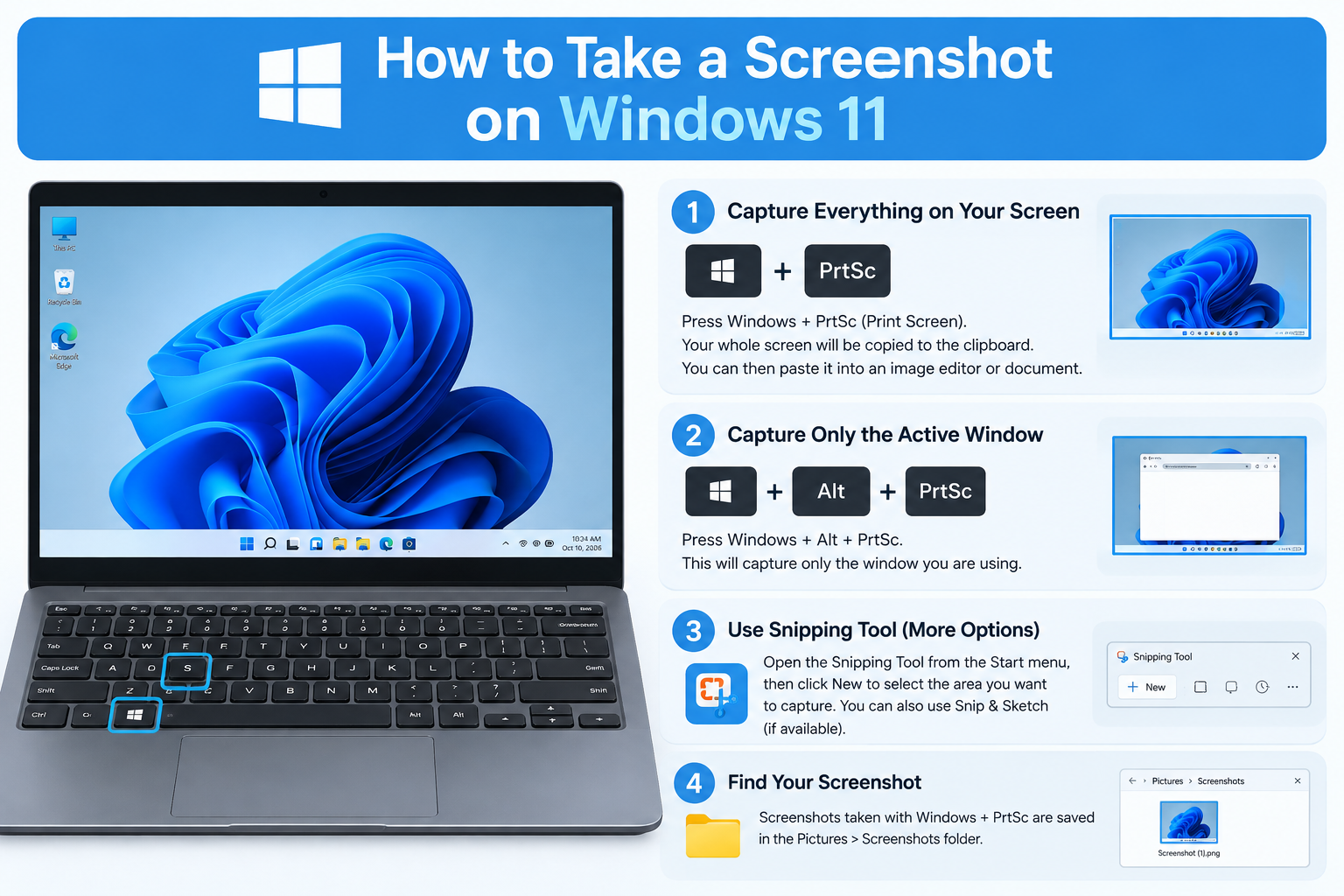
You need to capture a webinar slide, a work receipt, or a software bug before it disappears. Windows 11 has several built-in ways to do it, and each one saves the image in a different place. This guide shows how to take a screenshot on Windows 11 with each method, and where to find the file afterward.
Quick Info: The 3-Second Shortcut Checklist
- Windows + Shift + S opens the Snipping Tool overlay so you can capture part of the screen.
- Windows + PrtScn captures the whole screen and saves it in your Pictures > Screenshots folder, according to Microsoft’s screenshot article.
- PrtScn captures the whole screen to the clipboard, and you paste it with Ctrl + V.
- Alt + PrtScn captures only the active window to the clipboard.
- Windows + Alt + PrtScn captures a game or app through the Xbox Game Bar.
- On a laptop without a PrtScn key, Microsoft says you may use Fn + Windows + Space Bar.
Key Takeaways
- Each method saves to a different place. Some go to the clipboard, some to Pictures > Screenshots, and Game Bar captures go to Videos > Captures.
- The Snipping Tool is the most flexible method. Microsoft lists Rectangle, Window, Full screen, and Freeform snip modes, plus a video snip.
- A missing PrtScn key has a workaround. Microsoft’s article gives Fn + Windows + Space Bar for devices without the key, and some keyboards need the Fn key held.
- OneDrive backup depends on your Pictures folder. Microsoft says the old “Save screenshots to OneDrive” setting is gone, and screenshots are backed up only if your Pictures folder is part of OneDrive.
- Video clips are covered too. Microsoft’s Snipping Tool page lists Windows + Shift + R for a video clip.
How This Guide Was Verified
We verified every shortcut and path in this guide against the Microsoft documentation we could access, and we label anything else as general knowledge or a report from another site.
Specifically, we checked Microsoft’s Snipping Tool article, Microsoft’s article on taking screenshots, Microsoft’s article on copying the window or screen contents, Microsoft’s article on saving screenshots to OneDrive, and Microsoft’s Xbox Game Bar article. We also used reports from Windows Central and Thurrott for details Microsoft’s pages did not cover, and we say so where we do.
This guide compiles documentation. It does not include results from our own testing on your device, and Windows builds differ. Using only built-in tools keeps you away from third-party screenshot programs, some of which bundle adware.
Windows 11 Capture Methods: Operational Matrix
| What You Want to Capture | The Best Keyboard Shortcut Combo | Where the File Is Saved |
|---|---|---|
| A custom cropped area of the screen | Windows + Shift + S | Microsoft says a snip is saved to your Screenshots folder, and you can also copy it with Ctrl + C |
| An instant full-screen image file | Windows + PrtScn | Pictures > Screenshots |
| Only the active application window | Alt + PrtScn | The clipboard, so paste it with Ctrl + V |
| A game or app through the overlay | Windows + Alt + PrtScn | Videos > Captures |
1. Snipping Tool Configuration and Capture Modes
The Snipping Tool is the most flexible built-in option. You can use it from the keyboard or open it from the Start menu.
Open the Overlay
- Press Windows + Shift + S.
- Wait for the Snipping Tool overlay to appear.
- Choose a capture mode from the bar.
- Drag or click to capture.
Microsoft’s article says this opens the snipping tool overlay to capture an image snapshot.
The Four Capture Modes
Microsoft’s article lists these modes in the Snipping Tool.
- Rectangle: drag a box around the area you want.
- Window: click a window to capture it.
- Full screen: capture everything on the display.
- Freeform: draw any shape around the area.
Microsoft’s table also lists a video snip, which you open with Windows + Shift + R.
What Happens After You Capture
Microsoft says a snip is automatically copied to the Snipping Tool window, where you can edit, save, and share it. It also says the snip is automatically saved to your Screenshots folder, and you can change this under See More > Settings. Pressing Ctrl + C copies the snip to the clipboard.
Some older guides say Windows + Shift + S only copies to the clipboard. Behavior can depend on your Snipping Tool version, so check your own Screenshots folder after the first capture. Microsoft’s page does not mention a notification, so do not rely on one.
Handy In-App Shortcuts
Microsoft lists these shortcuts inside the Snipping Tool.
- Alt + M chooses the snipping mode.
- Alt + N starts a new snip in the last mode.
- Alt + D sets a delay of 1 to 5 seconds.
- Ctrl + S saves.
The delay is useful for menus that close when you press a key.
If Screenshots Make the Computer Freeze
A computer that locks up while you capture or copy files has a different problem. Our guide on Why Does My Laptop Keep Freezing? how to check the system log and test memory and the drive.
2. Remapping the Print Screen Key
You can make the PrtScn key open the Snipping Tool instead of capturing the whole screen. This saves a step if you use the Snipping Tool often.
Find the Setting
- Open Settings.
- Select Accessibility, then Keyboard.
- Find the toggle for the Print screen key and turn it on.
A Windows Central article gives the label as “Use the Print screen key to open Snipping Tool,” and says that on its testing the setting was off by default. It adds that Microsoft planned to turn it on for everyone, so your device may already have it on. The label may differ by Windows build, and we did not find the setting on a Microsoft support page.
What It Changes
With the toggle on, a single press of PrtScn opens the Snipping Tool overlay. Switching it off restores the classic behavior, where PrtScn copies the full screen to the clipboard. Microsoft’s article says that classic press places a static image of your entire screen on the clipboard.
If You Have No PrtScn Key
Some compact keyboards leave out the PrtScn key. Microsoft says that on devices without the button, you may use Fn + Windows + Space Bar to take a screenshot.
Some laptops also need the Fn key held, or Fn Lock turned off, to use a shared key. Check your maker’s keyboard guide, because layouts differ.
Capture Only the Active Window
Click the window you want, then press Alt + PrtScn. Microsoft says this copies the active window to the clipboard, and you paste it with Ctrl + V into an app. It does not save a file by itself.
Slow System During Capture
If a capture takes a long time to appear, the system may be busy. Our guide on Why Is My Laptop Slow? explains how to find apps that use too much CPU, memory, or disk.
You can also read Microsoft’s official Windows performance support page for basic Windows health checks.
3. Automatic Full-Screen Saves in the Pictures Folder
Windows + PrtScn is the fastest way to get a file without pasting.
Take the Capture
- Press Windows + PrtScn.
- Wait a moment for the capture to finish.
- Open File Explorer and go to Pictures > Screenshots.
Microsoft’s article says that, depending on your hardware, you may use the Windows logo key and PrtScn as a shortcut for print screen. It says the screenshot goes to the Screenshots folder inside Pictures. We did not find a Microsoft page that describes a screen flash, so do not rely on one as a sign it worked.
The Folder Path
On most systems the path is This PC > Pictures > Screenshots. The folder is created the first time you use the shortcut. If you cannot find it, search File Explorer for “Screenshots.”
Screenshots and OneDrive
Microsoft says the “Save screenshots to OneDrive” setting has been removed from OneDrive settings. It says screenshots are backed up only if your Pictures folder is part of OneDrive. If you rely on OneDrive, confirm that the Pictures folder is included.
If your cloud storage is full, syncing may stop, which is general knowledge, not a quote from Microsoft. Check your storage space if files do not appear on other devices.
Resolution and Clarity
A screenshot captures your screen at its current display settings. Our guide How to Speed Up a Laptop covers general tuning, though we found no source that links it to screenshot clarity. For sharp images, check your display settings under Settings > System > Display.
Power and Battery
We found no source that links power plans to screenshots. If your laptop dims, shuts off, or acts strangely on battery, read Why Is My Laptop Not Charging? to check the adapter and battery.
A Note for Mac Users
Mac steps are different. For general Mac health checks, see Apple’s official Mac optimization guidelines. That page covers storage, memory use, and Disk Utility, not screenshots.
4. Xbox Game Bar Captures for Games and Apps
The Xbox Game Bar can capture a game or an app, and it saves to a different folder than the other methods.
Take the Capture
- Open the game or app you want to capture.
- Press Windows + Alt + PrtScn.
- Open File Explorer and go to Videos > Captures.
Microsoft’s Game Bar article says that if you want a screenshot of your game or app, you press the Windows key, Alt, and Print Screen together. It says recordings are saved in a folder called Captures inside Videos, and screenshots go to the same folder as PNG files.
Use the Overlay
Press Windows + G to open the Game Bar controls. Thurrott says you can select the camera icon there to take a screenshot. The Game Bar may be turned off on some devices, so check Settings > Gaming.
Change the Save Location
Thurrott says you can change the folder under Settings > Gaming > Game DVR. That report covers an older Windows 10 version, so the menu may look different on Windows 11.
Record Instead
If you need a video, Microsoft lists a video snip in the Snipping Tool with Windows + Shift + R. Game Bar recordings are saved as MP4 files in the same Captures folder.
What Game Bar May Not Capture
Some apps and protected video may not appear in a capture. We did not find a Microsoft page that lists them, so test with your own app before an important capture.
Common Mistakes That Make Screenshots Fail or Disappear
- Forgetting to paste. PrtScn and Alt + PrtScn only copy to the clipboard, and a new copy replaces the old one.
- Looking in the wrong folder. Game Bar captures go to Videos, not Pictures.
- Holding the wrong Fn state. On some laptops, the PrtScn key needs Fn held or Fn Lock turned off.
- Assuming a Snipping Tool snip is saved. Microsoft says snips go to your Screenshots folder, but check your own device.
- Assuming OneDrive backs up screenshots. Microsoft says this works only if your Pictures folder is in OneDrive.
- Running out of cloud storage. Syncing may stop when your storage is full.
- Downloading third-party screenshot apps. Use the built-in tools, and be careful with downloads from unknown sites.
Frequently Asked Questions
How do I take a screenshot on Windows 11?
Press Windows + Shift + S for a selected area, or Windows + PrtScn for a full-screen file in Pictures > Screenshots.
Where do screenshots go on Windows 11?
Windows + PrtScn saves to Pictures > Screenshots, and Game Bar captures go to Videos > Captures. Print Screen and Alt + PrtScn copy to the clipboard.
How do I screenshot only one window?
Click the window and press Alt + PrtScn, then paste with Ctrl + V. You can also use the Window mode in the Snipping Tool.
Why is my Print Screen key not working?
Try the Fn key or Fn Lock, or use Fn + Windows + Space Bar as Microsoft describes. You can also use Windows + Shift + S instead.
Can I record a video of my screen?
Yes. Microsoft lists a video snip with Windows + Shift + R, and the Xbox Game Bar can record games and apps.
Disclaimer:
This article is for general educational and informational purposes only. It compiles official user interface workflows and optimization pathways from the support documentation of Microsoft. Technical pathways may vary based on your specific Windows 11 software build version, device manufacturer laptop keyboard designs, or enterprise security configurations.