
 By Saad Qureshi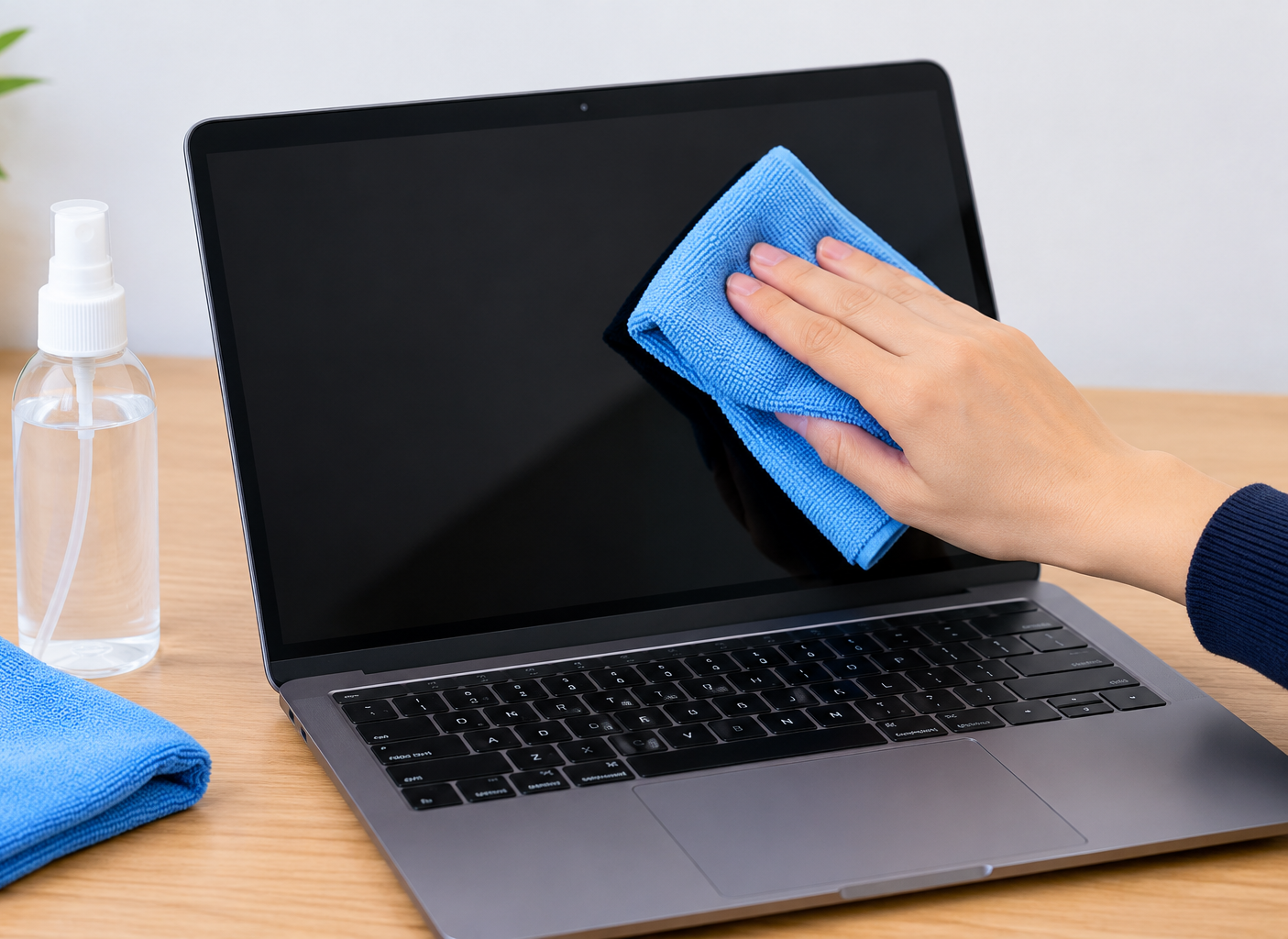
You open your laptop, the screen goes dark for a second, and there it is: fingerprints, dust, a dried coffee splash, and that greasy smudge right in the middle where you keep pointing at things.
The natural reaction is to grab the nearest tissue or spray bottle and give it a quick wipe. That is exactly how many laptop screens get scratched, streaked, or permanently damaged.
Laptop screens are more delicate than they look. Many have special coatings that reduce glare or resist fingerprints, and the wrong cleaner can strip those coatings in seconds. The good news is that cleaning a laptop screen safely is easy once you know what to use and what to avoid.
This guide walks you through the safe way to clean any laptop screen, including MacBooks, Windows laptops, touchscreens, and matte displays, step by step.
Quick Info: Laptop Screen Cleaning at a Glance
| Detail | Quick Answer |
|---|---|
| Best tool | A clean, dry microfiber cloth |
| Safest liquid | A small amount of water on the cloth (distilled water is best) |
| For tough smudges | A cloth lightly dampened with water, or a manufacturer-approved cleaner |
| Isopropyl alcohol? | Some brands allow a 70% mix on a cloth. Others, like Apple, recommend water only for laptop screens. Check your brand first. |
| Never use | Paper towels, tissues, window cleaner, ammonia, acetone, bleach, hydrogen peroxide, aerosol sprays, abrasive powders |
| Never do | Spray liquid directly on the screen, press hard, or clean it while it is on |
| Time needed | 2 to 5 minutes |
| How often | A dry wipe every week or two; a damp clean when you see smudges |
Key Takeaways
- Turn off and unplug your laptop before cleaning. A black screen also makes dirt easier to see.
- Always start with a dry microfiber cloth. Most dust and light fingerprints come off with this alone.
- If you need liquid, put it on the cloth, never directly on the screen.
- Water is the safest liquid for almost every screen. Use alcohol only if your laptop maker says it is safe.
- Never use paper towels, tissues, or household glass cleaners. They can scratch the screen or damage its coating.
- Wipe gently. Pressing hard can cause pressure marks or damage the display underneath.
- Spots that do not wipe off may not be dirt at all. They could be display damage.
Why Laptop Screens Need Special Care
Your phone screen is usually tough glass. Many laptop screens are not.
Depending on your model, your laptop display may have:
- An anti-glare (matte) coating that reduces reflections. It is soft and scratches more easily than glossy glass.
- An anti-reflective coating on glossy screens, common on premium laptops.
- An oleophobic coating that helps resist fingerprints and oil, especially on touchscreens.
- A thin, flexible panel behind the surface. Pressing too hard can leave lasting marks.
Harsh chemicals, rough materials, and too much pressure can all wear these layers down. Once a coating is damaged, there is no way to restore it. You will see blotchy patches, rainbow-like stains, or areas that look cloudy even after cleaning.
That is why the goal is not just a clean screen. It is a clean screen that stays healthy for years.
What You Need
You do not need anything expensive. Here is the basic kit:
| Item | Why you need it | Notes |
|---|---|---|
| Microfiber cloth (2 if possible) | Lifts dust and oil without scratching | Use one for damp cleaning and one for drying |
| Distilled water | Cleans smudges without leaving mineral spots | Tap water works in a pinch, but can leave faint marks |
| Small spray bottle (optional) | Lets you mist the cloth lightly | Never spray the screen itself |
| Manufacturer-approved screen cleaner (optional) | For stubborn marks | Must be free of ammonia, acetone, and alcohol unless your brand allows it |
| Soft brush or air blower (optional) | Clears dust from the screen edges and bezel | Avoid canned air held too close |
Why microfiber?
Microfiber cloths are made of very fine fibers that grab dust and oil instead of pushing them around. They are soft enough not to scratch most screens. Paper towels and tissues, on the other hand, are made from wood pulp. They can leave tiny scratches and lint behind, especially on matte screens.
Before using a microfiber cloth, shake it out and make sure it is clean. A cloth that has picked up sand or grit can scratch your screen just like sandpaper.
What You Should Never Use on a Laptop Screen
This list matters more than anything else in this guide. Apple’s official cleaning guidance specifically warns against window cleaners, household cleaners, aerosol sprays, solvents, ammonia, abrasives, cleaners with hydrogen peroxide, and anything containing acetone. That advice is a safe rule for almost any laptop.
| Avoid this | Why it is harmful |
|---|---|
| Window or glass cleaner | Often contains ammonia or alcohol that can strip anti-glare coatings |
| Paper towels and tissues | Rough fibers can scratch and leave lint |
| Acetone or nail polish remover | Can dissolve coatings and damage the display surface |
| Bleach and hydrogen peroxide | Too harsh for screen coatings |
| All-purpose household sprays | Unknown chemicals that may cloud or stain the screen |
| Abrasive powders or scrubbing pads | Will scratch the surface |
| Your shirt or a kitchen towel | Can trap dirt and grit that scratches the screen |
| Spraying liquid directly on the screen | Liquid can run down into the edges and get inside the laptop |
| Hand sanitizer gel | Mix of alcohol, gels, and fragrance can leave residue and damage coatings |
How to Clean a Laptop Screen: Step by Step
This method is safe for almost every laptop screen. Start with the gentle steps and only move on if you need to.
Step 1: Turn off and unplug the laptop
Shut the laptop down fully, do not just put it to sleep. Then unplug the charger and disconnect any accessories.
This protects you and the laptop if any moisture gets where it should not. It also helps you clean better, because dust and smudges are much easier to see on a black screen. Give the screen a minute to cool if it was just in use.
Step 2: Hold the screen steady
Open the lid to a comfortable angle. With one hand, hold the top edge or the side of the display frame (the bezel) to keep it from wobbling. Do not press on the screen itself.
Step 3: Dry wipe with a microfiber cloth
Fold your clean microfiber cloth and gently wipe the screen. You can wipe in one direction, such as top to bottom, or in small, light circles. Use very little pressure. Let the cloth do the work.
For many people, this is all the cleaning the screen needs. Dust and light fingerprints usually come right off.
Step 4: Lightly dampen the cloth for smudges
If there are still smudges, slightly dampen a corner of the cloth with distilled water. The cloth should feel barely damp, not wet. If water drips when you squeeze it, it is too wet.
Apple’s guidance for MacBook screens is exactly this: dampen a soft, lint-free cloth with water only, then clean the screen.
Step 5: Wipe gently, then dry
Wipe the smudged areas gently with the damp part of the cloth. Then use a dry part of the cloth, or your second microfiber cloth, to remove any moisture and prevent streaks.
Pay extra attention to the edges where the screen meets the bezel. Do not let water collect there.
Step 6: Let it air dry completely
Wait a few minutes before closing the lid or turning the laptop back on. Closing the lid too soon can press moisture against the keyboard and transfer marks back onto the screen.
What About Isopropyl Alcohol?
This is where advice online gets confusing, so here is the honest answer: it depends on your laptop brand.
- HP includes a mixture of 70% isopropyl alcohol and 30% water, applied to a microfiber cloth, in its cleaning guidance for many of its products, including displays on some notebook lines.
- Apple recommends only water on a damp cloth for MacBook screens, and has separate instructions for nano-texture displays.
- Other brands, such as Dell, Lenovo, ASUS, and Acer, publish their own guidance, and it can vary by model.
If you do use isopropyl alcohol, follow these rules:
- Only use it if your laptop maker says it is safe for your model’s screen.
- Use a mix around 70% alcohol, not pure 99%.
- Apply it to the cloth, never to the screen.
- Use a light touch and dry the screen afterwards.
- Do not use it often. Save it for stubborn grime or disinfecting, not routine cleaning.
When in doubt, stick with water. It is gentle on coatings and works for the vast majority of smudges.
How to Clean Different Types of Laptop Screens
Not all screens are the same. Here is how to adjust your approach.
Matte (anti-glare) screens
Matte screens have a slightly rough, non-reflective surface. They hide fingerprints well, but the coating is soft.
- Use only a dry or barely damp microfiber cloth.
- Wipe gently in one direction rather than scrubbing in circles.
- Avoid alcohol unless your laptop maker approves it.
Glossy screens
Glossy screens are usually covered with glass or a hard, shiny layer. They show fingerprints more but are often a bit tougher.
- Microfiber with distilled water works great.
- Dry well to avoid streaks, which show up easily on glossy surfaces.
Touchscreen laptops
Touchscreens collect the most fingerprints because you actually touch them.
- Turn the laptop off first so you do not open apps or change settings while wiping.
- Use a microfiber cloth with a little water.
- Check whether your maker allows a mild alcohol mix for disinfecting.
MacBook screens
- Shut down and unplug the MacBook.
- Use a soft, lint-free cloth dampened with water only.
- If your Mac has a nano-texture display, follow Apple’s separate nano-texture cleaning instructions and use the cloth Apple specifies for it.
- Never use acetone-based or harsh cleaners.
2-in-1 and convertible laptops
Treat these like touchscreens. Be careful with the hinge area and avoid getting moisture near ports and gaps in the frame.
How to Remove Stubborn Marks Safely
Some marks need a bit more patience, not more force.
Dried food or drink splashes: Lightly dampen the cloth with distilled water and hold it gently against the spot for a few seconds to soften it. Then wipe softly. Repeat if needed.
Greasy fingerprints: A damp microfiber cloth usually works. If not, and your brand allows it, a small amount of approved screen cleaner or a 70% isopropyl mix on the cloth can help.
Keyboard marks on the screen: These lines are oils transferred from the keys when the lid is closed. Clean them like smudges. To prevent them, keep your keyboard clean and consider a thin keyboard cover cloth made for laptops.
Water spots after cleaning: These come from minerals in tap water. Switch to distilled water and dry the screen with a clean part of the cloth.
Sticky residue from tape or labels: Use a damp cloth and patience. Avoid scraping with nails, blades, or anything sharp.
When the Spot Is Not Dirt
Sometimes a mark simply will not come off, no matter how gently or carefully you clean. That can be a sign the problem is not on the surface but inside the display.
Common signs of display damage include:
- Bright white or pale patches that do not move
- Colored blotches or a blue or purple tint in one area
- Dark spots or lines
- A rainbow-like stain that looks like an oil sheen but does not wipe away
- Cloudy patches where the coating has worn off
These issues can be caused by pressure, impact, heat, or coating damage from harsh cleaners. We have explained similar symptoms in detail for phones in our guides to white spots on a mobile screen and blue patches on a mobile screen. Many of the same causes apply to laptop displays too.
If you see these signs, stop cleaning that area and contact the manufacturer or a qualified repair technician.
Common Laptop Screen Cleaning Mistakes
| Mistake | What can happen | Do this instead |
|---|---|---|
| Spraying cleaner on the screen | Liquid seeps into the edges and electronics | Spray or dab the cloth |
| Using a soaked cloth | Drips run into the frame | Use a barely damp cloth |
| Pressing hard on a smudge | Pressure marks or panel damage | Use light pressure and repeat |
| Cleaning while the laptop is on | Hard to see dirt; touchscreens react | Shut down first |
| Using one dirty cloth for months | Grit scratches the screen | Wash microfiber cloths regularly |
| Using window cleaner | Coating damage and cloudy patches | Use water or an approved cleaner |
| Closing the lid on a wet screen | Marks transfer from the keyboard | Let it dry fully first |
How to Keep Your Laptop Screen Clean for Longer
Cleaning less often is the easiest way to protect your screen. These habits help:
- Wash your hands before using the laptop. Most smudges are skin oils and food.
- Do not eat directly over the laptop. Crumbs and splashes end up on the screen and keyboard.
- Close the lid when not in use. This keeps dust off the display.
- Keep the keyboard clean. A clean keyboard means fewer key marks on the screen.
- Do not point at the screen with your finger or a pen. Use the cursor instead.
- Use an external mouse and keyboard at your desk. You will touch the laptop much less. If you use Logitech accessories, our Logitech Unifying software setup guide shows how to pair several devices with one receiver.
- Store your laptop in a padded sleeve or bag. It prevents scratches and keeps loose items from pressing against the screen.
- Wash your microfiber cloths. Hand wash or machine wash them without fabric softener, which can leave a film that smears screens.
How Often Should You Clean a Laptop Screen?
| Situation | Suggested routine |
|---|---|
| Normal home or office use | Dry microfiber wipe every 1 to 2 weeks |
| Visible smudges or fingerprints | Damp microfiber clean as needed |
| Touchscreen laptop | Dry wipe a few times a week; damp clean weekly |
| Shared or public laptop | Clean more often, using a method your manufacturer approves for disinfecting |
| Dusty environment | Quick dry wipe every few days |
There is no need to deep clean every day. Over-cleaning, especially with chemicals, can wear coatings down faster than dirt ever would.
Frequently Asked Questions
What is the safest way to clean a laptop screen?
Turn the laptop off, wipe the screen gently with a clean, dry microfiber cloth, and use a cloth lightly dampened with distilled water for any smudges that remain. Then dry it with a clean cloth.
Can I use water to clean my laptop screen?
Yes. Water on a microfiber cloth is safe for nearly every laptop screen. Distilled water is best because it does not leave mineral spots. Never pour or spray water directly on the screen.
Can I use isopropyl alcohol on a laptop screen?
Only if your laptop maker says it is safe for your model. HP, for example, allows a 70% isopropyl alcohol and 30% water mix on a cloth for many products, while Apple recommends water only for MacBook screens.
Can I use Windex or glass cleaner on a laptop screen?
No. Glass cleaners often contain ammonia or alcohol, which can damage anti-glare and anti-fingerprint coatings.
Can I use baby wipes or wet wipes?
It is best not to. Many wet wipes contain lotions, fragrances, or alcohol that can leave residue or harm coatings. Use a damp microfiber cloth instead.
Is it okay to clean a laptop screen with a tissue or paper towel?
No. Tissues and paper towels can scratch the screen and leave lint, especially on matte displays.
How do I remove streaks from my laptop screen?
Streaks usually come from too much liquid or a dirty cloth. Use a fresh, clean microfiber cloth, barely dampen it with distilled water, wipe gently, and then buff dry with a second dry cloth.
Why are there keyboard marks on my laptop screen?
When you close the lid, the screen can touch the keys and pick up oils from them. Clean the keyboard regularly and wipe the screen with a damp microfiber cloth to remove the marks.
Can cleaning damage my laptop screen?
Yes, if you use harsh chemicals, rough materials, too much liquid, or too much pressure. Gentle cleaning with microfiber and water is very low risk.
What should I do if a spot will not come off?
If a mark stays after gentle cleaning, it may be display damage rather than dirt. Stop cleaning that area and contact your manufacturer or a repair technician.
Final Thoughts
Cleaning a laptop screen is not hard, but it does need a gentle touch. Most of the time, a clean microfiber cloth and a little distilled water are all you will ever need.
Remember the simple rules: turn it off, start dry, put liquid on the cloth instead of the screen, never use harsh cleaners, and do not press hard. Check your laptop maker’s guidance before using anything stronger than water.
Follow these steps, and your screen will stay clear, bright, and damage-free for years.
References
- Apple Support: How to clean your Apple products
- HP: Cleaning guidance for HP business PCs and print devices
Disclaimer
This guide is for general information only. Laptop screens and coatings vary by brand and model, and manufacturers update their cleaning advice from time to time. Always check your laptop maker’s official cleaning instructions before using any cleaning liquid, especially alcohol-based products. TechOriginHub is not responsible for damage caused by cleaning methods or products. If liquid gets inside your laptop or your screen shows signs of damage, stop using it and contact the manufacturer or an authorized service provider. This article is not sponsored by any brand mentioned.