
 By Saad Qureshi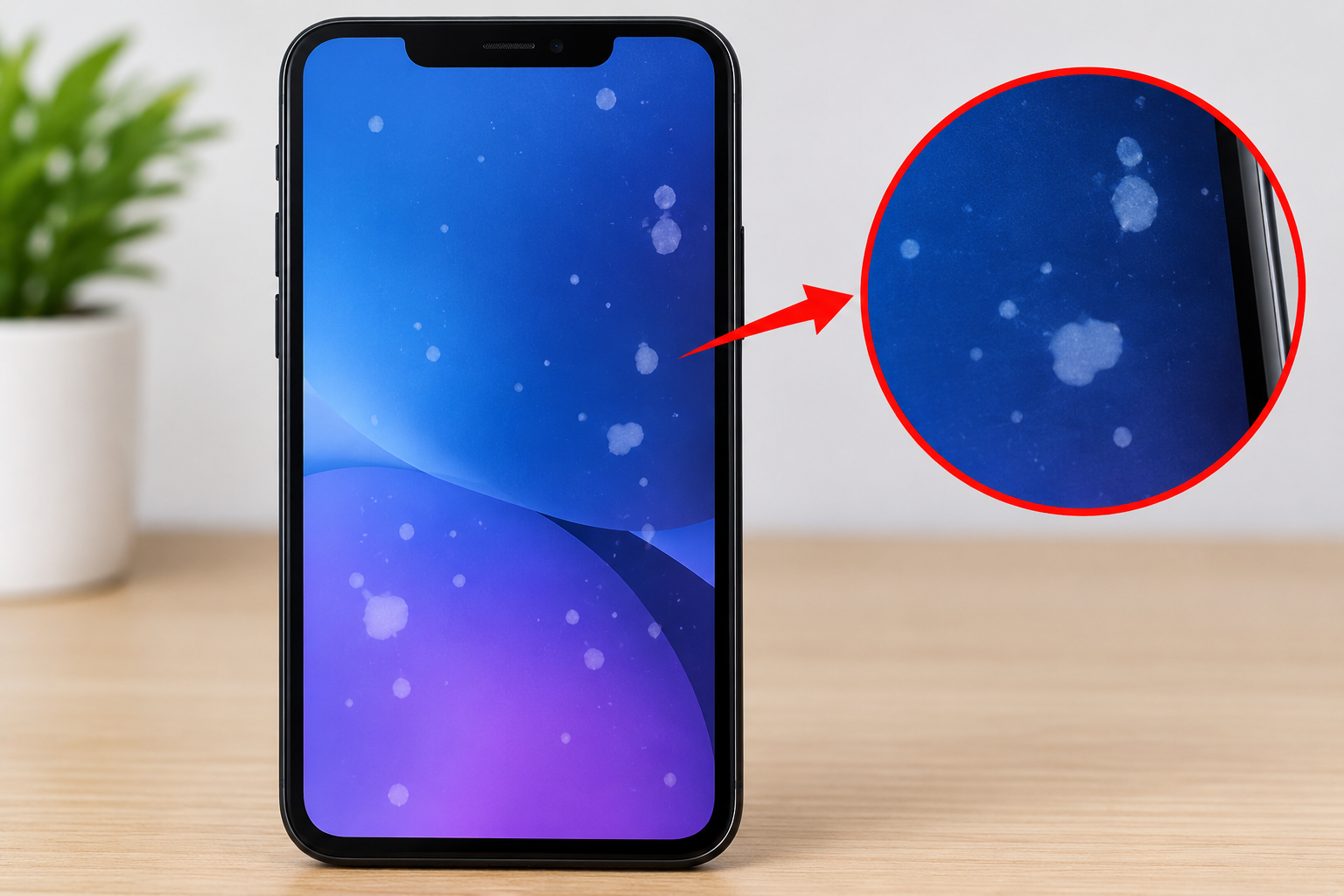
You pick up your phone, the screen lights up, and there it is: a pale, cloudy patch or a bright white dot that was not there yesterday. White spots on a mobile screen are common, and they are annoying because they sit in your line of sight every time you use the device.
The cause is not always serious, but it is not always trivial either. A white spot might be a smudge of residue that wipes away in seconds. It might also be a sign of internal display damage that will only get worse. Knowing the difference saves you time, money, and worry.
This guide explains what white spots are, why they appear, how to diagnose them at home, which fixes are worth trying, and when to stop troubleshooting and call for professional help. If you are dealing with this on an Android device, our dedicated guide on a white spot on an Android screen covers model-specific details too.
What Are White Spots on a Phone Screen?
A white spot is any area of the display that looks unnaturally bright, pale, or washed out compared with the area around it. These spots show up in different forms:
- Small, sharp white dots that look like a single point of light
- Soft, cloudy white patches with blurry edges, often most visible on dark backgrounds
- Bright smudges or blotches near the edges or corners
- Round, pressure-like marks that appear after a squeeze or impact
- Spots that only show at certain brightness levels or on certain colors
The shape and behavior of the spot are important clues. A sharp dot usually points to a pixel problem, while a soft cloud usually points to a backlight or pressure issue.
How a Phone Display Is Built (and Why It Matters)
To understand white spots, it helps to know that a phone screen is several layers stacked together:
- Cover glass: the protective outer layer you touch
- Touch layer (digitizer): senses your finger
- Display panel: the layer that creates the image using pixels
- Backlight (LCD only): a layer of LEDs and diffusers that lights the panel from behind
There are two main display types:
- LCD (including IPS): needs a separate backlight. White patches here are often related to uneven backlighting or pressure on the layers.
- OLED and AMOLED: each pixel produces its own light, so there is no backlight layer. White spots on OLED are more often damaged pixels, pressure damage, or moisture-related defects.
Knowing which type your phone has helps you narrow down the cause. Your manufacturer’s spec page will tell you.
Common Causes of White Spots on a Mobile Screen
1. Pressure Damage
Pressure is one of the most frequent causes. Pressing hard on the screen, sitting on your phone, carrying it in a tight back pocket, or packing it in a crowded bag can compress the internal layers. This often leaves a pale, cloudy patch that is more visible on dark screens. On LCDs, pressure can disturb the diffuser layers so light spreads unevenly.
2. Drops and Impact
A fall can damage the display panel or loosen internal layers even when the glass does not crack. A white spot that appears right after a drop strongly suggests internal damage. These spots may stay the same size or grow over time.
3. Backlight Bleed and Uneven Backlighting (LCD Screens)
On LCD phones, light can leak around the edges or through weak points in the layers, producing bright patches. This is sometimes a manufacturing characteristic, and sometimes it develops with age or after pressure or heat exposure. It is most noticeable on a black screen in a dark room.
4. Stuck or Hot Pixels
A pixel is made of tiny red, green, and blue sub-pixels. If they get stuck in the “on” position, the pixel shows as a bright white or colored dot. A stuck pixel is usually very small and does not change size.
5. Moisture and Liquid Damage
Water or humidity that reaches the display assembly can leave bright patches, discolored blotches, or spots that slowly spread. Even water-resistant phones can develop problems because seals weaken over time. Moisture-related spots often get worse and may be joined by other symptoms, such as flicker or touch problems.
6. Heat Exposure
Leaving a phone on a car dashboard, in direct sun for hours, or on a charger under a pillow can stress the display layers and adhesives. Heat can cause patches, discoloration, or bubbling.
7. Screen Protector Problems
Sometimes the screen is fine and the problem is on top of it. Air bubbles, dust trapped under a protector, adhesive residue, or a cracked protector can look like white spots, especially at a certain viewing angle.
8. Dirt, Residue, and Oils
Dried liquid, cleaning solution residue, grease, or sticky film can create pale spots that are easy to mistake for damage.
9. Manufacturing Defects
A small number of phones leave the factory with uneven brightness or defective pixels. A spot that was visible from the first days of ownership is often in this category and may be covered by warranty.
10. Software and Display Glitches
Occasionally a software bug, a display driver issue, or a poorly behaving app can cause temporary visual artifacts. These tend to move, disappear after a restart, or only appear in certain apps. The phone’s operating system controls how the display is driven, so a bad update or system glitch can sometimes produce display oddities. Genuine hardware spots, on the other hand, stay put regardless of what is on screen.
How to Diagnose a White Spot at Home
Before you try fixes, spend a few minutes working out what you are dealing with. These simple tests help separate hardware problems from surface or software issues.
Step 1: Clean the Screen Properly
Power off the phone. Wipe the screen with a soft, lint-free microfiber cloth, slightly dampened with water if needed. Avoid spraying liquid directly onto the phone. If the spot disappears, it was residue.
Step 2: Remove the Screen Protector
Peel off the protector and check again. If the spot vanishes, the protector or something trapped under it was the cause. Replace it with a new one, applied carefully in a dust-free room.
Step 3: Take a Screenshot
Take a screenshot and view it on another device or on your computer.
- If the spot appears in the screenshot, the issue is software-related, such as an app or system glitch, because the image itself contains the spot.
- If the spot does not appear in the screenshot, the problem is almost certainly physical, meaning the display hardware itself.
Step 4: Use Solid Color Tests
Open full-screen images of pure black, white, red, green, and blue, or use a display test app or website. Look for how the spot behaves:
- A tiny dot that is always white or always bright suggests a stuck pixel.
- A cloudy patch on a black screen but not on a white one suggests backlight bleed or pressure.
- A patch that changes shape with color may indicate panel damage.
Step 5: Change Brightness and Viewing Angle
Raise and lower the brightness and tilt the phone. Backlight and pressure issues often change in visibility with brightness. Spots on a screen protector may shift with the angle.
Step 6: Restart and Try Safe Mode
Restart the phone. Then boot into safe mode, which temporarily disables third-party apps. If the spot only appears in normal mode, an app may be responsible. If it appears in both, it is likely hardware.
Step 7: Check for Other Symptoms
Look for related problems such as flickering, unresponsive touch areas, color shifts, or lines running across the display. If you also see lines, our guide on Android lines on the screen explains what they mean and how they relate to display damage.
Possible Fixes for White Spots on a Mobile Screen
The right fix depends on the cause. Start with the simplest and least risky options.
Fix 1: Clean the Display and Remove Residue
If the spot is surface dirt, a microfiber cloth is usually enough. For stubborn residue, use a cloth lightly moistened with water or a small amount of screen-safe cleaner. Do not use harsh chemicals, and never let liquid seep into the ports or edges.
Fix 2: Replace the Screen Protector
If bubbles, dust, or damage on the protector created the spots, a fresh one solves it. Clean the screen thoroughly first, use the alignment guide, and apply it slowly to avoid trapping air.
Fix 3: Restart the Phone
A simple restart clears temporary display glitches. It costs nothing and takes under a minute, so always try it first.
Fix 4: Update the Software
Manufacturers release updates that fix bugs, including display-related ones. Go to your phone’s settings, check for system updates, and install any that are available. Keep the phone charged and connected to Wi-Fi while updating. Understanding how a smartphone operating system manages the display and hardware makes it clearer why updates can resolve visual bugs.
Fix 5: Remove Problem Apps
If safe mode showed that the spot only appears in normal mode, uninstall recently added apps one at a time to find the culprit. Be especially suspicious of apps that overlay content on the screen or modify display settings.
Fix 6: Try a Pixel-Refresh Tool for Stuck Pixels
For a small, sharp dot that looks like a stuck pixel, some people try apps or videos that flash rapidly changing colors across the screen for several minutes to try to “unstick” the pixel. Results vary. It can work for a stuck sub-pixel, but it cannot repair a physically dead or damaged pixel. Use these tools cautiously, and avoid anything that flashes intensely if you are sensitive to flashing lights.
Fix 7: Let the Phone Cool Down and Dry
If heat or moisture might be involved, power the phone off and let it rest in a cool, dry place. Do not use a hairdryer, an oven, or a bag of rice as a heat-based shortcut. Excess heat can damage the display further. If liquid exposure is likely, avoid charging the phone until it is thoroughly dry, and consider professional inspection.
Fix 8: Back Up and Perform a Factory Reset
If the spot appears to be software-related, such as one that shows up in screenshots or appears only in certain situations, a factory reset can clear deeper system problems. Back up your photos, contacts, and files first, as a reset erases everything. After a reset, some users find the device behaves oddly during initial configuration. If your phone gets stuck at that stage, see our troubleshooting guide on Android setup keeps stopping.
Fix 9: Check Warranty and Support Options
If the spot is hardware-related, check whether your device is still under warranty. Many manufacturers cover defective pixels or manufacturing defects but not physical damage. Retailers, carriers, and extended protection plans may also offer coverage. Official support pages from manufacturers are the best place to confirm current terms, for example Samsung Support, Google Pixel Help, and Apple Support.
Fix 10: Professional Screen Repair or Replacement
For pressure marks, impact damage, backlight failure, and moisture damage, the only lasting fix is usually replacing the display assembly. This is a job for an authorized service provider or a reputable repair shop. Ask about:
- Whether they use original or high-quality replacement parts
- How long the repair takes
- What warranty they provide on the work
- The total cost compared with the value of the phone
If you are considering a DIY repair, review a detailed, model-specific guide first. Repair resources such as iFixit offer step-by-step tutorials and parts, but DIY screen replacement carries a risk of further damage, and it may affect your warranty.
What Not to Do
Some well-meaning home remedies make things worse:
- Do not press or massage the spot hard. This can enlarge pressure damage or crack the panel.
- Do not use heat guns, hairdryers, or ovens. Heat can destroy adhesives and display layers.
- Do not spray cleaner directly on the phone. Liquid can seep inside.
- Do not use abrasive cloths, paper towels, or harsh chemicals. They can scratch the coating.
- Do not pry the screen open without proper tools or knowledge. You risk damaging the battery, which can be dangerous.
- Do not ignore spreading spots. A growing patch usually means active damage, and delaying repair can raise costs.
When Is a White Spot Serious?
Treat the issue as more urgent if:
- The spot is growing or multiplying
- The phone was recently dropped, crushed, or exposed to liquid
- The screen flickers, shows lines, or has dead touch zones
- The phone gets unusually hot or the screen appears to bulge
- The spot appears alongside other color distortion
A bulging screen can indicate a swollen battery. Stop using the phone and seek professional help right away.
Repair or Replace? Making the Decision
Weigh these factors:
- Age of the phone: On an older, low-value device, a new phone may make more sense than an expensive screen repair.
- Cost of repair: Compare the repair quote with the price of a comparable replacement phone. OLED screens on flagship models can be costly to replace.
- Severity: A tiny stuck pixel in a corner may be something you can live with. A large patch in the middle of the display is much harder to ignore.
- Warranty or insurance: Coverage can change the math entirely.
- Data safety: Whatever you choose, back up your data first.
How to Prevent White Spots on Your Phone Screen
Prevention is much cheaper than repair. A few habits make a real difference:
- Use a sturdy case with raised edges to absorb impact.
- Apply a quality screen protector and replace it when it cracks or peels.
- Avoid back-pocket storage, because sitting on a phone is a classic cause of pressure damage.
- Keep the phone away from extreme heat, especially cars in summer and direct sun.
- Avoid pressing hard on the display, and do not stack heavy items on your phone in bags.
- Protect against moisture, and do not assume water resistance is permanent.
- Clean gently and regularly with a microfiber cloth.
- Keep software updated to avoid avoidable display bugs.
Frequently Asked Questions About White Spots on Mobile Screens
Why did a white spot suddenly appear on my phone screen?
Sudden spots usually come from pressure, an impact, heat, or moisture, even if you did not notice the event. Dirt or a damaged screen protector can also create the illusion of a spot. Cleaning the screen and removing the protector are the first steps.
Can a white spot on a phone screen go away on its own?
Surface residue and temporary software glitches can disappear. Spots caused by physical damage, such as pressure marks or backlight problems, generally do not heal and often stay the same or grow.
Will a white spot spread?
It can. Spots from impact, pressure, or moisture sometimes expand over days or weeks, particularly if the phone continues to be exposed to stress. A stuck pixel typically stays the same size.
Is a white spot on a phone screen covered by warranty?
It depends on the cause and the manufacturer. Manufacturing defects are often covered, while damage from drops, pressure, or liquid usually is not. Check your warranty terms and contact official support.
How do I know if the white spot is a software problem?
Take a screenshot. If the spot appears in the screenshot, the problem is software-related. If it does not, the spot is almost certainly in the physical display.
Can a screen protector cause white spots?
Yes. Trapped dust, bubbles, adhesive marks, or a cracked protector can all look like spots on the screen. Peel it off and see whether the spot disappears.
Are white spots more common on LCD or OLED screens?
Both types can develop them, but for different reasons. LCD screens are more prone to backlight bleed and cloudy patches, while OLED screens more often develop pixel defects or pressure and moisture damage.
Can I fix a stuck pixel at home?
Sometimes. Pixel-refresh tools may help a stuck sub-pixel, but they will not fix a dead or physically damaged pixel. Results vary, and no method is guaranteed.
Does a factory reset remove white spots?
Only if the cause is software-related. A factory reset will not fix hardware damage, and it erases your data, so back up first.
How much does it cost to fix white spots on a phone screen?
Costs vary significantly by model, region, and the repair provider. Budget phones may have affordable screen replacements, while premium OLED displays cost considerably more. Request quotes from the manufacturer and independent shops before deciding.
Can white spots damage my phone further?
The spot itself is not usually dangerous, but the underlying cause may be. A spreading patch, a bulging screen, or overheating can indicate damage that gets worse over time or affects the battery.
Should I keep using a phone with a white spot?
A small, stable spot is often safe to live with. If it grows, or the phone shows other symptoms like heat, flicker, or touch problems, get it checked promptly.
Disclaimer
This article is for educational and informational purposes and gives a general overview of why white spots appear on mobile screens and what you can try. Phone models, display technologies, warranty terms, and repair costs vary widely by manufacturer, region, and device age. Some troubleshooting steps, such as a factory reset, erase data, so back up your information first. Opening a phone yourself can void your warranty and risk damage or injury. For hardware faults, contact the manufacturer or a qualified repair technician. Mentions of specific brands or services do not constitute endorsements.