
 By Saad Qureshi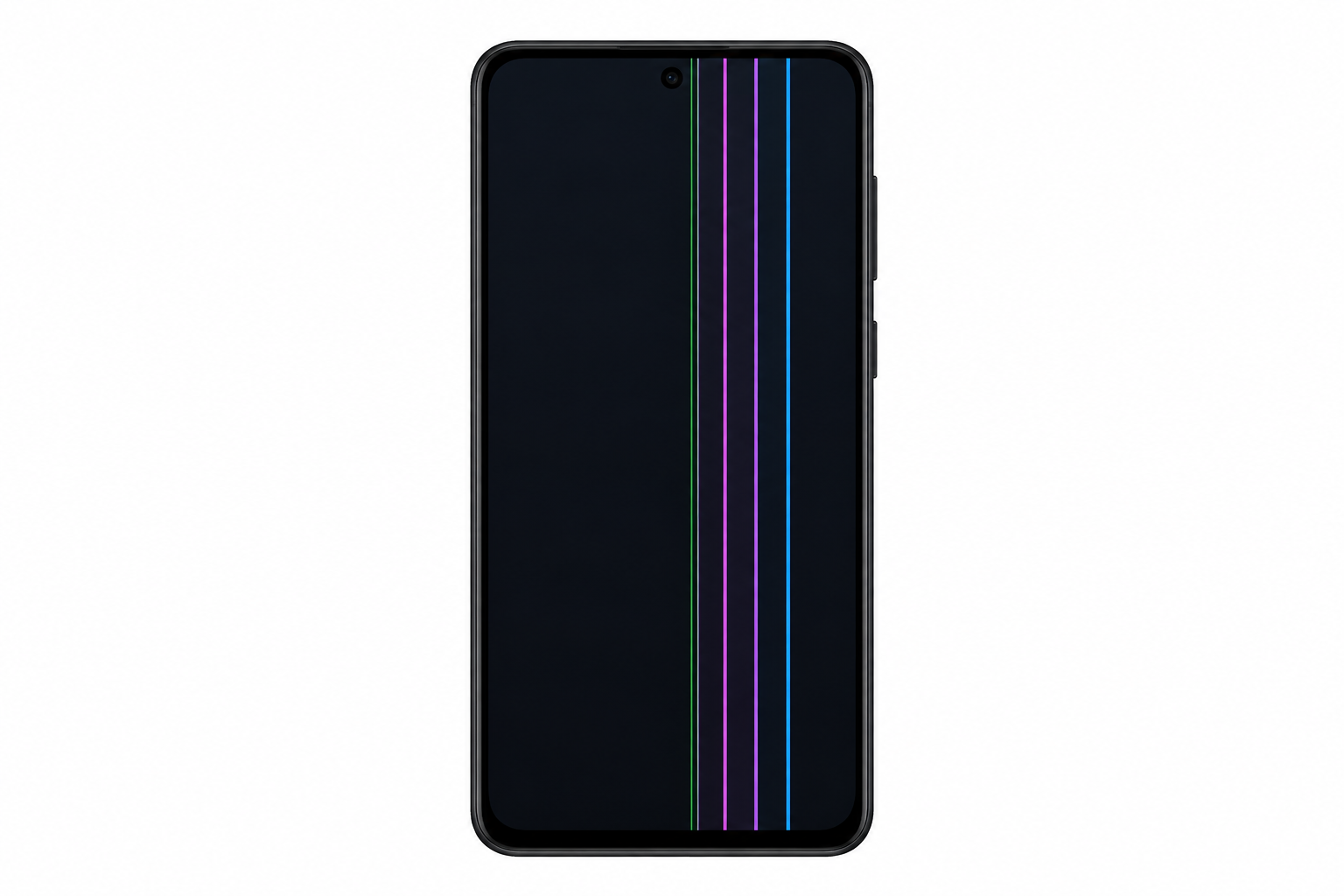
Lines on an Android screen including horizontal lines, vertical lines, colored lines, flickering lines, and wavy lines are display anomalies caused by physical damage to the display panel, a loose or damaged display ribbon cable, GPU hardware faults, software glitches, water damage, or manufacturing defects. Some of these causes can be addressed through software troubleshooting steps at home. Others require professional screen repair or complete display replacement. The single most important first step is correctly identifying whether the cause is hardware or software before attempting any fix, as software troubleshooting cannot repair physical display damage.
This guide covers every cause of Android lines on screen with honest assessments of what each fix can and cannot do.
Every Android phone regardless of manufacturer can develop screen lines when the display components are stressed, damaged, or affected by software issues. The causes and diagnostic process described here apply across Samsung Galaxy, Google Pixel, OnePlus, Motorola, and other Android devices.
What Do Lines on an Android Screen Look Like?
Identifying the specific type of lines on your screen helps narrow down the likely cause. Android lines on screen appear in several distinct forms.
Horizontal Lines
Horizontal lines run across the full width of the screen from left to right. They may appear as a single thin line, multiple parallel lines stacked at intervals, or a wide band of lines covering a portion of the display. They can be any color including white, black, green, pink, or purple. Horizontal lines may stay fixed in one position or shift location on the screen when the phone is moved or rotated.
Vertical Lines
Vertical lines run from the top edge to the bottom edge of the screen. A single colored vertical line or multiple vertical strips can appear simultaneously. Vertical lines are strongly associated with damage to specific columns of pixels in the display panel and are one of the most recognizable symptoms of physical display damage, particularly on OLED screens after a drop.
Colored Lines
Lines appearing in distinct colors such as green, pink, purple, red, or yellow typically indicate damage to specific pixel color channels within the display panel. Green vertical lines are particularly associated with OLED panel impact damage and are a well-documented symptom on Samsung Galaxy and other OLED-equipped Android phones. Pink or purple lines often indicate display connector damage or early-stage OLED panel failure.
Flickering Lines
Lines that flash, flicker, appear and disappear intermittently, or shift in intensity can indicate a loose or partially disconnected display ribbon cable, a software or display driver issue, or early-stage hardware degradation. Flickering lines that come and go should be treated as a warning sign that the underlying issue may worsen over time.
Wavy or Distorted Lines
Wavy, rippling, or distorted line patterns that appear to move or pulse across the screen typically indicate physical damage to the display panel from impact or sustained pressure, or moisture that has reached the display components.
Lines on an Android screen belong to the same category of display damage as other display anomalies. If you have also noticed bright patches on your device, the guide on white spots on Android screens covers a related set of display damage causes and fixes that share many of the same diagnostic steps.
Common Causes of Lines on Android Screens
Cause 1: Physical Impact or Drop Damage
Physical impact from dropping an Android phone is one of the most common causes of lines appearing on the screen. The display panel can sustain internal damage even when the outer glass surface appears completely intact and uncracked. The glass you see is a protective layer separate from the actual display panel beneath it.
On LCD displays a hard impact can fracture or displace the liquid crystal layer causing entire rows or columns of liquid crystals to malfunction. These damaged pixels appear as permanent horizontal or vertical lines at the point of impact. On OLED displays impact damage causes rows or columns of organic LED pixels to fail catastrophically, often producing bright colored lines, particularly vivid green or pink vertical strips.
Lines from impact damage may appear immediately after the drop or develop gradually over the following hours as internal damage spreads from the impact point.
Cause 2: Damaged or Loose Display Ribbon Cable
The display panel in every Android phone connects to the main circuit board through a thin flexible ribbon cable, also called a flex cable or display connector. This cable carries the signal that tells the display what to show. If this cable becomes loose, partially disconnected, or physically damaged it disrupts the signal between the circuit board and the display panel causing lines or intermittent display failures.
A loose ribbon cable is particularly common after a drop or physical impact that may have shifted internal components without visibly cracking the screen. Lines caused by a loose cable characteristically flicker, shift, or change when the phone is gently flexed or light pressure is applied to the back of the phone near the display cable routing area. Ribbon cable issues require opening the device for proper repair and cannot be resolved through any software step.
Cause 3: Pressure Damage
Sustained or sudden pressure applied to the Android screen can damage the display panel and cause lines to appear even without a visible impact. Common pressure damage scenarios include accidentally sitting on the phone, carrying it in a tight back pocket with other objects pressing against the screen, placing a heavy bag or book directly on the phone, or bending stress applied to the phone body.
On LCD screens sustained pressure permanently displaces the liquid crystal layer in the affected zone causing the damaged pixels to appear as persistent lines. Pressure damage is a hardware problem. It cannot be resolved through any software fix or troubleshooting step.
Cause 4: Water or Moisture Damage
Water or moisture entering the Android phone and reaching the display panel, the display connector, or the ribbon cable can cause lines, streaks, color distortion, and other display anomalies. This can occur even on phones with official water resistance ratings because those ratings apply to the device when new. Seals and gaskets that provide water resistance degrade with age and normal wear, particularly if the device has been opened for a previous repair.
Moisture damage symptoms can range from temporary display distortion that fades as the device dries to permanent display panel damage. If lines appeared after water exposure allow the device to dry completely in a dry environment before assessing whether the damage is permanent.
Cause 5: Software Glitch or Display Driver Issue
Not every case of Android lines on screen is caused by hardware damage. The Android operating system manages display rendering through software drivers that control how the screen outputs visual information. A software glitch, corrupted display driver, or an OS-level rendering error can produce lines or graphical artifacts on the screen that look similar to hardware damage but are entirely software in origin.
Software-caused lines behave differently from hardware-caused lines in several identifiable ways. They may appear only in certain apps rather than across the entire display at all times. They may disappear and reappear unpredictably. They may resolve completely after a restart. They may have first appeared following a software update that altered display driver behavior. They may look different or less severe when screen brightness is adjusted.
Software causes are significantly less common than hardware causes for screen lines but are worth ruling out through simple troubleshooting before assuming the display panel is damaged.
Cause 6: GPU or Graphics Processing Issue
The GPU inside the Android phone is responsible for rendering all visual content that appears on the display. If the GPU experiences a hardware fault, an overheating event that causes it to throttle or malfunction, or a hardware defect it can produce graphical artifacts across the entire display including lines, color distortion, and flickering. GPU-related lines characteristically affect the entire screen rather than appearing as a localized stripe and are often accompanied by other visual glitches.
Severe or recurring GPU hardware faults require professional device assessment and are not correctable through software troubleshooting alone.
Cause 7: Manufacturing Defect
Lines appearing on an Android screen shortly after purchase or within the first weeks of ownership without any physical damage event may indicate a manufacturing defect in the display panel or a faulty display connection that was present from the factory. Different Android phone manufacturers have different warranty policies and authorized service processes for handling display defects. Manufacturing defect lines that appear under normal use conditions are typically covered under the standard device warranty.
Cause 8: Overheating
Excessive heat can temporarily affect display performance including causing flickering, color banding, or lines to appear on the screen. Overheating-related display issues frequently resolve once the device cools to its normal operating temperature. If lines appear during graphically intensive tasks such as gaming or video streaming and disappear when the phone is rested and cooled, heat is likely a contributing factor.
Persistent overheating that causes recurring display problems indicates an underlying hardware issue with thermal management that should be assessed by a qualified technician.
How to Tell If Lines on Your Android Screen Are Hardware or Software Caused
Working through these diagnostic steps takes only a few minutes and tells you whether your specific situation calls for software troubleshooting or professional hardware repair.
- Take a screenshot. Take a screenshot of the screen while the lines are clearly visible. Open the screenshot image in your photo gallery and examine it closely. If the lines do not appear in the saved screenshot image the problem is definitively with the physical display hardware. The screenshot captures what the software is rendering, not what the display hardware is outputting. If lines are absent from the screenshot, the display panel itself is the problem. If the lines do appear inside the screenshot image the issue may be software or GPU rendering related.
- Restart the device. Press and hold the power button and select Restart or Reboot. Wait for the device to fully restart and check whether the lines are still present. Lines that completely disappear after a restart were caused by a temporary software process or display driver state. Lines that remain after restart are almost certainly caused by hardware damage.
- Check if lines appear across all apps and screens. Open several different applications, navigate to the camera viewfinder, and browse through the device Settings menu. If the lines appear in exactly the same position across every screen and every app regardless of what content is displayed, the display hardware is almost certainly damaged. Lines that appear only in specific apps or change position based on the app content suggest an app-specific or software cause.
- Adjust screen brightness. Open Settings, tap Display, and move the brightness slider from the lowest setting to the highest. Hardware damage lines remain consistently visible at all brightness levels without changing. Software or calibration issues sometimes appear differently at different brightness levels or may shift in appearance when brightness is adjusted.
- Recall any physical events that preceded the lines. If lines appeared immediately or within hours after the phone was dropped, sat on, bent, submerged in water, or had pressure applied to it, the cause is almost certainly physical damage to the display hardware. The timing connection to a physical event is a reliable indicator of hardware damage.
- Gently observe the screen while flexing the phone. Very carefully and gently observe the screen while applying very slight pressure to the back of the phone near the area where the display cable connects, typically near the bottom of the display assembly. If lines visibly flicker, shift, or change during this gentle flex a loose or partially disconnected display ribbon cable may be the cause. Apply only the minimum pressure for observation. Do not bend or stress the phone body as this risks additional damage.
Lines Diagnostic Summary Table
| Observation | Likely Cause |
|---|---|
| Lines visible in same position across all apps and screens | Hardware display panel damage |
| Lines not visible in screenshot image | Hardware display issue |
| Lines visible inside screenshot image | Software or GPU rendering issue |
| Lines disappeared completely after restart | Temporary software glitch |
| Lines appeared immediately after drop or impact | Physical impact damage |
| Lines appeared after pressure applied to phone | Pressure damage to display panel |
| Lines flicker or shift when phone is gently flexed | Loose or damaged ribbon cable |
| Lines appeared after water or moisture exposure | Moisture or liquid damage |
| Lines appear only in specific apps | App-specific or software issue |
| Lines accompanied by device overheating | GPU or thermal management issue |
| Lines on new device with no physical damage event | Possible manufacturing defect |
How to Fix Lines on Android Screen
Before working through these fixes it is important to be honest about one fundamental point. Software fixes only address software-caused lines. Physical hardware damage to the display panel, a broken ribbon cable, or a damaged GPU cannot be repaired by restarting the phone, updating software, or resetting the device. If your diagnostic steps indicate hardware damage, proceed directly to Fix 7 or Fix 8.
Fix 1: Restart Your Android Phone
A restart is always the correct first step when any display anomaly appears. It clears temporary software processes, resets display driver states, and flushes any graphical glitches that originated from a crashed process or a momentary system error.
- Press and hold the power button on your Android phone.
- Select Restart or Reboot from the power menu that appears.
- Wait for the device to fully shut down and complete the restart process.
- After the device has fully reloaded check whether the lines are still present.
Lines that disappear after a restart were caused by a temporary software condition. Lines that remain after a clean restart are almost certainly hardware in origin.
Fix 2: Check and Adjust Display Settings
Certain display settings can produce visual behavior that resembles screen damage lines. Checking and adjusting these settings takes only a few minutes and rules out a misconfiguration as the cause.
- Open the Settings app on your Android phone.
- Tap Display.
- Adjust the Brightness level and toggle off Adaptive Brightness to see if the lines change.
- Check whether any accessibility display settings are active such as high contrast mode, color inversion, or color correction. Disable any active accessibility display features temporarily.
- Try switching the display color mode between available options such as Natural, Vivid, and Saturated to see if the lines change appearance or disappear.
- Disable any active blue light filter or night mode setting to see if it affects the lines.
If any of these setting changes cause the lines to change or disappear, the cause was a display configuration issue rather than hardware damage.
Fix 3: Update Your Android Software
The Android operating system manages all display rendering through system-level display drivers. Outdated software can in rare cases contain bugs that produce graphical artifacts on the screen. Ensuring the device runs the latest available Android version eliminates outdated display drivers as a potential cause.
- Open the Settings app on your Android phone.
- Tap System or tap About Phone depending on your device manufacturer.
- Tap Software Update or System Update.
- Allow the device to check for available updates.
- If an update is available download and install it following the on-screen instructions.
- After the update completes and the device restarts check whether the lines are still present.
Fix 4: Boot into Safe Mode to Test for App-Related Causes
Safe Mode starts Android with only core system processes running and temporarily disables all third-party applications. If a third-party Android app is causing display rendering problems through corrupted graphics processes or incompatible display overlays, booting into Safe Mode will reveal this because the lines will disappear when only system apps are running.
- Press and hold the power button on your Android phone.
- In the power menu press and hold the Power Off or Restart option until a Safe Mode prompt appears on screen.
- Tap Safe Mode to confirm and allow the device to restart in Safe Mode.
- After the restart check the bottom of the screen for the Safe Mode label confirming that Safe Mode is active.
- Check whether the lines are still present in Safe Mode.
- If the lines are gone in Safe Mode a third-party app is causing the display issue. Restart the phone normally and uninstall recently installed or updated apps one at a time, restarting between each removal, until the lines stop appearing.
- If the lines are still present in Safe Mode the cause is not related to a third-party app.
Note that the exact steps for entering Safe Mode vary between Android manufacturers. For Samsung Galaxy devices refer to Samsung Support for the correct Safe Mode process. For Google Pixel devices refer to Google Pixel Support. For general Android guidance refer to support.google.com.
Fix 5: Clear the Cache Partition
On some Android devices a corrupted system cache can affect display rendering. Clearing the cache partition removes temporary system files that may be causing rendering problems without deleting any personal data, photos, or app settings.
The process for accessing the cache partition varies significantly between manufacturers and is not available on all Android devices. Check your specific manufacturer’s support documentation for the correct process before proceeding.
General process for devices that support this option:
- Power off the Android phone completely.
- Boot into Recovery Mode using the hardware button combination for your device, typically Volume Up and Power held together or Volume Down and Power held together depending on the manufacturer.
- In the Recovery Mode menu use the volume buttons to navigate up and down and the power button to confirm a selection.
- Navigate to and select Wipe Cache Partition.
- Confirm the action and wait for the process to complete.
- Select Reboot System Now to restart the device.
- After the device has fully restarted check whether the lines are still present.
Fix 6: Perform a Factory Reset as a Last Software Step
A factory reset returns the device to its original out-of-box software state, eliminating any software configuration, corrupted system files, or driver issues that may be contributing to the display lines.
Be honest with yourself before taking this step. A factory reset will not fix lines caused by any form of physical hardware damage to the display panel, ribbon cable, or GPU. If your diagnostic steps confirm hardware damage as the likely cause, factory reset will erase all your data and the lines will remain exactly as before. Only proceed if there is genuine reason to believe the cause is software based on your diagnostic findings.
- Back up all important data including photos, videos, contacts, and app data to Google Drive or another storage location.
- Open the Settings app on your Android phone.
- Tap System or General Management depending on your device manufacturer.
- Tap Reset or Reset Options.
- Tap Factory Data Reset or Erase All Data.
- Read the warning information carefully and confirm the reset when prompted.
- Wait for the device to complete the reset process and restart.
- Set up the device and check whether the lines are still present.
Fix 7: Check Your Warranty and Contact the Manufacturer
If lines appeared on a device that is new or nearly new without any physical damage event, the issue may be covered under the manufacturer’s standard warranty as a display defect.
- Check your device’s warranty status by visiting the manufacturer’s official website and entering your device IMEI number or serial number.
- Contact the manufacturer’s customer support team by phone, online chat, or email, or visit an authorized service center in person.
- Describe clearly when the lines appeared, what they look like, and confirm that no physical damage event occurred before they appeared.
- If the lines are assessed as a manufacturing defect within the active warranty period the manufacturer may repair or replace the display at no cost.
For Samsung Galaxy display defects including the well-documented green line issue on OLED panels, contact Samsung Support directly. For Google Pixel display issues contact Google Pixel Support.
Fix 8: Professional Screen Repair or Replacement
If Android lines on screen are caused by physical impact, pressure damage, a loose or damaged ribbon cable, moisture damage, GPU hardware failure, or a confirmed faulty display panel, professional screen repair or replacement is the only reliable solution. No software fix, restart, reset, or home remedy can repair a physically damaged display component.
Options for professional repair:
- Manufacturer authorized service center: Using an authorized service center guarantees genuine replacement parts and preserves any remaining warranty on the repaired component. For Samsung this means visiting a Samsung Service Center. For Google Pixel devices use a Google-authorized repair provider.
- Reputable third-party repair shop: Many qualified independent repair shops can replace Android phone screens at competitive prices. Confirm that the shop uses quality replacement parts and offers a warranty on the repair work.
Screen replacement costs vary significantly by device model and display type. OLED display replacements on premium Android phones generally cost more than LCD replacements on mid-range and budget devices. Contact your manufacturer’s service center or a local repair shop with your specific model information for an accurate repair cost estimate.
Do not attempt to open the device and replace the screen yourself without proper tools, experience, and a complete understanding that doing so will void any remaining manufacturer warranty.
Lines on Android Screen: Fixes Summary Table
| Fix | What It Addresses | Difficulty | Fixes Physical Hardware Damage? |
|---|---|---|---|
| Restart the device | Temporary software or driver glitch | Very easy | No |
| Adjust display settings | Display calibration or setting misconfiguration | Easy | No |
| Update Android software | Outdated display drivers or OS rendering bugs | Easy | No |
| Boot into Safe Mode | Third-party app causing display rendering issue | Easy | No |
| Clear cache partition | Corrupted system cache affecting rendering | Moderate | No |
| Factory reset | Software-level display rendering issue | Moderate, requires backup | No |
| Warranty claim | Manufacturing display defect | Easy with documentation | Through screen replacement |
| Professional screen repair | All physical hardware display damage | Professional required | Yes |
Understanding Android Display Types and How They Fail
The type of display your Android phone uses directly affects how lines appear when damage occurs and what repair options are available.
LCD Displays on Android Phones
LCD stands for Liquid Crystal Display. LCD screens use a separate backlight component positioned behind a layer of liquid crystals to produce images. The liquid crystal layer sits between the backlight and the front glass. When an LCD display is physically damaged, rows or columns of liquid crystals are displaced or destroyed. The damaged pixels malfunction and appear as permanent horizontal or vertical lines at the location of the damage.
LCD displays typically develop black or white lines when pixels fail completely and stop responding entirely. Colored lines appear when specific pixel color channels within the liquid crystal layer are damaged but not fully destroyed. LCD screen replacement is generally less expensive than OLED replacement, making professional repair a more financially accessible option for LCD-equipped devices.
Understanding how different smartphones use different display technologies explains why the same type of physical damage looks different on an LCD device versus an OLED device and why repair costs vary between them.
OLED Displays on Android Phones
OLED stands for Organic Light Emitting Diode. OLED screens work fundamentally differently from LCD screens. Each individual pixel in an OLED display produces its own light directly through an organic compound without needing a separate backlight layer. This architecture produces deeper blacks and more vibrant colors but also means that when groups of OLED pixels are damaged they fail in distinct and visually striking ways.
When an OLED display sustains physical damage, entire columns or rows of organic LED pixels can fail simultaneously producing vivid colored lines that run the full height or width of the screen. Green vertical lines on an Android screen after a drop are one of the most well-recognized symptoms of OLED panel damage. This symptom is particularly associated with Samsung Galaxy devices and other premium smartphones equipped with OLED displays. Pink or purple lines similarly indicate OLED pixel group failure along specific columns of the display.
OLED screen replacement is typically more expensive than LCD replacement because OLED panels are more costly to manufacture and source as replacement components.
How to Prevent Lines on Your Android Screen
The most effective approach to Android lines on screen is preventing the physical damage that causes them in the first place.
- Use a protective case with raised edges around the screen perimeter. Raised edges prevent the display from making direct contact with surfaces when the phone is placed face down and provide a buffer zone that absorbs a portion of impact force during drops.
- Apply a tempered glass screen protector. Tempered glass absorbs and distributes impact force across a larger surface area, reducing the concentrated force transferred to the display panel below at the point of impact.
- Avoid carrying the phone in the same pocket as hard objects including keys, coins, and pens that can press against the screen continuously throughout the day and create pressure damage over time.
- Never place the phone in a back pocket if there is any possibility of sitting on it. Sitting on a phone generates significant concentrated pressure that can damage the display panel even without causing visible glass damage.
- Keep the phone away from water and moisture beyond its rated water resistance level. Remember that water resistance ratings degrade over time and with normal use, particularly if the device has ever been opened for a repair.
- Avoid leaving the phone in direct sunlight or in a hot car for extended periods. Sustained heat exposure affects the adhesive layers bonding display components and can contribute to display degradation over time.
- Be extra careful with the phone during activities where drops are more likely such as outdoor exercise, sports, cooking, and similar situations.
Properly protecting your Android phone from the types of physical stress that cause display damage is significantly less costly than replacing a damaged screen.
When to See a Professional
Some situations make it clear that professional repair is the right next step and that continuing with software troubleshooting will not change the outcome.
Seek professional repair assessment when:
- Lines appeared immediately or within hours after the phone was dropped, impacted, sat on, or had significant pressure applied to it
- Lines are visibly growing wider or spreading to cover more of the screen over time
- Lines are accompanied by other display damage symptoms such as visible internal cracks, spreading color distortion, or areas of the touchscreen becoming unresponsive
- All software troubleshooting steps including restart, safe mode, software update, and factory reset have been completed without any improvement
- Lines now cover a large enough area of the screen to make the device difficult or unsafe to use normally
- The device is new or nearly new and lines appeared without any physical damage event, suggesting a warranty-eligible manufacturing defect
When lines on the Android screen affect your ability to see and interact with interface elements clearly, including on-screen controls, navigation buttons, and tools like the Android voice search interface, the impact on daily usability makes professional repair an urgent practical priority rather than something to defer.
For general Android troubleshooting guidance refer to support.google.com. For Samsung Galaxy specific display service including the known green line OLED issue, contact Samsung Support directly. For Google Pixel display service guidance use Google Pixel Support.
Frequently Asked Questions
What causes lines on an Android screen?
Lines on an Android screen are caused by physical impact damage, pressure damage, a loose or damaged display ribbon cable, water or moisture reaching display components, GPU hardware faults, software glitches or display driver errors, overheating, or manufacturing defects in the display panel.
How do I fix lines on my Android screen?
Start by restarting the device and taking a screenshot to determine whether the cause is hardware or software. If the lines disappear after restart or are visible in the screenshot, try software steps including display setting adjustments, software updates, Safe Mode testing, and factory reset. If the lines are consistent across all screens and invisible in screenshots the display hardware is damaged and requires professional repair.
Are lines on an Android screen a hardware or software problem?
Most cases of persistent Android lines on screen are hardware problems. Software causes are possible but produce lines that typically appear inconsistently, only in specific apps, or disappear after a restart. The screenshot diagnostic test is the most reliable way to determine the cause.
Why did lines appear on my Android screen after I dropped it?
Dropping an Android phone can crack or displace the internal display panel even when the outer glass appears undamaged. On LCD screens the liquid crystal layer is disrupted at the point of impact. On OLED screens rows or columns of pixels fail producing vivid colored lines. This is physical hardware damage that requires professional screen replacement.
What does a green line on an Android screen mean?
A green vertical line on an Android screen, particularly on Samsung Galaxy and other OLED-equipped devices, is a well-recognized symptom of OLED display panel damage. It indicates that a column of OLED pixels has failed and is stuck emitting green light. This is a hardware issue that requires OLED panel replacement.
What does a pink or purple line on an Android screen mean?
Pink or purple lines on an Android screen can indicate OLED display panel damage where specific pixel columns are malfunctioning, or they may indicate a damaged display connector or ribbon cable issue. Both causes require professional assessment and hardware repair.
Can lines on an Android screen be fixed without replacing the screen?
Lines caused by software glitches, display driver issues, or app conflicts can potentially be resolved through software troubleshooting. Lines caused by physical impact, pressure damage, ribbon cable damage, moisture damage, or GPU faults cannot be fixed without professional hardware repair or screen replacement.
Will a factory reset fix lines on an Android screen?
A factory reset will only fix lines if the cause is entirely software-related. It has no effect on lines caused by physical damage to the display hardware. If the cause is hardware damage a factory reset will erase all your data without resolving the lines.
Is a line on an Android screen covered under warranty?
Lines that appear without any physical damage event on a new or nearly new device may be covered under the manufacturer’s standard warranty as a display defect. Lines caused by drops, physical damage, or water exposure are typically not covered under standard warranty. Some manufacturers and retailers offer separate accidental damage protection plans that may cover physical damage.
How do I know if my Android screen lines are getting worse?
Lines that are growing wider, spreading to cover a larger area of the screen, multiplying in number, or being accompanied by additional symptoms like color distortion spreading outward or touchscreen unresponsiveness are getting worse. A worsening display indicates that the underlying hardware damage is progressing and that professional repair should be sought promptly.
Can water damage cause lines on an Android screen?
Yes. Moisture reaching the display panel, the display circuit components, or the ribbon cable connector can cause lines, streaks, and other display anomalies. Some moisture-related lines may fade as the device dries completely. In many cases the damage is permanent.
What is the difference between horizontal and vertical lines on an Android screen?
Horizontal lines run across the width of the screen from left to right and typically indicate damage to specific rows of pixels. Vertical lines run from the top to the bottom of the screen and indicate damage to specific columns of pixels. Both types indicate physical display panel damage in most cases.
Why does my Android screen have lines only in certain apps?
Lines that appear only in specific apps rather than across all screens are more likely to have a software or app-specific cause. A third-party app with corrupted graphics processes or display rendering conflicts can produce visual artifacts that appear only when that app is active. Boot into Safe Mode to test whether a third-party app is the cause.
How much does it cost to fix lines on an Android screen?
Screen replacement costs vary significantly by device model and display type. OLED screen replacements on premium Android phones are generally more expensive than LCD replacements on mid-range devices. Contact your manufacturer’s authorized service center or a local repair shop with your specific device model for an accurate current repair estimate.
Can a loose ribbon cable cause lines on an Android screen?
Yes. A loose or partially disconnected display ribbon cable disrupts the signal between the main circuit board and the display panel, which can produce flickering lines, shifting lines, or intermittent display failures. This type of damage requires opening the device for professional repair and cable reseating or replacement.
Disclaimer
This article is intended for educational and informational purposes and provides a general guide to understanding and addressing lines on Android phone screens. The fixes described in this article reflect general troubleshooting steps for Android smartphones. Results may vary depending on the specific device model, Android version, and the root cause of the lines appearing on the screen. Some causes of lines on Android screens such as physical damage to the LCD or OLED display panel, damaged display ribbon cables, or GPU hardware faults require professional repair or screen replacement and cannot be resolved through software troubleshooting alone. Attempting to physically repair your device yourself may void your warranty and could cause further damage. Always check your device warranty status and consult a qualified repair technician or your device manufacturer before attempting any physical repair. This article does not constitute an endorsement of any third-party repair service, app, or tool mentioned in this guide.