
 By Saad Qureshi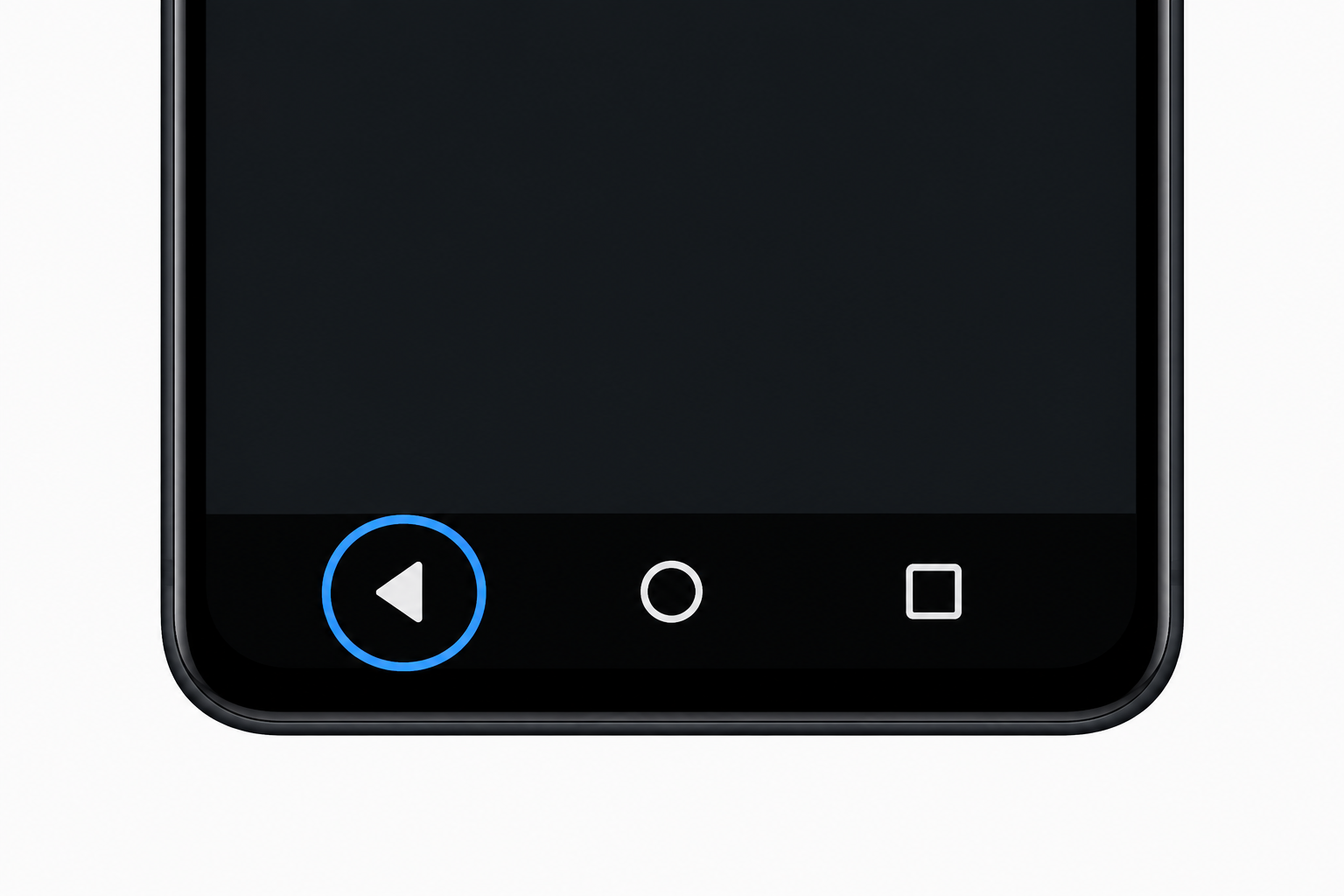
The back key on Android is a navigation control that moves you one step backward through your navigation history. When you press it, the current screen closes and the screen you were on immediately before reappears. On older Android phones it was a physical button below the screen or an on-screen button in the navigation bar. On modern Android phones running Android 10 and later it is typically accessed by swiping inward from the left or right edge of the screen using gesture navigation. Understanding exactly what the back key does in different situations makes using any Android phone significantly faster and more intuitive.
What Is the Back Key on Android?
The back key is one of the three core navigation controls in Android alongside the home button and the recents button. Its sole purpose is to move you backward through your navigation path one step at a time.
Every time you open a screen on an Android phone that screen is added to what is called a navigation stack. Think of this stack like a pile of papers. Each new screen you visit gets placed on top of the pile. When you press the back key the top screen is removed from the pile and the one beneath it is revealed. This process repeats every time you press back until you reach the bottom of the stack.
In practical everyday terms:
- Pressing the back key while reading an article in a news app returns you to the article list
- Pressing back while inside a Settings submenu returns you to the previous Settings section
- Pressing back in a web browser takes you to the webpage you were on before the current one
- Pressing back inside an app goes from the current screen to the screen you navigated from within that app
This navigation stack behavior is a foundational design principle of Android as a smartphone platform. It gives users a consistent and predictable way to move backward through any sequence of screens without needing to find a specific button inside each individual app. For more on how Android navigation principles are defined at the system level, Google’s official Android navigation documentation explains the back stack in detail.
The Three Forms of the Back Key on Android
The back key on Android has existed in three distinct forms across the history of the platform. Understanding the evolution helps clarify why different Android phones handle back navigation differently.
Physical Back Button
Early Android phones from approximately 2008 through 2013 featured a physical back button built directly into the phone’s hardware below the screen. In those early years Android required four dedicated hardware buttons on every certified device: Menu, Home, Back, and Search. The physical back button provided tactile confirmation when pressed, meaning you could feel it activate without looking at the screen. Many users who started on Android during this period developed a strong muscle memory for the physical back button.
On-Screen Navigation Bar Back Button
Starting with Android 4.0 in 2011 Google began transitioning toward on-screen navigation buttons displayed in a bar at the bottom of the screen. This change allowed manufacturers to design phones with completely flat front surfaces without dedicated hardware buttons below the display.
The on-screen back button appears as a left-pointing triangle or chevron icon typically positioned on the left side of the navigation bar. The navigation bar also contains the Home button displayed as a circle in the center and the Recents or Overview button displayed as a square on the right.
The on-screen navigation bar remains available in current Android versions for users who prefer traditional button-based navigation. It can be selected in the navigation settings of most Android phones.
Gesture Navigation Back
Beginning with Android 10 released in 2019 Google introduced gesture-based navigation as the new default navigation system for Android. In gesture navigation mode the traditional navigation bar buttons are hidden or replaced by a thin gesture indicator bar at the very bottom of the screen. The full screen area is used for app content.
The back gesture in this mode is performed by swiping inward from the left edge or right edge of the screen. A short swipe inward triggers the back action in exactly the same way that pressing the back button would. Understanding how gesture navigation affects the way users move between and within Android apps is important because different apps respond to the back gesture in ways that depend on how the app itself is designed and whether it uses Android’s standard navigation patterns.
What Does the Back Key Do in Different Situations?
The back key on Android is context-sensitive. What it does depends on where you are and what is currently active on screen. This context-sensitive behavior is intentional and makes the back key much more versatile than a simple close button.
In an App: Going Back Through Screens
Within any app pressing the back key navigates backward through the app’s internal screen hierarchy one level at a time. This is the most common use of the back key and the behavior most users associate with it.
A practical example using a shopping app:
- You open the app and see the main categories screen
- You tap Electronics which opens the Electronics category screen
- You tap Smartphones which opens the Smartphones list
- You tap a specific phone which opens the product details screen
- Pressing back once returns you to the Smartphones list
- Pressing back again returns you to the Electronics category
- Pressing back again returns you to the main categories screen
This behavior is consistent across nearly all well-designed Android applications.
Closing Keyboards and Menus
When a software keyboard is visible on screen pressing the back key dismisses the keyboard without navigating away from the current screen. This is intentional behavior. The back key closes the keyboard as the first priority because the keyboard is layered on top of the current screen.
If you want to navigate to the previous screen after dismissing the keyboard, press the back key a second time after the keyboard has closed.
Similarly when a popup menu, dialog box, dropdown list, or bottom sheet is open pressing back closes that overlay and returns you to the underlying screen without triggering a full navigation step backward.
Exiting an App
When you press the back key while at the topmost or root screen of an app, the behavior depends on how the individual app is designed. Android does not enforce a single behavior here.
Different app designs produce different back key responses at the root screen:
- Some apps close completely and return you directly to the Android home screen
- Some apps move to the background and return you to the home screen while keeping the app running
- Some apps display a confirmation dialog asking whether you want to exit before closing
- Some apps intercept the back key at the root screen and do not allow it to exit, requiring the home button instead
In the Web Browser
In a web browser pressing the back key navigates to the previous webpage in the current tab’s browsing history. This is functionally identical to tapping the back arrow button inside the browser interface. Pressing back repeatedly moves you backward through the full history of that browsing session for the current tab. When you reach the beginning of the tab’s history pressing back exits the browser app or moves it to the background depending on the browser’s design.
In Android Settings
The Settings app on Android is organized as a hierarchy of menus. Each time you tap on a setting category or option you go deeper into that hierarchy. Pressing the back key in Settings navigates upward through that hierarchy one level at a time, returning to the previous menu each time you press it.
For example if you navigate to Settings, then Display, then Screen Timeout settings, pressing back once returns you to the Display menu. Pressing back again returns to the main Settings screen.
On the Home Screen
Pressing the back key while on the Android home screen typically produces no visible result. The home screen represents the bottom of the navigation stack. There is no previous screen to return to, so the back key has nothing to do. On some older Android devices or customized Android interfaces pressing back on the home screen may briefly animate the launcher or show a subtle response, but the user remains on the home screen.
In Google Assistant and Voice Search Interface
When Google Assistant is open or a voice search interface is active on screen pressing the back key dismisses the assistant overlay and returns you to whatever screen was visible before the assistant was triggered. This is consistent with how the back key handles any overlay or panel that appears on top of an existing screen. For more context on how the Android voice search interface works and how navigation controls interact with it, understanding the voice search icon and its function provides useful background.
Back Key vs Home Button vs Recents Button: What Is the Difference?
All three Android navigation controls serve distinct purposes and work differently from each other. Confusing them is common for new Android users.
The Back Key
- Moves backward through the navigation stack one screen at a time
- Closes the current screen and reveals the previous one
- Context-sensitive meaning it closes a keyboard, dialog, or overlay before navigating
- May exit an app when pressed at the app’s root screen depending on how the app handles it
- Result depends entirely on your navigation history
The Home Button
- Always returns you to the Android home screen regardless of where you are
- Does not close or terminate apps. The current app continues running in the background
- The result is always the same no matter what app you are in or what you are doing
- In gesture navigation mode the home action is triggered by swiping upward from the bottom of the screen and releasing
The Recents or Overview Button
- Opens the recent apps screen showing all currently running and recently used apps as scrollable cards
- Allows you to switch between apps by tapping their card
- Allows you to close individual apps by swiping their card off the screen
- Allows you to clear all recent apps at once
- In gesture navigation mode this action is triggered by swiping up from the bottom and pausing briefly before releasing
Navigation Controls Comparison Table
| Navigation Control | Primary Function | Closes App? | Returns to Home Screen? |
|---|---|---|---|
| Back Key | Goes to previous screen in navigation stack | Sometimes when at root screen | Only if home screen was the previous screen |
| Home Button | Returns to home screen immediately | No, keeps app running in background | Always |
| Recents Button | Opens recent apps overview screen | No, from the recents screen | No |
How to Use Gesture Navigation Instead of the Back Button
Since Android 10 gesture navigation has been the default navigation mode on Android phones. Many users switching from older Android phones or from other platforms find the back gesture requires a short adjustment period, but most find it natural within a few days of regular use.
Gesture navigation removes the permanently visible navigation bar from the bottom of the screen, giving apps the full screen area for their content. The Android operating system handles gesture recognition at the system level, interpreting edge swipes as navigation commands and passing them to the appropriate app or system component.
How to Perform the Back Gesture
- Identify the left edge or right edge of your Android phone screen. The gesture works from either side.
- Place the tip of your finger at the very edge of the screen, as close to the physical bezel as possible.
- Swipe your finger inward horizontally toward the center of the screen in a smooth motion.
- A curved arrow icon typically appears on screen as you swipe, confirming that the back gesture is being recognized by the system.
- Release your finger.
- The back action triggers and you are returned to the previous screen in your navigation history.
Tips for the Back Gesture
- Starting position matters. The gesture must begin at the very edge of the screen. Starting even a centimeter away from the edge will likely not register as a back gesture and may interact with on-screen content instead.
- A short swipe is all that is needed. You do not need to drag your finger all the way to the other side of the screen. A short inward swipe of a few centimeters is sufficient.
- Both edges work. Use whichever edge is more comfortable for how you naturally hold your phone. Right-handed users often find the left edge easier when holding with the right hand.
- Some apps have navigation drawers that open from the left edge, which can conflict with the system back gesture. Android handles this by showing a visual handle or indicator. When both gestures are possible the system provides a preview of which action will be triggered before you complete the swipe.
How to Switch Between Gesture Navigation and Button Navigation
If you prefer the traditional on-screen back, home, and recents buttons you can switch back to 3-button navigation at any time.
- Open the Settings app on your Android phone.
- Tap System.
- Tap Gestures or Navigation depending on your device model and Android version.
- Find System Navigation or Navigation Mode in the options.
- Select Gesture Navigation to use swipe-based navigation without visible buttons.
- Select 3-Button Navigation to restore the traditional back, home, and recents buttons in the navigation bar at the bottom of the screen.
- The change takes effect immediately without requiring a restart.
Navigation settings location varies by manufacturer. Samsung Galaxy phones access navigation settings through Settings, then Display, then Navigation Bar. For Samsung-specific navigation guidance refer to Samsung Support. For general Android navigation guidance refer to support.google.com/android.
Why Is the Back Key Not Working on My Android Phone?
When the back key or back gesture stops working as expected there are several common causes. Identifying the correct cause determines which solution to apply.
Cause 1: The App Is Intentionally Blocking the Back Key
Some apps disable the system back key at specific points in their navigation by design. Payment processing screens, login authentication screens, video playback screens, and certain content pages intentionally intercept the back key to prevent accidental navigation that could disrupt an important process. This is not a phone problem and is entirely normal app behavior.
The solution is to use the app’s own navigation controls such as a Close button, X icon, Done button, or Cancel link, or to use the home button to leave the app entirely.
Cause 2: The Navigation Bar Is Hidden in Full-Screen Mode
Many media apps, games, and video players run in full-screen or immersive mode which hides the system navigation bar including the back button. This maximizes the content viewing area.
The solution is to swipe upward from the bottom edge of the screen to temporarily reveal the navigation bar, then tap the back button. Alternatively look for the app’s own exit or close controls.
Cause 3: System UI Has Crashed or Become Unresponsive
System UI is the Android process responsible for displaying the navigation bar, status bar, and other system interface elements. If System UI crashes or becomes unresponsive the navigation bar may disappear or stop responding to taps.
The solution is to restart the device by holding the power button and selecting Restart. After the restart System UI reloads fresh and navigation controls should function normally.
Cause 4: Physical Screen Damage Is Affecting Touch Response
Physical damage to the Android display can create areas where the touchscreen does not respond to touch input. If the navigation bar area or the edge zones used for back gestures fall within a damaged area of the screen the back key or back gesture may not register touches correctly.
Issues like lines on an Android screen are often symptoms of physical display damage that can also affect the touchscreen layer’s responsiveness in the damaged area. If the screen has visible lines, dead zones, or other physical damage affecting touch response in the navigation area, professional screen repair is likely required to restore full navigation functionality.
Cause 5: A Third-Party App Is Interfering
Screen overlay apps, accessibility tools, floating button apps, and some customization applications can interfere with system navigation controls by drawing over the navigation zone or intercepting navigation input before it reaches the system.
Boot into Safe Mode to test whether a third-party app is the cause. In Safe Mode all third-party apps are disabled and only system apps run. If the back key works correctly in Safe Mode a third-party app is responsible. Restart normally and uninstall recently installed apps one at a time to identify which app is causing the interference.
Cause 6: A Software Bug or Corrupted System Process
Software bugs in the Android system or a corrupted system process can occasionally cause navigation controls to behave incorrectly or stop responding.
Restart the device as the first step. If the problem continues after restart check for available software updates through Settings, then System or About Phone, then Software Update and install any available updates.
How to Fix Back Key Not Working on Android
Fix 1: Restart the Device
- Press and hold the power button on your Android phone.
- Select Restart or Reboot from the power menu.
- Wait for the device to fully shut down and complete the restart.
- After the device has fully loaded test the back key or gesture.
Fix 2: Check and Reset Navigation Settings
- Open the Settings app on your Android phone.
- Tap System, then Gestures or Navigation depending on your device.
- Check which navigation mode is currently selected.
- If using gesture navigation look for sensitivity settings and confirm they are set appropriately.
- Toggle to 3-Button Navigation, then toggle back to Gesture Navigation to reset the gesture recognition.
- Test the back function after toggling.
Fix 3: Clear System UI Cache
- Open the Settings app on your Android phone.
- Tap Apps or Application Manager.
- Use the filter or three-dot menu to enable viewing of System Apps.
- Scroll through the list to find System UI.
- Tap System UI and select Clear Cache.
- Restart the device after clearing the cache.
- Test the back key after restart.
Fix 4: Boot into Safe Mode to Test for Third-Party App Interference
- Press and hold the power button on your Android phone.
- Press and hold the Power Off option on screen until a Safe Mode prompt appears.
- Tap Safe Mode to confirm and restart in Safe Mode.
- After the device restarts look for the Safe Mode label at the bottom of the screen.
- Test whether the back key or gesture works correctly in Safe Mode.
- If it works correctly in Safe Mode restart the phone normally and uninstall recently installed apps one at a time, testing after each removal, until the issue is resolved.
Fix 5: Update Android Software
- Open the Settings app on your Android phone.
- Tap System or About Phone depending on your device.
- Tap Software Update or System Update.
- Allow the device to check for available updates.
- Download and install any available updates.
- After the update completes and the device restarts test the back key function.
Fix 6: Factory Reset as Last Resort
Only proceed with a factory reset if all other troubleshooting steps have been completed without resolving the issue and you are confident the cause is software rather than physical hardware damage. Always back up all data before proceeding.
- Open Settings on your Android phone.
- Tap System or General Management depending on your device.
- Tap Reset or Reset Options.
- Tap Factory Data Reset or Erase All Data.
- Read the warning carefully and confirm the reset.
- Wait for the reset to complete and the device to restart.
- Set up the device and test navigation function.
How to Customize Back Navigation on Android
Adjusting Gesture Sensitivity
Some Android manufacturers allow adjusting how sensitive the back gesture detection zone is at the screen edges. A higher sensitivity makes the back gesture easier to trigger with a lighter touch or slightly less precise starting position. A lower sensitivity reduces accidental back gestures when using apps that require edge interactions.
To find sensitivity options navigate to Settings, then System, then Gestures, then System Navigation, and look within the Gesture Navigation settings for a sensitivity slider or option. Not all Android devices offer this adjustment.
Using Third-Party Navigation Apps
Because Android is an open platform users can install Android apps from the Google Play Store that provide alternative navigation experiences. Third-party navigation apps can add floating back buttons that sit on top of any screen, provide custom gesture zones, offer alternative navigation bar designs, and give users precise control over back behavior that goes beyond what stock Android settings offer.
Search the Google Play Store for navigation gesture apps or back button apps to browse available options. Read reviews and check permission requirements carefully before installing any navigation tool.
Samsung-Specific Navigation Customization
Samsung Galaxy phones running One UI provide navigation customization options that extend beyond what stock Android offers. Samsung allows users to swap the positions of the back button and the recents button in the navigation bar, which is useful for users who prefer the back button on the right side. Samsung also provides gesture sensitivity adjustment and additional options for the appearance of the navigation bar.
Access Samsung navigation customization settings through Settings, then Display, then Navigation Bar. For detailed Samsung One UI navigation guidance refer to Samsung Support.
Back Key Behavior Differences Between Android Manufacturers
The back key on Android functions consistently at its core across all manufacturers, but the settings, customization options, and default configurations vary.
Stock Android on Google Pixel
Google Pixel phones run stock Android as Google designed it without a manufacturer software layer on top. Gesture navigation is the default on current Pixel phones with the option to switch to 3-button navigation through Settings, then System, then Gestures. The back gesture behavior on Pixel follows Google’s standard implementation precisely and is the reference point against which other manufacturers’ implementations are measured.
Samsung Galaxy with One UI
Samsung Galaxy phones run Samsung’s One UI software layer on top of Android. One UI provides back navigation through both gesture and button modes with additional customization including the option to swap the back and recents button positions in the navigation bar. Samsung’s gesture navigation implementation follows Android’s standard approach closely. Navigation settings on Samsung Galaxy phones are found in Settings, then Display, then Navigation Bar rather than in the System menu as on stock Android.
Other Android Manufacturers
OnePlus, Motorola, Xiaomi, Sony, and other Android manufacturers generally follow Google’s standard Android navigation implementation with minor variations in where navigation settings are located within the Settings menu and occasional additional manufacturer-specific customization options. The core back key behavior including gesture and button navigation follows Android standards across all these manufacturers.
Back Key on Android vs iPhone Back Navigation
Understanding the difference helps users switching between platforms adjust their expectations quickly.
iPhone does not have a dedicated system-level back key. iOS navigation relies on two mechanisms for going back: an in-app back button that appears in the top left corner of the screen within apps that implement it, and a left-edge swipe gesture that works within apps designed to support it. Neither mechanism is enforced system-wide the way Android’s back key is.
Android’s back key provides a consistent system-level back function that works across every app because it is controlled by the operating system rather than by individual apps. On Android you can always press back from anywhere and something meaningful happens. On iPhone the availability and behavior of back navigation depends heavily on whether the specific app has implemented back navigation controls and how it has done so.
Android’s approach produces more uniform back navigation behavior across diverse apps because the control is managed at the operating system level. iPhone’s approach gives individual app developers more design freedom but results in less consistent back navigation across different apps.
Common Back Key Scenarios and What to Expect
When the Back Key Closes an App
If pressing the back key at the main screen of an app closes the app and returns you to the home screen this is completely normal. You have reached the bottom of the navigation stack for that app and the back key has nowhere further to go within it. If you want to keep the app running in the background while leaving it, use the home button instead of the back key. The home button always moves you to the home screen without closing or terminating the app.
When the Back Key Does Nothing
Pressing the back key on the home screen typically produces no result. The home screen is the absolute bottom of the navigation stack. There is no previous screen to return to from the home screen so the back key has nothing to act on. This is normal expected behavior.
When the Back Key Closes a Keyboard Instead of Navigating
This is correct behavior and not a malfunction. Whenever a software keyboard is open on screen the back key’s first action is always to dismiss the keyboard. Press back a second time after the keyboard has closed to navigate to the previous screen as normal.
When You Cannot Go Back in an App
Some apps contain screens that intentionally intercept the back key and prevent navigation away from that screen. This is most common on payment processing screens, terms acceptance screens, and onboarding flows that require completion before proceeding. In these situations use the app’s own navigation controls such as Cancel, Close, Skip, or X buttons, or use the home button to leave the app without completing the flow.
Frequently Asked Questions
What does the back key do on Android?
The back key moves you one step backward through your navigation history, closing the current screen and returning to the one you were on before it. It also closes keyboards and dismisses dialogs when those are open.
Where is the back button on Android phones?
On phones using 3-button navigation the back button appears in the navigation bar at the bottom of the screen as a left-pointing triangle icon. On phones using gesture navigation the back button is replaced by a swipe inward from the left or right edge of the screen.
How do I go back on Android without a back button?
If you are using gesture navigation swipe inward from the left or right edge of the screen to go back. If neither option is available look for an in-app back arrow in the top left corner of the screen within the app you are using.
What is the difference between the back key and the home button on Android?
The back key moves you to the previous screen in your navigation history. The home button always takes you directly to the home screen regardless of where you are. The home button does not close apps while the back key can exit an app when pressed at its root screen.
Why does the back key close my app instead of going back?
The back key closes an app when you are at the app’s root or main screen and there are no more previous screens within the app to navigate back to. Use the home button instead if you want to leave the app without closing it.
Why is the back button not working on my Android phone?
Common causes include an app intentionally blocking the back key, a hidden navigation bar in full-screen mode, a crashed System UI process, physical display damage affecting touch response, a third-party app interfering, or a software bug. Try restarting the device as the first step.
How do I enable gesture navigation on my Android phone?
Go to Settings, then System, then Gestures or Navigation, and select Gesture Navigation. The navigation bar buttons are replaced by swipe gestures. On Samsung Galaxy phones navigate to Settings, then Display, then Navigation Bar.
How do I switch from gesture navigation back to button navigation on Android?
Go to Settings, then System, then Gestures or Navigation, and select 3-Button Navigation. The traditional back, home, and recents buttons reappear in the navigation bar at the bottom of the screen immediately.
Can I customize the back button on Android?
Yes. Some manufacturers allow adjusting gesture sensitivity in navigation settings. Third-party navigation apps from the Google Play Store provide additional customization options. Samsung Galaxy users can swap the back and recents button positions through Settings, then Display, then Navigation Bar.
What is the back gesture on Android?
The back gesture is performed by placing your finger at the very left or right edge of the screen and swiping inward horizontally. A curved arrow indicator appears to confirm the gesture is recognized. Releasing the finger triggers the back action.
Does pressing back on Android close the app?
It depends on where you are within the app. Pressing back while navigating through an app’s internal screens goes to the previous screen within the app. Pressing back at the app’s main or root screen may close the app depending on how the app is designed.
Why does pressing back dismiss the keyboard instead of going back?
This is intentional behavior. The back key always dismisses the on-screen keyboard first when a keyboard is visible. Press back a second time after the keyboard closes to navigate to the previous screen.
What happened to the physical back button on Android phones?
Google phased out mandatory physical back buttons starting around 2013 in favor of on-screen navigation buttons. Android 10 then introduced gesture navigation as the new default, replacing the on-screen navigation bar buttons with swipe gestures on most modern Android phones.
Is there a back button on Samsung Galaxy phones?
Yes. Samsung Galaxy phones support both 3-button navigation which includes a visible on-screen back button and gesture navigation which replaces the button with a swipe gesture from the screen edge. Samsung also allows customizing the position of the navigation buttons.
How do I fix the back button not working on Android?
Start by restarting the device. Then check navigation settings to confirm gesture or button navigation is configured correctly. Clear the System UI cache through Settings, then Apps. Boot into Safe Mode to rule out third-party app interference. Update Android software through Settings, then System Update. If the issue persists and is unrelated to physical damage consider a factory reset as a last resort.
Disclaimer
This article is intended for educational and informational purposes and provides a general guide to the back key on Android for everyday Android users. Steps and interface options described in this article reflect general Android functionality. The exact appearance of navigation options and menus may vary between different Android device manufacturers, Android versions, and device models. Always refer to your device manufacturer’s official support documentation for guidance specific to your Android device. This article does not constitute an endorsement of any third-party app or service mentioned in this guide.