
 By Saad Qureshi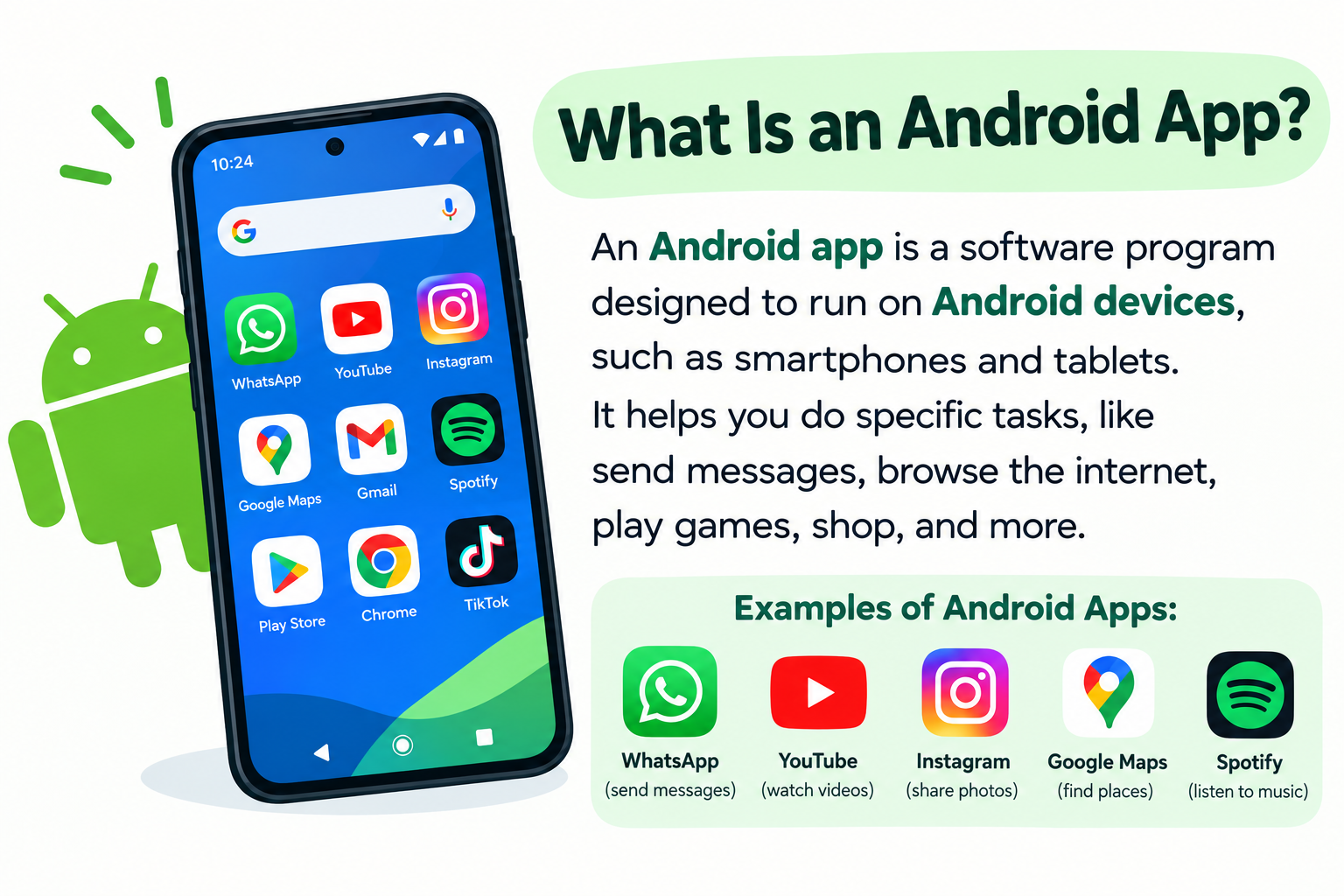
Introduction
Every time you open a messaging app, stream a video, check your bank balance, or play a game on an Android phone, you are using an Android app. These apps are part of everyday life for hundreds of millions of people around the world, yet many users have never thought about what an Android app actually is, how it works, or how it ends up on their device.
So what is an Android app? An Android app is a software application designed to run on devices powered by the Android operating system. Android apps can run on smartphones, tablets, smart TVs, smartwatches, in-car systems, and other compatible Android-based devices, depending on the app and the platform it is built for.
This guide explains what Android apps are, how they work, the different types available, how they are developed, and what every user should know about permissions, security, and installation.
Quick Answer: What Is an Android App?
An Android app is a software application designed to run on devices powered by the Android operating system. Android apps are built using programming languages such as Kotlin and Java, distributed primarily through the Google Play Store, and can serve many purposes including communication, entertainment, productivity, finance, education, and more. Some work entirely offline, others require internet access, and many use a combination of both.
What Is an Android App?
An Android app is application software designed to run on the Android operating system. Android is an open-source mobile operating system developed by Google and used on a wide range of devices from smartphones and tablets to smart TVs, smartwatches, and in-vehicle entertainment systems.
The relationship between Android and Android apps is similar to the relationship between a computer’s operating system and the programs that run on it. Android manages the device’s hardware and provides the foundation. Android apps are the programs that users run on top of that foundation to accomplish specific tasks.
The word “app” is short for “application” or “application software,” which refers to programs designed to help users do something specific. An Android app might help you send a message, navigate to a location, edit a photo, manage your budget, or play a game. What makes it an Android app is that it is built to run on the Android platform specifically, using Android’s tools, APIs, and conventions.
Android apps are primarily distributed through the Google Play Store, Google’s official app marketplace, though other distribution methods exist for specific use cases. Apps are installed on the device and can be launched directly from the home screen or app drawer.
How Do Android Apps Work?
Understanding how an Android app works does not require technical expertise. The process follows a logical chain from the interface you interact with to the systems working behind it.
Android Operating System
The Android operating system sits between the app and the device’s physical hardware. When an app needs to take a photo, play audio, or read GPS coordinates, it asks Android through a set of standardized interfaces rather than talking to the hardware directly. Android manages resources, enforces security, handles multitasking, and provides a consistent environment across the enormous variety of devices that run it.
App User Interface
The user interface is what you see and touch when you use an Android app. It includes buttons, menus, screens, lists, text fields, and other visual elements. Android apps are designed for touch interaction and are typically built to work across different screen sizes and densities. When you tap the screen or swipe through a list, you are interacting with the app through its interface.
Application Logic
Behind the visible interface, the app runs logic written by developers. This logic determines what happens in response to your actions. When you tap search, the logic processes your query. When you submit a form, the logic validates your input and sends it to the right place. This is where algorithms, functions, and variables in the app’s code come into play.
Android APIs
Android APIs (Application Programming Interfaces) are the defined set of tools that Android provides for apps to interact with the system. When an app wants to access the camera, display a notification, or read sensor data, it uses Android’s APIs to make those requests in a structured, controlled way. Understanding what APIs are generally helps clarify how apps access functionality they did not build themselves.
Device Hardware and System Services
Through Android’s APIs, apps can access device features including the camera, microphone, GPS, accelerometer, Bluetooth, and storage, subject to appropriate permissions. Android mediates this access so that apps work consistently across different hardware configurations.
Internet and Backend Services
Many Android apps connect to the internet to access data, deliver content, or communicate with other users. A news app retrieves articles from a server. A messaging app sends and receives messages through the platform’s infrastructure. A navigation app downloads map data and calculates routes using backend services. This connectivity is what makes many apps dynamic and continuously updated.
Databases and Cloud Services
Apps that store and retrieve data use databases and cloud computing infrastructure. Some data is stored locally on the device in a local database, allowing the app to function without connectivity. Other data is stored on remote servers and accessed when a connection is available. Many apps use a combination, storing some data locally for offline access while syncing to cloud services when connected.
What Are Android Apps Used For?
Android apps cover nearly every area of daily life. Here is a look at the most common categories.
Communication Apps
Communication apps allow users to send text messages, make voice and video calls, share images and files, and collaborate in groups. These apps have become central to both personal and professional communication.
Social Media Apps
Social media apps connect users with friends, communities, and public figures through posts, images, video, and short-form content. They range from broad platforms to networks focused on specific interests.
Productivity Apps
Productivity apps help users manage tasks, write documents, organize projects, and collaborate with colleagues. Mobile versions of tools like Google Workspace and Microsoft Office bring document editing, spreadsheets, and presentations to Android devices. Project management tools like Trello and note-taking apps like Notion are also popular on Android.
Education Apps
Education apps provide interactive learning experiences across subjects including languages, mathematics, sciences, coding, and professional development. They range from simple flashcard tools to full course platforms.
Finance Apps
Finance apps include mobile banking, budgeting tools, investment platforms, and payment services. They allow users to check balances, transfer money, track spending, and manage financial accounts from their devices.
Shopping Apps
Shopping apps allow users to browse products, compare prices, place orders, and track deliveries from retailers, marketplaces, and specialty stores directly from their phones.
Entertainment Apps
Entertainment apps deliver streaming music, podcasts, video content, audiobooks, and digital reading. They allow on-demand access to media wherever users have a connection or downloaded content available.
Gaming Apps
Gaming apps span casual puzzles to graphically complex action and strategy titles. Android’s open ecosystem supports a wide variety of game types, from free-to-play casual games to premium titles.
Health and Fitness Apps
Health apps track physical activity, monitor sleep, log nutrition, and support mental wellbeing. Many use the phone’s built-in sensors or connect to wearable devices to gather real-time health data.
Utility Apps
Utility apps perform specific practical tasks such as scanning documents, converting file formats, managing cloud storage, checking device performance, managing passwords, or providing system information.
Business Apps
Business apps support professional workflows including project tracking, customer relationship management, invoicing, analytics, team communication, and remote work. Organizations often deploy custom or specialized business apps to their employees’ Android devices.
What Are the Different Types of Android Apps?
Android apps are commonly categorized by how they are built and how they interact with the device and its operating system.
Native Android Apps
A native Android app is built specifically for the Android platform using Google’s official development tools and languages. Native apps have direct access to Android APIs, system services, and device hardware, which typically results in the best performance and most polished user experience. They are installed as standalone apps and launch directly from the device.
Cross-Platform Apps
Cross-platform apps are built using frameworks that allow a single codebase to run on both Android and iOS, reducing the need to maintain separate apps for each platform. Frameworks such as Flutter (using Dart) and React Native (using JavaScript) are widely used for this purpose. Cross-platform apps can deliver strong user experiences across platforms, though some platform-specific features may require additional work to implement.
Web Apps
Web apps run inside a web browser rather than being installed as a standalone application. They are accessed through a URL and do not need to be downloaded from an app store. While they lack the full device integration of native apps, they work across platforms without separate development for each.
Progressive Web Apps
Progressive Web Apps (PWAs) are web applications built with modern web technologies that provide an app-like experience within a browser. On Android, PWAs can be added to the home screen, work offline to some degree, and receive push notifications, bridging the gap between traditional web apps and native apps without requiring installation through an app store.
Offline Android Apps
Some Android apps are designed to function entirely or substantially without an internet connection. Calculators, offline games, locally stored note-taking apps, and downloaded podcast players are examples. These apps store all necessary data and logic on the device itself.
Cloud-Connected Android Apps
Cloud-connected apps rely on remote servers and online services to deliver their core functionality. Social media platforms, streaming services, and banking apps fall into this category. They typically store user data and content on remote infrastructure rather than locally on the device.
Android Apps vs iPhone Apps
Android and iOS are the two major mobile operating system platforms, and understanding their differences helps clarify how Android apps relate to apps on other devices.
Android is an open-source operating system developed by Google. It runs on devices from many different manufacturers across a wide range of price points.
iOS is Apple’s proprietary operating system that runs exclusively on Apple hardware including iPhone and iPad.
| Feature | Android Apps | iPhone (iOS) Apps |
|---|---|---|
| Operating system | Android (Google) | iOS (Apple) |
| Common development languages | Kotlin, Java | Swift, Objective-C |
| Primary development tools | Android Studio | Xcode |
| App distribution | Google Play Store (primary) | Apple App Store |
| Device ecosystem | Many manufacturers | Apple devices only |
| Development approach | Android SDK, Kotlin/Java, or cross-platform | Apple SDK, Swift, or cross-platform |
| Typical use cases | Broad range across diverse hardware | Broad range on Apple hardware |
Neither platform is universally better. Android offers broader hardware variety and a more open ecosystem. iOS offers tight hardware-software integration and consistency across a narrower range of devices. Many apps are available on both platforms, developed either as separate native codebases or using cross-platform frameworks.
Android Apps vs Mobile Websites
Understanding the difference between an Android app and a mobile website helps users choose the right tool for their needs and helps developers decide what to build.
| Feature | Android App | Mobile Website |
|---|---|---|
| Installation | Installed via app store or APK | No installation required |
| Browser requirement | Not required | Requires a browser |
| Device access | Full access via Android APIs | Limited browser-based access |
| Performance | Typically higher | Moderate |
| Offline functionality | Often supported | Generally requires internet |
| Notifications | Push notifications supported | Limited notification support |
| Updates | App store or in-app updates | Automatic via server |
| User experience | Optimized for Android platform | Browser-based experience |
An Android app provides richer device integration, better performance, and more consistent offline capability. A mobile website provides universal access without installation, making it easier to reach users across all platforms without a separate development effort.
How Are Android Apps Developed?
Building an Android app involves several stages from initial concept through to ongoing maintenance after release.
- Define the idea and requirements. Establish what the app will do, who will use it, and what problem it addresses. Clear requirements keep development focused and help avoid scope creep.
- Plan the user experience. Decide how users will navigate the app, what screens they will see, and how the overall flow will work before any code is written.
- Design the interface. Create visual mockups and wireframes showing how the app will look. Android design guidelines help ensure the app meets users’ expectations for Android-style interfaces.
- Write the source code. Developers write the source code that makes the app function, using Kotlin or Java for native development, or a cross-platform framework for broader deployment.
- Connect APIs and backend services. Apps that need external data, user accounts, or cloud functionality are connected to the relevant backend systems and APIs during this stage.
- Add required device features. Camera access, location services, notifications, and other device capabilities are implemented using Android APIs and declared in the app’s configuration.
- Test the app. Thorough testing across different Android versions and device configurations identifies problems before release. Testing covers functionality, performance, security, and user experience.
- Debug problems. Debugging is the process of identifying and fixing errors found during testing. Android development tools provide detailed diagnostic information to support this process.
- Review security and privacy. Developers assess how the app handles user data, what permissions it requests, and whether appropriate security controls are in place.
- Build the app package. The finished app is compiled into a package file ready for distribution.
- Publish the app. The app is submitted to the Google Play Store for review and release to users.
- Maintain and update the app. After launch, developers monitor performance, fix bugs, address security issues, and add new features through regular updates.
Version control using Git and platforms like GitHub are standard practices in professional Android development for managing code changes and team collaboration.
What Programming Languages Are Used to Build Android Apps?
Kotlin
Kotlin is the preferred language for Android app development and is officially recommended by Google. It is a modern, concise language that reduces boilerplate code compared to Java and includes features designed to reduce common programming errors. Most new Android apps are built with Kotlin, and Google’s official Android documentation and tutorials primarily use Kotlin. Learning the fundamentals of programming provides a solid foundation before specializing in Kotlin.
Java
Java has a long history with Android development and was the primary language for Android apps for many years. It remains widely used because a large number of existing Android apps and libraries are written in Java. Developers working with established Android codebases often work with Java. Kotlin and Java are interoperable on Android, meaning both languages can be used within the same project.
JavaScript and TypeScript
JavaScript is used in Android development through cross-platform frameworks such as React Native, which allows developers to build Android and iOS apps from a shared JavaScript codebase. TypeScript, a typed superset of JavaScript, is commonly used in larger React Native projects. These technologies are particularly relevant for teams with existing web development experience extending their work to Android.
Dart
Dart is the programming language used with Flutter, Google’s cross-platform UI framework. Flutter enables developers to build apps for Android, iOS, web, and desktop from a single codebase. Dart is designed for building high-performance user interfaces and has grown significantly in adoption alongside Flutter.
No single language or framework is universally best for all Android projects. The right choice depends on the target platform, team skills, project requirements, and long-term maintenance considerations. Understanding programming languages broadly helps provide context for how these options fit together.
What Is Android Studio?
Android Studio is the official integrated development environment (IDE) for Android app development, developed by Google. It is the primary tool developers use to write, test, debug, and build Android applications.
Android Studio provides a code editor, a visual layout designer for building app interfaces, a built-in emulator for testing apps without a physical device, debugging tools, and integration with Android’s build systems and testing frameworks. It supports both Kotlin and Java, and also works with Flutter and other development frameworks.
For anyone learning Android development, Android Studio is the standard starting point. Understanding what an IDE is more broadly helps clarify how Android Studio fits into the development process. Visual Studio Code is another code editor sometimes used alongside Android development tools, particularly for cross-platform frameworks.
What Is the Android SDK?
The Android SDK, or Software Development Kit, is a collection of tools, libraries, APIs, and documentation that developers use to build Android applications.
In simple terms, the SDK provides everything a developer needs to create apps that work with Android. It includes APIs for accessing device features, tools for compiling and packaging apps, testing utilities, and the code libraries that Android apps depend on to function.
When developers use Android Studio, the Android SDK is integrated into the development environment, meaning most developers interact with it through their tools rather than directly. The SDK is updated regularly as Android evolves, and developers must ensure they are using the SDK version appropriate for the Android versions they are targeting.
What Are Android App Permissions?
Android app permissions are a system that controls which device features and data an app is allowed to access. Permissions exist to protect user privacy and device security by ensuring apps can only access what they genuinely need and what the user has approved.
Common permissions and why apps may request them:
- Camera — Apps like document scanners, video calling tools, and social platforms need camera access to capture photos and video.
- Microphone — Voice calling, voice recording, and speech-to-text apps require microphone access.
- Location — Navigation, weather, local search, and delivery apps use location to provide relevant, location-based results.
- Contacts — Messaging and calling apps may request contact access to help you find people to communicate with.
- Notifications — Apps request permission to send notifications so they can alert you to messages, updates, and events.
- Files and media — Apps that manage photos, documents, or downloads may need access to device storage.
- Bluetooth and nearby devices — Apps that connect to wireless peripherals, speakers, or health devices need Bluetooth access.
Android’s permission model requires apps to declare which permissions they need and, for sensitive permissions, to request user approval at the time the permission is first needed. Users can review and change permissions at any time through Android’s settings.
Not every app has access to all device features by default. Access is granted only when the user approves the relevant permission. Reviewing permission requests before approving them is an important habit for all Android users.
Are Android Apps Safe?
Most Android apps downloaded from trusted sources are safe for everyday use, but no distribution channel eliminates every risk entirely. Sensible practices significantly reduce your exposure.
Download from trusted sources. The Google Play Store is Google’s official app marketplace and applies review processes to apps before they are made available. Downloading from the Play Store is considerably safer than obtaining apps from unfamiliar third-party websites.
Check the developer. Before installing an app, review who published it. Established developers with a history of well-reviewed, legitimate apps are more trustworthy than unknown publishers with no track record.
Review permissions. If an app requests access to features that have no obvious relationship to what the app does, that is worth investigating before granting permission.
Keep Android and apps updated. Security vulnerabilities are discovered regularly. Updates from both Google and app developers address known vulnerabilities. Keeping your device and apps updated is one of the most effective security practices available.
Avoid suspicious apps. Apps with very few reviews, poor descriptions, or that promise unlikely functionality are worth approaching with caution.
Check privacy information. Google Play requires developers to disclose what data their apps collect and how it is used. Reviewing this information before installing an app helps you make informed decisions.
Use device security features. Screen locks, biometric authentication, and Android’s built-in security features all contribute to protecting your device and the data on it.
Understanding cybersecurity principles broadly provides useful context for approaching Android app security thoughtfully.
How Do You Install an Android App?
Installing an Android app through the official channel is straightforward.
Using the Google Play Store: Open the Google Play Store app on your Android device, search for the app you want, review its description, developer information, ratings, and listed permissions, then tap the install button. The app downloads and installs automatically and appears in your app drawer.
APK files: APK stands for Android Package Kit. It is the file format used to distribute and install Android applications. The Google Play Store manages APK installation automatically, but APK files can also be downloaded and installed manually, a process sometimes called sideloading.
Sideloading allows apps to be installed from sources outside the Play Store. This can be useful in certain legitimate situations, such as testing an app during development or installing apps from established alternative stores. However, installing APK files from unknown websites carries significant risk. Malicious actors distribute modified APK files containing malware. An APK from an unverified source may look identical to a legitimate app while containing harmful code.
Android includes a setting that allows or restricts installation from sources other than the Play Store. This setting should be used with care, and any APK installed manually should come from a source you genuinely trust.
How Do Android Apps Make Money?
Android apps use a variety of business models to generate revenue, and many apps combine more than one approach.
Free apps are offered at no cost and generate revenue through other means such as advertising or in-app purchases.
Paid apps require users to pay before downloading. The developer receives payment upfront through the Play Store’s payment system.
Advertising allows apps to be offered free while displaying advertisements to users. Revenue is generated based on ad views or interactions.
Subscriptions charge users a recurring fee for access to an app or its premium features. This model is common in streaming services, productivity tools, and professional applications.
In-app purchases allow users to buy additional content, features, virtual items, or enhanced capabilities within a free or paid app. This model is particularly prevalent in gaming apps.
Freemium models offer a free version with limited features alongside a paid premium version with full functionality.
Enterprise and business licensing involves selling access to an app to organizations on commercial terms, often with pricing based on the number of users or specific deployment requirements.
What Are the Benefits of Android Apps?
Android apps offer practical advantages for users and businesses alike.
Convenience is perhaps the most significant. Android apps are always accessible on the device you carry with you, providing instant access to tools and services wherever you are.
Fast access comes from local installation. Apps launch quickly from the home screen without needing to load a website from scratch each time.
Device integration allows Android apps to use the full range of hardware capabilities available on the device, from cameras and GPS to sensors and biometric authentication, in ways that browser-based tools generally cannot match.
Personalization is enabled by apps that remember your settings, preferences, and history across sessions.
Push notifications allow apps to proactively inform you of important events, messages, or updates without requiring you to open the app first.
Offline functionality is available in many apps, allowing you to access content and complete tasks without a network connection.
Wide range of applications means there is an Android app for almost every purpose imaginable, from specialized professional tools to niche entertainment and utilities.
What Are the Limitations of Android Apps?
Android apps also have limitations that are worth understanding.
Storage requirements mean that installing apps uses space on your device, and some apps accumulate significant data over time.
Permissions require users to make decisions about what data and features each app can access, which demands ongoing attention.
Privacy concerns arise because many apps collect data about usage, location, and behavior that may be shared with third parties depending on each app’s privacy practices.
Security risks exist particularly for apps from untrusted sources or apps that have not been updated to address known vulnerabilities.
Device fragmentation is a consideration specific to Android. Because Android runs on hardware from many different manufacturers, there is wide variation in screen sizes, hardware capabilities, and operating system versions. Developers must account for this variety, and some apps may not perform consistently across all device configurations.
Battery and resource usage varies significantly between apps. Poorly optimized apps can drain battery, use excessive memory, and affect overall device performance.
Dependence on internet services means that many apps cannot function effectively without connectivity, which can be limiting in areas with poor network coverage.
Android App Development vs Web Development
Both Android app development and web development are forms of programming that produce software for users, but they differ significantly in their approach, technologies, and output.
| Feature | Android App Development | Web Development |
|---|---|---|
| Primary platform | Android operating system | Web browsers |
| Common languages | Kotlin, Java, Dart | HTML, CSS, JavaScript |
| Installation | Installed on device | No installation |
| Device access | Full Android API access | Limited browser-based access |
| Distribution | Google Play Store, APK | URL access |
| Updates | App store or in-app | Automatic via server |
| Offline capability | Often strong | Generally limited |
| Development environment | Android Studio, Android SDK | Various editors and frameworks |
Android development produces apps that run natively on Android devices with full platform access. Web development produces sites and applications accessible through any browser on any platform. Many projects now combine both, with an Android app providing the native experience while a web app or backend service handles browser-based access.
Frequently Asked Questions
What is an Android app in simple words?
An Android app is a software program designed to run on devices that use the Android operating system, such as smartphones and tablets. Apps are installed on the device and help users perform specific tasks like messaging, navigation, banking, gaming, or streaming media.
What does Android app mean?
“Android app” means an application (software program) built for the Android platform. “Android” refers to the operating system developed by Google, and “app” is short for “application,” meaning software designed for a specific purpose.
What is the difference between Android and an Android app?
Android is the operating system that manages the device’s hardware and provides the foundation for software to run. An Android app is a program that runs on that operating system. Android is the platform; the app is software that uses the platform.
What is the difference between an Android app and a mobile app?
A mobile app is any software application designed for mobile devices, including both Android and iOS apps. An Android app is specifically a mobile app designed for the Android platform. All Android apps are mobile apps, but not all mobile apps are Android apps.
What is the difference between an Android app and an iPhone app?
Android apps are designed for the Android operating system and are primarily distributed through the Google Play Store. iPhone apps are designed for Apple’s iOS and distributed through the Apple App Store. They use different programming languages, development tools, and platform-specific features. Many popular apps are available on both platforms, developed as separate native apps or using cross-platform frameworks.
What programming language is used for Android apps?
Kotlin is the preferred language for native Android development, officially recommended by Google. Java has a long history in Android development and remains widely used. Cross-platform frameworks like Flutter use Dart, and React Native uses JavaScript. The right choice depends on the project and team.
What is Android Studio?
Android Studio is the official integrated development environment (IDE) for Android development. It provides tools for writing code, designing interfaces, testing, debugging, and building Android apps. It is the primary development tool used by Android developers.
What is an APK?
APK stands for Android Package Kit. It is the file format used to package and distribute Android applications. When you download an app from the Play Store, an APK is installed on your device automatically. APK files can also be installed manually, but installing APKs from unknown sources carries security risks.
Do Android apps need the internet?
Not always. Some Android apps work entirely offline, such as calculators, offline games, and locally stored tools. Others require a connection for core functionality, such as social media and banking apps. Many apps offer partial offline functionality, working locally when disconnected and syncing when a connection is restored.
Are Android apps safe?
Most apps from the Google Play Store are safe for general use, but risks exist. Downloading from trusted sources, reviewing permissions, keeping apps updated, and checking privacy information all significantly reduce risk. No distribution channel eliminates every possible security concern.
How do I install an Android app?
Open the Google Play Store on your Android device, search for the app you want, review its details and permissions, and tap install. The app downloads and installs automatically. Apps can also be installed via APK files from trusted sources, though this carries additional security considerations.
Can Android apps work offline?
Yes, many Android apps work offline or with limited connectivity. Fully offline apps store everything locally. Apps with partial offline support let you use core features without a connection while syncing data when connected. Apps that depend entirely on remote servers require an internet connection to function.
How are Android apps made?
Android apps are made through a process that includes defining requirements, designing the interface, writing code in Kotlin or Java (or a cross-platform language), integrating APIs and backend services, testing across devices, reviewing security, building the app package, publishing through the Play Store, and maintaining the app through ongoing updates.
References
- Android Developers. Android Developer Guide. Google LLC. https://developer.android.com/guide
- Android Developers. Kotlin for Android. Google LLC. https://developer.android.com/kotlin
- Android Developers. Android Studio Overview. Google LLC. https://developer.android.com/studio/intro
- Android Developers. Permissions on Android. Google LLC. https://developer.android.com/guide/topics/permissions/overview
- Android Developers. Android SDK. Google LLC. https://developer.android.com/studio/releases/platforms
- JetBrains. Kotlin Programming Language. https://kotlinlang.org/docs/home.html
- Flutter Documentation. Flutter and Dart Overview. Google LLC. https://docs.flutter.dev/
- Google Play. Google Play Developer Policy Center. Google LLC. https://play.google.com/about/developer-content-policy/
- Android Developers. App Security Best Practices. Google LLC. https://developer.android.com/topic/security/best-practices
- MDN Web Docs. Progressive Web Apps. Mozilla Developer Network. https://developer.mozilla.org/en-US/docs/Web/Progressive_web_apps
Disclaimer
This article is for educational and informational purposes. Android platform details, development tools, programming language recommendations, and security practices evolve over time. Always consult current official Android and Google documentation for the most accurate and up-to-date information.