
 By saman zahra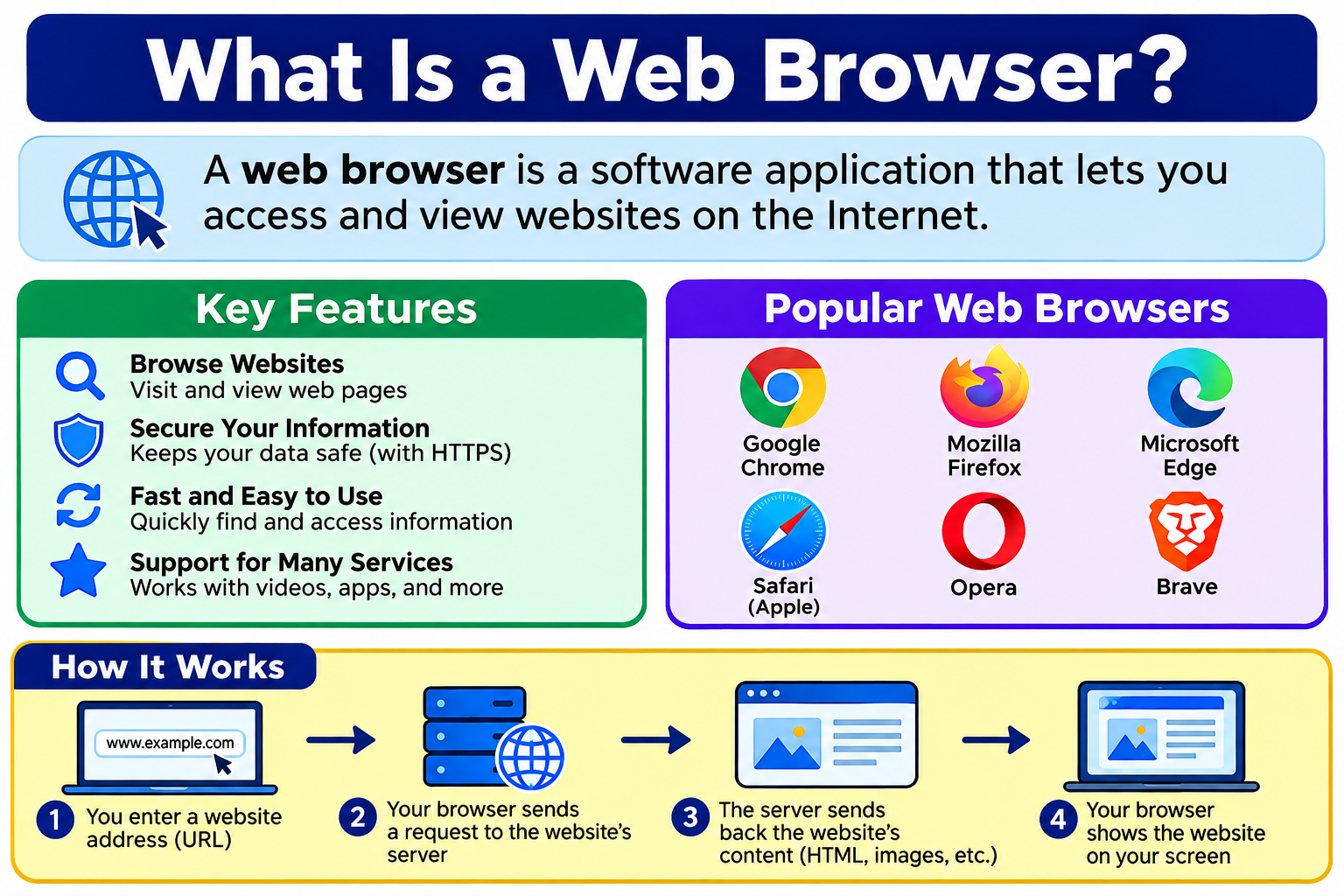
Every time you open a website, watch a video online, check your email through a web service, or use a cloud-based application, you are using a web browser. It is one of the most frequently used pieces of software in the world, yet many people have never stopped to think about what it actually is or how it works.
So what is a web browser? A web browser is a software application that allows you to access, retrieve, and display content from the World Wide Web. You use it whenever you visit a website on your laptop, open an app in your phone’s browser, or access a web-based service. Browsers work with the underlying internet infrastructure to fetch content from servers and present it on your screen in a readable, interactive format.
The World Wide Web operates over the internet, which is the global network connecting billions of devices worldwide. If you want to understand how that infrastructure works, What Is the Internet? How It Works, History, Types and Why It Matters provides a thorough explanation of the network that browsers depend on.
Quick Answer: What Is a Web Browser?
A web browser is software that retrieves and displays content from websites and web applications. It communicates with web servers using protocols such as HTTP and HTTPS, then interprets resources including HTML, CSS, and JavaScript to render interactive pages on your screen. Common examples include Google Chrome, Microsoft Edge, Mozilla Firefox, Apple Safari, and Brave. Browsers are the primary tool most people use to access the World Wide Web.
What Is a Web Browser?
A web browser is a software application that allows users to access and interact with content on the World Wide Web. When you open a browser and visit a website, the browser communicates with the server hosting that site, retrieves the relevant files, and presents the content on your screen in a format you can read, watch, listen to, or interact with.
Browsers do not just display simple text pages. Modern browsers handle complex web applications, video streaming, interactive tools, cloud-based services, and much more. They interpret several core web technologies to do this.
HTML, or HyperText Markup Language, defines the structure and content of a web page. CSS, or Cascading Style Sheets, controls how that content looks, including layout, colors, fonts, and spacing. JavaScript is a programming language that runs inside the browser and enables interactive behavior, such as responding to button clicks, loading content without refreshing the page, or animating elements.
When you type a website address into your browser and press Enter, the browser sends a request to the appropriate server using HTTP, which stands for HyperText Transfer Protocol, or the secure version, HTTPS. The server responds with the files that make up the page, and the browser processes and displays them. This entire exchange typically happens in a fraction of a second.
The browser is the tool. The website is the content. And the internet is the network that carries the communication between them. Understanding this distinction matters because browsers, websites, and the internet are three different things that work together.
How Does a Web Browser Work?
Understanding how a browser works helps you appreciate what is happening behind the scenes every time you visit a page. Here is the process in plain language.
- You type a web address into the browser’s address bar, click a link, or select a bookmark.
- The browser identifies the destination you want to reach based on the URL you entered or the link you clicked.
- If you used a domain name, such as a readable website address, the browser may need to resolve it to an IP address through the DNS system, which translates names into numerical addresses that networks use for routing.
- The browser establishes a network connection to the appropriate server, often through your local network and internet service provider.
- If the connection uses HTTPS, a TLS handshake takes place to establish an encrypted, authenticated connection before any page content is sent.
- The browser sends an HTTP or HTTPS request to the server, asking for the specific resource identified by the URL.
- The server processes the request and returns a response, which typically includes HTML files along with references to related resources such as CSS files, JavaScript files, images, and fonts.
- The browser downloads those resources, sometimes fetching multiple files simultaneously.
- The browser parses the HTML, applies CSS styles, executes JavaScript, and builds a visual representation of the page.
- The finished page appears on your screen, ready for you to interact with.
This process connects directly to the internet infrastructure described in detail in What Is the Internet? How It Works, History, Types and Why It Matters. Many of the websites and services a browser accesses are hosted on cloud infrastructure, which What Is Cloud Computing? A Beginner’s Guide explains in full.
What Happens When You Enter a URL in a Browser?
A URL, or Uniform Resource Locator, is the address of a specific resource on the web. When you type one into your browser, a sequence of events begins almost immediately.
First, the browser parses the URL to understand what protocol is being used, which domain is being addressed, and which specific resource or path is being requested.
Next, if the destination is a domain name, the browser checks whether it already has the corresponding IP address stored in its cache. If not, it sends a DNS query to resolve the domain name into an IP address. DNS acts as a directory service that maps readable domain names to the numerical addresses used to route data across networks.
Once the browser has an IP address, it opens a network connection to the server at that address. If HTTPS is used, a TLS handshake establishes an encrypted channel. This step verifies the server’s identity through its certificate and sets up encryption that protects the data exchanged between your browser and the server.
With the connection established, the browser sends an HTTP request specifying what it wants. The server processes the request and sends back a response, which includes a status code indicating success or describing any problem, along with the requested content.
The browser receives this response and begins the process of parsing and rendering the content into the page you see. It is worth noting that the exact sequence can vary. Browsers use techniques like caching, connection reuse, content delivery networks, HTTP/2, and HTTP/3 to speed up this process, so not every step happens the same way every time.
What Are the Main Components of a Web Browser?
Modern browsers are complex pieces of software with several distinct functional components working together.
The user interface is what you see and interact with. It includes the address bar, navigation buttons such as back and forward, the tab bar, bookmarks, and menus. The user interface is the visible shell of the browser around the web content area.
The browser engine sits between the user interface and the rendering engine. It coordinates actions and passes information between them. It manages the overall behavior of the browser rather than rendering content directly.
The rendering engine is responsible for taking HTML, CSS, and other web resources and converting them into the visual page displayed on screen. It parses markup, builds the page structure, applies styles, and handles layout.
The JavaScript engine executes the JavaScript code that websites include. Modern JavaScript engines use techniques such as just-in-time compilation to execute JavaScript efficiently.
The networking layer handles all communication between the browser and servers. It manages HTTP and HTTPS requests and responses, handles connections, and can manage features like caching and connection reuse.
The storage system manages the different types of data a browser can store locally, including cookies, cached files, local storage used by web applications, and browser preferences.
The security components include protections such as safe browsing checks, certificate validation for HTTPS, sandboxing to isolate web content from the operating system, and permission management.
It is important to note that exact browser architectures differ between browsers. The components described here represent the general functional areas common to modern browsers rather than the specific implementation of any one browser.
What Is a Browser Rendering Engine?
The rendering engine is one of the most important parts of a browser. Its job is to take web resources, primarily HTML and CSS, and turn them into the visual page a user sees.
When the browser receives HTML from a server, the rendering engine parses it to understand the structure of the content. It builds a tree-like representation called the Document Object Model, or DOM, which organizes all the elements on the page and their relationships to each other.
The engine then processes the CSS, which defines how each element should look. It calculates the styles that apply to each element, taking into account rules from stylesheets, element attributes, and the cascade of inherited styles.
Next comes the layout phase, where the engine determines the size and position of every element on the page. After layout, the engine moves into the painting phase, where it actually draws the elements, applying colors, borders, text, images, and other visual properties.
The result of all this processing is the page displayed on your screen. If JavaScript modifies the page after it loads, the rendering engine may need to recalculate parts of the layout and repaint affected areas.
What Is JavaScript in a Web Browser?
JavaScript is a programming language that runs inside the browser and enables dynamic, interactive behavior on web pages. Without JavaScript, most websites would be static documents that simply display text and images without responding to user actions.
With JavaScript, a web page can update content without requiring a full page reload, respond to user input such as button clicks or form submissions, animate elements, validate data entered into forms, and communicate with servers in the background to fetch or send data.
Browsers provide a set of APIs, or Application Programming Interfaces, that JavaScript can use to interact with the web page, the browser itself, and in some cases, device features. These include APIs for manipulating the DOM, making network requests, handling audio and video, managing local storage, and more.
JavaScript is not the only technology that contributes to interactivity on the web. HTML provides interactive elements like form fields and buttons, CSS can create animations, and other web technologies play supporting roles. But JavaScript is the primary programming language used to add behavior and interactivity to web pages and applications.
What Are the Most Popular Web Browsers?
Several web browsers are widely used around the world. Here is an overview of the major ones.
Google Chrome is developed by Google and available on Windows, macOS, Linux, Android, and iOS. It is known for its integration with Google services, a large extension library, developer tools, and regular updates. Chrome uses the Blink rendering engine and the V8 JavaScript engine.
Microsoft Edge is developed by Microsoft and is the default browser on Windows. It is also available on macOS, Android, and iOS. Edge is built on the Chromium project, meaning it shares underlying technology with Chrome while offering its own features, including integration with Microsoft services and tools.
Mozilla Firefox is developed by Mozilla, a non-profit organization focused on internet health and open-source software. Firefox is available on Windows, macOS, Linux, Android, and iOS. It is known for its privacy features, customizability, and strong commitment to open web standards. Firefox uses the Gecko rendering engine.
Apple Safari is developed by Apple and is the default browser on macOS and iOS devices. It is optimized for Apple hardware, known for energy efficiency on Apple devices, and integrates closely with the Apple ecosystem. Safari uses the WebKit rendering engine.
Opera is a browser with a long history that now uses Chromium as its base. It offers features such as a built-in VPN tool, an ad blocker, and a sidebar for quick access to messaging applications. It is available on multiple platforms.
Brave is a privacy-focused browser built on Chromium. It includes aggressive tracking and ad blocking by default and offers additional privacy features. It is available on Windows, macOS, Linux, Android, and iOS.
Each browser has its own strengths and trade-offs. No single browser is universally superior for every user in every situation. Performance, privacy, compatibility, and available features can vary between browsers and between versions of the same browser.
Types of Web Browsers
Browsers come in several categories, and some browsers fit into more than one.
Desktop browsers are designed for use on computers running operating systems such as Windows, macOS, or Linux. Chrome, Firefox, Edge, and Safari are prominent examples.
Mobile browsers are designed for smartphones and tablets. Some desktop browsers have mobile versions, while some mobile browsers are designed specifically for touch interfaces and smaller screens.
Privacy-focused browsers place a strong emphasis on limiting tracking and protecting user data. Brave is a well-known example. Some mainstream browsers also offer enhanced privacy modes or settings.
Text-based browsers display web content as text rather than rendering graphics or running JavaScript. They are used in specialized contexts, such as server administration or accessibility scenarios, rather than by general users.
Specialized browsers are designed for specific purposes. Some are built for developers, others for accessibility, and others for specific devices such as smart televisions or gaming consoles.
Embedded browsers are browser components integrated into other software or devices. A browser engine embedded in a desktop application that displays web content, or a browser built into a smart TV interface, would be examples of embedded browsers.
Web Browser vs Search Engine
One of the most common points of confusion for new internet users is the difference between a browser and a search engine. They are related but fundamentally different things.
| Feature | Web Browser | Search Engine |
|---|---|---|
| What it is | Software application | Online search service |
| Main purpose | Access and display web content | Find and organize online content |
| Examples | Chrome, Edge, Firefox, Safari | Google Search, Bing, DuckDuckGo |
| Installed on device | Usually yes | Accessed through a browser or other interface |
Google Chrome is a browser. Google Search is a search engine. They are made by the same company, but they serve different purposes. You use Chrome, the browser, to access Google Search, the search engine.
Similarly, you can use a browser such as Firefox to access the Bing search engine, or use Microsoft Edge to access DuckDuckGo. The browser is the tool. The search engine is a service you can access through that tool.
When most people say “I searched on Google,” they typically mean they used a browser to access the Google Search service. The browser enabled the access. Google Search provided the results.
Web Browser vs Website
A browser and a website are also different things that work together.
A browser is software installed on your device, or sometimes running through another system. It is the application you open when you want to explore the web.
A website is a collection of web pages and resources, hosted on a server somewhere on the internet, identified by a domain name. You use a browser to access websites. The browser is the tool, and the website is the content the tool retrieves and displays.
A practical example: opening a browser on your laptop and navigating to a news website is like picking up a television remote and switching to a news channel. The remote is your tool. The channel is the content. The two are related but not the same.
Web Browser vs Internet
| Feature | Web Browser | Internet |
|---|---|---|
| Type | Software application | Global network infrastructure |
| Purpose | Access and display web content | Connect networks and devices worldwide |
| Example | Chrome, Firefox, Safari | Global network connecting billions of devices |
The internet is the global network infrastructure that connects billions of devices and networks around the world. A browser is software that runs on a device connected to the internet and uses that connectivity to access web content.
You can have a browser installed on a device that is not connected to the internet, but you would not be able to access online content without that connection. The browser needs the internet to retrieve content from servers, but the internet itself is not a browser. They are distinct, and understanding that distinction makes both easier to understand.
Web Browser vs Operating System
An operating system is the foundational software that manages a computer’s hardware and provides services to applications. Examples include Windows, macOS, Android, iOS, and Linux.
A web browser is an application that runs on top of the operating system. The operating system provides the environment the browser needs to function, managing memory, processing, networking, and display. The browser uses those system resources to fetch and render web content.
Some common combinations include Chrome or Edge running on Windows, Safari running on macOS or iOS, and Chrome or Firefox running on Linux. On Android devices, Chrome is the default browser on many devices, though other browsers are also available through app stores.
Default browser availability and configuration vary by device, operating system version, and region.
What Are Browser Tabs and Windows?
Tabs allow you to have multiple web pages open within a single browser window. Instead of opening a separate window for every site you visit, you can switch between different pages by clicking on tabs at the top of the browser. This makes it practical to work across multiple websites simultaneously.
Browser windows are separate instances of the browser. You can open more than one browser window, each containing its own set of tabs. This is useful when you want to view two groups of pages side by side or separate different types of browsing sessions.
Most modern browsers also offer features like pinned tabs, which keep important pages accessible at the edge of the tab bar, and tab groups, which allow you to organize related tabs together with labels or colors. These features help manage situations where many tabs are open at once.
What Are Browser Bookmarks?
Browser bookmarks, sometimes called favorites, allow you to save the address of a web page so you can return to it quickly later. Instead of remembering or typing a long web address each time, you click on a bookmark and the browser navigates directly to that page.
Most browsers allow you to organize bookmarks into folders, making it easier to manage large collections. You might have folders for work resources, reference sites, entertainment, and so on.
Many browsers also offer the option to sync bookmarks across devices when you are signed into a browser account. This means bookmarks you save on your laptop can appear on your phone’s browser as well, depending on the browser and account settings.
What Is Browser History?
Browser history is a record of the web pages you have visited in your browser. It allows you to go back and find a site you visited recently without needing to remember its address. Most browsers show your history organized by date and allow you to search through it.
You can delete your browser history at any time through the browser’s settings. However, it is important to understand what clearing browser history does and does not do.
Clearing your browser’s history removes that local record from your device. It does not erase records held by the websites you visited, your internet service provider, your employer or school network, or any other external system that may have logged your activity. Browser history is only one type of record, and deleting it has no effect on records maintained by other parties.
Browser history is also different from browser cookies and cache, which store different types of data for different purposes.
What Are Browser Cookies?
Browser cookies are small pieces of data that websites store in your browser. They serve several purposes and come in different types.
Session cookies exist only for the duration of your current browsing session. When you close the browser, session cookies are typically deleted. They are commonly used to keep you logged into a website as you navigate between pages.
Persistent cookies remain stored in your browser after you close it, until they expire or are deleted. They can remember preferences and settings so that websites recognize you on future visits.
First-party cookies are set by the website you are directly visiting. They generally serve functional purposes such as keeping you logged in or saving your preferences.
Third-party cookies are set by domains other than the one you are visiting, often associated with advertising networks or analytics services. They have been widely used to track browsing behavior across multiple websites.
It is important to note that cookies are not inherently malicious. They are a standard web technology. However, privacy concerns about certain types of tracking cookies have led browsers to increasingly restrict or block them by default, and web standards are evolving in this area.
What Is Browser Cache?
The browser cache is a storage area on your device where the browser saves copies of certain web resources, such as images, stylesheets, and scripts, after downloading them. The next time you visit the same website, the browser can load these saved copies from the cache rather than downloading them again from the server. This generally makes pages load faster.
Caching is usually helpful and transparent to users. However, it can occasionally cause problems. If a website has been updated but your browser is loading an older cached version of the page, you might see outdated content. In these situations, clearing the cache prompts the browser to download fresh copies of the resources.
Clearing the cache is a common first step when troubleshooting a website that appears to be behaving incorrectly. It forces the browser to retrieve current versions of all page files from the server.
What Are Browser Extensions?
Browser extensions, sometimes called add-ons or plugins depending on the browser, are small software programs that add features or modify the behavior of a browser. They are installed separately from the browser itself and can be managed through the browser’s extension settings.
Common types of extensions include password managers that help create and fill in strong passwords, ad blockers that filter out unwanted advertising, productivity tools that help organize tabs or highlight text, accessibility tools, and developer tools that assist with building and testing websites.
Extensions can be genuinely useful, but they deserve careful consideration. Extensions can access varying levels of data depending on their permissions. Some extensions can read or modify the content of pages you visit, access your browsing history, or interact with other data. Installing extensions from untrusted or unverified sources carries risk.
The safest approach is to install extensions only from official browser extension stores, read permission requests carefully before installing, and remove extensions you no longer use. Keeping the number of installed extensions reasonable also helps maintain browser performance and reduces the attack surface.
What Is Private or Incognito Browsing?
Most major browsers offer a private browsing mode, often called incognito mode in Chrome. When you browse in private mode, the browser generally does not save your browsing history, cookies from that session, form data, or other local browsing information after the private session ends.
This can be useful when you want to browse without leaving a local record on a shared device, or when you want to log into a website with a different account without affecting your existing session.
However, private browsing has important limitations that users need to understand.
Private browsing does not make you anonymous on the internet. It does not hide your activity from websites you visit, your internet service provider, your employer or school if you are using their network, or network administrators. It does not prevent tracking by services you are logged into. It does not bypass monitoring software installed on a device.
Private mode limits what the browser stores locally on your device after the session. It does not change how your data is handled by the broader network, the websites you visit, or any external party that can observe your traffic.
Web Browser Security
Modern browsers include a range of security features designed to protect users from common threats.
HTTPS and TLS protect data in transit between your browser and web servers through encryption and authentication. Most browsers visually indicate whether a connection is secured with HTTPS.
Sandboxing isolates browser tabs and processes from the underlying operating system and from each other. This limits the damage that malicious web content can cause if it attempts to exploit a vulnerability.
Site isolation takes sandboxing further by keeping content from different websites in separate processes, which helps protect sensitive data such as passwords or financial information from being accessed by other sites.
Safe browsing systems compare the addresses of pages and files you try to access against databases of known malicious sites and files, warning you before you proceed.
Phishing and malware protection builds on safe browsing to warn users when they may be visiting a deceptive page or downloading a potentially harmful file.
Certificate validation checks that the HTTPS certificate presented by a website is valid, trusted, and matches the domain. Certificate warnings should not be ignored, as they can indicate misconfiguration or potential security problems.
Automatic updates help ensure the browser includes current security patches. Running an outdated browser can leave users exposed to known vulnerabilities.
Browser security is an important layer of protection, but it is one part of a broader security picture. Understanding cybersecurity more broadly is covered in What Is Cybersecurity?. Protective software tools such as antivirus programs are explained in What Is Antivirus Software?. Network-level protections, including firewalls, are covered in What Is a Firewall? and Network Security.
No browser can prevent every possible threat, and good security practices extend beyond the browser itself.
Browser Permissions
Websites can request access to certain device features or browser capabilities through permission prompts. When a site asks to use your camera for a video call, access your location for a map service, send you notifications, or use your microphone, you will typically see a permission request from the browser.
Common permissions include camera access, microphone access, location, notifications, clipboard access, pop-up windows, and automatic file downloads. Browsers manage these permissions and allow users to review and change them at any time through browser settings.
Users should consider permission requests carefully. A legitimate video calling service requesting camera and microphone access makes sense. A random website you have never used before requesting location access or notification permissions warrants more caution. Granting permissions unnecessarily gives websites access to information or device features they may not need.
Reviewing which sites have been granted which permissions through browser settings is a good periodic practice, particularly if you have used the browser for a long time.
Why Should You Keep Your Browser Updated?
Keeping your browser updated is one of the most straightforward and effective things you can do for your security and browsing experience.
Security patches address vulnerabilities discovered since the previous version. Browsers are complex software that interact with enormous amounts of external content, and vulnerabilities are found and fixed regularly. An outdated browser may remain exposed to threats that have already been patched in current versions.
Bug fixes resolve problems that affect how websites load or behave. Updates can also improve browser performance, making pages load faster or reducing memory usage.
Web compatibility improvements ensure the browser continues to work correctly with the latest web technologies and standards. As websites adopt new features, an updated browser is more likely to display them correctly.
Privacy improvements in newer browser versions may include better tracking protection, enhanced cookie controls, and other privacy-related updates.
You should download browser updates through official channels, such as the browser’s built-in update mechanism or the official website of the browser developer. Avoid installing browser updates from pop-ups on websites, as these can be malicious.
What Are the Benefits of Using a Web Browser?
Browsers provide the gateway through which most users experience the internet’s benefits.
Easy access to websites is the most fundamental benefit. A browser makes navigating the web practical for anyone, regardless of technical background.
Web applications accessed through a browser replace or supplement many applications that would otherwise require local installation. Online document editors, email services, project management platforms, and scheduling tools are all accessible through a browser.
Online education has expanded significantly through browser-accessible learning platforms, video content, and educational resources.
Communication through web-based email, messaging services, and video call platforms happens in or through a browser.
Streaming of video and audio content is supported by modern browsers, eliminating the need for dedicated applications in many cases.
Cloud services are accessed primarily through browsers. Services like What Is Google Workspace? and online versions of tools like What Is Microsoft Office? run entirely in the browser, meaning users can work on documents from any device with a browser and an internet connection.
Online shopping and banking allow users to manage purchases and finances through secure browser connections.
Research and information access put a vast range of knowledge and resources within reach of anyone with a browser and connectivity.
Common Web Browser Problems and How to Fix Them
Most browser problems have straightforward solutions. Here are the most common issues and practical troubleshooting steps.
Pages not loading can have several causes. The website may be temporarily unavailable, your internet connection may be down, or there may be a browser issue. Try refreshing the page first. If that does not help, check your internet connection. Then try the site in a different browser to determine whether the problem is browser-specific or network-wide.
Browser running slowly is often caused by too many open tabs, a large number of installed extensions, accumulated cache and browsing data, or an outdated browser version. Close tabs you do not need, disable extensions temporarily to see if one is causing the issue, clear the browser cache, and update the browser if needed.
Website showing outdated content is frequently a cache issue. Clearing the browser cache and reloading the page usually resolves it.
Too many pop-ups may indicate aggressive pop-up settings on a website, or in more serious cases, browser settings that have been changed by unwanted software. Review pop-up settings in the browser and ensure extensions come from trusted sources.
Extension conflicts can cause pages to load incorrectly or features to stop working. Disabling extensions one by one can identify which one is causing the problem.
Browser crashes may result from memory issues, problematic extensions, or corrupted browser data. Updating the browser, disabling extensions, and clearing cache are good first steps.
DNS-related errors occur when the browser cannot resolve a domain name. Checking your network connection and flushing your DNS cache can help.
Certificate warnings appear when a browser detects a problem with a website’s HTTPS certificate. Do not dismiss these warnings without understanding what they indicate. A certificate warning can signal a server misconfiguration or, in some cases, a security concern. If you see a certificate warning on a site that handles sensitive information, do not proceed without investigating.
Login problems may relate to cookies being blocked or cleared. Ensuring cookies are enabled for the relevant site usually resolves this.
How to Choose the Right Web Browser
Choosing a browser is a personal decision based on your priorities and how you use the internet.
Security is important for everyone. Consider how frequently the browser releases security updates, what built-in protections it offers, and how it handles HTTPS connections and certificate warnings.
Privacy matters more to some users than others. Some browsers offer stronger tracking protection, more restrictive cookie defaults, or additional tools for limiting data collection.
Performance can vary depending on your device, operating system, and the type of content you browse. Testing a browser on your actual hardware gives you a better sense of its real-world performance than general claims.
Compatibility affects whether websites and web applications work correctly. Widely used browsers generally have good compatibility, but specific tools or services may work better with particular browsers.
Extensions add functionality. If you rely on specific extensions, check whether they are available for the browser you are considering.
Cross-device syncing is useful if you use multiple devices and want your bookmarks, history, and settings to carry over between them.
Battery usage is a relevant consideration on laptops and mobile devices, where some browsers are more energy-efficient than others.
Accessibility features matter for users with specific needs. Review what accessibility options are available within the browser itself.
The best browser is the one that best fits your specific needs and working style.
Best Web Browsers for Different Users
| User Type | What to Look For |
|---|---|
| Beginners | Simplicity, ease of use, and broad compatibility |
| Students | Productivity features, extensions, and cross-device syncing |
| Privacy-focused users | Strong privacy controls and tracking protection |
| Developers | Built-in developer tools, standards support |
| Apple users | Ecosystem integration, energy efficiency on Apple hardware |
| Windows users | Windows integration and Microsoft service compatibility |
| Power users | Tab management, customization, and extension support |
These are general guidelines. Individual browsers may suit users in more than one category, and browser features change with each update. Always review current feature availability through official browser documentation before making a decision based on specific capabilities.
Web Browsers and Cloud Computing
Browsers have become a primary interface for cloud computing. Many cloud-based services are delivered entirely through a browser, requiring no additional software installation.
Cloud storage services allow users to access, upload, and manage files through a browser-based interface. Cloud-hosted office tools allow users to create and edit documents, spreadsheets, and presentations within a browser window. Cloud dashboards for managing cloud infrastructure, databases, and developer services are also browser-based.
This shift toward browser-based delivery reflects a broader trend in how software is provided and used. Understanding cloud computing and its relationship to the web helps explain why the browser has become so central to modern work and digital life. What Is Cloud Computing? A Beginner’s Guide explains the cloud model, and What Is Cloud Storage? covers how cloud-based file storage works in practice.
Web Browsers and Web Applications
The web has evolved well beyond simple documents. Modern browsers support complex web applications that rival native software in functionality.
Traditional web pages were primarily static or lightly dynamic documents: text, images, and links. Interactive websites added forms, basic animations, and simple responses to user actions. Modern web applications are fully functional software programs that happen to run in a browser.
Online document editors allow users to write and format documents collaboratively in real time. Web-based email platforms manage complex communication workflows. Project management tools help teams coordinate tasks, timelines, and communication. Online design and creative tools provide capabilities that previously required dedicated desktop software.
These applications depend on browsers that can run sophisticated JavaScript, handle complex APIs, manage large amounts of local data, and communicate efficiently with remote servers. Tools like What Is Notion? and What Is Trello? are examples of web applications that run in a browser and provide capabilities for writing, organization, and project management without requiring software installation.
Web Browsers and Web Standards
Web standards are agreed specifications that define how web technologies should work. They ensure that web content behaves consistently across different browsers and devices, even when those browsers are built by different companies using different underlying code.
HTML defines the structure of web content. CSS defines its presentation. JavaScript defines its behavior. HTTP and HTTPS define how content is transferred between browsers and servers. Web APIs define how browsers expose capabilities like location, storage, and media to web applications.
The World Wide Web Consortium, or W3C, is the primary international organization that develops and maintains web standards. The Internet Engineering Task Force, or IETF, develops and publishes standards for internet protocols including HTTP.
Standards matter because the web works across billions of different devices, operating systems, and browsers. Without agreed standards, a website that worked in one browser might fail completely in another. While compatibility differences between browsers still occur, standards are what make the web as interoperable as it is.
Frequently Asked Questions
What is a web browser?
A web browser is software that retrieves, processes, and displays web content including websites, web applications, and other resources available on the World Wide Web. Common examples include Chrome, Firefox, Edge, and Safari.
How does a web browser work?
A browser sends HTTP or HTTPS requests to web servers, receives HTML, CSS, JavaScript, and other files in response, then processes and renders those files into the visual page displayed on screen.
What is the purpose of a web browser?
The main purpose of a web browser is to allow users to access and interact with content on the World Wide Web, including websites, web applications, streaming services, cloud tools, and more.
Is Google Chrome a web browser?
Yes. Google Chrome is a web browser developed by Google. It is one of the most widely used browsers and is available on Windows, macOS, Linux, Android, and iOS.
Is Google a web browser?
No. Google is a company and also refers to Google Search, which is a search engine. Google Chrome is the web browser made by Google. Google Search is a service accessed through a browser.
What is the difference between Google and Google Chrome?
Google Chrome is a web browser. Google Search is a search engine. They are both products from Google, but they serve different purposes. Chrome is the software you use to browse the web. Google Search is a service you can visit through a browser to find web pages.
What is the difference between a browser and a search engine?
A browser is software used to access and display web content. A search engine is a web service that helps you discover web pages and other online content. You typically use a browser to access a search engine.
What are examples of web browsers?
Examples include Google Chrome, Microsoft Edge, Mozilla Firefox, Apple Safari, Opera, and Brave.
Which web browser is best?
There is no single universally best browser. The right choice depends on your priorities, including security, privacy, performance, compatibility, device type, and the features you need.
What is private browsing?
Private browsing is a browser mode that generally prevents the browser from saving your browsing history, cookies, and form data from that session locally after it ends. Most browsers offer this feature.
Is incognito mode completely private?
No. Incognito mode prevents local storage of certain browsing data after the session, but it does not hide your activity from websites, your internet service provider, employers, schools, network administrators, or services you log into.
What are browser cookies?
Cookies are small pieces of data that websites store in your browser. They serve purposes such as keeping you logged in, saving preferences, and in some cases tracking behavior for analytics or advertising.
What is browser cache?
The browser cache stores copies of web resources such as images, stylesheets, and scripts so they can be loaded faster on repeat visits. Clearing the cache forces the browser to download fresh copies of those resources.
What are browser extensions?
Browser extensions are small software programs that add features or modify browser behavior. Examples include password managers, ad blockers, and productivity tools. Install them only from trusted sources and review their permissions.
Why should I update my browser?
Updates include security patches, bug fixes, performance improvements, and better compatibility with current web standards. Running an outdated browser can leave you exposed to known security vulnerabilities.
Are web browsers safe?
Modern browsers include meaningful security features, but no browser is completely immune to every threat. Safe browsing depends on both the browser’s built-in protections and your own practices, such as keeping the browser updated and being cautious about the sites you visit and the permissions you grant.
What is a browser rendering engine?
A rendering engine is the component of a browser that processes HTML and CSS to display web pages visually on screen. It builds the document structure, applies styles, calculates layout, and paints the content.
Can a browser access cloud applications?
Yes. Many cloud applications are designed to run directly in a web browser, making a browser the primary interface for cloud-based tools, storage services, and software.
What happens when you enter a URL?
The browser parses the URL, resolves the domain name to an IP address through DNS, establishes a connection to the server, sends an HTTP or HTTPS request, receives the response, and renders the returned content into the page you see.
What is HTTPS in a browser?
HTTPS is the secure version of HTTP. It uses TLS encryption to protect data exchanged between your browser and a web server, and provides authentication to help verify the server’s identity.
Can I use more than one browser?
Yes. You can install multiple browsers on most devices and use them interchangeably or for different purposes. Many people use one browser as their primary and keep another for testing or specific use cases.
Why is my browser slow?
Common causes include too many open tabs, resource-heavy extensions, a large cache, an outdated browser version, or insufficient device memory. Closing unused tabs, disabling extensions, clearing cache, and updating the browser often help.
What is the difference between a browser and the internet?
The internet is the global network infrastructure connecting devices and networks worldwide. A browser is software that runs on a device and uses the internet to access and display web content. They are distinct but work together.
Final Thoughts
A web browser is one of the most important and widely used pieces of software in the world, yet it is easy to take for granted. Every website you visit, web application you use, video you stream, and cloud tool you access goes through a browser.
This guide has covered what a web browser is and how it differs from the internet, a search engine, a website, and an operating system, how browsers work through the process of requesting, receiving, and rendering web content, the main components inside a browser including the rendering engine, JavaScript engine, networking layer, and security systems, the major popular browsers and the different types available, how cookies, cache, history, and extensions work, the real and important limitations of private browsing, what browser security features do and do not protect against, how to approach choosing a browser based on your actual needs, and how browsers serve as the gateway to cloud applications and web-based services.
Understanding what is a web browser at this level gives you a far more accurate picture of a tool you use every day. A browser is not the internet, not a search engine, and not a website. It is the software interface that allows users to access and interact with content and applications on the World Wide Web, and it remains one of the most important pieces of software in everyday digital life.
References
- Mozilla Developer Network (MDN). How the Web Works. developer.mozilla.org
- World Wide Web Consortium (W3C). Architecture of the World Wide Web, Volume One. w3.org
- Internet Engineering Task Force (IETF). RFC 9110: HTTP Semantics. ietf.org
- Internet Engineering Task Force (IETF). RFC 2818: HTTP Over TLS. ietf.org
- Mozilla. Firefox Privacy Notice. mozilla.org
- Google. Chrome Browser Security Overview. google.com/chrome
Technology Disclaimer:
This article is for educational and informational purposes only. Browser features, security controls, privacy settings, and supported technologies can change over time. Always keep your browser updated and verify current information through official browser documentation.
Author:
TechOriginHub Editorial Team covers practical technology, software, cybersecurity, cloud computing, and internet topics with a focus on clear and useful guidance.