
 By saman zahra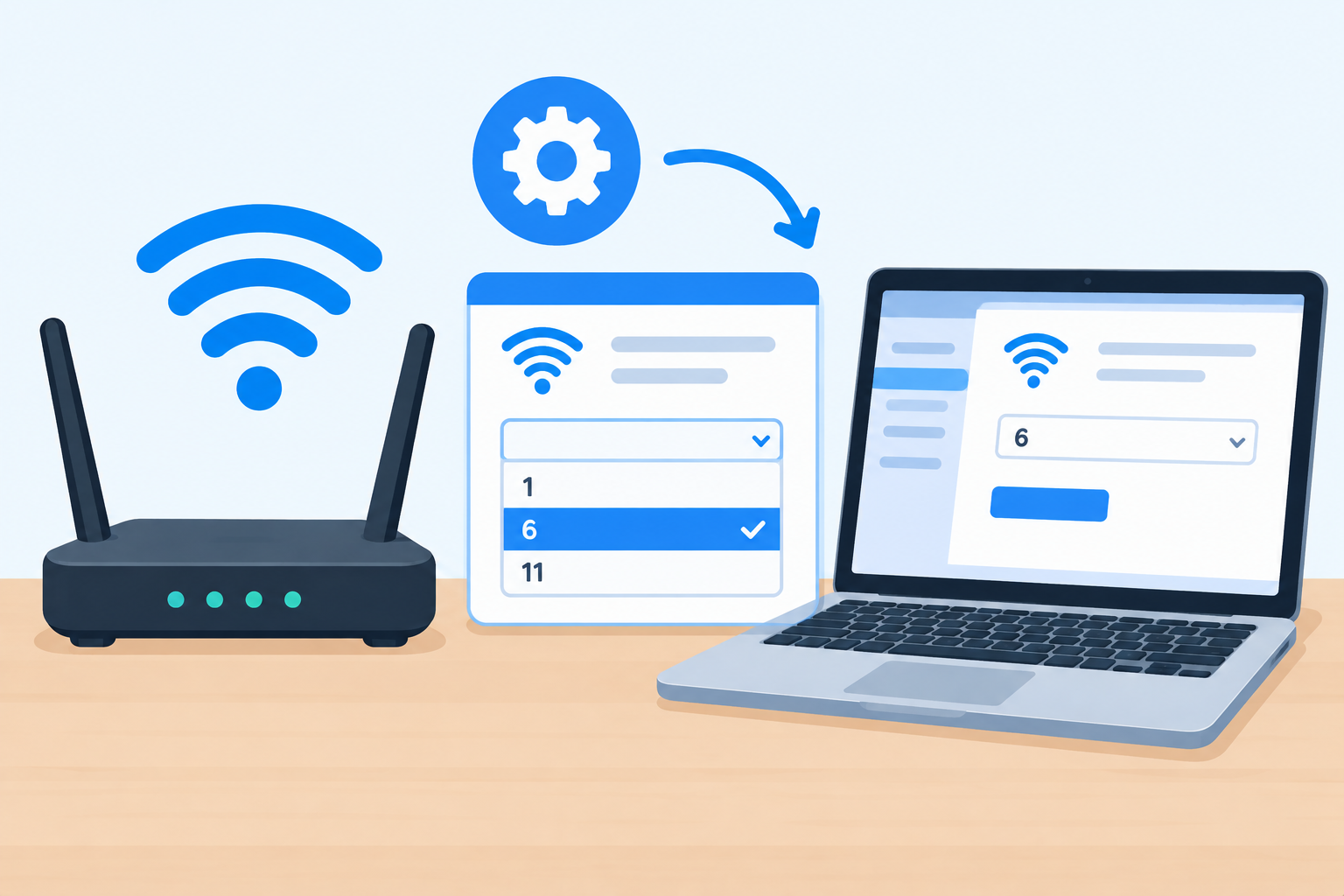
Your internet plan is fast, your router is new, but your Wi-Fi still drops, buffers, or crawls in the evening. One common hidden cause is channel congestion. In apartments, offices, and busy neighborhoods, dozens of Wi-Fi networks can crowd onto the same few channels, and they slow each other down.
Changing your Wi-Fi channel is a free fix that takes about ten minutes. In this complete setup guide, we explain what Wi-Fi channels are, when changing them actually helps, how to find the least crowded channel on Windows, Mac, and phones, and exactly how to change the channel on popular routers. We also cover channel width, 5 GHz and 6 GHz bands, and mistakes to avoid.
Quick Info: Changing Your Wi-Fi Channel at a Glance
| Detail | Quick Answer |
|---|---|
| What a channel is | A specific frequency “lane” your router uses inside a Wi-Fi band |
| Best 2.4 GHz channels | 1, 6, and 11 (they do not overlap) |
| Best 2.4 GHz channel width | 20 MHz, as recommended by Apple |
| 5 GHz and 6 GHz | Usually leave on Auto; much less crowded |
| Apple’s general recommendation | Set the channel to Auto when your router supports it |
| When to change manually | When nearby networks crowd your channel and Auto is not helping |
| How to find a free channel | Windows: netsh command; Mac: Wireless Diagnostics; phones: Wi-Fi analyzer apps |
| Where to change it | Your router’s web page or app, under Wireless settings |
| Time needed | About 10 minutes |
Key Takeaways
- On 2.4 GHz, only channels 1, 6, and 11 do not overlap in most regions. Use one of these.
- Use a 20 MHz channel width on 2.4 GHz to reduce interference.
- On 5 GHz and 6 GHz, interference is less of a problem, so Auto usually works best.
- Modern routers often pick channels well on Auto. Change manually only if you see real congestion.
- Always scan nearby networks first, then pick the least crowded channel.
- After changing the channel, test your speed to confirm it helped.
What Is a Wi-Fi Channel?
Your router sends Wi-Fi on radio bands, mainly 2.4 GHz, 5 GHz, and on newer routers 6 GHz. Each band is split into smaller sections called channels.
Think of a band as a highway and channels as its lanes. If too many nearby routers use the same lane, traffic slows down for everyone. Moving your router to a quieter lane can make your connection faster and more stable.
If you want a refresher on how Wi-Fi bands and standards work, our guide on what Wi-Fi is explains the basics.
Why 2.4 GHz gets crowded
The 2.4 GHz band has only a small amount of space, and its channels overlap with each other. In most regions, only three 20 MHz channels do not overlap: 1, 6, and 11. TP-Link’s own support guide notes that channels 1, 6, and 11 are generally best on 2.4 GHz.
If your router is on channel 3, for example, it overlaps with both channel 1 and channel 6, so it can suffer interference from networks on either.
The 2.4 GHz band is also shared with Bluetooth devices, cordless phones, baby monitors, and microwave ovens.
Why 5 GHz and 6 GHz are less crowded
The 5 GHz band has many more channels and they do not overlap in the same way, so congestion is less of a problem. The 6 GHz band, available on Wi-Fi 6E and Wi-Fi 7 routers and devices, has even more space. Apple’s router guidance notes that wireless interference is less of a concern in the 5 GHz and 6 GHz bands.
| Band | Channels to know | Range | Speed | Congestion |
|---|---|---|---|---|
| 2.4 GHz | 1, 6, 11 (non-overlapping in most regions) | Longest | Slowest | Often very crowded |
| 5 GHz | Many, such as 36 to 48 and 149 to 165 | Medium | Fast | Less crowded |
| 6 GHz | Many wide channels (Wi-Fi 6E and Wi-Fi 7) | Shortest | Fastest | Least crowded |
Should You Change Your Wi-Fi Channel?
Apple recommends setting the channel to Auto for best performance, and choosing a channel manually only if your router does not support Auto, picking one that is free from other Wi-Fi routers and interference. TP-Link also notes that it is not necessary to change the channel unless you notice interference from nearby access points.
So, change the channel manually if:
- You live in an apartment or crowded area with many visible networks
- Your Wi-Fi is slow mainly in the evenings, when neighbors are online
- A scan shows many networks on your current channel
- Your router is on an overlapping 2.4 GHz channel like 3, 4, 8, or 9
- Auto mode keeps picking a crowded channel
Leave it on Auto if:
- You live in a house with few nearby networks
- You mostly use 5 GHz or 6 GHz
- Your Wi-Fi is already fast and stable
Step 1: Check Your Current Speed
Before making changes, run a speed test on Wi-Fi in the room where problems happen. Write down your download speed, upload speed, and ping. This gives you a baseline to compare after changing the channel.
Step 2: Find the Least Crowded Wi-Fi Channel
On Windows 10 and 11 (built-in)
Windows can list nearby networks and their channels using a built-in command.
- Click Start, type cmd, and open Command Prompt.
- Type this command and press Enter:
netsh wlan show networks mode=bssid- Look through the results. For each network, note the Channel and Signal values.
- Count how many strong networks use channels 1, 6, and 11. Pick the channel with the fewest strong neighbors.
If you prefer a visual tool, free Windows apps such as WifiInfoView can group nearby networks by channel.
On a Mac (built-in)
macOS includes a hidden tool called Wireless Diagnostics.
- Hold the Option key and click the Wi-Fi icon in the menu bar.
- Click Open Wireless Diagnostics.
- Ignore the first window. In the menu bar, click Window and then Scan.
- You will see nearby networks with their channel, signal strength (RSSI), and noise.
- The summary area may also show recommended 2.4 GHz and 5 GHz channels.
On Android
Install a reputable Wi-Fi analyzer app from the Google Play Store. These apps show a graph of nearby networks by channel, making it easy to spot the quietest one.
On iPhone or iPad
iOS does not show nearby channels in Settings. You can use a Mac’s Wireless Diagnostics, a Windows PC, or a Wi-Fi analyzer feature in some router apps instead.
How to read the results
- Fewer networks on a channel is better.
- Strong nearby signals matter more than weak, distant ones.
- On 2.4 GHz, choose among 1, 6, or 11 only.
- On 5 GHz, pick a channel with few strong neighbors, or leave it on Auto.
Step 3: Find Your Router’s Address
To change the channel, you need to log in to your router’s settings page. Many routers use addresses such as 192.168.0.1 or 192.168.1.1, and some brands use a web address printed on the router label (for example, TP-Link modem routers can use tplinkmodem.net, and some D-Link routers use dlinkrouter.local).
To find your router’s address (also called the default gateway):
| Device | Where to find it |
|---|---|
| Windows | Open Command Prompt, type ipconfig, and look for Default Gateway |
| Mac | System Settings > Network > Wi-Fi > Details > TCP/IP, then look at Router |
| iPhone or iPad | Settings > Wi-Fi, tap the (i) next to your network, and look at Router |
| Android | Open your Wi-Fi network details and look for Gateway or Router (location varies by phone) |
Our guide on what an IP address is explains what these numbers mean.
Step 4: Log In to Your Router
- Connect to your Wi-Fi network, or plug in with an Ethernet cable for a more stable connection.
- Open a web browser and type your router’s address into the address bar.
- Enter the router’s admin username and password. These are often printed on a sticker on the router if you have not changed them.
Many routers can also be managed through a mobile app from the manufacturer or your internet provider.
Security tip: If your router still uses the default admin password, change it while you are logged in.
Step 5: Change the Wi-Fi Channel
Menu names vary by brand and model, but the setting is almost always inside Wireless or Wi-Fi settings, sometimes under Advanced.
TP-Link routers
TP-Link’s official guide for its newer interface:
- Click Advanced > Wireless > Wireless Settings.
- Select 2.4GHz, then change the Channel and Channel Width, and click Save.
- Select 5GHz and repeat if needed, then click Save.
For US models, TP-Link recommends using 5 GHz channels in Band 4 (channels 149 to 165) if your router supports them.
D-Link routers
D-Link’s guide for one of its router models:
- Open a browser and go to dlinkrouter.local or your router’s IP address.
- Enter your admin password and click Log In.
- Go to Settings > Wireless.
- Click Advanced Settings for the band you want to change.
- Choose a channel from the Wi-Fi Channel menu and click Save.
Other routers (Netgear, ASUS, Linksys, and ISP routers)
The steps are usually similar:
- Log in to the router’s web page or app.
- Open Wireless, Wi-Fi, or Wireless Settings (sometimes under Advanced).
- Choose the 2.4 GHz or 5 GHz band.
- Change Channel from Auto to your chosen channel.
- Click Apply or Save.
If you cannot find the setting, search your router model’s manual on the manufacturer’s website. If your router came from your internet provider, some settings may be locked or managed through the provider’s app.
To understand what all these router settings do, read our guide on what a router is.
Step 6: Set the Right Channel Width
Channel width controls how much of the band your router uses at once. Wider channels can be faster, but they are more likely to overlap with neighbors.
Apple’s official recommendations:
| Band | Recommended channel width |
|---|---|
| 2.4 GHz | 20 MHz |
| 5 GHz | Auto or all widths |
| 6 GHz | Auto or all widths |
Apple explains that using 40 MHz channels on 2.4 GHz can cause performance and reliability problems, especially near other Wi-Fi networks and 2.4 GHz devices.
Step 7: Save, Reconnect, and Test
- Save your settings. The router may restart its Wi-Fi.
- Wait a minute, then reconnect your devices. Most devices find the new channel automatically.
- Run a speed test again in the same spot.
- Use the connection for a day or two, especially at busy times like evenings.
If things improved, keep the setting. If not, try another non-overlapping channel or return to Auto.
Best Wi-Fi Channels Cheat Sheet
| Situation | Recommended setting |
|---|---|
| 2.4 GHz in a crowded apartment | Channel 1, 6, or 11 (whichever is least used), width 20 MHz |
| 2.4 GHz in a quiet house | Auto, width 20 MHz |
| 5 GHz, most homes | Auto, width Auto |
| 5 GHz, US TP-Link routers | Consider channels 149 to 165 if supported |
| 6 GHz (Wi-Fi 6E or Wi-Fi 7) | Auto, width Auto |
| Multiple routers or access points close together | Give each a different channel, as Apple recommends |
A note on regions
Available channels depend on your country’s rules. In North America, 2.4 GHz normally uses channels 1 to 11. In many other regions, channels 12 and 13 are also allowed, but 1, 6, and 11 remain the safest non-overlapping choice because every device supports them. Always use channels that are permitted in your country.
A note on 5 GHz DFS channels
Some 5 GHz channels in the middle of the band are DFS (Dynamic Frequency Selection) channels, which are shared with radar systems. A router using these channels may automatically switch away if it detects radar, which can cause a short disconnection. Some older devices also do not support all DFS channels. If you have connection drops on 5 GHz, try a non-DFS channel such as one in the 36 to 48 range or, where available, 149 to 165.
Common Mistakes to Avoid
| Mistake | Why it is a problem | Do this instead |
|---|---|---|
| Using channels like 3, 4, 8, or 9 on 2.4 GHz | They overlap with two main channels | Use 1, 6, or 11 |
| Setting 40 MHz width on 2.4 GHz | More interference and less reliability | Use 20 MHz |
| Changing channels without scanning | You may pick a busier channel | Scan nearby networks first |
| Giving 2.4 GHz and 5 GHz different names without a reason | Apple notes devices may not connect reliably to all bands | Use the same network name unless you have a specific need |
| Expecting a channel change to fix everything | Weak signal and distance cause slowdowns too | Also improve router placement |
| Forgetting to save settings | Changes are lost | Click Save or Apply |
Other Ways to Improve Wireless Performance
Changing channels fixes congestion, but it will not fix every Wi-Fi problem. Combine it with:
- Better router placement: central, raised, and in the open, away from thick walls and metal.
- Using 5 GHz or 6 GHz for devices close to the router.
- Ethernet cables for TVs, consoles, and desktop computers.
- Router firmware updates.
- A mesh Wi-Fi system for larger homes.
- Upgrading an old router to Wi-Fi 6, 6E, or 7.
Frequently Asked Questions
What is the best Wi-Fi channel?
On 2.4 GHz, the best channels are usually 1, 6, or 11, whichever is least crowded near you. On 5 GHz and 6 GHz, Auto usually works best.
Why are channels 1, 6, and 11 recommended?
They are the only 2.4 GHz channels that do not overlap with each other in most regions, so they cause the least interference.
Does changing the Wi-Fi channel increase internet speed?
It can improve Wi-Fi speed and stability if your current channel is crowded. It cannot make your connection faster than your internet plan.
Should I set my Wi-Fi channel to Auto?
Apple recommends Auto for best performance. Modern routers often choose well. Change manually only if a scan shows your channel is very crowded.
How do I find the best Wi-Fi channel on Windows?
Open Command Prompt and run netsh wlan show networks mode=bssid. Count nearby networks on each channel and pick the least crowded of 1, 6, or 11.
How do I find the best Wi-Fi channel on a Mac?
Hold Option, click the Wi-Fi icon, choose Open Wireless Diagnostics, then select Window > Scan to see nearby networks and their channels.
What channel width should I use?
Apple recommends 20 MHz for 2.4 GHz, and Auto or all widths for 5 GHz and 6 GHz.
Will changing the channel disconnect my devices?
Your devices may disconnect for a moment while the router switches, but they usually reconnect automatically.
How often should I change my Wi-Fi channel?
Only when you notice problems. Neighboring networks change over time, so you can rescan if your Wi-Fi slows down again.
Final Thoughts
Changing your Wi-Fi channel is one of the easiest free ways to improve wireless performance, especially in crowded apartments and offices. Scan your area first, choose the least crowded of channels 1, 6, or 11 on 2.4 GHz, keep the width at 20 MHz, and leave 5 GHz and 6 GHz on Auto unless you have a clear reason to change them.
Then test your speed and give it a day or two. If things improve, great. If not, return to Auto and look at other fixes like router placement, 5 GHz, or a mesh system.
References
- Apple Support: Recommended settings for Wi-Fi routers and access points
- TP-Link: Changing Channel and Channel Width on a TP-Link Router
Disclaimer
This guide is for general information only. Router menus, available channels, and features vary by brand, model, firmware version, internet provider, and country regulations. Always follow your router manufacturer’s instructions and use only channels permitted in your region. Changing advanced router settings can temporarily disconnect your devices, so make changes when you have time to test. TechOriginHub is not affiliated with Apple, TP-Link, D-Link, or any router maker, and this article is not sponsored.