
 By saman zahra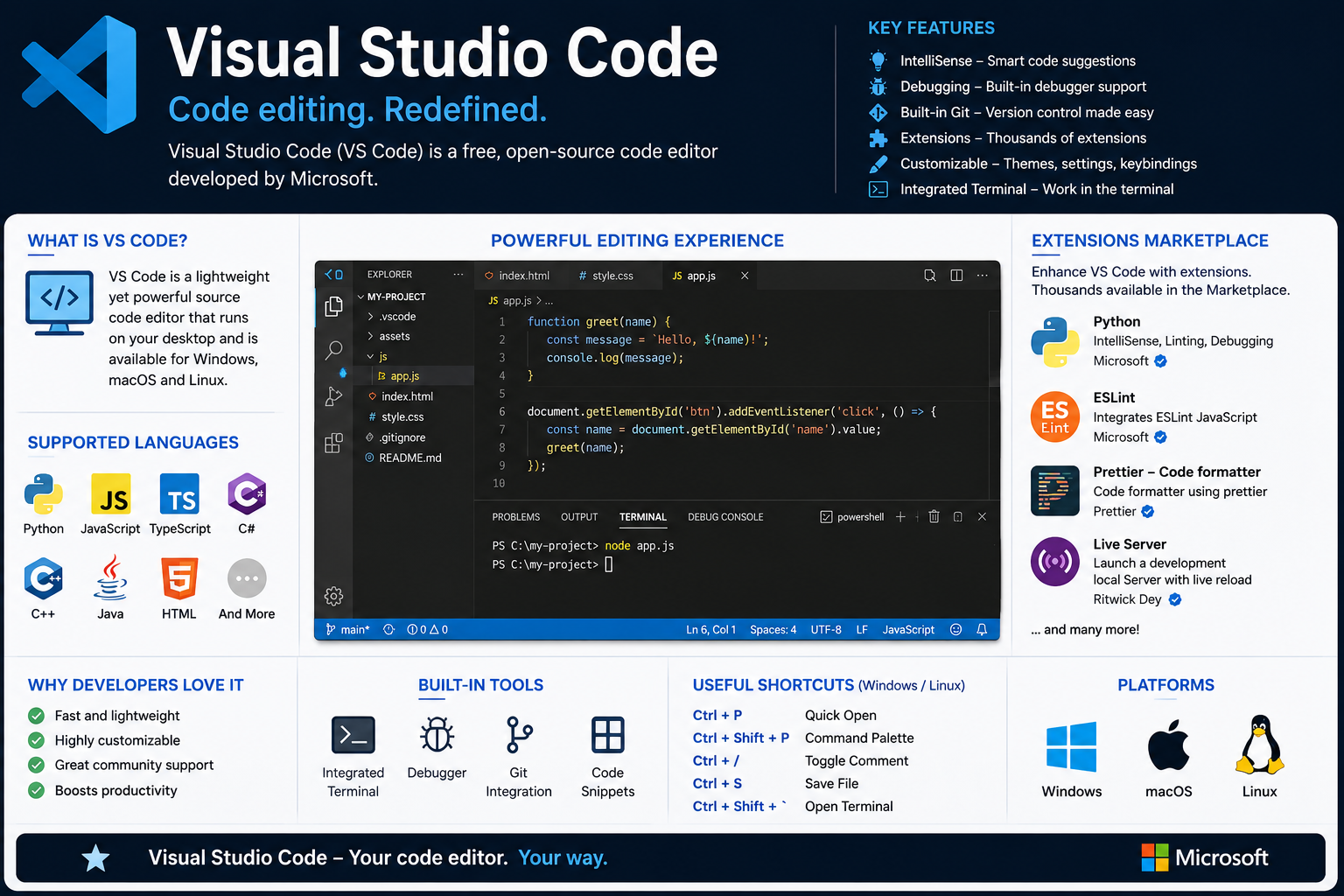
Introduction
If you ask any developer today which code editor they use daily, a large majority will say Visual Studio Code. Understanding what Visual Studio Code is has become essential knowledge for anyone entering software development, web design, data science, or cloud engineering in 2026. This free, open-source editor from Microsoft has quietly revolutionized how developers write, debug, and manage code across every major platform. Whether you are writing your first Python script or building a large-scale enterprise application, Visual Studio Code adapts to your workflow with remarkable flexibility.
One more thing worth noting early on: Visual Studio Code works seamlessly inside virtual environments. Developers frequently run VS Code inside virtualization platforms like VMware and Oracle VirtualBox to test their code across different operating systems without switching physical machines. This integration makes it an even more powerful tool for cross-platform development.
Quick Answer
Visual Studio Code is a free, open-source, lightweight source code editor developed by Microsoft. It supports hundreds of programming languages, offers built-in Git integration, an integrated terminal, a powerful debugger, and thousands of extensions. VS Code runs on Windows, macOS, and Linux. It is widely used by beginners and professional developers for web development, data science, cloud engineering, and more.
What Is Visual Studio Code?
Visual Studio Code, commonly called VS Code, is a free and open-source source code editor developed and maintained by Microsoft. It is not a full integrated development environment like Visual Studio, but rather a lightweight, highly extensible code editor that developers can customize to suit almost any programming workflow. VS Code runs natively on Windows, macOS, and Linux, making it one of the most versatile developer tools available today.
Microsoft released Visual Studio Code in April 2015 at its Build developer conference. The editor was built on the Electron framework, which is based on Chromium and Node.js. This architecture allowed Microsoft to build a cross-platform application using web technologies while still delivering near-native desktop performance. Since its release, VS Code has grown at a staggering pace.
According to the Stack Overflow Developer Survey, VS Code has consistently ranked as the most popular development environment among professional developers worldwide for several consecutive years. More than 73 percent of developers reported using VS Code as their primary editor in recent surveys. These numbers reflect just how deeply VS Code has embedded itself into modern software development culture.
Microsoft plays a crucial role in VS Code’s continued development. The company maintains the core editor, releases monthly updates, and contributes the majority of new features. At the same time, the open-source community contributes thousands of extensions and improvements. This combination of corporate backing and open-source collaboration is one of the main reasons VS Code continues to improve so rapidly.
How Does Visual Studio Code Work?
VS Code organizes your development workflow around a clean, modular interface that you can customize extensively. Understanding each major component helps you use the editor far more effectively from day one.
Editor Interface
The VS Code interface consists of several key areas. The Activity Bar runs along the left side and provides quick access to Explorer, Search, Source Control, Run and Debug, and Extensions panels. The Editor Area occupies the center of the screen where you write and edit your code. The Status Bar at the bottom displays information about your current file, language mode, Git branch, and any active errors or warnings.
The Editor Area supports multiple tabs and split panels. You can open two or three files side by side and edit them simultaneously. This layout is particularly useful when you need to reference one file while writing code in another, which happens constantly in real development work.
Extensions
Extensions are the heart of what makes VS Code so powerful. An extension is a plugin that adds new functionality to the editor. The Visual Studio Marketplace hosts over 50,000 extensions covering languages, themes, debuggers, linters, formatters, and productivity tools. You can install extensions in seconds directly from within VS Code using the Extensions panel.
For example, if you want to write Python code, you simply install the Python extension from Microsoft. This immediately adds syntax highlighting, IntelliSense, debugging support, and code formatting for Python files. Extensions work the same way for JavaScript, Java, C++, Go, Rust, and dozens of other languages.
Integrated Terminal
VS Code includes a full-featured integrated terminal that opens directly inside the editor. You can run command-line tools, execute scripts, manage packages with npm or pip, and interact with version control systems without ever leaving VS Code. The integrated terminal supports multiple terminal instances, meaning you can run several command sessions simultaneously in different panels.
This feature saves significant time in real development. Instead of switching between your editor and a separate terminal window, everything lives in one place. Developers working on cloud projects or DevOps tasks especially appreciate this tight integration.
Debugger
The built-in debugger in VS Code allows you to set breakpoints, step through code line by line, inspect variable values, and watch expressions in real time. The debugger supports multiple languages through dedicated debug extensions. For JavaScript and Node.js projects, debugging works out of the box. For Python, Java, or C++, you install the appropriate debug extension and configure a launch file.
Real debugging experience inside VS Code feels remarkably close to what you get in a full IDE. Setting a breakpoint is as simple as clicking in the margin next to any line of code. When your program hits that breakpoint during execution, VS Code pauses and shows you exactly what is happening inside your application at that moment.
Source Control
VS Code includes native Git integration that requires no additional setup on machines where Git is already installed. The Source Control panel shows you all changed files, allows you to stage and commit changes, and displays a visual diff between your current code and the last committed version. You can push and pull from remote repositories like GitHub, GitLab, or Bitbucket directly from within VS Code.
This built-in source control support is one of the features that made VS Code so popular among developers who previously needed separate Git clients. For anyone new to version control, VS Code makes the learning curve much gentler by providing a visual interface for Git operations alongside the terminal.
Settings
VS Code provides two levels of settings: User Settings that apply globally to all projects, and Workspace Settings that apply only to a specific project folder. You can configure everything from font size, tab width, and color theme to language-specific formatting rules and extension behaviors. All settings store as JSON files, which means experienced developers can version-control their configurations and share them across teams.
Key Features of Visual Studio Code
Visual Studio Code Features Table
| Feature | Description |
|---|---|
| IntelliSense | Smart code completion with suggestions for functions, variables, and syntax |
| Syntax highlighting | Color-coded display of code elements for better readability |
| Extensions Marketplace | Access to 50,000+ plugins for languages, themes, and tools |
| Git integration | Built-in version control with stage, commit, push, and diff support |
| Built-in terminal | Integrated command-line interface supporting multiple sessions |
| Debugger | Set breakpoints, inspect variables, and step through code interactively |
| Themes | Hundreds of color themes including dark mode, light mode, and custom themes |
| Multi-cursor editing | Edit multiple lines or positions in code simultaneously |
| Code formatting | Auto-format code using Prettier, ESLint, or language-specific formatters |
| Auto Save | Automatically save files after a set delay or on focus change |
| Live Share | Collaborate with other developers in real time on the same codebase |
| Remote Development | Connect to remote servers, containers, or WSL directly from VS Code |
| Workspace support | Manage multiple project folders in a single VS Code window |
| Keyboard shortcuts | Hundreds of shortcuts for faster navigation and editing |
| Command Palette | Access every VS Code command quickly without using menus |
| AI coding extensions | GitHub Copilot and other AI tools integrate directly into the editor |
| Code snippets | Insert reusable code templates with a few keystrokes |
| Breadcrumbs | Visual navigation showing your location within file structure |
| Minimap | Scrollable overview of your entire file displayed in the sidebar |
| Emmet support | Fast HTML and CSS expansion using shorthand syntax |
| Bracket pair colorization | Match opening and closing brackets with color coding |
| File explorer | Built-in project file tree for navigating multi-file projects |
IntelliSense deserves particular attention as one of VS Code’s most beloved features. It provides intelligent code completion by analyzing your code and suggesting the most relevant options as you type. IntelliSense goes beyond simple autocomplete by understanding the context of your code, showing parameter hints for functions, and displaying quick documentation inline. This feature alone significantly reduces the number of typos and syntax errors beginners encounter.
The Command Palette, accessed with Ctrl+Shift+P on Windows and Linux or Cmd+Shift+P on macOS, gives you instant access to virtually every function in VS Code through a searchable text field. Instead of hunting through menus, you type a few letters and VS Code shows you matching commands. Experienced developers rely on the Command Palette constantly because it keeps their hands on the keyboard and dramatically speeds up their workflow.
Benefits of Visual Studio Code
- Completely free and open-source with no licensing fees
- Available on Windows, macOS, and Linux with identical functionality
- Lightweight startup compared to full IDEs like Visual Studio or IntelliJ
- Highly customizable through themes, settings, and extension combinations
- Supports virtually every major programming language through extensions
- Built-in Git support reduces the need for separate version control tools
- Integrated terminal eliminates constant switching between applications
- IntelliSense accelerates coding speed and reduces syntax errors
- Live Share enables real-time remote collaboration with teammates
- Regular monthly updates bring new features and performance improvements
- Large, active community provides tutorials, forums, and support resources
- GitHub Copilot integration brings AI-assisted code generation directly into the editor
- Remote Development extensions allow coding on servers and containers locally
- Workspace profiles enable different extension sets for different project types
- Works effectively inside virtual machines for cross-platform development
- Docker and Kubernetes extensions support modern DevOps workflows
- Portable settings sync keeps your configuration consistent across multiple machines
- Beginner-friendly interface with advanced features accessible when needed
- Excellent debugging tools reduce time spent fixing bugs
- Strong company backing from Microsoft ensures long-term development and support
- Integrates cleanly with cloud platforms including Azure, AWS, and Google Cloud
- Consistently receives the highest satisfaction ratings among developer tools globally
Common Uses of Visual Studio Code
VS Code is not limited to any single type of development. Its flexibility makes it genuinely useful across almost every programming discipline.
Web Development: VS Code is the dominant editor for web development. HTML, CSS, and JavaScript all receive first-class support with syntax highlighting, IntelliSense, and powerful formatting tools. Extensions like ESLint, Prettier, and the Live Server extension make front-end development faster and more reliable. Many developers also use VS Code for React, Vue, Angular, and Node.js projects. If you work on web development, understanding productivity tools like Google Workspace alongside VS Code can help you collaborate more effectively with your team on documentation and project planning.
Python Programming: The Python extension from Microsoft transforms VS Code into a capable Python IDE. It supports Jupyter notebooks, virtual environments, linting with Pylint or Flake8, and deep debugging support. Data scientists and machine learning engineers frequently use VS Code for Python development.
Java Development: The Java Extension Pack from Microsoft adds full Java development capabilities to VS Code. You get code completion, project management, Maven and Gradle support, and a built-in Java debugger. Many Java developers prefer VS Code over heavier IDEs for smaller projects.
C++ Development: The C/C++ extension from Microsoft adds IntelliSense, debugging, and code formatting for C and C++ projects. Developers working on system-level programming or game development use VS Code with compilers like GCC or MSVC.
JavaScript and TypeScript: VS Code was essentially built with JavaScript and TypeScript in mind. TypeScript support is built into the editor at its core, which makes perfect sense given that VS Code itself is written in TypeScript. Node.js development feels completely natural inside VS Code.
Data Science: VS Code supports Jupyter notebooks natively through extensions. Data scientists can write Python code in notebook cells, visualize data inline, and manage their analysis workflow without leaving the editor. This makes VS Code a strong alternative to Jupyter Lab for many data professionals.
Cloud Development: VS Code integrates with Azure, AWS, and Google Cloud through dedicated extension packs. Developers can deploy applications, manage cloud resources, and monitor services directly from within the editor. If you are interested in cloud security practices while working with cloud tools, exploring resources on What Is Cloud Security? can help you build safer cloud-native applications.
DevOps: Docker, Kubernetes, and Terraform extensions turn VS Code into a powerful DevOps tool. Infrastructure engineers use VS Code to write configuration files, manage containers, and deploy applications through CI/CD pipelines. Understanding broader concepts in What Is Cybersecurity? becomes increasingly important for DevOps professionals managing infrastructure code.
AI Development: GitHub Copilot, Copilot Chat, and other AI extensions have made VS Code a preferred environment for AI and machine learning development. Developers can generate code, explain functions, and get real-time suggestions powered by large language models.
Mobile App Development: VS Code supports React Native development through dedicated extensions. Flutter and Dart developers also use VS Code with official extensions from the Flutter team, making it a viable choice for cross-platform mobile development.
How to Download and Install Visual Studio Code
System Requirements
VS Code runs on any reasonably modern computer. On Windows, you need Windows 10 or later running on a 64-bit processor. On macOS, VS Code supports macOS 10.15 Catalina and later versions. On Linux, VS Code supports Debian, Ubuntu, Red Hat, Fedora, and other major distributions. Your machine should have at least 1 GB of RAM, though 4 GB or more provides a noticeably smoother experience with multiple extensions active.
Download VS Code
Visit the official Visual Studio Code website at code.visualstudio.com. The website automatically detects your operating system and presents the appropriate download button. Click the download button to get the stable release. Alternatively, you can choose the Insiders build if you want early access to new features, though the stable release is strongly recommended for daily use.
Install on Windows
Run the downloaded .exe installer file. Accept the license agreement and choose your installation directory. During installation, select the option to add VS Code to your system PATH, which allows you to open files and folders in VS Code directly from the command line. Also check the option to add “Open with Code” to the Windows Explorer context menu, as this saves time when starting new projects. Complete the installation and launch VS Code from the Start menu or desktop shortcut.
Install on macOS
Open the downloaded .zip file and drag the Visual Studio Code application into your Applications folder. Launch VS Code from Applications or Spotlight Search. To use the code command in your terminal, open VS Code, press Cmd+Shift+P to open the Command Palette, type “shell command,” and select “Install ‘code’ command in PATH.” After completing this step, you can open any folder in VS Code by typing code . in your terminal.
Install on Linux
On Debian and Ubuntu-based distributions, download the .deb package and install it using the dpkg command in your terminal. On Red Hat and Fedora distributions, use the .rpm package with the rpm or dnf command. Microsoft also provides official snap and flatpak packages for universal Linux installation. After installation, launch VS Code from your application menu or by typing code in your terminal.
Install Extensions
Open VS Code and click the Extensions icon in the Activity Bar on the left side. Search for the extensions you need using the search field. Click Install next to any extension you want to add. Extensions install in seconds and activate immediately without requiring an editor restart in most cases. Start with language-specific extensions relevant to your programming work.
Configure Your First Workspace
Open a folder in VS Code by going to File, then Open Folder, and selecting your project directory. VS Code loads the folder as your workspace and displays all files in the Explorer panel. Create a new file, save it with the appropriate file extension like .py for Python or .js for JavaScript, and VS Code automatically applies the correct syntax highlighting and language features. Consider exploring productivity and organizational tools like What Is Notion? to manage your project documentation alongside your VS Code workflow.
Best Visual Studio Code Extensions
Best VS Code Extensions Table
| Extension | Publisher | Purpose |
|---|---|---|
| Python | Microsoft | Python language support, linting, debugging |
| Pylance | Microsoft | Fast Python type checking and IntelliSense |
| ESLint | Microsoft | JavaScript and TypeScript linting |
| Prettier | Prettier | Automatic code formatting for multiple languages |
| GitLens | GitKraken | Enhanced Git visualization and history |
| Live Server | Ritwick Dey | Local development server with live reload |
| GitHub Copilot | GitHub | AI-powered code completion and generation |
| Docker | Microsoft | Docker container management inside VS Code |
| Remote SSH | Microsoft | Connect to remote servers over SSH |
| Jupyter | Microsoft | Jupyter notebook support inside VS Code |
| C/C++ | Microsoft | C and C++ language support |
| Java Extension Pack | Microsoft | Full Java development environment |
| Tailwind CSS IntelliSense | Tailwind Labs | Autocomplete for Tailwind CSS classes |
| REST Client | Huachao Mao | Send HTTP requests and test APIs inline |
| Path IntelliSense | Christian Kohler | Autocomplete file paths in your code |
| Bracket Pair Colorizer | CoenraadS | Color-coded bracket matching |
| indent-rainbow | oderwat | Color-coded indentation levels |
| Material Icon Theme | Philipp Kief | Beautiful file and folder icons |
| One Dark Pro | binaryify | Popular dark color theme |
| Live Share | Microsoft | Real-time collaborative coding sessions |
| Thunder Client | Ranga Vadhineni | Lightweight API testing tool |
| Better Comments | Aaron Bond | Categorized, color-coded code comments |
GitLens is one of the most transformative extensions available for VS Code. It supercharges the built-in Git integration by showing inline blame annotations that tell you who wrote each line of code and when. GitLens also provides a visual history of any file, comparison views between branches, and rich commit search capabilities. For team projects, GitLens makes code review and collaboration significantly more efficient. Speaking of team collaboration and project management, tools like What Is Trello? work well alongside VS Code for organizing development tasks across teams.
The Remote SSH extension fundamentally changes how developers interact with remote servers. Instead of editing files through a basic terminal text editor like Vim or Nano, you connect to any server over SSH and get the full VS Code experience including IntelliSense, extensions, and debugging, all running locally while your code executes remotely. This is particularly valuable for developers working with cloud infrastructure or remote development environments.
Visual Studio Code vs Visual Studio
VS Code vs Visual Studio Comparison Table
| Feature | Visual Studio Code | Visual Studio |
|---|---|---|
| Type | Lightweight source code editor | Full integrated development environment |
| Price | Free and open-source | Community edition free, paid tiers available |
| Platforms | Windows, macOS, Linux | Windows, macOS (limited) |
| Startup speed | Very fast, seconds | Slower, takes longer to load |
| Languages | All languages via extensions | Strong focus on .NET, C#, C++ |
| Extensions | 50,000+ via Marketplace | Visual Studio extensions (fewer options) |
| Resource usage | Low memory and CPU footprint | Heavy resource consumption |
| Debugging | Excellent via extensions | Industry-leading debugger, especially for .NET |
| Built-in tools | Minimal by design | Project templates, designers, profilers |
| Git integration | Built-in, strong | Built-in, strong |
| Best for | Web dev, Python, cross-platform | C#, .NET, Windows application development |
| Customization | Extremely high | Moderate |
| Learning curve | Low for beginners | Steeper due to feature complexity |
The choice between VS Code and Visual Studio largely depends on what you build. If you develop .NET applications, ASP.NET web apps, or Windows desktop software in C#, Visual Studio remains the superior tool because its debugging, profiling, and project management capabilities are purpose-built for that ecosystem. However, if you work across multiple languages and platforms, VS Code’s speed, flexibility, and extension ecosystem make it the better everyday tool. Many professional developers actually use both, switching based on the project at hand.
Visual Studio Code vs Sublime Text
VS Code vs Sublime Text Comparison Table
| Feature | Visual Studio Code | Sublime Text |
|---|---|---|
| Price | Completely free | Free trial, license required ($99) |
| Extensions | 50,000+ extensions | Fewer packages available |
| IntelliSense | Built-in, language-aware | Requires plugins, less advanced |
| Git integration | Native, built-in | Requires plugin |
| Integrated terminal | Yes, built-in | No built-in terminal |
| Debugger | Yes, with extension support | No built-in debugger |
| Performance | Slightly heavier than Sublime | Extremely fast, very lightweight |
| Startup time | Fast | Faster |
| Customization | Very high | High |
| AI integration | GitHub Copilot, excellent | Limited |
| Multi-cursor editing | Yes | Yes |
| Best for | Full development workflow | Fast text editing, quick file edits |
| Open-source | Yes | No |
| Community | Very large and active | Smaller, established |
Sublime Text remains excellent for fast text editing and handles very large files with impressive speed. However, VS Code has surpassed it in almost every area relevant to modern software development. The combination of a completely free price, built-in terminal, superior IntelliSense, and a vastly larger extension ecosystem makes VS Code the more practical choice for most developers today.
Common Visual Studio Code Problems and Solutions
Slow Performance: VS Code can feel sluggish if you have too many extensions active simultaneously. Open the Extensions panel, review installed extensions, and disable any you do not use regularly. Also check which extensions start automatically on launch using the Extension Bisect tool available through the Command Palette. Increasing the available memory limit for VS Code in your settings file can also help on machines with limited resources.
Extension Conflicts: Sometimes two extensions modify the same behavior and conflict with each other. The most common example involves multiple formatting extensions both trying to format your code on save. To identify the problem, disable extensions one at a time until the issue resolves. Then decide which extension to keep or configure them to avoid overlap using workspace settings.
Terminal Not Opening: If the integrated terminal fails to open or displays an error, first check that your default shell is correctly configured in VS Code settings. On Windows, this might involve setting the terminal profile to PowerShell or Command Prompt. On Linux or macOS, confirm that your default shell path in settings points to bash, zsh, or your preferred shell. Restarting VS Code after changing terminal settings usually resolves the issue.
Git Issues: If VS Code cannot detect your Git installation, confirm that Git is installed on your system and that it exists in your system PATH. You can specify the Git executable path manually in VS Code settings under “git.path.” Also ensure you have configured your Git username and email globally, as VS Code relies on these settings for commits.
Debugging Errors: Debugging failures most commonly occur because the launch configuration file is missing or incorrect. Open the Run and Debug panel and click “create a launch.json file” to generate a default configuration for your project type. Review the configuration carefully to ensure paths and environment variables are correct for your specific project structure.
Settings Reset: If your VS Code settings unexpectedly reset, the settings.json file may have become corrupted. Open the Command Palette and search for “Open User Settings (JSON)” to inspect and repair the file. Consider backing up your settings.json file regularly by copying it to a secure location or using VS Code’s built-in Settings Sync feature to store your configuration in your Microsoft or GitHub account.
Tips to Use Visual Studio Code More Efficiently
VS Code Shortcuts Table
| Shortcut (Windows/Linux) | Shortcut (macOS) | Action |
|---|---|---|
| Ctrl+Shift+P | Cmd+Shift+P | Open Command Palette |
| Ctrl+P | Cmd+P | Quick file open |
| Ctrl+` | Ctrl+` | Toggle integrated terminal |
| Ctrl+Shift+E | Cmd+Shift+E | Open Explorer panel |
| Ctrl+Shift+G | Cmd+Shift+G | Open Source Control panel |
| Ctrl+Shift+X | Cmd+Shift+X | Open Extensions panel |
| Ctrl+/ | Cmd+/ | Toggle line comment |
| Alt+Up/Down | Option+Up/Down | Move line up or down |
| Ctrl+D | Cmd+D | Select next occurrence of word |
| F12 | F12 | Go to definition |
| Shift+Alt+F | Shift+Option+F | Format document |
| Ctrl+B | Cmd+B | Toggle sidebar visibility |
| Ctrl+\ | Cmd+\ | Split editor |
| F5 | F5 | Start debugging |
| Ctrl+Shift+F | Cmd+Shift+F | Search across all files |
- Enable Settings Sync to keep your configuration consistent across multiple devices
- Use the multi-root workspace feature to manage several related projects in one window
- Learn and practice keyboard shortcuts daily to reduce reliance on the mouse
- Configure format on save so your code always stays consistently formatted
- Use the Peek Definition feature (Alt+F12) to inspect function definitions without navigating away
- Create custom code snippets for code patterns you write repeatedly
- Use the built-in Diff editor to compare two files side by side
- Pin important tabs so they do not close when you open new files
- Use breadcrumbs navigation to understand your location in complex file structures
- Configure workspace-specific settings for different project requirements
- Use the Timeline feature to view local file history and recover accidentally deleted code
- Enable bracket pair colorization in settings for easier navigation inside nested code
- Install a focused writing extension like Zen Mode for distraction-free coding sessions
- Use the “Go to Symbol” feature (Ctrl+Shift+O) to navigate large files quickly
- Configure the Problems panel to always show errors and warnings from your linter
- Use Remote Containers to develop inside Docker containers with full VS Code features
- Explore the interactive Playground through the Help menu to learn VS Code features interactively
- Set up task runners in tasks.json to automate build and test commands
- Use the integrated notebook interface for data exploration and analysis work
- Regularly review and remove unused extensions to maintain editor performance
- Use the Output panel to monitor extension logs and diagnose unexpected behavior
When working on documentation alongside coding, many developers find it helpful to connect VS Code with tools like What Is Microsoft Office? for word processing or What Is Adobe Acrobat? for working with PDF documentation in their project workflow.
Frequently Asked Questions
What is Visual Studio Code?
Visual Studio Code is a free, open-source, lightweight code editor developed by Microsoft. It supports hundreds of programming languages, offers built-in Git integration, an integrated terminal, a debugger, and access to over 50,000 extensions through the Visual Studio Marketplace. VS Code runs on Windows, macOS, and Linux and is used by millions of developers worldwide.
Is VS Code free?
Yes, Visual Studio Code is completely free to download and use. Microsoft releases it under the MIT open-source license, and the source code is publicly available on GitHub. There are no hidden fees, subscription requirements, or premium tiers for the core editor. Some extensions, like GitHub Copilot, may require separate subscriptions.
Is Visual Studio Code good for beginners?
VS Code is excellent for beginners. Its clean interface is easy to navigate from day one, and the guided extension installation process makes setting up language support straightforward. The IntelliSense code completion and inline error highlighting help beginners write better code faster. Extensive official tutorials on Microsoft Learn make learning VS Code accessible to complete newcomers.
Visual Studio Code vs Visual Studio: Which should I choose?
Choose VS Code if you work with multiple programming languages, prefer a lightweight editor, or develop web, Python, or cross-platform applications. Choose Visual Studio if you develop primarily with C#, .NET, or build Windows desktop applications that benefit from Visual Studio’s specialized project tools and debugging capabilities. Many developers use both.
What languages does VS Code support?
VS Code supports hundreds of programming languages through extensions. Out of the box, it recognizes HTML, CSS, JavaScript, TypeScript, JSON, and Markdown. Through extensions, it fully supports Python, Java, C++, C#, Go, Rust, PHP, Ruby, Swift, Kotlin, Dart, and many others. If a programming language exists, a VS Code extension almost certainly exists for it.
Can I use VS Code offline?
Yes, VS Code works completely offline once installed. You can write, edit, debug, and run code without an internet connection. However, some features require internet access, including Settings Sync, installing new extensions from the Marketplace, and GitHub Copilot AI suggestions.
What are VS Code extensions?
Extensions are plugins that add new functionality to VS Code. They can add language support, debugging tools, color themes, Git integrations, linters, formatters, and productivity features. You install extensions from the Visual Studio Marketplace directly within VS Code. Extensions install in seconds and activate immediately without restarting the editor.
Is VS Code safe?
Yes, VS Code downloaded from the official Microsoft website is completely safe. Microsoft maintains the core editor with regular security updates. Exercise caution when installing third-party extensions by checking publisher reputation, download count, and user reviews before installation. Stick to extensions from verified publishers for critical development environments.
Can I use VS Code for Python?
Absolutely. VS Code with the Python extension from Microsoft provides an excellent Python development experience. You get syntax highlighting, IntelliSense, virtual environment management, debugging support, Jupyter notebook integration, and linting. Many Python developers and data scientists consider VS Code their primary Python development environment.
Can I use VS Code for web development?
VS Code is arguably the best code editor available for web development. It supports HTML, CSS, JavaScript, and TypeScript with deep IntelliSense. Extensions like ESLint, Prettier, Live Server, and framework-specific tools for React, Vue, and Angular make it a complete web development environment. Most front-end and full-stack web developers use VS Code as their primary editor.
Does VS Code include Git?
VS Code includes native Git integration. The Source Control panel lets you stage files, write commit messages, commit changes, and push to remote repositories without using the command line. However, VS Code requires Git to be installed separately on your operating system. Once Git is installed, VS Code detects it automatically and the integration works immediately.
Can I debug code in VS Code?
Yes, VS Code includes a powerful built-in debugger. It supports breakpoints, step-through execution, variable inspection, call stack viewing, and watch expressions. Debugging support extends to JavaScript and Node.js natively, and to Python, Java, C++, and other languages through dedicated debug extensions.
Which extensions are essential for VS Code?
The most universally useful extensions include Prettier for code formatting, ESLint for JavaScript linting, GitLens for enhanced Git features, and the language-specific extension for whatever programming language you use. GitHub Copilot is worth considering for AI-assisted coding. The specific extensions you need depend heavily on the type of development work you do.
Is VS Code better than Sublime Text?
For most development workflows, VS Code offers more features, better integration, and a completely free pricing model compared to Sublime Text. Sublime Text remains faster at startup and handles very large files more efficiently. However, VS Code’s superior IntelliSense, built-in terminal, debugger, and vast extension ecosystem make it the more capable tool for professional development in 2026.
Is Visual Studio Code worth using?
Without question, yes. VS Code is free, powerful, highly customizable, actively developed, and supported by one of the largest developer communities in the world. Whether you write code for fun, learn programming, or build enterprise software professionally, VS Code provides every tool you need without costing a single dollar. It consistently earns its reputation as the most popular code editor in the world.
Final Thoughts
Understanding what Visual Studio Code is marks an important first step for anyone serious about software development in 2026. VS Code manages the rare achievement of being simple enough for complete beginners while remaining powerful enough for the most experienced professional developers on complex enterprise projects. Its combination of IntelliSense, built-in Git integration, an integrated terminal, powerful debugging tools, and an enormous extension ecosystem creates a development environment that genuinely adapts to your needs rather than forcing you to adapt to it.
The fact that Microsoft offers all of this completely free and open-source makes it even more remarkable. Few tools in any professional field provide this level of quality and functionality without any cost. Whether you develop web applications, write Python scripts for data analysis, manage cloud infrastructure, or build mobile apps, VS Code has the extensions and features to support your workflow effectively.
For developers who also work with virtualized environments, VS Code integrates beautifully inside platforms like VMware and Oracle VirtualBox, allowing you to maintain a consistent, powerful development experience regardless of which operating system your virtual machine runs. And for those building toward careers in technology, mastering VS Code alongside broader knowledge of topics like Network Security and Best Cloud Storage Services Compared creates a well-rounded foundation for modern IT and software engineering work.
If you have not yet made VS Code your primary code editor, there has never been a better time to start. Download it from the official website, install a few extensions relevant to your language of choice, and experience firsthand why millions of developers around the world reach for VS Code every single day.
References
- Microsoft Corporation. (2024). Visual Studio Code Official Website. https://code.visualstudio.com
- Microsoft Corporation. (2024). Visual Studio Marketplace. https://marketplace.visualstudio.com
- Microsoft Corporation. (2024). Microsoft Learn – Visual Studio Code Documentation. https://learn.microsoft.com
Technology Disclaimer
This article is for educational and informational purposes only. Visual Studio Code and related trademarks belong to Microsoft Corporation. Features, extensions, and system requirements may change over time. Always download Visual Studio Code from the official Microsoft website.