
 By Saad Qureshi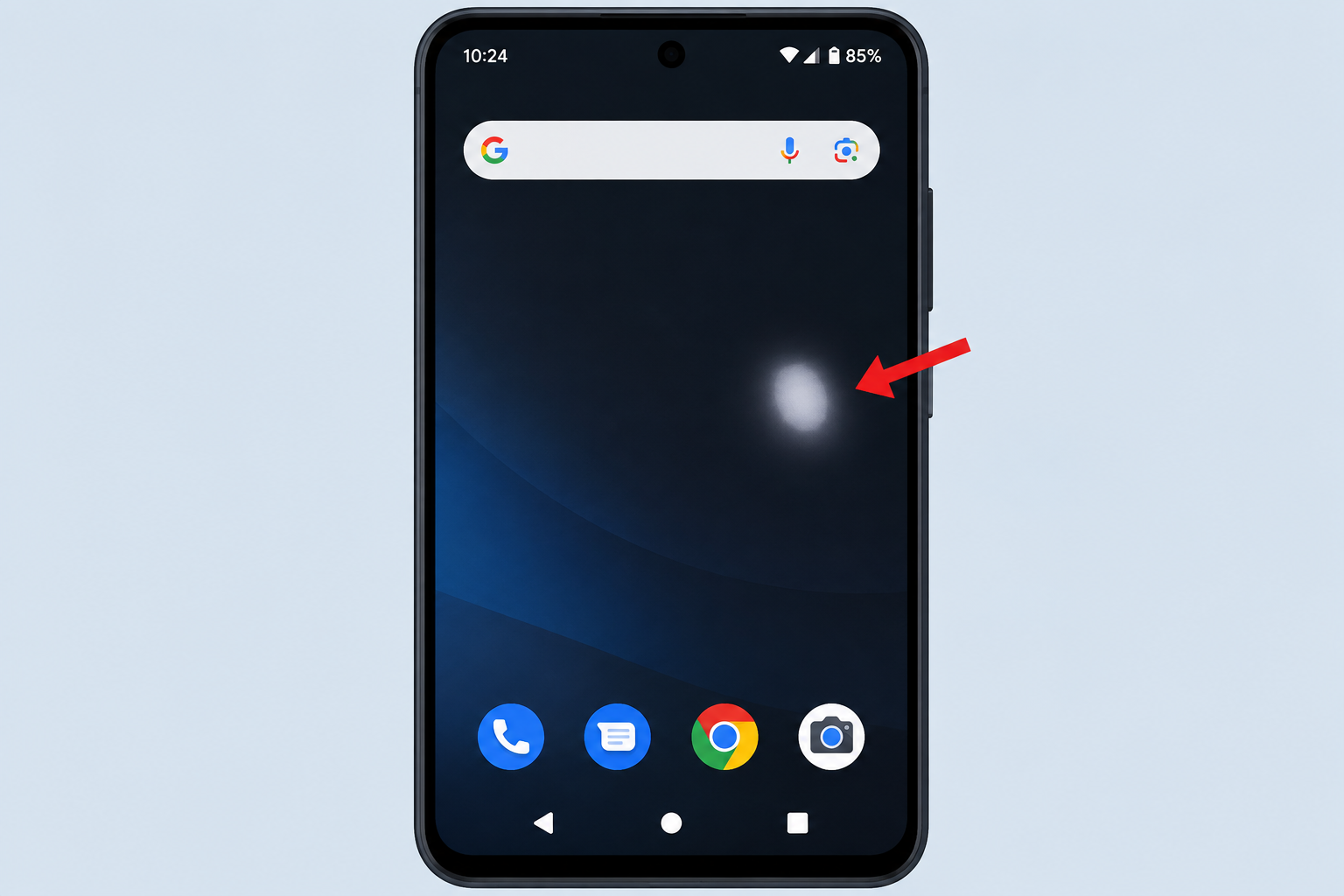
Introduction
A white spot on an Android screen is a visible area of the display that appears abnormally bright, washed out, or completely white regardless of what is shown on screen. It can look like a small bright dot, a larger white patch or blob, or a diffuse bright area spreading from a corner or edge of the display. White spots are caused by physical impact damage, pressure applied to the screen, LCD backlight faults, stuck pixels, screen delamination, moisture damage, or in rare cases software and display calibration issues. Some white spots require professional screen repair while others can be addressed through simple software troubleshooting steps at home.
This guide explains every major cause and walks through every realistic fix so you know exactly what you are dealing with and what your options are.
What Is a White Spot on an Android Screen?
A white spot on an Android screen is an area of the display that shows abnormal brightness or a washed-out white appearance that does not match the content being displayed. Unlike regular screen content, a white spot remains visible no matter what app you open or what color the screen displays behind it.
White spots can appear in several different forms:
- A small concentrated bright white dot
- A larger white patch or irregular blob covering part of the screen
- A white or bright ring shape
- A diffuse bright haze spreading outward from one corner or edge of the display
- A cluster of several bright or white pixels grouped together
It is worth knowing the difference between a white spot and a dead pixel. A dead pixel is a pixel that has stopped working entirely and appears as a permanent black dot on the screen. A white spot or stuck pixel is the opposite. The affected area is emitting too much light or is stuck in a bright state rather than failing to emit light at all.
White spots can appear suddenly right after the phone is dropped or impacted. They can also develop gradually over hours or days as internal damage spreads. Some appear after sustained pressure is applied to the screen. Understanding how modern smartphone displays are built helps explain why these kinds of damage happen and why they are so difficult to reverse once they occur.
Common Causes of White Spots on Android Screens
Cause 1: Physical Impact or Drop Damage
Physical impact from dropping an Android phone is one of the most common causes of white spots on the display. The problem with drop damage is that the internal components of a screen can crack or shift even when the outer glass surface appears completely intact. There is no visible crack on the outside, but the internal display layer has been damaged.
On LCD screens, the display contains a layer of liquid crystal material sandwiched between components. A hard impact can cause this liquid crystal material to pool or leak in a concentrated area, creating a bright white patch at that location. On OLED screens, impact can damage clusters of individual pixels causing them to malfunction and appear white or extremely bright.
The white spot may show up immediately after the drop or it may develop gradually over the following hours or days as the internal damage continues to spread from the point of impact.
Cause 2: Pressure Damage
Sustained pressure applied to an Android screen can cause white spots to develop even without any visible crack or impact. This type of damage is more common than many users realize because it can happen through everyday situations.
Common ways pressure damage occurs:
- Carrying the phone in a tight jeans pocket with keys, coins, or other hard objects pressing against the screen
- Accidentally sitting on the phone
- Placing a heavy bag, book, or object on top of the phone
- Gripping the phone very firmly near the display area during a call or while gaming
On LCD screens, sustained pressure can permanently displace the liquid crystal layer at the point of pressure. Once displaced, the liquid crystals in that area no longer align correctly and produce a bright white or washed-out patch that does not respond to software changes. Pressure damage is a hardware problem and cannot be corrected through any software fix.
Cause 3: LCD Backlight Issues
Android phones that use LCD displays rely on a backlight positioned behind the liquid crystal layer to illuminate the screen. The backlight is a separate component from the display panel itself. If the backlight develops a fault, becomes damaged, or experiences misalignment in a specific area, it can create a brighter-than-normal or white-looking patch in that zone of the screen.
Backlight issues can develop from manufacturing defects present from the start, gradual component failure over time, or physical damage to the internal backlight assembly. A white spot caused by a backlight fault tends to be consistent in appearance and does not shift or change based on what is displayed on screen. It looks the same whether you are reading a dark webpage or viewing a bright image.
Cause 4: Dead or Stuck Pixels
Individual pixels on an Android screen can become stuck in an active state. A stuck pixel is a pixel that is locked into its brightest mode and continuously emits light rather than adjusting to display the correct color for the content on screen. A single stuck pixel appears as a small bright white or bright-colored dot. A cluster of several stuck pixels in close proximity can create a small white patch or blob that looks similar to other types of screen damage.
The important distinction between stuck pixels and dead pixels is this:
- A dead pixel has stopped functioning and appears as a permanent black dot on the screen because it emits no light at all
- A stuck pixel is functioning but is frozen in a bright state and appears as a persistent white or bright dot on the screen
Stuck pixels can sometimes be addressed through software methods, which is covered in the fixes section below. Dead pixels generally cannot be resolved through software and require screen replacement.
Cause 5: Screen Delamination
Modern smartphone displays are built from multiple bonded layers. These typically include the outer protective glass, the actual display panel, and in many cases a digitizer layer that handles touch input. Manufacturers bond these layers together during production. If the bond between layers begins to fail and the layers start to separate, the process is called delamination.
Delamination creates microscopic or visible air gaps between the screen layers. These air gaps scatter and reflect light in a way that makes the affected area appear white, hazy, or washed out. Delamination can be caused by moisture getting between layers, exposure to extreme heat, physical stress on the screen from bending or pressure, or simply the adhesive breaking down with age. Screen delamination is a hardware problem that requires professional screen replacement to resolve.
Cause 6: Moisture or Liquid Damage
Water or moisture that enters the phone and reaches the display components can cause white spots, white haze, or irregular bright patches to appear on the screen. This can happen even on phones that carry water resistance ratings. Water resistance ratings describe the level of protection available when a device is new, but seals and gaskets degrade over time, particularly if the device has been opened for repair previously.
Moisture damage to the display can appear as a diffuse white haze, a white patch concentrated in one area, or streaks of unusual brightness. In some cases, if the moisture has not reached the display panel permanently, the white spot may fade or disappear as the device dries out completely over several days. In other cases the moisture causes irreversible damage to the display components.
Cause 7: Manufacturing Defect
Some white spots on Android screens are the result of a defect in the display panel that was present at the time of manufacture. A manufacturing defect white spot may be visible from the moment the device is first turned on or may develop within the first few weeks of normal use without any physical damage occurring.
Devices with white spots caused by manufacturing defects are typically covered under the manufacturer’s standard warranty. Different Android phone manufacturers have different warranty processes and timelines, but most standard warranties cover display defects that appear under normal use conditions.
Cause 8: Software or Display Calibration Issues
In rare cases what looks like a white spot on an Android screen may actually be caused by a software issue, a display driver problem, or an incorrect display calibration setting rather than physical hardware damage. Software-related display anomalies behave differently from hardware-caused white spots.
Signs that a white spot may have a software cause rather than a hardware cause include:
- The white area changes in appearance or intensity depending on what color is displayed behind it
- The white spot appears differently at different brightness levels
- The white spot appears or disappears depending on which app is open
- The issue appeared after installing a system update or changing display settings
Software causes for white spots are significantly less common than hardware causes. Most white spots that users encounter are the result of physical damage to the display panel.
How to Tell If the White Spot Is a Hardware or Software Problem
Before attempting any fix it is worth spending a few minutes diagnosing whether the white spot is likely a hardware issue or a software issue. This saves time and helps you focus on the right solution.
Follow these diagnostic steps:
- Open several different apps and screens. Launch a few different apps, open the camera viewfinder, and navigate through the Settings menu. If the white spot appears in exactly the same position on every single screen regardless of what is displayed, it is almost certainly a hardware problem with the display panel itself.
- Adjust the screen brightness. Go to Settings, then Display, then Brightness. Slide the brightness from the lowest setting to the highest setting and observe the white spot. A hardware-caused white spot remains clearly visible at all brightness levels. A software or calibration issue may look different or appear to shift in intensity as brightness changes.
- Take a screenshot. Take a screenshot of the screen while the white spot is visible. Open the screenshot in your photo gallery and examine it carefully. If the white spot does not appear in the screenshot image, the problem is with the physical display hardware, not the software. If the white spot does appear inside the screenshot image itself, it may be a software rendering or app-related issue.
- Restart the device. Hold the power button and select Restart. After the device fully restarts, check whether the white spot is still present. A white spot that disappears after a restart was likely caused by a temporary software process or display driver glitch. A white spot that remains after restart is almost certainly hardware-related.
- Recall any recent physical events. Think back to whether the phone was dropped, sat on, squeezed tightly, or had anything pressing on the screen recently. If a physical event preceded the appearance of the white spot the cause is almost certainly physical damage to the display.
Diagnostic Summary
| Observation | Likely Cause |
|---|---|
| White spot visible in same position on all screens and apps | Hardware damage to display panel |
| White spot appeared immediately after drop or impact | Physical impact damage |
| White spot appeared after pressure on screen | Pressure damage to LCD layer |
| White spot only visible on certain colors or specific content | Possible stuck pixel |
| White spot disappears after restart | Temporary software glitch |
| White spot not visible in screenshot image | Hardware display issue |
| White spot appeared with no physical damage on a new device | Possible manufacturing defect |
| White spot with haze or moisture visible under glass | Moisture or liquid damage |
Possible Fixes for White Spot on Android Screen
The fixes below are organized from the simplest software steps to the most involved solutions. It is important to understand from the start that software fixes only address white spots caused by software issues, stuck pixels, or display calibration problems. Physical damage to the display panel from impact, pressure, moisture, backlight failure, or delamination cannot be repaired through any software step. If your white spot is clearly caused by physical damage, skip to Fix 7 and Fix 8.
Fix 1: Restart Your Android Phone
A restart is always the right first step for any screen anomaly you have not experienced before. Restarting clears temporary software processes, resets display driver states, and can resolve glitches that appeared without any hardware cause.
- Press and hold the power button on your Android phone.
- Select Restart or Reboot from the power menu that appears.
- Wait for the device to completely shut down and restart.
- Once the device has fully restarted unlock the screen and check whether the white spot is still visible.
If the white spot was caused by a temporary software process or a display driver that got stuck in an incorrect state, it may be gone after the restart. If it persists, move on to the next steps.
Fix 2: Check and Adjust Display Settings
Certain display settings can cause areas of the screen to appear unusually bright or washed out, which can sometimes be mistaken for a hardware white spot.
- Open the Settings app on your Android phone.
- Tap Display.
- Check the Brightness level and make sure Adaptive Brightness is not causing unusual brightness behavior in specific screen zones.
- Try turning off Adaptive Brightness and setting the brightness manually to a mid-level.
- Look for Color Mode settings and try switching between available modes such as Natural, Vivid, or Saturated to see if the white spot changes in appearance.
- Check if any accessibility display settings are active such as high contrast mode, color correction, or display inversion that might be affecting the screen appearance in an unexpected way.
If any of these settings changes cause the white spot to appear differently or disappear, you have likely identified a display calibration issue rather than hardware damage.
Fix 3: Try a Pixel Fixer App for Stuck Pixels
If the white spot appears to be a single stuck pixel or a small cluster of stuck pixels, a pixel fixer app may help. Pixel fixer apps work by rapidly cycling colors across the screen in the affected area. The theory behind these apps is that the rapid color cycling can sometimes jolt stuck pixels back into normal operation. There is no guarantee this will work, and the effectiveness varies between devices and situations.
These apps are a type of Android app available through the Google Play Store. When searching for one, look for apps with clear descriptions of their pixel testing and cycling function and check user reviews before downloading.
- Open the Google Play Store on your Android phone.
- Search for a pixel fixer or dead pixel test application.
- Download a reputable app with positive reviews.
- Open the app and follow its instructions to start a color cycling session.
- Direct the color cycle toward the area of the screen where the white spot is located if the app allows targeted use.
- Run the cycle for the full recommended duration, which is typically between 10 minutes and one hour.
- After the session ends, check whether the white spot has reduced or disappeared.
Be clear with your expectations. Pixel fixer apps have no effect whatsoever on white spots caused by physical screen damage, pressure damage, backlight faults, delamination, or moisture damage. They are only potentially useful for stuck pixels.
Fix 4: Update Your Android Software
Outdated system software or display drivers can occasionally cause visual anomalies on the screen. Keeping your Android software current ensures you have the latest display rendering fixes, driver patches, and system stability improvements.
- Open the Settings app on your Android phone.
- Scroll down and tap System, or tap About Phone depending on your device model.
- Tap Software Update or System Update.
- Allow the device to check for available updates.
- If an update is available, download and install it.
- After the update completes and the device restarts, check whether the white spot is still present.
Keeping Android software updated is a good general practice for device health beyond just display issues. Software problems on Android can sometimes manifest as unexpected visual behavior on the display, and if you are experiencing other system issues alongside the white spot, checking for software updates is an important step. For context on how software issues can affect Android system behavior, see this guide on Android setup keeps stopping errors, which illustrates the kind of system-level problems outdated software can contribute to.
Fix 5: Clear App Cache and App Data for Display-Related System Apps
In rare cases, corrupted cache stored by display-related system apps or the device launcher can affect how the screen renders content. Clearing this cached data forces the system to rebuild its temporary files from scratch, which may resolve a software-caused display glitch.
Understanding what app cache is helps clarify why this step can sometimes make a difference. App cache is temporary data stored by apps to help them load content faster. When cache becomes corrupted, it can cause apps or system services to behave unexpectedly.
- Open the Settings app on your Android phone.
- Tap Apps or Application Manager.
- Tap the three-dot menu in the top corner or use the filter option to enable viewing of System Apps.
- Look through the list for system apps related to display services, your device launcher, or the system UI.
- Tap on a relevant system app and select Clear Cache.
- Restart your device after clearing cache.
It is also worth understanding the difference between clearing cache and clearing app data. Clearing app data removes all stored information for an app including settings and saved preferences, not just temporary cache files. For display system apps, clearing cache is the appropriate first step. Clearing full app data for system apps should only be done with caution as it can reset system settings.
Fix 6: Perform a Factory Reset as a Last Software Step
If you have worked through all the previous software troubleshooting steps and still suspect the white spot may have a software cause rather than a hardware cause, a factory reset returns the device to its original out-of-box software state. This eliminates any software configuration, corrupted system files, or driver issues that may be contributing to the display problem.
Be completely honest with yourself before taking this step. A factory reset will not fix a white spot caused by any form of physical hardware damage to the display panel. If the white spot is hardware damage, a factory reset will erase all your data and the white spot will remain exactly as it was. Only proceed with a factory reset if there is a genuine reason to believe the issue is software-related based on your diagnostic steps above.
- Back up all important data including photos, videos, contacts, documents, and any app data you want to preserve.
- Open the Settings app on your Android phone.
- Tap System, or tap General Management depending on your device model.
- Tap Reset or Reset Options.
- Tap Factory Data Reset or Erase All Data.
- Read the warning carefully and confirm the reset.
- Wait for the device to complete the reset process and restart.
- Set up the device and check whether the white spot is still present.
Fix 7: Check Your Warranty and Contact the Manufacturer
If the white spot appeared on a device that is relatively new, or if it appeared without any physical damage event, it may be covered under the manufacturer’s warranty as a display manufacturing defect.
- Check your device warranty status by visiting the manufacturer’s official website and entering your device serial number or IMEI, or by reviewing the warranty documentation that came with the device.
- Contact the manufacturer’s customer support team by phone, chat, or email, or visit an authorized service center in person.
- Describe clearly when the white spot appeared, that no physical damage occurred, and how the spot currently looks and behaves.
- If the white spot is assessed as a manufacturing defect and the device is within its warranty period, the manufacturer may repair or replace the screen at no cost to you.
Different Android phone manufacturers have different warranty claim processes. Samsung, Google, OnePlus, and other major manufacturers all maintain authorized service networks. Check your specific manufacturer’s support page for the most accurate guidance. You can also refer to support.google.com for general Android device support guidance.
Fix 8: Professional Screen Repair or Replacement
If the white spot on your Android screen was caused by physical impact, pressure, backlight damage, screen delamination, or moisture damage, professional screen repair or complete screen replacement is the only reliable solution. There is no software fix, home remedy, or app that can repair a physically damaged display panel. The damaged hardware component needs to be physically replaced by a qualified technician.
Options for professional repair:
- Manufacturer authorized service center: Using an authorized center guarantees genuine replacement parts and preserves any remaining warranty on the repaired component. For Samsung devices visit a Samsung Service Center. For Google Pixel devices use a Google-authorized repair provider.
- Reputable third-party repair shop: Many independent repair shops can replace Android phone screens at competitive prices. If using a third-party shop, confirm that they use quality replacement screens and offer a warranty on the repair work.
Screen replacement costs vary considerably depending on the device model and the type of display. Premium Android phones with OLED displays generally cost significantly more to repair than devices with LCD displays. For the most accurate repair cost, contact the manufacturer’s service center or a local repair shop with your specific device model information.
Do not attempt to open the device and replace the screen yourself unless you have proper tools, experience, and full awareness that doing so may void any remaining warranty on the device.
White Spot Fixes: Summary Table
| Fix | What It Addresses | Difficulty | Does It Fix Physical Hardware Damage? |
|---|---|---|---|
| Restart the device | Temporary software glitch | Very easy | No |
| Adjust display settings | Display calibration issue | Easy | No |
| Pixel fixer app | Stuck or frozen pixels | Easy | No |
| Update Android software | Outdated display drivers or system bugs | Easy | No |
| Clear app cache and data | Corrupted system display cache | Easy | No |
| Factory reset | Software-level display issue | Moderate, requires backup | No |
| Warranty claim | Manufacturing defect | Easy with documentation | Through screen replacement |
| Professional screen repair | All physical hardware damage | Requires professional | Yes |
How to Prevent White Spots on Android Screens
Protecting your Android phone properly from the start is the most effective way to avoid white spot damage to the display.
- Use a quality protective case that has raised edges around the screen. Raised edges prevent the screen from making direct contact with surfaces when the phone is placed face down and provide a buffer zone during impacts.
- Apply a tempered glass screen protector. Tempered glass absorbs a portion of impact energy and distributes pressure more evenly across the surface, reducing the amount of force transferred directly to the display panel below.
- Avoid carrying the phone in tight pockets alongside hard objects. Keys, coins, and other items can press against the screen continuously throughout the day, gradually creating pressure damage.
- Never place heavy objects on top of the phone, even briefly.
- Be careful on hard surfaces. Drops onto concrete, tile, or hard wood floors are more likely to cause internal display damage than drops onto carpet or soft surfaces.
- Avoid prolonged exposure to direct sunlight or extreme heat. High temperatures can degrade display adhesive layers and affect the integrity of display components over time.
- Be mindful of water exposure. Even if your Android phone carries a water resistance rating, that rating reflects protection available when the device is new. Seals degrade over time, and water resistance is not the same as being waterproof.
When to See a Professional
Some situations make it clear that professional repair is the right next step rather than continuing with software troubleshooting.
Seek professional assessment when:
- The white spot appeared immediately after the phone was dropped, sat on, or had significant pressure applied to it
- The white spot is visibly growing larger over time
- The white spot is accompanied by other screen problems such as cracks in the glass, color distortion spreading from the affected area, or the touchscreen becoming unresponsive near the white spot
- All software troubleshooting steps have been completed without any change in the white spot
- The white spot now covers enough of the screen to make the device difficult or impossible to use normally
- The device is still under warranty and the white spot appeared without physical damage, suggesting a possible manufacturing defect
Persistent display issues combined with other system problems can sometimes indicate deeper hardware issues that extend beyond just the screen itself. If you are also experiencing system crashes or other Android stability problems alongside the display issue, professional assessment of the full device is worth considering. For reference on how Android system issues can compound, this article on Android setup keeps stopping problems provides useful context on how software and hardware issues can sometimes overlap on Android devices.
Understanding Android Phone Display Types
The type of display your Android phone uses affects how white spots appear and what repair options are available.
LCD Displays on Android Phones
LCD stands for Liquid Crystal Display. LCD screens use a backlight component positioned behind a layer of liquid crystals to produce images. The liquid crystal layer sits between the backlight and the front glass. When pressure or impact damages this liquid crystal layer, the liquid crystal material can shift or pool in a localized area, causing that area to appear white or abnormally bright.
LCD screen replacement is generally less expensive than OLED replacement, which makes professional repair a more accessible option for LCD-equipped devices.
OLED Displays on Android Phones
OLED stands for Organic Light Emitting Diode. OLED screens work differently from LCD screens. Each individual pixel in an OLED display produces its own light directly without needing a separate backlight layer. When OLED pixels are damaged from impact or develop a manufacturing fault, clusters of pixels may malfunction and appear white, very bright, or discolored.
OLED screen replacement typically costs more than LCD replacement because OLED panels are more expensive components to manufacture and source. Understanding how these two display technologies work explains why the same type of physical damage can look slightly different and behave differently depending on which screen technology your device uses. This distinction is fundamental to how modern smartphones deliver their display quality and why display damage at the hardware level is so difficult to address without physical component replacement.
It is also worth noting that your Android phone’s home screen interface, including elements like the Android voice search icon and other on-screen interface components, are rendered through the display panel. If the display panel itself is damaged, all interface elements including search functions and home screen features will appear distorted in the affected area regardless of any software changes.
Frequently Asked Questions
What causes a white spot on an Android screen?
White spots on Android screens are most commonly caused by physical impact from a drop, sustained pressure applied to the display, LCD backlight damage, stuck pixels, screen layer delamination, or moisture reaching the display components. Software causes are possible but much less common.
Can a white spot on an Android screen be fixed without replacing the screen?
It depends entirely on the cause. White spots caused by stuck pixels may sometimes be resolved using a pixel fixer app. White spots caused by temporary software glitches may resolve with a restart or software update. White spots caused by physical damage, pressure, backlight faults, or delamination require professional screen replacement and cannot be fixed through software.
Why did a white spot appear on my Android screen after I dropped it?
When a phone is dropped, the internal display components can crack or shift even if the outer glass remains intact. On LCD screens the liquid crystal layer can pool or leak at the point of impact. On OLED screens, pixel clusters can be damaged. Both results produce a white or bright patch on the display.
Is a white spot on an Android screen covered under warranty?
A white spot caused by a manufacturing defect may be covered under the standard manufacturer warranty. A white spot caused by physical damage, dropping the phone, or user-applied pressure is typically not covered under standard warranty. Some manufacturers and retailers offer accidental damage protection plans that may cover physical damage. Check your specific warranty terms.
What is the difference between a white spot and a dead pixel on an Android screen?
A dead pixel has completely stopped functioning and appears as a permanent black dot on the screen because it emits no light. A white spot or stuck pixel is a pixel or group of pixels that is stuck in an active bright state and emits continuous light, appearing as a white or bright area on the display.
Can pressure cause a white spot on an Android screen?
Yes. Sustained pressure on an LCD screen can permanently displace the liquid crystal layer and create a white or bright patch at the pressure point. This can happen from tight pockets, sitting on the phone, or heavy objects resting on the screen. Pressure damage is a hardware problem.
Do pixel fixer apps actually work for white spots on Android?
Pixel fixer apps sometimes help with stuck pixels that are frozen in a bright state. They have no effect on white spots caused by physical hardware damage, pressure damage, backlight faults, delamination, or moisture damage. Results are not guaranteed even for stuck pixels.
Will a factory reset fix a white spot on an Android screen?
No, not if the white spot is caused by physical damage to the display hardware. A factory reset only addresses software-level issues. If the screen panel itself is damaged, resetting the software will not change anything about the display damage.
Is a white spot on an Android screen getting bigger a bad sign?
Yes. A white spot that is growing larger over time indicates that the underlying hardware damage is spreading. This is common with LCD liquid crystal leakage after impact and with delamination. A growing white spot should be assessed by a professional repair technician promptly.
How much does it cost to fix a white spot on an Android screen?
Screen replacement costs vary significantly depending on the device model, the display type used, and whether you use an authorized service center or a third-party repair shop. OLED displays generally cost more to replace than LCD displays. Contact your manufacturer’s service center or a local repair shop with your specific device model for an accurate repair estimate.
Can moisture cause a white spot on an Android screen?
Yes. Moisture that reaches the display components can cause white haze, white patches, or irregular bright areas on the screen. In some cases these may fade as the device dries. In other cases the moisture causes permanent damage.
How do I know if the white spot on my Android screen is hardware or software?
Take a screenshot. If the white spot does not appear in the screenshot image it is a hardware display issue. Also check whether the spot appears in every app in the same position, whether it changes with brightness adjustments, and whether it appeared after any physical event. Hardware white spots are consistent across all screens and were often preceded by a physical event.
Can I still use my Android phone if it has a white spot on the screen?
In many cases yes, depending on the size and location of the white spot. If the spot is small and located in a corner or edge area it may not significantly interfere with normal use. However if the spot is large, centrally located, or growing, it will increasingly affect usability. It is always worth getting hardware damage assessed before it worsens.
What should I do first if I notice a white spot on my Android screen?
Take a screenshot to determine whether the spot is hardware or software related. Restart the device. If the spot remains after a restart and appears in the same position across all screens and apps, assume it is hardware damage and proceed to checking your warranty or contacting a repair professional.
Does a screen protector help prevent white spots on Android screens?
A tempered glass screen protector helps by absorbing and distributing some of the force from impacts, which can reduce the severity of damage transferred to the display panel below. It does not make the screen immune to white spot damage from drops or pressure, but it does provide a meaningful layer of additional protection.
Disclaimer
This article is intended for educational and informational purposes and provides a general guide to understanding and addressing white spots on Android screens. The fixes described in this article reflect general troubleshooting steps for Android smartphones. Results may vary depending on the specific device model, Android version, and the root cause of the white spot. Some causes of white spots on Android screens such as physical LCD or OLED panel damage, pressure damage, or backlight damage require professional repair or screen replacement and cannot be resolved through software troubleshooting alone. Attempting to physically repair your device yourself may void your warranty and could cause further damage. Always check your device warranty status and consult a qualified repair technician or your device manufacturer before attempting any physical repair. This article does not constitute an endorsement of any third-party repair service, app, or tool mentioned in this guide.