
 By Saad Qureshi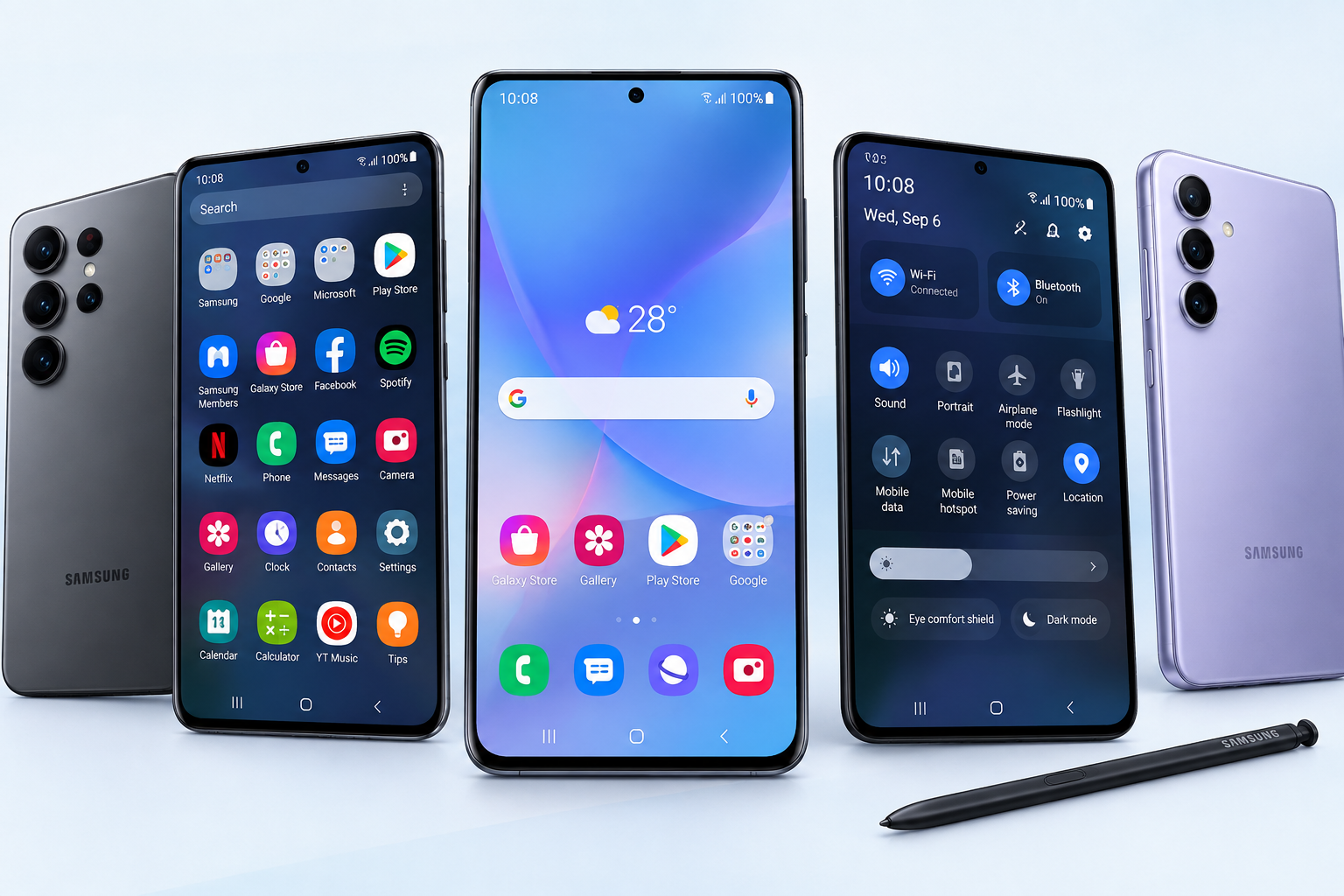
Samsung Galaxy phones running One UI give you more control over your home screen than almost any other smartphone platform. You can change the grid size, swap icon packs, add widgets, organize apps into folders, activate the Edge Panel, and use the Good Lock app for advanced customization that goes far beyond basic settings. The result is a home screen that works the way you think, looks the way you want, and makes your phone genuinely more useful every day.
The best Samsung phone layout ideas range from clean minimalist setups with just a handful of icons to widget-rich productivity dashboards and carefully themed aesthetic arrangements. This guide covers seven distinct layout styles with step-by-step setup instructions for each one.
Samsung Galaxy is an Android phone platform, and Android’s open and flexible nature is what makes all of these layout ideas possible. Understanding what is available to you is the first step to building a home screen you actually enjoy using.
Why Your Samsung Phone Layout Matters
Every time you unlock your Samsung phone, the home screen is the first thing you see. A cluttered, disorganized layout slows you down. A well-planned layout speeds everything up and reduces the small moments of friction that accumulate throughout the day.
The home screen is the most frequently visited interface on any modern smartphone. How it is organized directly affects how quickly you can reach the apps and information you need. A thoughtful layout means less searching, less scrolling, and less time spent managing your phone rather than using it.
Samsung One UI stands out from other Android skins because of how many built-in customization tools it provides. Grid size controls, icon label toggles, a built-in Color Palette system, the Edge Panel, and the Galaxy Themes store all come included without needing any third-party apps. Add the Good Lock customization suite on top of that and Samsung gives users one of the most complete home screen customization ecosystems available on any smartphone.
A good Samsung phone layout does two things well. It looks good enough that you enjoy picking up your phone, and it works well enough that you can get things done without thinking about where anything is.
Understanding Samsung One UI Home Screen Basics
Before choosing a layout style it helps to understand the core building blocks you have to work with on a Samsung phone running One UI.
Home Screen Pages
One UI supports multiple home screen pages that you can swipe between horizontally. You can add new pages, delete empty ones, and reorder them by long pressing the home screen and entering edit mode.
One of the simplest improvements you can make to any Samsung layout is reducing the number of pages. If you have five pages but only the first two are regularly used, removing the unused pages immediately creates a tighter and more navigable layout.
App Drawer vs No App Drawer Layout
Samsung One UI lets you choose between two fundamental layout modes. The App Drawer mode stores all of your installed apps in a separate swipeable library that you access by swiping up from the home screen or tapping the App Drawer button. Only the apps you deliberately place on the home screen appear there.
The no App Drawer mode places every installed app directly on home screen pages automatically, similar to how iPhone works.
To switch between these modes:
- Long press an empty area on the home screen.
- Tap Home Screen Settings.
- Tap Home Screen Layout.
- Select Home Screen Only to disable the App Drawer, or select Home Screen and Apps Drawer to enable it.
For most users who want a cleaner layout, the App Drawer mode is the better choice. It lets you keep the home screen showing only what you choose while everything else remains accessible through the drawer.
Grid Size Settings
The grid size setting controls how many app icons fit across and down each home screen page. Samsung One UI typically offers grid options including 4×5, 4×6, 5×5, and 5×6 depending on the specific device model.
A smaller grid like 4×5 gives each icon more space, creates a less crowded appearance, and generally looks cleaner. A larger grid like 5×6 fits more icons on each page which is useful for users who want more apps accessible without scrolling between pages.
To change the grid size:
- Long press an empty area on the home screen.
- Tap Home Screen Settings.
- Tap Home Screen Grid or App Screen Grid.
- Select your preferred grid size and tap Apply.
Icon Size and Label Settings
One UI allows you to adjust the size of app icons independently and to toggle the text labels that appear below each icon on and off.
Turning off icon labels creates a noticeably cleaner and more modern look. Without labels the home screen relies purely on icon recognition which works well for apps you use regularly and feels more visually balanced.
To turn off icon labels:
- Long press the home screen and tap Home Screen Settings.
- Find the App Icon Labels or Show App Labels option.
- Toggle it off.
Samsung Phone Layout Idea 1: The Minimalist Layout
The minimalist layout is built around the principle of showing less to achieve more. It uses a single home screen page, a small selection of essential apps, a clean wallpaper, no icon labels, and little or no widget content. The result is a calm and visually spacious home screen that reduces distraction and puts the focus entirely on what you actually need.
This layout works particularly well for users who find themselves getting distracted by notifications, badges, and the visual noise of a busy home screen.
How to Create a Minimalist Samsung Home Screen Layout
- Open Settings, then tap Wallpaper and Style, then Wallpaper. Set a solid color, simple gradient, or abstract minimal wallpaper. Avoid photography with complex backgrounds or busy patterns.
- Long press the home screen, tap Home Screen Settings, and reduce the grid size to 4×5 for more breathing room between icons.
- In Home Screen Settings, find the icon labels option and turn it off to remove text below all icons.
- Decide on a maximum of 8 to 12 apps that you use every single day. Move all other apps to the App Drawer by long pressing them and selecting Remove from Home Screen.
- Consolidate everything to a single home screen page. Delete all additional pages.
- Set up a dock at the bottom with 3 to 4 apps you use most such as Phone, Messages, and your browser.
- Browse the Galaxy Themes store or the Google Play Store for a monochrome or single-color icon pack to give all visible icons a unified consistent appearance.
Tips for the Minimalist Layout
- Monochrome icon packs in white, black, or a single accent color produce the cleanest minimalist results.
- Turn off notification badges in Settings under Notifications to remove the small red dots that appear on app icons.
- Resist the urge to add widgets to the main page. The strength of the minimalist layout is its emptiness.
- Use Spotlight Search or the App Drawer search bar to open apps that are not on the home screen rather than browsing through pages.
Samsung Phone Layout Idea 2: The Productive Layout
The productive layout is designed to surface information and tools as quickly as possible after you unlock your phone. It uses widgets on the main page to show live data like your calendar, tasks, and weather without needing to open any app. Additional pages are organized by category to keep related apps grouped together.
This layout is ideal for anyone who uses their phone heavily for work, communication, and scheduling.
How to Create a Productive Samsung Home Screen Layout
- Set a dark or neutral professional wallpaper that does not compete visually with widget content. Dark backgrounds make widget text and information easier to read at a glance.
- Designate your main home screen page as the information dashboard. This is where your widgets live.
- Long press the home screen and tap Widgets. Add a large calendar or agenda widget to the upper section of the main page so your upcoming schedule is visible immediately after unlocking.
- Add a Samsung Weather widget or Google Weather widget below the calendar to show the day’s forecast without opening any app.
- Add a Samsung Reminder widget or Google Tasks widget to keep your active tasks visible on the home screen.
- Set your dock to hold your four most critical communication apps such as Phone, Messages, Email, and your preferred messaging app.
- Create additional home screen pages organized by category. One page for social and communication apps, one for productivity tools, and one for utilities and settings shortcuts.
- On each category page create folders to keep related apps grouped. Label folders clearly with short descriptive names.
- Activate the Edge Panel for fast access to your most used apps from anywhere on the phone without returning to the home screen.
Tips for the Productive Layout
- Keep folder names to one or two words for fast visual recognition.
- Use the Samsung Reminder widget because it integrates directly with the built-in Reminder app and updates in real time on the home screen.
- Understanding how productivity apps store and display information through widgets is connected to understanding app data and how apps surface live content on the home screen. Apps that display live calendar events, tasks, or weather on widgets are pulling from their stored data in real time.
- Review and update widget choices whenever your workflow changes. A widget you no longer check is just visual clutter.
Samsung Phone Layout Idea 3: The Aesthetic Layout
The aesthetic layout treats the Samsung home screen as a visual design project. Every element from the wallpaper to the icon pack to the widget styles is chosen to create a cohesive and intentional look. Popular aesthetic styles for Samsung phones include dark minimalism with white icons, soft pastel arrangements, nature-inspired green and earth tone themes, and sharp monochrome black and white setups.
The aesthetic layout still needs to be functional. A beautiful home screen that makes it hard to find apps is not an improvement.
How to Create an Aesthetic Samsung Home Screen Layout
- Choose your wallpaper first. The wallpaper is the foundation of an aesthetic layout and everything else should be built to complement it. Browse Unsplash for high-resolution photography or illustrated artwork that establishes a strong color mood.
- Identify the two or three dominant colors in your chosen wallpaper. These colors become your theme.
- Open the Galaxy Themes app and search for icon packs and theme packages that match your color palette. Many themes include matching wallpaper, icons, and system color schemes as a complete package.
- Alternatively browse the Google Play Store for a third-party icon pack that matches your chosen colors. Icon pack apps are a category of Android app specifically designed to replace the visual appearance of all your app icons with a consistent set of custom-designed alternatives.
- Open Settings, tap Wallpaper and Style, then tap Color Palette. Samsung’s Color Palette feature automatically extracts dominant colors from your wallpaper and applies them to system elements, the Quick Settings panel, and supported widgets. Enable this for a cohesive system-wide theme.
- Select widgets that complement the aesthetic style. Minimal clock widgets, weather widgets with clean typography, and photo frame widgets work well for aesthetic layouts. The KWGT app available on the Google Play Store allows creation of fully customized widgets in any color and style.
- Reduce the number of visible icons to only what is genuinely necessary. Fewer icons means the wallpaper and widget design can breathe.
- Keep folder usage minimal in aesthetic layouts. If folders are needed use matching folder cover icons to maintain visual consistency.
Tips for the Aesthetic Layout
- Commit to one icon pack style across the entire home screen. Mixing different icon packs breaks visual consistency.
- Keep dock icons consistent with the main icon theme.
- Use the Samsung Galaxy Themes app to find complete theme packages that combine wallpaper, icons, and system color scheme in one download. This is the fastest route to a cohesive aesthetic layout.
- Avoid adding too many widgets. In an aesthetic layout, whitespace is a design element.
Samsung Phone Layout Idea 4: The Widget-Forward Layout
The widget-forward layout uses the Samsung home screen as a live information dashboard. Instead of filling the screen with app icons, this layout places large and medium-sized widgets as the primary content. App icons are kept to a minimum and the App Drawer handles all app storage. The home screen becomes a place you look at for information, not just a launcher you tap through.
This layout appeals to users who want their phone to show them what they need to know at a glance rather than requiring them to open multiple apps to check the same information.
How to Create a Widget-Forward Samsung Home Screen Layout
- Set a dark or low-contrast wallpaper. Busy or bright wallpapers make widget content hard to read. A deep dark gradient or solid dark color works best for widget-heavy layouts.
- Long press the home screen and tap Widgets to open the widget browser.
- Add a large Samsung Clock widget to the top section of the main page. This serves as the visual anchor of the layout.
- Add a Samsung Weather widget directly below the clock for immediate weather information.
- Add a Google Calendar widget or Samsung Calendar widget in agenda view to show your next scheduled events.
- Add a Spotify playback widget or your preferred music app widget if you listen to music regularly throughout the day.
- Keep actual app icons on the main page to a minimum. Place only 3 to 4 essential apps in the dock. Store all other apps in the App Drawer.
- Use secondary home screen pages for additional widgets such as fitness tracker summaries, Google Keep note lists, or photo frame widgets displaying recent photos.
- Remove any app icons from the secondary pages. Each additional page should contain only widget content.
Recommended Widgets for the Widget-Forward Layout
- Samsung Clock widget for a large, customizable digital or analog clock display
- Samsung Weather widget for live local weather conditions and forecast
- Google Calendar widget in agenda view for upcoming events
- Spotify widget for music playback controls without opening the app
- Samsung Notes widget for quick access to a pinned note
- Google Keep widget for a visible checklist or note directly on the home screen
- Samsung Health widget for a daily step count summary if fitness tracking is relevant
Samsung Phone Layout Idea 5: The Folder-Based Organized Layout
The folder-based layout is designed for Samsung users who have a large number of apps installed and want everything accessible and organized from the home screen without clutter. Every app lives inside a clearly labeled category folder. Two pages of organized folders replace multiple chaotic pages of scattered icons.
This layout works well for users who install many apps across many categories and want to find anything quickly without using search.
How to Create a Folder-Based Samsung Home Screen Layout
- Start by auditing all your installed apps. Decide on 6 to 10 category names that cover all your apps such as Social, Communication, Finance, Travel, Shopping, Health, Work, Entertainment, Photography, and Utilities.
- Create the first folder by long pressing an app icon and dragging it on top of another app icon. A folder is created automatically.
- Tap the folder name and type your chosen category label. Keep folder names to one or two words.
- Drag all remaining apps into their correct category folders one by one.
- Arrange folders across a maximum of two home screen pages. Place the most frequently accessed category folders in the lower half of the screen within easy thumb reach.
- Place your four single most used apps in the dock rather than inside folders. These should be apps you open multiple times every day such as Phone, Messages, a browser, and your most used social or productivity app.
- Review each folder to make sure every app is in the right category. Reorganize any that feel out of place.
Tips for the Folder-Based Layout
- Sort apps inside each folder alphabetically to make finding specific apps within a folder predictable and fast.
- Use the same naming convention style for every folder. Either all single words or all two-word labels. Mixing styles looks inconsistent.
- Review folders every few months because app usage patterns change and some folders may become overcrowded while others sit nearly empty.
- When reviewing your folders it is also a good time to check which apps you have not opened in weeks. Unused apps continue to accumulate app cache and consume storage in the background even when you are not actively using them. Removing apps you no longer need keeps the folder system clean and frees up device storage.
Samsung Phone Layout Idea 6: Using Good Lock to Take Layouts Further
Good Lock is Samsung’s official advanced customization app for Galaxy devices. It provides customization options that go significantly beyond what standard One UI settings offer, giving users fine-grained control over the home screen, lock screen, and system interface.
Good Lock is available as a free download in the Galaxy Store on supported Samsung devices. Availability varies by region. For the most current information on Good Lock availability and supported devices, refer to the Samsung Good Lock official page.
Good Lock works through a modular system. Each module is a separate tool focused on a specific area of the phone experience. You download only the modules relevant to what you want to customize.
Key Good Lock Modules for Home Screen Customization
Home Up
Home Up is the primary Good Lock module for home screen layout customization. It extends the grid size options available in standard One UI settings, allowing grid configurations beyond what the default settings offer. Home Up also allows users to add blur effects to the home screen background, adjust icon padding and spacing beyond standard controls, and apply additional home screen layout configurations not available in the base One UI settings.
Lock Star
Lock Star is the Good Lock module for lock screen customization. It allows users to independently customize the lock screen layout with custom widgets, adjust the clock position and style, and configure what information appears on the lock screen. Lock screen customization through Lock Star is completely separate from the home screen layout, allowing a fully distinct visual style for each.
Theme Park
Theme Park is a Good Lock module that allows users to create a complete custom theme from scratch. Users can combine their own chosen wallpaper, select an icon shape and style, and define a color scheme to produce a cohesive custom package. Theme Park is the most advanced aesthetic customization option available natively on Samsung devices without installing a third-party launcher.
How to Get Started with Good Lock
- Open the Galaxy Store app on your Samsung phone. This is separate from the Google Play Store and is Samsung’s own app marketplace.
- Search for Good Lock in the Galaxy Store search bar.
- Tap Download and install Good Lock.
- Open Good Lock and review the available modules in the Life Up and Make Up sections.
- Tap on a module such as Home Up to view its description and tap Download to install it.
- Once installed, open the module from within the Good Lock app.
- Explore the module’s customization options and apply your changes.
- Return to the home screen to see the results.
For detailed guidance on specific Good Lock modules and compatibility information for your Samsung device model, refer to Samsung Support.
Samsung Phone Layout Idea 7: Using Third-Party Launchers
Because Samsung phones run Android, users can replace the default One UI launcher entirely with a third-party launcher app. A third-party launcher replaces the home screen interface with a completely different layout system, offering customization options that go beyond what One UI natively provides.
Third-party launchers are a category of Android app that you install from the Google Play Store and set as your default home screen experience. They give you access to layout configurations, animation styles, gesture controls, and design options that One UI does not offer by default.
Popular Third-Party Launchers for Samsung Phones
Nova Launcher
Nova Launcher is one of the most established and feature-complete Android launchers available. It offers detailed control over nearly every aspect of the home screen experience including grid size, icon scaling, scroll and transition animations, folder appearance, gesture assignments, and dock customization. Nova Launcher Prime, the paid version, unlocks additional features including gesture shortcuts and advanced scroll effects. Learn more at the Nova Launcher official site.
Niagara Launcher
Niagara Launcher takes a fundamentally different approach to the home screen. Instead of a traditional icon grid, Niagara uses a single vertical column showing your most used apps alphabetically with the ability to swipe to a full alphabetical app list. The result is an extremely minimal and distraction-free home screen that prioritizes speed and simplicity over visual customization. Niagara is particularly well-suited for users who want the cleanest possible interface.
Microsoft Launcher
Microsoft Launcher is a productivity-focused alternative that integrates directly with Microsoft 365 services. It includes a customizable feed panel that shows your Outlook calendar events, Microsoft To Do tasks, recent Office documents, and news. If you use Microsoft services for work or personal productivity, Microsoft Launcher turns your Samsung home screen into an integrated Microsoft productivity hub.
How to Install a Third-Party Launcher on a Samsung Phone
- Open the Google Play Store on your Samsung phone.
- Search for the launcher you want to install such as Nova Launcher or Niagara Launcher.
- Tap Install and wait for the download and installation to complete.
- Press the home button on your Samsung phone.
- A system prompt will appear asking which app to use as the home screen.
- Select the new launcher from the list.
- Tap Always to set it as your permanent default home screen, or tap Just Once if you want to try it temporarily.
- Follow the launcher’s initial setup guide to configure your preferred grid, layout style, and icon settings.
Keep in mind that switching to a third-party launcher may reduce access to some Samsung One UI exclusive features. Samsung-specific widgets, some Good Lock customizations, and Samsung’s Edge Panel integration may behave differently or be unavailable depending on the launcher you choose.
Tips for Choosing the Right Wallpaper for Your Samsung Layout
The wallpaper is the visual foundation of any Samsung home screen layout. No matter how well organized your icons and widgets are, a poorly chosen wallpaper can make the entire layout feel inconsistent or hard to read.
Wallpaper Guidance by Layout Style
- Minimalist layouts: Use solid colors, clean gradients in two complementary tones, or abstract geometric patterns with no photographic detail. The simpler the wallpaper the cleaner the layout feels.
- Productive layouts: Use dark professional backgrounds or subtle textures that recede into the background. The wallpaper should not compete for visual attention with widget information.
- Aesthetic layouts: Choose a hero image with strong color presence that establishes the mood and palette for the entire layout. Nature photography, illustrated artwork, and smooth gradient wallpapers all work well.
- Widget-forward layouts: Use a dark or low-saturation wallpaper specifically. Widget text and data need to be clearly readable against the background at a glance.
Where to Find Wallpapers for Samsung Phones
- Samsung Galaxy Themes app: Wallpapers in the Galaxy Themes store are designed specifically for Samsung devices and often integrate with One UI’s Color Palette system for cohesive theming.
- Unsplash: Unsplash offers a vast library of free high-resolution photography across every style and subject. It is one of the best sources for unique, high-quality wallpaper photography at no cost.
- Backdrops app: A curated high-quality wallpaper app available on the Google Play Store with a large selection across multiple design categories.
- Walli app: Focuses on illustrated and artistic wallpapers created by independent artists. Well-suited for aesthetic layout styles.
- Samsung built-in wallpaper gallery: Available in Settings under Wallpaper and Style. Samsung includes a solid selection of default wallpapers optimized for Samsung displays.
How to Use the Edge Panel in Your Samsung Layout
The Edge Panel is a built-in Samsung One UI feature that provides a swipeable side panel accessible from any screen on the phone, including within apps. It holds app shortcuts, contact favorites, clipboard tools, and other quick-access items.
The Edge Panel is one of the most underused Samsung features for layout improvement. By placing frequently used apps in the Edge Panel you can remove them from the home screen entirely without losing fast access to them. This keeps the main layout cleaner while maintaining one-swipe access from anywhere.
How to Set Up the Edge Panel
- Open the Settings app on your Samsung phone.
- Tap Display.
- Scroll down and tap Edge Panels.
- Toggle Edge Panels on.
- Tap Panels to see the available Edge Panel types.
- Enable the Apps panel to create a shortcut panel for your most used apps.
- Return to the home screen and look for the Edge Panel handle, a small tab on the right or left edge of the screen.
- Swipe inward from the handle to open the Edge Panel.
- Tap the pencil or edit icon at the bottom of the panel.
- Add, remove, or rearrange app shortcuts to match your usage patterns.
For additional Edge Panel configuration guidance specific to your Samsung Galaxy model, refer to Samsung Support.
Samsung Phone Layout Ideas: Comparison Table
| Layout Style | Best For | Key Elements | Difficulty |
|---|---|---|---|
| Minimalist | Clean, calm, distraction-free use | Single page, few icons, no labels, simple wallpaper | Easy |
| Productive | Work, daily tasks, and efficiency | Widgets, folders, organized pages, Edge Panel | Moderate |
| Aesthetic | Visual style and personal expression | Themed icons, Color Palette, hero wallpaper | Moderate |
| Widget-Forward | Dashboard-style information display | Large widgets, minimal icons, dark wallpaper | Moderate |
| Folder-Based | Heavy app users wanting organization | Category folders, two pages maximum, labeled folders | Easy |
| Good Lock Custom | Advanced users wanting deep customization | Home Up, Theme Park, Lock Star modules | Advanced |
| Third-Party Launcher | Users wanting beyond One UI options | Nova, Niagara, or Microsoft Launcher | Moderate |
How to Maintain Your Samsung Phone Layout Over Time
A well-designed Samsung phone layout will naturally drift toward clutter over time if there is no consistent system for maintaining it. Every new app installation, every downloaded game, and every service you sign up for adds to the app count and can gradually undo the organization you built.
A few consistent habits keep any Samsung layout in good shape:
- Review the home screen and App Drawer once a month. Remove apps you have not opened in the past 30 days by long pressing them and selecting Uninstall.
- When you install a new app, place it directly in the App Drawer or in the correct folder rather than leaving it on the home screen by default.
- Uninstall apps you no longer use rather than hiding them in folders. Unused apps do more than take up visual space. They continue to accumulate app data in the background, consume storage, and in some cases run background processes that affect battery performance. Regularly reviewing your layout is also an opportunity to audit which apps are consuming resources you are not getting value from.
- Revisit widget choices every few months. A task management widget for a project you completed six months ago is no longer serving your layout.
- Back up your home screen layout using Samsung Smart Switch before performing a factory reset or switching to a new Samsung phone. Samsung Cloud can also preserve home screen and settings configurations.
Common Samsung Layout Mistakes to Avoid
Even users who put significant effort into their Samsung layout often make the same recurring mistakes. These are the most common ones and how to avoid them.
Placing too many apps on the home screen. A home screen filled with four or five pages of dense icon grids is not organized, it is a different kind of cluttered. Use the App Drawer and folders to manage app access rather than placing everything on the home screen.
Mixing icon styles. Using two or three different icon packs across the same home screen, or leaving some apps on default icons while others use a custom pack, creates visual inconsistency that undermines any layout style. Commit to one icon style and apply it consistently.
Choosing a busy wallpaper behind widget content. Complex photographic wallpapers with heavy detail make widget text genuinely difficult to read. If you use widgets prominently choose a wallpaper that provides adequate contrast.
Spreading content too thin across too many pages. Three or four home screen pages that each feel half empty are harder to navigate than one or two pages that are thoughtfully filled. Consolidate.
Underusing the dock. The dock appears on every home screen page and is the most accessed area of the entire layout. Filling dock slots with apps you open once a week wastes the most valuable real estate on your Samsung phone.
Never activating the Edge Panel. Many Samsung Galaxy users open their phones for years without ever enabling the Edge Panel. It is one of the most practical layout tools available in One UI. Setting it up takes less than two minutes and immediately gives you faster access to your most used apps from any screen on the phone.
Frequently Asked Questions
How do I change the layout of my Samsung phone home screen?
Long press an empty area on the home screen to enter edit mode. From here you can access Home Screen Settings to change grid size, icon labels, and App Drawer settings. You can also add, remove, and rearrange pages, widgets, and shortcuts.
What is the best Samsung phone layout for productivity?
The productive layout with a widget-rich main page showing calendar, weather, and task widgets combined with category-organized pages and the Edge Panel activated is the most effective setup for productivity on a Samsung phone.
How do I make my Samsung home screen look aesthetic?
Start with a strong hero wallpaper, enable Samsung’s Color Palette feature to theme system elements automatically, download a matching icon pack, and use minimal clock and weather widgets that complement your color theme. The Samsung Galaxy Themes app provides complete aesthetic packages including wallpaper, icons, and system colors together.
What is Good Lock on Samsung phones?
Good Lock is Samsung’s official advanced customization app available through the Galaxy Store. It provides home screen, lock screen, and system interface customization through downloadable modules including Home Up for home screen grid customization, Lock Star for lock screen editing, and Theme Park for custom theme creation.
Can I use a different launcher on my Samsung phone?
Yes. Samsung phones run Android which allows installing third-party launcher apps from the Google Play Store. Popular options include Nova Launcher, Niagara Launcher, and Microsoft Launcher. Installing a third-party launcher may limit access to some Samsung One UI exclusive features.
How do I add widgets to my Samsung home screen?
Long press an empty area on the home screen and tap Widgets. Browse the available widgets by app category, select the widget you want, and drag it to your preferred position on the home screen. Resize it by long pressing the placed widget.
How do I change the grid size on my Samsung home screen?
Long press the home screen, tap Home Screen Settings, then tap Home Screen Grid. Select your preferred grid size from the available options and tap Apply. Common options include 4×5, 4×6, 5×5, and 5×6 depending on your device model.
What is the Edge Panel on Samsung phones?
The Edge Panel is a swipeable panel accessed by pulling inward from a small handle tab on the side of the Samsung screen. It can hold app shortcuts, contact favorites, and other quick-access tools. It is accessible from any screen on the phone including within apps.
How do I hide apps on Samsung without deleting them?
Long press the app you want to hide, tap Home Screen Settings, and then look for the Hide Apps option. Hidden apps remain installed and accessible through the App Drawer search but do not appear in the main App Drawer or on home screen pages.
How do I turn off app icon labels on Samsung home screen?
Long press the home screen, tap Home Screen Settings, and toggle off the option for App Icon Labels or Show App Labels. This removes the text names displayed below all app icons on the home screen.
What are the best icon packs for Samsung phones?
The Samsung Galaxy Themes store offers icon packs optimized for One UI. Third-party options are also available through the Google Play Store. Popular styles include monochrome flat icon packs, iOS-style rounded rectangle packs, and illustrated hand-drawn packs. The best choice depends on your layout style.
How do I organize apps into folders on Samsung?
Long press an app icon and drag it directly on top of another app icon. A folder is created automatically containing both apps. Tap the folder name to rename it. Continue dragging additional apps into the folder to expand it.
Can I customize my Samsung lock screen layout separately?
Yes. Samsung One UI allows independent lock screen customization through Settings under Lock Screen. For more advanced lock screen layout customization including custom widget placement and clock style editing, the Lock Star module in Good Lock provides additional options.
What wallpaper works best for a Samsung minimalist layout?
Solid colors, subtle two-tone gradients, or simple abstract patterns with no photographic detail work best for minimalist Samsung layouts. Avoid wallpapers with complex backgrounds, heavy texture, or multiple competing colors.
How do I back up my Samsung home screen layout?
Samsung Smart Switch allows you to back up device settings and layout configurations before switching phones or resetting your device. Samsung Cloud can also sync certain home screen and settings data. Regularly backing up before major changes ensures you can restore your layout if needed.
Disclaimer
This article is intended for educational and informational purposes and provides general Samsung phone layout ideas and customization guidance for Samsung Galaxy users. Steps and interface options described in this article reflect general Samsung One UI functionality. The exact appearance of menus and options may vary between different Samsung Galaxy models and One UI versions. Always refer to Samsung’s official support documentation at samsung.com/support for guidance specific to your device and One UI version. App availability mentioned in this article such as Good Lock and third-party launcher apps reflects availability at the time of writing and may vary by region and device model. This article does not constitute an endorsement of any third-party app, launcher, icon pack, or service mentioned in this guide.