
 By Saad Qureshi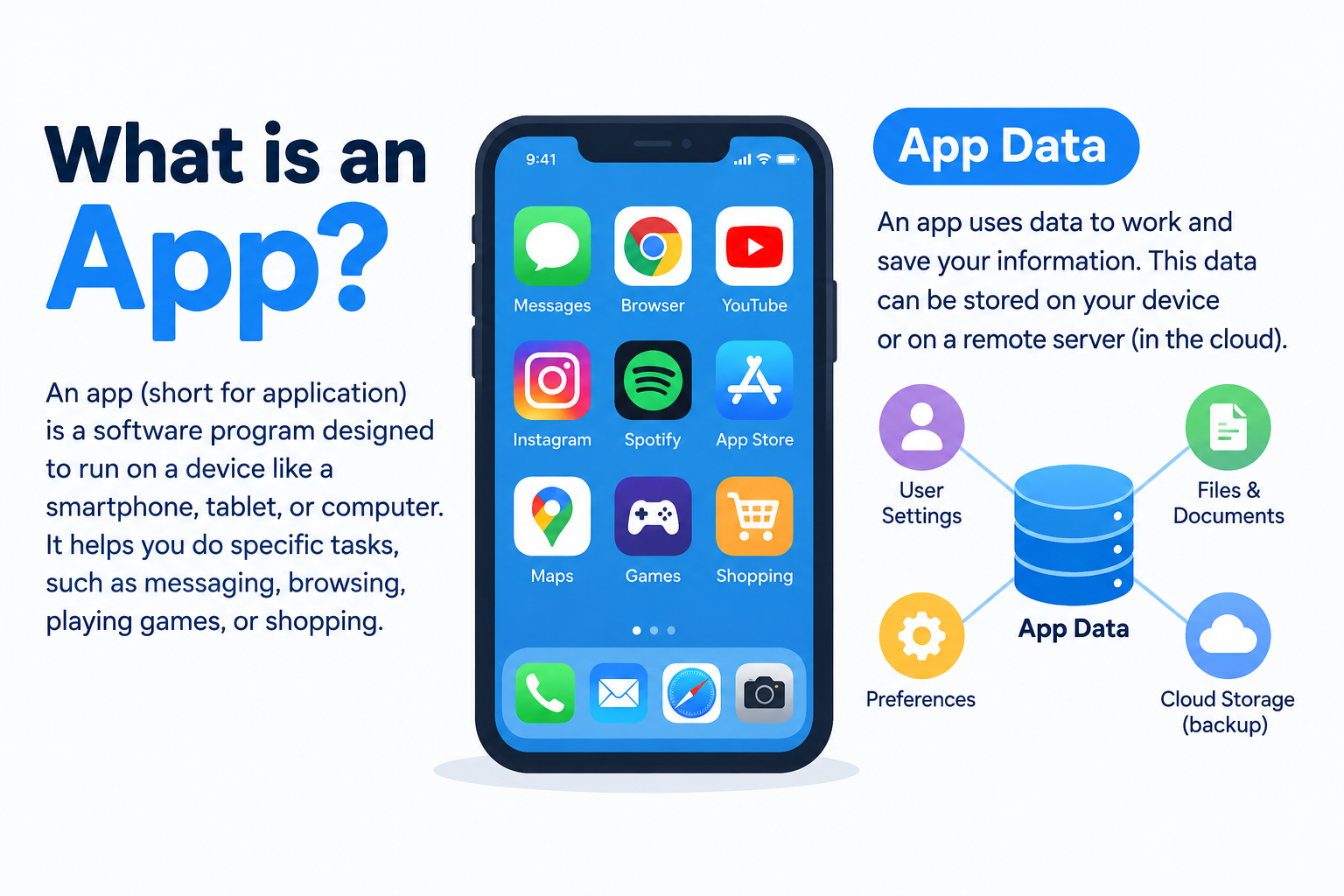
You open an app and it remembers exactly where you left off. Your settings are there. You are still signed in. Your saved preferences are intact. None of that happens by accident. It happens because the app stored information on your device. That stored information is what people generally refer to as app data, and understanding it can help you make smarter decisions about your phone’s storage and how you manage the apps you use.
What Is App Data?
App data is the information an application stores locally on your device so it can remember your settings, keep you signed in, save your progress, and function correctly the next time you open it. This includes things like your account details within the app, preferences you have set, locally saved content, databases the app builds over time, and other information the app needs to work as expected.
App data is different from the app itself. The app is the installed software that runs on your device. App data is the information that app creates, receives, and stores during normal use. Removing the app’s data is different from uninstalling the app, and understanding that distinction matters before you make any changes in your settings.
It is also worth noting that exactly what counts as app data can vary between operating systems and individual applications. Android and iPhone handle app storage differently, and each app developer makes their own decisions about what to store locally versus what to keep on remote servers.
What Does App Data Include?
App data can include a range of different types of stored information, though no single app stores all of these. What an app stores depends entirely on what it does and how its developer designed it.
Common examples of what app data may include:
- User settings and preferences. Things like your chosen theme, notification preferences, language selection, or display options that the app remembers between sessions.
- Login and session information. Authentication tokens or session data that keep you signed in without requiring you to enter your password every time you open the app.
- Locally stored databases. Some apps build and maintain their own databases on your device, such as a contacts database, a note-taking app’s local storage, or a fitness app’s recorded activity history.
- Downloaded or offline content. Files, articles, music, maps, or other content you have downloaded for offline use.
- Saved progress. Games and productivity apps often store progress locally so you can pick up where you left off.
- Drafts and unsent content. Unsent messages, email drafts, or unfinished posts an app has saved automatically.
- App-specific configuration. Information the app uses to configure itself based on your account or usage history.
- Locally cached databases or indexes. Structured data the app maintains for faster searching or retrieval.
Some of this information may also exist on the app developer’s servers or in a cloud account linked to the app. Clearing local app data does not automatically remove information stored remotely. That distinction becomes important when you are deciding whether it is safe to clear an app’s data.
How Does App Data Work?
App data is created and used through a straightforward process that happens automatically as you use an application.
- You install an app. At installation, the app may create initial configuration files or databases on your device.
- The app receives or creates information. As you use the app, it generates data. You sign in, adjust a setting, download a file, or save progress in a game.
- The app stores some information locally. The app writes that information to a dedicated storage location on your device, separate from other apps’ data.
- The app retrieves that information when you return. The next time you open the app, it reads from its local storage to restore your session, settings, and content.
- The data changes as you use the app. Settings change, progress updates, and new content is added to local storage over time.
- Some apps synchronize with online accounts or cloud services. When a sync happens, local data and server-side data are kept consistent, meaning some changes made locally are reflected online and vice versa.
The key distinction is between local app data, which lives only on your device, and remotely stored account data, which exists on the app developer’s servers. Some information exists in both places through synchronization. Other information may exist only locally or only remotely depending on how the app is designed.
Why Do Apps Store Data?
Apps store data locally for practical reasons that directly improve how the app works for you.
- Remembering your preferences. Without local storage, an app would forget every setting the moment you closed it.
- Keeping you signed in. Storing authentication tokens locally means you do not have to log in every single time you open the app.
- Saving progress. Games, reading apps, and productivity tools use local storage to remember exactly where you are.
- Supporting offline functionality. Apps that let you work without an internet connection need to store content locally so it is available when you are not connected.
- Storing downloaded content. Podcasts, maps, articles, and other content you have saved for offline use are stored as app data.
- Maintaining app-specific databases. Some apps build local databases to make searching and retrieving information faster.
- Improving the overall experience. An app that remembers your preferences and picks up where you left off is simply easier and more pleasant to use than one that starts fresh every time.
Local storage is what makes apps feel personal and continuous rather than generic and disconnected.
App Data vs App Cache
App data and app cache are both stored on your device, but they serve different purposes and behave differently when removed. Confusing the two is one of the most common mistakes people make when managing their phone’s storage.
| Feature | App Data | App Cache |
|---|---|---|
| Purpose | Stores settings, preferences, local databases, and information the app needs to function | Stores temporary or reusable files to help content load faster |
| Importance | Can contain important locally stored information | Usually temporary and less critical |
| Clearing it | Can reset the app and remove locally stored information | Usually removes temporary files only |
| Login status | May remove session data, potentially logging you out | Generally not intended to remove login information |
| Rebuilding | Some data cannot be automatically recreated | Cache is usually rebuilt as you use the app |
| Examples | Login session, saved settings, offline downloads, game saves | Cached images, temporary web content, preview files |
Android uses specific labels for these options in the storage settings for each app. The terminology can vary between Android versions and device manufacturers. Some devices show “Clear cache” and “Clear storage” as separate options. Others may label the data option as “Clear data.” Always read the label carefully before confirming any action.
The article on what is app cache explains cached data in more detail, which helps clarify exactly why these two categories are different and why they should not be treated interchangeably.
What Happens When You Clear App Data?
Clearing app data is a more significant action than clearing cache. Here is what you can generally expect, though the exact outcome depends on the app and the operating system.
- The app may return to a fresh or default state. Settings, preferences, and configurations stored locally are removed, and the app behaves similarly to how it did when first installed.
- Locally stored settings are removed. Customizations you made within the app, such as notification preferences or display settings, will need to be set again.
- Locally stored login or session information may be removed. You may be signed out of the app and need to enter your credentials again.
- Downloaded or offline content stored locally may be removed. Files, articles, or media you downloaded for offline access within the app may no longer be available locally.
- App-specific databases may be deleted. Local databases containing saved activity, records, or indexed content may be reset.
- The app itself is not uninstalled. The application remains on your device. Only the locally stored data associated with it is removed.
- Information stored on a remote server or synchronized to an online account may still exist. If your account data is backed up or synchronized with a cloud service, signing back in may restore some or all of your information.
It is important not to assume that clearing app data permanently deletes your online account or removes everything associated with your profile. If the app uses cloud synchronization, much of your information may be restored once you sign back in.
Does Clearing App Data Delete Everything?
The honest answer is: it depends on the app and where that information is stored.
Understanding the different layers of where information lives helps clarify what is and is not affected:
- Local app data. This is what clearing app data targets. Settings, session information, local databases, and offline content stored privately by the app on your device are removed.
- Cached files. These are stored separately. Clearing app data may or may not affect cached files depending on the operating system and how the app is structured. On Android, “Clear storage/data” and “Clear cache” are typically separate actions.
- Files saved elsewhere on the device. Photos saved to your phone’s main gallery, documents saved to shared storage, and other files outside the app’s private folder are generally not affected.
- Cloud-synchronized data. Information backed up or synchronized to an online account, such as Google Drive, iCloud, or the app developer’s own servers, is not stored locally and is not deleted when you clear app data.
- Your online account. Clearing app data does not delete your account with the service. It removes local data. Your account still exists on the provider’s servers.
The result of clearing app data is that the app loses its local state on your device. How much of that can be recovered depends on what the app synchronizes with an online account and what exists only locally.
Does Clearing App Data Delete Photos?
This question comes up frequently, and the answer requires some context rather than a simple yes or no.
Photos saved in your phone’s general photo library or gallery are generally not deleted when you clear app data. These files are typically stored in shared device storage or a media folder that is separate from an app’s private data folder.
Photos or files stored inside an app’s private local storage may be affected. Some apps save certain files within their own private data directory. If those files have not been exported to the general photo library or backed up elsewhere, they could be removed when app data is cleared.
Cloud-backed photos may remain available through your account. If your photos are synchronized with a cloud service such as Google Photos or iCloud Photos, clearing the app’s local data may remove the locally cached copies but the originals remain accessible through your account.
Before clearing app data for any app that handles photos or media, check whether the content you care about is saved in your general gallery, within the app’s private storage, or in a cloud-synchronized account. The answer to that question determines the risk involved.
Does Clearing App Data Delete Messages?
Messages are another area where the answer depends heavily on the specific app and how it stores and synchronizes data.
- Messages stored only locally may be affected. If a messaging app stores conversation history purely on your device without any synchronization, clearing app data could remove those conversations.
- Messages synchronized with an online account may be recoverable. Many modern messaging platforms, such as Gmail, WhatsApp with backups enabled, or similar services, store messages on their servers or in linked cloud accounts. Signing back in after clearing app data may restore those conversations.
- Messaging apps differ significantly in how they handle data. Some apps are designed around local storage with no cloud backup. Others synchronize everything with an online account. Some give users a choice. The app’s own documentation or settings will clarify how it handles message storage.
If you have important conversations in a messaging app and you are considering clearing its app data, backing up those conversations first is a sensible precaution. Most messaging apps include an export or backup option within their settings for this purpose.
Does Clearing App Data Log You Out?
In most cases, yes. Clearing app data often removes the locally stored authentication tokens or session information that keeps you signed in. This means you will likely need to enter your username and password again the next time you open the app.
A few important points:
- Clearing app data does not delete your account. Your account with the service still exists. You are simply being asked to sign in again because the local session information was removed.
- Some apps handle authentication differently. Certain apps may store authentication in a location that is not affected by clearing app data, or they may use device-level authentication that persists separately.
- Make sure you know your login credentials before clearing app data. If you are not sure of your password, use the app’s password reset option before you clear the data, not after.
If you use a password manager or have your credentials saved, signing back in is straightforward. If you rely on saved credentials in the app itself, note them elsewhere before proceeding.
Is It Safe to Clear App Data?
Clearing app data is a legitimate troubleshooting and storage management option, but it carries more consequence than clearing cache, so it warrants more care.
Here is a balanced view:
- It is generally safe as a troubleshooting step when an app has corrupted settings, persistent crashes, or behavior that cannot be resolved through simpler means.
- It can remove locally stored information that may not be easily recovered, particularly content that is not synchronized with an online account.
- The app is not harmed or uninstalled. Only the locally stored data associated with the app is removed.
- Always back up important information first if you are not certain what the app stores locally and what it backs up to an account.
- Always confirm you are selecting the correct option. On Android, “Clear cache” and “Clear storage” or “Clear data” are different actions. Choose carefully.
Clearing app data is not something most users need to do routinely. It is a reset tool, best used when other troubleshooting steps have not resolved a problem.
Understanding what is an app permission is also relevant here, because the permissions an app has been granted affect what data it can access and store in the first place.
When Should You Clear App Data?
Clearing app data is appropriate in specific situations rather than as a routine action.
Reasonable situations for clearing app data include:
- An app is seriously malfunctioning and simpler steps like restarting or updating the app have not helped.
- The app’s settings or configuration have become corrupted, causing persistent display problems or incorrect behavior.
- The app repeatedly crashes and reinstalling has not resolved the issue.
- Official support documentation for the app recommends it as a troubleshooting step.
- You want to reset the app to a completely fresh local state before starting over, such as switching to a different account.
- The app is taking up excessive local storage and you want to reclaim space by removing locally downloaded content and cached databases.
For most everyday app problems, simpler steps such as restarting the app, checking for updates, or restarting the device are worth trying first.
When Should You Not Clear App Data?
There are situations where clearing app data is the wrong move, and recognizing them prevents unnecessary data loss.
Avoid clearing app data when:
- You have important locally stored content that has not been backed up. Unsynchronized notes, drafts, offline files, or game saves that exist only on the device could be lost.
- You do not know your login credentials. If you cannot sign back in after clearing the data, you will be locked out of the app on your device until you recover your credentials.
- The problem could be resolved by a simpler action. Restarting the app, restarting the device, or updating the app are less disruptive first steps.
- You have not checked whether the app’s content is synchronized. Before resetting, understand what the app backs up and what it does not.
- You are unsure of the consequences. If you are not confident about what will be lost, research the specific app’s data storage behavior or contact the app’s support team before proceeding.
How to Check App Data Storage on Android
Before deciding to clear anything, it is useful to see how much storage an app’s data is actually using.
General steps for checking app data storage on Android:
- Open the Settings app.
- Go to Apps, Apps and notifications, or App management, depending on your device.
- Find and tap the app you want to check.
- Tap Storage or Storage and cache.
- Review the information shown, which typically includes the app size, data size, and cache size as separate figures.
Menu labels vary between Android versions and manufacturers. Some devices show this information slightly differently, but the general path through Settings and Apps remains consistent.
How to Clear App Data on Android
If you have decided that clearing app data is appropriate for your situation, here are the general steps on Android.
- Open Settings.
- Go to Apps or the equivalent section on your device.
- Find and tap the app whose data you want to clear.
- Tap Storage or Storage and cache.
- Tap Clear storage, Clear data, or the equivalent option shown on your device.
- Confirm the action when prompted.
Important warnings:
- The label for this option varies. It may say “Clear storage,” “Clear data,” or something similar depending on your Android version and device manufacturer. It is not the same as “Clear cache.”
- “Clear cache” removes temporary cached files. “Clear storage” or “Clear data” removes app data. These are different actions with different consequences.
- The action is generally not reversible for locally stored information that is not backed up.
According to Google’s Android Help documentation, clearing app storage removes all app data including accounts, files, and settings stored locally by the app.
For additional context on how Android apps are structured, the article on what is an Android app is a useful reference.
Can You Clear App Data on iPhone?
iPhone and Android handle app data management differently, and it is important to understand that distinction accurately.
iOS does not provide a universal “Clear App Data” button for every installed app in the way Android does. The controls available on iPhone are different.
Here is what iPhone users can do:
- Delete the app. Deleting an app from iPhone removes the app and its locally stored data. This is a more complete action than Android’s “Clear data” option because it also removes the app itself. According to Apple Support, deleting an app removes the app and its data from the device.
- Offload the app. Offloading an app removes the app itself from your device but preserves certain associated data so that if you reinstall the app later, some information may be restored. This is useful for freeing storage without necessarily losing everything. Behavior can vary depending on the app and iOS version.
- Use in-app controls. Some apps provide their own data management or cache-clearing options within the app’s settings menu. Check the specific app’s settings before taking more drastic action.
- App-specific options in iPhone Settings. Some apps have settings panels accessible through the main iPhone Settings app that include storage management options.
The practical implication is that iPhone users generally have less granular control over app data than Android users do. If you need to reset an app on iPhone and the app does not offer its own reset option, deleting and reinstalling it is typically the closest equivalent.
For more on how apps work within the iOS environment, the article on what is an iPhone app provides useful background.
App Data and Phone Storage
App data uses your device’s local storage, and this usage can grow significantly over time depending on how you use an app.
Different types of apps generate different amounts of local data:
- Games can accumulate substantial amounts of locally stored game data, downloaded assets, and saved progress files.
- Messaging apps may build up large local databases of conversation history, media files received through the app, and attachment data.
- Social media apps may store cached feeds, downloaded media, and locally stored account data.
- Streaming and media apps may store downloaded content for offline playback, which can consume significant storage.
- Productivity apps such as note-taking, document editing, or task management apps may store growing databases of locally saved content.
- Navigation apps may store downloaded maps or route data locally.
Storage usage from app data changes over time as you use the app, download more content, and the app’s local databases grow. Reviewing storage usage periodically through your device settings helps you stay aware of which apps are consuming the most space.
App Data vs Device Storage
These two concepts are related but not the same thing, and understanding the difference helps when you are managing your phone’s available space.
Device storage is the total local storage capacity of your phone, which includes everything stored on the device: the operating system, installed apps, app data, cached files, photos, videos, music, documents, and any other files.
App data is one category within that total storage. It refers specifically to the information stored by installed applications in their designated local storage areas.
On Android, when you look at an individual app’s storage breakdown, you may see separate figures for the app size itself, the data it has stored, and the cache it has created. These are distinct categories within the overall storage the app occupies on your device.
Understanding the relationship between app data and overall device storage helps when you are trying to free up space, because it clarifies where the space is actually being used and what actions will reclaim it.
App Data vs Cloud Data
Local app data and cloud data serve similar purposes but exist in fundamentally different places, and understanding the distinction is essential before making decisions about resetting apps.
Local app data lives on your device. It is stored in the app’s private storage folder and is accessible to the app without requiring an internet connection. It is also what gets removed when you clear app data on Android or delete an app on iPhone.
Cloud data is stored on remote servers operated by the app developer or a cloud service provider. It is accessible through your account and synchronized to your device over the internet. Examples include your Google account data, iCloud data, and account-based data in services like Spotify, Instagram, or Gmail.
The relationship between the two:
- Clearing local app data does not delete cloud-stored data.
- If an app synchronizes with an online account, signing back in after clearing app data may restore synchronized content.
- Not all app data is synchronized. Some information may exist only locally, and clearing it means that information is gone unless you have manually backed it up.
Before resetting any app, it is worth understanding what the app synchronizes with an online account and what it stores only locally. The article on what is cloud computing explains how cloud storage and synchronization work at a broader level.
Common App Data Problems
App data-related issues are usually manageable once you understand what is causing them.
- App data taking up too much storage. Over time, local databases, downloaded content, and accumulated app-specific files can grow significantly. Reviewing storage usage and clearing data where appropriate can reclaim space.
- Corrupted local settings. If an app update or unexpected interruption corrupts locally stored configuration files, the app may behave incorrectly. Clearing app data resets those settings.
- App crashes repeatedly. Corrupted local data is a common cause of persistent app crashes that do not resolve after restarting or updating.
- Login problems caused by corrupted session data. Occasionally, stored authentication information becomes invalid or corrupted, preventing the app from functioning normally.
- Offline content taking up space. Downloaded files, maps, or media stored for offline use can accumulate and consume substantial storage over time.
- App behaving as if it has been reset unexpectedly. Sometimes operating system storage management or an app update can affect locally stored data in ways that cause the app to lose settings or require you to sign in again.
- Data becoming inconsistent with an online account. If local data and server-side data fall out of sync, some apps may display incorrect or outdated information until the sync is resolved.
In each of these cases, app data is a possible contributor to the problem, but it is not always the root cause. Other factors such as app bugs, network issues, or device-level problems may be involved.
Best Practices for Managing App Data
Managing app data does not require technical expertise. A few straightforward habits help keep your device storage organized and your apps working well.
- Review storage usage periodically. Check your device settings to see which apps are using the most storage and whether any have accumulated unusually large amounts of local data.
- Remove apps you no longer use. Uninstalling unused apps removes both the app and its locally stored data, freeing storage without any trade-offs.
- Keep your apps updated. App updates often include improvements to how apps handle local storage, as well as bug fixes that can prevent data-related problems.
- Back up important information before clearing app data. If you are about to reset an app, verify whether the content you care about is synchronized with an online account or backed up elsewhere.
- Avoid clearing app data as a first response to minor problems. Simpler troubleshooting steps such as restarting the app or checking for updates are less disruptive and should come first.
- Use in-app storage controls where available. Many apps provide their own storage management options, such as clearing downloaded files or managing offline content, which give you more precise control than a full data reset.
- Check cloud synchronization settings before resetting an app. Understanding what the app backs up online before you clear local data prevents unpleasant surprises.
- Keep adequate free storage on your device. Apps and the operating system need available storage to function properly. Running consistently low on device storage can cause a range of problems beyond just app data issues.
Frequently Asked Questions
What is app data?
App data is the information an application stores locally on your device, including settings, login information, locally saved content, databases, and other data the app needs to function correctly between sessions.
What does app data include?
App data can include user preferences, session or login information, locally stored databases, downloaded offline content, saved progress, drafts, and app-specific configuration files. What is included varies by app.
What happens when you clear app data?
Clearing app data removes locally stored information associated with the app. The app may return to a fresh state, you may be signed out, and locally stored content may be removed. Information synchronized with an online account may be recoverable by signing back in.
Does clearing app data delete everything?
It removes locally stored app data on your device. It does not delete cloud-synchronized data, your online account, photos stored in your general gallery, or files saved outside the app’s private storage.
Does clearing app data delete photos?
Photos saved in your phone’s main gallery or backed up to cloud storage are generally not affected. Photos stored only within the app’s private local storage may be removed. Check where your photos are saved before clearing app data.
Does clearing app data delete messages?
Messages stored only locally may be affected. Messages synchronized with an online account or server may be recoverable after signing back in. The outcome depends on how the specific messaging app handles data storage and synchronization.
Does clearing app data log you out?
In most cases, yes. Clearing app data typically removes the locally stored session information that keeps you signed in. You will usually need to sign in again. Your account is not deleted by this action.
Is it safe to clear app data?
It is generally a safe troubleshooting and storage management option, but it has more consequences than clearing cache. Back up important locally stored information before proceeding, and confirm you know your login credentials.
What is the difference between app data and cache?
App data stores important information the app needs to function, such as settings and local databases. App cache stores temporary files to help content load faster. Clearing cache removes temporary files. Clearing app data resets the app’s local state and may remove important stored information.
How do I clear app data on Android?
Go to Settings, open Apps, select the app, tap Storage or Storage and cache, and then tap Clear storage or Clear data. Do not confuse this with Clear cache, which is a different and less impactful action.
Can I clear app data on iPhone?
iOS does not provide the same direct control as Android. Options include deleting the app, which removes it and its local data, offloading the app, which preserves some data while removing the app, or using in-app storage controls if the app provides them.
Does clearing app data delete the app?
No. Clearing app data removes the information stored by the app but leaves the app itself installed on your device.
Does clearing app data delete my account?
No. Clearing app data removes local data from your device. Your account with the service continues to exist on the provider’s servers. You will need to sign in again, but your account is not deleted.
Why is my app data taking so much storage?
App data grows over time as you use the app, download offline content, and the app builds local databases. Apps that involve heavy media, messaging, gaming, or offline content tend to accumulate more local data than simpler utility apps.
Written By Zohan
Zohan is a technology writer covering smartphones, apps, software, gadgets, gaming, reviews, and practical how-to guides. He focuses on making technology simple, useful, and easy to understand for everyday users. His work helps readers understand technology, explore useful tools, and make informed decisions about the products and services they use.