
 By Saad Qureshi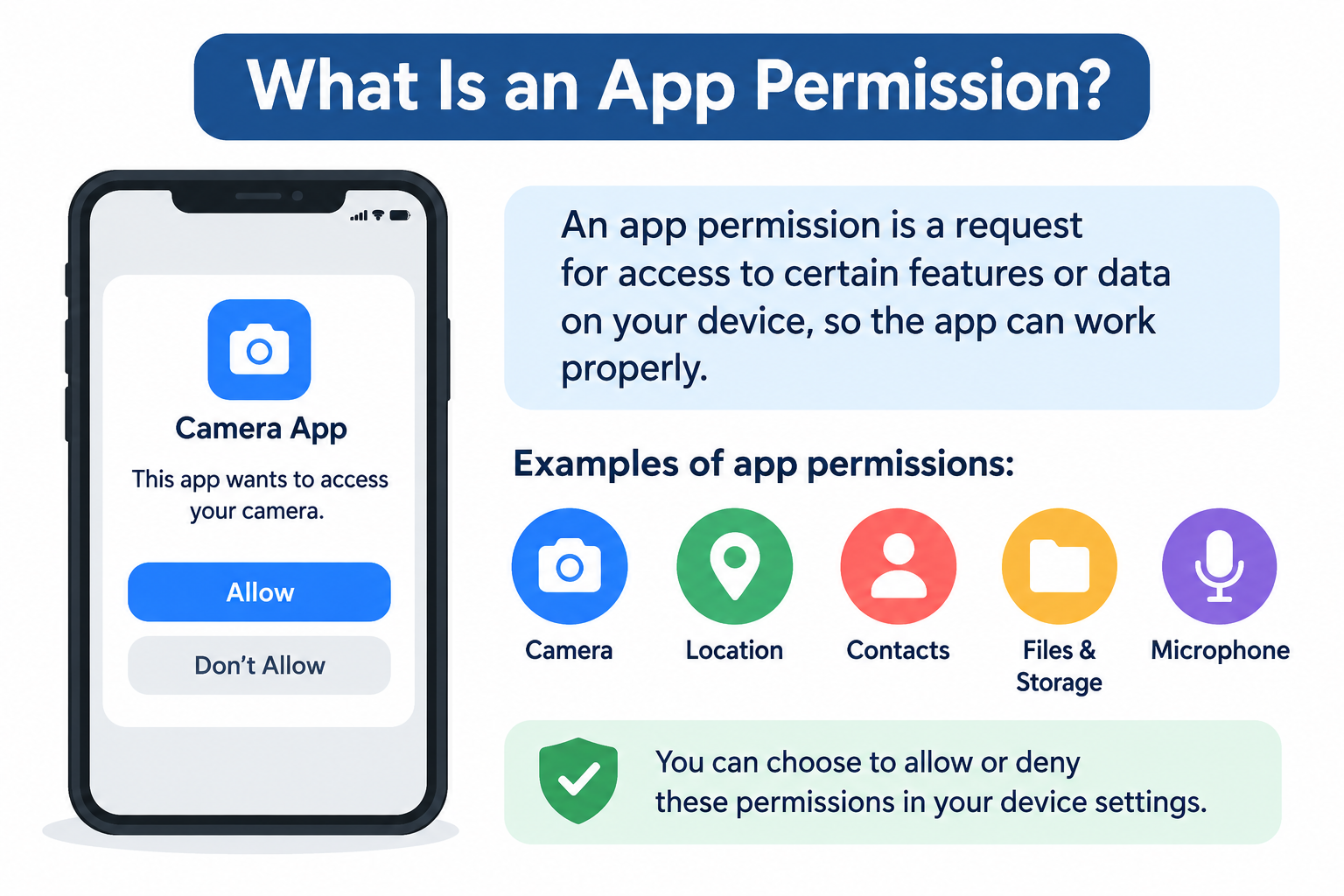
Every time you install a new app, a message often appears asking whether the app can access your camera, location, or contacts. That request is an app permission. Understanding what it means and how it works can help you make smarter decisions about the apps you use and the access you grant.
What Is an App Permission?
An app permission is an authorization that controls whether an application can access specific features, data, or resources on your device. When an app wants to use your camera, read your contacts, or track your location, it must first request your permission. Your device’s operating system then asks you to allow or deny that access.
Permissions exist to give users control over their own devices. Without a permission system, any app you installed could freely access your photos, microphone, or location without you knowing. Permissions create a layer of protection between apps and your personal information.
Common examples of app permissions include:
- Camera — access to take photos or record video
- Microphone — access to record audio or enable voice calls
- Location — access to your geographic position
- Contacts — access to names and phone numbers stored on your device
- Photos and Media — access to images and files
- Notifications — ability to send you alerts and updates
- Storage — access to files saved on your device
- Bluetooth — ability to connect to nearby devices
How Do App Permissions Work?
The process behind app permissions follows a consistent basic pattern, though the exact steps can vary depending on your device and operating system.
- An app requests access. When an app needs to use a protected feature, it sends a permission request to the operating system.
- The operating system displays a prompt. Your phone shows a dialog box explaining what the app is requesting and why.
- You make a choice. Depending on the permission and platform, you can allow access, deny access, or sometimes choose a more limited option such as allowing access only while using the app.
- The operating system applies your decision. If you allow, the app gains access. If you deny, it does not.
- You can review or change permissions later. Most operating systems let you revisit permission decisions through your device settings at any time.
On Android and iPhone, the general process is similar, but the specific options, labels, and behaviors can differ. For example, iPhone may offer choices like “Allow Once,” “Allow While Using App,” or “Don’t Allow” for location access, while Android offers comparable options with some differences in how they are labeled and structured depending on the device model and Android version.
Common Types of App Permissions
Camera Permission
Camera permission allows an app to access your device’s front or rear camera. Apps that legitimately need this include camera apps, video calling apps such as Google Meet or FaceTime, social media apps, document scanning apps, and apps that use augmented reality features.
Microphone Permission
Microphone permission lets an app record audio through your device’s built-in microphone. Voice assistants, video calling apps, voice messaging apps, podcast recording tools, and apps with voice search features commonly request this access.
Location Permission
Location permission allows an app to determine where you are geographically. Navigation apps, weather apps, food delivery apps, and ride-sharing services typically need your location to function properly.
Some platforms distinguish between approximate location, which gives a general area, and precise location, which gives your exact coordinates. There is also a difference between foreground access, meaning the app can only read your location while you are actively using it, and background access, meaning the app can read your location even when it is running in the background.
Contacts Permission
Contacts permission gives an app access to the names, phone numbers, email addresses, and other information stored in your phone’s contact list. Messaging apps, communication apps, and social platforms may request this to help you find people you already know or to make calling and messaging easier.
Photos and Media Permission
This permission allows an app to view, read, or in some cases add to the photos and media files stored on your device. Photo editing apps, social media apps, messaging apps, and cloud backup services commonly need access to your photos.
On newer versions of both Android and iOS, users may have more granular options, such as allowing access to selected photos only rather than the entire photo library.
Notification Permission
Notification permission allows an app to send you alerts, messages, or updates that appear on your screen, lock screen, or notification panel. News apps, messaging apps, shopping apps, and games often request notification access to keep you informed or re-engage your attention.
On iOS 16 and later, apps are required to request notification permission explicitly. Android also manages notification permissions, with greater granularity introduced in Android 13.
Calendar Permission
Calendar permission lets an app read or add events to your device’s calendar. Scheduling tools, productivity apps, booking platforms, and meeting management apps commonly use this access to help you organize your time.
Bluetooth and Nearby Devices Permission
This permission allows an app to scan for, connect to, or communicate with nearby Bluetooth devices. Apps that work with wireless headphones, smartwatches, fitness trackers, smart home accessories, or wireless speakers typically need this access.
Files and Storage Access
Storage or file access permission allows an app to read or write files stored on your device. File managers, document editors, music players, and download managers often request this type of access. How this works can vary between operating system versions and app designs, with newer Android and iOS versions offering more refined controls over which files or folders an app can access.
Why Do Apps Need Permissions?
Apps request permissions because their core features depend on device resources that are protected by the operating system. Here are some legitimate reasons an app might ask for access:
- Core features — A camera app cannot take photos without camera access.
- Communication — A video calling app needs both your camera and microphone.
- Media creation — A photo editing app needs access to your photo library.
- Navigation — A maps app needs your location to give you directions.
- Device connectivity — A fitness app needs Bluetooth to sync with your smartwatch.
- Personalization — A weather app needs your location to show local forecasts.
- Notifications — A messaging app needs notification access to alert you to new messages.
- File management — A cloud backup app needs storage access to upload your files.
A well-designed app should only request permissions that are directly relevant to its features. When an app requests access that seems unrelated to what it does, that is worth paying attention to.
Android App Permissions
Android uses a permission system to control which apps can access protected device data and features. According to the Android Developers documentation, Android permissions help protect user privacy by limiting what data and actions an app can access.
On Android, some permissions are classified as normal permissions, which are granted automatically without a user prompt because they pose minimal privacy risk. Others are classified as runtime permissions or dangerous permissions, which require an explicit prompt and user approval because they involve access to more sensitive data or hardware.
Users can review and manage app permissions by going into Android Settings, selecting Apps, choosing a specific app, and viewing its permissions. The exact menu names can vary depending on the Android version and device manufacturer. Android has continued to refine its permission system across versions, so some options or labels may look different depending on whether you are using an older or newer Android device.
iPhone App Permissions
On iPhone, iOS asks users for permission before an app can access protected resources such as your camera, microphone, location, contacts, and photos. According to Apple Support, users can review and adjust app permissions at any time through the Settings app.
iPhone users can manage permissions in two ways. You can go to Settings, find the specific app, and see what access it has been granted. Alternatively, you can go to Settings, then Privacy and Security, select a specific permission category such as Location Services or Camera, and see which apps have access and what level of access each one has.
For location, iOS typically offers options including “Never,” “Ask Next Time Or When I Share,” “While Using the App,” and “Always.” For photos, newer iOS versions let you choose between “Selected Photos,” “All Photos,” or “None.”
If you are interested in learning more about apps on Apple’s platform, the article on what is an iPhone app covers the basics clearly.
Android vs iPhone App Permissions
Both Android and iPhone have robust permission systems, but they handle some things differently. Here is a straightforward comparison:
| Feature | Android | iPhone (iOS) |
|---|---|---|
| Permission requests | Shown at runtime for sensitive permissions | Shown when app first needs the permission |
| Permission management | Settings > Apps > [App] > Permissions | Settings > [App] or Settings > Privacy & Security |
| Location access options | Precise, Approximate, While Using, Always, Deny | While Using, Always, Ask Next Time, Never |
| Camera and microphone | Requested at runtime | Requested at runtime |
| Photos/media access | Full or partial access (varies by Android version) | All Photos, Selected Photos, or None (iOS 14+) |
| Notification permission | Required prompt (Android 13+) | Required prompt (iOS 16+) |
| Privacy controls | Permission manager, privacy dashboard (Android 12+) | Privacy and Security settings, App Privacy Report |
| User control | Can grant, deny, or change at any time | Can grant, deny, or change at any time |
Neither platform is universally safer than the other. Both offer users meaningful controls. How you use those controls matters.
Are App Permissions Safe?
Permissions themselves are not automatically dangerous. They are a feature built into your operating system specifically to give you control over what apps can access.
The actual risk depends on several factors:
- What access is being requested — Some permissions, like camera or microphone, involve more sensitive data than others.
- Why the app needs it — Access that matches an app’s core purpose is generally easier to justify than access that seems unrelated.
- How the app handles the information — Granting a permission means an app can access a feature, but what it does with that access is determined by the app developer.
- Whether the app is trustworthy — Apps from well-known developers with clear privacy policies present less uncertainty than apps from unknown sources.
Granting permissions you do not need to grant can increase your exposure to unnecessary data collection. Official app stores such as Google Play and the Apple App Store review apps and apply policies, but this does not guarantee that every app available in those stores is completely trustworthy.
How to Decide Whether to Allow an App Permission
Before approving a permission request, ask yourself a few simple questions:
- Does this app actually need this type of access to do what I installed it for?
- Does the requested permission match the app’s main function?
- Is the developer a company or individual I recognize or trust?
- Is this a one-time access or ongoing access?
- Can I use the app with reduced functionality if I deny the permission?
- Has the developer explained their privacy practices clearly?
Here are a few examples to illustrate the thinking:
A navigation app requesting location access is reasonable, because giving you directions is its core purpose.
A video calling app requesting camera and microphone access is reasonable, because those features are central to how the app works.
A simple calculator app requesting access to your contacts is worth questioning, because there is no clear connection between doing math calculations and reading your contact list.
These are examples, not universal rules. Context and your own judgment matter. The key question is always whether the permission makes sense given what the app is designed to do.
What Happens If You Deny an App Permission?
Denying a permission does not always break an app. The outcome depends on how the app is designed and which permission you denied.
- Some apps continue working normally. If the denied permission was not essential to the app’s core features, you may not notice any difference.
- Some features may stop working. A photo editing app, for example, cannot edit photos if you deny it access to your photo library.
- The app may ask again later. Some apps will prompt you again the next time you try to use a feature that requires the permission.
- You can change your decision later. On both Android and iPhone, you can go into settings and change permissions after the fact, either granting access you previously denied or revoking access you previously allowed.
Denying a permission is not permanent. You are always in control of adjusting your decisions through your device settings.
How to Check App Permissions on Android
The exact steps can vary by device model and Android version, but the general process is:
- Open the Settings app on your Android device.
- Select Apps or App Management (the name varies by device).
- Find and select the app you want to review.
- Tap Permissions.
- Review the list of permissions that are allowed and those that are denied.
- Tap any permission to change the setting if needed.
Some Android devices also offer a Permission Manager under Privacy settings, which lets you see all apps that have access to a specific permission type, such as location or camera, in one view.
How to Check App Permissions on iPhone
On iPhone, you can check permissions in two ways:
By app:
- Open Settings.
- Scroll down and tap the name of the app you want to review.
- You will see a list of permissions and their current status.
- Tap any permission to change it.
By permission type:
- Open Settings.
- Tap Privacy and Security.
- Select a permission category, such as Location Services, Camera, or Contacts.
- You will see a list of apps that have requested that permission.
- Tap any app to change its access level.
Available options will differ depending on the type of permission and the version of iOS running on your device.
App Permissions vs Privacy
These two concepts are related but not the same thing.
App permissions are operating-system controls. They determine whether an app can access a specific feature or resource on your device. Your operating system enforces these controls.
Privacy is a broader concept. It includes how an app collects information, what it does with that information, who it shares it with, how long it keeps it, and how it protects it. Privacy practices are governed by an app’s design, the developer’s policies, and applicable laws, not just by the permission system.
Granting a permission gives an app access to something on your device. What the app does with that access is a privacy matter. Both are worth thinking about when you decide whether to use an app.
For a broader view of how digital privacy fits into the larger picture, understanding what is cybersecurity provides useful context.
App Permissions vs App Data
Permissions and app data are different things.
- Permission controls whether an app can access a resource.
- App data refers to the information an app stores, processes, or transmits.
Granting a permission does not automatically mean that all the information the app touches is collected, uploaded to a server, or permanently stored. However, it does mean the app has the technical ability to access that resource.
This is why both permissions and privacy policies matter. A permission tells you what an app can access. The developer’s privacy policy tells you what they intend to do with that access.
Common App Permission Mistakes
Many users fall into a few common habits that can reduce their control over their own data:
- Automatically approving every permission without reading what is being requested.
- Ignoring unusual permission requests that do not seem relevant to what the app does.
- Never reviewing permissions after an app is installed, even if needs or circumstances change.
- Granting broad access when a more limited option, such as selected photos only, is available.
- Installing apps from unreliable sources outside official app stores, where permission behavior may be less predictable.
- Skipping privacy policies or ignoring the privacy information available for an app before installing it.
- Keeping apps installed that you no longer use, which may still have active permissions.
Best Practices for Managing App Permissions
Managing app permissions does not have to be complicated. Here are practical habits that help:
- Review permissions regularly. Set aside time occasionally to check what permissions your installed apps have.
- Grant only what is necessary. If an app works without a certain permission, there may be no reason to grant it.
- Use limited access options when available. Choosing “While Using the App” for location or “Selected Photos” for media gives you more precise control.
- Keep your operating system updated. Android and iOS updates often include improvements to privacy controls and permission handling.
- Keep your apps updated. App updates can include security improvements and changes to how permissions are used.
- Remove apps you no longer use. Unused apps with active permissions continue to have access even if you are not actively using them.
- Pay attention to unexpected permission requests. If an app asks for something that surprises you, look into why before approving.
- Download apps from trusted sources. Stick to the Google Play Store or the Apple App Store when possible.
- Review privacy information before installing unfamiliar apps. Both the Play Store and the App Store display developer-provided privacy labels for many apps.
Frequently Asked Questions
What is an app permission?
An app permission is an authorization that controls whether an application can access specific features, data, or resources on your device, such as your camera, location, microphone, or contacts. Your operating system manages these permissions and asks you to approve or deny them.
Why do apps ask for permissions?
Apps ask for permissions because their features depend on device resources that are protected by your operating system. A video calling app needs your camera and microphone. A navigation app needs your location. Permissions ensure apps can only access what you have agreed to share.
Are app permissions safe?
Permissions themselves are a safety feature, not a risk. They exist to give you control. The safety of granting a specific permission depends on what is being requested, whether the request makes sense for the app, and whether the developer can be trusted. Granting unnecessary permissions can increase privacy exposure.
What permissions should I allow?
Allow permissions that clearly match an app’s core purpose. Think about whether the app genuinely needs the access it is requesting. You do not have to approve every request, and you can change your decision later in your device settings.
How do I check app permissions on Android?
Go to Settings, open Apps or App Management, select the app, and tap Permissions. You can see what is allowed and change it from there. The exact menu names vary by Android device and version.
How do I check app permissions on iPhone?
Go to Settings and tap the app name to see its permissions, or go to Settings, then Privacy and Security, and select a specific permission type to see which apps have access.
Can I change app permissions after allowing them?
Yes. On both Android and iPhone, you can change any permission at any time through your device settings. Changing a permission does not uninstall the app or delete your account.
What happens if I deny an app permission?
The app may continue working normally if the denied permission was not essential. Some features that rely on that permission may stop working. The app might ask for permission again later. You can grant the permission at any time by going into your device settings.
Why does an app need access to my camera?
Apps need camera access to take photos, record video, enable video calls, scan documents, or use augmented reality features. If the camera permission request does not match anything the app is designed to do, that is worth questioning.
Why does an app need my location?
Location access is used for navigation, local weather, delivery tracking, finding nearby places, and similar location-based features. Legitimate use of location access is tied directly to features that require knowing where you are.
Can apps access my data without permission?
For protected resources such as your camera, microphone, location, and contacts, apps must request and receive your permission through the operating system before they can access them. The permission system is designed specifically to prevent unauthorized access to these resources.
Should I allow all app permissions?
No. You should consider each permission individually and decide whether it makes sense based on what the app does. Approving every permission without thinking about it gives apps more access than they may actually need.
Written By Zohan
Zohan is a technology writer covering smartphones, apps, software, gadgets, gaming, reviews, and practical how-to guides. He focuses on making technology simple, useful, and easy to understand for everyday users. His work helps readers understand technology, explore useful tools, and make informed decisions about the products and services they use.