
 By Saad Qureshi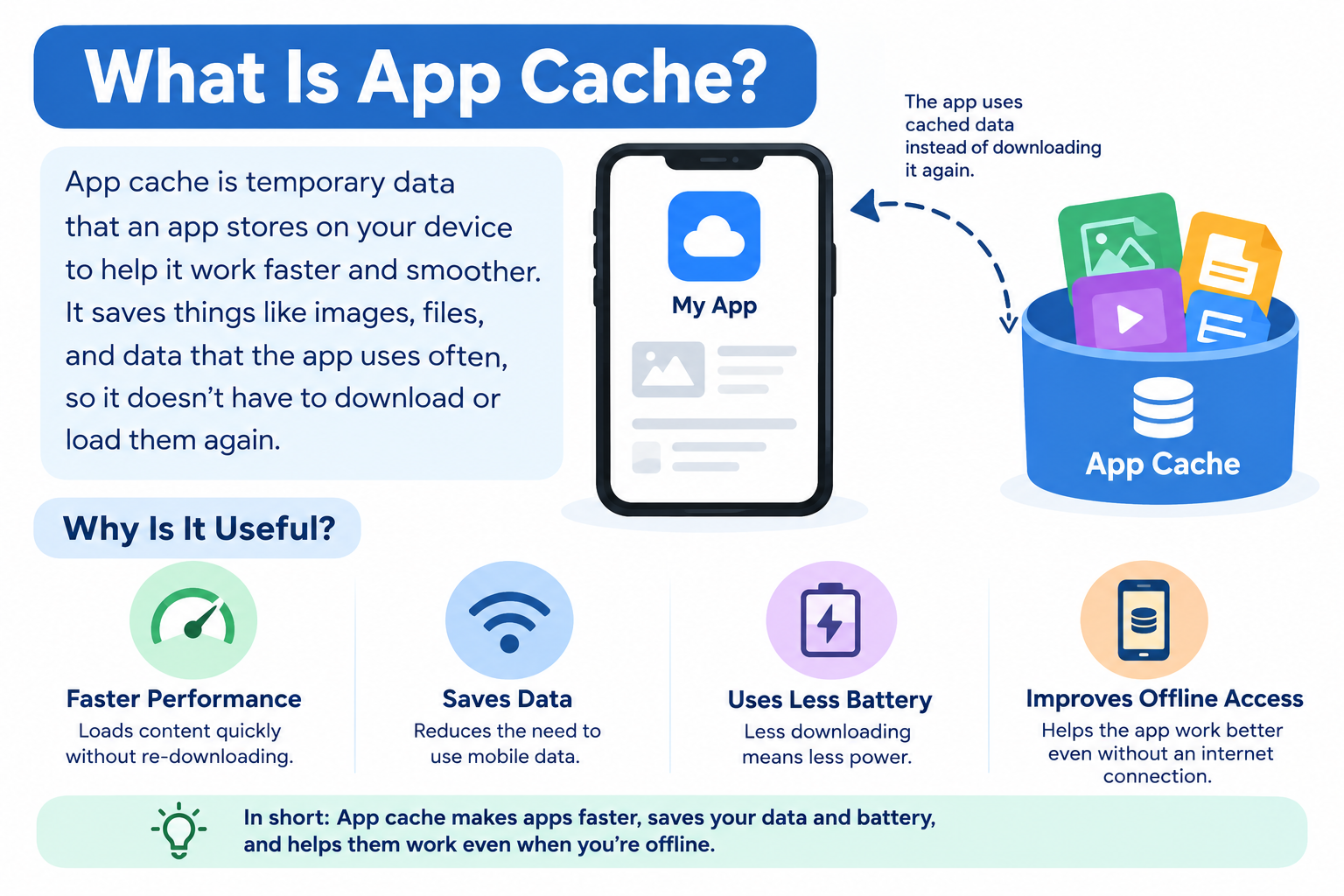
You have probably seen the option to “clear cache” in your phone’s settings and wondered what it actually does. Maybe you noticed an app acting strangely, or your storage was running low, and someone told you to clear the cache. Before you tap anything, it helps to understand exactly what app cache is and what clearing it will and will not do.
What Is App Cache?
App cache is a collection of temporary files that an app stores on your device to help it work more efficiently. When an app downloads images, loads web content, or processes resources, it can save some of that information locally so it does not have to fetch or recreate it every single time you open the app.
For example, a social media app might cache profile pictures so they load instantly the next time you scroll through your feed. A streaming app might store thumbnail images temporarily. A browser might save parts of websites you visit often. These temporary files make up the app’s cache.
Cached data is separate from the app itself. The app is the installed software. The cache is the temporary data the app creates and stores while it runs.
Understanding what is an app provides useful context here, because the cache is not the app itself but something the app generates during normal use.
How Does App Cache Work?
The caching process follows a straightforward pattern, though the specific details vary between apps and operating systems.
- An app requests or generates information. The app downloads an image, loads a webpage, or processes some resource it needs to display.
- The app stores some of that information locally. Instead of discarding the resource after using it, the app saves a temporary copy in its cache folder on your device.
- The app reuses the cached information later. The next time you open the app or navigate to the same content, the app checks whether it already has a local copy before making a new request.
- Reusing cached data reduces repeated work. Loading a locally stored file is typically faster than downloading it again from the internet.
- The cache changes over time. As you use an app, its cache grows with new temporary files. The app or operating system may also remove older cached files when storage is needed.
The exact way caching works is determined by the app developer. Some apps cache aggressively to maximize speed. Others cache more conservatively. The operating system may also place limits on how much storage an app’s cache can use.
Why Do Apps Use Cache?
Apps use cache for practical reasons that benefit the user experience. Here are the main ones:
- Faster loading. Retrieving a locally stored file is faster than downloading it fresh every time, especially on slower connections.
- Reduced repeated downloads. If an image or resource has not changed, there is no reason for the app to download it again.
- Smoother performance. Having resources ready locally means the app spends less time waiting for data to arrive.
- Lower network usage in some situations. When an app reuses cached content, it may use less mobile data for routine tasks.
- Faster access to frequently used resources. Content you interact with often can be stored and retrieved quickly.
- Better overall user experience. Apps that load content quickly tend to feel more responsive and easier to use.
It is worth noting that clearing cache does not automatically make an app faster. The cache exists precisely to improve speed, so removing it means the app has to rebuild it from scratch.
What Does App Cache Store?
The specific content stored in an app’s cache depends entirely on what the app does. Common examples include:
- Images and thumbnails. Profile pictures, product images, video thumbnails, and other visual content that apps load repeatedly.
- Temporary web content. Portions of web pages, scripts, or stylesheets that a browser or app with a built-in browser loads often.
- Frequently accessed interface resources. Fonts, icons, layout elements, or other resources the app uses to build its interface.
- Preview files. Previews of documents, media files, or other content.
- Temporary configuration resources. Data that helps the app know how to display or organize content, which can be recreated if removed.
- Other recreatable data. Any information the app can download again or regenerate without losing anything important to the user.
The key point is that cached content is temporary by nature. If it is removed, the app can generally recreate or download it again. This is what makes cache different from your personal data or settings.
App Cache vs App Data
These two terms are often confused, and understanding the difference is important before you change anything in your settings.
| Feature | App Cache | App Data |
|---|---|---|
| Purpose | Temporary files to help the app load content efficiently | Information and settings associated with the app and the user |
| Can it be recreated? | Usually yes | Not necessarily |
| Clearing it | Removes temporary cached files | Can remove app-specific stored information and reset the app |
| Effect on the app | Usually limited | May sign you out or reset preferences depending on the app |
| Storage usage | Can grow over time as the app is used | Can also grow, depending on the app and how much is stored |
| Examples | Cached images, temporary web content, preview files | Login information, saved preferences, offline data, user-generated content stored locally |
On Android, the options to clear cache and clear storage or data are typically shown separately in the app’s storage settings. Clearing cache removes the temporary cached files. Clearing storage or data goes further and can reset the app to a state similar to when it was first installed, which may sign you out or remove locally stored information.
The exact labels and controls available can vary by Android version and device manufacturer. On some devices the option may be labeled “Clear data” while on others it may say “Clear storage.” Always read the label carefully before tapping.
If you are interested in how apps handle information more broadly, the article on what is an app permission explains how apps are controlled in terms of what data they can access in the first place.
What Happens When You Clear App Cache?
When you clear an app’s cache, the temporary files stored in that cache folder are removed from your device. Here is what to expect:
- The cached files are deleted. The app’s temporary storage folder is emptied.
- The app can recreate the cache. As you use the app again, it will generate new temporary files as needed.
- The first load after clearing cache may take slightly longer. Because the app no longer has its cached resources, it may need to download or recreate content that was previously available locally.
- Your account and personal settings are not affected. Clearing cache is separate from clearing app data. You should not be logged out, and your settings should remain as they were.
- The app itself is not removed. Clearing cache is not the same as uninstalling the app.
These outcomes apply in most situations, but app behavior varies. If you have any uncertainty about a specific app, checking that app’s support documentation is a reasonable step.
Does Clearing App Cache Delete Anything?
This is one of the most common questions people have, and the direct answer is: clearing cache removes temporary cached files, not your personal data or important information.
However, there are important distinctions to keep in mind:
- Cache is temporary by design. The files removed when you clear cache are ones the app created to work more efficiently. They can generally be recreated.
- Clearing cache is different from clearing app storage or data. If your settings show two separate options, “Clear cache” and “Clear storage” or “Clear data,” these do two different things. Only the cache option is intended to remove temporary files.
- Some apps store certain information in ways that may overlap. App behavior varies, and not every app handles its storage the same way. If you are unsure about a specific app, reviewing its own settings or support information is worthwhile.
- Photos, messages, and account information are typically stored separately. Clearing an app’s cache should not remove your photos, messages, or account details, because those are generally stored in app data or on a server, not in the cache folder.
The safest approach is to choose “Clear cache” specifically and avoid tapping “Clear storage” or “Clear data” unless you understand what that option does for the specific app in question.
How to Clear App Cache on Android
Android provides a built-in option to clear individual app caches through the Settings menu. The exact menu names and layout can differ depending on your Android version and device manufacturer, but the general process is:
- Open the Settings app on your Android device.
- Tap Apps, Apps and notifications, or App management, depending on your device.
- Find and tap the app whose cache you want to clear.
- Tap Storage or Storage and cache.
- Tap Clear cache.
A few things to keep in mind:
- Look specifically for the Clear cache button. Do not tap “Clear storage” or “Clear data” if you only intend to clear temporary cached files.
- Some apps include their own cache management option within the app’s settings. If you are not sure where to find the system-level option, checking the app itself is a reasonable starting point.
- After clearing, the cache size shown in the storage details may drop to zero or a very small amount. It will grow again as you use the app.
According to Google’s Android Help documentation, clearing an app’s cache removes temporary files without affecting your account information or app settings.
Can You Clear App Cache on iPhone?
This is where Android and iPhone differ in a meaningful way. iOS does not provide a universal system-level “Clear cache” button for every installed app the way Android does.
Here is how it actually works on iPhone:
- Some apps include their own cache-clearing option. Browsers like Safari and Chrome, for example, have settings within the app to clear browsing data or cached content. Some other apps also provide similar options in their own settings menus.
- Safari’s cache can be cleared through iPhone Settings. You can go to Settings, scroll to Safari, and tap “Clear History and Website Data” to remove Safari’s cached content. This is specific to Safari and affects browsing history and cached website data.
- Offloading an app removes the app but keeps its documents and data. This is different from clearing cache and may not have the same effect.
- Deleting and reinstalling an app removes all locally stored app data. This is a more drastic action than simply clearing cache, and it may log you out of the app or remove locally stored information.
According to Apple Support, offloading an app frees up storage used by the app while keeping its documents and data. Deleting an app removes the app and its data.
If you want to manage cached content on iPhone, check the specific app’s own settings first before considering more significant actions like deleting and reinstalling.
The article on what is an iPhone app provides useful background on how apps work within the iOS environment.
When Should You Clear App Cache?
You do not need to clear app cache on a routine schedule. Most of the time, the app and operating system manage the cache without any action from you. However, there are specific situations where clearing cache can be a reasonable step:
- An app is behaving unexpectedly. If an app is crashing, freezing, or displaying content incorrectly, clearing the cache is a common first troubleshooting step.
- Cached files are using significant storage space. If your device is running low on storage and an app shows a large cache size in its storage details, clearing it can free up some space.
- An app is displaying outdated content. Sometimes cached resources become stale and the app continues showing old information. Clearing the cache forces the app to fetch fresh content.
- Troubleshooting loading or display issues. If images are not loading properly or layouts appear broken, the cache may contain a corrupted or outdated file.
- An app’s support team specifically recommends it. When reporting an issue, many app support teams suggest clearing cache as a standard troubleshooting step.
Outside of these situations, leaving the cache alone is perfectly fine. The cache is there to help the app run more efficiently.
Does Clearing Cache Improve App Performance?
The answer depends on what is causing the performance issue in the first place.
- It can help in specific situations. If an app is slow because of corrupted or outdated cached files, clearing the cache may resolve the problem.
- It may free up some temporary storage. Reducing the amount of data stored locally can occasionally help if storage is very limited.
- It does not automatically make every app faster. The cache exists to improve performance. Removing it means the app has to rebuild it, which can temporarily make things slower, not faster.
- After clearing cache, the app may need time to rebuild it. The first time you use the app after clearing its cache, it may load content more slowly than usual while it recreates its temporary files.
- Performance depends on the root cause of any problem. If an app is slow for reasons unrelated to its cache, such as a network issue, an outdated version of the app, or a device-level problem, clearing cache will not help.
Clearing cache is a useful tool in the right situations, but it is not a general fix for all app performance issues.
Advantages of Clearing App Cache
When it is appropriate to clear cache, there are genuine benefits:
- Frees temporary storage space. Cache files accumulate over time, and clearing them reclaims that storage for other uses.
- Can resolve certain app issues. Corrupted or outdated cached files sometimes cause apps to behave incorrectly, and clearing the cache removes those files.
- Removes stale cached resources. If an app is displaying outdated images or content, clearing the cache forces it to load fresh versions.
- Gives the app a clean starting point for its cache. A fresh cache may resolve display or loading inconsistencies caused by old temporary data.
Disadvantages of Clearing App Cache
Clearing cache also has some trade-offs worth understanding:
- Initial loading may be slower. Without cached resources, the app has to retrieve content again, which takes more time on the first load.
- Cached content may need to be downloaded again. This temporarily increases network usage, which matters if you are on a limited mobile data plan.
- It may not solve the underlying problem. If the cause of an app issue is something other than cached data, clearing the cache will not help.
- The cache rebuilds as you use the app. After clearing, the app will create new cached files during normal use, so the storage usage will gradually return.
Is It Safe to Clear App Cache?
Yes, clearing app cache is generally a safe and normal action for managing your device’s storage and troubleshooting app issues.
A few points to keep in mind to do it safely:
- Verify which option you are selecting. On Android, “Clear cache” and “Clear storage” or “Clear data” are different options with different effects. Choose only “Clear cache” if that is all you intend to do.
- Clearing cache is not the same as clearing app data. App data may include login information, saved preferences, and locally stored content that may not be easily recovered. Clearing cache should not affect these things.
- You cannot typically undo clearing cache in the sense that the files are deleted, but the practical impact is minimal since the app can recreate them.
- On iPhone, be cautious about deleting and reinstalling apps as a way to clear cache, because this removes app data too, which is a larger action than simply clearing temporary cached files.
Understanding how apps protect and handle data is related to broader security practices. The article on what is cybersecurity provides useful context on how data security works at a broader level.
App Cache and Storage Space
Cached files are stored on your device’s local storage, which means they contribute to how much space is being used on your phone.
Some apps accumulate larger caches than others depending on how they are designed and how frequently they are used:
- Streaming apps may cache thumbnail images and interface resources.
- Social media apps may cache profile pictures, videos previews, and feed images.
- Browsers may cache website content, images, scripts, and other page resources.
- Photo and video apps may cache preview files and editing resources.
- Navigation apps may cache map tiles and routing data.
Cache size can change significantly over time depending on how much you use an app and what content you access. Checking your device’s storage settings periodically can help you identify which apps are using the most space and decide whether clearing cache is worth it.
It is important to note that cache size varies by user and usage pattern. No specific app will always have the largest cache for every user.
Common App Cache Problems
Cache-related issues are usually minor, but they do come up. Here are some situations users encounter:
- App cache taking up significant storage. After extended use, some apps can accumulate considerable amounts of cached data. Clearing the cache periodically can help manage storage.
- App showing outdated content. If an app’s cached resources are out of date, the app may display old images, incorrect layouts, or stale information.
- App loading incorrectly. Missing images, broken layouts, or incomplete content can sometimes be caused by cached files that are corrupted or incomplete.
- App crashing or freezing. In some cases, problematic cached files may contribute to stability issues. This is not always the cause, but clearing cache is a standard first step when diagnosing app crashes.
- Cache grows back quickly after clearing. Because the app generates new cached files during normal use, the cache will rebuild as you continue using the app. This is expected behavior.
Cache is only one possible explanation for app problems. Other causes include outdated app versions, network issues, software bugs, or device-level factors.
App Cache vs Browser Cache
Both app cache and browser cache involve storing temporary files locally to improve performance, but they are managed differently and serve slightly different contexts.
| Feature | App Cache | Browser Cache |
|---|---|---|
| Where it is stored | In the app’s dedicated storage folder on the device | In the browser’s dedicated storage folder |
| What it stores | Images, temporary resources, interface data, and other app-specific temporary files | Website pages, images, scripts, stylesheets, and other web content |
| Main purpose | Help the app load its content and resources faster | Help the browser load websites faster |
| How it is cleared | Through device settings (Android) or within the app (some apps) | Through the browser’s own settings or device settings |
| Effect of clearing it | App recreates cached files during normal use | Browser reloads website content fresh on the next visit |
Both serve a similar purpose at a technical level, but they are kept separate and managed through different controls. Clearing one does not affect the other.
For more context on how browsers handle web content, the article on what is a web browser covers the basics of how browsers work.
Frequently Asked Questions
What is app cache?
App cache is a set of temporary files that an app stores on your device to help it load content more efficiently. It includes things like cached images, temporary web content, and other resources the app can reuse instead of downloading or generating them repeatedly.
What is cached data on a phone?
Cached data on a phone refers to the temporary files stored by apps to help them work faster. Each app that uses caching stores its temporary files in a separate cache location on the device.
What happens when you clear app cache?
When you clear app cache, the temporary cached files stored by that app are removed from your device. The app can recreate them as you use it again. Your account details, settings, and personal data are generally not affected by clearing cache alone.
Does clearing app cache delete anything?
Clearing cache removes temporary cached files. It does not delete your account information, personal settings, photos, or messages. However, clearing app storage or data, which is a separate option, can have a more significant effect, including potentially logging you out or resetting the app.
Is it safe to clear app cache?
Yes, clearing app cache is generally safe. It is a normal troubleshooting and storage-management action. Make sure you are selecting “Clear cache” specifically and not “Clear storage” or “Clear data” unless you intend the broader effect.
Does clearing cache delete photos?
Clearing an app’s cache should not delete your photos. Photos are typically stored in your device’s photo library or in app data, not in the cache folder. However, some apps may store thumbnail previews or locally cached versions of photos in the cache, which would be removed, but the originals in your gallery would not be affected.
Does clearing cache delete messages?
Clearing cache should not delete your messages. Messages are generally stored in app data or on the app’s servers, not in the temporary cache folder. As with any action in your device settings, confirm what you are selecting before proceeding.
Does clearing app cache log you out?
Clearing cache alone generally does not log you out of an app. Login information is typically stored in app data, not in the cache. Clearing app storage or data, which is different from cache, may log you out depending on the app.
How often should you clear app cache?
There is no set schedule for clearing app cache. Most people do not need to clear it regularly. Clearing cache makes sense when an app is having problems, when storage is running low, or when an app’s support documentation suggests it as a troubleshooting step.
Does clearing cache improve phone performance?
It can help in specific situations, such as when cached files are corrupted or outdated. However, clearing cache does not automatically speed up every app. In some cases, it may temporarily slow down the first load after clearing because the app needs to rebuild its cache.
What is the difference between app cache and app data?
App cache contains temporary files the app created to work more efficiently. App data includes information tied to your use of the app, such as login details, preferences, and locally stored content. Clearing cache removes the temporary files. Clearing app data has a broader effect and may reset the app.
How do I clear app cache on Android?
Go to Settings, open Apps or App management, select the app, tap Storage or Storage and cache, and then tap Clear cache. Menu names vary by device and Android version.
Can I clear app cache on iPhone?
iOS does not provide a universal system-level cache clearing option for all apps. Some apps, including web browsers like Safari and Chrome, include their own cache clearing options within the app’s settings. For Safari, you can also go to Settings, scroll to Safari, and tap “Clear History and Website Data.” For other apps, check the app’s own settings for any available options.
Written By Zohan
Zohan is a technology writer covering smartphones, apps, software, gadgets, gaming, reviews, and practical how-to guides. He focuses on making technology simple, useful, and easy to understand for everyday users. His work helps readers understand technology, explore useful tools, and make informed decisions about the products and services they use.