
 By Saad Qureshi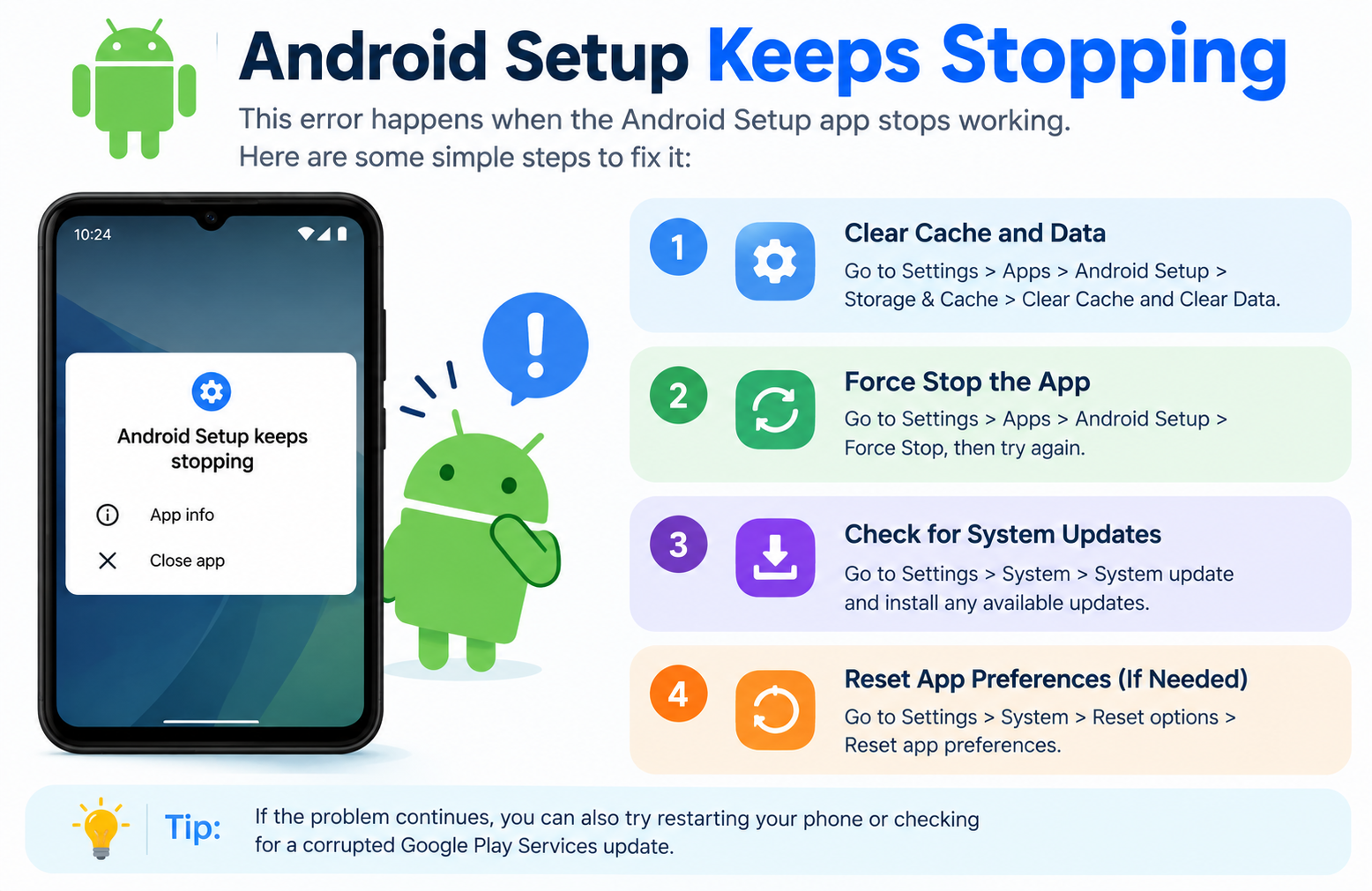
Introduction
The Android setup keeps stopping error occurs when the Android Setup Wizard app crashes due to corrupted cache or data, an incomplete system update, insufficient storage space, a software conflict, or in rare cases a hardware problem. It can typically be fixed by clearing the cache and data of the Setup Wizard app, restarting the device, or in more stubborn cases performing a factory reset.
This error appears as a pop-up message on your screen saying something like “Setup Wizard has stopped” or “Android Setup keeps stopping.” It either prevents you from completing the initial device setup entirely or causes repeated interruptions on a device that was already working. Either way, it is a solvable problem and this guide walks through every fix in clear step-by-step order, starting with the simplest options first.
What Does “Android Setup Keeps Stopping” Mean?
The Setup Wizard is a built-in system app on every Android device. It runs automatically when you first turn on a new phone or restart a device after a factory reset, guiding you through the initial configuration steps including connecting to Wi-Fi, signing into your Google account, setting up a screen lock, and applying basic preferences.
When this system app encounters a problem it cannot recover from, Android displays an error message such as “Setup Wizard has stopped” or “Android Setup keeps stopping.” A small dialog box appears on the screen, usually with options to either close the app or wait for it to respond.
This error has two common scenarios:
- During first-time setup. The error appears while you are setting up a new or freshly reset device, preventing the setup process from completing.
- On an already configured device. The Setup Wizard app crashes unexpectedly during normal use, producing repeated pop-up error messages even though the device has already been set up.
The Setup Wizard is a core Android app that Android devices depend on during initialization. When it crashes, the device may become difficult or impossible to use until the issue is resolved. The good news is that the vast majority of cases are caused by software issues that are fully fixable without professional help.
Common Causes of Android Setup Keeps Stopping
Understanding what causes the error helps you choose the right fix quickly. Here are the most common reasons the Android setup keeps stopping error appears.
Corrupted App Cache or Data
Every app on an Android device, including system apps like the Setup Wizard, stores temporary files called cache to speed up its performance. Over time or after a problematic update, this app cache can become corrupted. When the cache contains damaged or conflicting data the app cannot read correctly, it crashes instead of loading. Clearing the cache and data of the Setup Wizard app removes these corrupted files and allows the app to start fresh.
Incomplete or Failed Software Update
Android system updates replace and modify many system files including those used by the Setup Wizard. If an update is interrupted mid-process due to a power loss, low storage, or a connectivity failure, the system can be left in an inconsistent state where some files are updated and others are not. This mismatch causes system apps to crash.
Insufficient Storage Space
Android system apps require a minimum amount of free storage space to function correctly. If your device storage is critically full, the Setup Wizard may not have enough space to write the temporary files it needs to run. The result is a crash or a failure to load entirely.
Software Bug or Conflict
A bug in a specific Android OS version or a conflict between the Setup Wizard and another installed app or system service can trigger this error. This type of issue often appears after a particular system update introduces a bug that affects the Setup Wizard specifically.
Corrupted System Files
If core system files on the device have become corrupted due to an interrupted update, an improper shutdown during a critical process, or a failing storage component, the Setup Wizard may be unable to load or execute correctly. This is more serious than corrupted app cache and may require a cache partition wipe or factory reset to resolve.
Google Play Services Conflict
The Setup Wizard communicates with Google Play Services during the initial setup process to configure Google account access and device registration. If Google Play Services is outdated, corrupted, or experiencing a conflict, it can prevent the Setup Wizard from completing its tasks and cause it to crash.
Hardware Issues
In a small number of cases the root cause is not software at all. Failing internal storage components such as eMMC or UFS chips can cause repeated system app crashes that persist even after all software fixes have been attempted. This is the least common cause but should be considered if nothing else resolves the problem.
Causes Summary
| Cause | How Common | Likely Scenario |
|---|---|---|
| Corrupted cache or data | Very common | Error after update or extended use |
| Incomplete software update | Common | Error appears after an OS update |
| Insufficient storage | Common | Device storage nearly full |
| Software bug or conflict | Moderate | Specific OS version issue |
| Corrupted system files | Less common | After interrupted update or crash |
| Google Play Services conflict | Moderate | After Google Play update |
| Hardware issue | Rare | Error persists after all software fixes |
How to Fix Android Setup Keeps Stopping
The fixes below are arranged from the simplest and least disruptive to the most thorough. Work through them in order. Most users resolve this error within the first two or three fixes without needing to reach the more advanced options.
Back up any important data before attempting any fix that involves resetting or wiping the device.
Fix 1: Restart Your Android Device
A restart is always the right first step when any Android system function stops working. It clears temporary memory errors, shuts down stuck background processes, and gives the operating system a clean start without affecting any of your data.
Step-by-Step Instructions
- Press and hold the power button on your Android device until a menu appears on screen.
- Look for a Restart option in the menu. Tap Restart if it is available.
- If the menu only shows Power Off, tap Power Off and wait for the device to shut down completely. Wait ten seconds, then press the power button again to turn the device back on.
- Once the device has fully restarted, attempt the setup process again or observe whether the error pop-up has stopped appearing.
What This Fixes
- Clears temporary memory errors that accumulate during a session.
- Resets stuck or frozen processes that may have caused the crash.
- Completes in under a minute with zero data risk.
Fix 2: Clear Cache and Data of the Setup Wizard App
This is the single most effective fix for the Android setup keeps stopping error in the majority of cases. Clearing the cache removes corrupted temporary files. Clearing the data resets the app to its original default state, effectively giving it a fresh start.
Understanding what app cache is helps explain why this works. Cache files are stored by apps to speed up repeated tasks. When these files become corrupted, the app reads damaged data and crashes rather than loading correctly. Removing the cache forces the app to rebuild it cleanly on the next launch.
Step-by-Step Instructions
- Open the Settings app on your Android device.
- Scroll down and tap Apps, Applications, or Application Manager. The exact label depends on your Android version and device manufacturer.
- Tap the three-dot menu icon or the filter option in the top right corner of the screen. Select Show System Apps. On some devices, system apps are already visible in the default list.
- Scroll through the list of apps and find Setup Wizard. On some devices it may be labeled Android Setup, Provision, or Setup Wizard depending on the manufacturer and Android version.
- Tap Setup Wizard to open its app information page.
- Tap Storage or Storage and Cache.
- Tap Clear Cache first. Wait a few seconds for the process to complete. The cache size should drop to zero bytes.
- Tap Clear Data or Clear Storage next. A confirmation prompt may appear asking you to confirm this action. Tap OK or Delete to confirm.
- Press the back button or home button to exit Settings.
- Restart your device and check whether the Android setup keeps stopping error has been resolved.
Important Note
Clearing app data for the Setup Wizard resets only the Setup Wizard app’s own configuration. On a new device being set up for the first time, this is completely harmless. On a device that is already configured and in use, clearing the Setup Wizard’s data does not erase your personal files, photos, installed apps, or account information. It affects only the Setup Wizard’s own stored state.
Fix 3: Clear Cache and Data of Google Play Services
Google Play Services is a background system process that Android devices use for account authentication, app updates, device registration, and many other core functions. The Setup Wizard communicates with Google Play Services during setup. If Google Play Services has corrupted cache or data, it can cause the Setup Wizard to fail and produce the keeps stopping error.
Step-by-Step Instructions
- Open the Settings app on your Android device.
- Tap Apps, Applications, or Application Manager.
- Use the menu or filter option to show system apps.
- Scroll through the list and tap Google Play Services.
- Tap Storage or Storage and Cache.
- Tap Clear Cache.
- Tap Clear Data, or tap Manage Space and then tap Clear All Data. A confirmation prompt will appear. Confirm the action.
- Note that clearing Google Play Services data may temporarily sign you out of some Google services or require you to re-enter credentials for certain apps. This is normal and resolves itself after signing back in.
- Restart the device and check whether the error still appears.
Fix 4: Free Up Storage Space
Android system apps including the Setup Wizard need a reasonable amount of free storage space to run correctly. If your device storage is nearly or completely full, system processes can fail to write the temporary files they need to operate, resulting in crashes and error messages.
App data accumulates gradually across all installed apps and can fill up available storage over time without users noticing. Checking and clearing storage space is a straightforward fix when low storage is the cause.
Step-by-Step Instructions
- Open the Settings app on your Android device.
- Tap Storage to view a breakdown of how storage is being used and how much is available.
- If available storage is critically low, meaning less than a few hundred megabytes of free space, take steps to free up space before attempting the setup again.
- Delete unused apps by long-pressing their icons and selecting Uninstall, or go to Settings, tap Apps, select the app, and tap Uninstall.
- Delete unnecessary photos, videos, or downloaded files. You can do this through the Files app or the Gallery app on your device.
- Move photos and videos to cloud storage such as Google Photos to free up local storage without permanently losing your files.
- Clear cache for individual large apps through Settings and then Apps. Select each large app and tap Clear Cache to reclaim space used by temporary files.
- Once sufficient storage has been freed, restart the device and attempt the setup again.
Storage Management Tips
- Google Photos can automatically back up your photos and videos to the cloud, allowing you to safely delete local copies and recover significant storage space.
- The built-in Files or Storage Manager app on many Android devices includes a tool for finding and removing junk files automatically.
- Uninstall apps you no longer use rather than simply disabling them, as uninstalling completely removes the app and all its associated data from the device.
Fix 5: Update Google Play Services and System Apps
Running an outdated version of Google Play Services is a known source of conflicts with the Setup Wizard. Google regularly updates Play Services to fix bugs and improve compatibility with the Android OS. Installing the latest available update can resolve compatibility issues that are causing the keeps stopping error.
Step-by-Step Instructions
- Open the Google Play Store app on your Android device.
- Tap your profile icon in the top right corner of the screen.
- Tap Manage Apps and Device from the menu that appears.
- Tap Updates Available to see a list of all apps with pending updates.
- Find Google Play Services in the list and tap Update next to it. Alternatively, tap Update All to update all apps at once.
- Wait for the update to download and install completely.
- Restart your device after the update finishes and check whether the error is resolved.
Updating the Android System via Settings
- Open the Settings app on your device.
- Scroll down and tap System, About Phone, or General Management depending on your device.
- Tap System Update or Software Update.
- Tap Check for Updates.
- If an update is available, follow the on-screen instructions to download and install it. Make sure your device is charged or connected to power before starting a system update.
- Allow the device to restart after the update completes and check whether the error persists.
Fix 6: Boot into Safe Mode
Safe Mode is a diagnostic state that starts Android using only its core system apps while temporarily disabling all third-party apps. If the Setup Wizard error disappears in Safe Mode, it confirms that a third-party app you have installed is causing the conflict. Safe Mode does not delete any apps or data. It is entirely non-destructive.
Step-by-Step Instructions
- Press and hold the power button on your device until the power menu appears on screen.
- Press and hold the Power Off option on the screen until a prompt appears asking whether you want to reboot into Safe Mode.
- Tap OK or Safe Mode to confirm. Note: The exact steps to enter Safe Mode vary between Android manufacturers and device models. Some devices require holding the Volume Down button while the device restarts rather than using the method above. If this approach does not work on your device, refer to your manufacturer’s support documentation for the correct Safe Mode entry method.
- Your device will restart. Once it has booted up, you will see the words Safe Mode displayed in the bottom left corner of the screen.
- Attempt the setup process or observe whether the error message appears.
- If the error does not appear in Safe Mode, a third-party app installed on the device is the likely cause of the conflict.
- To exit Safe Mode, simply restart your device normally. Safe Mode will not persist after a regular restart.
Identifying the Conflicting App
- If Safe Mode resolves the error, begin uninstalling recently installed third-party apps one at a time, starting with the most recently installed.
- After uninstalling each app, restart the device normally and check whether the error returns.
- Continue this process until the error stops appearing after a normal restart. The last app you uninstalled before the error stopped is the likely cause.
Fix 7: Wipe the Cache Partition
Android devices use a dedicated storage area called the cache partition to store temporary system files that help the device boot and run the operating system efficiently. Unlike app-level cache, the cache partition contains system-level temporary files. Wiping this partition removes potentially corrupted system cache without touching personal data such as apps, photos, accounts, or any user files.
This fix is accessed through Recovery Mode, which is a separate boot environment outside of the main Android operating system.
Step-by-Step Instructions
- Power off your Android device completely by holding the power button and selecting Power Off.
- Enter Recovery Mode by pressing a specific combination of hardware buttons. The exact combination varies by manufacturer. Common combinations include:
- Power button plus Volume Down
- Power button plus Volume Up
- Power button plus Volume Up plus the Home button (on some older Samsung devices)
Refer to your specific device manufacturer’s support documentation for the correct button combination for your model.
- Once Recovery Mode loads, you will see a text-based menu. Use the Volume Up and Volume Down buttons to navigate between options. Use the Power button to select an option.
- Navigate to the option labeled Wipe Cache Partition and select it with the power button.
- Confirm the action when prompted.
- Wait for the process to complete. This usually takes less than a minute.
- Navigate to Reboot System Now and select it to restart your device normally.
- Once the device restarts, check whether the Android setup keeps stopping error has been resolved.
Important Notes
- Wiping the cache partition does not delete any personal data, installed apps, photos, or account information.
- The Recovery Mode interface looks different across different Android manufacturers. Samsung, Google Pixel, and other brands each have slightly different layouts.
- Take care to navigate only to Wipe Cache Partition and not to Factory Reset or Wipe Data in Recovery Mode, as those options will erase all data on the device.
Fix 8: Perform a Factory Reset
A factory reset returns the device to its original out-of-box software state by erasing all user data, installed apps, and settings. This resolves virtually all software-caused instances of the Android setup keeps stopping error because it completely reinstalls the operating system environment from scratch.
This fix should be treated as a last resort after all other options have been tried. All data on the device will be permanently deleted.
How to Back Up Before Factory Reset
Before proceeding, back up everything important:
- Back up photos and videos to Google Photos or transfer them to a computer.
- Make sure your Google account contacts are syncing by going to Settings, then Accounts, then Google, and checking that Sync is enabled.
- Note down any important app data, login credentials, or settings you will need to reconfigure after the reset.
- Some apps allow you to export data or back up settings within the app itself. Check any apps that store important data before resetting.
Step-by-Step: Factory Reset via Settings
- Open the Settings app on your Android device.
- Scroll down and tap General Management, System, or Reset Options depending on your device manufacturer and Android version.
- Tap Reset or Factory Data Reset.
- Tap Erase All Data or Factory Data Reset. The device will display a list of everything that will be deleted.
- Read the warning carefully, then tap Reset or Reset Device to proceed.
- Enter your PIN, password, or pattern if prompted to confirm your identity.
- Tap Delete All or Erase Everything to begin the reset process.
- The device will reboot and begin erasing all data. This process can take several minutes. Do not interrupt it or remove the battery during this time.
- Once complete, the device will restart and the Setup Wizard will launch from the beginning on a clean system.
Step-by-Step: Factory Reset via Recovery Mode
Use this method if the Settings app is inaccessible due to the error:
- Power off the device completely.
- Enter Recovery Mode using your device’s specific button combination as described in Fix 7.
- Use the volume buttons to navigate to Factory Reset or Wipe Data/Factory Reset in the menu.
- Select it using the power button.
- Confirm the action when prompted.
- Wait for the process to complete, then select Reboot System Now.
Fix 9: Check for Hardware Issues
If you have worked through every software fix including a complete factory reset and the Android setup keeps stopping error continues to appear, the root cause may be a hardware problem rather than a software one.
Failing internal storage components, specifically the eMMC or UFS flash storage chips that store the operating system and user data, can cause persistent system app crashes that no amount of software troubleshooting will resolve. When the storage hardware itself is failing, system apps including the Setup Wizard encounter read and write errors that prevent them from functioning correctly.
Signs that a hardware issue may be responsible include:
- The error persists after a complete factory reset.
- Multiple other system apps also crash or fail unexpectedly.
- The device experiences random reboots or freezes unrelated to specific apps.
- The device has been physically dropped, exposed to water, or otherwise damaged.
- The device is several years old and the storage hardware may be reaching the end of its lifespan.
What to Do for Hardware Issues
- Contact your device manufacturer’s official customer support service for guidance. For Samsung devices, visit Samsung Support. For Google Pixel devices, refer to Google’s support pages.
- Visit an authorized repair center for a hardware diagnostic test. A technician can determine whether the internal storage or another hardware component is failing.
- If the device is under manufacturer warranty, contact the manufacturer to initiate a warranty repair or replacement claim.
- Do not attempt to open or repair the device yourself unless you are a trained technician. Opening the device without proper tools and knowledge can cause further damage and will typically void any remaining warranty.
All Fixes for Android Setup Keeps Stopping Summarized
| Fix | Difficulty | Data Loss Risk | Best For |
|---|---|---|---|
| Restart device | Very Easy | None | First step for any error |
| Clear Setup Wizard cache and data | Easy | None | Corrupted cache or app data |
| Clear Google Play Services cache | Easy | Minimal | Google services conflict |
| Free up storage space | Easy | None if careful | Low storage causing error |
| Update Google Play Services | Easy | None | Outdated app conflict |
| Boot into Safe Mode | Moderate | None | Third-party app conflict |
| Wipe cache partition | Moderate | None | Persistent system cache issue |
| Factory reset | Advanced | All data deleted | Last resort software fix |
| Check hardware | Advanced | Not applicable | Error persists after all fixes |
How to Prevent Android Setup Keeps Stopping in the Future
Taking a few straightforward maintenance steps significantly reduces the chance of encountering this error again.
Keep your Android OS and all system apps updated. Software updates from Google and device manufacturers patch bugs that cause system app crashes. Check for updates regularly through Settings and the Google Play Store.
Maintain adequate free storage space. Keeping your device storage reasonably clear prevents system apps from failing due to insufficient working space. A general guideline is to keep at least ten percent of total storage free at all times.
Clear app cache periodically. Allowing app cache to accumulate unchecked over months of use can eventually lead to corrupted cache files that cause app crashes. Clearing cache for large or frequently used apps every few months is a simple maintenance habit that keeps apps running smoothly.
Never interrupt a system update. Incomplete system updates are one of the most common causes of this error. Always make sure your device is charged above fifty percent or connected to power before starting a system update, and never shut down or restart the device while an update is in progress.
Download apps only from the official Google Play Store. Apps from unofficial sources or unknown websites can introduce software conflicts and instability that affect system apps. Using only the official app store ensures apps have been reviewed for basic compatibility and safety standards.
Review app permissions regularly. Some apps request access to system-level features that, if misused, can interfere with core Android functions. Reviewing and managing app permissions through Settings periodically is good device hygiene and helps prevent unnecessary conflicts between apps and system components.
Frequently Asked Questions
What does “Android setup keeps stopping” mean?
It means the Android Setup Wizard, the system app that guides you through device configuration, has crashed and is displaying an error message. The error either interrupts the initial device setup or causes repeated pop-up errors on an already configured device.
Why does Android setup keep stopping?
The most common causes are corrupted app cache or data in the Setup Wizard, a conflict with Google Play Services, insufficient storage space, an incomplete system update, or a software bug. Hardware failure is a less common but possible cause.
How do I fix Android setup keeps stopping?
Start by restarting the device. If that does not work, clear the cache and data of the Setup Wizard app through Settings and then Apps. If the error persists, work through the additional fixes in this guide including clearing Google Play Services cache, freeing storage, and updating system software.
Will clearing the Setup Wizard data delete my personal files?
No. Clearing the Setup Wizard app’s data resets only that specific app’s configuration. It does not delete your photos, contacts, installed apps, or any personal files stored on the device.
Why does setup wizard keep stopping after a factory reset?
If the error returns immediately after a factory reset, there is likely a hardware problem with the device’s internal storage, or the firmware itself is corrupted. Contact your device manufacturer for support.
How do I fix setup wizard has stopped on Samsung?
Follow the same steps in this guide. Samsung devices may label the Setup Wizard differently. Clear the cache and data of the Setup Wizard or Provision app through Settings and then Applications. For device-specific guidance, visit Samsung Support.
Can a third-party app cause Android setup to keep stopping?
Yes. A third-party app can conflict with the Setup Wizard. Boot into Safe Mode, which disables all third-party apps temporarily, to test whether the error disappears. If it does, the cause is a third-party app and you can identify it by uninstalling apps one by one.
What is the Setup Wizard on Android?
The Setup Wizard is a built-in Android app that runs during the initial device startup to guide users through configuration steps such as connecting to Wi-Fi, signing in to a Google account, and setting up a screen lock.
Should I factory reset if Android setup keeps stopping?
Only if all other fixes have failed. A factory reset erases all data on the device. Always try restarting, clearing app cache and data, clearing Google Play Services cache, freeing storage, and updating software before considering a factory reset.
How do I get into Recovery Mode on my Android device?
Power off the device and hold a specific combination of hardware buttons. Common combinations include Power plus Volume Down or Power plus Volume Up. The exact combination varies by manufacturer. Check your device manufacturer’s support documentation for the correct method for your specific model.
What is Safe Mode on Android and how does it help?
Safe Mode starts Android with only core system apps running and disables all third-party apps temporarily. It helps diagnose whether a third-party app is causing the Setup Wizard error. It does not delete any data or apps.
Will wiping the cache partition delete my data?
No. Wiping the cache partition only removes temporary system files stored in a dedicated partition. It does not affect your personal data, installed apps, photos, or account information.
Why does Android setup keep stopping on a brand new phone?
On a brand new phone, this is usually caused by a software bug in the pre-installed Android version, a conflict with Google Play Services that needs updating, or occasionally a manufacturing defect. Try updating Google Play Services first. If the error persists on a new device, contact the retailer or manufacturer for a replacement.
How do I update Google Play Services to fix Android setup keeps stopping?
Open the Google Play Store, tap your profile icon, tap Manage Apps and Device, and look for Google Play Services in the Updates Available list. Tap Update to install the latest version. Restart the device after updating.
When should I contact the manufacturer about Android setup keeps stopping?
Contact the manufacturer if the error persists after completing a factory reset and all other software fixes, if the device shows signs of physical damage, or if the device is under warranty and you suspect a hardware fault. For most smartphones showing this error after a full factory reset, hardware diagnostics from an authorized service center are the appropriate next step.