
 By Saad Qureshi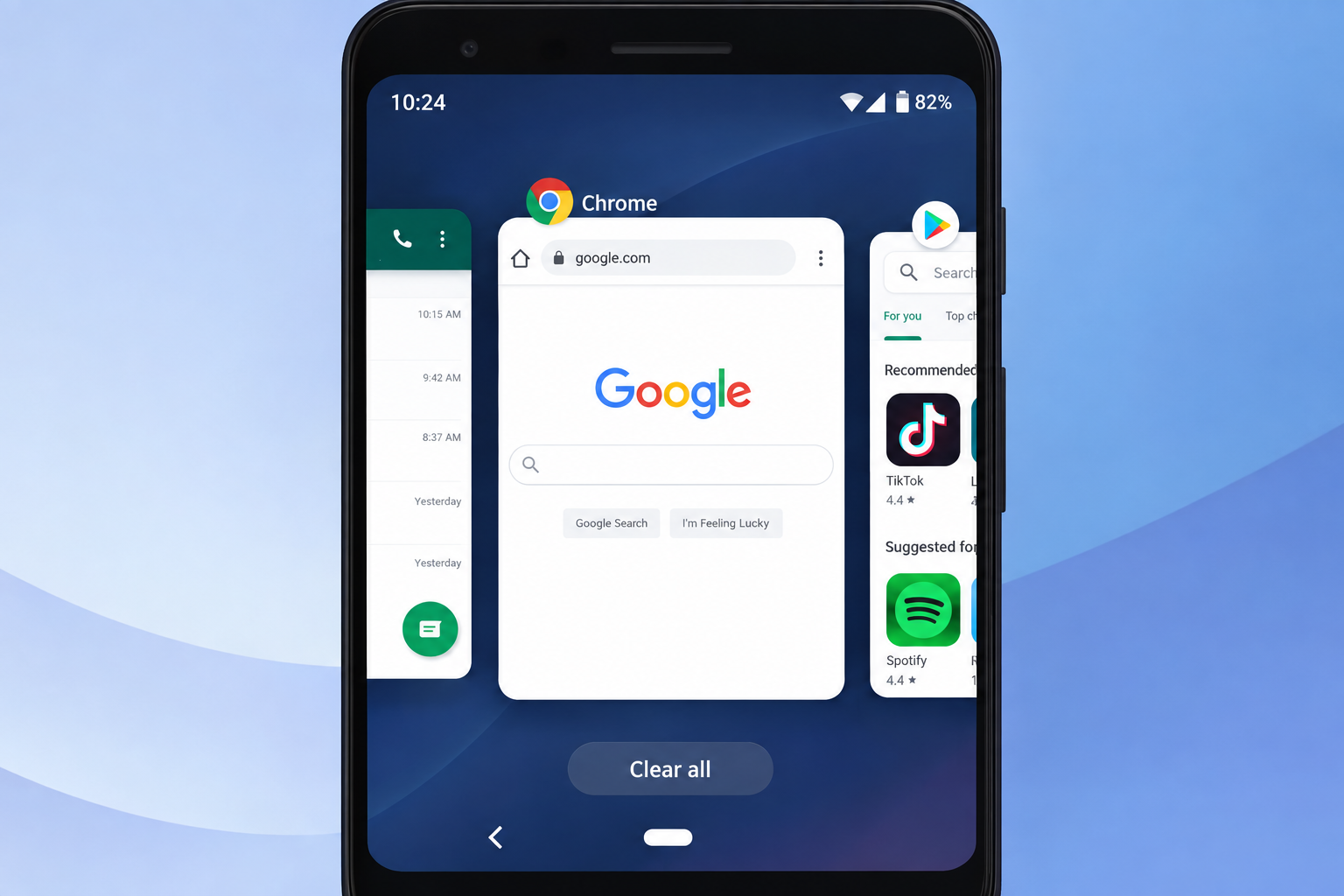
Introduction
On Android 10, you can view recent apps by tapping the square Overview button on the right side of the navigation bar, or by swiping up from the bottom of the screen and pausing briefly if you are using gesture navigation. The recent apps screen displays scrollable thumbnail cards of your recently used apps, allowing you to switch between them, close individual ones, clear all at once, or launch split screen mode.
The recent apps screen, also called the Overview screen or app switcher, is one of the most useful tools for multitasking on an Android device. It lets you jump between open apps instantly without returning to the home screen each time, saving time and keeping your workflow smooth.
This guide covers everything you need to know about Android 10 recent apps, from opening and switching to closing, split screen, screen pinning, app info management, navigation settings, and troubleshooting common problems.
What Is the Recent Apps Screen on Android 10?
The recent apps screen is a built-in feature of Android 10 that acts as a visual app switcher. When you open it, you see a horizontal row of thumbnail cards, each representing an app you have used recently. Tapping any card takes you directly back to that app at exactly the point where you left it.
This screen serves several purposes:
-
It lets you switch between recently used apps without going back to the home screen each time.
-
It shows which apps are currently loaded in memory and available for fast switching.
-
It provides quick access to app management options including split screen, screen pinning, and app info.
-
It gives you a visual overview of your current multitasking session.
Android 10 refined the recent apps experience compared to earlier Android versions. It uses a horizontal scrolling card layout where app thumbnails are arranged side by side. You scroll left and right to browse them rather than scrolling up and down as in older versions.
One of the most significant changes Android 10 brought to this area was the introduction of a redesigned gesture navigation system. Alongside the traditional three-button navigation bar, Android 10 made full-screen gesture navigation more prominent, giving users a choice between the two input methods. Both methods open the same recent apps screen but use different physical inputs to get there.
Understanding what Android apps are and how they run in the background helps explain why the recent apps screen works the way it does. Apps loaded in recent apps are held in memory so they can be resumed quickly, rather than being fully shut down and restarted from scratch every time you switch to them.
Android 10 is a smartphone operating system feature that represents a significant step forward in how Android handles multitasking, giving users more control and flexibility over how they move between apps.
How to Open Recent Apps on Android 10
Android 10 supports two distinct navigation modes, and each one uses a different method to open the recent apps screen. The method available to you depends on which navigation mode your device is using.
Method 1: Using the Overview Button (Three-Button Navigation)
Three-button navigation is the traditional Android navigation system. It displays three persistent buttons at the bottom of the screen: a back arrow on the left, a circle home button in the center, and a square Overview button on the right. The square button is what opens the recent apps screen.
Step-by-Step Instructions:
- Look at the bottom of your Android 10 screen for the navigation bar with the three buttons.
- Locate the square button on the right side of the navigation bar. This is the Overview button, also referred to as the Recent Apps button.
- Tap the square button once with your finger.
- The recent apps screen opens immediately, showing your recently used apps as horizontal scrollable cards.
Method 2: Using Gesture Navigation (Swipe Up and Hold)
Android 10 introduced a refined full-screen gesture navigation system that removes the three navigation buttons entirely and replaces them with swipe gestures. The screen space previously occupied by the navigation bar is returned to the app display, giving a more immersive experience.
In gesture navigation mode, accessing recent apps requires a specific swipe gesture that is slightly different from the swipe used to go home.
Step-by-Step Instructions:
- From any screen or app on your Android 10 device, place your finger at the very bottom edge of the screen.
- Swipe upward but do not release immediately. Pause your finger briefly in the middle of the screen, holding it in place for approximately half a second.
- The recent apps card screen appears with your recently used apps displayed as horizontal scrollable cards.
- Release your finger and browse through the app cards.
Tips for Opening Recent Apps
- If swiping up brings you directly to the home screen without showing recent apps, your swipe is moving too quickly. The pause is essential. Practice holding your finger in place mid-swipe before releasing.
- You can check and change your current navigation mode by going to Settings, then System, then Gestures, then System Navigation.
- The recent apps screen shows apps that have been opened recently on the device. If you have just restarted your device or cleared recent apps, the screen will be empty until you open some apps.
How to Switch Between Recent Apps on Android 10
Switching between apps using the recent apps screen is one of the fastest ways to multitask on a smartphone running Android 10. You have two main methods available depending on your navigation mode.
Using the Overview Screen
This method works with both three-button navigation and gesture navigation.
Step-by-Step Instructions:
- Open the recent apps screen using either method described above.
- Swipe left or right through the app cards to browse your recently used apps. Each card shows a thumbnail preview of the app as you last left it.
- When you find the app you want to switch to, tap its card or thumbnail directly.
- The app opens immediately and resumes from exactly where you left it, without reloading from scratch.
Quick Switch Gesture (Gesture Navigation Only)
Android 10 includes a quick app switch gesture that works exclusively in gesture navigation mode. This is a fast shortcut that jumps directly between the two most recently used apps without opening the full recent apps screen at all.
Step-by-Step Instructions:
- Make sure gesture navigation is enabled on your device. You can check this in Settings under System, then Gestures, then System Navigation.
- From within any app, swipe quickly from left to right along the very bottom edge of the screen in a smooth horizontal motion.
- The device instantly switches to the previously active app.
- Swipe right again along the bottom edge to cycle to the next most recent app.
Tips for App Switching
- The quick switch gesture is one of the most practically useful features in Android 10 gesture navigation for anyone who regularly works between two apps such as a browser and a note-taking app.
- On some Android 10 devices using three-button navigation, double-tapping the square Overview button quickly jumps back to the last used app without opening the full recent apps screen. This behavior may vary by device manufacturer.
- App cards in the recent apps screen display a live preview of the app’s last state, making it easy to identify the right app even if you have many open at once.
How to Close Recent Apps on Android 10
Knowing how to close apps from the recent apps screen is useful, but it is equally important to understand when closing apps is actually helpful and when it is unnecessary.
Closing a Single App
Step-by-Step Instructions:
- Open the recent apps screen using the Overview button or the gesture navigation swipe.
- Browse through the app cards to find the specific app you want to close.
- Swipe the app card upward with your finger. The card animates off the screen as it is dismissed.
- The app is removed from the recent apps list. It is no longer held in memory. You can still reopen it from the home screen or app drawer at any time, but it will reload from the beginning rather than resuming where you left off.
Closing All Recent Apps at Once
Step-by-Step Instructions:
- Open the recent apps screen.
- Scroll to the far right of the app cards by swiping left repeatedly until you reach the end of the list.
- A Clear All button appears at the rightmost position of the app card row on most Android 10 devices. Some manufacturer builds may place this button in a different location, such as at the bottom of the screen.
- Tap Clear All.
- All app cards are dismissed simultaneously and the recent apps screen becomes empty.
Should You Close All Recent Apps?
This is one of the most common misconceptions about Android multitasking. Many users believe that clearing all recent apps regularly makes their device faster or saves battery. In practice, the opposite is often true.
Android is designed to manage app memory automatically and intelligently. When an Android app is in the recent apps list but you are not actively using it, Android typically reduces its memory usage automatically. If system memory is needed by a foreground app, Android handles the management without any user intervention required.
When you clear all recent apps, you remove apps from memory entirely. The next time you open those apps, they must reload completely from scratch, which actually consumes more processing power and battery than resuming a suspended app would have.
Apps also store app cache to speed up their loading times. When you force close an app by swiping it away, that active cache is cleared, meaning the app has to rebuild it on the next launch. Routinely clearing all recent apps eliminates this performance benefit across every app on your device simultaneously.
The practical recommendation is to close a specific app from recent apps only when it is misbehaving, frozen, or you know you will not be using it again for a long time. Routine mass clearing of recent apps is generally not necessary or beneficial on Android 10.
How to Use Split Screen in Android 10 Recent Apps
Split screen mode is one of the most powerful multitasking features on Android 10. It allows two apps to run simultaneously on the same screen, each occupying half of the display. You can activate split screen directly from the recent apps screen in just a few taps.
Step-by-Step: Enabling Split Screen from Recent Apps
- Open the recent apps screen using the Overview button or gesture navigation.
- Browse through your app cards to find the first app you want to use in split screen mode. This will be the app in the top half of the screen.
- Tap the app icon at the very top center of the app card. This is the small circular icon representing the app, not the card thumbnail itself. A small context menu appears.
- Tap Split Screen from the context menu options.
- The selected app moves to fill the top half of the screen. The bottom half of the screen shows the recent apps screen again, prompting you to choose a second app.
- Browse the app cards in the bottom half and tap the card of the second app you want to use.
- Both apps are now displayed simultaneously on screen in split screen mode. The top app occupies the upper portion and the second app fills the lower portion.
Adjusting and Exiting Split Screen
- A black divider bar separates the two apps on screen. You can drag this divider bar up or down to give more screen space to either app depending on your needs.
- To exit split screen mode, drag the divider bar all the way to the top of the screen to maximize the bottom app, or drag it all the way to the bottom to maximize the top app. The other app closes from split screen view.
- On some devices you can also long-press the divider bar for additional options including switching apps between the top and bottom positions.
Tips for Split Screen Use
- Split screen works well for tasks like reading a web article while taking notes in a separate app, or watching a video while browsing social media.
- Not all apps support split screen on Android 10. If the Split Screen option does not appear in the context menu when you tap an app icon in recent apps, or if it appears grayed out, that particular app does not support the feature.
- The availability and exact behavior of split screen may vary between Android 10 builds from different manufacturers.
How to Pin Apps in Recent Apps on Android 10
Screen pinning is a security feature in Android 10 that locks a single app to the screen, preventing anyone using the device from navigating to other apps, accessing the home screen, or opening recent apps without first entering a PIN, pattern, or password. This is useful when lending your device to someone and you only want them to access one specific app.
How to Enable Screen Pinning
- Open the Settings app on your Android 10 device.
- Tap Security or Biometrics and Security. The label varies by manufacturer.
- Scroll down and look for Advanced or More Security Settings and tap it.
- Tap Screen Pinning or App Pinning.
- Toggle Screen Pinning on. You can also enable the option to require your PIN or pattern when unpinning for added security.
How to Pin an App from Recent Apps
- Open the recent apps screen.
- Browse to and find the app you want to pin to the screen.
- Tap the small app icon at the top center of the app card. The context menu appears.
- Tap Pin from the menu options.
- A confirmation prompt appears explaining how screen pinning works. Tap Got It or Pin to confirm and activate pinning.
- The app is now pinned. Navigation buttons are restricted and the app cannot be exited without unpinning.
How to Unpin a Pinned App
- If you are using three-button navigation, press and hold both the Back button and the square Overview button at the same time.
- If you are using gesture navigation, press and hold the area at the bottom of the screen where you would normally swipe. The exact gesture may vary by device. Refer to your manufacturer’s documentation if this does not work.
- If you set up the option to require a PIN or pattern when unpinning, you will be prompted to enter it before the app is unpinned.
- Once unpinned, normal navigation resumes.
How to Manage App Info from Recent Apps on Android 10
The recent apps screen gives you a direct shortcut to each app’s settings page, called App Info, without needing to navigate through the main Settings menu. This is a convenient way to quickly manage a specific app when you notice an issue.
Accessing App Info
- Open the recent apps screen.
- Find the app whose settings you want to access.
- Tap the small app icon at the top center of the app card. This is the circular icon showing the app’s logo at the top of the card.
- A small context menu appears with several options.
- Tap App Info from the menu.
- The app’s dedicated settings page opens, showing detailed information and management options for that app.
What You Can Do from App Info
From the App Info screen you can:
- Force Stop the app. This completely terminates the app process if it is frozen, unresponsive, or behaving abnormally.
- Clear Cache. Removes the app’s temporary cached files. Useful when an app is behaving strangely or taking up unnecessary storage.
- Clear Data. Resets the app completely by removing all stored app data including account logins, settings, and saved content. This returns the app to its original installed state.
- Manage Permissions. Review and change what hardware and data the app is allowed to access. Understanding app permissions is important for maintaining your privacy and security. From this screen you can grant or revoke permissions for the camera, microphone, location, contacts, and more.
- Uninstall the app if you no longer want it on your device.
- Manage notifications for the app individually.
Accessing App Info through the recent apps screen is faster than going to Settings and scrolling through the full apps list, making it a practical shortcut for everyday app management.
How to Change Navigation Mode for Recent Apps on Android 10
Android 10 gives you a choice between two navigation modes that determine how you interact with the recent apps screen and navigate the device overall. You can switch between them at any time through Settings.
Step-by-Step: Changing Navigation Mode
- Open the Settings app on your Android 10 device.
- Tap System.
- Tap Gestures.
- Tap System Navigation.
- You will see two options: Gesture Navigation and 3-Button Navigation. Some devices may also show a 2-Button Navigation option.
- Tap your preferred navigation mode. The change takes effect immediately without requiring a restart.
Comparison of Navigation Modes
| Feature | 3-Button Navigation | Gesture Navigation |
|---|---|---|
| Recent apps access | Tap square Overview button | Swipe up from bottom and hold |
| Quick app switch | Double-tap Overview button (varies by device) | Swipe right along bottom edge |
| Go home | Tap circle Home button | Swipe up and release quickly |
| Go back | Tap back arrow button | Swipe in from left or right screen edge |
| Screen space | Navigation bar occupies bottom of screen | Full screen display with no bar |
| Learning curve | Familiar and straightforward | Requires practice with gestures |
Both modes access the same recent apps screen and offer the same management options. The choice between them is primarily about personal preference and how much screen space you want to reclaim for app content.
Android 10 Recent Apps Tips and Tricks
These practical tips help you get more out of the Android 10 recent apps screen in everyday use.
- Use the quick switch gesture in gesture navigation mode to instantly flip between your two most recently used apps without opening the full recent apps screen. This is particularly efficient when working between two apps repeatedly, such as switching between a browser and a messaging app.
- Access App Info directly from the recent apps card rather than navigating through Settings. Tap the app icon on the card to get to Force Stop, Clear Cache, Permissions, and other options in seconds.
- Use split screen for complementary tasks. Pairing a note-taking app with a web browser, or a messaging app with a document, makes productive use of your full screen without losing either app.
- Do not clear all recent apps routinely. Android manages memory automatically, and clearing all apps forces everything to reload from scratch. This actually increases battery drain and processing load rather than reducing it. Each app stores app cache that makes reloading faster, and clearing recent apps eliminates that benefit across the board.
- Swipe away specific misbehaving apps rather than clearing everything. If one particular Android app is acting up, swiping it away from recent apps force closes it and clears its active state, allowing it to start fresh the next time you open it. This targeted approach is more effective than clearing everything.
- Use screen pinning when sharing your device with someone who should only access one app. Set it up in Security settings and activate it from the recent apps card menu for any app you want to lock in place.
Troubleshooting: Android 10 Recent Apps Not Working
Recent Apps Screen Not Opening
If the Overview button does not respond when tapped or the gesture is not triggering the recent apps screen, try the following:
- Check that the navigation bar is fully visible at the bottom of the screen. Some apps run in full-screen or immersive mode that temporarily hides the navigation bar. Swipe up from the very bottom edge to make it reappear, then try the Overview button again.
- Go to Settings, then System, then Gestures, then System Navigation, and switch to the other navigation mode and then switch back. This can reset the navigation configuration if it has encountered a temporary error.
- Restart the device. A simple restart clears temporary system errors that may be preventing the Overview function from responding.
Recent Apps Screen Empty or Apps Not Appearing
- An empty recent apps screen means all apps were recently cleared or the device was restarted. This is normal behavior. Open some apps and they will begin appearing in recent apps immediately.
- Some apps are programmed to remove themselves from the recent apps screen automatically when you leave them. Banking apps and some security-focused apps do this intentionally to protect sensitive information. This is expected behavior for those specific apps, not an error.
Cannot Swipe Up for Recent Apps in Gesture Navigation
- Confirm that gesture navigation is enabled by going to Settings, then System, then Gestures, then System Navigation, and checking the active mode.
- The key to the recent apps gesture is the pause. Swiping up quickly without pausing takes you to the home screen. Practice swipe and hold rather than swipe and release. Hold your finger stationary mid-swipe for about half a second before releasing.
- Third-party launcher apps can sometimes conflict with gesture navigation, preventing it from working correctly. If you use a third-party launcher, try temporarily switching back to the device’s default launcher to test whether the gesture works correctly with the default launcher active.
Split Screen Not Working in Recent Apps
- If the Split Screen option is grayed out or absent from an app card’s context menu, the specific app you are trying to use does not support split screen mode. This is a limitation of that app, not of Android 10.
- Different manufacturers implement split screen differently on their Android 10 builds. If split screen is not behaving as described in this guide, consult your device manufacturer’s official support documentation for device-specific instructions.
Android 10 Recent Apps vs Earlier Android Versions
Android’s recent apps screen has evolved through multiple versions. Here is how Android 10 compares to earlier versions.
| Feature | Android 8 and Earlier | Android 9 Pie | Android 10 |
|---|---|---|---|
| Card layout | Vertical scrolling stack | Horizontal scrolling cards | Horizontal scrolling cards |
| Gesture navigation | Not available | Introduced with different mechanics | Refined and made default option |
| Quick switch gesture | Not available | Limited support | Full swipe-right quick switch |
| Navigation bar | Three-button only | Three-button plus early gestures | Three-button or full gesture mode |
| Split screen access | Via Overview button long-press | Via app icon in card | Via app icon context menu in card |
| Clear All button | Present | Present | Present, at end of card row |
The shift from a vertical stack layout in Android 8 and earlier to the horizontal card layout introduced in Android 9 Pie and continued in Android 10 made the recent apps screen more visually scannable and aligned with how modern smartphones present multitasking interfaces. Android 10 built on the Pie foundation with more polished gesture controls and better system-wide integration of the gesture navigation option.
For more detail on how Android handles apps at the operating system level, refer to Google’s official Android support documentation.
Frequently Asked Questions
How do I open recent apps on Android 10?
Tap the square Overview button on the right of the navigation bar if you are using three-button navigation. If you are using gesture navigation, swipe up from the bottom of the screen and pause briefly before releasing.
How do I switch between apps on Android 10?
Open the recent apps screen and tap the app card you want to switch to. In gesture navigation mode, you can also swipe right along the bottom edge of the screen to instantly switch to the previously active app.
How do I close all recent apps on Android 10?
Open the recent apps screen, scroll all the way to the right end of the app cards, and tap the Clear All button that appears at the end of the list.
How do I use split screen on Android 10?
Open the recent apps screen, tap the app icon at the top of the card for the first app, tap Split Screen, then tap a second app card from the list that appears in the bottom half of the screen.
Why is my recent apps screen empty on Android 10?
The screen is empty either because all recent apps were cleared manually or the device was recently restarted. Open some apps and they will appear in the recent apps screen.
How do I use gesture navigation for recent apps on Android 10?
Go to Settings, then System, then Gestures, then System Navigation, and select Gesture Navigation. Then swipe up from the bottom of the screen and hold briefly to open recent apps.
Should I clear all recent apps on Android 10?
Generally no. Android manages memory automatically. Clearing all recent apps forces apps to reload from scratch, which uses more battery and processing power than letting Android handle memory on its own.
How do I access App Info from recent apps on Android 10?
Open the recent apps screen, tap the small app icon at the top of the app card, and select App Info from the context menu that appears.
What is the Overview button on Android 10?
The Overview button is the square-shaped button on the right side of the three-button navigation bar at the bottom of the screen. Tapping it opens the recent apps screen.
How do I enable screen pinning on Android 10?
Go to Settings, tap Security, scroll to Advanced or More Security Settings, tap Screen Pinning, and toggle it on.
Why is split screen grayed out in Android 10 recent apps?
The app you are trying to use does not support split screen mode. Not all apps are built to support this feature, and those that do not will show the option as unavailable.
How do I switch between gesture navigation and button navigation on Android 10?
Go to Settings, then System, then Gestures, then System Navigation, and choose either Gesture Navigation or 3-Button Navigation.
Why are some apps not showing in recent apps on Android 10?
Some apps, particularly banking and security apps, are programmed to remove themselves from the recent apps screen automatically when you leave them. This is intentional behavior for privacy and security reasons.
How do I quick switch between two apps on Android 10?
With gesture navigation enabled, swipe quickly from left to right along the very bottom edge of the screen to instantly switch to the previously used app without opening the full recent apps screen.
How do I close a single app in recent apps on Android 10?
Open the recent apps screen, find the app card you want to close, and swipe it upward. The card dismisses and the app is removed from memory.
Disclaimer:
This article is intended for educational and informational purposes and provides a general guide to viewing and managing recent apps on Android 10. Steps and interface options described in this article reflect general Android 10 functionality. The exact appearance of menus, gestures, and navigation options may vary between different device manufacturers and Android 10 builds. Always refer to your device manufacturer’s official support documentation for device-specific guidance. This article does not constitute an endorsement of any specific device brand, manufacturer, or third-party app mentioned in this guide.