
 By Saad Qureshi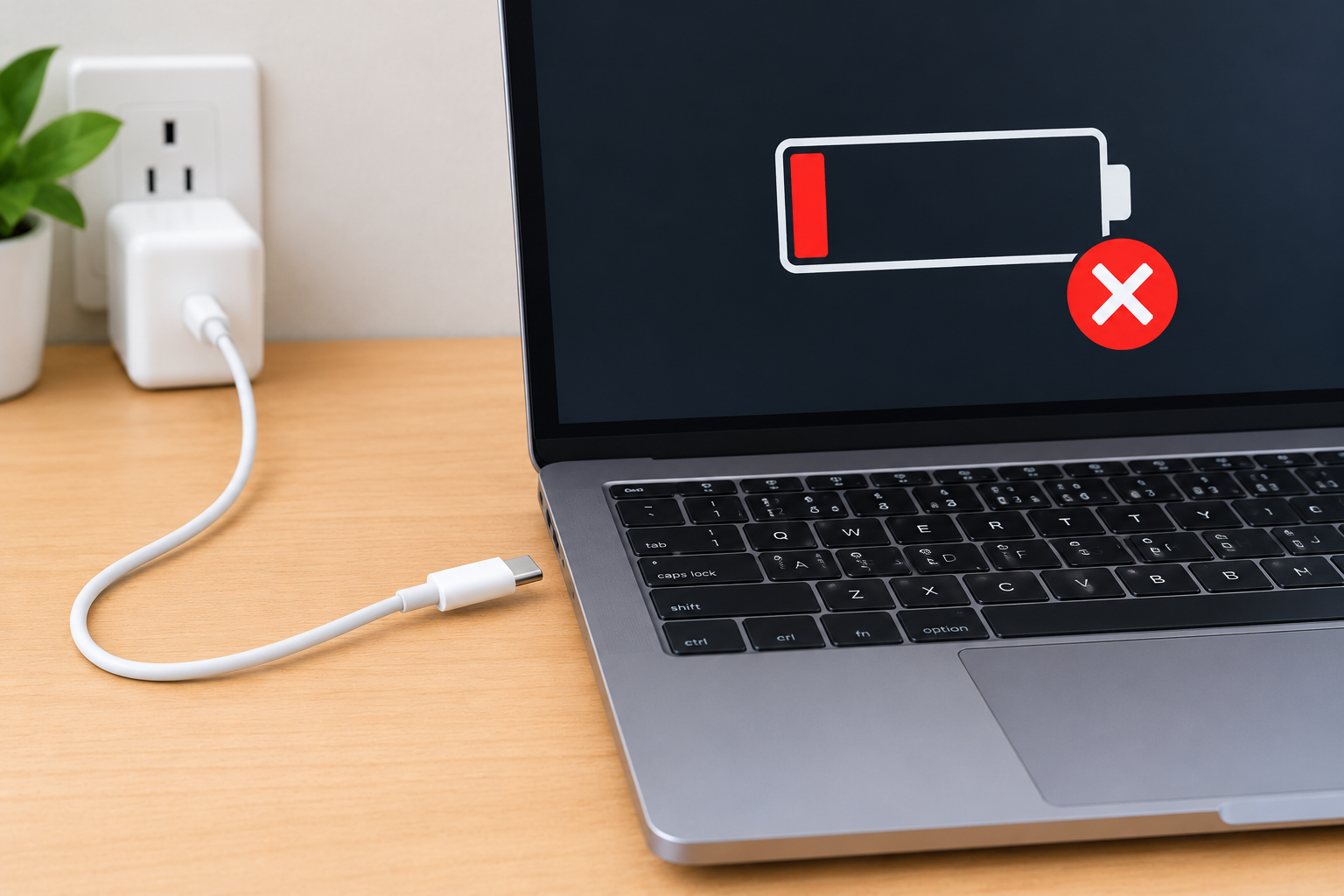
You plug your laptop into the wall right before a big presentation, and the battery percentage keeps dropping. It is a stressful moment, but most charging failures come from a handful of causes you can check in minutes. This guide starts with the simple physical checks and moves toward resets, drivers, heat, and charger compatibility.
Quick Info: The 60-Second Fix Checklist
-
Plug the charger into a different wall outlet, or test the outlet with another device. Dell recommends this to rule out a power supply problem.
-
Check the charger’s light, if it has one. Dell says the LED should stay on while it is plugged in.
-
Look along the whole cable for fraying, kinks, or bent pins, and check the laptop’s charging port for debris or damage.
-
Compare the wattage on the charger’s label with the wattage your laptop needs. A mismatch can cause slow or no charging.
-
Unplug all USB devices, shut the laptop down, and try charging again with only the charger connected.
Key Takeaways
- “Plugged in, not charging” means the battery is not accepting a charge. Dell lists an incompatible charger, a corrupted battery driver, or a battery hardware problem as possible causes.
- A bad charger and a dead battery look alike. Test the charger and outlet first. If the charger works and the laptop still will not charge, the battery or the charging circuit is more likely.
- Software settings can stop charging early. Dell notes that some BIOS charge modes, such as Primarily AC Use, can limit charging to a lower percentage.
- Not every USB-C port or charger can charge a laptop. Dell says not all USB-C ports support power delivery. A lower-wattage charger may charge slowly or barely keep up with use.
- Heat can interfere with charging. This is general battery engineering, and we found no manufacturer page that spells out the exact temperature limits. Let a hot laptop cool down before you test again.
How This Guide Was Verified
We verified every diagnostic path and power configuration in this guide against the manufacturer support material we could access, and we label anything else as general engineering or reported experience.
Specifically, we checked Dell’s hard reset, AC adapter, and battery troubleshooting articles, a Plugable knowledge base article on USB Power Delivery, and Microsoft Q&A threads on the battery driver. We did not find an official Microsoft or laptop maker page that documents the battery driver uninstall as a charging fix, so that step is marked as a commonly shared workaround.
This guide compiles documentation. It does not include results from our own bench testing.
Menu names and reset times differ by brand, so follow your maker’s page for your model. These steps use built-in tools only, so you do not need third-party “battery repair” software.
Laptop Charging Failures: Diagnostic Matrix
| What Your Laptop is Doing | The Real Underlying Power Issue | Recommended Fix Path |
|---|---|---|
| Says “Plugged in, not charging” | A driver glitch, a charge limit setting, a low-wattage or incompatible adapter, or a battery fault | Check the charger wattage, run a hard reset, then reinstall the battery driver. |
| Power light flashes but the screen stays black | A frozen power state, a battery problem, or a component fault | Disconnect everything, run the hard reset, and contact support if it persists. |
| Charges only when the cable is bent at an angle | A frayed cord or a worn charging port | Stop moving the cable, test another charger, and have the port inspected by a technician. |
1. Executing a Hard Power Reset (EC Reset)
A hard reset drains leftover electrical charge from the laptop’s circuits. It can clear a stuck power state that stops the laptop from recognizing the charger.
What the Reset Does
Laptops have a small controller that handles power and charging. The brief we received calls this the Embedded Controller, or EC. Manufacturers describe the reset in simpler terms, as draining residual power, and the exact name differs by brand.
Dell’s Documented Steps
Dell’s hard reset article gives these steps.
- Shut the laptop down.
- Unplug the AC adapter. If the battery is removable, take it out using your user guide.
- Unplug external devices such as USB drives, printers, and webcams.
- Press and hold the Power button for 15 to 20 seconds to drain residual power.
- Reconnect the AC adapter and battery.
- Turn the laptop on.
Dell says that if your laptop has a non-removable battery, there is a separate reset guide for it.
How Long to Hold the Button
Some guides suggest holding the button longer, such as 30 or 45 seconds. We found no manufacturer page that gives 45 seconds, so start with your maker’s recommendation. Dell’s article says 15 to 20 seconds.
After the Reset
- Plug the charger in with only the charger connected.
- Wait a few minutes.
- Check whether the charging light or battery icon shows charging.
Check for Charge Limits
Dell’s battery article says that if a BIOS setting like Primarily AC Use is enabled, the battery may charge only to about 50 to 80 percent. If your laptop stops charging at a set percentage, look in the BIOS or your maker’s power app and set the charge mode to a standard option.
When the Reset Does Not Help
If the laptop still will not charge after the reset, a different charger, the battery, or the charging port may be the cause. Move on to the next sections.
2. Reinstalling the Windows Battery Driver
On Windows, a battery driver can get stuck and make the laptop report the wrong battery state. Reinstalling it is a common fix.
An Honest Note on Sources
Dell lists a corrupted battery driver as a possible cause of “plugged in, not charging.” We could not find an official Microsoft page that documents uninstalling the battery driver as a fix. Microsoft Q&A threads describe users doing it successfully, so treat it as a commonly shared workaround.
Steps to Reinstall the Driver
- Right-click the Start icon and select Device Manager.
- Expand the Batteries category.
- Right-click Microsoft ACPI-Compliant Control Method Battery and select Uninstall device.
- Confirm the prompt.
- Restart the laptop while it is plugged into power.
- Windows should reinstall the driver on startup.
Do not uninstall anything other than the battery entries. If you are unsure, skip this step.
Check for Updates
- Open Start > Settings > Windows Update > Check for updates.
- Install any updates, including optional driver updates if offered.
- Check your laptop maker’s support site for a BIOS or chipset update for your model.
Microsoft’s performance page lists updates among its basic steps. If the laptop also runs slowly while on battery, our guide on Why Is My Laptop Slow? Causes and Fixes explains how to check Task Manager for busy processes, which can also drain the battery faster than the charger can refill it.
Run the Maker’s Battery Test
Dell recommends running its battery diagnostics, and its charging article refers to the SupportAssist battery test. Other brands have similar tools. Check your maker’s support page for the name.
Check Power Settings
- Open Start > Settings > System > Power & battery.
- Look at your Power mode and any battery saver settings.
- Choose Balanced and test again.
3. Thermal Safety Limits and Overheating Cut-Offs
A hot laptop can behave differently while charging. Batteries are sensitive to heat.
What Is Known
It is general battery engineering that laptops monitor temperature and can limit or stop charging if the battery or components get too hot. We found no manufacturer page that gives exact temperature limits or says how every model handles it. The brief we received describes this as a thermistor-based cut-off, which is a plausible design, but we cannot confirm that detail for your laptop.
Signs Heat May Be Involved
- The laptop is very hot to the touch while plugged in.
- The fan runs loudly and charging is slow or stops.
- Charging works after the laptop has been off for a while.
- The problem appears during heavy tasks such as gaming.
Let It Cool Down
- Shut the laptop down.
- Unplug the charger.
- Place the laptop on a hard, flat surface away from sunlight and soft furnishings.
- Wait until it is cool to the touch, then try charging again.
If charging resumes after cooling, heat is a likely factor. Our guide on Why Is My Laptop Overheating? Causes and Fixes covers how to reduce heat from software and settings.
Check the Cooling System
Dust in the fan and vents raises temperatures over time. If your laptop runs hot even when idle, read How to Clean a Laptop Fan: Complete Step-by-Step Maintenance Guide before you open the case, and check your warranty first.
Inspect the Chassis for Damage
- Look at the case, keyboard deck, and trackpad. A bulge or lifted panel can mean a swollen battery.
- Check the charging port for bent pins or debris.
- Look for signs of pressure damage, such as warped panels or marks on the display.
Pressure on a laptop can affect more than the case, as we explain in White spot on Lenovo laptop screen. If the case is bulging, stop using the laptop and do not charge it.
Safety Guidelines for Swollen Batteries
Dell’s battery article lists physical swelling as a reason to consider battery replacement. Dell also warns not to puncture, bend, or compress a swollen battery. Keep the laptop unplugged, away from flammable items, and contact a service center.
Keep Windows Healthy Between Repairs
While you wait for service, keep the system updated and avoid heavy tasks. The basic steps in Microsoft’s official Windows performance support page are a good starting point.
4. USB-C Power Delivery and Wattage Verification
Many laptops charge through USB-C. These chargers and cables follow a protocol called USB Power Delivery, or USB-PD.
How USB-PD Works
A Plugable support article explains that the charger and the device exchange information. The charger reports how much power it can supply, and the device requests what it needs. Once the two agree on a contract, charging starts.
What a Low-Wattage Charger Does
The same article gives an example of a laptop needing 65 watts. With a 60-watt charger, the two settle on the fastest rate both support, and charging is slightly slower. The article also says that when a laptop needs more power than the charger can give, the battery may only hold its level or drain slowly under heavy load.
Our brief says a phone charger would cause “plugged in, not charging.” That can happen in practice, but it depends on the laptop and the charger. We found no official source that says every laptop shows that exact message.
Check Your Charger and Port
- Find the wattage printed on your laptop’s original charger label.
- Check the wattage of the charger you are using now.
- Confirm that the laptop’s USB-C port supports charging.
- Use a cable rated for the wattage you need.
Dell notes that not all USB-C ports and docks support power delivery, so check your laptop’s manual.
Use the Right Charger
Dell recommends using a charger that matches your laptop’s wattage requirements, and says that a wrong or “Unknown” adapter reading can lead to slow or no charging. In BIOS, you can check whether the adapter’s wattage is recognized.
If You Use a Mac or Another Device
Mac laptops follow a different setup. Apple’s own page on slow Macs does not cover charging, so check your Mac’s battery settings in System Settings and contact Apple Support if it will not charge.
For general performance steps, see Apple’s official Mac optimization guidelines. Menu names vary by macOS version.
When to Stop and Call a Technician
If a different, correct charger does not work, the reset fails, and the cable is not the problem, the battery or the charging port may need repair. Do not open the laptop unless you are experienced.
Dangerous Mistakes That Can Short Out Your Motherboard
- Scraping the charging port with a paperclip or needle. Metal can bend pins or short contacts. If debris is the problem, ask a technician.
- Using a universal power brick with the wrong voltage. A mismatched adapter can damage the power circuit. Use the charger that matches your laptop.
- Using a laptop with a swollen battery. Dell lists swelling as a sign of battery damage. Stop using and charging it.
- Bending the cable to make it charge. This wears out the cord and can cause a short.
- Charging under a pillow or blanket. Soft surfaces trap heat.
- Opening the laptop while it is plugged in. Disconnect power before you touch any internal part.
- Installing “battery repair” apps. There is no software fix for a worn battery. Use the maker’s own tools.
- Ignoring a hot charger. A charger that gets very hot or smells burnt should be replaced.
Frequently Asked Questions
Why does my laptop say “plugged in, not charging”?
Dell says it means the battery is not accepting a charge. Possible causes include an incompatible charger, a corrupted battery driver, or a battery problem.
How do I reset my laptop’s power controller?
Shut down, unplug the charger and devices, and hold the power button for 15 to 20 seconds, as Dell advises. Then reconnect power and turn it on.
Should I uninstall the battery driver?
It is a commonly shared workaround, not an official Microsoft step that we could find. Only uninstall Microsoft ACPI-Compliant Control Method Battery, then restart while plugged in.
Can a phone charger charge my laptop?
It depends on the laptop and the charger. A lower-wattage charger may charge slowly or barely keep up with use, according to Plugable’s USB Power Delivery article.
When should I replace the battery or charger?
If the charger and outlet test fine, the reset does not help, and the maker’s battery test shows errors, the battery may need replacing. Replace a swollen battery right away through a service center.
Disclaimer:
This article is for general educational and informational purposes only. It compiles official hardware power safety protocols from verified manufacturer service frameworks. Laptop power circuits handle dangerous high-amperage electrical current. Always consult authorized manufacturer service centers to replace damaged internal batteries or physical charging ports.