
 By Saad Qureshi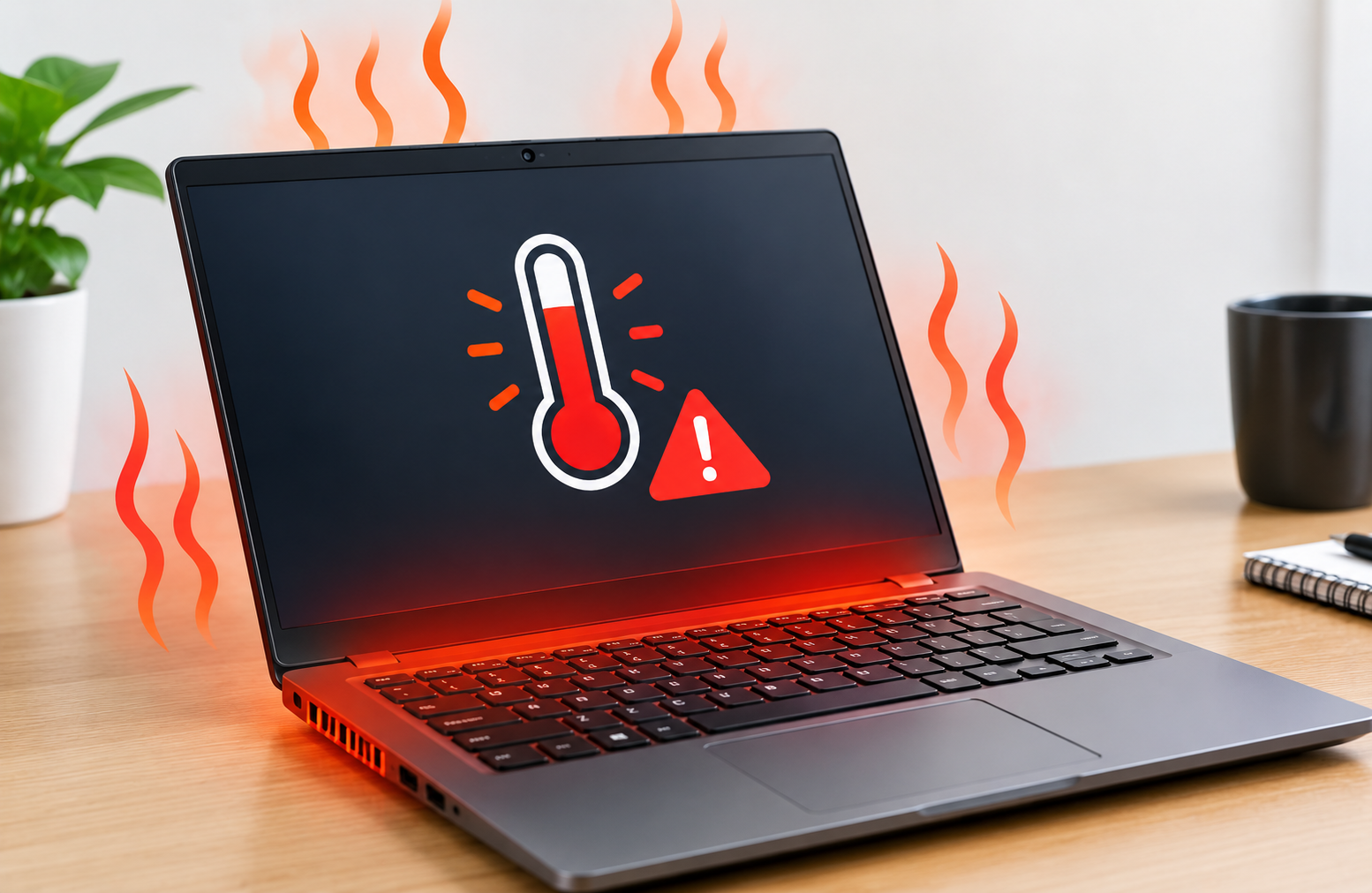
The fans are roaring at full speed, the keyboard is hot enough to be uncomfortable, and the laptop is lagging on top of it all. Heat is the most common reason a laptop gets loud and slow. Most causes are fixable at home, and a few need a technician.
Quick Info: The 60-Second Thermal Fix
- Move the laptop to a hard, flat surface such as a desk. Take it off beds, blankets, and your lap.
- Raise the back of the laptop slightly so air can flow underneath.
- Close extra browser tabs and apps you are not using.
- Open Task Manager with Ctrl + Shift + Esc and look for any app using most of the CPU. Select it and choose End task if you do not need it.
- On Windows 11, open Settings > System > Power & battery and check your Power mode. If it is set to Best performance, switch to Balanced.
Key Takeaways
- Thermal throttling is a safety feature. Lenovo explains that when a core exceeds the set throttle temperature, it starts to reduce power. The laptop slows itself down to cool off.
- Thin laptops have little room for cooling. This is general engineering, not a manufacturer claim. Slim bodies leave less space for heat sinks and airflow, so heat builds faster under load.
- Airflow comes first. Lenovo says the fan openings, both entry and exit, should not be obstructed, and recommends a stable, solid surface such as a desk.
- Thermal compound does wear out, but there is no official timer. Lifespan varies with design, use, and heat. We found no manufacturer page that gives a fixed number of years.
- Cleaning becomes necessary when the fan is loud at idle. Dust buildup is a common cause, but opening a laptop can affect your warranty, so check with the maker first.
How This Guide Was Verified
We verified every diagnostic path and thermal concept in this guide against the manufacturer support documentation we could access, and we label anything else as general engineering.
Specifically, we checked Lenovo’s ThinkPad thermal performance page and user guide, and Microsoft’s Windows performance tips for the power mode steps. We did not find official manufacturer pages for dust cleaning, thermal paste lifespan, or the Windows maximum processor state trick, so those sections say so.
This guide compiles documentation. It does not include results from our own teardown or lab testing, and we do not give temperature numbers that we could not source.
Menu names can differ by laptop brand and Windows version. Following only the built-in settings here also keeps you away from third-party utilities that change system behavior.
Laptop Overheating: Symptoms & Fixes Matrix
| What Your Laptop is Doing | The Real Underlying Thermal Issue | Recommended Fix Path |
|---|---|---|
| Loud fan noise with heavy stuttering | The CPU is under heavy load or throttling, often from a busy process or blocked airflow | Check Task Manager > Processes, end the heavy app, and clear the vents and surface. |
| Instant shutdowns during heavy gaming | Temperatures reaching a protection limit, possibly from dust, a weak cooling path, or an unsuitable power mode | Improve airflow, clean the vents, and have a technician inspect the cooling system if it keeps happening. |
| A hot chassis even when idle | A background process using the CPU, blocked vents, or a cooling fault | Look for hidden CPU use in Task Manager, check ventilation, then ask a technician to check the fan. |
1. Tracking CPU Thermal Load in Windows Task Manager
Every task your processor performs makes heat. When something runs at high load for a long time, the laptop heats up even if you are only browsing.
Find the Busy Process
- Press Ctrl + Shift + Esc to open Task Manager.
- Select the Processes tab.
- Click the CPU column header to sort by highest usage.
- Note any app using a large share of the CPU for a long time.
Microsoft uses this same sorting step in its Task Manager guidance. A CPU stuck above 90 percent for long stretches produces continuous heat, which makes the fans work harder.
What to Do About It
- Select the busy app and choose End task if you do not need it.
- If it returns at every startup, open the Startup apps tab, select it, and choose Disable.
- Run a scan with Windows Security under Start > Settings > Privacy & security > Windows Security > Virus & threat protection.
Do not end tasks you do not recognize. Search the name first, because some belong to Windows or your security software.
Why Malware Can Cause Heat
Malicious scripts can use your CPU in the background. Microsoft’s performance page lists a malware scan among its first steps. If a process you do not recognize is always using the CPU, run a scan.
Cut Startup Load
Fewer background apps mean less constant heat. Our guide on How to Speed Up a Laptop: Simple Ways to Improve Performance walks through disabling startup apps and clearing storage, which also lowers the load on the CPU.
Check Disk Usage Too
A drive that is constantly busy keeps the system working and can add to heat and lag.
In Task Manager, check the Disk column. If it sits near 100 percent, our guide on Why Is My Laptop Slow? Causes and Fixes explains how to find the cause.
2. Physical Dust Buildup in the Fan and Heat Sink
Dust and lint collect inside a laptop over months of use. When they pile up in the heat sink fins, hot air has a harder time leaving.
How Dust Raises Temperatures
This is general hardware logic, not a statement from Lenovo or Microsoft. A heat sink is a block of metal fins that pulls heat away from the processor, and a fan blows air through the fins. Dust in the fins narrows the gaps, so less air passes through.
The processor then stays hotter even during basic tasks. The fan runs faster and louder to compensate.
Signs Dust May Be the Cause
- The fan is loud even when you are only browsing.
- Warm air from the exhaust vent feels weaker than it used to.
- The laptop runs hotter than it did when new.
- The problem improves when the laptop is raised or placed on a cooler surface.
Safe External Cleaning
- Shut the laptop down and unplug it.
- Wipe the outside vents with a dry microfiber cloth.
- Use a vacuum with the nozzle held a short distance from the vents, not touching them. Macworld’s Mac advice makes the same point about keeping the nozzle away from the casing.
- Do not open the laptop unless you are experienced and your warranty allows it.
Compressed Air: The Safe Way
Repair guides commonly advise holding the fan still so it does not spin when you blow air through. A fan that over-spins can be damaged. If you are not confident, ask a service center to clean it.
Opening the Laptop
Macworld notes that removing the bottom case to clean a Mac’s fans may void your warranty. The same caution applies to most laptops, so check your warranty before you open anything.
Look After the Whole Machine
Heat is not the only reason to treat a laptop gently. Pressure on a closed lid can also damage the screen, as we explain in White spot on Lenovo laptop screen. Carrying a laptop in a padded sleeve helps with both.
3. Thermal Paste Degradation and the Heat Transfer Gap
Thermal paste fills tiny gaps between the processor and the metal that carries heat away. Over time it can dry out and lose effectiveness.
What Thermal Paste Does
The processor chip and the heat pipe are not perfectly smooth. Thermal paste fills the microscopic gaps so heat transfers more efficiently. Without it, air gaps slow the heat flow.
How Long It Lasts
The brief we received says paste degrades after 2 to 3 years. We could not find an official manufacturer figure for this, and lifespan varies by laptop and by how hot it runs. Treat any specific number with caution.
When to Suspect It
Consider thermal paste if the laptop runs hot even with clean vents, a cool room, and no heavy processes. Older laptops with a loud fan under light load are common candidates. Only a technician can confirm it by opening the cooling assembly.
Why You Should Not Do This Yourself
Replacing thermal paste means removing the heat sink and handling the processor area. A mistake can damage the board, and opening the laptop may affect your warranty. Ask an authorized service center or a trusted repair shop.
Back Up and Update Before Repair
Before any hardware work, back up your files. Keep Windows updated too. Microsoft lists updates among its first performance tips, and you can read Microsoft’s official Windows performance support page for the basic steps.
4. Ventilation Blockage on Soft Surfaces
Most laptops pull cool air in through vents on the bottom or sides. Soft surfaces can block those openings.
Why Soft Surfaces Cause Problems
Beds, blankets, and carpets can cover the intake vents or press against the bottom of the laptop. The fan then has less air to work with. Lenovo says the thermal fan openings, both entry and exit, should not be obstructed, and recommends a stable, solid surface such as a desk.
Set Up Better Airflow
- Place the laptop on a hard, flat surface such as a desk or table.
- Keep the vents on the sides and bottom clear.
- Raise the back slightly with a stand or a hard object so air can reach the intake.
- Keep the laptop away from direct sunlight and other heat sources. Lenovo advises keeping fan openings away from external heat sources.
Lap Use
Lenovo says its Best performance mode can include Cool and Quiet on Lap, which helps cool the computer to avoid discomfort from extended contact with your body. If your laptop is warm on your lap, move it to a desk.
Room Temperature
Macworld suggests keeping the room between 50 and 95 degrees Fahrenheit (10 to 35 degrees Celsius) for Macs. Check your own laptop’s manual for its recommended range.
5. Managing Fan Control Profiles Through Manufacturer Software
Many laptops include a utility from the maker that controls how the fans and processor behave. The names and options vary by brand.
Find the Thermal or Power Setting
- Open your laptop maker’s app, such as Lenovo Vantage, ASUS Armoury Crate, or HP Command Center.
- Look for Thermal, Fan, Power, or Performance mode.
- Check which profile is active.
On Lenovo, the path is Device > Power under Device settings in Vantage, according to Lenovo’s page. Other brands use different layouts, so look in your maker’s manual.
What the Profiles Mean
Lenovo says Eco mode reduces CPU power to maintain a lower system temperature. Its user guide says its Intelligent Cooling feature adjusts power consumption, fan speed, computer temperature, and performance.
Lenovo also notes that Best performance mode accepts louder fan noise and higher temperatures as trade-offs. A quiet or battery saver profile may keep fans slow, while a performance profile spins them faster.
Choose the Right Mode
- If the laptop runs hot while you work, try Balanced and see if the temperature settles.
- If you need more power for a heavy task, a performance profile is available, but expect more noise and heat.
- If you want it cooler and quieter, choose an efficiency or battery-focused mode.
Lenovo’s thermal page notes that Eco or Balanced mode can trigger power reduction when the system nears its limits. See Lenovo’s ThinkPad thermal performance overview for details.
A Note on Third-Party Fan Tools
Macworld mentions third-party fan control tools for Macs and warns that changing fan behavior this way could damage your computer. We recommend sticking to your maker’s own app.
6. Windows Power Plan Settings and Processor State Limits
Windows lets you control how hard the processor can work. Lowering it can reduce heat.
The Simple Way: Power Mode
- Open Start > Settings > System > Power & battery.
- Open the Power mode drop-down.
- Choose Balanced or a more efficient option instead of Best performance.
Microsoft’s performance page lists Best performance as a power mode. It uses more power and can run hotter, so avoid it unless you need it.
The Advanced Way: Maximum Processor State
This route is commonly shared in repair guides. We could not find Microsoft documentation that describes it as a cooling method, so use it as an optional experiment.
- Open Control Panel > Hardware and Sound > Power Options.
- Select Change plan settings next to your active plan.
- Select Change advanced power settings.
- Scroll to Processor power management and open Maximum processor state.
- Lower it from 100 percent to 99 percent.
- Select Apply, then OK.
Guides say this can stop the processor from using its highest boost speeds on many systems. The effect depends on your processor and laptop, so we cannot promise a result. Some laptops hide the Processor power management section.
How to Undo It
Return to the same screen and set Maximum processor state back to 100 percent. Write down your original setting before you change it.
Windows and Mac Differences
The steps above are for Windows. On a Mac, open Activity Monitor, select the CPU tab, and look for a busy process. Select it and click the Stop button, then choose Quit first.
Apple’s own performance page covers free storage and busy apps on a Mac. See Apple’s official Mac optimization guidelines for its steps. Macworld also suggests Apple Diagnostics if the problem persists, and a visit to Apple Support if the hardware may be at fault.
Dangerous Mistakes That Can Permanently Melt Your Components
- Blasting compressed air into the vents without holding the fan. A fan that over-spins can be damaged, so hold it still or let a technician do it.
- Placing ice packs under the laptop. Cold surfaces can create condensation, and moisture inside a laptop can cause serious damage.
- Using the laptop on a bed, sofa, or blanket. Soft surfaces block the intake vents and trap heat.
- Covering the vents with cases or stickers. Anything that blocks the openings makes the problem worse.
- Opening the laptop without checking your warranty. This may void your coverage and risks damaging the board.
- Running intensive tasks in a hot room or in direct sunlight. The cooling system has less margin to work with.
- Installing unknown “cooling” or “booster” apps. Some contain malware that raises CPU load. Use your maker’s own app.
- Ignoring the browser. Dozens of open tabs and extensions keep the CPU busy. Close what you do not need and clear the cache from time to time.
Frequently Asked Questions
Why is my laptop so hot all of a sudden?
A sudden rise in heat often means a busy background process, blocked airflow, or a change in power mode. Check Task Manager for a process using a lot of CPU, then check that the vents are clear.
What is thermal throttling?
It is when the processor reduces its speed to stay below a safe temperature. Lenovo says that when a core exceeds the set throttle temperature, it starts to reduce power.
Is it safe to use compressed air on my laptop?
It can be, but the fan should not be allowed to spin freely. If you are not confident, ask a service center to clean it.
How often should thermal paste be replaced?
There is no official fixed interval that we could find. Consider it if the laptop runs hot with clean vents and no heavy load, and ask a technician to inspect it.
Does a cooling pad help?
A stand or cooling pad can improve airflow by lifting the laptop and moving air under it. Macworld suggests this for Macs. Results depend on your laptop’s vent layout.
Disclaimer:
This article is for general educational and informational purposes only. It compiles official hardware diagnostic concepts from verified device manufacturing frameworks. Technical paths may vary based on your specific laptop brand, internal cooling assembly layout, or operating system build. Always consult an authorized service center for critical hardware cooling replacements.