
 By Saad Qureshi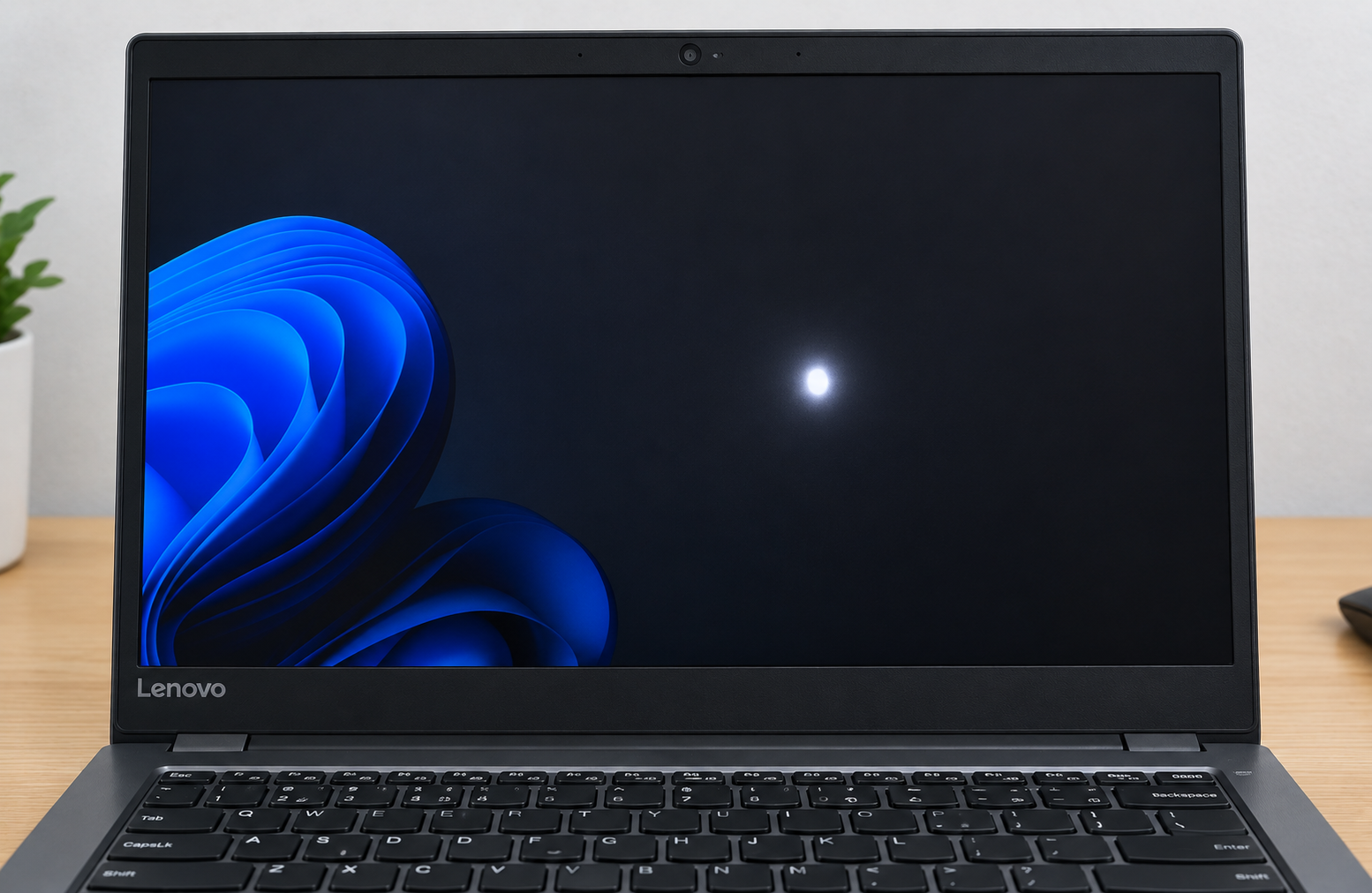
You open your Lenovo laptop and there it is: a bright, glowing white patch that was not there before. It does not look like dust, and it will not wipe away. Before you press on it or order a new screen, a few free checks can tell you whether it is a software problem or a hardware one.
Quick Info: The 60-Second Diagnosis
- Clean the screen with a dry microfiber cloth to rule out a smudge or reflection.
- Restart the laptop and look at the spot again on a plain white background and a plain dark one.
- Gently tilt the lid forward and back. Note whether the spot changes shape or brightness.
- Take a photo of the spot on the screen. A photo helps you compare later and helps support.
- Enter the BIOS screen (steps in section 1). If the spot is still there, it is not caused by Windows or a graphics driver.
Key Takeaways
- A white spot is not the same as a stuck pixel. Lenovo describes a stuck pixel as one that stays lit and does not change color. A white spot is usually a larger, soft-edged glow, while a stuck pixel is a sharp, tiny dot.
- Pressure on the lid is a commonly cited cause. Repair guides often link bright patches to pressure on the screen, such as a tightly packed bag. Lenovo’s pages we could read do not state this, so treat it as a likely explanation, not a proven one.
- The BIOS test separates software from hardware. The BIOS screen is drawn by the laptop’s firmware, not by Windows. If the spot shows there too, a driver is very unlikely to be the cause.
- Do not press or massage the spot. Pressing on a panel that is already damaged can make the spot larger or cause a crack.
- Warranty depends on the cause. A manufacturing pixel defect is judged against Lenovo’s published policy. Physical damage may be treated differently, so check your terms.
How This Guide Was Verified
We checked this guide against Lenovo’s published defective pixel policy and glossary pages, Lenovo’s Accidental Damage Protection page, and standard LCD behavior. We could not read the full text of Lenovo’s Novo button and BIOS-entry support pages with our tools, so those key steps are marked as commonly documented and linked to Lenovo’s own pages for you to confirm.
This guide compiles documentation. It does not include results from our own teardown or lab testing, and we cannot tell you what is wrong with your specific panel from a description. Lenovo does not publish a single page explaining white spots, so some causes below come from general display engineering and are labeled that way.
Following only these checks keeps you away from risky screen myths, such as pressing, heating, or spraying the display.
Lenovo Screen Anomalies: Diagnostic Matrix
| What You See on Screen | The Underlying Screen Status | Recommended Fix Path |
|---|---|---|
| A localized, soft-edged glowing white patch | Often a backlight or diffuser layer problem, sometimes linked to pressure on the lid | Run the BIOS test and the tilt test, stop pressing on the lid, and contact Lenovo support if it persists. |
| A single tiny bright point of color | A stuck pixel or subpixel that stays lit | Confirm with a color test, try a web-based pixel flasher, and check Lenovo’s pixel policy. |
| A widening dark or bleeding gray circle | Likely a damaged or cracked panel | Stop using the laptop for important work and contact an authorized Lenovo service provider. Do not press on it. |
1. Isolating Hardware Defects via the Lenovo BIOS Menu
The BIOS screen is shown by the laptop’s firmware before Windows loads. That makes it a useful way to tell whether the spot comes from the screen itself or from the operating system.
Why the BIOS Test Works
If a graphics driver or a Windows setting is causing a visual glitch, it should not appear in the BIOS. If the spot is still there, the cause is in the hardware layer. That could be the panel, the backlight, or the cable, and the test alone cannot tell you which.
Enter the BIOS Setup Utility
Lenovo laptops use different methods by model. These are the commonly documented routes, and your model may differ.
- Shut the laptop down completely.
- Press the power button, then tap F2 repeatedly. Some models need Fn + F2, and many ThinkPad models use F1 instead.
- If your laptop has a Novo button, a small pinhole button usually on the side or near the power button, press it with the laptop off. Use a straightened paper clip if it is recessed.
- In the Novo Button Menu, choose BIOS Setup.
- Wait for the BIOS Setup screen to appear.
Lenovo publishes these pages, titled Introduction to NOVO button – ideapad and Recommended ways to enter BIOS – ThinkPad, ThinkCentre, ThinkStation. We could not read their full text, so confirm the exact key for your model there.
Read the Result
- Look at the BIOS screen from your normal viewing position.
- Check whether the spot is in the same place and looks the same as in Windows.
- Tilt the lid slightly and check again.
If the spot is still visible: this points to a hardware cause, such as the panel, backlight, or display connection. It is not a Windows or driver problem.
If the spot disappears: a software or driver cause becomes more likely. Update your graphics driver and Windows, then check again.
A Limit of This Test
BIOS screens often have dark or blue backgrounds, so a faint white patch may be hard to see. Also check against a plain white background in Windows. If you are unsure, the photo from the quick checks is your reference.
Try a Solid Color Test
- Open a browser and press F11 for full screen.
- Type
data:text/html,<body style="background:white">in the address bar and press Enter. - Repeat with
black,red,green, andbluein place ofwhite. - Note how the spot looks on each color.
This works in most desktop browsers but may not work in all of them.
2. Understanding the Impact of Physical Pressure and Backlight Bleed
A laptop screen is built from several thin layers. A backlight sits behind them, and other layers spread that light evenly across the display.
How a Screen Is Built
This is general display engineering, not a Lenovo-specific statement. The LCD panel does not make light by itself. A backlight shines through layers that spread and focus it, and the liquid crystal layer controls how much light passes through each pixel.
If one of those layers is bent, dented, or shifted, light can show up unevenly. That can look like a bright patch or a cloudy area.
How Pressure Can Cause a Bright Patch
Pressure on the lid can push the layers against each other. Common causes include a laptop packed tightly in a bag with heavy books, something resting on the closed lid, or a squeeze while carrying it.
Lenovo does not publish a page that confirms this for white spots. Repair guides commonly describe it, so we present it as a likely cause and not a certainty.
The Tilt Test
- Open the laptop to its normal angle and look at the spot.
- Tilt the screen slowly forward and back by a small amount.
- Watch whether the spot grows, shrinks, or changes brightness.
A glow that changes with viewing angle suggests a layer or backlight problem. A tiny sharp dot that stays the same suggests a stuck pixel. This is a clue, not proof.
Backlight Bleed vs. a White Spot
Backlight bleed is light leaking at the edges or corners, usually seen on a dark screen. A white spot can sit anywhere, including the middle of the screen. If the glow is at the edges only, bleed is more likely.
What to Do Next
- Stop carrying the laptop in a tightly packed bag.
- Do not press on the area to see if it changes.
- Take photos on a white and a dark background.
- Contact Lenovo support if the spot is new or growing.
3. Safe Software Remedies for Isolated Sub-Pixel Anomalies
Software can only help one type of problem: a single stuck pixel or subpixel. It will not remove a larger white patch.
When Software Is Worth Trying
Use this only if the spot is a tiny, sharp point of color and the color test shows it staying lit. Lenovo’s glossary page says stuck pixels have the potential to be corrected through software methods, and suggests using pixel fixer software to cycle colors rapidly.
If the spot is a large soft glow, skip this section.
Read the Safety Warning First
Rapidly flashing colors can trigger seizures in people with photosensitive epilepsy. If you or anyone nearby is sensitive to flashing light, skip this method and contact support instead.
Run a Pixel Flasher
- Use a well-known web tool such as JScreenFix. Avoid downloading unknown programs.
- Open the tool in your browser and go full screen if it asks.
- Drag the flashing box over the stuck pixel.
- Let it run for about 10 to 20 minutes. No manufacturer publishes a standard time.
- Close the page and test the pixel against each solid color again.
The flasher runs in your browser and stops when you close the page.
Try a Simple Reset
Lenovo’s glossary page also suggests turning the screen off for a few minutes and then back on. Try this first, because it carries no risk.
Know When to Stop
If nothing changes after a couple of attempts, stop. More flashing is unlikely to help and does not fix a backlight or panel problem.
4. Lenovo LCD Warranty Guidelines and Panel Replacement Thresholds
Lenovo publishes a policy for defective pixels. It does not publish a separate policy for white spots, so the answer depends on what is causing yours.
Lenovo’s Pixel Policy
Lenovo’s page defines a bright pixel as one where the red, green, and blue subpixels are all bright. It defines a dark pixel as one where all three are dark. Lenovo says pixel and adjacent subpixel defects are not permitted, which goes beyond the ISO 9241 Class 1 and Class 2 limits it also lists.
The page says that if defects exceed the applicable numbers during the warranty period, you should contact Lenovo or your service provider. The table with the exact numbers did not map clearly to its headings in our copy, so check Lenovo’s page for the limits for your product. See Lenovo’s defective pixel policy.
What About a White Patch?
A soft white patch is not a single defective pixel. It may be judged as a display or backlight fault, or as physical damage if it came from pressure or impact.
We cannot say how Lenovo would classify yours. Lenovo’s support team can decide after inspecting the laptop.
Accidental Damage Protection
Lenovo offers an Accidental Damage Protection add-on. Its page lists accidental drops, spills, bumps, and structural failures, as well as damage to the integrated LCD screen, under normal operating conditions.
This is a separate add-on, so check whether you bought it. See Lenovo’s Accidental Damage Protection page.
Steps Before You Contact Support
- Find your proof of purchase and warranty status.
- Photograph the spot on white and dark backgrounds, and note the BIOS test result.
- Note when you first saw it and whether anything happened to the laptop beforehand, such as a drop or a squeeze in a bag.
- Contact Lenovo through Lenovo’s official technical support portal.
- Do not open the laptop yourself, because that may affect your warranty.
Related Guides
If your laptop is also slow or laggy, see How to Speed Up a Laptop: Simple Ways to Improve Performance and Why Is My Laptop Slow? Causes and Fixes. Windows users can also read Microsoft’s official Windows performance support page.
Common Mistakes That Make Screen Damage Worse
- Packing the laptop tightly in a stuffed backpack. Heavy books can press on the lid, and pressure is a commonly cited cause of bright patches.
- Pressing or squeezing the spot to massage it away. On a panel that already has a damaged layer, pressure can enlarge the spot or crack the glass.
- Using chemical spray cleaners. Liquid can seep into the bezel and cause damage you cannot see. Use a dry or very lightly dampened microfiber cloth and never spray the screen.
- Heating the screen with a hair dryer. No manufacturer recommends this, and heat can warp layers and adhesive.
- Opening the laptop to look at the panel. This can damage the display cable and may affect your warranty.
- Running a pixel flasher for a large white patch. It is meant for a single stuck pixel, not for a glow across an area.
- Waiting too long after the spot grows. A spreading mark may mean a crack. Contact support soon.
- Forgetting to photograph the spot. A clear photo and the BIOS result speed up a support claim.
Frequently Asked Questions
What causes a white spot on a Lenovo laptop screen?
Lenovo does not publish one cause. Common explanations include pressure on the lid that disturbs the layers behind the panel, a backlight issue, or a stuck pixel if the spot is tiny.
How do I know if the white spot is a software or hardware problem?
Enter the BIOS Setup screen. If the spot is still visible there, the cause is in the hardware layer, because Windows and graphics drivers are not involved.
Can a white spot go away on its own?
It can if the cause is a stuck pixel or a temporary software glitch. A spot caused by a damaged layer or backlight problem usually does not go away.
Is a white spot covered by Lenovo warranty?
It depends on the cause and your coverage. Lenovo publishes a pixel defect policy, and damage from pressure or impact may be treated as physical damage, which is a different matter.
Should I press on the white spot to fix it?
No. Pressing on a damaged panel can make the spot larger or crack the screen. Contact Lenovo support instead.
Disclaimer:
This article is for general educational and informational purposes only. It compiles official hardware diagnostic concepts from verified display manufacturing frameworks. Technical paths may vary based on your specific Lenovo model type, panel manufacturer, or device age. Always consult an authorized Lenovo service center for critical hardware component failures.