
 By saman zahra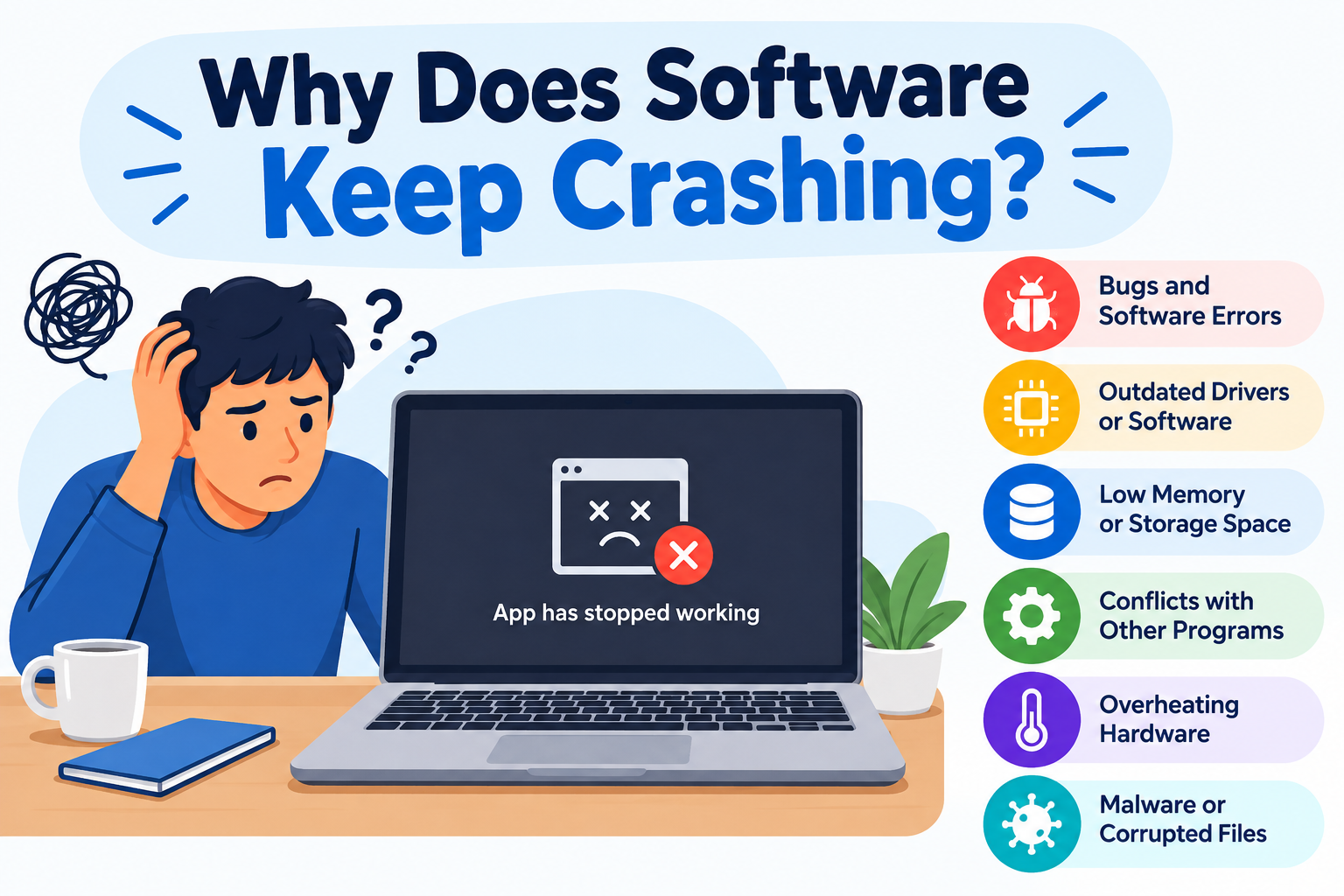
Introduction
Software keeps crashing for several reasons, with the most common being software bugs, insufficient RAM, outdated drivers, compatibility issues, corrupted files, and overheating. Each of these causes the program to encounter a situation it cannot handle, forcing it to shut down unexpectedly.
A crashing program is one of the most frustrating experiences in everyday computing. Whether it is an app closing itself on your phone just as you were about to save something, a game dumping you back to the desktop mid-session, or a work application freezing at the worst possible moment, crashes interrupt productivity and can cause data loss.
The good news is that most software crashes have identifiable causes and practical solutions. This guide explains what causes software to crash, how to identify what is happening on your specific device, and what steps you can take to fix and prevent the problem.
What Does It Mean When Software Crashes?
A software crash occurs when a program stops working unexpectedly and closes, freezes, or becomes completely unresponsive.
When software crashes, it has encountered a condition it cannot handle. This might be receiving unexpected or invalid data, running out of memory, encountering a conflict with another program, or failing to access a file it needs. When the program hits this unresolvable situation, it either shuts itself down, is closed by the operating system, or simply stops responding to any input.
Understanding the related terms helps clarify what you are actually experiencing:
- A crash typically means the program closes suddenly and completely without warning. The window disappears and you may see an error message or nothing at all.
- A freeze means the program’s window is still visible but nothing responds. Clicking buttons, typing, or scrolling has no effect. The program appears stuck.
- A hang is similar to a freeze. The program stops processing and responding but has not closed. The operating system may eventually display a message saying the program is not responding.
Crashes can happen on any device and any platform, including Windows computers, Macs, Android smartphones, iPhones, tablets, and gaming consoles. No software or hardware is immune to crashes, though well-maintained software on well-maintained hardware crashes far less frequently.
Real-world examples include:
- A word processor closing without warning while you are writing a document
- A game returning to the desktop unexpectedly during play
- A mobile app shutting itself down when you tap a specific button
- A web browser becoming unresponsive and needing to be force-closed
To understand what software is and how it operates in general, see What Is Software and How Does It Work?
Why Does Software Keep Crashing? The Most Common Causes
When software keeps crashing repeatedly, there is almost always an identifiable underlying cause. Here are the most common ones.
Cause 1: Software Bugs and Coding Errors
A bug is an error in the software’s code that causes it to behave in an unintended way. Software is written by humans, and even experienced, careful developers make mistakes. When a running program reaches a section of code containing an error, it may encounter a situation it has no instructions for handling and crashes as a result.
Bugs can be introduced during initial development or can appear after updates that change how different parts of the software interact with each other. A piece of code that worked fine in isolation may behave unexpectedly when combined with new code added in an update.
Software updates and patches are frequently released specifically to fix bugs that cause crashes. If software starts crashing after an update, it is possible the update itself introduced a new bug. If it crashes consistently without a recent update, an underlying bug may have been triggered by a specific action or data condition. For more on how patches fix known issues, see What Does Software Update Mean?
Cause 2: Insufficient RAM or Memory
RAM stands for Random Access Memory. It is the active workspace your computer or device uses to run programs. When you open an application, it loads into RAM where the processor can access it quickly.
When too many programs are open simultaneously, or when a single program tries to use more memory than is available, the system runs out of working space. When a program cannot access the memory it needs to continue operating, it may crash or become unresponsive.
Signs that insufficient RAM may be causing crashes include:
- The device slowing down noticeably before the crash occurs
- Multiple programs becoming unresponsive or crashing around the same time
- Crashes happening more often when you have many programs open simultaneously
- Crashes occurring specifically in memory-intensive tasks such as video editing, running modern games, or having many browser tabs open
Running demanding software on a device with limited RAM is one of the most common reasons software keeps crashing, particularly on older computers and budget smartphones.
Cause 3: Software Compatibility Issues
Software is designed and tested for specific operating system versions, hardware configurations, and software environments. When it runs outside those intended conditions, it may behave incorrectly and crash.
Common compatibility-related crash scenarios include:
- Running software designed for an older operating system version on a significantly newer one, or vice versa
- Running 32-bit software on a system that has removed 32-bit support
- Installing software that conflicts with other programs already on the device because both try to use the same system resources simultaneously
- Using a version of a plugin or extension that is incompatible with the current version of the application it extends
If software crashes consistently after a system upgrade or after installing another program, compatibility is a likely cause. For a detailed explanation of how software compatibility works, see What Is Software Compatibility?
Cause 4: Outdated Software or Drivers
Outdated software may contain bugs, security issues, or compatibility problems that have been fixed in newer releases. Running an older version of an application means running with known issues that developers have already addressed.
Device drivers are small specialized programs that allow the operating system to communicate with hardware components such as the graphics card, audio hardware, network adapter, and storage controllers. Drivers must be kept current because they interact directly with both hardware and software, and outdated drivers can cause serious instability.
Graphics drivers in particular are a frequent cause of game and application crashes on Windows PCs. When a game or graphics-intensive application tries to use features of the graphics hardware that an outdated driver does not properly support, crashes result. Keeping graphics drivers updated from the hardware manufacturer’s official website is one of the most effective steps for preventing game and application crashes on Windows.
Keeping all software and drivers updated reduces the frequency of crashes caused by known, already-fixed issues. See What Does Software Update Mean? for a full explanation of the update process.
Cause 5: Hardware Problems
Software crashes are not always caused by software. Faulty hardware can cause programs to crash even when the software itself is functioning correctly. Hardware-caused crashes typically affect multiple programs rather than just one specific application, which is a useful diagnostic clue.
Common hardware-related crash causes include:
- Failing or damaged RAM modules that produce memory errors during operation, causing programs to receive corrupted data and crash
- Overheating components including the processor and graphics card that cause the system to throttle performance, shut down programs, or crash to protect the hardware from thermal damage
- Failing storage drives that produce read or write errors when software tries to access data stored on them
- Insufficient or unstable power delivery from a failing power supply unit in a desktop computer, causing unpredictable behavior across hardware components
If multiple programs crash regularly and the crashes are not tied to a specific application, hardware diagnostics are worth investigating. A qualified technician can assist with hardware testing if the issue persists.
Cause 6: Corrupted Software Files
Software files can become corrupted in several ways:
- An installation that was interrupted before completing
- A software update that failed partway through
- An unexpected device shutdown during a write operation
- Errors on the storage drive where the software is installed
When a program tries to read from a corrupted file, it cannot interpret the data correctly and crashes. The same program may work correctly on one device and crash on another because the corruption is specific to that installation.
Reinstalling the software is the most reliable fix for crashes caused by corrupted program files, as it replaces all corrupted files with fresh intact copies. Corrupted system files in the operating system itself can cause widespread crashes across many programs simultaneously, not just one application.
Cause 7: Overheating
Every processor, graphics card, and storage device generates heat during operation. Components are designed to operate within a defined temperature range. When they exceed safe operating temperatures, the device may automatically reduce performance, shut down programs, or in some cases crash entirely to protect the hardware from damage.
Overheating is a frequently overlooked cause of software crashes, particularly for laptops and smartphones where compact designs limit airflow.
Common causes of overheating include:
- Blocked ventilation vents on laptops or desktop towers
- Dust accumulated inside the device blocking airflow over cooling components
- Using a laptop on a soft surface such as a bed or pillow that covers the bottom vents
- Using the device in a hot environment or direct sunlight
- Running demanding software such as games or video processing for extended periods without breaks
A useful diagnostic pattern: if software crashes during intensive tasks and the device feels unusually warm before the crash, and if the crashes become less frequent after the device cools down, overheating is a strong candidate.
Cause 8: Too Many Programs Running at the Same Time
Every open program consumes a share of the device’s CPU, RAM, and storage resources. When many programs run simultaneously, the total demand on these resources can exceed what the hardware can comfortably provide.
When individual programs do not receive enough CPU time or RAM to continue operating normally, they may crash. Background applications that run without the user’s active awareness, such as software updaters, cloud sync tools, and startup programs, contribute to this resource pressure even when they are not visible.
This cause is particularly relevant on devices with modest hardware specifications. Closing unnecessary programs before launching a demanding application is a simple and effective way to reduce this type of crash.
Cause 9: Malware and Malicious Software
Malware is software designed to perform harmful or unauthorized actions on a device. It can cause software crashes in several ways.
Resource-consuming malware, such as software that mines cryptocurrency using the device’s processor without the user’s knowledge, can consume so much CPU and RAM that legitimate programs do not receive the resources they need and crash.
System-interfering malware may deliberately target security software or other specific programs, causing them to crash to prevent detection or removal.
File-corrupting malware can damage system files or application files, causing widespread instability across many programs.
If crashes are frequent, affect multiple programs simultaneously, and are accompanied by other unusual behavior such as unexplained slowness, unfamiliar programs appearing in the task list, or unusual network activity, a malware scan is warranted. For more on protecting your device, see What Is Cybersecurity? and What Is Antivirus Software?
Cause 10: Corrupted or Incompatible App Data or Cache
Applications store temporary data called cache to speed up their operation. They also store user-specific data such as settings, login information, and saved states. When this stored data becomes corrupted, the application may fail when it tries to load that data and crash as a result.
This is particularly common on smartphones, where clearing an app’s cache often resolves recurring crashes without losing the user’s main data. On computers, temporary application files stored in locations such as the AppData folder on Windows can sometimes cause similar issues.
For more on what app cache and app data are and how they work, see What Is App Cache? and What Is App Data?
Cause 11: Operating System Problems
The operating system is the foundation that all other software runs on. Corrupted operating system files, incomplete or failed system updates, or bugs in the operating system itself can cause software to crash even when the application code is functioning correctly.
When the operating system cannot correctly service a request from an application, whether for memory, file access, hardware access, or processor time, the application may crash as a result.
Operating system updates sometimes introduce bugs or compatibility issues that affect certain software until either the software developer or the operating system developer releases a corrective update. For more on the role the operating system plays in supporting software, see What Is an Operating System?
Cause 12: Insufficient Storage Space
Many programs create temporary files during normal operation. These files might include processing buffers, undo histories, autosave data, and other working data that the program needs during a session. When a device’s storage is nearly full and the program cannot create the temporary files it needs, it may fail and crash.
Operating systems also need free storage space to manage virtual memory, which is space on the storage drive that the system uses to supplement RAM when physical memory runs low. Without adequate free space, both applications and the operating system itself can become unstable.
Keeping a reasonable portion of storage free, generally at least ten to fifteen percent of total capacity as a practical guideline, helps prevent storage-related crashes and general performance problems.
How to Tell What Is Causing the Crash
Before diving into fixes, identifying the likely cause saves time. Here is how to narrow it down:
Look for patterns in when the crash occurs.
- Does the software crash immediately when you open it, suggesting a startup-related issue?
- Does it crash only when you perform a specific action, suggesting a bug triggered by that action?
- Does it crash after extended use, particularly when the device is warm, suggesting overheating?
Note whether one program or multiple programs are crashing.
- A single program crashing repeatedly suggests a problem specific to that software: a bug, corrupted files, or a compatibility issue.
- Multiple programs crashing or the device itself becoming unstable points to system-level causes such as hardware problems, operating system issues, malware, or insufficient resources.
Check whether crashes started after a specific change.
- A recent software update, a new program installation, a driver update, or a hardware change can all introduce new instability.
Check available resources.
- On Windows, Task Manager shows RAM and CPU usage. On macOS, Activity Monitor provides the same information. On smartphones, the system settings often show storage availability and some show memory usage.
Review system logs.
- On Windows, Event Viewer contains detailed logs about application crashes, including error codes that can be researched. Access it by searching for Event Viewer in the Start menu.
- On macOS, the Console application contains crash reports. Look for crash reports in the Crash Reports section.
- On Android and iPhone, device diagnostics and crash reports are sometimes accessible through Settings, though the level of detail varies by device and software version.
Microsoft’s official documentation at learn.microsoft.com provides guidance on using Event Viewer for crash diagnosis. Apple’s support resources at support.apple.com cover macOS Console and iOS diagnostic information.
How to Fix Software That Keeps Crashing
Work through these steps in order. Start with the simplest and progress to more involved solutions if the crash continues.
Step 1: Restart the Device
Restarting clears RAM, closes all background processes, and resolves many transient issues that accumulate during a session. It is always the first step before any other troubleshooting, and it resolves more crashes than most people expect. If the crash has only happened once or twice, a restart alone may be all that is needed.
Step 2: Update the Software
Check whether an update is available for the crashing application. Developers release updates specifically to fix known crashes and stability issues. Installing the latest version is often all that is required to resolve a recurring crash. See What Does Software Update Mean? for guidance on finding and applying updates.
Step 3: Update the Operating System
Operating system updates include stability and compatibility fixes that affect how applications run. Check for available operating system updates on your platform:
- Windows: Settings, then Windows Update
- macOS: System Settings, then Software Update
- iOS: Settings, then General, then Software Update
- Android: Settings, then About Phone, then System Update
Step 4: Update Device Drivers
On Windows, outdated drivers are a frequent and underappreciated cause of software crashes, particularly for games and graphics-intensive applications. Check Device Manager for available driver updates. For graphics drivers specifically, download directly from the GPU manufacturer’s official website, either NVIDIA, AMD, or Intel depending on your hardware, rather than relying solely on Windows Update.
Avoid downloading drivers from third-party sites that are not the official hardware manufacturer’s website.
Step 5: Clear App Cache and Data
On Android and iOS, clearing the app’s cache is a quick fix for crashes caused by corrupted temporary data. On Android, this is done through Settings, then Apps, then the specific app, then Storage, then Clear Cache. On iOS, offloading and reinstalling the app achieves a similar result.
On Windows, temporary files related to specific applications are sometimes stored in locations such as the AppData folder. Some applications provide a built-in option to clear their cache. For more on what app cache is and why clearing it helps, see What Is App Cache?
Step 6: Free Up Storage Space
Remove files, unused applications, and temporary files to ensure adequate free storage is available. On Windows, the built-in Storage Sense tool in Settings can identify and remove temporary files. On macOS, the Manage Storage option under About This Mac helps identify large files. On smartphones, the storage management section in Settings shows what is consuming space.
Step 7: Close Unnecessary Background Programs
On Windows, open Task Manager with Ctrl, Shift, and Escape together. Look at the Processes tab for programs consuming high amounts of RAM or CPU. Close programs that are not needed. On macOS, Activity Monitor in the Utilities folder provides the same information. On smartphones, close apps running in the background that are not required.
Step 8: Reinstall the Software
Uninstalling and reinstalling the software replaces any corrupted program files with fresh verified copies from the official source. Before reinstalling, back up any data associated with the software if necessary. Always download the reinstallation files from the official developer’s website or official app store.
For guidance on the reinstallation process, see What Is Software Installation?
Step 9: Check for Malware
Run a full scan with reputable, up-to-date security software to check for malware that may be consuming resources or interfering with program operation. If your device does not have security software installed, obtain it from the official developer’s website. For more on security software and what it does, see What Is Antivirus Software?
Step 10: Check for Overheating
Ensure the device’s ventilation is unobstructed. For laptops, use the device on a hard flat surface rather than a soft surface that blocks airflow. For desktops, check that case fans are working and that dust has not accumulated on the intake vents or internal components.
On Windows, hardware monitoring tools can display CPU and GPU temperatures to confirm whether overheating is occurring. If temperatures appear excessively high under moderate load, internal cleaning or professional servicing may be warranted.
Step 11: Check Hardware Health
If crashes affect multiple programs and basic troubleshooting has not resolved the issue, hardware diagnostics are the next step.
On Windows, the Windows Memory Diagnostic tool checks RAM for errors. Access it by searching for Windows Memory Diagnostic in the Start menu. Run the extended test for more thorough results. Microsoft’s guidance on using this tool is available at learn.microsoft.com.
Storage drive health can be checked using the built-in error checking tools on Windows or through reputable third-party diagnostic tools. Signs of a failing drive include frequent crashes when reading or writing files, slow file access, and error messages about file system problems.
If hardware failure is suspected, consult a qualified technician before the situation worsens and potential data loss occurs.
Step 12: Contact Software Support
If none of the above steps resolve the crashing, contact the software developer’s official support team. Provide:
- A description of exactly when and how the crash occurs
- Your operating system and version
- The version of the software that is crashing
- Any error messages that appeared
- What troubleshooting steps you have already tried
Check the developer’s official forums or support pages as well. Other users may have reported the same issue and a workaround or fix may already be documented.
Why Does Software Crash After an Update?
Software updates are intended to fix problems, but they occasionally introduce new ones. This is a well-known and frustrating scenario.
An update may change how the software interacts with the operating system, with other installed programs, or with specific hardware configurations in ways that introduce new crashes. A change that works correctly for most users may conflict with a specific combination of hardware or other software on some devices.
An update may also have compatibility issues with the current version of the operating system, particularly if the update was primarily developed and tested on a newer OS version.
What to do when software starts crashing after an update:
- Check the developer’s official release notes for known issues with the new version.
- Check the developer’s official community forums or support pages. If the issue is widespread, other users will have reported it and a fix or workaround may already be available.
- Check whether the previous version can be reinstalled temporarily. Some software and platforms allow reverting to an earlier version.
- Report the issue to the developer through official channels. Specific reports from users help developers identify and fix version-specific bugs quickly.
For more context on how updates relate to compatibility, see What Is Software Compatibility? and What Does Software Update Mean?
Why Does Software Crash on Startup?
Crashes that occur immediately when you open a program, before it fully loads, usually indicate one of these causes:
Corrupted program files. If the software’s installation files are damaged, the program may fail to load the components it needs at startup. Reinstalling the software typically resolves this.
Missing dependencies. Some software requires additional components such as specific runtime libraries, frameworks, or redistributable packages that must be installed separately. If a required dependency is missing or is an incompatible version, the software crashes on startup. Error messages during the crash often identify the missing component.
Corrupted settings or configuration file. The software may have stored a configuration file during a previous session that is now corrupted. Locating and deleting this file, typically found in the user profile’s application data folder, forces the software to create a new default configuration on next launch.
Conflict with another startup program. If another program that launches at startup conflicts with the software you are trying to open, the conflict may cause an immediate crash. Identifying and disabling the conflicting startup program resolves the issue.
Why Do Apps Keep Crashing on Smartphones?
Why Apps Crash on Android
Android app crashes have several common causes:
Insufficient available RAM. Android manages memory by keeping apps ready in the background, but when available RAM runs low, apps may be forced to close or crash when you try to use them actively.
Corrupted app cache or data. Corrupted temporary data is one of the most common causes of recurring crashes on Android. Clearing the app’s cache through Settings, then Apps, then the specific app, then Storage is often the quickest fix.
Outdated app version. If the installed version of the app contains a bug that has been fixed in a newer release, updating the app through the Google Play Store resolves the crash.
Incompatibility between app and Android version. If the app has not been updated to support the Android version installed on your device, crashes may result. Check whether the developer has released an update compatible with your Android version.
Insufficient storage space. Apps need storage space for temporary files. When storage is nearly full, crashes become more likely.
For more on Android apps and how they work, see What Is an Android App?
Why Apps Crash on iPhone
iPhone app crashes have similar causes with some iOS-specific characteristics:
Low available memory. When many apps are running, available memory can become limited. iOS manages this automatically but apps may still crash when memory is particularly constrained.
App bug fixed in a newer version. Check the App Store for updates to the crashing app. Developers release updates to address specific crash bugs and the fix may already be available.
Corrupted app data. Offloading the app through Settings, then General, then iPhone Storage, then the app, then Offload App, followed by reinstalling it from the App Store, resolves crashes caused by corrupted data while preserving documents stored by the app.
iOS compatibility issue. An iOS update may introduce a compatibility issue with a specific app that requires the app developer to release an updated version. Checking for app updates and reviewing the developer’s support pages confirms whether this is the case.
Software Crash vs Freeze vs Hang: What Is the Difference?
| Factor | Crash | Freeze | Hang |
|---|---|---|---|
| Definition | Program closes suddenly and unexpectedly | Program stops responding but window remains visible | Program stops processing but has not closed |
| What the user sees | Window disappears; possible error message | Window is visible but nothing responds to input | Window visible; OS may show “not responding” message |
| Common causes | Bugs, memory errors, corrupted files, hardware issues | Memory exhaustion, deadlock, hardware issues | Unresponsive process, resource deadlock, OS issue |
| What to do | Reopen the program; apply troubleshooting steps | Force close the program; restart if needed | Wait briefly; force close if no response returns |
| Risk of data loss | High if unsaved work was in progress | Moderate to high depending on autosave availability | Moderate; some programs recover autosaved data |
A crash typically means the program has closed suddenly and completely. A freeze or hang means the program has stopped responding but remains visible on screen. Both can result from similar underlying causes including memory problems, bugs, and hardware issues. The practical response is similar in both cases: close the program if it will not respond on its own and investigate the cause to prevent recurrence.
Can Malware Cause Software to Crash?
Yes, malware can cause software to crash, though it is one of several possible causes rather than the most common one for typical users.
Malware causes crashes through several mechanisms:
Resource consumption. Malware that uses the device’s processor or memory for unauthorized purposes, such as cryptocurrency mining, leaves legitimate programs with fewer resources. Programs that cannot access sufficient CPU or RAM to continue operating normally may crash.
Deliberate interference. Some malware specifically targets security software or other programs, interfering with their processes to prevent detection or removal. This deliberate interference can cause targeted programs to crash.
File corruption. Malware that modifies or corrupts system files can cause widespread instability, with crashes affecting many different programs rather than just one.
Indicators that malware may be involved:
- Crashes affect multiple programs simultaneously rather than just one
- The device runs unusually slowly even when few programs appear to be open
- Unfamiliar programs appear in the task list or startup programs
- Unusual network activity occurs when no programs are actively using the internet
- Security software alerts or behaves unusually
If these indicators are present, running a full scan with up-to-date reputable security software is the appropriate response. For more on malware and device security, see What Is Cybersecurity? and What Is Antivirus Software?
Does Low Storage Space Cause Software to Crash?
Yes, insufficient available storage space can cause software to crash, and this connection is often overlooked.
Many programs create temporary files during normal operation: autosave files, processing buffers, undo history data, and other working files the program needs during a session. When there is no space available on the storage device to create these files, the program fails and crashes.
Operating systems also use storage space as virtual memory, treating a portion of the drive as additional RAM when physical memory is fully occupied. When storage is nearly full and the operating system cannot use this virtual memory mechanism effectively, overall system stability can deteriorate.
This issue is particularly noticeable on smartphones, where storage is often more limited and apps are more likely to crash when storage is nearly full. Freeing up space by removing unused apps, clearing cached data, and deleting files that are no longer needed resolves storage-related crashes and improves general performance.
How to Prevent Software from Crashing in the Future
Preventing crashes is more straightforward than diagnosing them after the fact. These practices reduce the frequency of crashes significantly:
- Keep software updated so that known bugs and stability issues are addressed promptly. This includes the operating system, applications, and browsers.
- Keep device drivers updated, particularly graphics and audio drivers on Windows, which are common culprits in game and application crashes.
- Avoid overloading the device by running more programs simultaneously than the hardware can comfortably support.
- Maintain adequate free storage space on your device to ensure programs can create the temporary files they need.
- Keep the device physically clean and ensure ventilation is unobstructed to prevent overheating-related crashes.
- Run regular security scans with reputable software to detect malware before it causes instability.
- Back up important data regularly so that when a crash does cause data loss, the impact is limited and recoverable.
- Download software only from official sources to avoid corrupted or malicious installers. For guidance on safe installation practices, see What Is Software Installation?
- Clear app cache periodically on smartphones to prevent corrupted cache data from causing recurring crashes. For more on this, see What Is App Cache?
- Restart devices regularly rather than leaving them running indefinitely. Regular restarts clear accumulated temporary data and release memory that programs have not properly freed.
When to Seek Professional Help
Some software crash situations are beyond what basic troubleshooting can address, and seeking professional assistance is the appropriate step.
Consider contacting a qualified technician or your device manufacturer’s support team when:
- Crashes affect multiple programs consistently despite working through all basic troubleshooting steps, suggesting a hardware-level cause that requires professional diagnosis.
- The device shows physical signs of problems such as unusual sounds from internal components, visible physical damage, or displays that flicker or show artifacts.
- Data loss has occurred as a result of crashes. Professional data recovery services may be able to recover data from a failing drive if standard methods have not worked.
- The device is under warranty. Contact the manufacturer’s official support service before attempting any internal hardware inspection or repair, as unauthorized work may void the warranty.
- The operating system itself has become unstable, failing to start correctly or producing system-level error screens such as the Windows Blue Screen of Death or macOS kernel panics repeatedly. A qualified technician can diagnose whether the issue is software-level, such as a corrupted OS installation, or hardware-level.
Professional support from the software developer’s team is also appropriate when a specific application continues crashing after all standard troubleshooting steps and the issue may be a product bug requiring a fix from the developer.
Frequently Asked Questions
Why does software keep crashing?
Software keeps crashing most commonly due to bugs in the code, insufficient RAM, outdated drivers, corrupted files, software compatibility issues, overheating, or malware. Identifying the pattern of crashes helps narrow down the cause.
What causes a program to keep crashing?
Repeated crashes from the same program usually indicate a bug in that version, corrupted installation files, a conflict with another program or driver, insufficient system resources, or a compatibility issue with the operating system.
What does it mean when software crashes?
A software crash means the program encountered a condition it could not handle and stopped working unexpectedly. It either closed on its own or was shut down by the operating system.
How do I fix software that keeps crashing?
Start with a device restart, then check for software and operating system updates, clear the app cache if on a smartphone, free up storage space, close background programs, and reinstall the software if the problem continues.
Why does my app keep crashing on Android?
Common causes include corrupted app cache, insufficient storage space, an outdated app version with known bugs, low available RAM from too many background apps, or incompatibility between the app version and your Android version.
Why does my app keep crashing on iPhone?
Common causes include a bug fixed in a newer version available in the App Store, corrupted app data resolved by offloading and reinstalling, low available memory, or an iOS update that introduced a compatibility issue with the app.
Can low RAM cause software to crash?
Yes. When a program cannot access the memory it needs to continue running, it may crash. Low RAM is a common cause of crashes when running demanding software or multiple programs simultaneously.
Can a virus or malware cause software to crash?
Yes. Malware can consume system resources leaving legitimate programs without what they need, interfere directly with specific programs, or corrupt system files causing widespread instability.
Why does software crash after an update?
An update may introduce a new bug, change how the software interacts with the operating system, or conflict with a specific hardware configuration. Checking the developer’s official release notes and forums often reveals whether others are affected and whether a fix is in progress.
Why does software crash on startup?
Startup crashes usually indicate corrupted program files, a missing required dependency, a corrupted configuration file, or a conflict with another startup program.
Does low storage cause software to crash?
Yes. Programs need free storage space to create temporary working files during operation. When storage is nearly full, programs may fail to create files they need and crash as a result.
What is the difference between a crash and a freeze?
A crash means the program closes suddenly. A freeze means the program stops responding but its window remains visible. Both have similar causes and the practical response is similar.
How do I stop software from crashing?
Keep software and drivers updated, maintain adequate free storage, avoid overloading the device with too many simultaneous programs, prevent overheating through proper ventilation, run regular malware scans, and download software only from official sources.
Should I reinstall software that keeps crashing?
Reinstalling is a good step if basic troubleshooting has not resolved the issue, particularly if corrupted installation files are suspected. Back up relevant data before reinstalling and always download from the official source.
Why does my game keep crashing on PC?
Game crashes on PC are frequently caused by outdated graphics drivers, insufficient RAM or VRAM for the game’s requirements, overheating during extended play, corrupted game files, or software conflicts. Update your graphics driver first, as this resolves many game-specific crashes.
When should I contact technical support about software crashes?
Contact support when crashes continue after working through all basic troubleshooting steps, when multiple programs crash consistently suggesting hardware involvement, when data loss has occurred, or when the device itself is becoming unstable.
How do I know if overheating is causing my software to crash?
Overheating-related crashes typically occur during intensive tasks, the device feels unusually hot before the crash, and crashes become less frequent after the device has had time to cool down. Using hardware monitoring tools to check component temperatures confirms whether overheating is the cause.
Can outdated drivers cause software to crash?
Yes. Outdated drivers, particularly graphics drivers on Windows, are a common cause of game and application crashes. Keeping drivers updated from the hardware manufacturer’s official website is an important stability practice.
For further reading on related topics, explore What Is a Web Browser? if browser-specific crashes are your primary concern, What Is Application Software? for a broader understanding of the type of software most commonly affected by crashes, and What Is a Firewall? for more on keeping your device protected against threats that can contribute to instability.
Disclaimer
This article is intended for educational purposes and provides a general overview of software crashing causes and solutions for beginners and everyday users. The causes of software crashes vary between operating systems, software products, versions, hardware configurations, and device types. Always refer to official documentation from your operating system or software vendor for specific guidance. Some troubleshooting steps described in this article may require administrator permissions. If you do not have administrator access on your device, consult the device owner or IT administrator before making changes. Always back up important data before making significant changes to your system, including updating drivers, modifying system settings, or reinstalling software. If your device is experiencing frequent crashes that affect critical work or data, consult a qualified technician or your device manufacturer’s support team.
Author: Zahra
Zahra is a technology writer and research contributor covering AI, programming, software, cybersecurity, cloud computing, and the latest developments in technology. She focuses on creating clear, practical, and well-researched content that makes complex tech topics easy to understand.