
 By saman zahra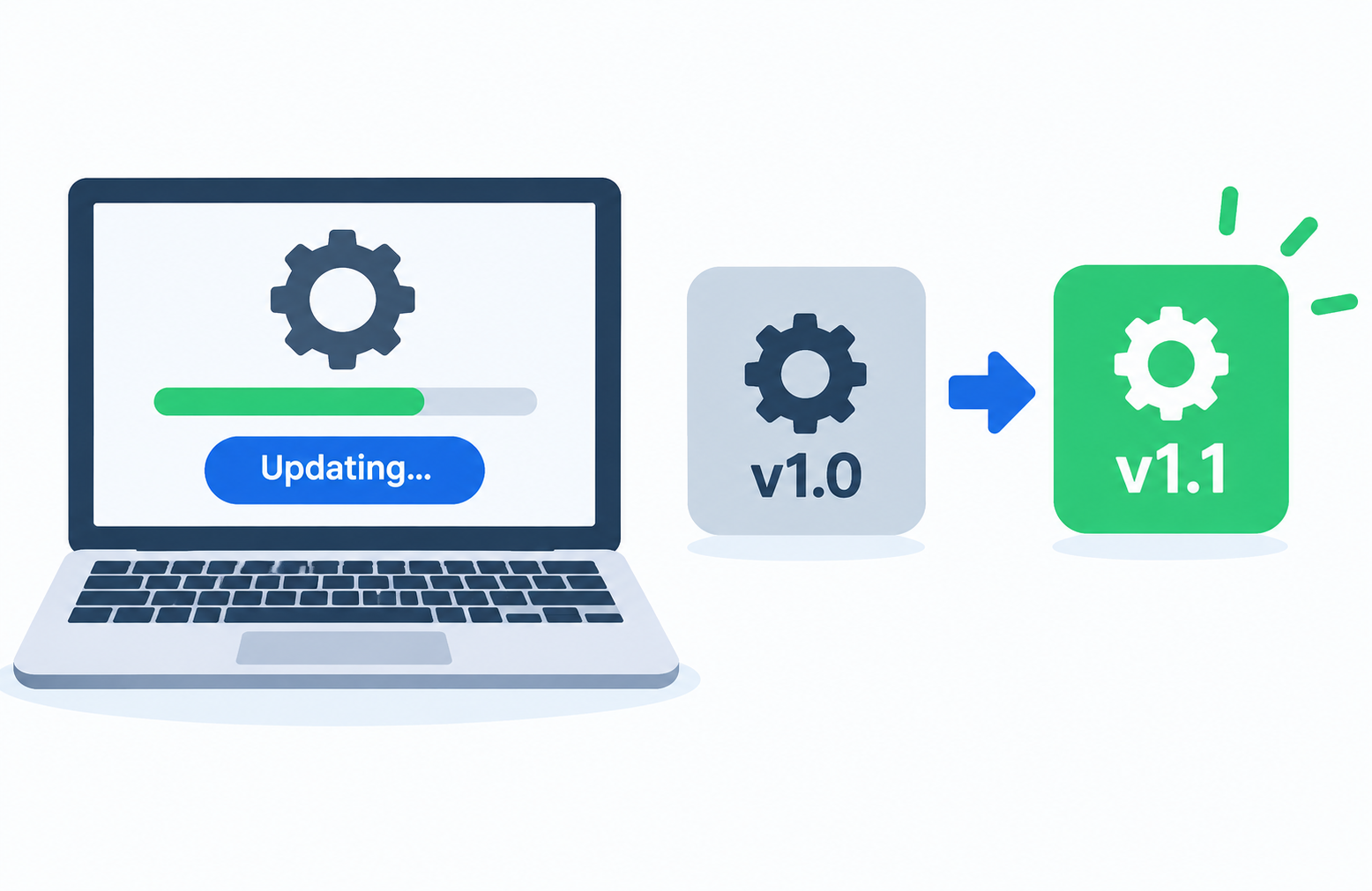
Introduction
A notification appears on your phone. Your computer prompts you to restart. An app asks whether you want to install the latest version. Software updates are a constant presence in everyday technology use, yet most people know very little about what they actually are or why they matter.
Understanding what a software update means helps you make better decisions about when to update, what to expect when you do, and what risks you take when you do not. This guide covers everything from the basic definition to the difference between updates and upgrades, the types of updates that exist, and how to update software on every major platform.
What Does Software Update Mean?
A software update is the process of replacing an existing version of software with a newer version that contains fixes, improvements, security patches, or new features, while generally maintaining continuity with the previous version.
When software is updated, the core product remains the same. You are not switching to a completely different application. You are receiving an improved version of the one you already have.
Software updates happen across every category of software:
- Your phone notifies you that an app has been updated with bug fixes.
- Windows prompts you to install updates to improve security.
- A game downloads a patch that corrects a problem introduced in the previous release.
- A browser updates silently in the background to address a security vulnerability.
Updates are a normal and expected part of how software works over its lifetime. No software is perfect at release, and the technology environment around it continues to change. Updates are the mechanism through which software stays functional, secure, and relevant.
To understand software more broadly, see What Is Software and How Does It Work?
Why Do Software Updates Exist?
Software needs to be updated for several distinct reasons, and understanding them helps explain why updates arrive so frequently.
Bugs discovered in real use. Software is rarely perfect when it reaches users. Testing during development cannot replicate every possible combination of hardware, settings, and usage patterns. Bugs that were not caught before release are discovered by users and corrected through updates.
Security vulnerabilities emerge over time. Security researchers and sometimes malicious actors examine software for weaknesses after it is released. When a vulnerability is found, the developer needs to create and release a fix quickly. This is one of the most urgent reasons for software updates.
Operating systems and hardware evolve. When an operating system releases a major update or new hardware becomes common, existing software may need to be updated to continue working correctly with the changed environment. For more on operating systems, see What Is an Operating System?
User needs and expectations change. Developers improve software based on user feedback, adding features that users request and refining existing ones based on how people actually use the product.
Technology standards change. Web standards, security protocols, file formats, and platform APIs evolve over time. Software must be updated to remain compatible with current standards and to use new capabilities.
Regulatory and compliance requirements. In some industries, software must be updated to reflect changes in regulations, data handling requirements, or accessibility standards.
Software Update vs Software Upgrade
The terms update and upgrade are often used interchangeably in everyday conversation, but they describe meaningfully different things.
| Factor | Software Update | Software Upgrade |
|---|---|---|
| Definition | A smaller change to an existing version | A major transition to a substantially new version |
| Scope of change | Focused: fixes, patches, small improvements | Broad: new features, redesign, architectural changes |
| Version number change | Minor or patch level (e.g., 5.1.0 to 5.1.1) | Major level (e.g., version 5 to version 6) |
| Cost | Usually free for existing users | May require payment or a new license |
| User action required | Usually minimal; often automatic | May require deliberate action and planning |
| Examples | Security patch, bug fix, small feature addition | Windows 10 to Windows 11, Office 2019 to Microsoft 365 |
| Compatibility impact | Generally low | Can affect compatibility with other software |
| Frequency | Frequent, sometimes weekly or monthly | Infrequent, typically once every one to several years |
What Is a Software Update?
An update is a relatively contained change to the existing version of software. Updates fix bugs, patch security vulnerabilities, improve performance, or add small improvements to existing features. The software remains fundamentally the same product with the same core functionality after an update.
Version number changes for updates are typically at the minor or patch level, such as moving from 5.1.0 to 5.1.1 or from 5.1 to 5.2. Updates are almost always free for existing users.
Examples include a security patch for a Windows component, a bug fix release for a mobile app, or a browser update that adds a small privacy setting alongside a security fix. For more on how version numbers work, see What Is Software Versioning?
What Is a Software Upgrade?
An upgrade is a more significant transition to a substantially new version of software. Upgrades often introduce major new features, redesigned interfaces, architectural changes, or new platform requirements. The software may look, behave, and even install differently after an upgrade.
Version number changes for upgrades are typically at the major level, such as moving from version 5 to version 6, or from Windows 10 to Windows 11. Upgrades for commercial software sometimes require a new purchase or a subscription renewal, though many consumer operating system upgrades have been offered at no cost in recent years.
Examples include upgrading from Windows 10 to Windows 11, moving from an older macOS version to a new named release, or transitioning from a standalone software license to a subscription-based version.
Types of Software Updates
Not all updates serve the same purpose. Understanding the types helps you prioritize which ones to apply and why.
Security Updates
Security updates address specific vulnerabilities in software that could be exploited by malicious actors to access systems, steal data, or cause harm. They are consistently considered the most critical type of update.
Security vulnerabilities are discovered continuously by security researchers, independent analysts, and sometimes by attackers before researchers find them. When a vulnerability is found, developers create a patch to close it and release a security update as quickly as possible.
The Cybersecurity and Infrastructure Security Agency (CISA) consistently identifies keeping software updated as a foundational security practice. Their guidance is available at cisa.gov. Delaying security updates leaves systems exposed to vulnerabilities that may already be known and actively exploited.
For a broader understanding of software security, see What Is Cybersecurity?
Bug Fix Updates
Bug fix updates correct specific errors or unexpected behaviors in the software. A bug is a defect that causes software to behave differently from how it was intended. Bugs can range from minor cosmetic problems to serious functional failures.
Bug fix updates do not typically add new features. Their purpose is to make the existing software work as it was designed to work.
Performance Updates
Performance updates improve how efficiently the software uses system resources such as processor time, memory, storage access, or battery power on mobile devices. They can make software load faster, respond more quickly to user input, or consume less battery.
Performance improvements are often included alongside security fixes or bug corrections rather than released as standalone updates.
Feature Updates
Feature updates add new functionality to existing software without requiring a full upgrade. They expand what the software can do while keeping the fundamental product the same.
Examples include a messaging application adding a new reaction type, a browser adding a reading mode, or a productivity application adding a new template category. Feature updates can be minor additions or more substantial new capabilities depending on the software and its development cycle.
Compatibility Updates
Compatibility updates ensure software continues to work correctly with updated operating systems, new hardware, or changes in other software it interacts with. When an operating system releases a major update, developers often release compatibility updates so their applications continue to function correctly.
This type of update is essential to the broader ecosystem of software working together. For more on this topic, see What Is Software Compatibility?
Driver Updates
Driver updates replace or improve the software that allows the operating system to communicate with hardware components such as graphics cards, printers, network adapters, and audio devices. Updated drivers can improve hardware performance, fix stability issues, add support for new operating system features, or resolve conflicts.
Examples include graphics card driver updates that improve performance in new applications, or printer driver updates that add support for additional paper sizes.
Firmware Updates
Firmware updates replace the software embedded in hardware components themselves. Unlike regular software that runs on a general-purpose operating system, firmware is specialized software that controls the hardware it is embedded in.
Examples include router firmware updates that improve security or add new features, smartphone baseband firmware updates that improve cellular performance, and printer firmware updates that address vulnerabilities in the device itself.
Firmware updates are generally delivered through the device manufacturer’s official update mechanism. Applying them from unofficial sources carries significant risk.
Definition and Database Updates
Some software maintains databases of information that must be updated regularly to remain effective. Antivirus and security software updates its threat definition database continuously to recognize new malware, viruses, and other threats as they emerge.
These definition updates are separate from the security software itself being updated. An antivirus program may be current software but have outdated definitions, which would limit its ability to detect recent threats. See What Is Antivirus Software? for more on how this works.
How Do Software Updates Work?
The process of a software update reaching your device follows a defined sequence, most of which happens automatically and invisibly for everyday users.
- The developer identifies a problem or improvement. This might be a security vulnerability reported by a researcher, a bug reported by users, or a performance issue identified internally.
- Developers create and test the fix. Changes are made to the software code, verified through testing, and confirmed to address the issue without introducing new problems.
- The updated version is packaged and distributed. The update is made available through the appropriate channel: an update server, an app store, or a download page.
- The software checks for available updates. Modern software checks for updates automatically on a schedule or when you manually check. This check contacts the update server to see whether a newer version is available.
- The user is notified or the update downloads automatically. Depending on settings, you may be notified and asked to approve the update, or it may download in the background.
- The update is downloaded to the device. The update file is transferred to the device over the internet.
- The update is installed. The update replaces or modifies the relevant software components.
- The software restarts if needed. Some updates require a restart to complete installation, particularly for operating system updates or updates to components in active use.
Most of this process is handled automatically by modern operating systems and applications. The visible parts for users are typically the notification and the occasional restart prompt.
Automatic vs Manual Software Updates
| Factor | Automatic Updates | Manual Updates |
|---|---|---|
| How updates are applied | Downloaded and installed without user action | User or administrator checks and installs deliberately |
| User action required | Minimal; occasional restart confirmation | Active checking and installation steps required |
| Risk of missing updates | Very low | Higher if checking is irregular |
| Risk of disruptive update timing | Possible; updates may arrive at inconvenient times | Controllable; user chooses timing |
| Suitable for | Most everyday consumer users | Managed business environments; users with specific control needs |
| Examples | Windows Update automatic mode; iOS automatic app updates | Enterprise patch management; manual app store updates |
Automatic Updates
Most modern operating systems and applications support automatic updates that download and install without requiring user action. Automatic updates are the recommended setting for most everyday users because they ensure security patches are applied promptly without depending on the user to remember to check.
The main practical consideration is that automatic updates may occasionally apply at inconvenient times or, in rare cases, introduce unexpected issues. For most personal devices, these are minor trade-offs compared to the risk of running unpatched software. Many systems allow you to configure when automatic updates install, such as scheduling them for overnight hours.
Manual Updates
Manual updates require active checking and installation by the user or administrator. In managed business environments, IT administrators typically manage updates through centralized tools, controlling which updates are deployed, when, and to which devices. This allows for testing before broad deployment.
Manual update management requires consistent attention. Security patches that are not applied promptly can leave systems exposed for extended periods. Organizations that manage updates manually typically subscribe to security advisories from software vendors to be notified of critical updates as soon as they are released.
What Happens If You Don’t Update Software?
Choosing not to update software has real consequences, which become more serious the longer updates are delayed.
Known security vulnerabilities remain unpatched. Once a security patch is released, details of the vulnerability it addresses often become more widely known. Users who have not applied the patch are left exposed to a now-publicly-documented weakness.
Fixed bugs continue to affect users. Problems that have been resolved in updates continue to cause issues for users still running older versions. Support teams may also be unable to help with problems already resolved in later versions.
Compatibility problems accumulate. As other software, operating systems, and web standards evolve, unupdated software can become increasingly incompatible with the current environment over time.
New features are unavailable. Improvements and additions released in updates are not available to users who have not updated.
End-of-life risk increases. Software eventually reaches a point where the developer stops releasing updates entirely. For more on this, see the section below.
End-of-Life Software
End-of-life (EOL) means the developer has permanently stopped releasing updates for a version of software, including security patches. When a version reaches end of life, any new vulnerabilities discovered after that date will not be fixed for that version.
This is a significant security concern. Running end-of-life operating system versions or widely used applications means that newly discovered vulnerabilities accumulate without remedy. Organizations that rely on end-of-life software face growing security exposure over time. Awareness of end-of-life dates for software you depend on is an important part of responsible software management.
Should You Always Update Software Immediately?
The honest answer is: it depends on the type of update and your situation.
For security updates: Applying them promptly is generally the right approach for most users. Delaying leaves a known vulnerability unaddressed. CISA and other security authorities consistently recommend applying security patches promptly.
For feature updates: A short waiting period is a reasonable strategy for some users. Initial releases occasionally contain new bugs that are addressed quickly in a follow-up patch. Waiting a week or two allows early adopters to identify obvious issues before you update.
For major updates in professional environments: Testing before broad deployment is standard practice. IT administrators in business environments typically test major updates on a subset of devices before deploying to all systems. This protects against compatibility problems disrupting critical business operations.
For stability-focused users: Long-Term Support versions of software exist specifically for users and organizations that need predictable, long-supported releases rather than the latest features. These are a deliberate choice, not neglect.
For everyday consumer devices: Keeping software current is the recommended approach. The risks of running outdated software generally outweigh the minor inconvenience of applying updates.
How to Update Software on Different Platforms
How to Update Software on Windows
- Open the Start menu and select Settings.
- Navigate to Windows Update in the left sidebar.
- Click Check for Updates.
- Review any available updates listed.
- Click Download and Install for available updates.
- Restart the computer if prompted to complete installation.
Windows Update handles both operating system updates and driver updates for many hardware components. It can be configured to download and install updates automatically. Microsoft’s official Windows Update documentation is available at learn.microsoft.com. For more on system-level software, see What Is System Software?
How to Update Software on Mac
- Click the Apple menu in the top-left corner of the screen.
- Select System Settings (on macOS Ventura and later) or System Preferences (on older versions).
- Navigate to Software Update.
- Review available updates.
- Click Update Now for software updates or Upgrade Now for major version upgrades.
- Restart if prompted to complete the process.
macOS Software Update handles operating system updates and updates for applications downloaded from the Mac App Store. Applications installed directly from developer websites update through their own mechanisms, often with an in-app check for updates option. Apple’s official update guidance is available at support.apple.com.
How to Update Apps on Android
- Open the Google Play Store.
- Tap the profile icon in the top-right corner.
- Select Manage Apps and Device.
- Tap Updates Available to see apps with pending updates.
- Tap Update All to update everything, or update individual apps selectively.
Android devices can be set to update apps automatically through the Play Store settings. Operating system updates on Android are delivered by the device manufacturer and vary by device model and manufacturer. To check for OS updates, navigate to Settings, then About Phone, then look for System Update or Software Update. Menu names vary between manufacturers and Android versions.
For more on Android apps, see What Is an Android App?
How to Update Apps on iPhone
- Open the App Store.
- Tap your profile icon in the top-right corner.
- Scroll down to see available app updates.
- Tap Update All or update individual apps selectively.
iOS can be configured to update apps automatically through Settings, then App Store, then toggle App Updates on. For iOS system updates, navigate to Settings, then General, then Software Update.
Apple’s official iOS update guidance is available at support.apple.com. For more on iPhone apps, see What Is an iPhone App? For more on app stores generally, see What Is an App Store?
Software Updates and Security
Security updates are the most time-sensitive category of software update, and understanding why helps explain the urgency behind security-related update notifications.
Security vulnerabilities in software are discovered regularly. The typical responsible disclosure process involves a security researcher reporting a vulnerability privately to the developer, giving them time to create and release a patch before the vulnerability details are published publicly. This window protects users while a fix is prepared.
Once a patch is released, the details of the vulnerability it addresses often become more widely understood. Users who have not yet applied the patch are now exposed to a vulnerability whose characteristics are increasingly public knowledge.
CISA identifies patching known vulnerabilities promptly as a core element of basic cybersecurity hygiene. Their guidance at cisa.gov consistently emphasizes this. NIST’s cybersecurity framework also identifies patch management as a foundational security control at nist.gov.
It is also worth knowing that security software itself can sometimes create compatibility issues with other programs. This is generally unintentional and is usually resolved through updates to one or both products. See What Is a Firewall? for more on another security layer that works alongside keeping software updated.
Software Updates and Compatibility
Software updates can affect compatibility with other software, plugins, or connected systems, though this is more common with major feature updates than with patches or minor fixes.
When a significant update changes how software behaves or interacts with other components, plugins or integrations built against the previous version may require updates of their own to continue working. This is why, in professional environments, testing updates before broad deployment is standard practice.
Software developers aim to maintain compatibility in updates, but this is not always fully achievable, particularly when significant changes are required for security or performance reasons. Staying informed about what changes in an update by reviewing release notes helps identify potential compatibility concerns before they affect a workflow.
For a detailed guide to software compatibility considerations, see What Is Software Compatibility?
Software Updates on Smartphones
Smartphones require updates at two levels: the operating system and the individual applications installed on the device.
On iOS: Operating system updates are delivered directly by Apple and apply to all supported iPhone and iPad models simultaneously when a new version is released. Apple controls the entire update delivery chain for iOS, which makes the process consistent. App updates come through the App Store.
On Android: Operating system updates are more variable. Google develops Android and releases updates, but device manufacturers adapt these updates for their specific hardware configurations before distributing them to users. This means update timing and availability vary significantly by device model and manufacturer. Some manufacturers provide updates for several years; others provide fewer. App updates come through the Google Play Store.
Keeping smartphone software updated matters significantly because mobile devices are used for sensitive activities including banking, authentication, and personal communication. Security vulnerabilities on smartphones can have serious consequences.
For more on mobile applications, see What Is a Mobile App?
Software Updates for Businesses
Managing software updates across an organization is a substantial IT responsibility that requires balancing security urgency with operational stability.
Centralized update management. Businesses typically use enterprise tools to control which updates are deployed, when, and to which devices. These tools allow IT administrators to schedule updates, roll them out gradually, and roll back if problems emerge.
Testing before deployment. Updates are commonly tested on a subset of devices before being deployed to the full organization. This reduces the risk of a problematic update disrupting critical operations across many machines at once.
Balancing urgency and stability. Security patches typically need to be applied quickly, while major feature updates can be scheduled more deliberately. Organizations often treat these two categories differently in their update policies.
Security advisory subscriptions. Many organizations subscribe to security advisories from software vendors to receive immediate notification of critical updates. This allows IT teams to prioritize and respond to urgent security patches promptly.
Cloud-based software reduces some update management complexity because updates to cloud services are applied by the provider rather than by each organization’s IT team. See What Is Cloud Computing? for more on this model.
Common Software Update Problems and Solutions
Update fails to install.
Check available storage space on the device, as updates require temporary space during installation. Verify internet connectivity is stable. Restart the device and try again. If the problem persists, check the official support documentation for the specific software or operating system.
Software behaves unexpectedly after an update.
Check the official release notes and support forums for reports of known issues in the new version. A follow-up patch addressing common issues may already be in progress. Contact the developer’s official support channel if the issue persists.
Update takes a very long time.
Large updates, particularly operating system updates, naturally take longer to download and install. Ensure a stable internet connection throughout the process. Do not interrupt the update by restarting or turning off the device.
Device restarts unexpectedly to complete an update.
This is expected behavior for many operating system and driver updates. Save work before leaving a device unattended when updates are pending. Configure update timing settings where available to schedule restarts during periods when the device is not in active use.
An update breaks compatibility with other software.
Check whether the affected dependent software has its own update available that restores compatibility. Consult official support resources for both products. If the issue is critical, contact the developers of both products through official channels.
Always use official support channels when troubleshooting update problems.
Best Practices for Software Updates
These recommendations apply to most everyday users and organizational contexts:
- Enable automatic updates for operating systems and security software where possible, particularly on personal devices.
- Read update notifications rather than dismissing them without reviewing what is being offered.
- Apply security updates promptly. This is the single most impactful update-related security practice.
- Back up important data before major updates. While major update problems are rare, having a backup removes the risk entirely.
- Review release notes for major updates. Understanding what is changing before you update avoids surprises.
- Follow organizational update policies on managed business devices rather than applying updates independently.
- Remove software you no longer use rather than leaving it installed and potentially unpatched.
- Choose software from developers with strong update track records. Regular, timely updates indicate an actively maintained product.
- Know the end-of-life dates for software you depend on. Plan transitions before software loses support.
Frequently Asked Questions
What does software update mean?
A software update is the process of replacing an existing version of software with a newer version containing fixes, security patches, performance improvements, or new features, while keeping the core product fundamentally the same.
What is the difference between a software update and a software upgrade?
An update is a smaller, focused change to an existing version, such as a bug fix or security patch. An upgrade is a major transition to a substantially new version with significant new features or changes, such as moving from one major operating system version to another.
Why is it important to update software?
Updates fix security vulnerabilities, correct bugs, improve performance, and maintain compatibility with other software and operating systems. Failing to update leaves systems exposed to known problems.
What is a security update?
A security update is a patch that addresses a specific vulnerability in software that could be exploited by malicious actors. Security updates are the most time-sensitive category of update.
What is a patch update?
A patch update is a small release that fixes specific bugs or security issues without adding new features or making significant changes to the software.
What is a firmware update?
A firmware update replaces the software embedded in hardware components such as routers, printers, and smartphones. It can improve functionality, fix bugs, or address security issues at the hardware level.
What happens if I don’t update my software?
Unpatched security vulnerabilities remain exploitable, fixed bugs continue to affect you, compatibility can deteriorate over time, and software may eventually reach end of life with no further security patches.
Should I update software immediately?
For security updates, promptly is generally recommended. For major feature updates, a short wait to allow initial issues to surface is reasonable. In professional environments, testing before deployment is standard practice.
What are automatic software updates?
Automatic software updates are updates that download and install without requiring active user intervention. They are recommended for most everyday users as they ensure security patches are applied without relying on manual checking.
How do I update software on Windows?
Go to Settings, then Windows Update, then click Check for Updates. Review and install available updates and restart if prompted.
How do I update apps on Android?
Open the Google Play Store, tap your profile icon, select Manage Apps and Device, then tap Updates Available and install pending updates.
How do I update apps on iPhone?
Open the App Store, tap your profile icon, scroll to see available updates, and tap Update All or update individual apps.
Can software updates cause problems?
In rare cases, updates can introduce new bugs or affect compatibility with other software. This is more common with major updates. Reviewing release notes and backing up data before major updates reduces the impact if problems occur.
What is end-of-life software?
End-of-life software is software for which the developer has permanently stopped releasing updates, including security patches. Vulnerabilities discovered after the end-of-life date will not be fixed.
What is a driver update?
A driver update improves or replaces the software that allows the operating system to communicate with a hardware component. Driver updates can improve performance, fix stability problems, or add support for new features.
Do software updates cost money?
Most updates are free for existing users of the software. Major upgrades to new versions of commercial software may sometimes require a new purchase or subscription renewal.
What is an app update?
An app update is a new version of a mobile or desktop application that replaces the existing version, typically containing bug fixes, security patches, or new features.
How often should I update my software?
Security and bug fix updates should be applied promptly when available. Operating system and application updates vary in frequency from daily definition updates for security software to occasional major updates for operating systems.
For more context on related topics, explore What Is Application Software? to understand the category of software that receives most app updates, What Is Utility Software? for tools that help maintain your system, and What Is a Web Browser? for a look at one of the most frequently auto-updated pieces of software in everyday use.
Disclaimer
This article is intended for educational purposes and provides a general overview of software updates for beginners and everyday users. Update processes, terminology, and behavior vary between operating systems, software products, devices, and versions. Always refer to official documentation from your operating system or software vendor for specific and authoritative guidance. Examples used in this article are for illustrative purposes only. Software update recommendations in this article reflect general best practices. Individual circumstances may vary.
Author: Laraib
Laraib is a technology writer and research contributor covering AI, programming, software, cybersecurity, cloud computing, and the latest developments in technology. She focuses on creating clear, practical, and well-researched content that makes complex tech topics easy to understand.