
 By saman zahra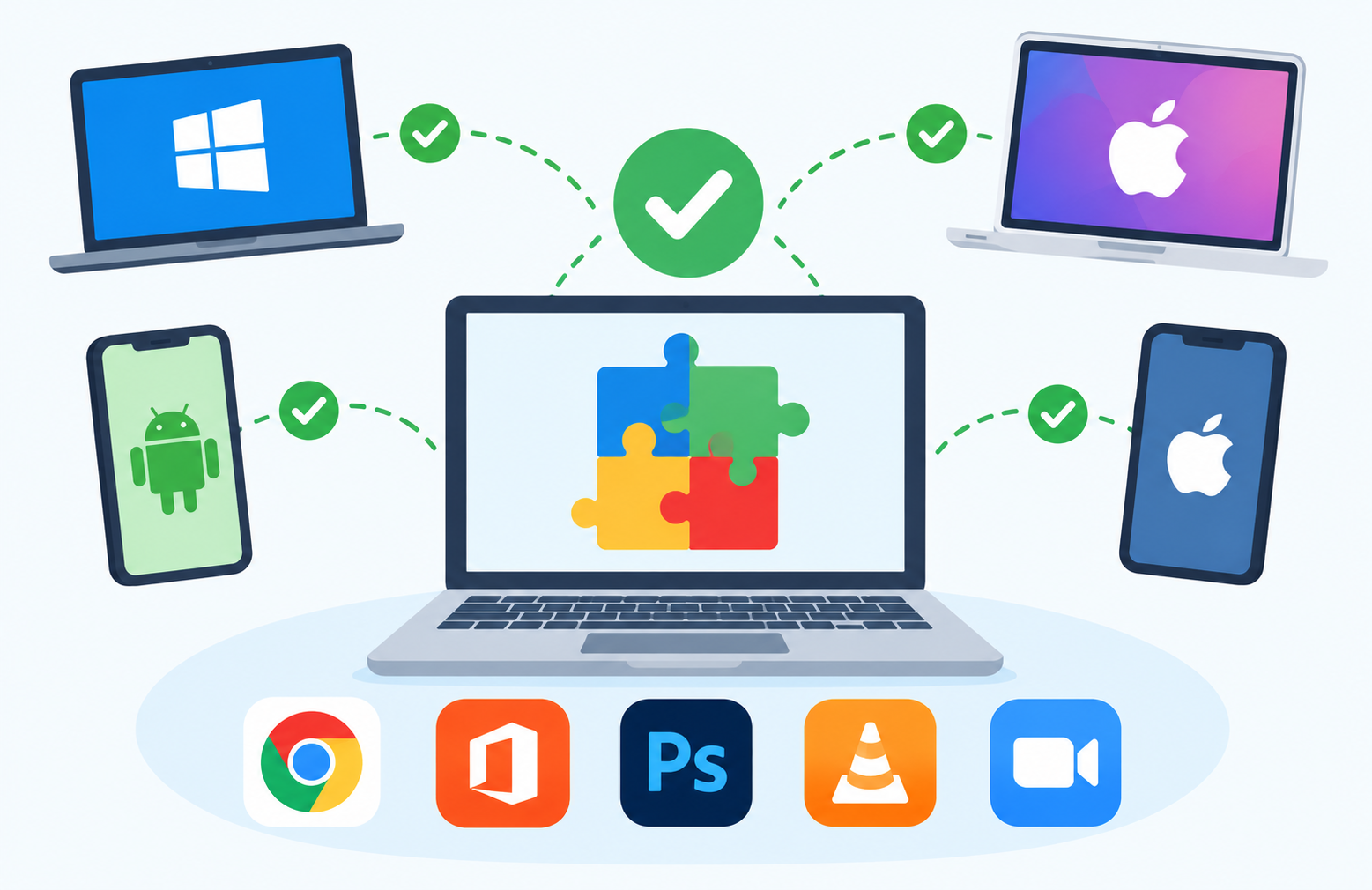
Introduction
Few computing problems are as frustrating as software that simply refuses to work. You download a new program, double-click the installer, and get an error message. Or an app that ran perfectly last year suddenly stops working after a system update. In almost every case, the underlying reason is the same: a software compatibility problem.
Understanding software compatibility helps you avoid wasted time, confusing error messages, and unnecessary purchases. It also gives you the vocabulary to diagnose common problems and know how to solve them. This guide explains what software compatibility is, why it matters, and how to check and troubleshoot it on Windows, macOS, Android, and iOS.
What Is Software Compatibility?
Software compatibility refers to the ability of software to work correctly with a given operating system, hardware configuration, other software, or a specific version of those components.
In simple terms, compatible software installs, launches, and runs as intended without errors, conflicts, or unexpected behavior. Incompatible software, by contrast, may fail to install, crash on launch, produce error messages, or behave incorrectly.
Compatibility is rarely a simple yes or no question. It depends on a specific combination of factors: the version of the operating system, the processor type, the amount of memory, and what other software is already installed.
Everyday examples of compatibility issues include:
- A program designed for Windows that will not run on macOS without additional tools.
- An older app that stops working after an operating system update.
- A plugin or extension that conflicts with the version of the software it was designed to extend.
- A file format that one program can read fully but another cannot open correctly.
Software compatibility affects everyone who uses a computer, from everyday users to large businesses and software developers.
Why Is Software Compatibility Important?
Compatibility determines whether software can actually be used on a given device or system. If software is incompatible, everything else about its features and quality becomes irrelevant because you cannot run it at all.
Incompatible software can cause:
- Crashes and data loss
- Security vulnerabilities from outdated or improperly functioning code
- Wasted time troubleshooting instead of working
- Wasted money on purchases that do not work as expected
For businesses, compatibility issues can disrupt workflows, reduce productivity, and create integration problems between systems. For everyday users, they often appear as confusing error messages or software that refuses to open. Understanding compatibility helps you make informed decisions before purchasing or installing software.
Compatibility also matters for data longevity. If a file format becomes incompatible with current software, access to the data inside that file can be at risk. This is why standardized, widely supported formats tend to be preferred for long-term storage.
Types of Software Compatibility
Software compatibility is not a single concept. It covers several distinct areas, and understanding the differences helps you diagnose and prevent problems.
Operating System Compatibility
This is the most common type of compatibility that everyday users encounter. Software is built to run on specific operating systems such as Windows, macOS, Linux, iOS, or Android. A program built for Windows will not run natively on macOS or Linux without additional tools or a different version. For a broader understanding of what operating systems do, see What Is an Operating System? and What Is System Software?
Within a single operating system, compatibility can also vary between versions. Software designed for Windows 10 may behave differently on Windows 11. Older software may no longer support Windows 7 or Windows 8.
Examples:
- Microsoft Office is available for Windows and macOS but is not natively available for Linux.
- Many iOS apps are not available for Android, and the reverse is also true.
- Some older Windows applications do not run on current Windows versions without compatibility settings.
Hardware Compatibility
Software must also be compatible with the hardware it runs on. Hardware compatibility covers processor architecture, available memory, graphics capabilities, and available storage space.
A demanding application that requires a dedicated graphics processor will not run correctly on hardware that does not meet those requirements. A modern game will not run on an older computer with insufficient memory or an outdated graphics card.
Processor architecture is a particularly important hardware compatibility consideration. Most older desktop computers use x86 or x64 processors. Modern Apple Macs and many newer laptops use ARM-based processors, such as Apple Silicon. Software is typically compiled for a specific processor architecture, and software designed for one architecture may not run natively on another without translation layers or separate builds.
Software-to-Software Compatibility
Software does not run in isolation. It often interacts with other software installed on the same system. Examples include:
- A plugin or extension designed for one version of a browser may not work with a newer or older version.
- Two programs that try to use the same system resource in conflicting ways can cause errors.
- A database application may require a specific version of database software to function correctly.
Software often relies on dependencies, which are components like libraries, frameworks, or runtime environments that the software needs in order to run. Missing or incompatible dependencies are a common cause of errors. This is closely related to how programs communicate through interfaces, covered in What Is an API?
File Format Compatibility
File format compatibility determines whether one program can open, read, edit, or save files created by another program. Examples include:
- A document created in one word processor may open incorrectly in another if their formats differ.
- An image file in one format may not be supported by a particular editing tool.
- A video file in one codec may not play in all media players.
Open and standardized file formats tend to have better cross-software compatibility than proprietary formats. Proprietary formats are often designed for one vendor’s software, which can limit how easily they are opened elsewhere. Many open-source applications, for instance, prioritize support for standard formats to maximize compatibility. See What Is Open-Source Software? for more on that ecosystem.
Version Compatibility
Even within the same software family, different versions may not be fully compatible with each other. A file saved in a newer version of software may not open correctly in an older version. An application built for an older version of a framework or library may not work with a newer version of that dependency.
This is where backward and forward compatibility, which are explained in the next two sections, become relevant.
Network and Protocol Compatibility
Software that communicates over a network must use compatible protocols and standards. If a client application and a server use different or incompatible versions of a protocol, communication can fail. A common example is web browsers needing to support current web standards and security protocols in order to communicate securely with modern websites.
Backward Compatibility
Backward compatibility means that a newer version of software can work with files, data, or systems designed for an older version.
When a word processor can open documents created by its older versions, it is backward compatible. When an operating system can run software designed for its previous version, it is backward compatible.
Backward compatibility matters because users and organizations invest significant time and money in software and data. Being forced to recreate or convert everything when upgrading to a newer version is disruptive and costly.
Examples of backward compatibility in practice:
- Microsoft Windows maintains backward compatibility for many older applications.
- Microsoft Office can generally open files created in significantly older versions.
- Web browsers continue to support older HTML and CSS standards while adding new capabilities.
Maintaining backward compatibility has costs for developers. Supporting old behavior can limit design choices and add complexity to new versions. This is why even widely successful software eventually drops support for very old versions or file formats.
Forward Compatibility
Forward compatibility means that a current version of software can work with files, data, or systems created by a future or newer version.
Forward compatibility is harder to achieve than backward compatibility because it requires anticipating how future formats and structures will be designed. A program cannot know in advance everything a future version will introduce.
A common approach is for software to gracefully handle unknown elements by ignoring them rather than crashing. For example, a web browser encountering an HTML element it does not recognize will usually ignore it and render the rest of the page rather than failing completely. Similarly, some file formats are designed with extensibility in mind, allowing new features to be added without breaking older readers.
Forward compatibility is generally less comprehensive than backward compatibility. Where backward compatibility is a common goal, forward compatibility is often a best-effort design objective.
Cross-Platform Compatibility
Cross-platform compatibility means software that works across multiple different operating systems or device types.
Examples of well-known cross-platform software include:
- Mozilla Firefox — runs on Windows, macOS, Linux, Android, and iOS.
- VLC Media Player — runs on Windows, macOS, Linux, Android, and iOS.
- LibreOffice — runs on Windows, macOS, and Linux.
Cross-platform compatibility is achieved through various technical approaches:
- Writing software in cross-platform languages or frameworks that can compile to multiple targets.
- Creating and maintaining separate builds for each platform.
- Using web technologies so the application runs within a browser.
Web-based software accessed through a browser has inherent cross-platform compatibility because it runs in the browser regardless of the underlying operating system. As long as a modern browser is available, the application can typically run. See What Is a Web Browser? for more on how browsers enable this portability.
For software that is designed to be moved between machines without installation, see What Is Portable Software?
Software Compatibility vs Hardware Compatibility
| Factor | Software Compatibility | Hardware Compatibility |
|---|---|---|
| Definition | Whether software works with an OS, other software, or specific versions | Whether the physical device meets the software’s technical requirements |
| What it affects | Software installation, execution, and interaction | Whether software can run at acceptable performance levels |
| Common causes of incompatibility | OS version mismatch, missing dependencies, file format differences | Insufficient memory, unsupported processor architecture, inadequate graphics |
| How to check | Read system requirements and compare to your OS version and installed software | Compare hardware specifications to the software’s stated minimum and recommended requirements |
| Examples | A plugin not working after the host app updates | A modern game not running on a laptop with integrated graphics |
| Who is responsible | Software developers and platform vendors | Hardware manufacturers and users choosing appropriate devices |
Both types of compatibility matter for a computer or device to work correctly. Software compatibility addresses whether programs work together and with the operating system. Hardware compatibility addresses whether the physical device supports the software’s requirements. In practice, both are usually evaluated together when choosing software.
Common Software Compatibility Issues
Software Will Not Install
The software may require a newer or different operating system version than you have. System requirements may not be met by the hardware. Required dependencies may be missing. Some installers also check for specific conditions and will refuse to proceed if they are not met.
Software Installs But Does Not Run
A required runtime environment or library may be missing or incompatible. The software may conflict with another installed program. Security software may be blocking execution. Sometimes installation succeeds but the software cannot launch because a component it needs is not properly registered with the system.
Software Works But Behaves Incorrectly
Display issues, missing features, or incorrect output can result from partial compatibility. An older program may work on a newer operating system but with visual glitches, missing menus, or subtle functionality problems. This is often more frustrating than a clean failure because the problem can be hard to diagnose.
File Will Not Open
The file format may not be supported by the application. The file may have been created with a newer version of the same software. A required codec or plugin may be missing. Some programs will offer to import the file with limitations if the format is only partially supported.
Plugins or Extensions Stop Working
When the main application is updated, plugins built for the previous version may break. Developers of plugins need to update them to maintain compatibility with new versions. This is a common issue with browser extensions and creative software plugins.
Conflicts Between Installed Programs
Two programs may compete for the same system resource. Security software may interfere with another program. Programs sharing a common dependency may require conflicting versions of that dependency, creating a situation where one works and the other does not.
What Causes Software Compatibility Issues?
Most compatibility problems come down to one of these root causes:
- Operating system version differences.
- Processor architecture differences, such as x64 versus ARM.
- Missing or incompatible dependencies such as runtime libraries or frameworks.
- Hardware that does not meet software requirements.
- Software designed for one environment encountering a different one.
- Breaking changes in APIs or platform updates that change how software works.
- File format differences between software versions or products.
- Security software interfering with program execution.
- Conflicting software installed on the same system.
Identifying which cause applies to a specific problem is the first step toward fixing it.
How to Check Software Compatibility Before Installing
Checking compatibility before installing or purchasing software saves time and prevents frustration. Here is a practical approach:
- Read the system requirements listed by the developer. These specify the required operating system version, processor type, minimum memory, storage space, and any other requirements.
- Check your own system specifications. On Windows, open Settings, then System, then About. On macOS, choose About This Mac from the Apple menu.
- Verify your operating system version. Ensure your version meets the minimum version stated in the requirements.
- Check processor architecture. On Apple Silicon Macs, verify whether the software has a native Apple Silicon version or runs through Rosetta 2 translation.
- Check available storage and memory against the stated requirements.
- Read user reviews and support forums for reports of compatibility problems on setups similar to yours.
- Check whether a trial version is available to test compatibility before purchasing a full license.
How to Fix Software Compatibility Issues
Update the Software
Developers release updates that address compatibility issues with new operating system versions. Always check whether a newer version of the software is available before concluding it is incompatible with your system.
Update the Operating System
Some software requires a minimum operating system version. Updating the operating system may resolve compatibility requirements. Note that updating the operating system may itself affect compatibility with other software, so consider your full set of applications before a major update.
Use Compatibility Mode on Windows
Windows includes a compatibility mode feature that allows older software to run in an environment that simulates an older version of Windows. Right-click an executable file, choose Properties, and select the Compatibility tab to access this feature. Compatibility mode does not guarantee that all older software will work correctly on modern Windows, but it resolves many common problems. Refer to Microsoft’s official documentation at learn.microsoft.com for detailed instructions.
Install Missing Dependencies
Software sometimes requires additional components such as runtime libraries or frameworks that are not included with the installer. Error messages during installation or launch often indicate what is missing. Install missing components from official sources only to avoid security risks.
Use Virtualization
Virtualization software allows a user to run a different operating system inside their current one. This can allow running Windows software on a Mac or running an older version of an operating system on current hardware. Examples include VMware, VirtualBox, and Parallels Desktop for Mac. Virtualization has performance implications and requires more technical setup than the other solutions here.
Use Translation Layers
Some tools allow software designed for one operating system to run on another through translation. Apple’s Rosetta 2 allows x86 and x64 Mac applications to run on Apple Silicon Macs by translating instructions in real time. Wine is a compatibility layer that allows some Windows applications to run on Linux and macOS. Translation layers do not guarantee full compatibility for all software and can introduce performance overhead.
Use an Alternative Application
If compatibility cannot be achieved, a compatible alternative application that performs the same function is often the most practical solution. Many categories of software, from office suites to media players to development tools, have multiple strong options across platforms. See What Is Application Software? for more on this category.
Software Compatibility and Operating System Updates
Operating system updates can introduce compatibility issues with existing software. Major version updates such as upgrading from Windows 10 to Windows 11 or installing a new major macOS version can affect whether older software continues to work.
Before a major operating system update, it is advisable to check compatibility for any software you depend on. Most operating system developers publish information about known compatibility issues around major releases.
Operating system developers generally try to maintain backward compatibility for existing software, but this is not always fully achievable. When platforms modernize their security architecture or system APIs, older software that depends on outdated behavior may stop working. Software developers often release updates around major operating system releases to maintain compatibility.
Software Compatibility and Security
Compatibility and security interact in important ways. Software that is no longer compatible with modern operating systems is often also no longer receiving security updates. Running incompatible or outdated software can expose a system to vulnerabilities that have already been fixed in supported versions.
Security software itself can sometimes create compatibility issues with other programs by blocking or interfering with their operation. This is usually unintentional, and resolving it often involves adding an exception in the security software for a specific trusted program.
For these reasons, keeping software updated serves both compatibility and security goals. See What Is Cybersecurity? and What Is Antivirus Software? for more on protecting your system.
Software Compatibility for Businesses
Businesses rely on multiple software systems working together reliably. Compatibility issues in a business context can affect productivity, data integrity, and system stability in ways that have financial consequences.
Enterprise software procurement typically involves compatibility evaluation as a standard step. Organizations check that new software works with their existing operating system versions, security tools, and business applications before wide deployment.
Legacy software compatibility is a common challenge for organizations that have been using the same systems for many years. Older software may depend on outdated operating system versions, and upgrading the operating system can break critical business applications. This is one reason some organizations continue to run older systems longer than they ideally would.
Cloud-based software can reduce some compatibility concerns by running in a browser regardless of the user’s operating system. See What Is Cloud Computing? for more on this model. Businesses often maintain compatibility matrices documenting which software versions work together, so that updates in one area do not unexpectedly break functionality elsewhere.
Software Compatibility Testing
Before releasing software, developers test it against different operating systems, hardware configurations, and software environments. This process is called compatibility testing. Its goal is to identify and fix compatibility problems before users encounter them.
Compatibility testing typically covers:
- Different operating system versions
- Different hardware configurations including processor types and memory amounts
- Different browser versions for web software
- Different combinations of other software that may be installed
It is not always possible to test every combination, which is why some compatibility issues are only discovered by users after release.
Software Compatibility on Windows
Windows is the most widely used desktop operating system, and software compatibility with Windows is a primary consideration for most desktop applications.
Windows maintains significant backward compatibility for older software through compatibility mode and other mechanisms. This allows many applications written for Windows 7 or even Windows XP to still run on current versions of Windows, though not always perfectly.
Windows 11 has specific hardware requirements, including TPM 2.0 and specific processor generations, that older computers may not meet. This affects whether the operating system itself can be installed, and by extension which versions of software those computers can run.
Microsoft provides official guidance on Windows compatibility through its documentation at learn.microsoft.com.
Software Compatibility on Mac
macOS compatibility has undergone significant changes in recent years, particularly with the transition from Intel processors to Apple Silicon.
Apple Silicon Macs use ARM-based processors rather than the x86 and x64 processors used in Intel Macs. Software compiled for Intel Macs runs on Apple Silicon Macs through Rosetta 2, Apple’s translation technology, though not all software may behave identically and some types of software, such as kernel extensions, may not be supported.
Native Apple Silicon versions of software offer better performance and smoother operation on Apple Silicon Macs. Developers have been updating their applications to add native support, and most major software now offers Apple Silicon builds.
Apple previously dropped support for 32-bit applications in macOS Catalina (version 10.15), which affected compatibility for many older Mac applications that had not been updated. macOS updates can also affect compatibility with older software that has not been maintained. Apple’s official support resources at support.apple.com cover Rosetta 2 and compatibility guidance.
Software Compatibility on Smartphones
Smartphones have their own compatibility considerations. App compatibility on iOS and Android is determined by the app developer, who specifies minimum operating system version requirements.
Older smartphones running older operating system versions may not be able to install or run newer apps. Apps built for older operating system versions may still work on newer versions but may miss newer features, and developers may eventually stop supporting them entirely, resulting in removal from app stores.
Hardware differences between smartphone models also affect whether specific apps and features work correctly. Features such as camera processing, biometric authentication, and augmented reality depend on specific hardware capabilities. See What Is a Mobile App?, What Is an Android App?, and What Is an iPhone App? for related context.
How to Check If Software Is Compatible with Your Computer
On Windows
- Press the Windows key and I to open Settings.
- Navigate to System, then About.
- Note the Windows edition, version, and processor type.
- Compare these against the software’s stated system requirements.
On macOS
- Click the Apple menu in the top-left corner.
- Select About This Mac.
- Note the macOS version and chip type.
- Compare against the software’s stated requirements.
- For Apple Silicon Macs, verify whether the software has a Universal or native Apple Silicon version or relies on Rosetta 2.
On Android
- Open Settings.
- Navigate to About Phone or About Device.
- Note the Android version.
- Compare against the app’s listed requirements in the app store.
On iPhone
- Open Settings.
- Navigate to General, then About.
- Note the iOS version.
- Compare against the app’s listed requirements in the App Store.
Common Misconceptions About Software Compatibility
If Software Installs, It Must Be Compatible
Software can sometimes install successfully but still have compatibility problems that only appear during use. Successful installation does not guarantee that the software will work correctly on your system.
Newer Software Is Always Compatible with Older Files
While backward compatibility is common, it is not guaranteed. Newer software versions sometimes drop support for older file formats or features, especially when those formats are rarely used or when supporting them would require significant development overhead.
Compatibility Mode Fixes All Issues
Windows compatibility mode helps with some older software but does not fix all compatibility problems. It adjusts how Windows reports its version to the application and applies some legacy behaviors, but deeply incompatible software will still fail.
Cross-Platform Software Works Identically on All Platforms
Even cross-platform software may have differences in features, performance, or behavior between platforms. A feature available on one platform may be missing or behave differently on another. Verify the specific features you need work on your platform before relying on them.
Frequently Asked Questions
What is software compatibility?
Software compatibility is the ability of software to work correctly with a specific operating system, hardware configuration, other software, or version of those components.
Why does software compatibility matter?
Compatibility determines whether software can be used at all on a given system. Compatibility problems can prevent installation, cause crashes, expose security issues, and disrupt workflows for individuals and businesses.
What are the types of software compatibility?
The main types are operating system compatibility, hardware compatibility, software-to-software compatibility, file format compatibility, version compatibility, and network or protocol compatibility.
What is backward compatibility?
Backward compatibility means a newer version of software can work with files, data, or systems designed for an older version. Microsoft Windows and Microsoft Office are common examples that prioritize backward compatibility.
What is forward compatibility?
Forward compatibility means a current version of software can work with files or data created by a future or newer version. It is harder to achieve than backward compatibility and is often a best-effort design goal.
What is cross-platform compatibility?
Cross-platform compatibility means software works across multiple operating systems or device types. Mozilla Firefox and VLC Media Player are examples of cross-platform software.
What causes software compatibility issues?
Common causes include operating system version differences, processor architecture differences, missing dependencies, inadequate hardware, incompatible file formats, and conflicting software on the same system.
How do I check if software is compatible with my computer?
Read the developer’s stated system requirements and compare them against your own system specifications. On Windows, check Settings then System then About. On macOS, check About This Mac.
How do I fix software compatibility issues?
Common solutions include updating the software, updating the operating system, using Windows compatibility mode, installing missing dependencies, using virtualization or translation layers, or choosing an alternative application.
What is Windows compatibility mode?
Windows compatibility mode is a feature that allows older software to run in an environment that simulates an older version of Windows. It is accessed through the Properties menu of an executable file.
Does updating software fix compatibility issues?
Often, yes. Developers release updates to maintain compatibility with new operating system versions. However, if the software is no longer maintained, updates may not be available.
Can I run Windows software on a Mac?
Yes, in some cases. Options include virtualization software such as Parallels Desktop or VMware Fusion, Apple’s Boot Camp on Intel Macs, or translation tools. Availability and performance vary depending on the specific software and Mac hardware.
What is Rosetta 2?
Rosetta 2 is Apple’s translation technology that lets software built for Intel Macs run on Apple Silicon Macs by translating x86 and x64 instructions. It does not support all software types, particularly kernel extensions.
Why does software stop working after an operating system update?
Operating system updates can change system APIs, drop support for older components, or tighten security requirements. Software that depends on the old behavior may stop working until the developer releases a compatible update.
What is a software dependency?
A software dependency is a component such as a library, framework, or runtime environment that software relies on to function. Missing or incompatible dependencies are a common cause of errors.
Is cloud software more compatible across devices?
Cloud software that runs in a browser can be more compatible across devices because it does not depend on the underlying operating system. It still requires a supported browser and a network connection.
What should I check before installing new software?
Check the operating system version, processor architecture, memory, storage space, and any other stated requirements. Also check user reviews for reports of issues on your type of system.
Can incompatible software damage my computer?
Incompatible software rarely damages hardware, but it can cause data loss, system instability, and in some cases introduce security risks if it is outdated or comes from untrusted sources.
For more foundational context, explore What Is Software and How Does It Work? to understand how programs are built and run, What Is Utility Software? for an overview of tools that maintain systems, and What Is a Firewall? for another important layer in keeping a system stable and secure.
Disclaimer
This article is intended for educational purposes and provides a general overview of software compatibility for beginners and everyday users. Software compatibility information varies between operating systems, hardware configurations, software versions, and vendors. Always verify compatibility with the official software developer or publisher before installing or purchasing software. Examples and scenarios described in this article are for illustrative purposes only. Technical implementations and compatibility requirements change with software updates. Always refer to official documentation for the most current compatibility information.
Author: Laraib
Laraib is a technology writer and research contributor covering AI, programming, software, cybersecurity, cloud computing, and the latest developments in technology. She focuses on creating clear, practical, and well-researched content that makes complex tech topics easy to understand.