
 By saman zahra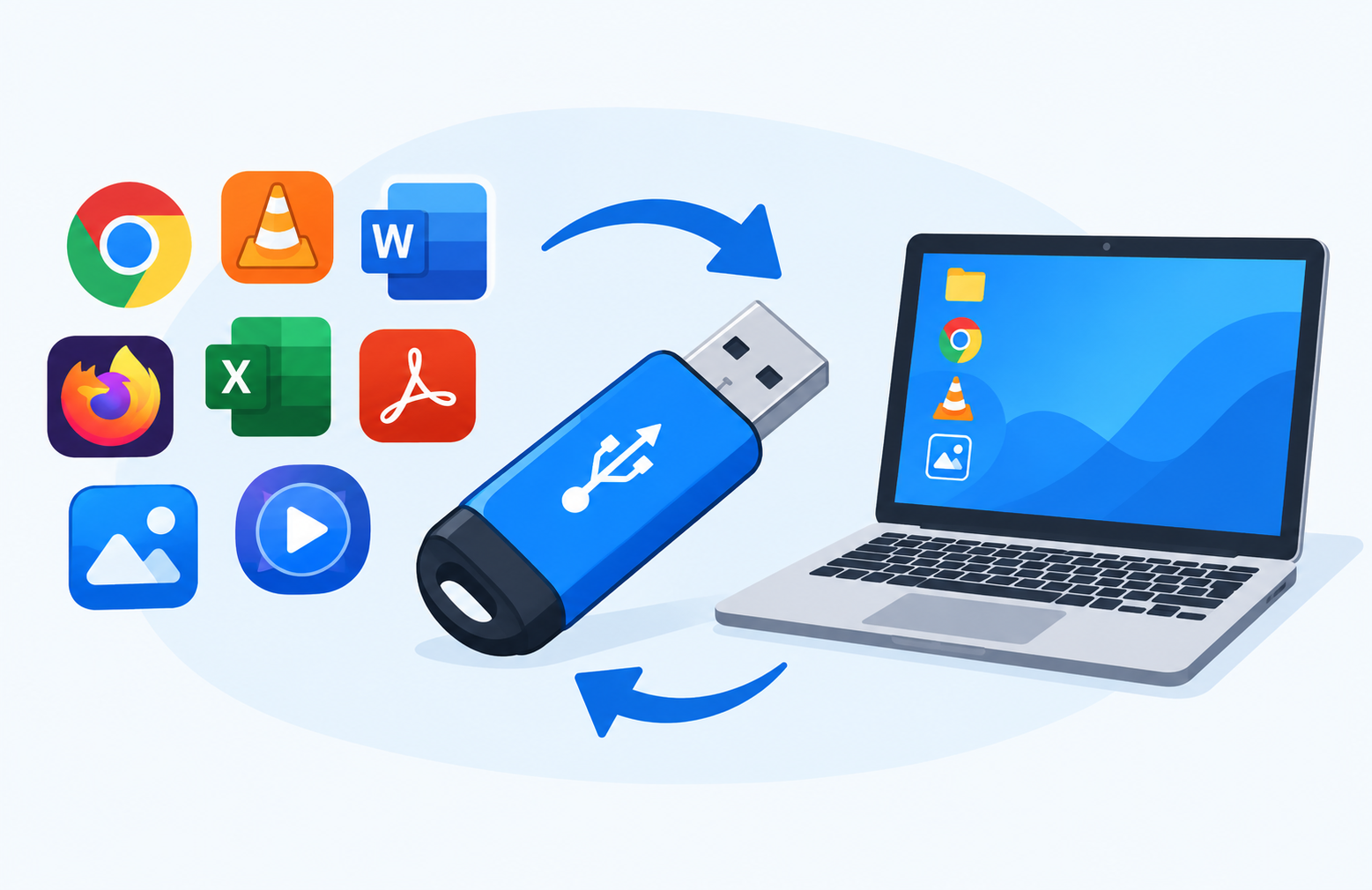
Introduction
Imagine carrying your favorite software in your pocket, ready to use on any computer without installing anything. That is exactly what portable software makes possible. Whether you are a student working on shared school computers, an IT professional diagnosing machines, or someone who simply values flexibility, portable software offers a practical and often underappreciated alternative to traditional installed programs.
This guide explains what portable software is, how it works, what it is good for, and where its limitations lie. If you have ever wondered what “portable” means when you see it next to a software name, or whether running an app from a USB drive is actually useful, you will find clear answers here.
What Is Portable Software?
Portable software is software that can run directly from a removable storage device, such as a USB flash drive or external hard drive, or from any folder on a computer, without requiring installation on that computer.
Unlike traditional software, portable software does not write its settings or configuration data to the host computer’s Windows Registry or system folders. Instead, it stores everything it needs, including its settings, preferences, and saved data, within its own folder on the storage device.
When you close a portable application and remove the storage device, the host computer is generally left in the same state as before you used it. The software leaves no significant footprint on the machine.
Some familiar examples include:
- A web browser running directly from a USB flash drive
- A text editor carried on a flash drive that opens with your saved preferences
- A password manager that runs without any installation process
- A media player launched from an external hard drive
Portable software is sometimes called portable apps, portable applications, or portable programs. The terms are used interchangeably and refer to the same concept.
To understand where portable software fits within the broader landscape of software, see What Is Software and How Does It Work?
What Does Portable Mean in Software?
In the context of everyday software use, portable means the software can be moved from one computer to another and run without being installed on each machine. The word reflects the idea that the software travels with you rather than being anchored to a single computer.
There is an important distinction worth clarifying. In software development, portability can also refer to a program’s ability to run across different operating systems or hardware platforms. A developer might describe a programming language or application as portable because it works on Windows, macOS, and Linux alike.
This article focuses on the more common everyday meaning: portable software as software that runs without installation and can be carried on a storage device. Both meanings exist in technical discussions, so it helps to know which one is being used in context.
How Does Portable Software Work?
Portable software is designed to be self-contained. Everything the software needs to run, including its program files, libraries, and configuration data, is kept within its own folder. Here is how the process works from a user’s perspective:
- The user copies or downloads the portable software files to a USB flash drive, external hard drive, or a folder on any computer.
- The user plugs the storage device into any compatible computer, or navigates to the folder where the files are stored.
- The user runs the executable file directly from the storage location, typically by double-clicking the EXE file on Windows.
- The software runs using the host computer’s processor, memory, and display but does not write to the host computer’s registry or system folders.
- All settings and saved data are stored within the portable software’s own folder on the storage device, not on the host computer.
- When the software is closed and the device is removed, the host computer is generally left in the same state as before.
Because portable software does not rely on the registry or system-level folders, it avoids creating the kind of deep integration with the operating system that traditional installed software establishes.
It is worth noting that some portable software may create temporary files on the host computer during use, such as in the system’s temporary folder, and remove them when the application closes. This behavior is not universal and varies by application. If trace-free operation matters to you, it is worth researching the specific behavior of any portable software you plan to use.
Portable Software vs Installed Software
| Factor | Portable Software | Installed Software |
|---|---|---|
| Installation required | No | Yes |
| Registry changes | Generally none | Yes, typically extensive |
| System folder changes | Generally none | Yes |
| Settings storage location | Within the software’s own folder | Registry and user profile folders |
| Runs on multiple computers | Yes, with the storage device | Tied to one computer |
| Leaves traces on host computer | Minimal; some temp files possible | Yes |
| Updates | Manual; user downloads new version | Often automatic via built-in updater |
| Performance | May depend on storage device speed | Optimized for the installed system |
| Setup time | Very quick; run directly | Requires installation process |
| Best for | Flexibility, shared computers, travel | Full features, daily primary use |
Installed software integrates deeply with the operating system. This allows for maximum performance, access to system-level features, and seamless interaction with other installed programs. Portable software prioritizes flexibility and mobility, making it easy to carry and use across different machines without leaving a footprint.
Neither approach is universally better. The right choice depends on what you need the software to do, how often you need it, and what computers you are using it on.
Portable Software vs Installed Software vs Web Apps
| Factor | Portable Software | Installed Software | Web App |
|---|---|---|---|
| Installation required | No | Yes | No |
| Internet required | Generally no | Generally no | Yes |
| Data storage location | On the storage device | On the host computer | On remote servers |
| Works offline | Yes | Yes | Usually no |
| Performance | Depends on device speed | Generally fastest | Depends on connection |
| Portability | High; device-based | Low; tied to one machine | High; any browser |
| Examples | Firefox Portable, VLC Portable | Microsoft Office installed, Photoshop | Google Docs, Gmail |
Web apps run inside a browser and require an internet connection. They are highly accessible because no software needs to be downloaded at all, but they depend on connectivity and store data on remote servers rather than locally. Installed software runs entirely on one computer and is generally the most powerful option for demanding tasks. Portable software sits between these two, offering offline capability and mobility without requiring installation.
For more on web apps and the browsers that run them, see What Is a Web Browser? For context on cloud-based software and remote storage, see What Is Cloud Computing?
Benefits and Advantages of Portable Software
No Installation Required
Portable software runs directly without going through an installation wizard or setup process. You simply navigate to the file and run it. This saves time, especially on computers where you have limited administrative permissions or are in a hurry. There is no need to click through terms and conditions, choose installation directories, or wait for setup to complete.
Works on Multiple Computers
Because portable software is stored on a removable device, it travels with the user. You can plug your USB drive into any compatible computer and use your software with your own settings, without needing to install anything on each machine. This is especially useful for people who regularly work across different computers.
Leaves No Significant Traces on the Host Computer
Because settings and data are stored within the portable software’s folder rather than in the host system’s registry or user profile, the host computer is generally unchanged after use. This is a meaningful advantage when using shared, public, or borrowed computers where you do not want to leave behind browsing history, saved files, or software traces.
It is important to note that behavior varies between applications. Some portable tools may still create temporary files during use. Users who need confirmed trace-free operation should research the specific software’s documented behavior before relying on this characteristic.
Useful on Computers Where You Cannot Install Software
Many workplace, library, school, and public computers restrict software installation through administrative policies. Portable software can often be run from a USB drive on these computers without requiring installation permissions, because it does not interact with system-level folders or the registry in the way that traditional installations do.
Always verify that using portable software from an external device is permitted by the organization responsible for the computer. Organizational policies on this vary, and some environments actively block execution from external drives for security reasons.
Easy Backup and Transfer
Because all files for a portable application, including the program itself, its settings, and any saved data, are contained within a single folder, backing up everything is as simple as copying that folder. Moving portable software to a new USB drive requires only copying the folder across. There is no need for export tools, backup utilities, or reinstallation steps.
No Registry Clutter
Traditional installed software adds entries to the Windows Registry when installed and is supposed to remove them when uninstalled. In practice, software removal often leaves orphaned registry entries behind, which can accumulate over time. Portable software avoids this entirely by storing its configuration within its own folder rather than in the registry.
Useful for Testing Software
If you want to try out a new application without committing to a full installation, portable software is convenient. If the software does not suit your needs, you simply delete the folder. There is no uninstaller to run, no registry entries to clean up, and no system changes to reverse.
Consistent Settings Across Computers
Because your settings, preferences, saved files, and configurations are stored on the portable device itself, you carry the same working environment from one computer to another. Your bookmarks, editor preferences, and saved data remain consistent wherever you use the software, which is a practical benefit for anyone who works across multiple machines.
Disadvantages and Limitations of Portable Software
Performance May Be Limited by Storage Device Speed
When portable software runs from a USB flash drive, the speed at which it loads files and saves settings depends partly on the read and write speed of that drive. Older or lower-quality USB 2.0 drives can make software feel noticeably sluggish compared to running the same application from a computer’s internal storage. Using a USB 3.0 or later drive significantly improves performance.
Not All Software Is Available in Portable Form
Many applications, particularly complex professional tools, enterprise software, and large creative suites, are only distributed as traditional installed versions. Portable versions are more commonly available for utilities, text editors, browsers, media players, and security tools than for heavyweight professional applications.
Manual Updates
Installed software frequently includes automatic update mechanisms that keep the application current in the background. Portable software typically does not have this feature in the same way. To get a newer version, users generally need to manually download the updated portable version and replace the old files. Running an outdated portable application that has not been updated can expose the user to security vulnerabilities that have since been patched in newer releases.
Potential Organizational Restrictions
Some organizations configure their computers to block the execution of software from external storage devices as a security measure. If you plan to use portable software on a computer you do not own or administer, verify that it is permitted. Ignoring organizational policies on this can have professional or disciplinary consequences.
Storage Device Dependency
The software is only accessible when the storage device is present. If your USB drive is lost, damaged, left at home, or has a hardware failure, you lose access to the software and any data or settings stored on it. This dependency on a physical device is a practical limitation that installed software does not share.
Some Portable Software May Still Create Temporary Files
Not all portable software is entirely free of traces on the host computer. Some applications create temporary files in the system’s temp folder during operation. Whether these are cleaned up on exit varies by application. For situations where leaving any trace on a host computer matters, verify the specific documented behavior of the software you intend to use.
Compatibility Considerations
Portable software is built and tested for specific operating system versions. A portable application built for an older version of Windows may not function correctly on a significantly newer version, or vice versa. Before depending on portable software in an important situation, verify that it is compatible with the version of the operating system on the computers you plan to use it on.
Common Uses of Portable Software
IT Professionals and System Administrators
IT professionals frequently carry a USB drive containing a toolkit of portable diagnostic and utility software. Rather than installing tools on every machine they need to service, they can run network analyzers, disk management utilities, file recovery tools, and system information programs directly from their drive. This approach saves time and avoids leaving tool installations on client or organizational machines.
Travelers and Remote Workers
People who travel frequently or work from multiple locations can carry their preferred software environment on a USB drive. When they sit down at any compatible computer, they have access to their tools, settings, and files without needing to configure each machine individually.
Students
Students who rely on school library computers or shared lab machines can use portable software to access their preferred productivity tools and maintain consistent settings and saved work across those shared environments. This is particularly useful on computers where software installation is restricted.
Privacy-Conscious Users
Users who want to minimize the data they leave behind on shared or public computers can benefit from portable software. Browsing history, bookmarks, documents, and preferences stay on the portable device rather than on the host computer’s profile, reducing the risk of personal information being accessible to subsequent users of the same machine.
Software Testing and Evaluation
Developers and technically inclined users can test and evaluate software without integrating it into their main system. If the software is not suitable, removing it requires only deleting the folder. There is no uninstall process, no registry cleanup, and no system-level changes to undo.
Carrying Personal Tools and Settings
Many users simply value having their own environment available wherever they go. A consistent set of preferred tools, a text editor configured exactly as they like it, a file manager with their preferred layout, and a media player with their settings all ready to go on any computer, is a practical benefit that portable software makes straightforward.
Examples of Portable Software
The following are real, well-documented examples of portable software organized by category. Availability and portability status can change, so always verify current information with the official developer or distribution platform.
Web Browsers
- Mozilla Firefox Portable — A fully featured portable version of Firefox available through PortableApps.com (portableapps.com). Browsing history, bookmarks, and settings are stored on the USB drive.
- Chromium Portable — Portable builds of Chromium, the open-source browser project, are available through third-party packagers. Verify that any Chromium portable download comes from a reputable source.
Note: Google Chrome is not officially distributed in a portable format by Google. Unofficial portable versions carry additional trust and security considerations.
Text Editors and Code Editors
- Notepad++ Portable — A popular open-source code and text editor available in portable format through PortableApps.com.
- Visual Studio Code Portable Mode — VS Code supports an official portable mode. When configured, user data is stored in a
datafolder within the application folder rather than in the user profile on the host computer. Microsoft’s official documentation for this is available at code.visualstudio.com/docs/editor/portable. - Geany Portable — A lightweight code editor available in portable form.
File Management
- Total Commander — Supports portable operation and is a long-standing file management utility.
- FreeCommander Portable — A free file manager available in portable format.
- 7-Zip Portable — The widely used open-source file archiver available in portable form through PortableApps.com.
Security and Password Management
- KeePass — The KeePass password manager is designed to operate portably. The database file and the application can be run from a USB drive without installation. Official documentation is available at keepass.info.
- VeraCrypt — The open-source disk encryption tool supports portable operation, allowing it to be run without installation on Windows.
- Malwarebytes offers portable scanning tools in some versions. Verify current availability directly with the developer as product offerings change.
Media Players
- VLC Media Player Portable — A portable version of the well-known open-source media player, available through PortableApps.com.
- MPC-HC Portable — A lightweight media player available in portable form.
Office and Productivity
- LibreOffice Portable — The full LibreOffice suite including Writer, Calc, and Impress is available in portable form through PortableApps.com.
- SumatraPDF Portable — A lightweight PDF reader designed with portability in mind.
Utilities
- ClamWin Portable — An open-source antivirus scanner available in portable format.
- Recuva Portable — A file recovery tool available in portable form.
- CPU-Z Portable — A system information utility that can run without installation.
- Wireshark Portable — A network protocol analyzer available in portable form through PortableApps.com.
The PortableApps.com Platform
PortableApps.com is a well-established platform that packages and distributes a wide range of open-source and freeware applications in portable format. It also provides a menu-based launcher called the PortableApps.com Platform, which manages multiple portable applications from a single USB drive, making it easy to organize and launch your portable toolkit.
Always download from the official PortableApps.com website to ensure you are getting verified, unmodified packages.
Many of these tools are also examples of open-source software, which means their source code is publicly available and can be inspected. This can be an additional trust factor when evaluating portable tools.
These utilities represent a subset of utility software, which is software designed to help manage, maintain, and optimize a computer system.
How to Use Portable Software on a USB Drive
Getting started with portable software on a USB drive is straightforward. Here are the steps:
- Obtain a USB flash drive with sufficient storage capacity for the portable software you want to carry. USB drives with at least a few gigabytes of space are sufficient for most portable toolkits.
- Download portable software from the official developer’s website or a trusted platform such as PortableApps.com. Avoid downloading from third-party mirror sites or unfamiliar sources.
- Extract or copy the portable software files to the USB drive. Some portable software comes as a ZIP archive that you extract. Others come as self-contained folders you copy directly.
- Plug the USB drive into a compatible computer when you want to use the software.
- Navigate to the portable software folder on the USB drive using File Explorer on Windows or the equivalent file manager on other operating systems.
- Run the executable file directly from the USB drive by double-clicking it.
- When finished, close the software properly rather than simply pulling out the drive.
- Safely eject the USB drive using the operating system’s safe removal option to avoid data corruption.
- Your settings remain on the USB drive and the host computer is generally left unchanged.
A few practical tips:
- Use a USB 3.0 or later drive for noticeably better performance compared to older USB 2.0 drives.
- Keep the USB drive stored safely when not in use.
- Back up the contents of your USB drive regularly to another location so that if the drive is lost or damaged, you do not lose your tools and settings.
Is Portable Software Safe?
Portable software from official developers and reputable distribution platforms is generally safe to use. The key factor that determines safety is where the software was downloaded from, not the fact that it is portable.
Portable software downloaded from unofficial or unknown websites carries the same risks as any software from unverified sources. This includes the risk of malware, modified files, and bundled unwanted software. Because portable software often runs without installation or elevated system prompts, a malicious portable application could still cause harm using the permissions of the currently logged-in user.
Organizations also have legitimate security reasons for restricting USB drive use and blocking software execution from external devices. Circumventing these policies is not advisable and may violate organizational security requirements.
Safe practices for using portable software:
- Download only from the official developer’s website or a well-established trusted platform such as PortableApps.com.
- Verify file integrity where the developer provides checksums or digital signatures. Comparing the file’s hash to the developer’s published hash helps confirm the file has not been modified.
- Keep portable software updated by downloading new versions when the developer releases them. Running outdated versions with known vulnerabilities is a security risk regardless of whether the software is portable or installed.
- Be aware of and respect organizational policies on USB drive and external software use.
- Use reliable security software on your primary computer.
For a broader understanding of software security and protection, see What Is Cybersecurity? and What Is Antivirus Software?
Portable Software and Privacy
One practical advantage of portable software for privacy is that settings, browsing history, saved passwords, and personal data remain on the storage device rather than on the host computer. When you use a portable browser on a shared computer, the browsing history and any bookmarks are stored on your USB drive, not in the shared computer’s user profile.
This characteristic makes portable software appealing to users who regularly use public computers, such as library terminals or hotel business center machines, and do not want to leave personal information accessible to the next user.
However, portable software does not provide complete anonymity or privacy in all respects. The host computer may still log network activity at the network or system level. Anyone physically observing the screen can see what is displayed. Some portable applications may still create temporary files on the host system during a session. The internet service provider and network administrators can still observe internet traffic.
For situations where privacy genuinely matters, understand the documented behavior of the specific portable software you are using and the environment you are using it in. Portable software is a privacy tool for reducing local traces, not a complete privacy solution.
Portable Software on Windows
Windows is the most common platform for portable software, owing to its widespread use on desktop and laptop computers and the large number of Windows-compatible portable applications available.
Portable software on Windows typically consists of an EXE file and accompanying files or folders. Running the EXE file starts the application directly without any installation process.
Windows may still display a User Account Control (UAC) prompt if the portable software requests elevated permissions. Many portable applications are designed to run without elevated permissions to maximize compatibility on restricted computers, but this is not universal.
Visual Studio Code Portable Mode is a well-known example of a mainstream application supporting official portable operation on Windows. When you create a data folder within the VS Code application folder before first launch, VS Code stores all user data, extensions, and settings in that folder rather than in the user profile on the host computer. This means the entire VS Code environment travels with the application folder. Microsoft’s official documentation for this mode is available at code.visualstudio.com/docs/editor/portable.
Portable Software on macOS and Linux
macOS
macOS distributes applications as APP bundles, which are self-contained package directories that appear as single files to the user. Many macOS applications can be run from any location, including an external drive, by simply copying the APP bundle there and launching it.
This means many macOS applications share some characteristics with portable software on Windows. However, macOS applications are not always described using the term “portable.” Some applications require additional installation components, kernel extensions, or system-level files that limit how truly portable they can be. Newer macOS security features such as Gatekeeper may also require applications to be signed and notarized, which can affect portability in some cases.
Linux
Linux has several dedicated formats for application portability:
- AppImage — Designed to be a self-contained executable that runs without installation on compatible Linux systems. A single AppImage file can often be copied to a USB drive and run directly on any compatible Linux distribution. The official AppImage documentation is available at appimage.org.
- Flatpak — A package format that bundles application dependencies and runs in a sandboxed environment. Flatpak applications can run across different Linux distributions but are typically installed to the user’s home directory rather than carried on a USB drive.
- Snap — Another cross-distribution packaging format developed by Canonical. Snap applications are typically installed rather than run portably, but they include their dependencies.
Of these, AppImage comes closest to the traditional portable software concept because a single self-contained file can be run directly from any location, including external storage, on a compatible Linux system.
Building or Configuring Portable Software
Some software can be configured to operate in a portable mode even if it is not distributed as portable by default. Visual Studio Code’s portable mode, described above, is a practical example of this. By creating a specific folder within the application directory before first launch, the user changes where the application stores its data without modifying the application’s code.
Developers sometimes create portable versions of their software by modifying the default paths where the application writes settings and data. Instead of writing to registry keys or user profile folders, the application is configured to write to a relative path within its own folder.
This is a technical topic that goes beyond the scope of most everyday users, but it explains why some software can operate portably even if it was not originally designed specifically for that purpose.
Common Portable Software Problems and Solutions
Portable software running slowly from a USB drive.
This is typically caused by a slow USB drive. Use a USB 3.0 or later drive for significantly better read and write speeds. If the computer and the situation permit, you can also copy the portable software folder to the host computer’s local storage and run it from there during your session, then copy it back or transfer any updated data to the USB drive when finished.
Portable software blocked by the host computer.
This is likely the result of an organizational security policy that restricts execution of software from external storage devices. Verify whether using portable software is permitted on that computer. If it is not permitted, respect that policy.
Portable software not saving settings.
Check that the USB drive is not write-protected. Some USB drives have a physical write-protection switch. Also ensure that the software has the necessary file system permissions to write to the storage device.
Outdated portable software.
Regularly check the official developer’s website or the distribution platform for updated versions. Download the updated version and replace the old files. For most portable applications, replacing the files is all that is needed to update, though you should verify whether any data migration steps apply.
USB drive lost or damaged.
This underscores the importance of maintaining a regular backup of your USB drive’s contents to another location such as your primary computer or a cloud storage service. A backup means that losing or damaging the drive does not mean losing all of your portable software configuration and data.
Frequently Asked Questions
What is portable software?
Portable software is software that runs directly from a USB drive, external hard drive, or any folder on a computer without requiring installation. It stores its settings and data within its own folder rather than on the host computer’s system.
How does portable software work?
Portable software runs using the host computer’s hardware but avoids writing to the host computer’s registry or system folders. All settings and data are stored within the software’s own folder on the storage device, leaving the host computer largely unchanged.
What is the difference between portable and installed software?
Installed software integrates with the operating system through the registry and system folders and is tied to one computer. Portable software runs self-contained from any location and does not require installation, making it usable across multiple computers.
Can portable software run on any computer?
Portable software can run on any compatible computer, meaning a computer running the operating system version the software is designed for. It cannot run on any computer regardless of operating system unless the software was specifically designed for cross-platform use.
Is portable software safe?
Portable software from official developers and trusted platforms is generally safe. Safety depends on the download source, not on portability itself. Always download from official sources and keep portable software updated.
Does portable software leave traces on a computer?
Portable software is designed to minimize traces on the host computer, storing settings and data on the storage device instead. However, some portable applications may still create temporary files on the host system during use. Behavior varies by application, so verify specific software documentation if this matters for your use case.
What are examples of portable software?
Examples include Mozilla Firefox Portable, VLC Media Player Portable, LibreOffice Portable, Notepad++ Portable, KeePass, VeraCrypt, and 7-Zip Portable, among many others.
Can I use portable software on a USB drive?
Yes. Running portable software from a USB flash drive is the most common use case. For better performance, use a USB 3.0 or later drive.
Does portable software need an internet connection?
Most portable software does not require an internet connection to run. A portable web browser still needs an internet connection to browse the web, but the software itself launches and operates offline in the same way any browser does.
Is portable software free?
Many portable applications are free, particularly those distributed through platforms like PortableApps.com. However, not all portable software is free. Some commercial applications support portable operation or offer portable versions at a cost.
What are the advantages of portable software?
The key advantages are no installation required, usability across multiple computers, minimal traces on the host computer, easy backup, no registry clutter, and usefulness in environments where software installation is restricted.
What are the disadvantages of portable software?
The main limitations are performance dependency on USB drive speed, limited availability for complex professional software, manual update requirements, potential organizational restrictions, and the risk of losing access if the storage device is lost or damaged.
Can I use portable software at work or school?
This depends on the policies of your workplace or school. Many organizations restrict USB drive use or block execution of software from external devices. Always verify that using portable software is permitted before doing so on a computer you do not own or administer.
What is PortableApps.com?
PortableApps.com is a well-established platform that packages open-source and freeware applications in portable format and distributes them through its website. It also provides a menu-based launcher for managing multiple portable applications from a single USB drive.
Does portable software work on Mac?
macOS applications distributed as APP bundles can often be run from external drives, sharing some characteristics with portable software. However, some macOS applications require additional system components that limit true portability. Linux offers formats like AppImage that support genuine portable operation.
Is VLC portable software?
VLC Media Player has a portable version available through PortableApps.com. The standard installed version of VLC is not portable, but the designated portable version is designed to run without installation.
How do I update portable software?
To update portable software, download the new version from the official developer or distribution platform and replace the old files in your portable software folder. Check the developer’s update instructions to confirm whether any additional steps are needed.
What happens to my data if the USB drive is lost?
If the USB drive is lost or damaged without a backup, the portable software settings, saved data, and any files stored on it are lost along with it. Maintaining a regular backup of the USB drive’s contents to another location is strongly recommended.
For further reading on related topics, explore What Is Application Software? to understand the broader category that portable applications belong to, What Is an App? for an overview of applications in general, What Is a Firewall? for understanding network-level security platforms.
Disclaimer
This article is intended for educational purposes and provides a general overview of portable software for beginners and everyday users. Software availability, compatibility, and features are subject to change. Always verify current information with the official software developer or publisher. Examples of portable software mentioned in this article are for illustrative purposes only and do not constitute endorsement or recommendation. Portable software, like all software, should be downloaded only from official and trusted sources. Downloading portable software from unofficial or unknown sources carries security risks. Always verify that portable software complies with the policies of the organization or network you are using it on.
Author: Laraib
Laraib is a technology writer and research contributor covering AI, programming, software, cybersecurity, cloud computing, and the latest developments in technology. She focuses on creating clear, practical, and well-researched content that makes complex tech topics easy to understand.