
 By saman zahra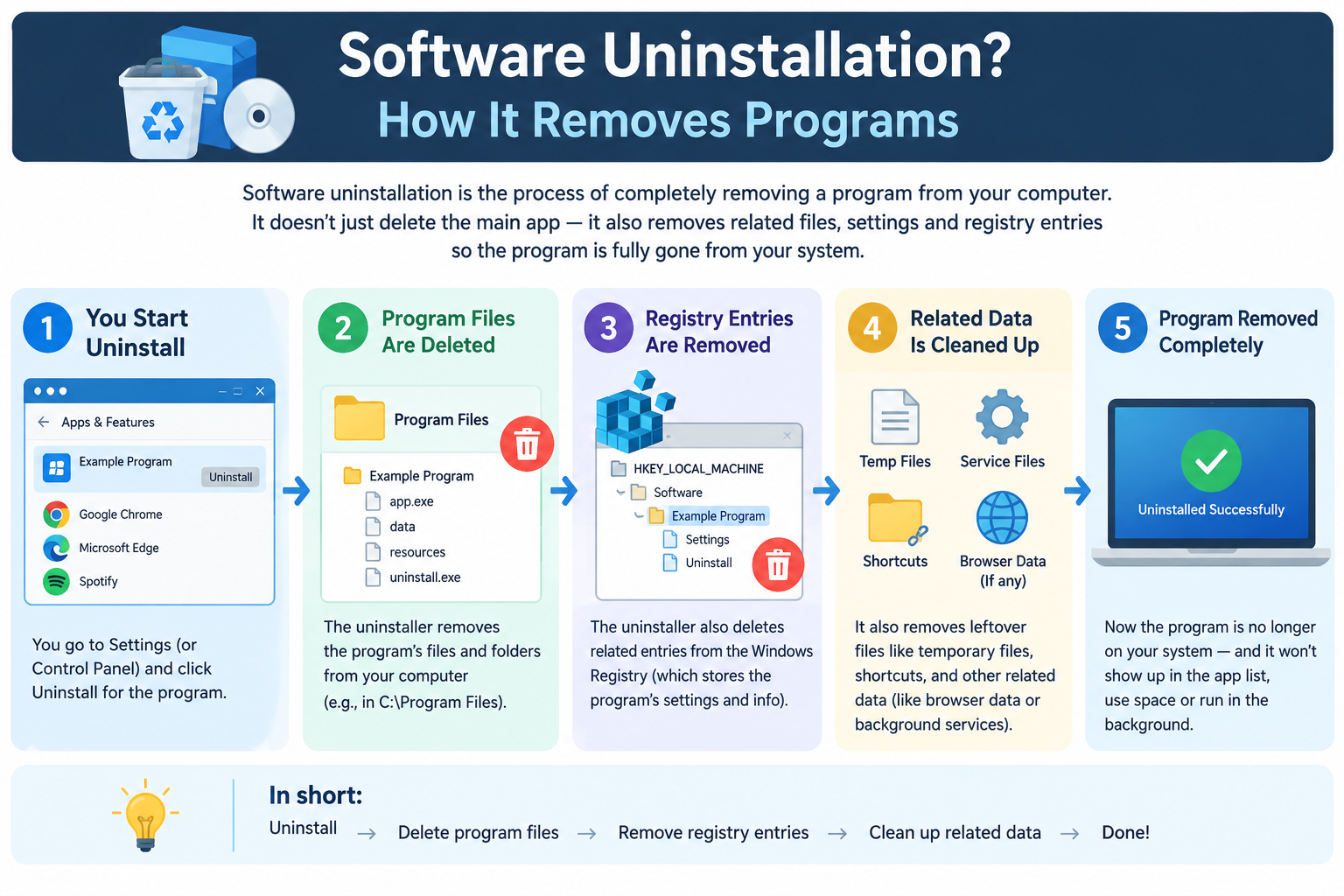
Introduction
Removing software from a device sounds simple. You no longer need a program, so you get rid of it. But there is more to software uninstallation than most people realize, and doing it incorrectly can leave unwanted files behind, cause problems with other programs, or in some cases affect how your device performs.
This guide explains what software uninstallation actually is, what happens behind the scenes when you remove a program, and how to do it correctly on Windows, macOS, Android, and iPhone. Whether you are clearing space on your computer, removing an app you no longer use, or dealing with software that refuses to be removed, this guide covers what you need to know.
What Is Software Uninstallation?
Software uninstallation is the process of removing a software program from a computer or device, including its files, settings, and system registrations, so that it no longer runs or occupies system resources.
Uninstallation is essentially the reverse of installation. When software is installed, files are copied to specific locations, settings are configured, and the software is registered with the operating system. When software is uninstalled, those files are removed, those configurations are reversed, and the system registrations are cleaned up.
After proper uninstallation, the software no longer appears in your applications list or program menu, and the storage space it occupied is generally freed for other use.
It is important to understand that proper uninstallation is different from simply deleting a program’s folder or files. Manually deleting files leaves behind registry entries on Windows, system references, and other traces that accumulate over time. Using the correct uninstallation method is what ensures a reasonably clean removal.
Common everyday examples of software uninstallation include:
- Removing a game you no longer play to recover storage space on your computer
- Removing an older version of software before installing a newer version
- Removing software that is causing errors or conflicts on your device
- Deleting apps from a smartphone to free up storage or reduce clutter
For more on the installation side of this process, see What Is Software Installation?
Why Is Proper Software Uninstallation Important?
Removing software correctly, rather than simply ignoring unused programs or deleting files manually, matters for several practical reasons.
Frees storage space. Every installed program occupies storage. Removing software you no longer use reclaims that space for files, other software, or system needs.
Improves system performance. Some software runs background processes even when you are not actively using it. These processes consume memory, processor time, and sometimes network activity. Removing unused software eliminates this overhead.
Reduces security risk. Software that is no longer used is often no longer updated. Outdated software with known unpatched vulnerabilities represents an unnecessary risk on your device. Removing it eliminates that exposure. CISA consistently identifies removing unused software as part of good security hygiene, as documented at cisa.gov.
Reduces clutter. A device with fewer installed programs is easier to navigate and manage. Finding and organizing software becomes simpler when unused applications are removed.
Resolves software conflicts. Some programs conflict with other software on the same device. If an application is causing problems, uninstalling it may resolve conflicts with other programs or the operating system.
Avoids leftover file accumulation. Using the correct uninstallation method is more thorough than manual file deletion and leaves fewer orphaned files and registry entries behind, keeping the system cleaner over time.
What Happens When You Uninstall Software?
When you uninstall software correctly, a structured sequence of actions takes place, most of which happen automatically through the uninstaller or operating system.
- The user initiates uninstallation through the operating system’s software management interface or the software’s own uninstaller.
- The uninstaller identifies all relevant files and settings created during the original installation.
- Program files are removed from the installation directory and other system locations where they were placed.
- Registry entries created during installation are removed on Windows, cleaning up the system database of installed software.
- Shortcuts are removed from the desktop, Start menu, taskbar, and other locations where they were created.
- File type associations may be removed if no other installed software claims the same file types.
- The uninstallation completes and the software is no longer accessible on the device.
- A restart may be prompted to complete the removal of files that were in active use during the uninstallation process.
One important nuance: not all uninstallers remove every trace of the software. Some files, particularly user data and preferences, may be intentionally left behind. This allows the user’s settings and saved data to be restored if they reinstall the software in the future. This behavior is by design, not an error.
Third-party uninstaller tools sometimes identify and remove more leftover files than the software’s built-in uninstaller, but the built-in method is the appropriate starting point for most users.
Software Uninstallation vs Deleting Files
| Factor | Proper Uninstallation | Manual File Deletion |
|---|---|---|
| Definition | Structured removal through the OS or software’s own uninstaller | Manually moving program files or folders to the trash or recycle bin |
| What is removed | Program files, registry entries, shortcuts, and system references | Only the specific files or folders you select |
| Registry cleanup | Yes, handled by the uninstaller on Windows | No, registry entries remain |
| Shortcuts removed | Yes | Only if you manually delete them |
| Data removal | Varies by software; may prompt user | Only if you manually delete data files |
| Recommended for | All standard software removal | Not recommended as the primary removal method |
| Risk of incomplete removal | Lower; uninstaller handles most traces | Higher; significant residue left behind |
| Examples | Using Settings on Windows, Launchpad on Mac | Dragging the program folder to the recycle bin |
Deleting a program’s folder or executable file is not a proper uninstallation. On Windows in particular, this approach leaves behind registry entries, start menu entries, and other system references that accumulate as clutter over time. The correct approach is always to use the operating system’s built-in tools or the software’s own uninstaller.
An important clarification for smartphone users: deleting an app on Android or iOS through the standard long-press and delete method is equivalent to a proper uninstallation. The operating system handles the removal completely through this method, which is different from the desktop situation where manual file deletion falls short.
Software Uninstallation vs Software Update vs Software Installation
| Factor | Uninstallation | Software Update | Software Installation |
|---|---|---|---|
| Definition | Removing software from the device | Modifying installed software with fixes or improvements | Setting up software on a device for the first time |
| Purpose | Remove software no longer needed | Improve or patch existing software | Make new software available on the device |
| Effect on software | Software is removed | Software remains with changes applied | Software is added to the device |
| Effect on data | Data may be removed depending on the software | Data generally preserved | New data structures created |
| Storage impact | Frees storage space | Minor impact; may increase slightly | Consumes storage space |
| User action | Uninstall via OS tools or built-in uninstaller | Apply via update mechanism | Run installer or use app store |
For more on updates, see What Does Software Update Mean? For the full installation process, see What Is Software Installation?
How to Uninstall Software on Different Platforms
How to Uninstall Software on Windows
Windows provides several methods for removing installed software. The Settings app is the most accessible for most users.
Method 1: Through Windows Settings
- Open Settings by clicking the Start menu and selecting the Settings icon, or press the Windows key and I together.
- Navigate to Apps, then Apps and Features (on Windows 10) or simply Apps on Windows 11.
- Find the software in the list. Use the search box at the top to locate it quickly.
- Click on the software name to expand its options.
- Click Uninstall.
- Follow any prompts from the uninstaller that appears.
- Restart your computer if prompted to complete the removal.
Method 2: Through Control Panel
- Open Control Panel by searching for it in the Start menu.
- Select Programs, then Programs and Features.
- Find the software in the list.
- Right-click on it and select Uninstall.
- Follow the uninstaller prompts.
Method 3: Using the Software’s Own Uninstaller
Some software includes a dedicated uninstaller accessible from the Start menu folder created for that application, or from the software’s installation directory. Look for an entry labeled Uninstall followed by the software name. This is often the most thorough removal option for complex applications.
Method 4: Through the Microsoft Store
Software installed from the Microsoft Store can be uninstalled by right-clicking its icon in the Start menu or the Apps list and selecting Uninstall.
General notes for Windows: User Account Control may ask for confirmation during uninstallation. Some software will prompt you to choose whether to keep or remove your saved settings and data. Microsoft’s official guidance on removing programs is available at learn.microsoft.com.
How to Uninstall Software on Mac
Method 1: Dragging to Trash
- Open Finder.
- Navigate to the Applications folder in the left sidebar.
- Find the application you want to remove.
- Drag it to the Trash in the Dock, or right-click it and select Move to Trash.
- Right-click the Trash icon and select Empty Trash to complete the removal.
- Enter your Mac password if prompted.
Method 2: Using Launchpad
- Open Launchpad from the Dock or by pinching with your fingers on a trackpad.
- Hold the Option key or long-press an app icon until the icons start to wiggle.
- Click the X button that appears on the app you want to remove.
- Confirm the deletion when prompted.
Note: This method works for applications installed through the Mac App Store. Not all applications show an X in Launchpad.
Method 3: Using a PKG Uninstaller
Some applications installed with a PKG installer file include a dedicated uninstaller provided by the developer. Check the application’s official website or its documentation for specific uninstallation instructions if this applies.
Important notes for Mac: Dragging an application to the Trash removes the main application bundle but may leave support files in other locations such as the Library folder. For a more thorough removal, you can manually check these Library subfolder locations: Application Support, Preferences, and Caches, and remove folders associated with the deleted application. Be careful when navigating the Library folder and only remove items clearly associated with the specific software. Apple’s official guidance for removing apps is available at support.apple.com.
How to Uninstall Apps on Android
Method 1: From the Home Screen or App Drawer
- Long-press the app icon on the home screen or in the app drawer.
- Select Uninstall from the menu that appears.
- Confirm the uninstallation when prompted.
Method 2: Through Settings
- Open Settings.
- Navigate to Apps or Application Manager depending on your device and Android version.
- Find and tap the app you want to remove.
- Tap Uninstall.
- Confirm when prompted.
Method 3: Through Google Play Store
- Open the Google Play Store.
- Tap your profile icon in the top right corner.
- Select Manage Apps and Device.
- Find the app and tap on it.
- Select Uninstall.
Important notes for Android: Some pre-installed apps, often called bloatware, from the device manufacturer or carrier cannot be fully uninstalled because they are system apps stored in protected system partitions. These apps can frequently be disabled instead, which prevents them from running and hides them from the app drawer without removing them from the system. Menu names and steps vary between Android versions and device manufacturers. For more on Android apps, see What Is an Android App?
How to Uninstall Apps on iPhone
Method 1: From the Home Screen
- Long-press the app icon on the home screen.
- Tap Remove App from the menu that appears.
- Select Delete App.
- Confirm by tapping Delete.
Method 2: Through iPhone Settings
- Open Settings.
- Navigate to General, then iPhone Storage.
- Find the app in the list.
- Tap the app name.
- Tap Delete App.
- Confirm the deletion.
Offloading as an alternative: iOS offers an Offload App option that removes the app itself but keeps its documents and data on your device. If you reinstall the app later, your data will still be there. Offloading frees less space than full deletion but is useful when you want to preserve your settings and saved information in case you reinstall. For more on what app data includes and how it is stored, see What Is App Data?
For more on iPhone apps, see What Is an iPhone App?
Does Uninstalling Software Remove All Files?
The honest answer is: mostly, but not always completely.
Uninstalling software removes the main program files and the majority of what was installed. However, some files commonly remain after uninstallation:
- User data and preferences that the uninstaller intentionally preserves in case you reinstall the software and want your settings back.
- Temporary files that were not cleaned up by the uninstaller.
- Registry entries on Windows that the uninstaller missed or chose to leave.
- Log files created by the software during normal use.
- Files in user profile locations such as the AppData folder on Windows, which the uninstaller may not touch.
- Shared components that were also used by other software and were not removed to avoid breaking those other programs.
These leftover files are generally harmless individually but accumulate over time as more software is installed and removed. They do not prevent your device from working, but they can consume storage gradually.
On smartphones, uninstalling an app through the standard method is generally more complete than desktop software uninstallation. The operating system manages the removal more comprehensively in the mobile context.
For more on what data apps store during use, see What Is App Cache? and What Is App Data?
What Are Leftover Files After Uninstallation?
Leftover files are files, folders, registry entries, or other data that remain on a device after software has been uninstalled. They are a normal and expected consequence of software removal rather than a sign that something went wrong.
Common leftover file locations on Windows:
- AppData folder in the user profile (found at C:\Users\YourName\AppData) which contains three subfolders: Local, LocalLow, and Roaming. Many applications store user-specific data here.
- ProgramData folder which stores application data that applies to all users on the computer.
- Windows Registry which may retain entries that reference the removed software.
- Temp folder which may contain temporary files created during the software’s use.
Common leftover file locations on macOS:
- Library folder accessible from Finder by holding the Option key and clicking the Go menu. Relevant subfolders include Application Support, Preferences, and Caches.
Approaching manual cleanup:
If you want to check these locations for leftover files, proceed carefully. Only remove folders or files that are clearly named after the software you removed. Deleting unrelated files from these locations can cause other software or your operating system to malfunction. If you are not confident about identifying files safely, a reputable cleanup tool designed for your operating system is a safer option than manual exploration.
How to Force Uninstall Software That Will Not Uninstall
Occasionally, software resists standard removal. Understanding why helps you choose the right solution.
Common reasons normal uninstallation fails:
- The uninstaller file itself is corrupted or was accidentally deleted.
- The software is still running in the background and its files are in use.
- A required system component is preventing the removal.
- The software was only partially installed and the uninstallation path is incomplete.
Restart and Try Again
Restarting the device releases file locks that accumulate during a session. After restarting, attempt the uninstallation again before launching other programs.
End Running Processes First
On Windows, open Task Manager (press Ctrl, Shift, and Escape together), find processes related to the software under the Processes tab, right-click them, and select End Task. Then attempt uninstallation. On Mac, open Activity Monitor from the Utilities folder, find related processes, and quit them before proceeding.
Use Microsoft’s Official Troubleshooting Resources
Microsoft provides troubleshooting guidance for programs that do not uninstall correctly through its official support documentation at learn.microsoft.com. Use official resources rather than unverified third-party fix tools found in search results.
Reinstall Then Uninstall
Sometimes reinstalling the software restores a missing or damaged uninstaller. Once reinstalled, use the standard uninstallation method to remove it cleanly.
Use Safe Mode on Windows
Booting into Windows Safe Mode loads only essential system processes. This can allow removal of software that resists uninstallation in normal mode because fewer background processes are running that might hold files open or interfere.
Use a Trusted Third-Party Uninstaller Tool
Reputable third-party uninstaller applications can sometimes handle software that resists standard removal. These tools should be downloaded exclusively from the official developer’s website, from developers with a verifiable established reputation, and researched through reviews from established technology publications before use. Be cautious of tools that make exaggerated claims about what they will fix or clean.
Third-Party Uninstaller Software
Third-party uninstaller tools provide more comprehensive software removal in some cases than the operating system’s built-in tools. Their key advantages include:
- Scanning for leftover files, registry entries, and other remnants that remain after a standard uninstallation.
- Installation monitoring, which tracks exactly what files and registry entries a program creates during installation, enabling more complete removal later.
- Batch uninstallation for removing multiple programs at once.
Guidelines for using third-party uninstaller tools:
- Download only from the official developer website, not from aggregator sites or search results.
- Choose tools from developers with a verifiable, established reputation in the software space.
- Research any tool through reviews from established technology publications before installing it.
- Be skeptical of tools that make aggressive claims about how much they will improve your computer’s performance.
Well-known third-party uninstaller tools exist for both Windows and macOS. Given that product status, pricing, and availability change over time, research current options from reliable technology publications rather than relying on any static list here.
Uninstalling Software and Security
The security case for removing unused software is straightforward and significant.
Every piece of installed software is a potential target if it contains vulnerabilities. The fewer unnecessary programs on your device, the smaller the potential attack surface. Removing software you no longer use is a practical security measure that requires no technical expertise.
Outdated software that is no longer maintained represents a compounding risk. If the developer is no longer releasing security updates, any new vulnerabilities discovered after that point will never be patched. Uninstalling the software removes that risk entirely rather than leaving it to accumulate.
If software behaves suspiciously, displays unexpected behavior, or was installed without your knowledge, uninstalling it is an appropriate step. This should be followed by running a scan with reliable, up-to-date security software to ensure no traces remain.
Some malicious software actively resists uninstallation. In these cases, dedicated security software designed to identify and remove malware is the appropriate approach rather than manual removal attempts. For more on protecting your device, see What Is Cybersecurity? and What Is Antivirus Software?
Uninstalling System Apps and Pre-installed Software
Operating systems come with pre-installed software. Not all of it can be removed, and some should not be removed.
On Windows: Some built-in apps can be uninstalled through Settings in the Apps section. Others are protected system components that the operating system needs to function correctly. Attempting to remove protected system components is not recommended and can cause instability.
On macOS: Core system applications are protected by System Integrity Protection (SIP), a security feature that prevents modification of protected system files and directories. Removing these requires disabling SIP, which is not recommended for general users and is not necessary for any routine task.
On Android: Manufacturer and carrier pre-installed apps are typically stored in the system partition, which is a protected area of storage that regular users cannot modify. These apps usually cannot be uninstalled but can often be disabled through Settings under Apps. Disabling an app prevents it from running and hides it from the app drawer without affecting the system partition. This is the appropriate approach for unwanted pre-installed apps on Android.
On iPhone: Many of Apple’s built-in apps can be removed from the home screen through the standard long-press method. Some core system functionality cannot be removed. Apps removed from the home screen can be reinstalled from the App Store. See What Is an App Store? for more on app distribution and reinstallation.
Caution: Do not attempt to remove components that the operating system identifies as system software or protected unless you fully understand the consequences and have a specific technical reason for doing so. Removing critical system components can prevent the device from operating correctly.
Uninstalling Software vs Factory Reset vs Formatting
| Factor | Uninstallation | Factory Reset | Formatting |
|---|---|---|---|
| Definition | Removing individual software from a device | Returning a device to its original out-of-box state | Erasing all data on a storage drive |
| What is removed | The specific software and most of its files | All user data, installed software, and personal settings | Everything on the drive including the operating system |
| What is kept | Operating system, other software, personal files | Pre-installed system software (in most cases) | Nothing; the drive is empty |
| Effect on operating system | No effect | OS is restored to original state | OS is removed and must be reinstalled |
| When to use | Removing individual unwanted software | Preparing a device for sale, resetting a problematic device | Preparing a drive for a fresh OS installation or repurposing |
| Reversibility | Software can be reinstalled | Personal data cannot be recovered without backup | Data cannot be recovered without backup |
Uninstallation is the right tool for removing individual software while keeping everything else intact. A factory reset is a much more drastic action appropriate for specific situations such as preparing a device for a new owner or resolving deep system problems. Formatting is even more comprehensive and typically part of setting up a new operating system installation.
For the vast majority of situations where you want to remove a program you no longer need, standard uninstallation is the correct and sufficient approach.
Should You Uninstall Software You No Longer Use?
For most software, the answer is yes, and doing so is a straightforward good practice.
Reasons to remove unused software:
- It frees storage space that could be used for files or software you actively need.
- Background processes from unused software consume memory and processor time even when you are not actively using the program.
- Unpatched vulnerabilities in unused software represent unnecessary security exposure.
- Fewer installed programs makes the device easier to organize and navigate.
Situations where you might keep software even if not actively using it:
- You plan to use it again in the near future and reinstalling would be inconvenient.
- The software is very lightweight and consumes negligible resources.
- Other software you use depends on it as a shared component.
Practical approach: Review your installed software periodically, perhaps every few months. Remove programs you have not used in an extended period and do not expect to need. Before removing software, verify that you have a way to reinstall or download it again if you change your mind. Most commercial software can be reinstalled using your account credentials or license key, and free software is available for download from its official source.
Note that portable software does not need to be uninstalled because it was never integrated into the system in the first place. See What Is Portable Software? for more on how that works differently.
Uninstallation and App Data
Understanding the relationship between uninstalling software and the data it stored helps you make informed decisions before removing programs.
When software is uninstalled, the core program files are removed. What happens to your saved data depends on the software and the platform:
On Windows: Some uninstallers prompt you to choose whether to keep or remove your saved settings and user data. Others remove everything, while others leave data files behind by default. If this matters for a specific program, check the developer’s documentation before uninstalling.
On macOS: The main application bundle is removed when dragged to the Trash. Support files in the Library folder, which may include saved preferences and data, may remain unless removed manually.
On smartphones: Uninstalling an app through the standard method on both Android and iOS typically removes the app and its locally stored data. The iOS Offload App option is specifically designed to preserve local data while removing the app itself.
Cloud-synchronized data: Data that is synchronized to the developer’s cloud servers is not affected by uninstalling the local app. Your account and cloud data remain on the developer’s servers regardless of whether the app is installed on your device. Reinstalling the app and signing back in typically restores access to that data. For more on cloud storage, see What Is Cloud Computing?
Understanding what data an app stores and where it stores it before uninstalling is worthwhile when the data matters to you. See What Is App Data? and What Is App Cache? for more detail on how apps manage stored information.
Common Software Uninstallation Problems and Solutions
Uninstaller Not Found or Missing
What happens: The software does not appear in the program list, or the uninstaller is missing from its expected location.
Solution: Check the software’s official website for specific uninstallation instructions. Try reinstalling the software to restore the uninstaller, then use it to remove the program. The operating system’s built-in program removal tool in Settings or Control Panel may also find the software even if its own uninstaller is missing.
Software Will Not Uninstall Due to Running Processes
What happens: The uninstaller reports that files are in use and cannot be removed.
Solution: Close the software completely, including any system tray icons or background processes. On Windows, use Task Manager to end related processes. On Mac, use Activity Monitor. Restart the device and try again before opening other programs.
Uninstallation Removes Files Needed by Other Software
What happens: After uninstalling one program, another program stops working because a shared component was removed.
Solution: Reinstall the affected software or the specific component it needs. When uninstalling software and prompted about shared components, the safer choice is generally to keep shared files unless you are confident no other software uses them.
Leftover Files Taking Up Space
What happens: After uninstalling software, storage space has not been fully recovered because leftover files remain.
Solution: Manually check common leftover file locations with appropriate caution, removing only folders clearly associated with the removed software. A reputable cleanup tool from an official verified source can also assist with identifying and removing remnants.
Cannot Uninstall a Pre-installed App
What happens: The app does not offer an uninstall option, particularly on Android.
Solution: Check whether the app can be disabled rather than uninstalled through Settings under Apps. This prevents it from running without requiring full removal. Check your operating system’s official documentation for guidance on managing pre-installed applications.
Best Practices for Software Uninstallation
Following these practices makes uninstallation cleaner, safer, and more effective:
- Use the operating system’s built-in uninstallation method as your first approach. Settings on Windows, the Applications folder or Launchpad on Mac, and the standard long-press method on smartphones are the correct starting points.
- Back up important data related to the software before uninstalling if you are unsure what the uninstaller will remove.
- Close the software completely before attempting to uninstall it, including any background or system tray processes.
- Restart after uninstallation if the uninstaller or operating system prompts you to do so.
- Check for leftover files periodically in common locations using appropriate caution or a reputable cleanup tool.
- Do not manually delete program folders as your primary removal method. This leaves registry entries and system references behind on Windows.
- Verify you have a way to reinstall the software before removing it if there is any chance you may need it again.
- Review installed software regularly and remove programs that have not been used for an extended period.
- Do not remove system software or protected operating system components. If unsure whether something is a system component, leave it alone and consult official documentation.
- Understand that uninstallation is part of good software management alongside software updates and compatibility checks.
Frequently Asked Questions
What is software uninstallation?
Software uninstallation is the process of removing a software program from a computer or device, including its files, settings, and system registrations, so that it no longer runs or occupies system resources.
What happens when you uninstall software?
The uninstaller removes the program’s files, cleans up registry entries on Windows, removes shortcuts, and deregisters the software from the operating system. Some user data and preferences may be left behind depending on the software.
Is uninstalling the same as deleting?
No. Proper uninstallation uses the operating system or the software’s own uninstaller to remove files and clean up registry entries and system references. Manually deleting program files leaves registry entries and other traces behind on Windows. On smartphones, deleting an app through the standard method is equivalent to a proper uninstallation.
Does uninstalling software free up space?
Yes, in most cases. The program files are removed and the storage they occupied becomes available again. Some small leftover files may remain, but the bulk of the storage is recovered.
Does uninstalling software remove all files?
Not always. Most files are removed, but user data, preferences, temporary files, and some configuration files may remain, particularly on Windows and macOS. On smartphones, uninstallation through the standard method is generally more complete.
How do I uninstall software on Windows?
Go to Settings, then Apps, then Apps and Features or Installed Apps. Find the program, click on it, and select Uninstall. Follow the prompts that appear.
How do I uninstall software on Mac?
Open Finder and navigate to the Applications folder. Drag the application to the Trash, then empty the Trash. For App Store apps, you can also use Launchpad.
How do I uninstall apps on Android?
Long-press the app icon and select Uninstall, or go to Settings, then Apps, find the app, and tap Uninstall.
How do I uninstall apps on iPhone?
Long-press the app icon, tap Remove App, then Delete App, and confirm.
What are leftover files after uninstalling software?
Leftover files are files, folders, registry entries, and other data that remain after uninstallation. Common locations include the AppData folder and Windows Registry on Windows, and the Library folder on macOS.
How do I force uninstall software that won’t uninstall?
Try closing all related processes first, then restarting and retrying. Consider reinstalling the software to restore the uninstaller, then uninstalling normally. For persistent cases, consult official Microsoft or Apple support documentation.
Is it safe to uninstall software?
Uninstalling software you no longer need is generally safe. Take care not to remove system software or components that other programs depend on. Back up important data before uninstalling if unsure what will be removed.
Should I uninstall software I no longer use?
Generally yes. Removing unused software frees storage, reduces background resource use, and eliminates security exposure from unpatched software you are not monitoring for updates.
What is the difference between uninstalling and disabling an app?
Uninstalling removes the app and frees storage. Disabling, available primarily on Android for system apps, prevents the app from running and hides it from the app drawer without removing it from the system partition.
Does uninstalling an app delete my account?
No. Uninstalling an app from your device removes the local app. Your account on the developer’s servers remains unless you specifically delete it through the service’s account management options.
What happens to my data when I uninstall an app?
Locally stored data is typically removed with the app on smartphones. Cloud-synchronized data remains on the developer’s servers. On Windows and macOS, some user data may be left behind by the uninstaller. The iOS offload option specifically preserves local data while removing the app.
Can I reinstall software after uninstalling it?
Yes. Uninstalling removes the software from your current device. You can reinstall it by downloading the installer again from the official source or reinstalling from the app store.
What is the difference between uninstalling and factory reset?
Uninstalling removes one specific program while keeping everything else. A factory reset returns the entire device to its original out-of-box state, removing all personal data, installed software, and user settings.
For further reading on related topics, explore What Is Application Software? to understand the category of programs most commonly installed and uninstalled, What Is an App? for a foundational overview of applications, and What Is a Firewall? for more on protecting your device after managing your installed software.
Disclaimer
This article is intended for educational purposes and provides a general overview of software uninstallation for beginners and everyday users. Uninstallation processes and behavior vary between operating systems, software products, versions, and device types. Always refer to official documentation from your operating system or software vendor for specific guidance. Some uninstallation steps described in this article may require administrator permissions. If you do not have administrator access on your device, consult the device owner or IT administrator before attempting to remove software. Uninstalling software may remove data associated with that software. Back up important data before uninstalling software if you are unsure what will be removed. Always use caution when removing system software or components. Removing critical system components can affect device stability.
Author: Laraib
Laraib is a technology writer and research contributor covering AI, programming, software, cybersecurity, cloud computing, and the latest developments in technology. She focuses on creating clear, practical, and well-researched content that makes complex tech topics easy to understand.