
 By saman zahra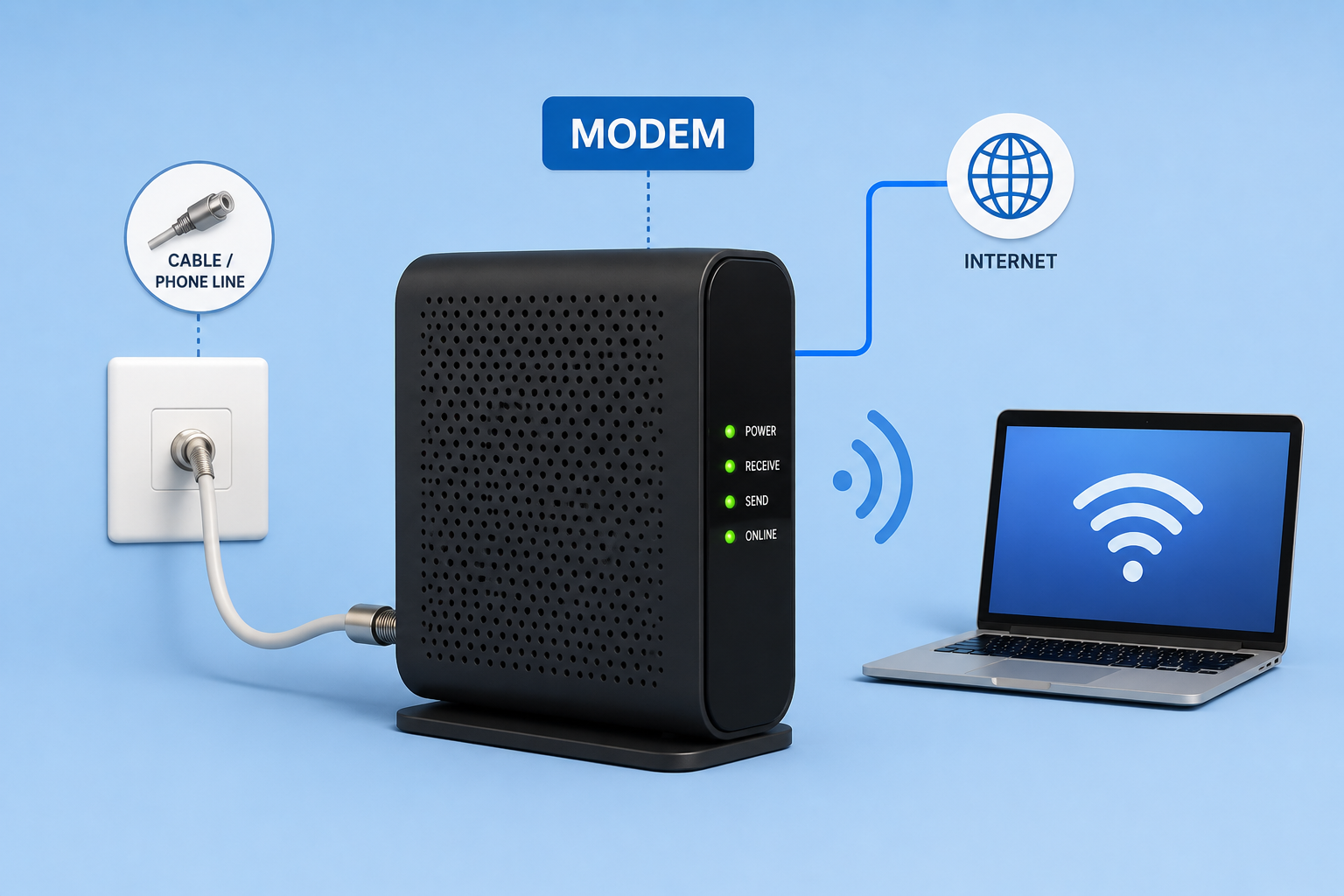
Introduction
When people set up home internet, they quickly encounter a collection of unfamiliar terms. Modem, router, Wi-Fi, ISP, IP address, DNS — each one refers to a different part of how internet connectivity is delivered and managed. Understanding what each piece does helps you make better decisions about your home network, troubleshoot problems more effectively, and communicate with your internet provider when something goes wrong.
If you have ever asked what is a modem and why it sits at the start of your home connection, this guide answers that question thoroughly. Understanding the internet itself is a useful starting point, and our guide on what is the internet and how it works covers the broader network picture. This article focuses specifically on the modem and access equipment that connects your home to your internet service provider’s network.
Quick Answer: What Is a Modem?
A modem is networking equipment that connects a customer’s router or local network to an internet service provider’s access network using a specific communication technology. Cable modems connect through cable networks, DSL modems connect through telephone copper lines, and cellular modems connect through mobile networks. Fiber internet connections commonly use an Optical Network Terminal (ONT) rather than a traditional modem, though the functional role is similar.
What Is a Modem?
A modem is a piece of networking equipment that sits between a customer’s home network and an internet service provider’s access network. Its primary role is to communicate using the specific technology that the ISP uses to deliver connectivity to the customer’s premises.
The word modem comes from the terms modulator and demodulator. In the original context of dial-up connections, a modem converted digital data from a computer into analog signals that could travel over telephone lines, and converted incoming analog signals back into digital data. This modulation and demodulation process gave the device its name.
It is important to understand that not every modern broadband device performs exactly the same modulation or demodulation process as those early devices. Cable modems, DSL modems, fiber ONTs, and cellular modems all operate differently depending on the access technology they support. The term modem has become a general term that people use for a range of access devices, even when the underlying technology is quite different from the original dial-up design.
What connects these different devices is their shared function: they serve as the customer-side connection point to the provider’s access network, enabling the flow of data between the ISP’s infrastructure and the customer’s equipment.
What Does a Modem Do?
The modem’s primary job is to connect customer equipment to the ISP’s access network and communicate using the appropriate technology for that connection type.
When you request a webpage, stream a video, or send an email, data travels out of your device, through your local network, to the modem, and then across the ISP’s network toward its destination on the internet. Responses travel back through the same path in reverse.
The flow of data in a typical home setup looks like this:
Internet / ISP Network → Modem or Access Device → Router → Devices
The modem handles the ISP side of this connection. It establishes and maintains the link to the provider’s network, processes incoming and outgoing signals using the required technology, and passes data toward the customer’s router or gateway.
A standalone modem does not typically manage local network traffic, assign IP addresses to devices, provide Wi-Fi, or perform the routing functions that allow multiple devices to share a single internet connection. Those tasks belong to the router. The modem’s role is the connection to the ISP, not the management of the home network.
How Does a Modem Work?
The process by which a modem enables internet connectivity follows a consistent sequence, though the exact details vary depending on the type of modem and access technology.
Step 1: Your ISP provides an access connection to your premises. This might be a coaxial cable, a copper telephone line, a fiber optic cable, or a wireless cellular signal, depending on the service type.
Step 2: The modem or access device connects to that physical line or signal and communicates using the protocols and technology required by the ISP’s network.
Step 3: The modem exchanges authentication and configuration information with the ISP’s systems to establish the subscriber connection.
Step 4: Once connected, data travels between the ISP’s network and your customer equipment. Outgoing data from your devices passes through the modem toward the ISP. Incoming data from the internet arrives at the modem and is passed to your router.
Step 5: A router or gateway receives the data from the modem and manages local network traffic, directing it to the correct device on your home network.
Step 6: Your devices access internet services through this established connection.
A simple way to visualize this:
ISP → Modem / Access Device → Router → Wi-Fi and Ethernet Devices
The modem and the router each play a distinct part. Confusing these two roles is one of the most common misunderstandings in home networking, which is why the distinction is covered in detail in the next section.
Why Do You Need a Modem?
Whether you need a traditional modem depends on the type of internet connection you have.
For cable internet, a cable modem is required to communicate with the cable provider’s network. For DSL internet, a DSL modem connects through copper telephone infrastructure. For fiber internet, an ONT or ONU is typically provided by the ISP to handle the optical-to-electrical conversion at the customer’s premises. For cellular broadband, a cellular modem or cellular router provides the mobile network connection.
In each case, the equipment at the customer’s end needs to speak the same technical language as the provider’s access network. Without this device, customer equipment cannot communicate with the ISP’s infrastructure, and there is no path for internet traffic to travel between the home and the broader network.
The specific equipment required varies by ISP, service type, and country. Some ISPs provide this equipment as part of the service. Others allow customers to supply their own compatible equipment. In either case, the function is the same: establishing the subscriber connection to the provider’s access network.
What Is the Difference Between a Modem and a Router?
The modem and the router are two separate devices with different roles in a home network. Confusing them is extremely common, partly because many home setups use a combined device that performs both functions.
| Feature | Modem | Router |
|---|---|---|
| Main role | Connects to ISP access network | Manages local network traffic |
| Connects home to ISP | Yes, depending on access technology | Works with the WAN connection from modem |
| Creates local network | Usually no | Yes |
| Wi-Fi | Usually no | Often, if it is a Wi-Fi router |
| IP routing | Usually not its primary role | Yes |
| DHCP | Usually not its primary role | Commonly |
| NAT | Usually not its primary role | Commonly |
| Firewall | May have some basic features | Commonly included |
The modem faces outward toward the ISP. The router faces inward toward your devices. When these are separate devices, the modem connects to the ISP line and then connects to the router via an Ethernet cable. The router then distributes the connection to laptops, phones, smart TVs, and other devices.
For a detailed explanation of what routers do and how they manage local network traffic, the differences become clearer when you understand both sides of this relationship.
Understanding what is Wi-Fi and how it works also helps clarify why Wi-Fi is a function of the router or access point, not the modem.
Modem vs Wi-Fi Router
A Wi-Fi router is a router that includes a wireless access point, allowing devices to connect to the local network without physical cables. It handles both routing functions and wireless connectivity.
A standalone modem handles neither of these. Its job is the ISP connection, not the local network.
The distinction in a typical home setup:
Modem: Provides and maintains the ISP access connection.
Wi-Fi Router: Manages the local network, assigns addresses to devices, and provides wireless connectivity.
Combined Gateway: A single device that handles the ISP connection, routing, Wi-Fi, and often a built-in switch and firewall.
In a two-device setup, the modem connects to the ISP line, the router connects to the modem via Ethernet, and all your devices connect to the router either by cable or by Wi-Fi. In a combined gateway setup, one box does all of this. The ISP often provides this type of device, which is why many people refer to the whole unit as “the modem” even though it performs several distinct functions.
What Is a Modem Router or Gateway?
Many internet providers supply an all-in-one gateway device rather than separate modem and router equipment. These gateway devices are increasingly common in home installations because they simplify setup and reduce the number of physical devices on the customer’s premises.
A gateway may combine some or all of the following:
- Modem or access technology termination
- Router for managing local network traffic
- Wi-Fi access point for wireless connectivity
- Ethernet switch for wired device connections
- Firewall for basic traffic filtering
- DHCP server for assigning local IP addresses
- NAT for sharing the public IP address among local devices
When your ISP installs a single box that connects to the service line and also provides Wi-Fi throughout your home, that box is almost certainly a gateway rather than a standalone modem.
It is worth understanding that the term “modem” is used casually by many people to refer to whatever box the ISP installed, even when that device performs several networking roles. Technically, a modem, a router, and a gateway are distinct concepts, even though they are often combined in consumer equipment.
What Are the Types of Modems?
Modems and access devices come in several categories, each designed for a different type of internet connection. The major types include cable modems, DSL modems, fiber ONTs, dial-up modems, and cellular modems.
It is worth noting that not all of these devices are technically “modems” in the original sense of the word. The term has broadened over time to describe access equipment more generally, including devices that use digital communication methods rather than the analog modulation that defined the original modem technology.
What Is a Cable Modem?
A cable modem connects a customer’s equipment to a cable internet service over a coaxial cable. Cable internet is delivered by cable television operators who have upgraded their infrastructure to carry broadband internet alongside television services.
The technical standards that govern cable modem communication are developed by CableLabs and are known as DOCSIS, which stands for Data Over Cable Service Interface Specification. DOCSIS defines how data is transmitted between cable modems and the cable provider’s network equipment. Different versions of DOCSIS support different performance characteristics, and both the modem and the cable provider’s infrastructure must support a compatible DOCSIS version for the connection to work.
When choosing or evaluating a cable modem, compatibility with the ISP’s network and the DOCSIS version supported by both the device and the provider are the key technical considerations. The ISP plan speed, network conditions, router capabilities, and Ethernet interface all affect the actual performance experienced.
What Is a DSL Modem?
A DSL modem connects a customer’s equipment to a DSL internet service delivered over copper telephone lines. DSL stands for Digital Subscriber Line, and it allows broadband data to travel over the same copper wiring used for telephone service.
DSL equipment at the provider’s end, called a DSLAM (Digital Subscriber Line Access Multiplexer), aggregates connections from many customers and connects them to the broader network. The customer’s DSL modem communicates with the DSLAM using the required DSL protocol.
Common DSL variants include ADSL (Asymmetric DSL), which provides faster download speeds than upload speeds, and VDSL (Very High Speed DSL), which offers higher speeds over shorter distances. The distance between the customer’s premises and the provider’s equipment significantly affects DSL performance, which is a fundamental characteristic of this access technology.
What Is a Fiber ONT?
Fiber internet connections work differently from cable and DSL services and typically use a device called an Optical Network Terminal, commonly abbreviated as ONT, or sometimes an Optical Network Unit (ONU).
A fiber access network delivers data as pulses of light through glass or plastic fiber optic cables. The ONT is installed at the customer’s premises and converts the optical signals from the fiber cable into electrical signals and standard network interfaces, such as Ethernet, that customer equipment can use. The ONT also handles the communication protocols required by the fiber access network.
People sometimes casually refer to an ONT as a “fiber modem.” This language is understandable in everyday conversation, but technically an ONT is a different type of device from a traditional modem. The ONT terminates the optical network connection at the customer’s premises and is provided and managed by the fiber ISP in most residential deployments.
Do not confuse the ONT with a router. Like a standalone cable or DSL modem, an ONT generally does not provide Wi-Fi or manage local network traffic. A router or gateway is still required to manage the home network after the ONT provides the internet connection.
What Is a Dial-Up Modem?
Dial-up modems were the dominant form of home internet access before broadband became widespread. They connected computers to the internet over standard analog telephone lines by modulating digital data into audio-frequency signals that could travel through the phone network, and demodulating incoming audio signals back into digital data.
Dial-up connections required the modem to place a phone call to the ISP’s access number each time internet access was needed. The connection occupied the telephone line, preventing voice calls from being made simultaneously on the same line, and offered very limited bandwidth compared to modern broadband services.
Dial-up technology is largely obsolete for mainstream residential internet access in countries where broadband is widely available. The dial-up modem is the device that most directly gave the broader category of access devices the name “modem,” because modulation and demodulation were genuinely central to how it operated.
What Is a Cellular Modem?
A cellular modem allows a device or network to connect to the internet through a mobile network rather than a fixed-line connection. This category includes USB cellular modems that plug into laptops, embedded cellular modems in devices such as tablets and industrial equipment, mobile Wi-Fi hotspot devices, and cellular routers used in vehicles, remote locations, or as backup connectivity solutions.
Cellular modems communicate using mobile broadband technologies, with current generation services based on 4G LTE and 5G standards. The performance of a cellular internet connection depends on signal strength, network congestion, the mobile operator’s infrastructure, and the capabilities of the cellular modem hardware.
Cellular modems serve use cases where fixed-line connectivity is unavailable, impractical, or where mobile connectivity is specifically required. They are technically different from cable and DSL modems in how they access the network, though they serve the same fundamental role of connecting customer equipment to an ISP’s network.
Modem vs ONT
Understanding the distinction between a traditional modem and a fiber ONT is increasingly important as fiber internet becomes more widely deployed.
| Feature | Traditional Modem | Fiber ONT |
|---|---|---|
| Common access medium | Cable or copper, depending on type | Fiber optic |
| Signal type | Electrical or radio, depends on type | Optical |
| Provider network | Cable or copper access network | Fiber access network |
| Common output | Ethernet or network interface | Ethernet or network interface |
| Technical role | Access technology termination | Optical network termination |
Both a traditional modem and a fiber ONT serve as the customer-side connection point to the provider’s access network. The key difference is the technology used on the provider’s side of that connection and the way the customer-premises device handles the incoming signal.
From the home network’s perspective, both devices typically present an Ethernet output that connects to a router or gateway, which then manages local network connectivity.
What Is an ISP?
ISP stands for Internet Service Provider. An ISP is a company that provides internet access to customers, operating the network infrastructure that connects customer premises to the broader internet.
ISPs operate the access networks that modems and ONTs connect to. They assign IP addresses to customer connections, manage DNS services, and maintain the network equipment that carries traffic between customers and internet destinations.
Different ISPs use different access technologies. Some provide cable internet, some provide DSL, some provide fiber, and some provide fixed wireless or cellular broadband. The technology the ISP uses determines what type of access equipment the customer needs at their premises.
Understanding how the internet works at a global level helps clarify the ISP’s role as the organization connecting individual customers to the larger network of networks that makes up the internet.
How Does a Modem Connect to the Internet?
A more accurate way to describe a home internet connection is to understand that the modem connects to the ISP’s access network, and through that network, customer devices can reach the broader internet.
The path data travels in a typical home setup:
ISP Network → Access Line → Modem / Access Device → Router → Local Devices → Internet Services
The modem is not “the internet” itself. It is the equipment at the customer end of the ISP’s access network. The internet is the vast global system of interconnected networks that lies beyond the ISP’s infrastructure.
When you open a browser and visit a website, the request leaves your device, travels through the router, reaches the modem, crosses the ISP’s network, and eventually arrives at the web server hosting that site. The response travels back through the same path. The modem handles the segment of that journey between your home and the ISP’s network. For more on how browsers and web requests work, see our guide on what is a web browser and how it works.
Does a Modem Have an IP Address?
Network equipment including modems and access devices can have IP addresses associated with their interfaces, though the specific architecture depends on the ISP and the equipment configuration.
The public IP address is the address associated with the customer’s internet connection as seen from the outside internet. This address is assigned by the ISP and is typically associated with the WAN interface of the gateway or router, though in some configurations it may be assigned directly to a modem interface.
Private IP addresses are used within the local home network. Devices on the home network receive private IP addresses, typically assigned by the router’s DHCP function.
The relationship between these addresses, and how they are translated between the private home network and the public internet, involves a process called Network Address Translation, which is generally a function of the router or gateway rather than the modem itself.
For a thorough explanation of how IP addresses work, private and public address ranges, and how they relate to internet connectivity, see our guide on what is an IP address and how it works.
Does a Modem Use DNS?
DNS, which stands for Domain Name System, is the service that translates human-readable domain names like example.com into IP addresses that networking equipment can use to route traffic.
DNS resolution is generally handled by operating systems, applications, routers, and configured DNS services rather than by the modem itself. The modem’s role is primarily related to the ISP access connection, not to domain name resolution.
In many home setups, the router is configured with DNS server addresses provided by the ISP or set by the user to a preferred DNS service. The router passes DNS server information to local devices through DHCP. DNS queries from devices travel through the router and modem to reach the DNS resolver, but the modem itself is not responsible for handling those queries.
For a full explanation of how DNS works, see our guide on what is DNS and how the Domain Name System works.
Does a Modem Provide Wi-Fi?
A standalone modem generally does not provide Wi-Fi. Wi-Fi is a wireless networking technology that is provided by a wireless router, a wireless access point, or a combined gateway device that includes both modem and wireless router functions.
When you connect your laptop or smartphone to a Wi-Fi network at home, you are connecting to a wireless router or gateway, not directly to the modem. The wireless router connects wirelessly to your devices and connects via Ethernet cable to the modem, which in turn connects to the ISP’s network.
ISP-provided gateway devices often include Wi-Fi alongside modem and router functions, which is why many people associate Wi-Fi with “the modem box.” Technically, the Wi-Fi capability comes from the wireless access point component of that gateway, not from the modem function.
For a detailed explanation of how wireless networking works, see our guide on what is Wi-Fi and how it works.
Modem and Home Networking
A typical home network follows a clear architecture that shows where the modem fits into the broader picture.
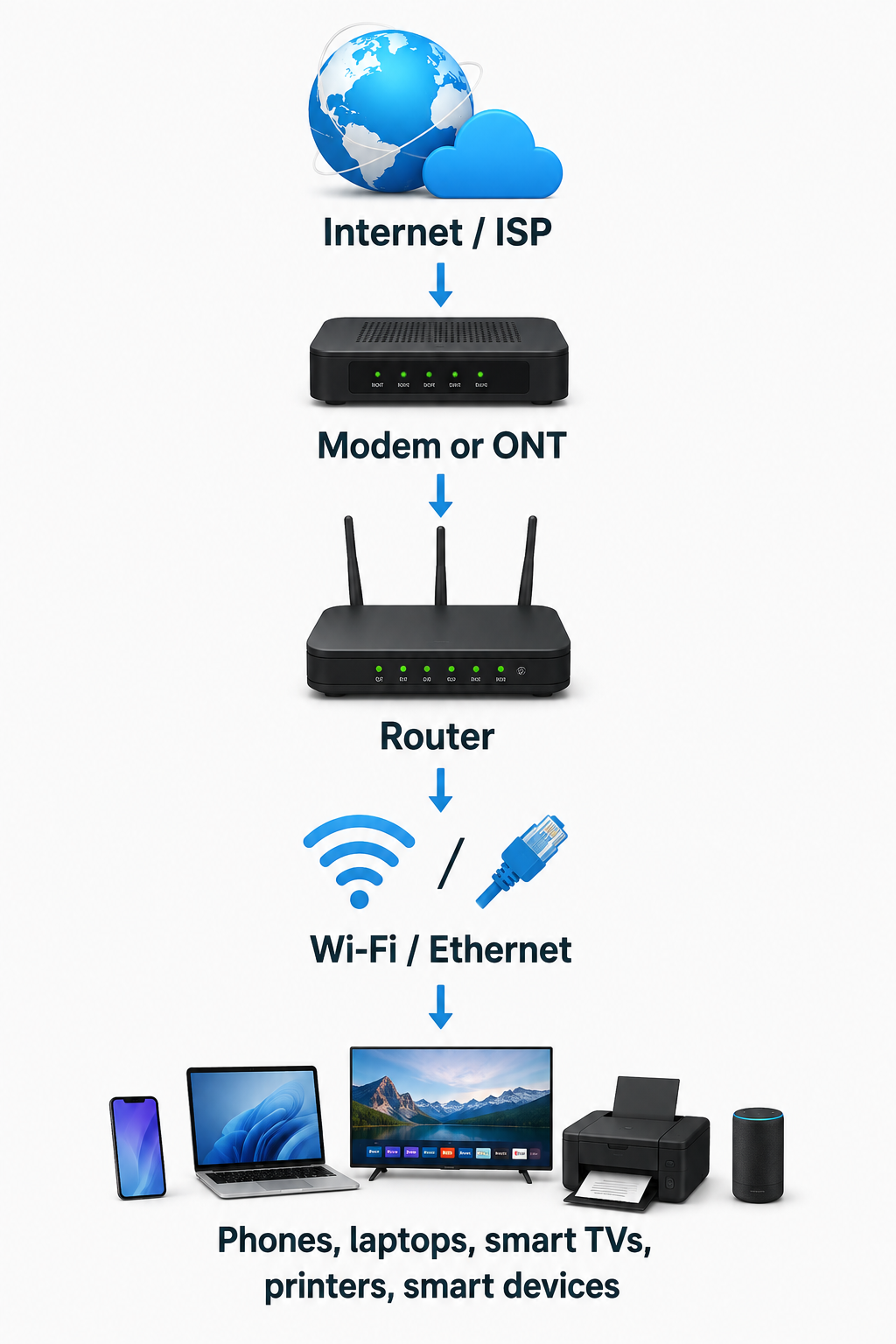
In this setup, the modem connects to the ISP, the router manages local network traffic and provides Wi-Fi, and devices connect to the router either wirelessly or through Ethernet cables.
Some homes use a single gateway device that combines the modem, router, and Wi-Fi functions in one unit. In this case, the architecture looks the same conceptually, but the modem and router functions are handled inside a single box.
Understanding this architecture helps when troubleshooting connectivity problems, because it allows you to isolate whether a problem is between the modem and the ISP, between the router and the modem, or between a device and the router.
What Are Modem Lights and What Do They Mean?
Most modems and gateway devices include a set of indicator lights on the front panel that provide information about the device’s status. The specific lights, their labels, and their exact meanings vary by manufacturer and device type, so always consult the documentation for your specific equipment.
The following are general interpretations of commonly found indicators:
Power: The device is receiving electrical power and is operational.
Online or Internet: The device has successfully established a connection to the ISP’s network. A steady light typically indicates a working connection. A blinking or unlit indicator often suggests the connection is not established.
DS (Downstream): On a cable modem, this indicates the status of the downstream channel, which carries data from the ISP to the customer. Blinking may indicate that the modem is scanning for or locking onto the downstream signal.
US (Upstream): On a cable modem, this indicates the status of the upstream channel, which carries data from the customer to the ISP.
Ethernet: A wired Ethernet connection has been detected between the modem or gateway and another device, such as a router.
Wi-Fi: The wireless radio is active. This light appears on gateway devices that include a wireless access point.
These are general interpretations only. The same light label can mean different things on different devices, and some devices use color-coded lights to distinguish between connection states. Always refer to the manufacturer’s documentation for your specific device.
How Fast Should a Modem Be?
Modem capability is not a single number. The throughput a modem can support depends on several factors working together.
For cable modems, the DOCSIS version the modem supports is one important factor. Newer DOCSIS versions support higher throughput and more efficient use of the cable network. However, the ISP’s network must also support the same DOCSIS version, and the ISP service plan determines the maximum speed available to the customer regardless of the modem’s theoretical capability.
For DSL modems, the DSL variant supported, the distance from the DSLAM, and the copper line quality all affect achievable speeds.
The router connected to the modem, the Ethernet interface speed between the modem and router, and the capabilities of the connected devices all also affect the experienced speed.
Purchasing a modem that advertises high throughput does not guarantee that internet service will operate at that speed. The ISP plan, the ISP network, the access line quality, and the rest of the home network equipment all contribute to the actual result. The modem is one part of the overall system.
What Is Modem Compatibility?
Not every modem works with every ISP or every type of internet connection. Compatibility is one of the most important considerations when selecting equipment.
Key compatibility factors include:
Access technology: A cable modem cannot be used on a DSL connection, and vice versa. The modem must match the type of internet service.
ISP approval: Cable ISPs typically maintain approved device lists. A modem must be approved for use on a specific ISP’s network to function correctly. Using an unapproved device may result in the ISP declining to activate the connection.
DOCSIS version: For cable connections, the modem must support a DOCSIS version compatible with the cable network’s infrastructure.
Service plan support: Some modems are certified for specific speed tiers. A modem certified only for lower-speed plans may not perform correctly on a higher-speed plan, even if both use the same DOCSIS version.
Ethernet port capability: The Ethernet port on the modem must be capable of supporting the speeds being delivered. A modem with only a 100 Mbps Ethernet port creates a bottleneck for faster service plans.
Always check with your ISP before purchasing a modem to confirm compatibility with your specific service.
ISP-Provided Modem vs Buying Your Own
Users with cable or DSL internet often have the option of using ISP-provided equipment or purchasing their own compatible device. Each approach has trade-offs.
| Feature | ISP-Provided Equipment | Personally Purchased Equipment |
|---|---|---|
| Setup | Usually straightforward | User’s responsibility |
| Support | Often included with service | Depends on ISP and device |
| Upfront cost | May be low or none | Higher upfront investment |
| Monthly rental | May apply | Usually no equipment rental fee |
| Compatibility | Generally guaranteed | Must be verified before purchase |
| Replacement | ISP typically handles replacement | Owner handles replacement |
For fiber connections, the ONT is almost always provided and managed by the ISP and is not a device that customers typically source independently.
Policies regarding equipment rental fees, supported devices, and customer-owned equipment vary significantly between ISPs and between countries. Review your ISP’s current policies before making a decision.
What Is a Modem Rental?
Many ISPs charge a monthly equipment fee for providing and maintaining the modem or gateway device at a customer’s premises. This is sometimes called a modem rental or equipment fee.
The advantage of renting is that the ISP typically handles replacement if the device fails and provides support for the equipment. The device is also guaranteed to be compatible with the ISP’s network.
The potential disadvantage is that the cumulative cost of monthly rental fees over time may exceed the cost of purchasing a compatible modem outright. However, customers who own their modem are also responsible for replacing it if it fails and for ensuring any replacement is compatible with the ISP’s network.
Whether renting or buying represents better value depends on the ISP’s rental fee, the cost and quality of compatible devices available for purchase, the expected duration of the internet service subscription, and the customer’s preferences regarding technical responsibility.
Common Modem Problems
When internet connectivity problems occur, the modem may or may not be the source. Understanding common modem-related issues helps with effective troubleshooting.
No internet connection. The modem may be unable to establish a connection with the ISP. This can result from ISP outages, signal problems on the access line, account issues, or hardware failure.
Online light not steady. An unlit or blinking online indicator typically means the modem has not successfully established the provider connection. This may indicate a signal issue, an ISP outage, or a provisioning problem.
Frequent disconnections. Intermittent drops in connectivity can stem from signal quality issues on the access line, overheating, hardware degradation, or ISP network problems.
Slow connection. Reduced speeds may indicate signal issues, network congestion on the ISP side, router problems, or equipment limitations.
Overheating. Modems placed in enclosed spaces without adequate ventilation can overheat, causing performance problems or unexpected restarts.
Ethernet problems. Issues with the physical Ethernet cable or port connecting the modem to the router can cause connectivity problems that appear to be modem issues.
ISP outage. Not every internet problem is caused by customer equipment. ISP network outages affect customers regardless of the modem’s condition.
How to Troubleshoot a Modem
Working through a modem problem systematically saves time and avoids unnecessary steps. The following sequence provides a beginner-friendly approach.
- Check power. Confirm the modem is plugged in and powered on. Check that the power indicator light is active.
- Check cables. Verify that all cables are securely connected, including the coaxial or telephone cable from the wall, and the Ethernet cable connecting the modem to the router.
- Check indicator lights. Look at the modem’s status lights. Consult the device documentation to understand what the current light state indicates.
- Restart the modem. Follow the manufacturer’s recommended restart procedure. This is often as simple as unplugging the power, waiting briefly, and plugging it back in. Allow adequate time for the modem to fully reconnect to the ISP before testing.
- Check for ISP outages. Visit your ISP’s outage information page using a mobile data connection, or contact the ISP. If there is a reported outage, the problem is not with your modem.
- Check the Ethernet connection to the router. Confirm the cable between the modem and router is secure at both ends and that the router is powered on.
- Test with a device connected directly to the modem via Ethernet. If your ISP or modem documentation supports this, bypassing the router temporarily can help determine whether the issue is between the ISP and modem or between the modem and router.
- Check router status. If the modem appears to be connected to the ISP but devices still have no internet access, the router may be the source of the problem.
- Contact your ISP. If the modem cannot establish a connection to the provider network and no outage is reported, the ISP’s support team can check the line status, provisioning, and signal levels remotely.
A factory reset should not be the first troubleshooting step. On combined gateway devices, a factory reset erases all custom configuration including Wi-Fi passwords, port forwarding rules, and administrator credentials, and requires complete reconfiguration. Reserve this option for situations where other steps have failed and you are prepared to reconfigure the device.
Should You Restart Your Modem?
Restarting the modem is a reasonable first step when experiencing connectivity problems. It clears temporary error states and allows the device to re-establish its connection to the ISP’s network from scratch. Many common intermittent issues resolve with a simple restart.
A safe and simple restart process:
- Turn off or unplug the modem from its power source.
- Wait at least 30 seconds to allow the device to fully power down.
- Power the modem back on.
- Wait for the device to complete its startup process and re-establish the ISP connection. This can take several minutes. Do not interrupt the process during this time.
- Once the online or internet indicator shows a stable connection, check the router and connected devices.
If you have a separate router, it is also generally helpful to restart the router after the modem has re-established its connection. Power off the router first, then the modem, then power the modem back on and wait for it to connect, and then power the router back on.
Exact procedures vary by manufacturer and ISP. Consult the documentation for your specific equipment.
When Should You Replace a Modem?
A modem does not need to be replaced on a fixed schedule, but certain conditions indicate that replacement is appropriate.
Frequent unexplained disconnections that persist after troubleshooting and that the ISP cannot resolve at the network level may indicate hardware degradation.
Hardware failure where the device no longer powers on, has damaged ports, or otherwise fails to function is an obvious reason for replacement.
Incompatibility with a new service. Upgrading to a higher-speed internet plan or switching to a different ISP may require different equipment.
Unsupported access technology. If the ISP upgrades its network infrastructure and your modem no longer supports the required technology, replacement becomes necessary.
The ISP no longer supports the device. ISPs sometimes remove older modems from their approved device lists. A modem that is no longer approved may be refused activation or may not function correctly on the updated network.
Persistent overheating. A device that consistently runs too hot and cannot be addressed through improved ventilation may be failing internally.
Age alone is not a reliable indicator that a modem needs replacement. A modem that is functioning correctly, is supported by the ISP, and is compatible with the current service can continue to be used effectively.
Modem Security
Security considerations for the modem and gateway are an important part of overall home network security. A device that provides the connection between your home network and the internet deserves careful attention.
Keep firmware updated. ISPs and manufacturers release firmware updates that address security vulnerabilities and improve stability. Where firmware updates are managed by the ISP, this may happen automatically. For customer-owned equipment, check the manufacturer’s support resources for updates.
Change default administrator credentials. Combined gateway devices that include a web administration interface should have their default usernames and passwords changed. Default credentials are publicly known and represent an easy target.
Disable remote management if not needed. Remote access to the device’s administration interface from outside the home network increases the attack surface. Disable this feature unless you have a specific need for it.
Keep equipment supported. Devices that are no longer receiving firmware updates from the manufacturer or ISP accumulate unpatched vulnerabilities over time. Replacing unsupported equipment is a security consideration.
Use secure router and Wi-Fi settings. The security of the home network as a whole depends on the router and wireless configuration, not just the modem. For broader network security guidance, see our articles on what is cybersecurity, network security, and what is a firewall.
It is important to understand that modem security and Wi-Fi security are related but not identical. The modem’s security involves its firmware, its administrator interface, and its connection to the ISP. Wi-Fi security involves the wireless protocols, encryption settings, and passwords configured on the wireless router or access point component of the network.
Modem vs Router vs Wi-Fi vs Internet
One of the most persistent sources of confusion in home networking is the relationship between these four concepts. Each is distinct.
| Technology | Main Purpose |
|---|---|
| Modem / Access Device | Connects customer equipment to the ISP access network |
| Router | Directs traffic between networks and manages local networking |
| Wi-Fi | Wireless local network connectivity |
| Internet | Global interconnected network of networks |
The modem connects your home to the ISP. The router manages your home network and connects devices to the modem. Wi-Fi is how devices connect to the router wirelessly. The internet is the global network that exists beyond the ISP’s infrastructure.
These four things work together in a home setup, but they are not interchangeable terms for the same thing.
Modem vs Proxy Server
A modem and a proxy server are completely different technologies that serve entirely different purposes, and they should not be confused.
A modem or access device provides the physical connection between a customer’s equipment and the ISP’s access network. It handles the communication technology required to establish and maintain that connection.
A proxy server is a network intermediary that sits between client devices and internet services, forwarding requests on behalf of clients. Proxies are used for purposes such as privacy, access control, caching, and content filtering. They operate at the application or network layer, not at the physical access layer.
A modem does not provide proxy functionality, and a proxy server does not provide modem functionality. For a full explanation of how proxy servers work, see our guide on what is a proxy server and how it works.
Modem and Cloud Computing
Once a modem or access device establishes an internet connection, that connection becomes the path through which users access cloud-based services. Cloud computing resources including storage, applications, collaboration tools, and hosted services all depend on internet connectivity to be accessible.
The path from a local device to a cloud service follows this sequence:
Device → Router → Modem / Access Device → ISP Network → Internet → Cloud Service
The modem provides the access connection that makes this entire path possible. Without the modem maintaining the ISP connection, local devices have no route to reach cloud infrastructure.
For a deeper understanding of cloud services and how they work over the internet connection that the modem provides, see our guides on what is cloud computing, how does cloud computing work, what is cloud storage, and what is cloud hosting.
Frequently Asked Questions
What is a modem?
A modem is networking equipment that connects a customer’s router or local network to an internet service provider’s access network using a specific communication technology such as cable, DSL, or cellular.
What does modem stand for?
Modem stands for modulator-demodulator. The name comes from the original technology that converted digital data to analog signals for transmission over telephone lines and back again.
What does a modem do?
A modem connects customer equipment to the ISP’s access network, communicates using the required access technology, and passes data between the ISP’s network and the customer’s router.
How does a modem work?
A modem connects to the ISP’s access line, exchanges authentication and configuration with the ISP’s systems, and maintains a data connection through which traffic flows between the home network and the internet.
Do I need a modem for Wi-Fi?
You need an internet connection to access the internet over Wi-Fi. The modem or access device provides that connection. Wi-Fi itself is provided by a wireless router or gateway that connects to the modem.
Does a modem provide Wi-Fi?
A standalone modem generally does not provide Wi-Fi. Wi-Fi is provided by a wireless router or a combined gateway device. Some ISP-provided gateway units combine both modem and Wi-Fi router functions in one device.
What is the difference between a modem and a router?
A modem connects to the ISP’s access network. A router manages the local home network and directs traffic between devices and the internet. They are separate functions that may be performed by separate devices or combined in a gateway.
What is a modem router?
A modem router, or gateway, is a single device that combines modem or access technology, routing, and often Wi-Fi in one unit. Many ISPs provide this type of combined device.
What is a gateway?
A gateway is a device that combines multiple networking functions, typically including modem or access technology, routing, Wi-Fi, a switch, and firewall capabilities, in a single unit.
What is a cable modem?
A cable modem connects a customer’s network to a cable internet service over a coaxial cable using the DOCSIS standard.
What is a DSL modem?
A DSL modem connects a customer’s network to a DSL internet service over copper telephone lines.
What is a fiber modem?
Fiber internet connections typically use an ONT (Optical Network Terminal) rather than a traditional modem. People sometimes call this a fiber modem, but technically it is a different type of device.
Is an ONT the same as a modem?
Not exactly. An ONT converts optical signals from a fiber access network into electrical/network interfaces for customer equipment. Functionally it serves a similar role to a modem at the customer premises, but technically it is a different device designed for a different access technology.
What is a cellular modem?
A cellular modem connects devices to the internet through a mobile network. Common examples include USB cellular modems and mobile Wi-Fi hotspot devices.
Does a modem have an IP address?
Network interfaces on modems and gateways can have IP addresses. The public IP address associated with a customer’s internet connection is assigned by the ISP. Private IP addresses are used within the local home network.
Does a modem use DNS?
The modem itself is not primarily responsible for DNS. DNS is typically handled by the router, operating system, applications, or configured DNS services.
Can a modem slow down the internet?
A modem with insufficient capability for the current service plan, hardware problems, or signal issues can contribute to reduced performance. However, ISP plan speeds, network conditions, router limitations, and device capabilities also affect experienced speeds.
How fast should my modem be?
The modem should be capable of supporting the speed tier of the ISP service plan. For cable connections, this relates to the DOCSIS version and the modem’s certified speed tier. Always verify compatibility with your ISP before purchasing.
How do I know if my modem is working?
Check the indicator lights. A steady online or internet light typically indicates a successful ISP connection. Blinking or unlit indicators suggest a connection issue.
What do modem lights mean?
Modem lights indicate power status, ISP connection status, downstream and upstream signal status, and Ethernet connection status. Exact meanings vary by device. Consult the manufacturer’s documentation.
Why is my modem not connecting to the internet?
Common causes include ISP outages, signal issues on the access line, cable problems, device hardware issues, and provisioning problems. Work through the troubleshooting steps outlined in this guide and contact your ISP if the problem persists.
Why does my modem keep disconnecting?
Intermittent disconnections can result from signal quality problems on the access line, overheating, hardware degradation, or ISP network issues.
How do I restart my modem?
Unplug the modem from power, wait at least 30 seconds, then plug it back in. Wait for it to fully reconnect to the ISP before testing connectivity.
Should I buy or rent a modem?
This depends on your ISP’s rental fee, the cost of compatible equipment, and how long you plan to use the service. For fiber connections, the ONT is almost always provided by the ISP. Always verify compatibility before purchasing your own equipment.
How do I know if a modem is compatible with my ISP?
Check your ISP’s approved device list or contact customer support before purchasing. For cable modems, confirm the DOCSIS version and speed tier certification match your service requirements.
When should I replace my modem?
Replace a modem when it is causing persistent connectivity problems that cannot be resolved, when it is incompatible with a new service, when it is no longer supported by the ISP, or when it has physically failed.
Is a modem a router?
No. A modem connects to the ISP’s access network. A router manages the local network. These are distinct functions, though combined gateway devices perform both.
Can I use a router without a modem?
A router can manage local network traffic without a modem, but devices will not be able to access the internet without the ISP connection that the modem or access device provides.
Can I use a modem without a router?
A single device can connect directly to a modem via Ethernet, but a router is needed to share the connection among multiple devices and to manage local network functions such as DHCP and NAT.
Is Wi-Fi the same as a modem?
No. Wi-Fi is a wireless networking technology that connects devices to a local network. A modem provides the ISP access connection. They perform completely different functions.
What is the difference between a modem and an ONT?
A modem typically refers to cable or DSL access equipment. An ONT is the customer-side device for fiber access connections that converts optical signals to electrical/network interfaces. Both connect the customer to the ISP but use different technologies.
What is the difference between a modem and a proxy server?
A modem provides the physical ISP access connection. A proxy server is a network intermediary that forwards requests between clients and internet services. They are completely different technologies with different roles.
Is a modem part of a home network?
Yes. The modem or access device is the connection point between the home network and the ISP’s network, making it a fundamental component of the overall home internet setup.
Final Thoughts
Understanding what is a modem means understanding its specific role in the chain of equipment that connects a home to the internet. The modem is the device at the customer end of the ISP’s access network, handling the communication technology required to establish and maintain that connection.
Cable modems use coaxial cable and DOCSIS technology. DSL modems use copper telephone lines. Fiber internet commonly uses an ONT, which converts optical signals for customer equipment. Cellular modems connect through mobile networks. Each type is designed for its specific access technology and is not interchangeable with the others.
The modem is not the same as a router, which manages local network traffic. It is not the same as a Wi-Fi access point, which provides wireless connectivity. It is not the same as the internet, which is the global network that exists beyond the ISP’s infrastructure. And in many home setups, all of these functions may be combined in a single gateway device that users casually call “the modem.”
When problems arise with internet connectivity, understanding whether the issue lies between the modem and the ISP, between the modem and the router, or within the local network helps narrow down the cause and reach a solution more efficiently. Good security practices around firmware updates, administrator credentials, and keeping equipment supported protect the entire home network.
A modem or access device provides the connection between customer equipment and an ISP’s access network. The exact equipment depends on the connection technology. Many modern home gateways combine modem, routing, Wi-Fi, and security functions in a single device. Knowing what is a modem and how it fits into the broader home network picture makes managing that network clearer and more effective.
References
- CableLabs. DOCSIS Technology Overview. https://www.cablelabs.com/technologies/docsis/
- CableLabs. DOCSIS 3.1 Physical Layer Specification. https://www.cablelabs.com/specs/
- Federal Communications Commission (FCC). Broadband Technology: DSL. https://www.fcc.gov/consumers/guides/broadband-fixed-wireless-and-dsl
- Internet Engineering Task Force (IETF). RFC 2516 — A Method for Transmitting PPP Over Ethernet (PPPoE). https://www.rfc-editor.org/rfc/rfc2516
- IEEE Standards Association. IEEE 802.3 — Ethernet Standard. https://standards.ieee.org/ieee/802.3/
- National Institute of Standards and Technology (NIST). NIST Special Publication 800-41 Revision 1 — Guidelines on Firewalls and Firewall Policy. https://csrc.nist.gov/publications/detail/sp/800-41/rev-1/final
- Broadband Forum. TR-101 — Migration to Ethernet-Based DSL Aggregation. https://www.broadband-forum.org/
- ITU-T. G.984 Series — Gigabit-capable Passive Optical Networks (GPON). International Telecommunication Union. https://www.itu.int/rec/T-REC-G.984/en
- 3GPP. Technical Specifications for Mobile Broadband (4G LTE / 5G NR). https://www.3gpp.org/
- Cybersecurity and Infrastructure Security Agency (CISA). Home Network Security Tips. https://www.cisa.gov/
Disclaimer
This article is for educational and informational purposes only. Modem, gateway, ONT, router, and internet access equipment can vary by ISP, connection technology, country, and hardware manufacturer. Always check your ISP’s current compatibility requirements and the manufacturer’s documentation before changing network equipment.