
 By Saad Qureshi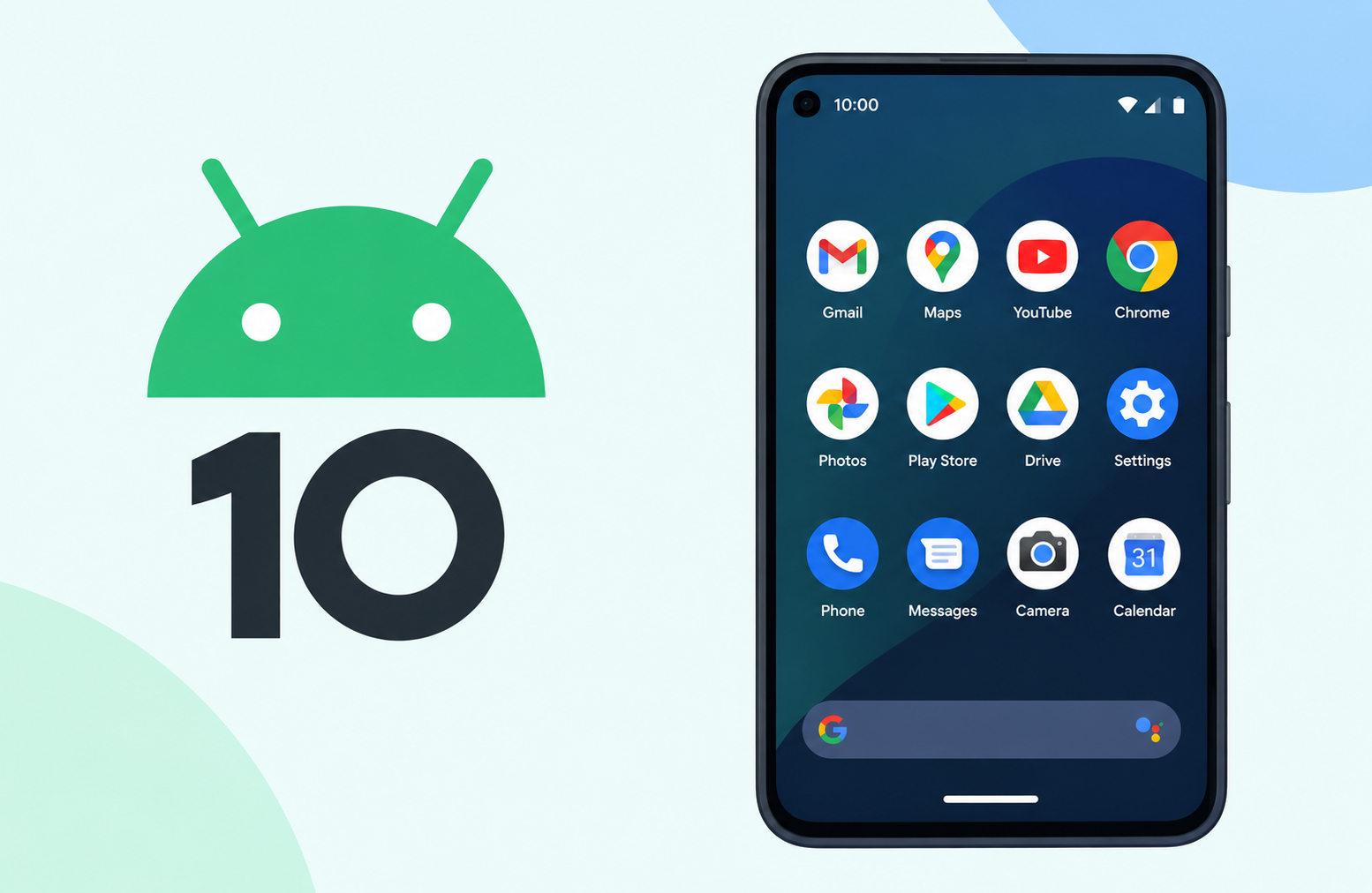
Android 10 introduced a refined visual design language across the entire operating system including the icons displayed in the status bar, notification panel, and system interface. These icons communicate important information about your phone’s connectivity, battery status, active features, incoming notifications, and system warnings at a glance. Knowing what each icon means allows you to monitor your phone’s status instantly without opening any app or navigating any menu.
The status bar at the top of the Android 10 screen is the primary location where system icons appear. On the right side of the status bar you find system status icons showing battery level, signal strength, Wi-Fi connection, and similar persistent status information. On the left side of the status bar you find notification icons that appear temporarily when an app has an alert or message waiting for your attention. Understanding both sets of icons and knowing how to interact with them is a foundational part of using any Android 10 device effectively.
Understanding what a smartphone operating system does and how it communicates with users through visual cues like icons helps put the entire Android 10 icon system in context. Icons are the operating system’s primary visual language for conveying device status without interrupting whatever the user is doing.
How Android 10 Icons Are Organized
Android 10 displays icons across several distinct areas of the interface. Understanding where each type of icon appears helps users know where to look for specific information.
The Status Bar
The status bar is the narrow strip at the very top of the Android 10 screen. It is always visible regardless of which app is open unless an app is running in full-screen or immersive mode. The status bar is divided into two zones:
- Right side of the status bar: Persistent system status icons showing battery level, signal strength, Wi-Fi status, and similar always-on information
- Left side of the status bar: Notification icons that appear when apps have pending notifications awaiting the user’s attention
The Notification Shade
Pulling down from the top of the screen reveals the notification shade, which expands the status bar to show full notification details. Each notification appears as a card with the app icon, notification title, and notification content visible. The notification shade also reveals quick settings tiles in the upper portion when pulled down fully.
Quick Settings Panel
Pulling the notification shade down a second time or using two fingers to pull from the top reveals the Quick Settings panel. This panel shows larger versions of system status icons and allows users to tap them to toggle features on and off directly without going into the Settings app.
The App Drawer and Home Screen
App icons on the home screen and in the app drawer represent individual Android apps installed on the device. These are distinct from status bar icons and represent app launchers rather than system status indicators. Small badge icons may appear on top of app icons to indicate pending notifications from that app.
Android 10 Connectivity Icons Explained
Connectivity icons appear on the right side of the status bar and communicate the current state of the phone’s wireless and cellular connections.
Cellular Signal Strength Icons
The cellular signal icon shows how strong the connection to the mobile network currently is. It appears as a series of vertical bars that increase in size from left to right. More bars filled in indicates a stronger signal. An empty or outline signal icon indicates very weak or no signal.
Full signal bars: Strong cellular connection. Calls, texts, and mobile data work reliably.
Partial signal bars: Moderate cellular connection. Basic functions work but speeds may be reduced.
One bar or outline bars: Very weak signal. Calls may drop and data speeds will be significantly reduced.
No signal icon or crossed-out signal: No cellular connection available in the current location.
E next to signal bars: EDGE network connection. A second-generation mobile data standard that is very slow by modern standards.
2G next to signal bars: Connected to a 2G cellular network. Very basic data speeds.
3G next to signal bars: Connected to a 3G cellular network. Moderate data speeds suitable for basic browsing.
H or H+ next to signal bars: Connected to HSPA or HSPA+ network, an enhanced 3G standard with faster data speeds than basic 3G.
4G or LTE next to signal bars: Connected to a 4G LTE network. Fast mobile data suitable for streaming and demanding apps.
5G next to signal bars: Connected to a 5G network. The fastest currently available mobile network standard with significantly higher speeds and lower latency than 4G LTE.
Wi-Fi Icons
The Wi-Fi icon indicates whether the phone is connected to a wireless local area network and how strong that connection is.
Full Wi-Fi arc: Strong Wi-Fi connection. Fast and reliable wireless internet access.
Partial Wi-Fi arc with two bars: Moderate Wi-Fi signal strength. Adequate for most tasks but may experience reduced speeds at distance.
Partial Wi-Fi arc with one bar: Weak Wi-Fi signal. Connection may be unstable and speeds will be reduced.
Wi-Fi icon with exclamation mark: Connected to a Wi-Fi network but the network has no internet access. The phone is associated with the router but the router cannot reach the internet.
Wi-Fi icon with question mark: Connected to a Wi-Fi network but internet connectivity is uncertain or being verified.
Wi-Fi icon crossed out or slash through it: Wi-Fi is turned off or disconnected.
Wi-Fi icon with lock symbol: Connected to a secured Wi-Fi network that requires a password.
Bluetooth Icons
Bluetooth icon active and connected: Bluetooth is enabled and at least one Bluetooth device is currently connected.
Bluetooth icon active but not connected: Bluetooth is enabled but no device is currently connected or paired and active.
Bluetooth icon with battery level: Some Android 10 devices show a small battery level indicator alongside the Bluetooth icon when a Bluetooth headset or other battery-powered accessory is connected.
Airplane Mode Icon
The airplane mode icon, displayed as a small airplane silhouette, appears when airplane mode is active. Airplane mode disables all wireless transmissions including cellular, Wi-Fi, and Bluetooth. Airplane mode can be enabled through Quick Settings or through Settings and is required during flights on most airlines to comply with regulations about electronic device transmissions. When airplane mode is active the signal strength and Wi-Fi icons disappear and are replaced by the airplane icon.
Mobile Data Icons
Arrow pointing up: Mobile data is being transmitted, meaning the phone is sending data to a server.
Arrow pointing down: Mobile data is being received, meaning data is being downloaded from a server.
Both arrows: Mobile data is active with simultaneous upload and download occurring.
Mobile data icon with a slash: Mobile data is disabled. The phone has a cellular signal but is not using it for data transfer.
VPN Icon
A key icon or shield icon in the status bar indicates that a Virtual Private Network connection is active. VPN connections route internet traffic through a secure encrypted tunnel to a remote server, providing privacy and security on public networks. The VPN icon appearing when you have not intentionally activated a VPN may indicate that a VPN app installed on the device has activated automatically.
Hotspot or Tethering Icon
A hotspot or wireless tethering icon appears when the phone is sharing its cellular data connection with other devices through a mobile hotspot. This icon typically looks like a phone with wireless waves emanating from it or a small hotspot symbol. When this icon is visible other devices are using the phone’s data connection and battery consumption increases significantly.
Android 10 Battery Icons Explained
Battery icons in the Android 10 status bar provide continuous information about the current charge level and charging status of the device.
Battery Level Icons
The battery icon on Android 10 displays as a rectangle representing the battery shape with an internal fill level that decreases as the battery discharges. Android 10 introduced a cleaner battery icon design compared to previous versions.
Full battery icon: Battery is fully charged or very nearly fully charged at approximately 90 to 100 percent.
Three-quarter battery: Battery level is approximately 60 to 90 percent.
Half battery: Battery level is approximately 30 to 60 percent.
Low battery with partial fill: Battery level is below approximately 20 to 30 percent. The phone may show a warning notification.
Red or low battery icon: Battery level is critically low, typically below 15 percent. Charge the device soon to prevent it from shutting down.
Battery percentage number: Many Android 10 devices display the battery percentage as a number next to or inside the battery icon for precise level information. This can be enabled or disabled in battery display settings.
Charging Icons
Battery icon with lightning bolt: The device is connected to a charger and is actively charging. The lightning bolt symbol inside the battery icon is the universal indication of active charging.
Battery icon with lightning bolt and plug: Some Android 10 devices show a plug symbol alongside the lightning bolt to indicate wired charging is in progress.
Wireless charging icon: Devices that support wireless charging may show a different icon variation when charging wirelessly rather than through a wired connection.
Fast charging indicator: Some Android 10 devices that support fast charging technology show an additional fast charge or rapid charge label or icon variation when the device detects a compatible fast charger is connected.
Battery Saver Icon
When battery saver mode is enabled on Android 10 the battery icon changes appearance to indicate that battery saving features are active. The icon may appear with a different color such as yellow or orange and some devices display a plus symbol or leaf icon alongside the battery icon. Battery saver mode on Android 10 reduces background activity, limits location services, and restricts other battery-consuming features to extend the remaining charge duration.
Android 10 System and Feature Icons Explained
System icons appear in the status bar when specific device features are active or when the system has a status to communicate beyond basic connectivity and battery information.
Do Not Disturb Icon
A circle with a dash or minus sign through it, or a crescent moon icon, indicates that Do Not Disturb mode is active. Do Not Disturb silences all notifications, calls, and alerts except those you specifically allow through priority settings. Android 10 includes an enhanced Do Not Disturb system that allows detailed customization of which contacts and apps can break through the silence.
Location Services Icon
An arrow or map pin icon indicates that an app is actively using the device’s GPS or location services. Android 10 introduced significant location permission changes that gave users greater control over when apps can access location data, including the option to grant location access only while an app is in use rather than always in the background. When the location icon appears it means at least one app is currently accessing location information.
Alarm Icon
A clock or bell icon in the status bar indicates that one or more alarms are set and scheduled. The alarm icon serves as a reminder that alarms are active without requiring the user to open the clock app to verify. The icon typically shows the time of the next scheduled alarm on some devices.
Microphone Active Icon
A microphone icon indicates that an app is actively using the device’s microphone. Android 10 refined the system for displaying when sensitive hardware like the microphone is in use, though the more prominent privacy indicators introduced in later Android versions were further developed in Android 12. When the microphone icon appears an app is recording audio or listening for voice input.
Sync Icon
Rotating arrows or a sync icon indicates that account or data synchronization is in progress. This appears when the device is syncing contacts, calendar events, email, or other data with cloud services associated with the signed-in accounts on the device.
Alarm Clock Icon
A small clock face icon indicates that at least one alarm is currently set in the clock application. This is a persistent reminder that helps users confirm their alarms are active without opening the app.
Screen Rotation Lock Icon
A padlock with a circular arrow indicates that the screen rotation lock is active. When rotation lock is enabled the screen orientation stays fixed regardless of how the physical device is oriented. When rotation lock is off the screen automatically rotates between portrait and landscape orientation based on how the device is held.
NFC Icon
An NFC icon indicates that Near Field Communication is enabled on the device. NFC allows the phone to communicate with compatible payment terminals, NFC tags, and other NFC-enabled devices when held in close proximity. The icon appears in the status bar when NFC is active in the Quick Settings or System Settings.
Cast or Screen Mirroring Icon
A rectangle with wireless waves or a cast icon indicates that the device’s screen is being cast or mirrored to another display such as a Chromecast-enabled television or a compatible smart display. When this icon appears the phone’s screen contents are being transmitted to an external display in real time.
Flashlight Icon
A flashlight or torch icon indicates that the camera flash LED is being used as a flashlight. The flashlight feature can be toggled through the Quick Settings panel. When the icon is visible in the status bar the LED light on the back of the phone is actively on.
Android 10 Notification Icons Explained
Notification icons appear on the left side of the Android 10 status bar when apps have notifications pending. Each notification icon represents a different app or type of alert. Pulling down the notification shade reveals the full details of each notification.
What Is a Notification Icon?
A notification icon is a small version of an app’s icon or a special icon chosen by the app developer to represent a specific type of alert. When an app generates a notification, its icon appears in the status bar to alert the user that something requires attention. The icon remains visible until the notification is dismissed or acted upon.
Android 10 limited the number of notification icons displayed simultaneously in the status bar to prevent overcrowding. When more notifications are pending than can fit in the available space Android displays a dot or a count indicator to show that additional notifications exist beyond those visibly shown.
Common Notification Icon Types
Messaging notification icons: Apps like WhatsApp, Telegram, Messages, and similar messaging platforms show their app icon in the status bar when new messages are received. The icon indicates messages are waiting in that specific app.
Email notification icons: Gmail, Outlook, and other email apps show their icon in the notification bar when new emails arrive. The icon typically uses the app’s brand icon for easy recognition.
Missed call icon: A phone handset icon with a missed indicator appears when one or more calls were not answered. The missed call notification persists until the notification is cleared or the call is returned.
Voicemail icon: A cassette tape icon or voicemail-specific icon appears when one or more voicemail messages are waiting to be listened to.
System update notification icon: A download arrow or update icon appears when a system software update has been downloaded and is ready to install, or when an update is available to download.
App update notification icon: A similar download or update icon appears when app updates are available in the Google Play Store. This icon indicates one or more installed apps have newer versions available.
Screenshot notification icon: A small screenshot thumbnail or camera icon appears briefly after a screenshot is taken, providing quick access to share or edit the captured image.
Download notification icon: An arrow pointing downward indicates that a file download is in progress or has completed. The icon may show progress while downloading and change to indicate completion.
Warning or alert notification icon: An exclamation mark inside a triangle indicates a system warning or alert that requires user attention. This may indicate a storage space warning, an account problem, or a system issue that needs addressing.
Android 10 Privacy and Security Icons
Android 10 introduced several privacy-focused features and their corresponding icons represent important security status information that users should recognize.
Screen Lock Icons
Lock icon closed: The phone is locked and requires authentication to access.
Lock icon open: The phone is unlocked and accessible.
Fingerprint icon: The device is requesting fingerprint authentication to unlock or authorize an action.
Face unlock indicator: Some devices show a brief face recognition indicator when face unlock is being used to authenticate.
Trusted Places and Smart Lock
When Smart Lock is configured and the device recognizes a trusted environment such as a connected Bluetooth device or trusted location, the lock screen security may be relaxed. Some Android 10 devices show an indicator when Smart Lock is keeping the device unlocked based on trusted conditions.
Android 10 Privacy Changes and Icons
Android 10 introduced the first version of privacy indicators for location access. When an app accesses location in the background a subtle status bar indicator may appear. Google significantly expanded these indicators in Android 12, but Android 10 was the starting point for more transparent location access communication with users.
Android 10 App Cache, App Data, and Storage Icons
Understanding storage-related notifications and icons on Android 10 requires understanding what app cache and app data mean on Android, as storage warnings are among the most common notifications Android 10 users encounter.
What Is an Android App?
An Android app is a software application designed to run on the Android operating system. Apps are the primary way users interact with their smartphone, serving functions ranging from communication and productivity to entertainment and navigation. Every app installed on an Android device takes up storage space and generates additional data through use. Understanding what apps are and how they use storage helps interpret storage-related icons and notifications on Android 10.
What Is App Cache?
App cache is a collection of temporary files that an app stores on the device to improve its performance and reduce the need to download the same content repeatedly. When you open a social media app and it loads your timeline faster on the second visit compared to the first, that speed improvement often comes from cached images, data, and content stored from the previous session.
Cache files are designed to be temporary and expendable. Android can clear cached data when storage space is running low without causing any permanent data loss. Users can also manually clear an app’s cache through Settings, then Apps, then selecting the specific app, then tapping Clear Cache. Clearing the cache does not delete personal data, login credentials, saved settings, or account information. It only removes temporary files that the app will regenerate automatically during normal use.
On Android 10, when storage space becomes critically low the system may display a warning notification with a storage indicator icon. This notification may suggest clearing app cache as one way to free up space. The storage icon in notifications typically appears as a small representation of a storage drive or an exclamation mark with a storage-related message.
What Is App Data?
App data is the permanent information stored by an app related to your personal usage of that application. This includes your account login state, saved preferences, downloaded content, created content, game progress, offline data, and any other information the app has saved on your behalf.
Unlike cache, clearing app data is a significant action that effectively resets the app to its freshly installed state. After clearing app data you will need to log back into the app, reconfigure your settings, and potentially lose any locally stored progress or content that was not backed up to a server.
On Android 10 you can view and clear app data through Settings, then Apps, then selecting the specific app, then Storage, then Clear Data or Clear Storage. The distinction between Clear Cache and Clear Data is important. Clear Cache removes only temporary files. Clear Data removes all locally stored app information and resets the app completely.
Storage-related warning icons on Android 10 may appear when:
- Total device storage is nearly full
- A specific app is consuming an unexpectedly large amount of storage
- Downloaded files are consuming significant storage space
- App cache has accumulated to a large size across multiple apps
When these icons appear navigating to Settings, then Storage provides a detailed breakdown of how storage is being used and identifies which categories of content are consuming the most space.
How to Interact With Android 10 Icons
Knowing what icons mean is the first step. Knowing how to interact with them and use them to manage your device is equally important.
Pulling Down the Notification Shade
To see full details of notification icons visible in the status bar place your finger at the very top of the screen and swipe downward. The notification shade slides down revealing full notification cards for each pending notification. Each card shows the app name, notification time, and the full notification content. Tapping a notification card opens the relevant app at the location related to that notification. Swiping a notification card sideways dismisses it.
Accessing Quick Settings
Pull the notification shade down a second time or use two fingers to pull down from the top of the screen to access the Quick Settings panel. This panel shows larger toggle icons for features like Wi-Fi, Bluetooth, airplane mode, Do Not Disturb, flashlight, screen rotation lock, and mobile data. Tapping any Quick Settings icon toggles that feature on or off instantly. Long pressing most Quick Settings icons opens the full settings page for that feature, providing access to more detailed configuration options.
Managing Notification Icons from Specific Apps
To control which apps show notification icons in the status bar and how those notifications appear go to Settings, then Apps, then select the specific app, then Notifications. This allows enabling or disabling notification categories, changing notification importance levels, and controlling whether the app’s notifications appear in the status bar. Android 10 provides granular notification channel controls allowing users to manage notification preferences for different types of alerts from the same app independently.
Using the Back Key with Icons and Notifications
When you open an app from a notification tap and want to return to the previous screen, the back key on Android returns you to the notification shade or to wherever you navigated from, depending on how you arrived at the current screen. Understanding how the back key interacts with notification-opened apps helps users navigate efficiently between their notification-driven tasks and their other activities.
Android 10 Icons That Indicate Problems
Some Android 10 icons are not informational but are warnings indicating that something requires attention or that a problem exists with the device or a connected service.
No Service or Emergency Calls Only
When the status bar shows No Service text or an icon indicating emergency calls only, the phone cannot connect to any cellular network for regular calls or data. The device may still be able to dial emergency services depending on the region and network availability. This can indicate that you are outside network coverage, your SIM card is not recognized, or your account has a problem.
SIM Card Error Icon
A SIM card icon with an exclamation mark or a slash indicates that the SIM card is not properly detected, is damaged, or is not correctly inserted. If this icon appears unexpectedly try removing and reinserting the SIM card after powering the device off. A persistent SIM error may indicate a damaged SIM card that needs replacement.
Storage Warning Icon
An exclamation mark in a storage-related notification indicates that available storage space is critically low. When storage is nearly full the device may experience performance problems, inability to download new apps, failure to save photos, and various system functions may be impaired. Addressing storage warnings promptly by deleting unused files, clearing app cache, or moving content to cloud storage maintains normal device operation.
System Error or Crash Notifications
Notifications indicating that an app or system process has stopped, crashed, or encountered an error appear with alert icons in the notification shade. If you encounter repeated system process errors such as Android setup keeps stopping errors, the notification icons associated with these crashes provide the first indication that something in the system software is not functioning correctly. Addressing these notifications promptly through the recommended troubleshooting steps helps prevent further system instability.
Screen Hardware Warning Indicators
While screen damage itself does not produce a status bar icon, display problems can affect how icons appear and are perceived. Issues such as lines on an Android screen or a white spot on an Android screen can distort the appearance of status bar icons and make them difficult to read or interpret correctly. If status bar icons appear distorted, have unusual colors, or are partially obscured by screen anomalies, the issue is likely with the display hardware rather than with the icons or the software generating them. Distinguishing between a software icon problem and a hardware display problem is important for applying the correct solution.
Low Battery Warning
When the battery falls below approximately 15 percent Android 10 displays a persistent low battery notification with an alert icon in the notification shade alongside the low battery icon in the status bar. The system may also display a full-screen low battery warning if the level drops to a critical threshold. Android 10’s adaptive battery features can estimate remaining usage time based on current consumption patterns and display this information alongside the low battery notification.
Android 10 New Icons and Design Changes
Android 10 brought several visual design updates to the icon system compared to Android 9 Pie. Understanding these changes helps users who upgraded from an older Android version recognize new or modified icons.
Redesigned System Icons
Android 10 refined the visual design of many system status icons for greater clarity and consistency with Google’s Material Design guidelines. Icons became slightly more geometric and standardized in weight and style compared to the more varied icon designs in previous Android versions.
Privacy Indicators
Android 10 introduced the foundation for privacy status indicators that became more prominent in later Android versions. The location access indicator was refined to more clearly communicate when location services were being accessed by apps.
Gesture Navigation Icons
With the introduction of gesture navigation as the default navigation mode in Android 10, the traditional three-button navigation bar with its back, home, and recents icons was replaced by a thin gesture indicator bar at the bottom of the screen for users who adopted gesture navigation. The navigation icons themselves were not visible in gesture mode, though users who preferred traditional button navigation retained the familiar icon-based navigation bar.
Dark Mode Integration
Android 10 introduced system-wide dark mode, which affected how icons appeared across the interface. Status bar icons adapted to appear clearly against both light and dark backgrounds. Icons in the notification shade and Quick Settings panel followed the system dark mode setting, switching between light and dark visual presentations depending on user preference.
Notification Importance and Alerting Changes
Android 10 refined the notification system with clearer visual distinction between different notification importance levels. High-importance notifications received more prominent visual treatment while low-importance notifications were more subtly displayed. The notification icons in the status bar reflected these importance distinctions through their visual presentation.
How to Find Out What an Unknown Android 10 Icon Means
Encountering an unfamiliar icon in the Android 10 status bar is a common experience, particularly for users who have just upgraded, switched devices, or installed new apps. Several approaches help identify unknown icons quickly.
Check the Notification Shade
Pull down the notification shade from the top of the screen. Many status bar icons correspond to notifications with full text descriptions in the notification shade. If the unknown icon is associated with a notification the notification card will identify the app and the reason for the notification, which usually clarifies what the icon represents.
Check Quick Settings
Pull the notification shade down fully to access Quick Settings. The Quick Settings panel shows larger icons with text labels for the most common system features. If the unknown icon appears in Quick Settings the text label beneath it identifies the feature it represents.
Check Active Apps
Some icons appear because a specific app is running in the foreground or background and using a device resource or displaying a persistent notification. Go to Settings, then Apps, then Running Apps or use the Recents screen to see what apps are currently active. If a recently opened app corresponds to the appearance of the unknown icon that app is likely the source.
Check Device Manufacturer Documentation
Because device manufacturers customize Android 10 with their own software overlays, some icons are manufacturer-specific rather than part of standard Android 10. Samsung, Xiaomi, Huawei, OnePlus, and other manufacturers sometimes add icons for proprietary features that are unique to their devices. Checking the device manufacturer’s official support website or user manual is the best way to identify manufacturer-specific icons.
Samsung support documentation is available at samsung.com/support and Google’s Android help resources are available at support.google.com/android.
Search for the Icon Description Online
If the icon cannot be identified through the notification shade, Quick Settings, or app list, searching online using a description of the icon’s appearance combined with your device model name and Android 10 typically surfaces community discussions, manufacturer forums, or technology guides that identify the icon.
Managing Android 10 Notification Icons
Controlling which apps display notification icons in the Android 10 status bar and how those notifications appear gives users meaningful control over how the notification system communicates with them.
Turning Off Notification Icons for Specific Apps
- Open the Settings app on your Android 10 phone.
- Tap Apps and Notifications or Apps.
- Tap the specific app whose notification icons you want to manage.
- Tap Notifications.
- Toggle off the notification permission entirely to stop the app from showing any notification icons, or adjust individual notification channel settings to control specific types of notifications from that app.
Changing Notification Importance Levels
Android 10 introduced notification channels that allow different types of notifications from the same app to be managed independently. Each channel can be set to different importance levels:
- Urgent: Makes a sound and appears as a pop-up on screen
- High: Makes a sound
- Medium: No sound but appears in the notification shade
- Low: No sound and no icon in the status bar, notification appears silently in the shade
To adjust notification channels go to Settings, then Apps and Notifications, then select an app, then Notifications, and adjust the importance level for each available channel.
Do Not Disturb and Notification Icons
When Do Not Disturb mode is active on Android 10 notification icons may still appear in the status bar depending on the Do Not Disturb configuration. Do Not Disturb primarily silences alert sounds and prevents pop-up notifications from appearing on screen but does not necessarily remove icons from the status bar unless configured to do so. Adjusting Do Not Disturb settings through Settings, then Sound, then Do Not Disturb controls exactly which notifications break through the silence and which are fully suppressed.
App Notification Badges
In addition to status bar notification icons Android 10 displays notification badge dots on app icons in the home screen and app drawer. These small dot indicators appear on the corner of an app’s icon when that app has pending notifications. Long pressing an app icon with a badge shows a preview of the pending notification content without opening the app fully.
To enable or disable notification badge dots go to Settings, then Apps and Notifications, then Notifications, then App Icon Badges and toggle the feature according to preference.
Android 10 Icons by Category: Quick Reference Guide
Connectivity Icons Quick Reference
| Icon Description | Meaning |
|---|---|
| Full signal bars | Strong cellular signal |
| Empty or outline bars | No or very weak cellular signal |
| 4G or LTE text | Connected to 4G LTE network |
| 5G text | Connected to 5G network |
| Full Wi-Fi arc | Strong Wi-Fi connection |
| Wi-Fi with exclamation mark | Wi-Fi connected but no internet |
| Airplane silhouette | Airplane mode active |
| Key or shield icon | VPN connection active |
| Hotspot icon | Mobile hotspot sharing active |
| Bluetooth icon solid | Bluetooth on and device connected |
| Bluetooth icon outline | Bluetooth on but not connected |
Battery Icons Quick Reference
| Icon Description | Meaning |
|---|---|
| Full battery rectangle | Battery fully charged |
| Partially filled battery | Battery at partial charge level |
| Low fill battery | Battery below 20 percent |
| Red battery icon | Battery critically low |
| Battery with lightning bolt | Device is charging |
| Yellow or orange battery | Battery saver mode active |
System Icons Quick Reference
| Icon Description | Meaning |
|---|---|
| Circle with dash | Do Not Disturb active |
| Crescent moon | Do Not Disturb or night mode active |
| Location arrow | Location services in use |
| Rotating arrows | Data syncing in progress |
| Clock face | Alarm set and active |
| Padlock with rotation arrow | Screen rotation locked |
| Microphone | App accessing microphone |
| Cast rectangle icon | Screen casting active |
| Flashlight torch icon | Flashlight is on |
Notification Icons Quick Reference
| Icon Description | Meaning |
|---|---|
| App icon in status bar | Pending notification from that app |
| Phone handset with miss indicator | Missed call notification |
| Download arrow | Download in progress or complete |
| Exclamation in triangle | System warning or alert |
| Cassette or voicemail icon | Voicemail message waiting |
| System update icon | Software update available |
Troubleshooting Android 10 Icon Issues
Icons Not Appearing When Expected
If notification icons from a specific app are not appearing in the status bar even when you know notifications should be arriving check the app’s notification permissions. Go to Settings, then Apps, then select the app, then Notifications, and verify that notifications are enabled and set to a sufficient importance level to display an icon in the status bar.
Also check Do Not Disturb settings to confirm it is not suppressing the expected notifications.
Icons Appearing That Cannot Be Identified
Unknown icons that appear suddenly without a corresponding notification in the notification shade may be generated by background apps or services running on the device. Go to Settings, then Apps, then see all apps, and look for any recently installed apps that may have started displaying persistent notification icons. Checking running services through Developer Options if enabled can also reveal background processes that may be generating unexpected icons.
Status Bar Icons Appearing Distorted or Incorrectly
If status bar icons appear with unusual colors, missing elements, or distorted shapes the cause may be a display hardware issue rather than a software problem. Display anomalies such as a white spot on the Android screen or screen lines can make icons in affected areas of the display appear different from their intended appearance. If the distortion follows a pattern related to a physical screen anomaly, display hardware service is likely required. If the distortion appears uniform across the entire status bar, a software glitch affecting the System UI process is more likely and restarting the device typically resolves it.
All Status Bar Icons Disappeared
If the entire status bar including all icons has disappeared the System UI process may have crashed. System UI is the Android component responsible for drawing the status bar, notification shade, navigation bar, and Quick Settings panel. A System UI crash causes all of these elements to disappear temporarily.
Restarting the device restores System UI and brings the status bar icons back. If System UI crashes repeatedly there may be a deeper software issue requiring a software update or factory reset to resolve.
Android Setup Process Icons and Errors
During the initial device setup or after a factory reset, specific setup-related icons and notifications may appear in the status bar guiding the user through configuration steps. If setup encounters an error, Android setup keeps stopping issues can prevent setup from completing normally, which may result in unusual or incomplete icon configurations until the setup process completes successfully.
Frequently Asked Questions About Android 10 Icons
What do the icons at the top of my Android 10 screen mean?
Icons at the top right of the screen are system status icons showing battery level, signal strength, Wi-Fi connection, and active features. Icons at the top left are notification icons from apps that have pending alerts. Pull down the notification shade to see full details.
Why is there an arrow icon in my Android 10 status bar?
An upward pointing arrow or similar indicator in the status bar on Android 10 typically indicates that location services are actively being used by an app. It may also appear as part of data transfer indicators showing active data upload or download activity.
What is the circle with a line through it on Android 10?
A circle with a horizontal line or dash through it typically indicates that Do Not Disturb mode is active. In this mode notification sounds and visual alerts are suppressed according to your Do Not Disturb configuration settings.
Why does a key icon appear on my Android 10 status bar?
A key icon in the Android 10 status bar indicates that a VPN connection is currently active. If you have not intentionally activated a VPN, check Settings, then Network and Internet, then VPN to see which VPN application has an active connection and disable it if it was not intentionally enabled.
What does the Android 10 exclamation mark icon mean?
An exclamation mark in the notification shade or status bar indicates a warning or alert. The associated notification text explains the specific issue, which may be low storage space, an account problem, a system error, or an app-related alert. Tap the notification to see full details.
Why are my Android 10 notification icons not showing?
Notification icons may not appear if notifications are disabled for the specific app, if the notification importance level is set too low to display a status bar icon, or if Do Not Disturb mode is suppressing them. Check app notification settings through Settings, then Apps, then the specific app, then Notifications.
How do I see what all the notification icons on my Android 10 mean?
Pull down the notification shade by swiping from the top of the screen. This reveals full notification cards with app names, timestamps, and notification content that explain what each icon in the status bar represents.
What is the difference between notification icons and app icons on Android 10?
App icons appear on the home screen and in the app drawer and are used to launch applications. Notification icons appear in the status bar at the top of the screen and indicate pending alerts or active system states. They are distinct types of icons serving different purposes.
Can I remove icons from the Android 10 status bar?
You can remove notification icons by dismissing the associated notifications in the notification shade or by disabling notifications for specific apps. Persistent system icons like battery, Wi-Fi, and signal strength cannot be removed from the status bar as they provide essential device status information. Some device manufacturers allow limited customization of which system icons appear through Settings.
Why does my Android 10 show a phone icon in the status bar?
A phone icon in the status bar typically indicates an active call in progress, a call on hold, or a missed call notification depending on the specific icon design. If a call is in progress the phone icon with an active call indicator remains in the status bar while the call continues even if you navigate away from the phone app.
Disclaimer
This article is intended for educational and informational purposes and provides a general guide to Android 10 icons for everyday Android users. The appearance and availability of specific icons may vary depending on your device manufacturer, Android skin or overlay such as Samsung One UI or Xiaomi MIUI, device model, and installed applications. Some icons described in this article may appear differently or may not be present on all Android 10 devices due to manufacturer customizations. Always refer to your device manufacturer’s official support documentation for guidance specific to your Android device. This article does not constitute an endorsement of any application, service, or manufacturer mentioned in this guide.