
 By Saad Qureshi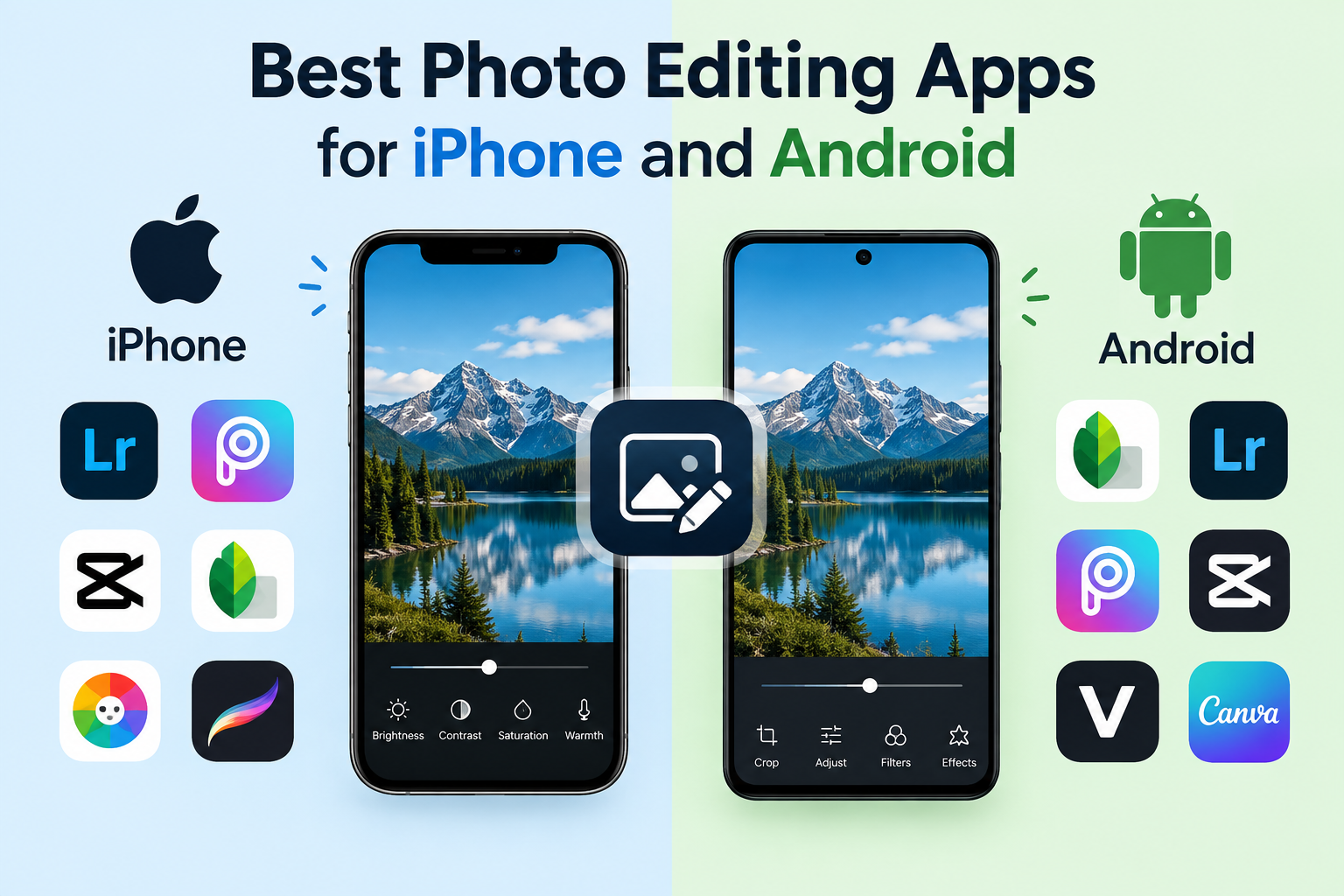
Introduction
The best photo editing apps for iPhone and Android include Adobe Lightroom Mobile, Snapseed, VSCO, Adobe Photoshop Express, Facetune, PicsArt, Afterlight, A Color Story, Canva, and Darkroom. These apps cover everything from basic one-tap adjustments and film-inspired filters to professional-grade color grading, portrait retouching, and batch editing for serious photographers.
Whether you use an iPhone or an Android phone, excellent photo editing options are available on both platforms for every skill level and editing style. Understanding what photo editing apps are and how they transform raw smartphone photos into polished images helps you choose the right tool for what you actually need. These tools are available as iPhone apps through the Apple App Store and as Android apps through the Google Play Store, with most supporting both platforms.
This guide covers ten of the best photo editing apps in detail, compares them across key criteria, organizes recommendations by use case, and explains the key features you will encounter so you can make a confident choice.
What to Look for in a Photo Editing App
Before downloading any photo editing app, it helps to know what separates a good one from a great one. Here are the most important criteria to evaluate.
- Ease of use. Some apps prioritize simplicity with one-tap corrections and intuitive layouts. Others offer deep professional tools that take time to learn. Choose an app that matches your current skill level and editing goals.
- Editing tools available. Check whether the app offers the specific tools you need. Basic users may only need exposure, brightness, cropping, and a filter. Advanced users will want curves, HSL controls, selective masking, and healing brushes.
- Filter and preset quality. The quality of filters and presets varies significantly between apps. High-quality presets produce natural-looking results rather than overly processed or artificial effects.
- Output quality. A good photo editing app should export full-resolution images without excessive compression. Some apps reduce image quality on export, which defeats the purpose of careful editing.
- Free versus paid. Most apps offer a free tier with limited features and a paid subscription or one-time purchase for full access. Understand what is available for free before committing to a subscription.
- Platform availability. Most apps in this guide work on both iPhone and Android. A few, like Darkroom, are primarily designed for iPhone. Confirm your platform is fully supported before downloading.
- Watermarks. Some free versions add watermarks to exported images, which is unacceptable for most users. Always check whether the free tier exports cleanly before using an app for important photos.
- Storage and data management. Photo editing apps store edits, presets, cached previews, and exported files as app data on your device or in the cloud. Consider how much storage the app will use over time, especially if you edit frequently or work with large files.
Best Photo Editing Apps for iPhone and Android
1. Adobe Lightroom Mobile
Overview:
Adobe Lightroom Mobile is consistently regarded as one of the most capable photo editing apps available on any mobile platform. It brings the core tools of Adobe’s desktop Lightroom software to iPhone and Android, giving photographers professional-grade editing capabilities in a well-designed mobile interface. Edits sync across devices through Adobe’s cloud service, making it a strong choice for photographers who also use Lightroom on a desktop or laptop.
Key Features:
- Non-destructive editing that preserves the original photo in full quality at all times.
- Advanced color grading tools including tone curves for precise brightness and contrast control.
- HSL controls for adjusting individual color hues, saturations, and luminance values.
- Selective masking that allows adjustments to specific areas, subjects, or sky regions independently.
- Preset library with the ability to create, save, and share custom presets.
- RAW file support for photographers shooting in uncompressed RAW format.
- AI-powered tools in newer versions including Denoise for reducing image noise and Generative Remove for object removal.
Platform: iOS and Android
Pricing: Free tier available with limited tools. Full access requires an Adobe Lightroom subscription. Check Adobe’s official website for current subscription pricing.
Best for: Serious photographers, intermediate to advanced users, and anyone who wants professional editing tools on their phone.
2. Snapseed
Overview:
Snapseed is a free photo editing app developed by Google and available on both iPhone and Android. It is one of the most feature-complete free editing apps available anywhere, offering a wide range of tools at no cost with no watermarks and no subscription required. Its selective editing tool and healing brush are particularly well-regarded and rival features found in paid apps.
Key Features:
- Twenty-nine tools and filters covering selective adjustments, healing, perspective correction, HDR scape, portrait retouching, and more.
- Selective tool for making precise brightness, contrast, and saturation adjustments to specific parts of an image by painting over them.
- Healing brush that removes unwanted objects, blemishes, or distractions from photos.
- Stacks feature allowing non-destructive editing where each edit step can be revisited and adjusted individually after the fact.
- Clean export with no watermarks on any images.
- Completely free with no subscription tier and no in-app purchases required for full functionality.
Platform: iOS and Android
Pricing: Completely free.
Best for: Anyone who wants a powerful, full-featured editor at no cost. The single strongest free option in this list.
3. VSCO
Overview:
VSCO built its reputation on the quality of its film-inspired filters and presets, which remain among the most respected in mobile photography. Beyond filters, it includes a capable set of editing tools and a community platform where photographers share and discover work. VSCO’s aesthetic has become closely associated with a particular style of mobile photography that values subtle, film-like color treatments.
Key Features:
- Large library of high-quality film-inspired presets organized by aesthetic style and film stock inspiration.
- Standard editing tools including exposure, contrast, saturation, skin tone, grain, fade, and sharpness.
- VSCO community for sharing photos and discovering photographers whose work you admire.
- Video editing tools available to VSCO members.
- Advanced editing controls available through the membership tier.
Platform: iOS and Android
Pricing: Free with a limited selection of presets. Full preset library and advanced tools require a VSCO membership subscription. Check the App Store or Google Play Store for current pricing.
Best for: Photographers and content creators who care deeply about filter quality and want a consistent, film-inspired aesthetic across their work.
4. Adobe Photoshop Express
Overview:
Adobe Photoshop Express is Adobe’s simplified mobile editing app, designed for users who want quick, effective results without the depth and complexity of Lightroom Mobile. It handles basic retouching, one-tap corrections, background removal, and collage creation well, making it a practical tool for casual smartphone photography editing.
Key Features:
- One-tap auto-correction and a wide selection of filters for fast results.
- Blemish removal and red-eye correction tools for portrait cleanup.
- Background removal tool for isolating subjects.
- Collage maker with multiple layout and design options.
- Basic crop, rotate, straighten, and perspective correction tools.
- Noise reduction and sharpening for improving image clarity.
Platform: iOS and Android
Pricing: Free with optional Adobe subscription for premium features. Refer to Adobe’s official site for current pricing details.
Best for: Casual users who want Adobe-quality results with a simpler interface than Lightroom Mobile.
5. Facetune
Overview:
Facetune is a dedicated portrait retouching app built specifically for editing people in photos. It has become one of the most downloaded portrait editing apps on both iPhone and Android, offering a focused set of tools for smoothing skin, whitening teeth, enhancing eyes, and adjusting backgrounds. Its AI-powered features have expanded significantly in recent versions.
Key Features:
- Skin smoothing and blemish removal for portrait cleanup.
- Teeth whitening tool for improving smiles in photos.
- Eye enhancement and reshaping tools.
- Background blur and background replacement.
- Body reshaping tools.
- AI-powered retouching features for faster automated adjustments.
Platform: iOS and Android
Pricing: Freemium model. Core features available free with full access requiring a Facetune subscription.
Best for: Portrait photographers, selfie editors, social media content creators, and anyone whose editing is focused primarily on people.
6. PicsArt
Overview:
PicsArt goes well beyond photo editing to function as a full creative platform. Alongside standard photo editing tools, it includes drawing and painting capabilities, a sticker library, collage creation, AI-powered background tools, and a large creative community. It is particularly popular with social media content creators who want their images to stand out visually.
Key Features:
- Photo editing with adjustment tools and a filter library.
- AI-powered background removal and replacement.
- Large sticker library with the ability to create custom stickers.
- Drawing and painting tools for adding hand-drawn elements.
- Collage maker for combining multiple images.
- AI image generation tools in newer versions.
- Active creative community for sharing and discovering work.
Platform: iOS and Android
Pricing: Free with a PicsArt Gold subscription for premium features. Some features on the free tier include watermarks on exports.
Best for: Creative users who want a platform combining photo editing, graphic design, digital art, and community features in one app.
7. Afterlight
Overview:
Afterlight is a focused photo editing app that prioritizes a clean interface and high-quality filter selection over feature overload. It is particularly popular among iPhone users who want a polished editing experience without the learning curve of professional tools. Its analog and film filters and texture overlay options give photos a distinctive and appealing look.
Key Features:
- High-quality analog and film-inspired filters across a range of styles.
- Standard adjustment tools including curves, HSL controls, and color channel adjustment.
- Texture overlays for adding creative film grain and light effects to images.
- Frame and border options for presentation.
- Clean, uncluttered interface designed for efficient editing.
Platform: iOS and Android
Pricing: Free with an Afterlight subscription for full filter and feature access.
Best for: Users who prioritize filter quality and a clean editing interface without needing deep professional tools.
8. A Color Story
Overview:
A Color Story is a filter-focused editing app designed specifically around bright, clean, and airy photo aesthetics. It is particularly well-suited to lifestyle photography and Instagram content where light, fresh visuals are the target. Its filter library is organized by aesthetic style, making it easy to find the look you want quickly.
Key Features:
- Extensive filter library organized by visual style and aesthetic category.
- Editing tools for exposure, contrast, fade, highlights, shadows, and color.
- Filter intensity slider for applying presets subtly or strongly.
- No watermarks on exported images even on the free tier.
Platform: iOS and Android
Pricing: Free with in-app purchases for additional filter packs. Core editing tools and a selection of filters are available free.
Best for: Instagram creators, lifestyle photographers, and anyone who wants bright, clean, airy photo aesthetics with minimal effort.
9. Canva
Overview:
Canva is primarily known as a graphic design platform, but its mobile app includes a solid set of photo editing tools alongside its extensive design capabilities. For users who need to combine photo editing with text overlays, graphics, branded templates, and social media post creation, Canva offers everything in one place without needing to switch between multiple apps.
Key Features:
- Photo filters and basic adjustment tools for brightness, contrast, saturation, and more.
- Background removal tool for isolating subjects from their backgrounds.
- Text overlay with extensive font and style options.
- Graphic elements and illustrations for creative compositions.
- Templates for Instagram posts, stories, Facebook covers, YouTube thumbnails, and dozens of other formats.
- Canva’s extensive design element library for creating polished branded content.
Platform: iOS and Android
Pricing: Free with a Canva Pro subscription for premium elements, templates, and features.
Best for: Content creators, small business owners, and social media managers who need photo editing combined with design tools for polished, publication-ready content.
10. Darkroom
Overview:
Darkroom is a professional photo and video editing app designed primarily for iPhone, known for its batch editing capabilities and deep integration with the iOS Photos library. It offers a desktop-class editing experience on iPhone with tools that rival full editing software, making it a strong choice for photographers who primarily work on Apple devices.
Key Features:
- Batch editing allowing the same edits or presets to be applied to multiple photos simultaneously.
- Deep integration with the iPhone Photos app library for seamless access to your photo library.
- Advanced curves, HSL, and color grading tools for precise color control.
- Custom filter and preset creation for a consistent editing style across shoots.
- RAW file support for shooting in uncompressed RAW formats.
- Portrait mode editing and video editing capabilities.
Platform: iOS primarily, with limited Android availability.
Pricing: Free with a Darkroom subscription for full feature access.
Best for: iPhone photographers who want batch editing, professional-grade tools, and tight integration with the iPhone Photos ecosystem.
Best Photo Editing Apps Compared: Quick Reference Table
| App | Platform | Price | Best For | Watermark Free |
|---|---|---|---|---|
| Adobe Lightroom Mobile | iOS and Android | Free / Subscription | Professional editing | Yes |
| Snapseed | iOS and Android | Completely free | Free powerful editing | Yes |
| VSCO | iOS and Android | Free / Membership | Film filters and aesthetic | Yes |
| Adobe Photoshop Express | iOS and Android | Free / Subscription | Quick edits and collages | Yes |
| Facetune | iOS and Android | Freemium | Portrait retouching | Yes |
| PicsArt | iOS and Android | Free / Gold | Creative design and editing | Limited on free |
| Afterlight | iOS and Android | Free / Subscription | Clean filters and interface | Yes |
| A Color Story | iOS and Android | Free / In-app purchases | Bright airy aesthetics | Yes |
| Canva | iOS and Android | Free / Pro | Design plus photo editing | Yes |
| Darkroom | iOS primarily | Free / Subscription | Batch editing on iPhone | Yes |
Best Photo Editing Apps by Use Case
Choosing the right app is easier when you match it to your specific editing needs rather than trying to find a single app that does everything.
Best for Beginners
- Snapseed: Completely free, powerful, and approachable. The interface guides you through tools without overwhelming you, and no cost or watermark concerns make it an easy first choice.
- Adobe Photoshop Express: One-tap corrections and simple filters get good results fast without requiring any understanding of advanced editing concepts.
- Canva: Intuitive templates and drag-and-drop simplicity make it the best starting point for users who want polished social media content without any prior editing experience.
Best for Professional Editing
- Adobe Lightroom Mobile: The industry standard for mobile professional editing. Its tools, RAW support, and cloud sync make it the closest experience to desktop-grade editing available on a phone.
- Darkroom: For iPhone photographers who want batch editing, professional tools, and a workflow tightly integrated with their photo library, Darkroom delivers a desktop-class experience on mobile.
Best for Filters and Aesthetics
- VSCO: Widely considered the benchmark for high-quality film-inspired mobile presets. If consistent aesthetic and filter quality are your priority, VSCO is the strongest choice.
- A Color Story: Built for bright, clean, airy aesthetics that work particularly well for lifestyle and food photography on social media.
- Afterlight: Analog film filters and texture overlays give photos a distinctive look that is difficult to achieve with standard digital editing tools.
Best for Portrait Retouching
- Facetune: Purpose-built for portrait editing with every tool you need for skin, eyes, teeth, and background, all in one focused app.
- Adobe Lightroom Mobile: For more natural portrait retouching through advanced masking, HSL skin tone adjustment, and selective editing rather than heavy-handed retouching tools.
Best Free Option
- Snapseed: No subscription, no watermarks, no hidden costs, and a full suite of professional-quality tools. It is the most complete free photo editing app available for both iPhone and Android.
Best for Content Creators
- PicsArt: Creative tools extending far beyond photo editing into stickers, AI background tools, drawing, collage, and a community make it the most versatile platform for content creators who want distinctive visuals.
- Canva: Design templates combined with photo editing capabilities make it the most efficient single tool for producing polished, branded social media content at scale.
Photo Editing App Features Explained
Understanding the key editing features you will encounter across these apps helps you use them more effectively and choose the ones that offer what you actually need.
Exposure and Brightness
Exposure controls adjust how much light the image appears to contain overall. Raising exposure brightens the entire image while lowering it darkens it. Brightness works similarly but often affects mid-tones more specifically. These are the most fundamental adjustments in any editing workflow and should usually be the first thing you address when editing a photo, before applying any filters or stylistic changes.
Color Grading and HSL
HSL stands for Hue, Saturation, and Luminance. These three controls operate on individual color channels within the image, allowing you to adjust each color independently. You can, for example, make the greens in a landscape more vibrant while keeping the sky color exactly as it is, or warm up skin tones without affecting the background colors. Color grading using HSL and tone curves is what separates professional-looking edits from basic filter applications.
Filters and Presets
Filters and presets apply a collection of predetermined adjustments to a photo in a single tap. The difference between the two is mainly technical. Filters typically refer to fixed, non-adjustable looks while presets are saved setting configurations that can be adjusted after application. High-quality presets from apps like VSCO and Lightroom are carefully crafted to produce natural, aesthetically coherent results. Low-quality filters can make photos look over-processed or artificial.
Selective Editing
Selective editing allows you to make adjustments to a specific area of an image rather than the entire photo. For example, you can brighten a person’s face in a portrait without affecting the background, or deepen the blue of a sky without changing the colors of the foreground. Snapseed’s selective tool and Lightroom’s masking tools are among the most capable implementations of selective editing available on mobile.
Healing and Removal Tools
Healing brushes and removal tools analyze the content surrounding an unwanted element in a photo and fill in the space with a generated replacement based on the surrounding area. This allows you to remove photobombers, power lines, blemishes, trash, or any other unwanted elements from an image non-destructively. Snapseed’s healing tool is particularly effective for a free app, while Lightroom’s newer AI-powered Generative Remove goes further for complex removals.
RAW File Support
RAW files are unprocessed image files captured directly from a camera or smartphone camera sensor without in-camera compression or processing. They contain significantly more image data than JPEG files, giving editors much more latitude to recover highlights, lift shadows, correct white balance, and make substantial edits without visible quality degradation.
Photo editing apps that support RAW files, including Adobe Lightroom Mobile and Darkroom, function as a form of application software that processes and interprets raw image data into a viewable, editable format. This is fundamentally different from editing a JPEG, where much of the image data has already been discarded by the time you open the file.
Understanding that photo editing apps are application software designed to manipulate image data helps explain why feature differences between apps translate directly into different results on the same photo.
Free vs Paid Photo Editing Apps: Which Should You Choose?
The free versus paid question depends entirely on what you need the app to do and how often you edit photos.
Many excellent photo editing apps offer free tiers that are genuinely useful and not just crippled demos. Snapseed is the strongest example of a completely free app that covers the vast majority of editing needs without any cost at all. For casual users, beginners, and anyone who edits occasionally, free apps are likely sufficient.
Paid subscriptions make sense when:
- You need a specific professional feature not available in any free app, such as Lightroom’s advanced masking, RAW editing at full capability, or Darkroom’s batch editing.
- You want a large, curated filter library, which apps like VSCO offer primarily through their membership tier.
- You use the app professionally and the quality improvement justifies the subscription cost.
- You need cloud sync and cross-device editing workflow.
Before subscribing to any app, check the current pricing and feature breakdown in the App Store or Google Play Store, as pricing structures change regularly. Always use any available free trial before committing to a recurring subscription.
Watch for watermarks in free tiers. Some apps add visible watermarks to exported images unless you pay. This makes those apps effectively unusable for sharing or professional purposes on the free tier. Apps like Snapseed, A Color Story, and Adobe Lightroom export cleanly without watermarks even on their free tiers.
Tips for Editing Photos on Your Smartphone
Knowing which app to use is only part of getting great results. These practical habits improve your editing outcomes regardless of which app you choose.
- Start with fundamentals before applying filters. Adjust exposure, white balance, and straightening first. A filter applied to a poorly exposed or color-imbalanced image produces a worse result than the same filter applied to a well-corrected starting point.
- Use selective editing for portraits. Brightening a face without affecting the entire image produces more natural portrait results than global brightness adjustments, which can wash out backgrounds and clothing.
- Reduce filter intensity for natural results. Most filter apps allow you to adjust the strength of a filter after applying it. Reducing the intensity to fifty to seventy percent of full strength typically produces more natural, professional-looking results than the full filter at one hundred percent.
- Edit on a calibrated, well-lit screen. Editing in a dark room or on a screen with incorrect brightness settings leads to edits that look different when viewed in other lighting conditions. A neutral lighting environment gives you the most accurate view of what your edits actually look like.
- Preserve originals. Use apps that edit non-destructively, meaning the original image is preserved in its unedited state and you can always revert. Lightroom Mobile, Snapseed, and Darkroom all edit non-destructively by default.
- Manage your app storage regularly. Photo editing apps accumulate app data including cached previews, exported files, and stored presets over time. On devices with limited storage, this can become significant. Periodically review the storage usage of your editing apps and clear cached data when space is needed.
- Avoid over-processing. Heavy-handed editing is one of the most common mistakes in mobile photography. Subtle, balanced adjustments consistently produce more professional-looking results than aggressive edits with strong filters and heavily boosted contrast or saturation.
If you are editing photos on an Android phone, be aware that some apps handle Android’s file management differently from iOS, and checking your storage settings after installing multiple editing apps is worthwhile to avoid unexpected storage pressure.
Frequently Asked Questions
What is the best photo editing app for iPhone?
Adobe Lightroom Mobile and Snapseed are the strongest overall options for iPhone. Lightroom offers professional-grade tools with RAW support and cloud sync. Snapseed provides a comprehensive free alternative with no cost and no watermarks. Darkroom is an excellent choice specifically for iPhone users who want batch editing and deep Photos library integration.
What is the best photo editing app for Android?
Adobe Lightroom Mobile and Snapseed are equally strong on Android as they are on iPhone. Both are fully supported on Android phones and offer the same feature sets across both platforms. VSCO and PicsArt are also excellent Android choices depending on your editing priorities.
What is the best free photo editing app for iPhone and Android?
Snapseed is the best completely free photo editing app for both iPhone and Android. It offers twenty-nine tools and filters, selective editing, a healing brush, non-destructive editing, and watermark-free exports at no cost with no subscription required.
Which photo editing app has the best filters?
VSCO is widely regarded as having the highest-quality filter library among mobile editing apps, particularly for film-inspired aesthetics. A Color Story is the strongest choice for bright, airy, lifestyle-oriented filters. Afterlight is notable for its analog film and texture effects.
What is the best photo editing app for beginners?
Snapseed for its comprehensive free tools and gentle learning curve. Adobe Photoshop Express for one-tap simplicity. Canva for template-based social media content creation without any editing experience required.
Is Adobe Lightroom free on mobile?
Adobe Lightroom Mobile offers a free tier with basic editing tools available without a subscription. Full access to all professional features including advanced masking, selective editing at full capability, cloud sync above a limited storage amount, and premium AI tools requires an Adobe subscription. Check Adobe’s current pricing at adobe.com.
Does Snapseed add watermarks?
No. Snapseed exports images cleanly without any watermarks regardless of the editing tools used. It is completely free and watermark-free with no subscription required.
What is the best photo editing app for portraits?
Facetune is the most focused and feature-complete portrait retouching app available. For more natural portrait editing using advanced masking and skin tone adjustment rather than heavy retouching, Adobe Lightroom Mobile is the stronger professional choice.
What is the best photo editing app for social media?
VSCO for consistent film-inspired aesthetics. A Color Story for bright, clean Instagram-friendly visuals. PicsArt and Canva for content creators who need to combine photo editing with graphic design, text, and templates for polished social media posts.
Which photo editing apps work on both iPhone and Android?
Adobe Lightroom Mobile, Snapseed, VSCO, Adobe Photoshop Express, Facetune, PicsArt, Afterlight, A Color Story, and Canva all support both iPhone and Android. Darkroom is primarily an iPhone app with limited Android availability.
What is the difference between Lightroom and Photoshop Express?
Adobe Lightroom Mobile is a professional-grade editor with advanced color grading, RAW support, selective masking, and a non-destructive workflow designed for photographers. Adobe Photoshop Express is simplified for casual use, offering quick filters, one-tap corrections, collage making, and basic retouching without the depth or complexity of Lightroom.
Is VSCO worth paying for?
VSCO’s membership is worth the cost if you value its specific aesthetic and want access to its full filter library. For photographers who use VSCO’s film-inspired presets as a core part of their visual style, the membership provides ongoing value. For casual users who only need basic editing, Snapseed covers most needs for free.
Can you edit RAW photos on iPhone or Android?
Yes. Adobe Lightroom Mobile and Darkroom both support RAW file editing on iPhone. Lightroom Mobile also supports RAW editing on Android phones. RAW support allows significantly more editing latitude than JPEG editing, making it valuable for serious photographers who shoot in RAW format.
What photo editing app do professional photographers use?
Adobe Lightroom Mobile is the most widely used professional photo editing app on both iPhone and Android, largely because it integrates with the broader Adobe Creative Cloud ecosystem and uses the same editing tools as Lightroom on desktop. Darkroom is also used by many professional iPhone photographers for its batch editing capabilities.
Which photo editing app is best without a subscription?
Snapseed is the strongest option with no subscription required and no features locked behind a paywall. It offers a complete set of professional editing tools entirely free. A Color Story also offers useful free filters and editing tools with optional in-app purchases for additional filter packs but no required subscription for core functionality.
Disclaimer:
This article is intended for educational and informational purposes and provides a general guide to photo editing apps available for iPhone and Android. App features, pricing, and availability described in this article reflect information at the time of writing. App features and pricing may change over time. Always check the app’s listing in the App Store or Google Play Store for the most current information before downloading. This article does not constitute an endorsement of any specific app, developer, or service mentioned in this guide. Readers should evaluate each app based on their own needs and preferences.