
 By Saad Qureshi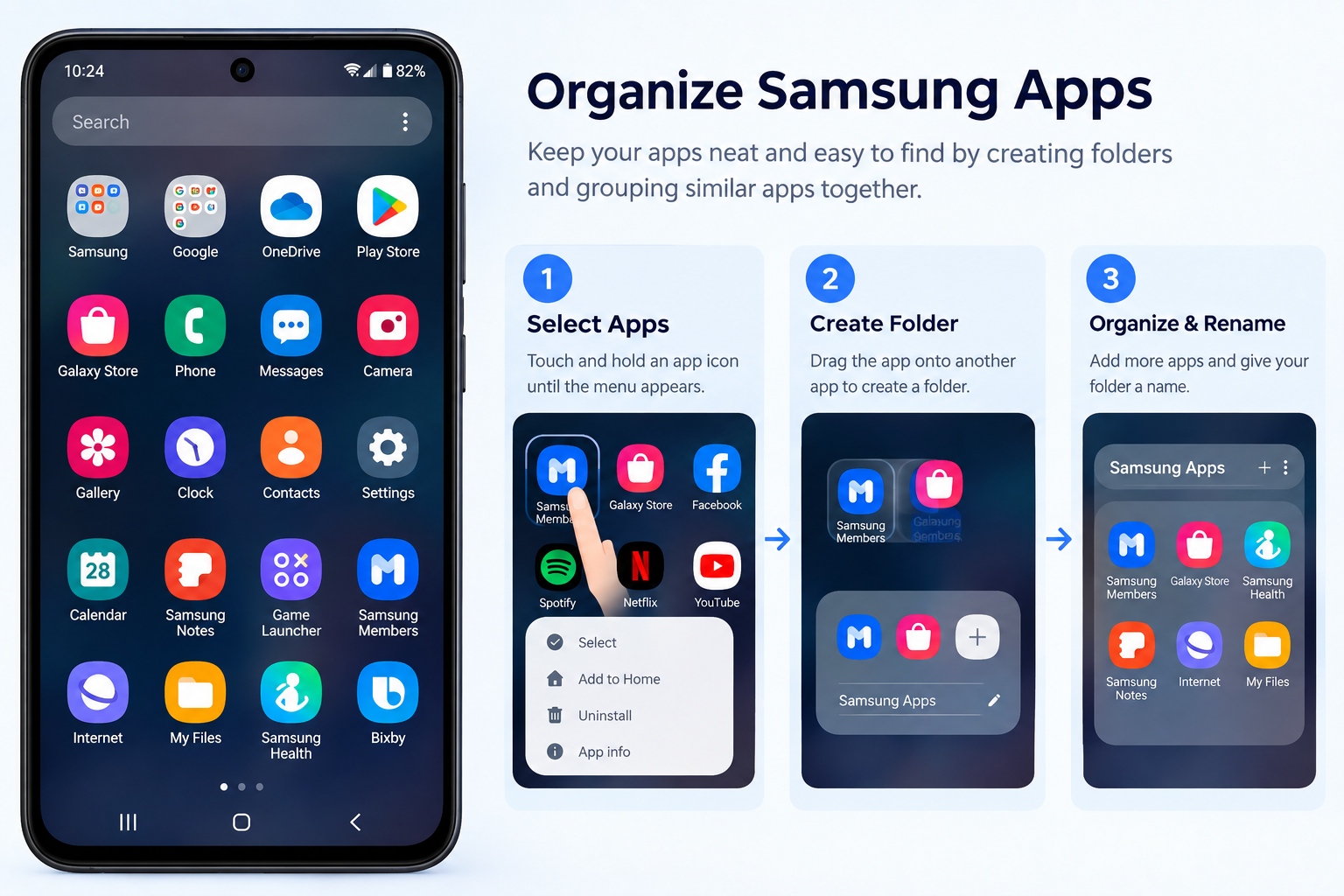
Introduction
To organize apps on a Samsung phone, long-press any app icon on the home screen and drag it to a new position, drag one app onto another to create a folder, swipe up to open the app drawer and sort apps alphabetically, or use the Hide Apps setting to remove apps you never use from view. These methods work across Samsung Galaxy devices running One UI and can be combined to create a home screen layout that suits exactly how you use your phone.
A well-organized Samsung phone makes everything faster and easier. Finding the app you need in seconds rather than scrolling through a cluttered screen makes a real difference to how smoothly your day runs. Samsung One UI offers more organization options than most users realize, from simple drag-and-drop rearranging to advanced tools like the Edge Panel and Samsung Good Lock.
This guide covers every available method for organizing apps on Samsung phones, with clear step-by-step instructions for each one. Samsung Galaxy phones run Android apps, and managing them well is one of the most effective ways to get more out of your device.
Why Organizing Apps on Your Samsung Phone Matters
A cluttered home screen is more than just an aesthetic problem. When apps are scattered without a clear system, finding the one you need takes longer, and opening the wrong app by mistake is a minor but repeated frustration across every day of use.
Understanding what apps are and how you use them helps you decide which ones deserve a prominent position on your home screen and which ones belong out of sight until you specifically need them. Taking thirty minutes to organize your apps properly pays dividends every single day.
The key benefits of organizing your Samsung phone apps include:
- Faster access to the apps you use most. Placing your most-used apps in the most reachable positions, such as the bottom of the screen or the first home screen page, saves seconds every time.
- Reduced visual clutter. A cleaner home screen is less overwhelming and makes the device feel more pleasant to use.
- Less time spent searching. When apps are grouped by category or sorted alphabetically, you always know where to look.
- Better focus. Keeping distracting apps like games or social media in a folder on a back page makes them less tempting during times when you need to concentrate.
- A device that reflects your workflow. A home screen organized around how you actually use your phone is more personal and more efficient than a default layout.
Understanding Samsung’s Home Screen and App Drawer
Before organizing apps on a Samsung phone, it helps to understand the two main areas where apps live: the home screen and the app drawer. These two areas work differently and each offers its own organization options.
The Home Screen
The home screen is the first thing you see when you unlock your Samsung Galaxy phone. It is a fully customizable canvas where you place the app shortcuts, folders, and widgets you want immediate access to.
Key points about the Samsung home screen:
- It shows only the shortcuts you manually place there. Apps do not appear on the home screen automatically unless you install them and choose to add them.
- Samsung One UI supports multiple home screen pages. Swipe left or right to move between pages.
- You control exactly what appears, where it appears, and how it is organized.
- Not every installed app needs a spot on the home screen. The app drawer handles the rest.
The App Drawer
The app drawer on Samsung One UI is accessed by swiping upward from the home screen. It is a dedicated space that holds every app installed on the device, regardless of whether it has a shortcut on the home screen.
Key points about the Samsung app drawer:
- It automatically includes every installed app in one central location.
- You can sort its contents alphabetically, by installation date, or by frequency of use depending on your One UI version.
- You can create folders within the app drawer, separate from your home screen folders.
- The app drawer means your home screen can stay clean and minimal while every app remains accessible with a quick upward swipe.
Home Screen vs App Drawer
| Feature | Home Screen | App Drawer |
|---|---|---|
| What it shows | Only shortcuts you place there manually | Every installed app on the device |
| Layout control | Fully customizable by the user | Sortable by name, date, or usage |
| Widgets | Yes, supports widgets | No widgets |
| Folders | Yes | Yes, supported in One UI |
| How to access | Visible after unlocking | Swipe up from home screen |
Method 1: Move and Rearrange Apps on the Home Screen
Moving apps around the home screen is the most basic form of organization on any smartphone, and Samsung One UI makes it straightforward with a simple long-press and drag system.
Step-by-Step: Moving a Single App
- On your Samsung home screen, find the app icon you want to move to a different position.
- Long-press the app icon with your finger. After a moment, the icon will lift slightly and the home screen will enter edit mode. You may see the icons jiggle slightly or the selected icon appear to float above the screen.
- While keeping your finger on the screen, drag the app icon to the position where you want to place it. You can move it to any empty space on the current page.
- To move the app to a different home screen page, drag the icon to the left or right edge of the screen and hold it there briefly. The screen will scroll to the adjacent page, where you can drop the app.
- Release your finger to drop the app icon in its new position.
- Tap anywhere else on the screen or press the home button to exit edit mode and confirm the new layout.
Tips for Moving Apps
- Apps can be dropped into any empty grid space on any home screen page.
- If the destination location already has an app icon, nearby icons will shift to accommodate the moved app.
- Build your layout one app at a time, working from the most important to the least, to create a logical flow across your home screen pages.
- Position the apps you use most frequently within easy thumb reach at the bottom of the screen or on the first home screen page.
Method 2: Create Folders to Group Apps on Samsung
Folders are one of the most effective tools for organizing apps on Samsung phones. Instead of individual icons spread across multiple pages, related apps are grouped into a single folder icon that expands when tapped. This reduces visual clutter dramatically while keeping every app accessible.
Step-by-Step: Creating a Folder on the Home Screen
- Long-press any app icon on the Samsung home screen until the screen enters edit mode and the icon lifts.
- While still holding the icon, drag it directly on top of another app icon you want to group it with.
- Samsung One UI automatically creates a folder containing both apps.
- A text field appears at the top of the folder showing a default name, often based on the app category.
- Tap the default name to clear it and type your preferred folder name, such as Social Media, Work Tools, Finance, or Entertainment.
- Tap the Done key on the keyboard or tap outside the name field to confirm the name.
- Tap outside the folder or press the back button to close it.
- The folder appears on your home screen as a single rounded icon showing small preview thumbnails of the apps inside.
Step-by-Step: Adding More Apps to an Existing Folder
- Long-press the app icon you want to add to an existing folder until it lifts into edit mode.
- Drag the app icon directly onto the folder icon on the home screen.
- Release your finger when the folder icon highlights or expands slightly to indicate it will accept the app.
- Tap the folder to open it and verify the app has been added successfully.
Step-by-Step: Renaming a Folder
- Tap the folder to open it.
- Tap the folder name displayed at the top of the open folder.
- The name field becomes editable with a cursor appearing in the text.
- Clear the current name and type the new name you want for the folder.
- Tap the Done key on the keyboard or tap outside the name field to save the new name.
Step-by-Step: Removing an App from a Folder
- Tap the folder to open it and see its contents.
- Long-press the app icon you want to remove from the folder until it lifts.
- Drag the app icon outside the folder boundary toward a free space on the home screen.
- Release your finger to drop the app on the home screen outside the folder. The app now has its own icon on the home screen rather than being inside the folder.
Tips for Folder Organization
- Use descriptive category names that clearly reflect the apps inside. Names like Travel, Health, Streaming, or Shopping make folders easy to navigate at a glance.
- Avoid overfilling folders. A folder with more than ten to twelve apps can become difficult to browse, defeating the purpose of organizing in the first place.
- Place your most used folders prominently on the first home screen page and in the bottom dock if possible for the fastest access.
- Color-coordinate your folder contents where it makes sense, such as keeping all blue-icon social apps in one folder, to make visual scanning even quicker.
Method 3: Organize Apps in the Samsung App Drawer
The Samsung One UI app drawer offers its own organization options that work independently from the home screen. Keeping the app drawer sorted logically means every installed app on your Samsung phone is easy to find even without a home screen shortcut.
Step-by-Step: Sorting Apps in the App Drawer
- From the home screen, swipe upward to open the app drawer.
- Look for the three-dot menu icon in the top right corner of the app drawer screen and tap it.
- Tap Sort from the menu options that appear.
- Choose from the available sorting options:
- Alphabetical order: Arranges all apps from A to Z by their name. This is the most intuitive option for finding a specific app quickly.
- Installation date: Places the most recently installed apps at the beginning of the list, useful for finding newly added apps.
- Most used: Available on some One UI versions, this arranges apps by how frequently you open them.
- Tap your preferred option. The app drawer reorders immediately.
Step-by-Step: Creating Folders in the App Drawer
- Swipe up from the home screen to open the app drawer.
- Tap the three-dot menu icon in the top right corner.
- Tap Create Folder from the menu.
- A new untitled folder appears in the app drawer.
- Tap the folder name field and type a descriptive name for the folder.
- Tap Add Apps or the plus icon to select apps to add to the folder.
- Tap each app you want to include. A checkmark appears next to selected apps.
- Tap Done or Apply to confirm your selection.
- The folder now appears in the app drawer and contains the apps you selected.
Tips for App Drawer Organization
- Alphabetical sorting is the most reliable long-term sorting method. Once you know an app name, you can find it immediately without scanning through the full list.
- Use app drawer folders to group categories of apps you access occasionally but do not need on the home screen, such as utility apps, system tools, or less-used productivity apps.
- Remember that app drawer folders and home screen folders are completely separate. Adding an app to an app drawer folder does not create a shortcut for it on the home screen, and vice versa.
Method 4: Manage Home Screen Pages on Samsung
Samsung One UI lets you create multiple home screen pages, rearrange them, delete empty ones, and set any page as your default landing page. This makes it possible to organize your Android apps into distinct themed sections, such as a personal page, a work page, and a media page.
Step-by-Step: Adding a New Home Screen Page
- Long-press an empty area on the home screen to enter home screen edit mode. The screen zooms out to show a page management view.
- You will see thumbnail previews of all existing home screen pages arranged horizontally.
- Scroll to the right end of the existing page thumbnails.
- Tap the plus icon that appears at the far right end of the thumbnails to add a new blank page.
- Tap Done or press the home button to exit edit mode and return to the normal home screen view.
Step-by-Step: Rearranging Home Screen Pages
- Long-press an empty area on the home screen to enter edit mode and see the page thumbnail view.
- Long-press the thumbnail of the page you want to move. It will lift slightly to indicate it is selected for dragging.
- While holding, drag the thumbnail left or right to the new position among the other page thumbnails.
- Release your finger to drop the page in its new position.
- Tap Done to save the new page order.
Step-by-Step: Deleting a Home Screen Page
- Long-press an empty area on the home screen to enter edit mode.
- Locate the page thumbnail you want to remove in the page management view.
- Tap the minus icon or delete icon that appears on or above the page thumbnail.
- The page is removed. Any app icons that were on the deleted page are automatically moved to the nearest remaining page.
- Tap Done to save your changes.
Step-by-Step: Setting a Default Home Screen Page
- Long-press an empty area on the home screen to enter edit mode.
- In the page thumbnail view, find the page you want to use as your default home screen. This is the page that appears first when you press the home button.
- Tap the small Home icon that appears above or on the desired page thumbnail.
- Tap Done to save. That page is now set as your default home screen.
Method 5: Sort Apps Alphabetically on Samsung
Alphabetical sorting is the fastest and most reliable way to navigate a large collection of apps, particularly in the app drawer where you may have dozens or even hundreds of apps installed.
Sorting the App Drawer Alphabetically
- Swipe up from the home screen to open the Samsung app drawer.
- Tap the three-dot menu icon in the top right corner.
- Tap Sort from the dropdown menu.
- Select Alphabetical Order.
- All apps in the app drawer immediately rearrange into A to Z order.
Alphabetical Home Screen Arrangement
Samsung One UI does not include an automatic alphabetical sort feature for the home screen. Unlike the app drawer, home screen icons are always in a manually controlled position.
If you want alphabetical order on your home screen, you would need to drag and reposition each app icon manually. However, a more practical approach for most users is to keep the app drawer sorted alphabetically as the primary organized repository of all apps, while using the home screen only for your most frequently accessed shortcuts placed in whatever layout suits your daily reach patterns.
Combining an alphabetically sorted app drawer with a curated home screen gives you the best of both approaches: a clean home screen and a predictable, searchable app drawer.
Method 6: Hide Apps on Samsung
Samsung One UI includes a built-in feature to hide apps from both the home screen and the app drawer without uninstalling them. The apps remain installed and all their app data is preserved, meaning you can restore them at any time with all their settings, accounts, and content completely intact.
This feature is particularly useful for removing pre-installed Samsung or carrier apps you never use, or for keeping certain apps private from others who might pick up your phone.
Step-by-Step: Hiding Apps on Samsung One UI
- Open the Settings app on your Samsung phone.
- Tap Home Screen. On some One UI versions or device models this setting may appear under Display or as a standalone section in Settings. Scroll through the Settings menu if you do not see it immediately.
- Tap Hide Apps.
- A full list of installed apps appears on screen.
- Tap each app you want to hide. A checkmark or highlight appears on selected apps.
- Tap Done or Apply to confirm your selection.
- The selected apps immediately disappear from both the home screen and the app drawer. They are no longer visible during normal use.
Step-by-Step: Unhiding Apps on Samsung
- Open the Settings app on your Samsung phone.
- Tap Home Screen.
- Tap Hide Apps.
- The list of apps appears with currently hidden apps shown at the top of the list with checkmarks.
- Tap any hidden app to remove its checkmark and unhide it.
- Tap Done or Apply to save the change.
- The app immediately reappears in the app drawer and can be added back to the home screen by long-pressing its icon in the drawer and selecting Add to Home Screen.
Tips for Hiding Apps
- Hiding carrier-installed or Samsung pre-installed apps that you never open is one of the easiest ways to make a cluttered app drawer significantly cleaner.
- Hidden apps that are system services may continue running in the background after being hidden. Hiding an app removes it from view only and does not prevent it from operating as a background service.
- Because hidden apps keep all their stored data and settings intact, there is no drawback to hiding an app you might want to access again later. You are not deleting anything.
Method 7: Use Samsung’s Good Lock for Advanced Home Screen Organization
Samsung Good Lock is an official Samsung tool that extends the customization capabilities of One UI beyond what the standard settings offer. It is available through the Galaxy Store, Samsung’s dedicated app marketplace, rather than through the Google Play Store where most app store downloads happen on Android devices.
Good Lock is not necessary for basic app organization but becomes valuable for users who want more precise control over their home screen grid, layout, and interface behavior.
The most relevant Good Lock modules for app organization are:
- Home Up: Adds additional home screen layout options including grid size customization, icon scaling, folder style changes, and more detailed control over how the home screen displays content.
- QuickStar: Focuses on the Quick Panel and notification shade customization rather than app layout directly, but contributes to a more personalized overall interface.
Tips for Good Lock Use
- Open the Galaxy Store app on your Samsung device to find and download Good Lock. Search for “Good Lock” in the Galaxy Store search bar.
- Good Lock availability varies by country and device model. Not all Samsung devices or regions have access to every Good Lock module.
- Install only the specific modules that address your needs. Each module adds its own settings layer, so installing only what you will actually use keeps things manageable.
- Good Lock updates frequently alongside One UI updates, so check for module updates regularly through the Good Lock app itself.
Method 8: Use Widgets to Organize Your Samsung Home Screen
Widgets are interactive display elements that show live information from an app directly on the home screen without requiring you to open the app itself. Using widgets strategically reduces the number of individual app shortcuts you need on your home screen while giving you more information at a glance.
Common examples of useful home screen widgets include a calendar showing upcoming events, a weather widget showing current conditions, a notes widget showing your latest note, and a music player widget for controlling playback without opening a music app.
Step-by-Step: Adding a Widget to the Samsung Home Screen
- Long-press an empty area on the Samsung home screen to enter home screen edit mode.
- Tap the Widgets option that appears at the bottom of the screen in the edit mode toolbar.
- The widget picker opens showing all available widgets from your installed apps. Browse by scrolling or use the search function to find a specific widget.
- Long-press the widget you want to place on the home screen.
- While still holding, drag the widget to the position on the home screen where you want it to appear.
- Release your finger to place the widget.
- If the widget supports resizing, blue handles appear around its edges. Drag the handles to adjust the widget’s size to fit your layout.
- Tap outside the widget to confirm its placement and exit edit mode.
Tips for Widget Use
- A single well-chosen widget can replace multiple app shortcuts. A calendar widget that shows your next three appointments, for example, eliminates the need to open the calendar app for routine schedule checks.
- Keep your first home screen page to a small number of high-value widgets and your most essential app shortcuts. Filling every available space defeats the purpose of organizing.
- Experiment with widget sizes. Many Samsung and third-party app widgets offer multiple size options from a small square to a full-width banner, giving you flexibility in how much information they display.
Method 9: Use the Edge Panel for Quick App Access on Samsung
The Edge Panel is a Samsung Galaxy feature that provides a sliding shortcut panel accessible from the side edge of the screen. It gives you instant access to your most used apps from any screen, including from within other apps, without navigating to the home screen at all.
The Edge Panel is one of the most practical organization tools on Samsung smartphones because it effectively creates a fast-launch dock that floats alongside everything you do on the device.
Step-by-Step: Setting Up the App Edge Panel
- Look for the Edge Panel handle, a small tab visible on the right or left edge of your Samsung screen. Swipe inward from the handle to open the Edge Panel.
- If the Edge Panel handle is not visible, go to Settings, tap Display, tap Edge Panels, and toggle Edge Panels on. The handle will appear on your screen.
- Once the Edge Panel is open, tap the pencil icon or edit button to enter customization mode.
- Select the Apps panel from the available panel options if it is not already active.
- Tap the app slots in the Apps panel to add your preferred apps. You can add up to ten apps depending on your One UI version.
- Tap Done or Apply to save your selection.
- Your chosen apps are now accessible at any time by swiping the Edge Panel handle inward from the screen edge.
Tips for Edge Panel Use
- Add the five to ten apps you open most frequently throughout the day to the Edge Panel. The goal is fast access, so prioritize apps you reach for repeatedly rather than apps you use occasionally.
- The Edge Panel works from within any app, making it a genuinely useful alternative to navigating back to the home screen every time you want to switch apps.
- You can add multiple panels to the Edge Panel beyond just the Apps panel. The Tasks panel, People panel, and other options provide additional quick-access functionality.
Samsung App Organization Best Practices
Combining the methods above into a coherent system gives you the most organized and efficient Samsung phone experience. Here is a practical framework that works well for most users.
- First home screen page: Keep only your daily essential apps here. Phone, Messages, Camera, and two or three other apps you open multiple times every day. Pair these with one or two high-value widgets.
- Second home screen page: Place frequently used apps that do not quite make the daily essentials list. Social apps, a browser, email, and similar apps work well here.
- Folders on back pages: Create category folders for apps you use regularly but not every day. Travel, Finance, Health, Shopping, and Streaming are useful categories for most users.
- App drawer: Keep it sorted alphabetically so you always know where to look for any app, regardless of how often you use it.
- Hide pre-installed apps: Go through the Hide Apps setting and remove every pre-installed app you have never opened. This makes the app drawer noticeably cleaner.
- Edge Panel: Populate it with your absolute top daily apps for fastest possible access from any screen.
- Regular maintenance: Review your apps every few months. Delete apps you no longer use rather than simply hiding or moving them. Clearing app cache for large or frequently used apps as part of this routine keeps your Samsung phone running smoothly.
- Review permissions: As part of regular app management on your Samsung phone, reviewing app permissions ensures that each installed app only has access to the device features and data it genuinely needs.
For additional guidance on Samsung One UI home screen and app management, refer to Samsung’s official support documentation.
All Samsung App Organization Methods Compared
| Method | What It Does | Difficulty | Best For |
|---|---|---|---|
| Move and rearrange apps | Repositions individual app icons on the home screen | Very Easy | Basic layout customization |
| Create folders | Groups related apps into a single folder icon | Easy | Reducing visible app count |
| App drawer sorting | Sorts all apps alphabetically or by installation date | Very Easy | Finding any app quickly |
| Home screen pages | Organizes apps across multiple themed pages | Easy | Separating life areas like work and personal |
| Alphabetical sorting | Arranges app drawer contents A to Z | Very Easy | Large app collections |
| Hide apps | Removes apps from view without uninstalling | Easy | Reducing clutter from unused apps |
| Good Lock | Advanced layout and interface customization | Moderate | Power users wanting more control |
| Widgets | Displays app information on home screen directly | Easy | Reducing shortcut clutter |
| Edge Panel | Sliding quick-access shortcut panel from screen edge | Easy | Fastest access to most-used apps |
Frequently Asked Questions
How do I organize apps on my Samsung phone?
Long-press any app icon on the home screen and drag it to rearrange it. Drag one app onto another to create a folder. Swipe up to open the app drawer and use the three-dot menu to sort by alphabetical order. Use Settings and then Home Screen and then Hide Apps to remove apps you do not need from view.
How do I create folders on a Samsung phone?
Long-press an app icon until it lifts, then drag it on top of another app icon. Samsung One UI automatically creates a folder containing both apps. Tap the folder name at the top to rename it.
How do I sort apps alphabetically on Samsung?
Swipe up to open the app drawer, tap the three-dot menu in the top right corner, tap Sort, and select Alphabetical Order. The app drawer rearranges immediately.
How do I hide apps on Samsung?
Go to Settings, tap Home Screen, tap Hide Apps, select the apps you want to hide, and tap Done. The selected apps disappear from the home screen and app drawer without being uninstalled.
How do I move apps on Samsung Galaxy home screen?
Long-press the app icon you want to move until it lifts, then drag it to a new position on the same page or drag it to the screen edge to move it to a different page. Release your finger to drop it in place.
How do I organize the app drawer on Samsung One UI?
Open the app drawer by swiping up, tap the three-dot menu, and choose Sort to arrange apps alphabetically or by installation date. You can also tap Create Folder to group apps into categories within the drawer.
How do I add a new home screen page on Samsung?
Long-press an empty area on the home screen to enter edit mode, then scroll to the far right of the page thumbnails and tap the plus icon to add a new blank page.
How do I delete a home screen page on Samsung?
Long-press an empty area to enter edit mode, find the page thumbnail you want to remove, and tap the minus or delete icon on it. Apps from the deleted page move automatically to the nearest remaining page.
How do I use the Edge Panel on Samsung Galaxy?
Swipe inward from the Edge Panel handle on the side of your screen. If it is not visible, go to Settings, then Display, then Edge Panels and enable it. Tap the pencil icon in the open panel to add your preferred app shortcuts.
How do I rename a folder on Samsung?
Tap the folder to open it, then tap the folder name at the top of the open folder. The name becomes editable. Type the new name and tap Done on the keyboard to save it.
How do I remove an app from a folder on Samsung?
Open the folder by tapping it, then long-press the app you want to remove. Drag the app icon outside the folder boundary and release it on an empty space on the home screen.
What is the best way to organize apps on a Samsung phone?
Keep your first home screen page for daily essentials only, use folders for categorized groups of apps, sort the app drawer alphabetically, hide apps you never use, and add your top apps to the Edge Panel for fastest access from anywhere on the device.
How do I unhide apps on Samsung?
Go to Settings, tap Home Screen, tap Hide Apps, and uncheck any apps you want to restore. Tap Done to apply. The apps reappear in the app drawer immediately.
How do I add widgets to Samsung home screen?
Long-press an empty area on the home screen to enter edit mode, tap Widgets, find and long-press the widget you want, drag it to a position on the home screen, and release to place it.
Does Samsung have an automatic app organization feature?
Samsung One UI does not automatically organize your home screen layout, but the app drawer can be set to sort apps automatically in alphabetical order or by installation date. Samsung Good Lock’s Home Up module provides additional automatic layout options for users who want more control beyond the standard settings.
Disclaimer:
This article is intended for educational and informational purposes and provides a general guide to organizing apps on Samsung phones. Steps and interface options described in this article reflect general Samsung One UI functionality. The exact appearance of menus and options may vary between different Samsung Galaxy models, One UI versions, and Android versions. Always refer to Samsung’s official support documentation at samsung.com/support for guidance specific to your device and software version. This article does not constitute an endorsement of any specific third-party app, launcher, or service mentioned in this guide.