
 By saman zahra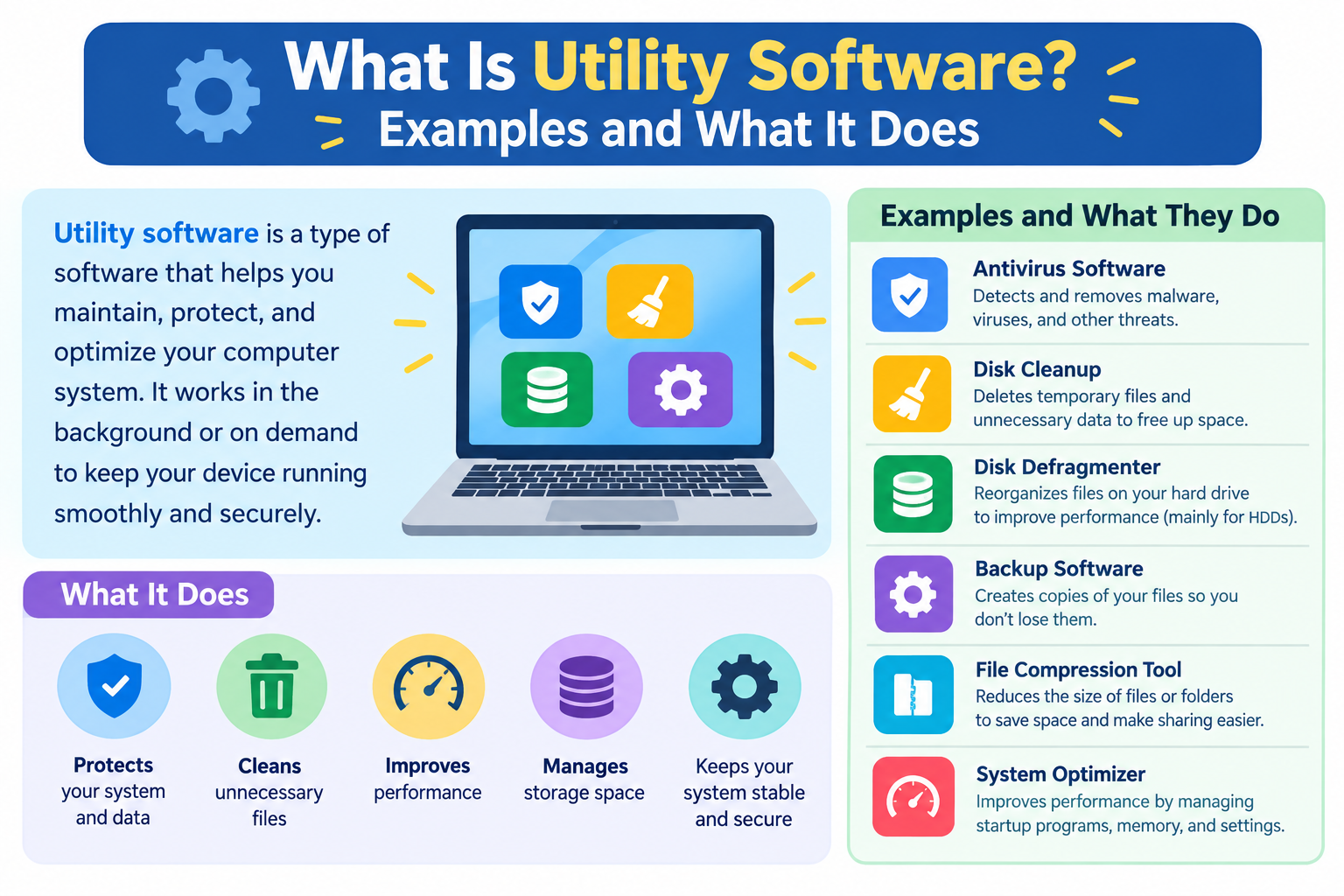
Your computer does a lot of work you never directly ask it to do. Files accumulate in temporary folders. Security threats attempt to enter the system. Storage fills up gradually. Data sits unprotected against hardware failure. The software that handles these background maintenance and protection tasks is called utility software, and it plays a quiet but essential role in keeping every computer running reliably.
What Is Utility Software?
Utility software is a category of software designed to help manage, maintain, optimize, and support a computer system and its resources. Rather than helping users write documents, browse the internet, or play games, utility software focuses on the health and efficient operation of the system itself.
Most utility software works quietly in the background, performing tasks that keep the computer organized, protected, and performing well. Users often interact with utility software only when something needs attention, such as when running a virus scan, freeing up storage space, or restoring a lost file from a backup.
In the software hierarchy, utility software is generally considered part of or closely associated with system software. It supports the operating system without being the core of it. Understanding this position helps clarify why utility software is different from the apps and programs most people think of as software.
The key distinction is purpose. Application software performs tasks for the user. Utility software performs tasks for the system. An antivirus program protects the system. A disk cleanup tool frees storage space. A backup tool safeguards data. None of these are things users do as primary activities. They are all forms of system maintenance and support.
Some utility software is built directly into the operating system and is ready to use from the moment a device is set up. Other utility software is available as separate third-party programs that extend or replace built-in functions. Both forms serve the same fundamental purpose: keeping the computer in good working condition.
Real-world examples include Windows Defender for security, Disk Cleanup for storage management, Time Machine on macOS for backup, WinRAR for file compression, and Task Manager for system monitoring.
For a broader understanding of how software is organized, the article on what is software and how does it work provides useful foundational context.
Why Is Utility Software Important?
A computer without any utility software would deteriorate quickly in practical terms. Temporary files would accumulate without any organized way to remove them. Malicious software would have no dedicated barrier to stop it. Hardware failures would result in permanent data loss with no recovery option. Storage drives would fill up with unnecessary data. Performance problems would be difficult to diagnose without visibility into what the system is doing.
Utility software addresses each of these realities through specialized tools designed for specific maintenance purposes.
It automates maintenance that would otherwise be manual. Without disk cleanup utilities, users would need to manually locate and delete temporary files scattered across the file system. Without backup software, they would need to manually copy important files to external storage on a regular schedule. Utility software makes these tasks automatic or significantly easier to perform.
It extends the useful life of a computer. A well-maintained computer that benefits from regular cleanup, performance monitoring, and security protection tends to remain useful for longer than one that receives no maintenance. Utility software makes that maintenance accessible to everyday users without technical expertise.
It protects data. Backup utilities create recoverable copies of important files. Encryption tools protect sensitive data from unauthorized access. Security utilities detect and remove threats before they cause damage. These protections are not automatic consequences of using a computer. They require dedicated utility software to implement.
It provides system visibility. Without monitoring tools, users have limited insight into what is happening inside their computer. System monitoring utilities reveal which processes are consuming the most resources, whether the processor is under strain, how much memory is available, and how storage is being used.
It bridges the gap between raw operating system capability and practical maintenance needs. An operating system provides the foundation for a computer to work. Utility software fills the space between that foundation and the everyday reality of using a computer over months and years.
Utility Software vs Application Software
These two categories are often encountered together, and understanding the difference clarifies how software is organized on any computing device.
| Feature | Utility Software | Application Software |
|---|---|---|
| Definition | Software that manages, maintains, and optimizes the computer system | Software that helps users perform specific productive or entertainment tasks |
| Primary purpose | System health, maintenance, security, and resource management | User-facing tasks such as writing, browsing, communicating, or gaming |
| Who it serves | The computer system itself | The user directly |
| Examples | Antivirus, disk cleanup, backup tools, file compressors | Word processors, web browsers, email clients, games |
| User interaction | Often indirect or background; user-initiated for specific tasks | Direct, through the application’s own interface |
| Runs in background | Often yes, particularly security and monitoring tools | Usually only when the user has opened the application |
| Installed by default | Many are included with the operating system | Some basic apps included; most installed by the user |
| Impact if removed | System becomes harder to maintain and protect | Specific user tasks become unavailable |
Application software performs tasks for the user. Utility software performs tasks for the system. A word processor helps a user write a document. A disk cleanup tool removes unnecessary files from the system. Both depend on the operating system to function, but they serve completely different roles.
For a detailed explanation of the application software category, the article on what is application software covers all the major types and examples.
Utility Software vs System Software
The relationship between utility software and system software is one of inclusion and support rather than opposition.
| Feature | System Software | Utility Software |
|---|---|---|
| Definition | Software that manages hardware and provides the platform for all other software | Software that maintains, optimizes, and supports the computer system |
| Primary purpose | Hardware management, resource allocation, platform provision | System maintenance, data protection, performance optimization |
| Examples | Operating systems, device drivers, firmware, bootloaders | Antivirus, backup tools, disk managers, compression software |
| User visibility | Very low; mostly invisible to users | Low to moderate; users interact when maintenance is needed |
| Core to OS function | Yes; the operating system is the core of system software | No; utility software supports but is not the core |
| Typically installed by | Manufacturer or device setup process | Operating system (built-in) or user (third-party) |
System software includes the operating system, device drivers, firmware, and bootloaders. These are the foundational components that make a computer work at all. Utility software supports the operating system without being the core of it.
Some computing education materials classify utility software as a type of system software. Others treat it as a distinct category that occupies a position between system software and application software. Both perspectives are common and reflect a genuine classification boundary. What matters practically is understanding what utility software does rather than which exact category it belongs to.
The article on what is system software explains the full system software layer including operating systems, device drivers, and firmware in detail.
Types of Utility Software
The following categories represent the most widely recognized types of utility software. Each addresses a specific area of system maintenance, protection, or management.
Antivirus and Security Software
Antivirus and security software scans for, detects, and removes malicious software including viruses, spyware, ransomware, trojans, and other threats. It provides real-time protection by monitoring system activity and intercepting threats before they can cause damage.
Modern security utilities often extend beyond basic virus scanning to include features such as firewall management, phishing protection, web filtering, and behavioral monitoring that identifies suspicious activity even from previously unknown threats.
Examples include:
- Windows Defender — Built into Windows 10 and 11, providing real-time antivirus and security protection without requiring any additional installation
- Malwarebytes — A widely used third-party security tool focused on malware detection and removal
- Bitdefender — A comprehensive security suite with multiple protection layers
- Norton — A long-established security product with antivirus, firewall, and additional features
Antivirus software is one of the most widely recognized categories of utility software and is considered essential for computers connected to the internet. The article on what is antivirus software covers how antivirus tools work in detail.
Disk Management and Cleanup Tools
Disk management and cleanup tools identify and remove unnecessary files that accumulate during normal computer use. These include temporary files created by the operating system and applications, cached data, old log files, leftover installation files, and items in the recycle bin.
Over time, these files can consume significant storage space without providing any ongoing value. Cleanup tools locate and remove them safely, freeing storage for files and programs that are actually needed.
Examples include:
- Windows Disk Cleanup — A built-in Windows tool for removing temporary files and system files that are no longer needed
- Storage Sense — A Windows 10 and 11 feature that can automatically free up space on a schedule
- macOS Storage Management — Accessible through About This Mac, providing recommendations for optimizing storage
- CCleaner — A third-party cleanup tool available for Windows and macOS
Temporary file accumulation is a normal part of using a computer. Cleanup tools manage this accumulation without requiring users to manually locate files scattered throughout the file system.
Understanding what cached data is and how it accumulates relates directly to what disk cleanup tools remove. The article on what is app cache explains cached data clearly.
Backup and Recovery Software
Backup and recovery software creates copies of files, folders, or entire system states so that data can be restored if it is lost, corrupted, accidentally deleted, or damaged by hardware failure or malicious software.
A file backup copies individual files and folders to another location. A full system image backup captures the entire state of a drive, including the operating system, installed programs, settings, and all files, so that a computer can be completely restored to a previous state from a single backup.
Backups can be performed manually or scheduled to run automatically at regular intervals. Incremental backups record only changes made since the last backup, reducing the time and storage required for each backup session.
Examples include:
- Windows Backup — Built-in backup functionality in Windows
- Time Machine — macOS’s built-in automated backup system that creates hourly, daily, and weekly backups to an external drive
- Acronis True Image — A comprehensive third-party backup solution for both file and system image backups
- Backblaze — A cloud-based backup service that continuously backs up files to remote servers
Regular backups are widely considered one of the most important data protection practices. According to CISA, maintaining offline backups is a foundational recommendation for protecting against ransomware and other data loss scenarios.
File Compression Software
File compression software reduces the size of files or collections of files to save storage space or make them faster and easier to transfer. Compressed files are packaged into archive formats such as ZIP, RAR, or 7Z, which must be decompressed before their contents can be used normally.
There are two types of compression worth understanding in simple terms. Lossless compression reduces file size without discarding any data, meaning the original files are perfectly restored when decompressed. Most file archive formats use lossless compression. Lossy compression, used in formats like JPEG images and MP3 audio, achieves greater size reductions by permanently discarding some data, which is acceptable for media files where small quality losses are often imperceptible.
File compression utilities primarily use lossless compression to preserve files without any loss of content.
Examples include:
- 7-Zip — A widely used free and open-source file compression tool supporting multiple archive formats
- WinRAR — A long-established compression tool with support for the RAR format and others
- WinZip — A popular compression tool for ZIP archives and other formats
- Built-in ZIP support — Both Windows and macOS include native support for creating and extracting ZIP archives without additional software
File Management Software
File management software helps users organize, navigate, copy, move, rename, search, and delete files and folders stored on their devices. Every operating system includes a basic file manager, but third-party alternatives often offer additional capabilities.
Examples include:
- Windows File Explorer — The built-in file manager for Windows, providing access to all files and drives on the system
- macOS Finder — The built-in file manager for macOS
- Total Commander — A feature-rich third-party file manager for Windows with a dual-pane interface, batch file operations, and built-in file viewer
- FreeCommander — A free alternative file manager for Windows with advanced features
Third-party file managers typically offer features such as dual-pane views that show two folder locations simultaneously, batch renaming of multiple files, tabbed browsing between locations, and more powerful search capabilities than the built-in alternatives.
Understanding how apps store and organize data is closely related to file management concepts. The article on what is app data explains how applications manage their stored information.
System Monitoring and Diagnostics Tools
System monitoring tools display real-time information about how the computer’s hardware resources are being used. They show processor utilization, memory usage, storage activity, and network traffic, and they list the individual processes consuming those resources.
This information is valuable for diagnosing performance problems. If a computer is running slowly, a monitoring tool can reveal whether a specific process is consuming an unusual amount of processor time or memory. It can also help identify software that is running in the background without the user’s awareness.
Examples include:
- Windows Task Manager — The primary built-in monitoring tool for Windows, showing running processes, CPU and memory usage, network activity, and more
- Windows Resource Monitor — A more detailed built-in tool accessible from Task Manager that provides granular resource usage information
- macOS Activity Monitor — The built-in system monitoring tool for macOS showing processor, memory, energy, disk, and network usage
- HWiNFO — A detailed third-party hardware monitoring tool for Windows
- CPU-Z — A tool that provides detailed information about the processor, memory, and other hardware components
Disk Partitioning Tools
Disk partitioning tools allow users to divide a storage drive into separate sections called partitions. Each partition functions as an independent storage unit that can be formatted, managed, and used separately from other partitions on the same physical drive.
Partitioning is used for several purposes. A computer running two operating systems needs separate partitions for each. Users may prefer to keep the operating system on a separate partition from personal files for organizational reasons. Some backup strategies involve dedicated partitions for backup data.
Examples include:
- Windows Disk Management — The built-in disk and partition management tool in Windows
- macOS Disk Utility — The built-in disk management tool for macOS that also handles partitioning
- GParted — A free and open-source partition editor widely used on Linux systems and available as a bootable tool for managing partitions on any system
Partition changes affect how data is organized on a drive and should be approached carefully. Resizing or deleting a partition can affect data stored on that partition. Backing up important data before making partition changes is strongly advisable.
Defragmentation Tools
On traditional spinning hard disk drives, data is written to the drive in available spaces wherever they exist. Over time, a single file may be stored across many separate locations on the drive, a condition called fragmentation. When the system needs to read that file, the drive head must move to multiple locations, which takes more time than reading a continuous file stored in one place.
Defragmentation tools reorganize fragmented data on hard disk drives, grouping the pieces of each file together so they can be read more efficiently.
Examples include:
- Windows Optimize Drives (previously Disk Defragmenter) — The built-in tool in Windows for optimizing storage drives
- Defraggler — A third-party defragmentation tool for Windows
Important note regarding solid-state drives: Defragmentation as described above applies specifically to traditional spinning hard disk drives. Solid-state drives store data differently and do not suffer from the same fragmentation problem. Defragmenting an SSD in the traditional sense is not only unnecessary but can cause additional write cycles that contribute to wear on the drive over time. Modern operating systems, including current versions of Windows, detect the drive type and apply appropriate optimization methods automatically. Windows applies a process called TRIM to SSDs rather than traditional defragmentation. Users should allow the operating system to manage drive optimization automatically rather than manually defragmenting an SSD.
According to Microsoft’s documentation, the Optimize Drives tool in Windows automatically determines the correct optimization method based on the type of drive being managed.
Clipboard Managers
The standard clipboard built into operating systems holds only the most recently copied item. When you copy something new, the previous item is replaced and gone. Clipboard manager utilities extend this basic functionality by maintaining a history of copied items.
With a clipboard manager, users can copy multiple items and then access any of them from the history rather than only the most recent one. This is particularly useful for repetitive tasks that involve inserting different pieces of text or data in sequence.
Examples include:
- Ditto — A free clipboard manager for Windows that stores clipboard history and provides search functionality
- Pasta — A clipboard manager for macOS
- Built-in Clipboard History in Windows 10 and 11 — Accessible by pressing the Windows key and V simultaneously, this built-in feature stores clipboard history without requiring any additional software
Screen Capture and Recording Tools
Screen capture and recording tools allow users to take screenshots of what is displayed on their screen or record video of screen activity. These tools are used for documentation, creating tutorials, reporting technical problems to support teams, and content creation.
Examples include:
- Windows Snipping Tool — A built-in Windows tool for capturing screenshots of selected areas, windows, or the full screen
- macOS Screenshot utility — Built-in macOS functionality for capturing screenshots and screen recordings, accessible through keyboard shortcuts or the Screenshot application
- OBS Studio — A free and open-source screen recording and streaming tool widely used for video content creation
- ShareX — A free and open-source screen capture and recording tool for Windows with extensive output options
Password Managers
Password managers store and organize login credentials securely so that users can maintain strong, unique passwords for each of their accounts without needing to memorize all of them. They also generate strong random passwords when users create new accounts.
Password managers are considered utility software because they support the secure operation of a user’s digital environment rather than performing a primary productive or entertainment task. They maintain the infrastructure of online account security.
Examples include:
- Bitwarden — A free and open-source password manager available across multiple platforms
- 1Password — A widely used paid password manager for individuals and teams
- LastPass — A password manager with free and paid tiers
- KeePass — A free and open-source password manager that stores the encrypted password database locally
Network and Connectivity Utilities
Network utilities help users manage, monitor, diagnose, and troubleshoot network connections. They range from simple command-line tools built into every operating system to sophisticated network analysis applications.
Examples include:
- Windows Network Diagnostics — A built-in Windows tool that attempts to identify and resolve common network connectivity problems automatically
- Ping — A basic command-line tool included in every major operating system that tests whether a network connection to a specific address is working
- Traceroute — A command-line tool that traces the path network traffic takes from the user’s computer to a destination, helping identify where connectivity problems occur
- Wireshark — A detailed network protocol analyzer for capturing and examining network traffic
- NetSpot — A Wi-Fi analysis tool for visualizing wireless network coverage and signal strength
Network utilities are commonly used when troubleshooting why an internet connection is not working as expected or when diagnosing slow network performance.
Understanding how firewalls interact with network traffic is related to network utility concepts. The article on what is a firewall explains firewall function clearly.
Driver Update Utilities
Driver update utilities help identify outdated device drivers and assist with downloading and installing current versions. Device drivers are software components that allow the operating system to communicate with specific hardware components, and keeping them current can resolve hardware problems and improve performance.
Examples include:
- Windows Update — Delivers driver updates for many common hardware components alongside operating system updates
- Device Manager — A built-in Windows tool for viewing installed drivers, checking their status, and manually updating or reinstalling them
Obtaining drivers from official hardware manufacturer sources is always the recommended approach. Many third-party driver update tools exist, but they should be evaluated carefully for reliability and reputation before use. Drivers installed from unverified sources can introduce instability or security risks.
Encryption Tools
Encryption tools protect data by converting it into an unreadable format that can only be accessed with the correct decryption key. They are used to protect sensitive files, entire folders, or complete storage drives from unauthorized access.
Encryption is particularly important for portable devices such as laptops and external drives, which can be lost or stolen. An encrypted drive is unreadable to anyone who does not have the encryption key, protecting the data even if the physical device falls into the wrong hands.
Examples include:
- BitLocker — A full-drive encryption tool built into Windows Pro, Enterprise, and Education editions
- FileVault — Apple’s built-in full-disk encryption for macOS
- VeraCrypt — A free and open-source encryption tool available for Windows, macOS, and Linux that can encrypt files, folders, or entire drives
Built-In Utility Software
Modern operating systems include substantial utility software out of the box. Many users have access to powerful maintenance and protection tools without needing to install anything additional.
Windows built-in utilities:
- Task Manager for process and resource monitoring
- Disk Cleanup and Storage Sense for temporary file removal
- Windows Defender for antivirus and security protection
- Windows Backup and File History for data protection
- Optimize Drives for drive maintenance
- Disk Management for partition management
- Resource Monitor for detailed resource usage information
- Snipping Tool for screenshots
- BitLocker for drive encryption on supported editions
- Windows Update for system and security updates
macOS built-in utilities:
- Activity Monitor for system resource monitoring
- Disk Utility for disk management, partitioning, and repair
- Time Machine for automated backup
- FileVault for full-disk encryption
- Screenshot utility for screen capture
- Keychain Access for password and certificate management
- Console for system log access
- System Information for hardware and software details
Android built-in utilities:
- Storage Manager for identifying and removing unnecessary files
- Battery optimization tools for managing background app activity
- Device Care or equivalent manufacturer tools for overall device maintenance
- Built-in file manager for file organization
iOS built-in utilities:
- Storage management in Settings for identifying space-consuming content
- Screen Time for usage monitoring and parental controls
- iCloud Backup for automated device backup
Third-Party Utility Software
Third-party utility software extends or supplements what is built into the operating system. It is useful when built-in tools do not fully meet a specific need or when additional features or a more specialized approach is required.
All third-party utility software should be downloaded from the official developer’s website or a trusted platform store. Searching for utility software through general search engines and downloading from results that are not the official source introduces the risk of downloading modified or malicious versions.
Security:
- Malwarebytes
- Bitdefender
- Norton
Backup:
- Acronis True Image
- Backblaze
- EaseUS Todo Backup
File Management:
- Total Commander
- FreeCommander
- Directory Opus
File Compression:
- 7-Zip
- WinRAR
- WinZip
System Monitoring:
- HWiNFO
- CPU-Z
- Speccy
Disk Management:
- GParted
- MiniTool Partition Wizard
Password Management:
- Bitwarden
- KeePass
- 1Password
Network:
- Wireshark
- NetSpot
Examples of Utility Software by Function
| Utility Function | Built-In Example | Third-Party Example | Primary Benefit |
|---|---|---|---|
| Antivirus and security | Windows Defender | Malwarebytes, Bitdefender | Detects and removes malicious software |
| Disk cleanup | Storage Sense, Disk Cleanup | CCleaner | Frees storage by removing unnecessary files |
| Backup and recovery | Time Machine, Windows Backup | Acronis True Image, Backblaze | Protects data against loss |
| File compression | Built-in ZIP support | 7-Zip, WinRAR | Reduces file size for storage and transfer |
| File management | File Explorer, Finder | Total Commander, FreeCommander | Organizes and navigates files efficiently |
| System monitoring | Task Manager, Activity Monitor | HWiNFO, CPU-Z | Reveals resource usage and running processes |
| Disk partitioning | Disk Management, Disk Utility | GParted, MiniTool Partition Wizard | Divides drives into managed sections |
| Defragmentation (HDD) | Optimize Drives | Defraggler | Improves read efficiency on hard disk drives |
| Encryption | BitLocker, FileVault | VeraCrypt | Protects data from unauthorized access |
| Password management | Keychain Access (macOS) | Bitwarden, KeePass | Stores and generates secure credentials |
| Network diagnostics | Windows Network Diagnostics, ping | Wireshark, NetSpot | Identifies and resolves connectivity problems |
| Screen capture | Snipping Tool, macOS Screenshot | ShareX, OBS Studio | Captures screen images or video |
Utility Software on Windows
Windows provides one of the most comprehensive sets of built-in utility software among major operating systems, making many maintenance tasks accessible without any additional installation.
Task Manager is the most immediately accessible monitoring tool, opened by pressing Ctrl, Shift, and Escape simultaneously or right-clicking the taskbar. It shows running processes, their CPU and memory usage, and allows users to end processes that are unresponsive or consuming excessive resources.
Storage Sense and Disk Cleanup address temporary file accumulation. Storage Sense can be configured to run automatically on a schedule through Windows Settings, while Disk Cleanup is available through the drive’s properties in File Explorer.
Windows Defender provides real-time antivirus protection integrated directly into the operating system. It updates its threat definitions through Windows Update and requires no configuration for basic protection.
BitLocker is available on Windows Pro, Enterprise, and Education editions for full-drive encryption. Users on Windows Home can use device encryption if their hardware supports it.
Windows Backup and File History offer different approaches to data protection, with File History providing automatic backups of files in user libraries and other selected folders.
Windows Update delivers not only operating system updates but also driver updates for many common hardware components, making it a utility function as well as a system update mechanism.
Third-party utilities can supplement all of these built-in tools for users who need additional features or more specialized functionality.
Utility Software on Mac
macOS organizes many of its built-in utility programs in a dedicated Utilities folder located inside the Applications folder. This makes them easy to find as a group rather than scattered throughout the system.
Activity Monitor provides a detailed view of what is running on the Mac and how much of the processor, memory, energy, disk, and network each process is using. It is the macOS equivalent of Windows Task Manager.
Disk Utility handles disk management tasks including formatting drives, repairing disk permissions, managing partitions, and creating disk images. It is a versatile tool for storage-related maintenance.
Time Machine provides automated, continuous backup to an external drive or compatible network storage. It creates hourly backups for the past day, daily backups for the past month, and weekly backups for older data, allowing restoration of files from any of these points.
FileVault enables full-disk encryption for the Mac’s internal storage. Once enabled, all data on the drive is encrypted and accessible only after authentication.
Keychain Access manages passwords, certificates, and secure notes stored in the macOS keychain, which is the system’s built-in secure credential storage.
Third-party utilities are available through the Mac App Store and from developer websites. The same caution about verifying sources applies here as on any platform.
Utility Software on Smartphones
Smartphones include utility functions integrated into the operating system settings rather than as separate dedicated applications, though the functions served are the same.
Storage management tools on both Android and iOS help users identify what is consuming storage space and provide options for removing unnecessary content. On Android, the Files app on many devices includes a built-in cleanup feature. On iOS, the Storage section in Settings shows a breakdown of storage usage by category and app and provides recommendations for freeing space.
Battery optimization tools manage which apps are allowed to run in the background and how aggressively the system limits their activity. Both Android and iOS use these tools to balance performance with battery life.
Security features on smartphones operate at the system level, including screen lock, biometric authentication, full-device encryption, and remote wipe capabilities. These are utility functions in the sense that they support the secure operation of the device.
Many Android device manufacturers include their own device care or phone manager applications that combine storage cleanup, battery management, and security scanning in a single interface.
Third-party utility apps are available through app stores for smartphones, but they require careful evaluation. On smartphones in particular, some utility apps claiming to improve performance, clean memory, or boost battery life do not deliver meaningful benefits and may consume resources themselves.
When installing utility apps on smartphones, reviewing the permissions they request is important. A utility app requesting access to contacts, messages, or camera without a clear reason for needing that access warrants scrutiny. The article on what is an app permission covers how permissions work in detail.
Utility Software and Security
Utility software often requires significant system access to perform its functions. An antivirus tool needs access to all files on the drive to scan them. A backup tool needs access to all user data to copy it. A system monitoring tool needs access to process information to display it. This elevated access is necessary for utility software to work, but it also makes the source of utility software more important than it might be for ordinary applications.
Malicious software sometimes disguises itself as legitimate utility software. Fake system optimizers, fake antivirus tools, and fake cleanup utilities are well-documented categories of malware that present themselves as helpful maintenance tools while actually performing harmful actions. According to CISA, users should be cautious of unsolicited software that claims to have found problems on their computer and requires immediate action.
Practical precautions for utility software security:
- Download utility software only from the official developer’s website or a trusted platform store such as the Microsoft Store or Mac App Store
- Be skeptical of utility software that makes dramatic performance improvement claims without specific explanation of what it does
- Avoid utility software promoted through pop-up advertisements or unsolicited messages claiming your computer has problems
- Keep installed utility software updated, just as you would keep application software and the operating system updated
- Review the permissions requested by utility apps on smartphones before granting access
Maintaining overall system security involves understanding multiple layers of protection. The article on what is cybersecurity provides comprehensive context for how security works across computing environments.
How to Choose Utility Software
Most users do not need an extensive collection of third-party utility software. Modern operating systems include capable built-in utilities that meet many common needs. The decision to add third-party tools should be based on a specific identified need rather than a general desire to improve computer performance.
Start with what is already installed. Check whether your operating system’s built-in tools address the need before looking at third-party options. Windows Task Manager, macOS Time Machine, and Windows Defender are capable tools that many users never need to replace.
Identify the specific need clearly. If a third-party tool is needed, define the specific problem it should solve. A vague goal of making the computer faster is not a good basis for choosing utility software. A specific need, such as more detailed hardware monitoring than Task Manager provides, leads to a better-informed choice.
Research the developer. Look for utility software from developers with a documented track record and a verifiable identity. Established security companies, well-known open-source projects, and software with a significant history of legitimate use are preferable to unknown developers making large claims.
Download from official sources only. Never download utility software from sources other than the official developer website or a trusted platform store. This applies especially to security tools, where the risk of fake versions is well documented.
Read reviews from reliable technology publications. Reviews from established technology publications that have tested the software provide more reliable guidance than user reviews alone, which can be manipulated.
Be skeptical of exaggerated claims. Utility software that promises to dramatically speed up your computer, free enormous amounts of hidden storage, or solve unspecified problems is worth approaching with caution. Effective utility software describes what it does specifically and what results users should realistically expect.
Consider free options first. Many excellent utility tools are free or open source. 7-Zip for file compression, Bitwarden for password management, and GParted for disk partitioning are all free tools with strong reputations.
Common Utility Software Problems and Solutions
Antivirus software flagging legitimate files as threats:
This is called a false positive and occurs when security software incorrectly identifies a safe file as malicious. Do not automatically delete the flagged item. Research the file to confirm whether it is legitimate. Check the security software vendor’s support documentation or community resources for known false positives. If you are confident the file is legitimate, add it as an exception in the security software settings.
Disk cleanup tools removing files that were needed:
Some cleanup tools remove files that seem unnecessary but are actually required by specific programs. Review the list of items marked for deletion before confirming any cleanup operation. Where a preview option is available, use it. If files are removed accidentally, check whether the recycle bin still contains them before they are permanently deleted.
Backup software failing silently:
Backup software can fail to complete backups without clearly alerting the user, leaving a false sense of security. Regularly check the backup software’s log or status interface to confirm that backups are completing successfully. Periodically test restoring a file from the backup to confirm the backup is actually usable for recovery. A backup that has never been tested for restoration provides less certainty than one that has been verified.
Third-party utility software causing system instability:
If a computer becomes unstable or behaves unexpectedly after installing a new utility tool, the tool may be the cause. Uninstall the utility and observe whether stability returns. Check the developer’s support resources for known compatibility issues. If the problem persists, consult official support channels for your operating system.
Fake utility software installed accidentally:
If utility software was installed from an unofficial source or in response to an unsolicited warning, there is a reasonable possibility it is malicious. Run a scan with a legitimate, well-established antivirus tool obtained from the official developer’s website. Follow the scan results to remove any detected threats. Contact your operating system’s official support if you are unsure how to proceed.
Frequently Asked Questions
What is utility software?
Utility software is software designed to help manage, maintain, optimize, and support a computer system. It performs tasks for the system such as removing unnecessary files, protecting against threats, creating backups, and monitoring resource usage, rather than performing tasks directly for the user.
What are the types of utility software?
The main types include antivirus and security software, disk cleanup tools, backup and recovery software, file compression software, file management software, system monitoring tools, disk partitioning tools, defragmentation tools, clipboard managers, screen capture tools, password managers, network utilities, driver update tools, and encryption tools.
What are examples of utility software?
Examples include Windows Defender, Disk Cleanup, Time Machine, WinRAR, 7-Zip, Windows Task Manager, Activity Monitor, BitLocker, FileVault, Bitwarden, and Wireshark.
What does utility software do?
Utility software maintains the health and efficient operation of a computer system. It removes unnecessary files, protects against malicious software, backs up data, compresses files, monitors system resources, manages storage, encrypts sensitive data, and supports network connectivity.
Why is utility software important?
Without utility software, computers accumulate junk files, become vulnerable to threats, lose data to hardware failure, and develop performance problems that are difficult to diagnose. Utility software automates essential maintenance tasks and protects the system and its data.
What is the difference between utility software and application software?
Application software performs tasks for the user such as writing documents, browsing the internet, or playing games. Utility software performs tasks for the system such as removing unnecessary files, protecting against threats, and monitoring resource usage.
What is the difference between utility software and system software?
System software includes the operating system, device drivers, firmware, and bootloaders that form the core of how a computer operates. Utility software supports and maintains the system without being its core. Some classifications include utility software as a type of system software. Others treat it as a separate category.
Is antivirus software utility software?
Yes. Antivirus software is one of the most widely recognized categories of utility software. It performs a maintenance and protection function for the system rather than a productivity or entertainment task for the user.
Is disk cleanup utility software?
Yes. Disk cleanup tools are utility software. They remove unnecessary files to free storage space and improve system organization, serving the system rather than performing a direct user task.
What utility software is built into Windows?
Windows includes Task Manager, Storage Sense, Disk Cleanup, Windows Defender, Windows Backup, Optimize Drives, Disk Management, Resource Monitor, Snipping Tool, BitLocker on supported editions, and Windows Update as built-in utility functions.
What utility software is built into macOS?
macOS includes Activity Monitor, Disk Utility, Time Machine, FileVault, Screenshot utility, Keychain Access, Console, and System Information as built-in utility tools, accessible through the Utilities folder in Applications.
Do I need third-party utility software?
Not necessarily. Modern operating systems include capable built-in utility tools that meet many common needs. Third-party utility software is useful when built-in tools do not provide the specific features or capabilities a particular situation requires.
Is utility software safe?
Legitimate utility software from verified official sources is safe and designed to help maintain your system. Fake utility software disguised as legitimate tools is a documented category of malware. Always download utility software from official developer sources and be cautious of tools making exaggerated performance claims.
What is file compression utility software?
File compression utility software reduces the size of files or groups of files by encoding them more efficiently. Compressed files are stored in archive formats such as ZIP or RAR and must be decompressed to use their contents. Examples include 7-Zip and WinRAR.
What is backup utility software?
Backup utility software creates copies of files, folders, or entire system states stored in a separate location so they can be restored if original data is lost, corrupted, or accidentally deleted. Examples include Windows Backup and Time Machine on macOS.
Can utility software damage my computer?
Legitimate utility software used correctly does not damage computers. However, using disk partitioning tools without understanding the consequences can affect data organization. Using fake utility software from unverified sources can introduce malware. Always use utility software from verified official sources and understand what each operation does before confirming it.
What is the most important utility software?
The most important category for most users is a combination of security software to protect against threats and backup software to protect data. These two categories address the most consequential risks: malware damage and data loss.
Is Task Manager utility software?
Yes. Task Manager is a built-in utility in Windows that monitors running processes and system resource usage. It is a system monitoring utility that helps users and administrators understand what is happening inside the computer.
Disclaimer:
This article is intended for educational purposes and provides a general overview of utility software for beginners and everyday users. Software categories and classifications can vary between sources, educational curricula, and industry contexts. Examples of utility software mentioned in this article are for illustrative purposes only and do not constitute endorsement or recommendation. Always refer to official documentation from your operating system or software vendor for specific and authoritative technical guidance. Some utility functions described may be built into your operating system or may require third-party software depending on your platform and version.
By Laraib
Laraib is a technology writer and research contributor covering AI, programming, software, cybersecurity, cloud computing, and the latest developments in technology. She focuses on creating clear, practical, and well-researched content that makes complex tech topics easy to understand.