
 By saman zahra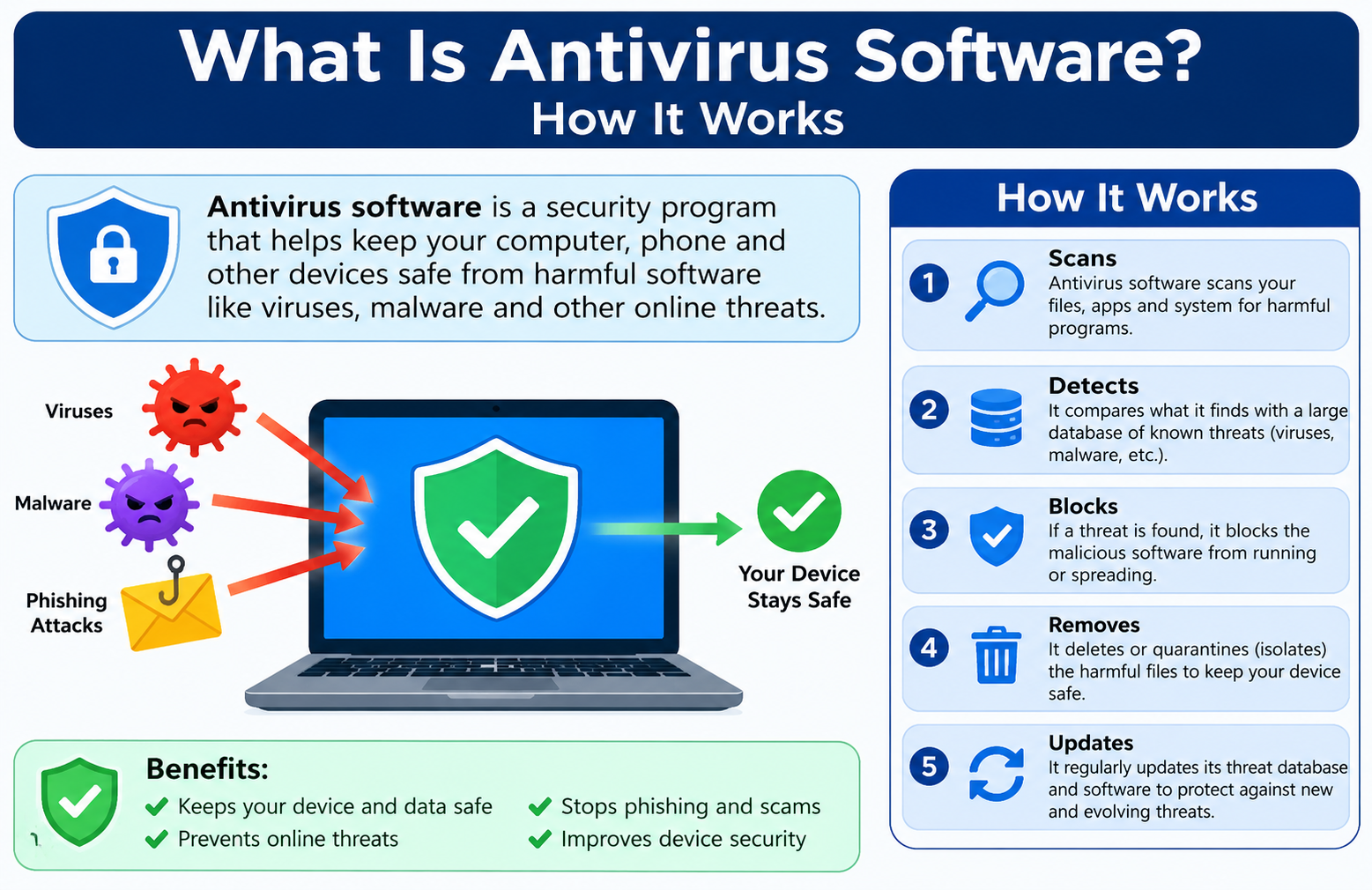
Introduction
Every device connected to the internet faces risks from malicious software. Whether you use a laptop, desktop, tablet, or smartphone, your device can encounter harmful programs that attempt to steal data, damage files, or disrupt normal operation. Understanding what is antivirus software and how it works is one of the most practical steps anyone can take toward protecting their digital life.
This article explains antivirus software in plain language. It covers how antivirus tools detect threats, what kinds of malicious software they can identify, what their limitations are, and how you can use them as part of a broader approach to computer security. If you are new to cybersecurity or simply want a clearer understanding of the tools available to you, this guide is a good place to start.
Quick Answer: What Is Antivirus Software?
Antivirus software is a security program designed to detect, block, and remove malicious software from a computer or device. It monitors files, programs, and system activity for signs of harmful code. Modern antivirus tools protect against a wide range of threats, including viruses, trojans, worms, ransomware, and spyware, not only traditional computer viruses.
What Is Antivirus Software?
Antivirus software is a type of security application that helps protect computers and other devices from malicious programs. The term comes from its original purpose: detecting and removing computer viruses. Today, however, most modern antivirus programs are designed to handle a much broader range of threats, including many types of Malware (What Is Malware?).
When antivirus software is installed on a device, it works continuously in the background. It watches over the files you open, the programs you run, and the activity happening on your system. If it detects something suspicious or harmful, it takes action to protect your device.
Traditional antivirus programs from the early days of personal computing were relatively simple. They compared files against a list of known harmful programs and flagged matches. Modern security software does much more. It uses multiple detection methods, monitors behavior in real time, and often connects to cloud-based databases to stay current with new threats.
The term “antivirus” is still widely used in everyday language, but many products today are more accurately described as security suites or endpoint protection tools. They may include features like web filtering, email scanning, ransomware protection, and firewall management alongside basic malware detection. Understanding (What Is Cybersecurity?) helps put these tools in proper context.
How Does Antivirus Software Work?
Antivirus software uses several methods to detect and respond to threats. Here is a step-by-step look at how the process typically works.
1. File and Activity Monitoring
When you download a file, open an email attachment, or install a program, your antivirus software checks it before or while it runs. The software monitors system activity continuously when real-time protection is enabled.
2. Signature-Based Detection
This is the oldest and most straightforward detection method. The antivirus software compares files against a database of known malware signatures. A signature is essentially a unique fingerprint of a known malicious program. If a file matches a known signature, the software flags it as a threat.
Signature-based detection is effective against known threats. However, it is less useful against brand-new malware that has not yet been added to the database.
3. Heuristic Analysis
Heuristic analysis allows antivirus software to identify suspicious code even if it does not match a known signature. The software looks for patterns, behaviors, or characteristics that resemble previously seen malware.
Think of it this way: a new threat may not look exactly like an old one, but it might use similar techniques. Heuristic analysis helps catch those variations.
4. Behavioral Detection
Rather than analyzing a file before it runs, behavioral detection watches what a program actually does during operation. If a program starts modifying system files unexpectedly, disabling security tools, or trying to access sensitive data without permission, the antivirus software may flag it as suspicious.
This approach is particularly useful for detecting new or modified malware that evades signature-based scanning.
5. Cloud-Assisted Detection
Many modern security products send information about suspicious files to cloud servers for analysis. This allows the antivirus software to access a constantly updated threat database without relying solely on local storage. Cloud-assisted detection can improve response times to new threats significantly.
6. Quarantine
When the software identifies a suspected threat, it isolates the file rather than deleting it immediately. This is called quarantine. The file is moved to a secure location where it cannot run or affect other files.
7. Removal or Remediation
After quarantine, the software attempts to clean or remove the threat. In some cases, it can repair an infected file. In others, it recommends deleting the file entirely.
8. Security Updates
Antivirus software requires regular updates to its threat database and detection engine. New malware appears constantly, so keeping the software updated is essential. Most modern tools update automatically, but it is worth confirming that updates are working correctly on your device.
Practical Example: Imagine you download a free application from an unfamiliar website. The antivirus software scans the downloaded file before you open it. It matches the file against its signature database and finds no known threat. However, heuristic analysis detects code patterns associated with spyware. The software flags the file, moves it to quarantine, and alerts you before any harm occurs.
What Threats Can Antivirus Software Detect?
Modern security software can detect many types of malicious and potentially unwanted programs. Understanding what each threat does helps you appreciate why protection matters.
Computer Viruses
A computer virus is a type of malicious code that attaches itself to a legitimate file or program. When that file is opened or the program runs, the virus activates and can spread to other files. Viruses can damage or delete files, slow down a system, or create other harmful effects. The term “virus” is often used loosely to mean any malicious program, but technically it refers to this specific type of self-replicating threat.
Trojans
A Trojan, short for Trojan horse, is malware that disguises itself as a legitimate or useful program. A user may willingly download and install it, believing it to be something harmless, such as a game or a utility. Once installed, the Trojan can carry out harmful actions in the background, such as stealing credentials, creating backdoor access, or downloading additional malware.
Worms
A worm is a type of malware that can replicate and spread on its own, without needing a host file or human interaction. Worms often spread through network connections, email systems, or removable drives. They can consume system resources, spread to other connected devices, and deliver payloads such as additional malware. Strong [network security practices] can help limit worm spread within a connected environment.
Spyware
Spyware is software that runs silently on a device and collects information about the user without their proper knowledge or consent. It may record keystrokes, capture screenshots, track browsing habits, or gather login credentials. This data is typically sent to a third party. Spyware can be particularly dangerous for anyone who performs online banking or stores sensitive information on their device.
Ransomware
Ransomware is a category of malware that encrypts or otherwise blocks access to files or an entire system, then demands payment in exchange for restoring access. It can cause significant harm to individuals, businesses, and even critical infrastructure. Antivirus software may detect ransomware behavior, but no tool can guarantee complete prevention. You can learn more in the article [What Is Ransomware?] for a deeper look at how this threat works.
Adware
Adware is software that displays unwanted advertisements, often in an aggressive or intrusive manner. Some adware is bundled with free software and may be disclosed in licensing agreements, while other types are installed without the user’s awareness. Adware can slow down a device, redirect browser activity, and create a poor user experience. Some adware crosses the line into more harmful behavior, such as tracking personal data.
Other Malware
Modern security products may also detect rootkits, keyloggers, cryptojacking software, and potentially unwanted applications (PUAs). PUAs are programs that are not strictly malicious but may behave in ways the user did not intend or consent to, such as changing browser settings or displaying unwanted content. [What Is Malware?] covers the broader landscape of malicious software in detail.
Antivirus Software vs Malware Protection
The term “antivirus” is still used widely, but it can be misleading. Most security products today protect against far more than just viruses. The term “anti-malware” is sometimes used to describe tools that focus on a broader range of threats, including adware, PUAs, and newer malware types.
In practice, many products use both terms interchangeably, and the distinction depends more on marketing and product positioning than on technical differences.
| Term | Meaning | Examples of Threats |
|---|---|---|
| Antivirus | Historically focused on detecting and removing computer viruses | Viruses, basic worms, trojans |
| Anti-Malware | Broader term for detecting many malicious software types | Ransomware, spyware, adware, PUAs, rootkits |
| Internet Security Suite | Comprehensive package including multiple security tools | All malware types, plus phishing, web filtering, firewall |
| Endpoint Protection | Business-level security covering devices and network activity | All malware types, advanced threats, policy management |
When evaluating any security product, look at what specific threats it claims to address rather than relying on the label alone.
Types of Antivirus Software
Desktop Antivirus Software
Desktop antivirus software is installed directly on a Windows, macOS, or Linux computer. It provides on-device scanning, real-time protection, and threat response. Windows systems have historically been a common target for malware due to their market share, but macOS systems face growing security challenges as well. Desktop security software supports users across different operating environments.
Mobile Security Software
Smartphones and tablets can also encounter security threats. Android devices, in particular, can be exposed to malicious applications from unofficial sources. Mobile security software can scan apps, monitor permissions, and provide safe browsing features. The security model for iOS devices differs from Android, and Apple restricts third-party apps from performing certain system-level security functions. Before installing mobile security software, review what the product can actually do on your specific platform.
Cloud-Based Antivirus
Cloud-based antivirus tools offload much of the analysis to remote servers rather than performing all processing on the local device. This approach allows faster updates to threat intelligence and can reduce the resource load on the local machine. Cloud-assisted detection has become a common feature in many modern products, even if they are not entirely cloud-based. This connects to broader topics covered in [What Is Cloud Security?]
Business Antivirus and Endpoint Protection
Business environments require security tools that can manage multiple devices simultaneously. Business antivirus and endpoint protection platforms often include a centralized management console, policy controls, reporting features, and advanced threat detection capabilities. These platforms allow IT administrators to monitor security across many devices from one location. The article [What Is Endpoint Security?] provides a more complete explanation of how enterprise-level protection works.
Real-Time Protection vs On-Demand Scanning
Both real-time protection and on-demand scanning serve important roles in a security strategy, but they work in different ways.
| Feature | Real-Time Protection | On-Demand Scan |
|---|---|---|
| When it runs | Continuously in the background | Manually triggered or scheduled |
| What it checks | Files as they are accessed, opened, or downloaded | Selected files, folders, or entire drives |
| Speed of detection | Immediate | Depends on scan scope and system speed |
| System resource use | Ongoing, generally moderate | Higher during active scan, none when idle |
| Best for | Catching threats as they arrive | Thorough periodic review of stored files |
| User action required | Minimal | Requires starting or scheduling a scan |
Real-time protection is your primary line of defense for day-to-day use. On-demand scans are valuable for a thorough check of existing files or when you suspect something might have been missed. Most security products recommend running a full system scan periodically, even when real-time protection is active.
What Happens When Antivirus Finds a Threat?
When antivirus software identifies a potential threat, it follows a standard response process. Understanding each step helps you react appropriately.
Detection: The software identifies a file or activity that matches a known threat or triggers a heuristic or behavioral alert.
Alert: Most products notify the user with a pop-up message or notification. The alert usually names the threat type and the file location.
Quarantine: The software moves the suspicious file to a secure, isolated location. The file can no longer run or interact with other system components while in quarantine.
Removal: The software may automatically remove the quarantined file, or it may ask for your input. Some tools attempt to clean an infected file before recommending deletion.
Restoration: In some cases, a quarantined file may be a false positive, meaning it was flagged incorrectly. Most products allow you to review quarantined items and restore files you trust. Do not restore a quarantined file unless you are confident it is safe and you understand the risk.
False Positives: No detection system is perfect. Occasionally, legitimate software or files are flagged as threats incorrectly. If a file you created or a trusted application is quarantined, check the antivirus product’s documentation or contact the software vendor to confirm whether it is a false positive before restoring it.
What Is Antivirus Quarantine?
Quarantine is a core feature of antivirus software that isolates suspicious files from the rest of your system. When a file is quarantined, it is moved to a protected folder where it cannot execute or cause harm.
Quarantine is generally safer than immediate deletion because deletion is permanent and cannot be undone. By isolating a file first, the software gives you the opportunity to review it. If the file turns out to be a false positive, you can restore it without permanent loss.
Users can typically access the quarantine section through the antivirus software’s main interface. From there, you can see what was flagged, when it was detected, what threat type was assigned, and what action was taken. Reviewing this list occasionally is a good security habit.
False positives can occur for several reasons. A new or uncommon application may use code patterns that resemble malware. An update to a trusted program may temporarily trigger detection. Always research an alert before deciding to restore or permanently delete a quarantined file.
Why Do You Need Antivirus Software?
Antivirus software provides meaningful protection for everyday users. Here are the practical benefits it can offer.
Malware detection: The software can identify harmful programs before they have a chance to run or cause damage.
Real-time protection: Many products monitor your device continuously, catching threats as they appear rather than waiting for a manual scan.
Safer downloads: When you download files, antivirus software can check them before they open, reducing the risk of accidentally running malicious content.
Web protection: Some products include browser extensions or built-in filters that can warn you about dangerous websites.
Email attachment scanning: Certain security tools scan email attachments for malware before you open them.
Ransomware protection: Some products include behavioral monitoring specifically designed to detect ransomware activity, such as unusual file encryption behavior.
Reduced security risk: Regular scanning and real-time protection reduce the chance that malware goes undetected on your device.
Automated updates: Most antivirus tools update their threat databases automatically, so you benefit from protection against newly discovered threats without having to intervene manually.
None of these benefits come with an absolute guarantee. However, using security software meaningfully reduces your exposure to common threats and is considered a baseline practice by major cybersecurity organizations.
Do You Really Need Antivirus Software?
This is a fair question, and the honest answer depends on several factors.
Operating system: Windows systems have long been the primary target for malware, and antivirus protection is strongly recommended. macOS and Linux face fewer widespread attacks, but they are not immune.
Built-in security features: Modern operating systems include built-in security tools. Windows, for example, includes Microsoft Defender, which provides real-time protection, scanning, and basic firewall management. Built-in tools can be sufficient for many users, particularly those with careful browsing habits.
User behavior: A person who downloads files from unfamiliar sources, clicks unknown links, and frequently installs free software faces greater risk than someone who downloads only from official sources and exercises consistent caution.
Device usage: A home user browsing news websites faces different risks than someone who regularly handles sensitive work documents or manages financial transactions online.
Organization requirements: Many employers require specific endpoint security tools on work devices, regardless of what you might prefer personally.
Risk level: The higher your risk profile, the more layers of protection you should consider adding.
No single answer fits everyone. However, for most general users, having some form of active malware protection, whether built-in or third-party, is a reasonable and widely recommended practice.
Built-In Antivirus vs Third-Party Antivirus
| Feature | Built-In Antivirus (e.g., Microsoft Defender) | Third-Party Antivirus |
|---|---|---|
| Cost | Included with the operating system | Free or paid, depending on the product |
| Basic malware protection | Yes, for supported threats | Yes, often with broader detection options |
| Real-time protection | Yes | Yes |
| Updates | Delivered through OS updates | Updated independently |
| Additional features | Limited, varies by OS version | Often includes extra tools such as VPN, password manager, or parental controls |
| Ease of use | Simple, integrated into OS settings | Varies by product |
| Performance impact | Generally well-optimized for the OS | Varies; some products are lightweight, others more demanding |
| Management | Basic settings through OS | Often includes more detailed controls |
Microsoft Defender on Windows has improved substantially over the years and performs respectably in independent testing by organizations such as AV-TEST and AV-Comparatives. For many home users, it provides reasonable baseline protection. Third-party products may offer additional features or different detection approaches that appeal to users with specific needs.
The most important factor is not which product you use, but whether your security software is active, updated, and properly configured.
Free vs Paid Antivirus Software
| Feature | Free Antivirus | Paid Antivirus |
|---|---|---|
| Cost | No direct charge | Monthly or annual subscription |
| Malware protection | Basic detection | Often broader detection capabilities |
| Real-time protection | Sometimes included, sometimes limited | Typically included |
| Web protection | Often limited or absent | Often included |
| Extra features | Minimal | May include VPN, password manager, parental controls |
| Customer support | Limited or community-based | Dedicated support channels |
| Privacy considerations | May include advertising or data collection | Varies by vendor; review privacy policy |
| Best suited for | Casual users with careful habits | Users wanting more features and broader coverage |
Free antivirus products can provide meaningful protection, particularly for users who are careful about their online habits. However, the licensing terms and privacy policies of free products vary significantly. Some free tools collect usage data or display advertising. Reading the privacy policy before installing any security software is a good habit.
Paid products do not automatically offer better security than free ones. The quality of detection depends on the specific product and how regularly it is updated.
How to Choose Antivirus Software
Choosing the right security software takes a little research. Here are practical criteria to guide your decision.
- Independent testing results: Check evaluations from organizations such as AV-TEST or AV-Comparatives. These independent labs test security products regularly and publish detailed results on detection rates, false positives, and performance impact.
- Detection capabilities: Look for products that cover a broad range of threats, including viruses, trojans, ransomware, spyware, and adware.
- Real-time protection: Confirm that the product offers active monitoring rather than only on-demand scanning.
- Performance impact: Some security tools consume more system resources than others. Check independent lab results for performance scores, particularly if you use older hardware.
- Operating system compatibility: Make sure the product supports your specific operating system and version.
- Update frequency: Threat databases should update regularly, ideally multiple times per day. Confirm how the product handles updates.
- Privacy policy: Review what data the product collects, how it is used, and whether it is shared with third parties.
- Ease of use: A product you can navigate confidently is more useful than a complex one you avoid engaging with.
- Ransomware protection: Check whether the product includes specific behavioral monitoring for ransomware activity.
- Web protection: Some products include browser-level filtering that warns you about potentially harmful websites.
- Customer support: Paid products should offer accessible support channels. Free products may offer only community forums.
- Pricing and renewal terms: Understand the cost clearly, including what happens at renewal. Some products reduce the price for the first year and increase it substantially at renewal.
- False-positive handling: Check independent test results for false-positive rates. A product that flags too many legitimate files creates frustration and erodes trust.
- Additional security tools: Consider whether bundled extras such as a password manager or VPN are genuinely useful to you, or whether they add unnecessary complexity.
- Vendor reputation: Research the company behind the product. Long-standing, well-regarded vendors with transparent practices are generally more trustworthy.
Common Antivirus Features Explained
Real-Time Scanning
Real-time scanning monitors files, programs, and system activity continuously while your device is running. It checks files as you access, download, or open them. This is your primary defense against threats arriving from the internet, email, or external drives.
Scheduled Scanning
Scheduled scanning allows you to set a time for the software to run a full or partial system check automatically. This ensures a regular, thorough review of stored files without requiring manual action each time.
Web Protection
Web protection features, often delivered through a browser extension or built-in filter, warn users about websites flagged as dangerous or deceptive. This can help prevent accidental visits to known malware-distributing or phishing sites.
Email Protection
Some antivirus products scan incoming email attachments and links for malware and suspicious content. This feature adds a useful layer of protection for users who receive many emails from external sources.
Ransomware Protection
Certain products include dedicated ransomware shields that monitor for unusual file-encryption behavior. If a program starts encrypting large numbers of files rapidly, the security software may intervene. This feature is not a guarantee against ransomware, but it adds a meaningful layer of monitoring.
Phishing Protection
Phishing protection features can alert users when a website appears to be impersonating a legitimate service in order to steal credentials. This overlaps with web protection but focuses specifically on deceptive login pages and fake websites.
Quarantine
As explained earlier, quarantine isolates suspicious files so they cannot cause harm while you decide how to respond. Most products keep a log of quarantined items so you can review them at any time.
Automatic Updates
Security software must be updated regularly to detect new threats. Automatic updates ensure that your threat database stays current without requiring manual downloads. Confirm that automatic updates are enabled on your installation.
Firewall Integration
Some security suites include firewall management tools or interface with the operating system’s built-in firewall. A firewall controls network traffic flowing to and from your device, which is complementary to antivirus scanning.
Features vary significantly between products. Always check the product documentation to confirm exactly what a specific product includes.
Does Antivirus Software Slow Down Your Computer?
This is a common concern, and the honest answer is that it depends.
All antivirus software uses some system resources. Real-time scanning requires the software to monitor file activity continuously, which involves CPU processing, memory usage, and occasional disk access. On a modern device with sufficient hardware, this background activity is typically modest and barely noticeable.
Full system scans are more resource-intensive. Running a complete scan while simultaneously performing other demanding tasks may slow down your computer noticeably. Scheduling scans during idle periods, such as overnight, can reduce this impact.
On older hardware with limited RAM or a slower processor, even background scanning may have a more noticeable effect. In those cases, choosing a lightweight security product or adjusting scan settings can help.
Independent testing organizations such as AV-TEST measure and publish performance impact scores alongside detection results. These scores can guide you toward products that balance protection with acceptable resource usage. The performance impact of antivirus software varies by product, device configuration, workload, and scan activity.
Can Antivirus Software Detect Every Threat?
No. Antivirus software is a valuable security tool, but it cannot detect and stop every possible threat. It is important to understand these limitations clearly.
Zero-day threats: A zero-day vulnerability is a security flaw that is not yet publicly known or patched. Malware exploiting a zero-day threat may evade detection until security researchers identify and catalog it.
New malware variants: Cybercriminals constantly modify existing malware to avoid detection. Entirely new malware that has no recognizable signature may bypass signature-based scanning initially.
Social engineering: Antivirus software cannot protect users from being deceived into willingly handing over credentials or installing harmful software. [What Is Social Engineering?](What Is Social Engineering?) explains how attackers manipulate human behavior rather than exploiting technical vulnerabilities.
Phishing: Sophisticated phishing pages can bypass web protection filters, particularly new or less-known phishing sites that have not yet been flagged.
Stolen credentials: If your username and password are stolen through a data breach, antivirus software cannot prevent someone from using them to access your accounts.
Malicious websites: Not every harmful website is in a security product’s database. Some dangerous sites may still load without triggering a warning.
Human error: Clicking a malicious link, downloading a deceptive file, or disabling security software manually can expose a device to threats that antivirus tools would otherwise handle.
These limitations do not make antivirus software useless. They do make clear why layered security matters. A single tool, no matter how good, cannot replace thoughtful user behavior, strong passwords, software updates, and other complementary security practices.
Antivirus Software and Phishing
Phishing is a type of attack where a deceptive message or website attempts to trick users into revealing sensitive information, such as passwords or banking credentials. Some antivirus products include phishing protection features, but these tools have limitations.
Web protection filters can block known phishing domains, but new phishing pages are created constantly. A phishing site that went online an hour ago may not yet be in any database.
Antivirus software cannot read the context of a conversation or assess whether an email is psychologically manipulative. These judgments require human attention.
When reviewing emails and messages, users should inspect sender addresses carefully, check URLs before clicking, treat unexpected attachments with suspicion, and be cautious about urgent requests asking you to log in or confirm account details. The article [What Is Phishing Attacks?] covers these tactics in detail and explains how to recognize them.
Antivirus Software and Ransomware
Ransomware is one of the more damaging threats that security software attempts to address. Modern antivirus and endpoint protection products may detect ransomware through behavioral monitoring, watching for signs such as rapid bulk file encryption or attempts to disable backup services.
Some products include specific ransomware protection modules that can back up files before encryption attempts are made, or block unauthorized programs from modifying protected folders.
However, no antivirus or security product can guarantee that ransomware will be caught in every scenario. New ransomware variants designed to evade behavioral detection do exist. The best defense against ransomware is a combination of up-to-date security software, careful online habits, and regular, tested data backups. The article [What Is Ransomware?] provides a thorough explanation of how ransomware operates and how to reduce your risk.
Antivirus Software and Personal Data Security
Malware threats are not only about damaged files or disrupted systems. Many malicious programs specifically target personal information. Spyware and keyloggers may silently collect passwords, banking details, and sensitive documents. Trojans can give attackers remote access to browse through personal photos, emails, and stored files. Browser data including saved passwords and browsing history can be targeted as well.
Antivirus software can help detect many of these threats, but protecting personal data effectively requires a broader approach. Using strong, unique passwords for each account, enabling multi-factor authentication, and being selective about what you download and where you log in all contribute meaningfully to data security.
The article [How to Protect Your Personal Data Online](How to Protect Your Personal Data Online) provides practical guidance on reducing your exposure to these risks across your daily digital activities.
Antivirus Software vs Firewall
Antivirus software and firewalls are both security tools, but they perform very different functions. Together, they contribute to a more layered security posture.
| Antivirus | Firewall |
|---|---|
| Detects and removes malicious software | Controls and filters network traffic |
| Scans files, programs, and system activity | Monitors incoming and outgoing connections |
| Helps identify and respond to malware | Helps block unauthorized network access |
| Responds to threats already on or entering the device | Acts as a gatekeeper at the network boundary |
| Monitors behavior of running programs | Does not analyze file content directly |
| Useful against file-based and program-based threats | Useful against unwanted connections and network intrusions |
Using both tools together provides broader coverage than relying on either one alone. The article [What Is a Firewall?] explains how firewall technology works and how it fits into a complete security strategy.
Antivirus Software vs Endpoint Security
Antivirus software and endpoint security are related but different concepts, particularly for users who work in organizational environments.
Antivirus software typically refers to a product installed on an individual device to detect and remove malware. It is primarily reactive and file-focused.
Endpoint security is a broader category that encompasses antivirus functions along with additional capabilities such as device management, application control, network access policies, threat intelligence integration, and incident response tools. Endpoint security platforms are designed for organizations managing multiple devices and need centralized visibility and control.
For individual home users, antivirus software is the more relevant concept. For business environments, endpoint security platforms offer the management capabilities and advanced detection features that larger environments require. The article [What Is Endpoint Security?] explains this distinction in greater detail.
Best Practices for Using Antivirus Software
Having antivirus software installed is a good start, but how you use and maintain it matters equally. Here are practical recommendations.
- Keep antivirus software updated. Enable automatic updates to ensure your threat database and detection engine stay current.
- Enable real-time protection. Do not disable real-time protection unless you have a specific, temporary reason to do so, and re-enable it immediately afterward.
- Run periodic full system scans. Schedule a full scan at least once a week or once a month, depending on your usage level.
- Keep your operating system updated. Security patches address vulnerabilities that malware may exploit. Apply updates promptly.
- Update browsers and other applications. Outdated browsers and plugins are common entry points for attacks.
- Avoid pirated software. Pirated or cracked software is a significant source of malware distribution.
- Download from trusted sources. Use official websites, legitimate app stores, and reputable publishers for all software.
- Use strong, unique passwords. A unique password for each account limits the damage if one account is compromised.
- Enable multi-factor authentication (MFA). MFA adds an extra verification step that significantly reduces the risk of unauthorized account access.
- Back up important data regularly. Maintain backups of critical files, ideally in more than one location, including an offline or offsite copy.
- Be cautious with email attachments. Do not open attachments from unknown senders, and verify unexpected attachments from known contacts.
- Avoid clicking suspicious links. Hover over links before clicking to preview the destination URL, and avoid clicking links that seem out of place.
- Review security alerts promptly. Do not ignore alerts from your antivirus software. Investigate them and take appropriate action.
- Do not disable protection unnecessarily. Malware sometimes instructs users to temporarily disable security software. Treat such instructions with extreme caution.
- Keep recovery options available. Know how to access system recovery tools and maintain a plan for what you would do if a serious infection occurred.
Common Antivirus Problems and Solutions
Antivirus Won’t Update
If your antivirus software fails to update, first check your internet connection. Then confirm that the software’s update service is running through the product’s settings. In some cases, restarting the device or the antivirus service resolves the issue. If the problem persists, consult the vendor’s support documentation.
Antivirus Keeps Showing False Positives
If a trusted file or application is repeatedly flagged, check whether the product allows you to add exclusions for specific files or folders. Research the flagged file before adding it to the exclusion list, and confirm it is genuinely safe. You can also report false positives to the antivirus vendor directly.
Antivirus Uses Too Many Resources
If the software is consuming excessive CPU or memory, check whether a scan is actively running. Full scans are resource-intensive by nature. Schedule scans for low-activity periods. If background resource use is consistently high outside of scan times, check for product updates or review settings that may allow you to reduce scan intensity.
Another Security Program Is Conflicting With It
Running two full antivirus programs simultaneously can cause conflicts, performance problems, and unexpected behavior. Generally, you should run only one full antivirus product at a time. Disable or uninstall one product before activating another.
Antivirus Scan Gets Stuck
If a scan appears frozen, allow extra time before concluding something is wrong. Very large drives or a high number of files can cause scans to take significantly longer than expected. If the scan remains unresponsive for an extended period, restart the scan from a smaller target such as a single folder.
Real-Time Protection Is Disabled
If real-time protection has been turned off, re-enable it through the product’s settings or control panel. Some systems display a notification when protection is disabled. If you cannot re-enable it, the product may need a repair installation or reinstall.
Common Mistakes to Avoid
Installing multiple full antivirus programs: Running two full security products simultaneously typically causes conflicts and performance issues rather than improved protection. Choose one primary security product.
Ignoring security alerts: Alerts exist to inform you of potential problems. Dismissing them without investigation can allow threats to go unaddressed.
Using outdated software: An antivirus product with an outdated threat database offers significantly reduced protection. Ensure updates are working correctly.
Disabling real-time protection: Some users disable real-time protection to improve performance or run other software. This leaves the device unprotected during that period.
Downloading pirated software: Cracked applications and unofficial installers are a well-known source of malware. The perceived cost saving is not worth the security risk.
Assuming antivirus prevents phishing: Phishing relies on deception rather than malware alone. Antivirus software cannot fully replace user judgment when it comes to suspicious messages and links.
Ignoring backups: Even with strong antivirus protection, data loss can occur. Backups remain an essential part of any reasonable data protection strategy.
Using weak or repeated passwords: Antivirus software does not protect against credential theft that results from weak passwords or password reuse. Use strong, unique passwords and a password manager if needed.
Frequently Asked Questions
What is antivirus software?
Antivirus software is a security program that detects, blocks, and removes malicious software from a computer or device. Modern products protect against a wide range of threats, including viruses, ransomware, spyware, and trojans.
What does antivirus software do?
It monitors your device for harmful programs, scans files and system activity, alerts you to threats, isolates suspicious files in quarantine, and removes or cleans detected malware. Many products also include web protection, email scanning, and ransomware monitoring.
How does antivirus software work?
Antivirus software uses signature-based detection, heuristic analysis, and behavioral monitoring to identify threats. It compares files against known threat databases, analyzes code patterns, and watches how programs behave during operation.
Is antivirus software necessary?
For most users, yes. The level of need varies depending on your operating system, behavior, and usage patterns, but having active malware protection is a widely recommended baseline security practice.
Is antivirus software free?
Free versions of many antivirus products exist, including built-in tools like Microsoft Defender on Windows. Paid products typically offer additional features such as web protection, ransomware monitoring, and customer support.
Is Windows Defender an antivirus?
Yes. Microsoft Defender Antivirus is a built-in security tool on Windows that provides real-time protection, scanning, and basic firewall management. It has improved substantially in recent years and performs well in independent evaluations.
What is the difference between antivirus and anti-malware?
Antivirus traditionally refers to protection against viruses, while anti-malware describes broader protection against many types of malicious software. In practice, modern products often blur this distinction, and many “antivirus” tools detect a wide range of malware types.
Can antivirus software remove malware?
Yes, in many cases. Antivirus software can quarantine and remove detected malware. However, some sophisticated malware may require additional tools or a professional assessment to remove completely.
Can antivirus detect ransomware?
Many products include behavioral monitoring that can detect ransomware activity. However, no product guarantees detection of every ransomware variant, particularly new ones designed to evade current detection methods.
Can antivirus stop phishing?
Antivirus software with web protection features can block some known phishing websites. However, new phishing sites appear constantly, and no automated tool can fully replace careful user judgment when reviewing emails and links.
Can antivirus software slow down a computer?
It can, particularly during full system scans. Background scanning generally has a modest impact on modern hardware. On older devices, performance impact may be more noticeable. Scheduling scans during idle periods can help.
Can I have two antivirus programs installed?
Generally, running two full antivirus programs simultaneously is not recommended. They can conflict with each other and reduce overall protection. Choose one primary security product.
How often should I scan my computer?
Most security experts recommend running a full system scan at least once a week or once a month, depending on your usage. Real-time protection monitors your device continuously in between scheduled scans.
Does antivirus protect personal data?
Antivirus software can help detect malware that targets personal data, such as spyware or keyloggers. However, protecting personal data fully requires additional practices, including strong passwords, multi-factor authentication, and secure browsing habits.
Is built-in antivirus enough?
For many general users, built-in tools like Microsoft Defender provide reasonable protection. The answer depends on individual usage, risk level, and whether additional features from third-party products are genuinely needed.
What is real-time antivirus protection?
Real-time protection means the antivirus software actively monitors your device at all times while it is running. It checks files as they are accessed, downloaded, or opened, rather than only during scheduled scans.
What is antivirus quarantine?
Quarantine is a secure, isolated storage location where suspicious files are moved so they cannot execute or cause harm. It allows users to review flagged files before deciding to delete or restore them.
Final Thoughts
Understanding what is antivirus software is an important step in managing your digital security. Antivirus software is a security tool designed to detect, block, and respond to malicious programs on your device. It uses methods including signature-based detection, heuristic analysis, and behavioral monitoring to identify threats ranging from traditional viruses to ransomware, spyware, and trojans.
Modern antivirus products do more than protect against viruses alone. They monitor system activity, scan downloads, provide web and email protection in many cases, and alert users to suspicious behavior. These capabilities make them a practical and widely recommended security measure for most users.
At the same time, antivirus software has real limitations. It cannot detect every threat, particularly new malware variants, zero-day exploits, or attacks that rely on deceiving users directly. Social engineering, phishing, and credential theft require user awareness as much as technical protection.
The most effective approach to cybersecurity is layered. Antivirus software works best alongside good habits such as keeping software updated, using strong and unique passwords, enabling multi-factor authentication, downloading from trusted sources, maintaining regular backups, and staying alert to suspicious messages and links.
No single tool provides complete protection. What antivirus software does is reduce your risk meaningfully by addressing one of the most common and persistent categories of threat: malicious software. Used thoughtfully and combined with broader security practices, it remains a valuable part of any personal or organizational security strategy.
References
- CISA — Cybersecurity and Infrastructure Security Agency
“Understanding Malware.” Cybersecurity and Infrastructure Security Agency.
https://www.cisa.gov/topics/cyber-threats-and-advisories/malware - NIST — National Institute of Standards and Technology
“Guide to Malware Incident Prevention and Handling for Desktops and Laptops.” NIST Special Publication 800-83.
https://csrc.nist.gov/publications/detail/sp/800-83/rev-1/final - Microsoft Security
“Microsoft Defender Antivirus in Windows.”
https://learn.microsoft.com/en-us/microsoft-365/security/defender-endpoint/microsoft-defender-antivirus-windows - FTC — Federal Trade Commission
“How to Protect Your Computer.” Consumer Information, FTC.
https://consumer.ftc.gov/articles/how-to-protect-your-computer - AV-TEST Institute
“Security Products for Windows — Independent Testing.”
https://www.av-test.org/en/antivirus/home-windows/ - AV-Comparatives
“Consumer Antivirus Software Testing.”
https://www.av-comparatives.org/consumer/ - Malwarebytes Labs
“Malware: What It Is and How to Prevent It.”
https://www.malwarebytes.com/malware - NIST
“Framework for Improving Critical Infrastructure Cybersecurity.” NIST Cybersecurity Framework.
https://www.nist.gov/cyberframework
Technology Disclaimer
This article is for educational and informational purposes only. Antivirus features, security capabilities, pricing, and availability can change over time. No security tool can guarantee complete protection from every cyber threat. Always follow the latest guidance from your operating system vendor and trusted cybersecurity organizations such as CISA and NIST.