
 By saman zahra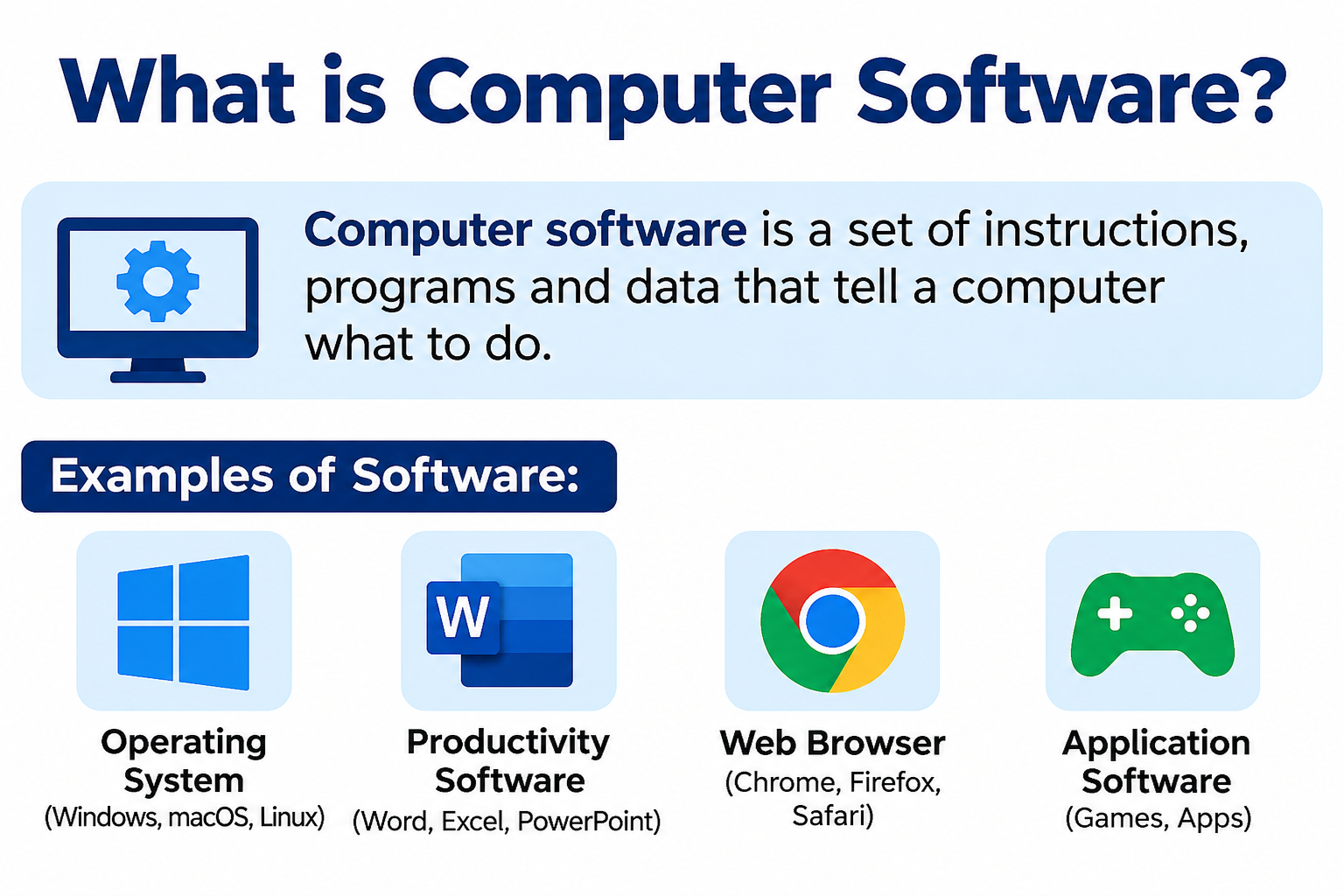
Every time you open a web browser, type a document in Microsoft Word, play a song in a media player, or load a game, you are using software. Software is what gives your computer its instructions. It tells the hardware — the physical parts of your machine — exactly what to do and when to do it.
If you are new to computers and want to understand what is computer software for beginners, you are in the right place. This guide explains everything in plain English, using everyday examples that anyone can follow. No technical background is needed.
Quick Answer: What Is Computer Software for Beginners?
Computer software is a set of digital instructions that tells a computer how to work. It includes programs like web browsers, word processors, media players, and operating systems. Software has no physical form — you cannot hold or touch it. It works alongside hardware, the physical parts of a computer, to make every task on your screen possible.
What Is Computer Software?
Computer software is a collection of programs, instructions, and data that tell a computer what to do. It is entirely digital, which means it has no physical shape or weight. You cannot pick up software or hold it in your hand, but you interact with it every single day.
The word “software” comes from the idea that it is the flexible, changeable part of a computer — as opposed to “hardware,” which is the rigid, physical part. Software is what brings a computer to life and makes it genuinely useful.
Think of it this way. A computer without software is like a car with no engine or fuel. The car may look complete from the outside, but it goes nowhere. Software is what powers the machine and gets things moving.
Every program you use is a piece of software. This includes your operating system, which loads when you start your computer, your web browser, which connects you to the internet, and your email app, which lets you send and receive messages. Even the calculator on your phone is a tiny piece of software.
Users interact with software through a visual interface — buttons, menus, text fields, and icons on a screen. You click a button, and the software receives that click as an instruction. Then it processes the instruction and shows you a result.
For a broader look at what software is and how it fits into computing, [What Is Software and How Does It Work?] provides a clear and detailed explanation worth reading alongside this guide.
How Does Computer Software Work?
Software works by following a sequence of steps in response to your actions. Each step happens extremely fast — usually in fractions of a second. Here is a simple breakdown of the process.
Step 1 — You give an instruction. You double-click the Google Chrome icon on your desktop to open the browser.
Step 2 — Software receives the instruction. Chrome’s program code recognizes that you want it to open. It begins loading its startup routine.
Step 3 — The software processes the request. Chrome reads its own files and prepares the browser window, homepage, and all its features.
Step 4 — The operating system manages resources. Windows or macOS steps in to allocate memory, processor time, and display access to Chrome so it can run properly.
Step 5 — Hardware performs the required operation. Your processor runs the calculations, your RAM stores temporary data, and your display outputs the visual result.
Step 6 — Software shows you the result. The Chrome browser window appears on your screen, ready for you to start browsing.
This same process happens every time you open a document, play a video, or send an email. The steps are always the same — your action, the software’s response, the operating system’s coordination, the hardware’s execution, and the final display of results.
Software vs Hardware
One of the most common points of confusion for beginners is understanding the difference between software and hardware. They work together constantly, but they are fundamentally different.
Hardware refers to every physical component of a computer. These are the parts you can see, touch, and hold. They include the screen, keyboard, mouse, processor chip, memory sticks, hard drive, and graphics card.
Software refers to the digital programs and instructions that run on those physical components. Software has no physical form. It exists as code stored on your device’s storage and loaded into memory when needed.
A helpful analogy is a DVD player and a movie disc. The DVD player itself — the box with buttons and a disc tray — is the hardware. The movie on the disc is the software. Without the player, you cannot watch the movie. Without the movie, the player has nothing to do. Both are necessary.
| Feature | Software | Hardware |
|---|---|---|
| Definition | Digital programs and instructions | Physical components of a computer |
| Physical or digital | Digital — no physical form | Physical — can be seen and touched |
| Examples | Windows, Chrome, Word, Spotify | Keyboard, processor, RAM, monitor |
| Function | Tells the computer what to do | Carries out those instructions |
| Can it be touched? | No | Yes |
| Relationship | Needs hardware to run | Needs software to be useful |
Computers need both hardware and software to function. Hardware provides the muscle, and software provides the thinking. Neither is useful without the other.
Types of Computer Software
Computer software is organized into four main categories. Each type plays a different role in making your computer work. Understanding these types will help you make sense of every program you encounter.
System Software
System software is the foundation of your computer. It manages all the hardware and creates a stable environment where all other programs can run. Most users never directly open system software. It operates quietly and automatically in the background from the moment you power on your device.
The most important piece of system software is the operating system. It controls your screen, keyboard, files, network, and every other resource on your machine. Popular operating systems include:
- Windows — The most widely used operating system for desktop and laptop computers
- macOS — Apple’s operating system, exclusive to Mac computers and MacBooks
- Linux — A free, open-source system widely used by developers, scientists, and servers
- Android — Google’s mobile operating system, found on most smartphones and tablets
- iOS — Apple’s mobile operating system, powering iPhones and iPads
System software also includes device drivers. A driver is a small program that allows the operating system to communicate with a specific piece of hardware. For example, your printer needs a driver so that Windows or macOS knows exactly how to send a document to it. Without the correct driver, the hardware cannot receive instructions from the computer.
Application Software
Application software is the category most people use every day without realizing it has a name. It refers to any program built to help users complete a specific task. The key idea is that each application has a clear, practical purpose.
Common examples include:
- Microsoft Word — Creates and edits text documents
- Google Chrome — Provides access to the internet
- Adobe Acrobat — Opens, edits, and signs PDF files
- Notion — Organizes notes, tasks, and projects in one place
- Trello — Manages tasks and team projects visually
- VLC Media Player — Plays video and audio files of almost any format
Application software runs on top of the operating system. It cannot function without the OS providing resources and managing hardware access. For a detailed look at every major category of application software, [What Is Application Software Used For?] covers the topic thoroughly with practical examples for every type.
Utility Software
Utility software works behind the scenes to keep your computer healthy, organized, and secure. Most users do not open utility software intentionally — it often runs automatically in the background.
Examples include:
- Antivirus software — Scans for and removes malware and harmful programs
- Backup tools — Automatically save copies of your files to prevent data loss
- Disk management tools — Monitor and organize your storage drive
- File compression software — Makes large files smaller for easier storage and sharing
Utility software is essential for long-term computer health. Neglecting it can lead to slow performance, data loss, or serious security problems.
Programming Software
Programming software is used by developers — people who build apps, websites, and systems — to write, test, and improve their code. If application software is the finished product, programming software is the workshop where it was built.
Key types of programming software include:
- Code editors — Tools where developers write their program instructions
- Compilers — Programs that translate human-readable code into instructions a computer can execute directly
- Debuggers — Tools that identify and highlight errors in code so developers can fix them
- Integrated Development Environments (IDEs) — All-in-one tools that combine a code editor, compiler, and debugger in a single interface
One of the most popular free code editors in the world is Visual Studio Code. It supports dozens of programming languages and is highly recommended for beginners learning to code. [What Is Visual Studio Code?] explains its features and why developers worldwide rely on it.
Common Examples of Computer Software
The following table shows 24 examples of computer software across different categories. This gives you a clear picture of just how wide the software world really is.
| Software | Type | Main Purpose | Common Users |
|---|---|---|---|
| Windows 11 | System Software | PC operating system | General users, businesses |
| macOS Sequoia | System Software | Mac operating system | Designers, professionals |
| Linux (Ubuntu) | System Software | Open-source OS | Developers, IT professionals |
| Android | System Software | Mobile OS for smartphones | Smartphone users |
| iOS | System Software | Apple mobile OS | iPhone and iPad users |
| Google Chrome | Application Software | Web browsing | General users |
| Microsoft Word | Application Software | Document creation | Students, professionals |
| Microsoft Excel | Application Software | Spreadsheets and data | Analysts, accountants |
| Adobe Photoshop | Application Software | Photo editing | Designers, photographers |
| Zoom | Application Software | Video conferencing | Remote workers, students |
| Spotify | Application Software | Music streaming | General users |
| VLC Media Player | Application Software | Video and audio playback | General users |
| Notion | Application Software | Notes and organization | Students, professionals |
| Trello | Application Software | Task and project management | Teams, freelancers |
| Adobe Acrobat | Application Software | PDF reading and editing | Professionals, businesses |
| Canva | Application Software | Graphic design | Students, marketers |
| Google Classroom | Application Software | Online learning | Teachers, students |
| Microsoft Teams | Application Software | Team communication | Businesses, remote teams |
| Windows Defender | Utility Software | Antivirus protection | Windows users |
| WinRAR | Utility Software | File compression | General users |
| CCleaner | Utility Software | System cleanup | General users |
| Visual Studio Code | Programming Software | Code editing | Developers |
| GitHub Desktop | Programming Software | Version control | Developers |
| Google Drive | Application Software | Cloud file storage | Students, teams |
What Is an Operating System?
An operating system, commonly called an OS, is the most fundamental piece of software on any computer. It is the first program that loads when you press the power button, and it stays active the entire time your device is on.
The operating system acts like a manager for your entire computer. It controls how programs access the processor, how files are stored and retrieved, how your screen displays content, and how your keyboard and mouse send input. Without an operating system, no other software can run.
A good analogy is an air traffic control tower at an airport. The tower does not fly any planes itself. Instead, it coordinates every plane — giving permission to take off, directing landings, and preventing collisions. The operating system does the same for every program and hardware component on your computer.
When you open Microsoft Word, the OS gives Word access to your keyboard so you can type. When you save a file, the OS handles writing that data to your hard drive. When you connect to Wi-Fi, the OS manages the network communication.
Popular operating systems serve different devices and audiences. Windows is the dominant OS for personal computers in homes and offices. macOS is exclusive to Apple hardware and is preferred by many designers and creatives. Linux is free and highly customizable, making it popular among developers and technical users. Android powers the vast majority of the world’s smartphones, while iOS runs on Apple’s iPhone and iPad lineup.
What Is Application Software?
Application software is what most people picture when they hear the word “software.” It refers to any program built to help a user accomplish a specific, real-world task. The task might be creative, professional, educational, or purely for entertainment.
Here are the most common ways people use application software every day:
- Writing — Word processors like Microsoft Word help you create reports, essays, letters, and proposals
- Browsing — Web browsers like Google Chrome give you access to every website on the internet
- Communication — Apps like Zoom, Gmail, and Microsoft Teams connect you with people near and far
- Entertainment — Streaming platforms, media players, and games keep you engaged and entertained
- Education — Learning platforms, digital libraries, and classroom tools support students at every level
- Business — Accounting tools, customer management systems, and scheduling apps help companies operate efficiently
- Design — Photo editors and graphic design programs enable creative work of all kinds
- Productivity — To-do apps, calendars, and note-taking tools help you stay organized and on track
Application software always depends on the operating system to access your device’s resources. It cannot function independently. To explore every major type of application software with practical examples, [What Is Application Software Used For?] is an excellent next step.
What Is Utility Software?
Utility software is a category of programs designed to maintain, protect, and optimize your computer. While you may not notice it running, its absence becomes very obvious when things go wrong.
Antivirus software is perhaps the most important utility program. It continuously monitors your device for malicious programs, viruses, ransomware, and spyware. Windows Defender is a well-known antivirus built directly into Windows 10 and 11. Third-party options like Malwarebytes offer additional layers of protection.
Backup tools protect your important data by creating automatic copies and storing them safely. If your hard drive fails suddenly or you accidentally delete a file, a backup tool can restore everything you lost. This makes backup software one of the most valuable tools any computer user can have.
Storage management tools help you monitor how much space you have available on your drive and organize it efficiently. When a computer starts running slowly because the storage is nearly full, a disk management tool can help clean things up.
File compression software reduces the size of large files. This makes them faster to send over email and easier to store. When someone emails you a file ending in .zip or .rar, you need a compression tool to open it. WinRAR and 7-Zip are two popular free options.
Together, utility programs keep your computer stable, fast, and secure over time. Neglecting them is one of the most common reasons computers slow down or become vulnerable to attacks.
What Is Programming Software?
Programming software gives developers the tools they need to create, test, and improve other software. Without programming software, there would be no apps, no websites, and no operating systems.
A code editor is where the actual writing happens. Developers type instructions in a programming language — such as Python, JavaScript, or Java — and the editor helps them write clearly, catches basic errors, and organizes their work.
A compiler takes the code a developer has written and converts it into a language the computer’s processor can understand and execute. Humans write code in readable form. Processors work with something entirely different. The compiler bridges that gap automatically.
An interpreter is similar to a compiler but works differently. Instead of converting all the code at once, it reads and runs the code line by line. Languages like Python use an interpreter, making them popular for beginners because errors are easier to spot.
A debugger helps developers find mistakes in their code. Even experienced programmers introduce errors. A debugger highlights exactly where the problem is and often explains what caused it.
An integrated development environment, or IDE, combines all of these tools — the editor, compiler, debugger, and more — into one application. This makes the development process faster and more organized.
For developers working in teams who need to manage different versions of their code and collaborate effectively, version control tools are essential. [What Is GitHub Desktop?] explains one of the most beginner-friendly version control applications available today.
How Software Interacts With Computer Hardware
Software and hardware are completely interdependent. Every action you take on a computer involves a chain of communication between software layers and physical hardware components.
Here is how that chain looks every time you do something on your computer:
User → Application Software → Operating System → Device Drivers → Hardware
Let us walk through a practical example — printing a document.
You click the “Print” button in Microsoft Word. Word (application software) sends a print request to the operating system. The operating system identifies your printer and communicates with its device driver — a small program that translates instructions into a format the specific printer understands. The driver sends those instructions to the printer’s hardware. The printer physically prints the page.
This entire chain happens in seconds. You see only the result: a printed page in your hand. But behind the scenes, at least four layers of software and hardware worked together to make it happen.
This chain also explains why compatibility matters so much. If your operating system does not have the correct driver for your printer, the chain breaks. No matter how good the hardware is, without the correct software communication, it cannot function.
How Is Computer Software Created?
Software does not appear by itself. It is carefully built by teams of developers, designers, and testers through a structured process called the software development lifecycle. Here is a beginner-friendly look at each stage.
Planning
Everything starts with a plan. Before a single line of code is written, the team decides what the software needs to do, who will use it, and what problems it should solve. They set a timeline, define goals, and identify potential challenges.
Design
In this phase, developers and designers create a blueprint. They decide how the software will look, how users will navigate it, and how all its parts will connect. This is similar to drawing the floor plan of a house before breaking ground.
Programming
This is the building phase. Developers write the actual code that powers every feature and function. Depending on the complexity of the software, this can take weeks, months, or even years.
Testing
Once the software is built, a team of testers tries to break it. They click every button, enter unusual inputs, and test every feature to find problems. The goal is to catch every bug before real users encounter it.
Debugging
When testers find problems, developers fix them. This back-and-forth cycle between testing and debugging continues until the software runs reliably and consistently.
Release
After successful testing, the software is released to the public. It may be published on an app store, made available for direct download, or deployed on a web server as a cloud service.
Updates and Maintenance
Software continues to evolve after launch. Developers release updates that fix newly discovered bugs, improve performance, strengthen security, and add new features. This is why your apps and operating system regularly ask you to install updates — each one makes the software better and safer.
Why Is Computer Software Important?
Computer software is important because it transforms hardware into a genuinely useful tool for real life. Without software, a computer is nothing more than an expensive collection of electronic parts. Here are 15 practical reasons why software matters so much in everyday life.
- Education: Students use software to attend online classes, conduct research, complete assignments, and study at their own pace from anywhere in the world.
- Business operations: Companies manage accounts, serve customers, track inventory, and communicate with employees through specialized business software.
- Communication: Email apps, video calling platforms, and messaging tools let people connect instantly across any distance.
- Entertainment: Streaming services, media players, and games provide relaxation and enjoyment to users of all ages.
- Banking: Online banking apps allow users to check balances, transfer funds, pay bills, and manage accounts without visiting a branch.
- Healthcare: Hospitals and clinics use medical software to manage patient records, process test results, and schedule appointments accurately.
- Research: Scientists, academics, and journalists use data analysis and database software to gather, organize, and interpret large amounts of information.
- Programming and development: Developers build new software using specialized tools, making it possible to keep creating the apps and systems the world depends on.
- Cybersecurity: Security software protects individuals and organizations from online threats. [What Is Cybersecurity?] is a helpful resource for understanding the broader landscape of digital security.
- Productivity: Task managers, calendar apps, and note-taking tools help people organize their time and responsibilities more effectively.
- Online shopping: E-commerce platforms and payment processing software allow people to buy and sell goods and services from anywhere at any time.
- Cloud computing: Cloud-based software lets users store files, run applications, and collaborate with others without depending on a single local device.
- Creative work: Design tools, video editors, and music production software give creators professional-grade tools that were once available only to large studios.
- Navigation: Maps and GPS software guide users to their destinations accurately, recalculating routes in real time based on traffic conditions.
- Accessibility: Software with built-in accessibility features — screen readers, voice control, and magnification tools — allows people with disabilities to use technology independently and confidently.
Software Examples for Beginners
If you are just getting started with computers, the sheer number of software options can feel overwhelming. The good news is that you do not need to learn everything at once. Start with the categories that match your immediate needs.
Office and document software is the most common starting point. It helps you write, calculate, and present. Microsoft Office includes Word, Excel, and PowerPoint — the most widely recognized productivity tools in the world. [What Is Microsoft Office?] explains everything this suite includes and how each program works. If you prefer cloud-based tools you can access from any device, [What Is Google Workspace?] covers Google’s collection of free online productivity tools including Docs, Sheets, and Slides.
Web browsers are essential for accessing the internet. Google Chrome and Mozilla Firefox are both free, fast, and easy to install. Most computers come with a browser pre-installed, so you may already have one ready to use.
PDF software is useful as soon as you start working with official documents. PDFs are the standard format for contracts, forms, reports, and government documents. [What Is Adobe Acrobat?] explains one of the most trusted PDF tools available and what it can do for everyday users — from opening files to signing documents digitally.
Note-taking software replaces paper notebooks with searchable, organized digital notes. [What Is Notion?] introduces a flexible platform that lets students and professionals manage notes, tasks, and information all in one workspace.
Cloud storage services like Google Drive and Dropbox let you save your files online and access them from any device. They also protect your work from being lost if your computer breaks down or is stolen.
Media players let you watch videos and listen to music stored on your computer. VLC Media Player is free, plays almost every file format, and is a reliable first choice for any beginner.
Communication tools like Zoom, Google Meet, and Microsoft Teams allow video calls, voice calls, and messaging. These became standard tools for work, school, and staying in touch with family.
Screen recording software is useful when you need to record your screen for tutorials, presentations, or online classes. [What Is OBS Studio?] explains one of the best free screen recording and live streaming tools available — a practical choice for students, educators, and content creators.
For a curated list of the best tools across all categories for students, [Best Software for Students] on TechOriginHub brings together top recommendations in one place.
Free vs Paid Software
Many software programs offer both free and paid versions. Understanding the key differences helps you make the right choice for your situation.
| Feature | Free Software | Paid Software |
|---|---|---|
| Cost | No charge | Monthly, annual, or one-time fee |
| Features | Basic or limited | Full feature set with advanced tools |
| Customer support | Community forums, limited help | Dedicated support with faster responses |
| Updates | Less frequent or community-driven | Regular, professionally managed updates |
| Security | Variable — depends on the developer | Generally more consistent and reliable |
| Advertisements | Often includes ads | Usually completely ad-free |
| Best suited for | Beginners, students, personal use | Professionals, businesses, power users |
| Examples | LibreOffice, VLC, Google Chrome | Adobe Creative Cloud, Microsoft 365 |
Free software is often excellent and perfectly adequate for personal use. Tools like Google Docs, LibreOffice, VLC Media Player, and Mozilla Firefox are free and genuinely powerful. Many students and casual users never need anything more.
Paid software typically makes sense when you need advanced features, reliable technical support, strong security guarantees, or professional-grade performance. For businesses especially, the investment in paid tools often saves more time and money than it costs.
Open-Source vs Proprietary Software
These two terms describe how software is owned, shared, and developed. Both have real advantages, and understanding the difference helps you make informed choices.
Open-source software is software whose underlying code is publicly available. Anyone can read it, study it, modify it, and in many cases distribute it freely. Open-source projects are usually maintained by communities of volunteers, independent developers, and organizations. Transparency is a major advantage — anyone can inspect the code to verify it is safe.
Proprietary software is privately owned and controlled. The company or individual developer keeps the source code secret and dictates exactly how the software may be used, distributed, and modified. Users agree to licensing terms and cannot access or change the underlying code.
| Feature | Open-Source Software | Proprietary Software |
|---|---|---|
| Source code | Publicly available | Private and protected |
| Cost | Usually free | Typically requires payment |
| Customization | Can be modified by users with skills | Cannot be modified by users |
| Development | Community-driven | Controlled by the owning company |
| Examples | Linux, LibreOffice, Firefox, VLC | Windows, Microsoft Office, Adobe Photoshop |
| Key advantages | Transparency, flexibility, no cost | Professional support, polished experience |
| Key limitations | Support varies; less polished at times | Can be expensive; less transparent |
Both approaches have their place. Open-source software works well for developers, technically inclined users, and organizations that want flexibility and cost savings. Proprietary software often delivers a more polished, consistently supported experience for everyday users who value simplicity and reliability.
How to Choose Computer Software
Picking the right software saves you time, money, and significant frustration. Here are 12 practical tips to guide your decision-making as a beginner.
- Define your purpose first. Be specific about what task you need the software to perform. Vague searches lead to vague results.
- List the features you genuinely need. Separate must-have features from nice-to-have ones. Avoid paying for capabilities you will never use.
- Check compatibility before downloading. Confirm the software works on your operating system — Windows, macOS, Linux, Android, or iOS.
- Review the system requirements. Make sure your computer has enough processor speed, memory (RAM), and storage to run the software comfortably.
- Set a realistic budget. Identify how much you are willing to spend and look for options that fit that range. Many tasks can be handled with free tools.
- Prioritize ease of use. A simpler interface is always better for beginners. Look for software with clear menus, tutorials, and helpful documentation.
- Assess the developer’s security practices. Check whether the software encrypts your data and receives regular security updates.
- Read the privacy policy. Understand what personal data the software collects, how it is stored, and who it might be shared with — especially for free apps. [What Is Cloud Security?] offers helpful context for understanding how cloud-based software handles your data.
- Look for regular updates. Actively maintained software receives security patches and improvements. Avoid programs that have not been updated in a long time.
- Read independent user reviews. Check platforms like Capterra, G2, or Trustpilot for honest feedback from real users before committing to a tool.
- Use free trials before buying. Most paid software offers a free trial period. Take advantage of it to verify the tool meets your needs before spending money.
- Research the developer’s reputation. Choose software from established, trustworthy companies or well-known open-source communities with a proven track record.
How to Download Software Safely
Downloading software from the wrong source can expose your computer to malware, data theft, and serious security problems. Follow these safety practices every time you download something new.
Always download from the official website. Go directly to the developer’s website. Type the address into your browser manually rather than clicking a link in an email or advertisement.
Avoid third-party download portals. Sites that host dozens of software programs in one place often bundle extra programs or malware with the installer. These additions can slow your computer or compromise your security.
Verify the developer. Before downloading, confirm that the software is created by a reputable company or developer. Look for a professional website, clear contact details, and positive reviews from independent sources.
Read the installation prompts carefully. During installation, pay close attention to every screen. Some installers try to add extra programs, change your browser homepage, or set a new default search engine. Uncheck any boxes you did not choose yourself.
Keep all software updated. Updates frequently include critical security patches that fix vulnerabilities. Enable automatic updates wherever possible so you never miss an important fix.
Use security software. A reliable antivirus program can scan downloaded files before you open them and alert you to potential threats. Understanding the broader context of online threats is also valuable — [Network Security] covers the principles that keep software and data safe on connected devices.
Never use pirated software. Cracked or pirated versions of paid software almost always contain hidden malware. The risk to your computer, personal data, and privacy is far greater than any money saved.
Be cautious with email attachments. Never download software that arrives in an unsolicited email, even if it appears to come from a trusted company. Verify any unexpected download requests directly through the official website.
Common Computer Software Problems
Even reliable software runs into problems occasionally. Here are the most common issues beginners face, along with simple steps to fix them.
Software not opening: Start by restarting your computer. Many small software glitches resolve themselves after a fresh start. If the problem continues, uninstall the program and reinstall it from the official website. Also confirm that your operating system meets the software’s minimum requirements.
Software crashing unexpectedly: Save your work frequently to avoid losing progress. Update the software to its latest version, since updates often fix known crash-causing bugs. Try closing other programs running in the background to free up memory and processing power.
Slow performance: Verify that your device meets the hardware requirements listed by the software developer. Clear the application’s cache if the option exists in its settings. If multiple programs are slow, your computer may need more RAM or a faster storage drive.
Installation errors: Ensure you have enough free storage space before starting the installation. On Windows, right-click the installer file and select “Run as administrator” to give it the permissions it needs. If the error persists, re-download the installer file in case the original download was corrupted.
Compatibility problems: Always check that the software supports your specific version of Windows, macOS, or whatever operating system you use before downloading. If your OS is outdated, consider updating it or finding a compatible version of the software.
Missing updates: Open the software and look for an “Updates” option in the Settings or Help menu. Enable automatic updates so your software stays current without requiring manual checks. Some updates require restarting your device to complete.
Permission errors: On Windows, right-click the application and select “Run as administrator.” On macOS, navigate to System Settings and then Security and Privacy to grant the application the necessary access. On shared or managed devices, contact your administrator if your user account lacks the required permissions.
Frequently Asked Questions
What is computer software?
Computer software is a set of digital instructions and programs that tell a computer how to perform tasks. It has no physical form and includes everything from operating systems to web browsers, word processors, and media players.
What is computer software for beginners?
For beginners, computer software simply refers to any program you use on your computer or phone. It is the digital layer that makes your device useful — from the operating system that loads at startup to every app you open during the day.
What are the main types of software?
The four main types are system software, application software, utility software, and programming software. Each serves a different role in making computers function and useful for real-world tasks.
What are 5 examples of computer software?
Five common examples are Windows 11 (operating system), Google Chrome (web browser), Microsoft Word (word processor), Windows Defender (antivirus utility), and Visual Studio Code (programming tool).
What is system software?
System software manages a computer’s hardware and provides the environment where all other software can run. Operating systems like Windows, macOS, and Linux are the most well-known examples of system software.
What is application software?
Application software helps users complete specific tasks. Examples include word processors, web browsers, email clients, video players, and design tools. It runs on top of the operating system and depends on it to access hardware resources.
What is utility software?
Utility software maintains, protects, and optimizes a computer. Antivirus programs, disk cleanup tools, backup software, and file compression applications are all examples of utility software.
What is programming software?
Programming software provides the tools developers need to write, compile, test, and deploy code. Code editors, compilers, interpreters, debuggers, and integrated development environments all fall into this category.
What is the difference between hardware and software?
Hardware is the physical components of a computer — the parts you can see and touch. Software is the digital instructions and programs that run on those physical components. Hardware provides the computing power; software tells it what to do with that power.
Is Windows software?
Yes. Windows is software — specifically, it is system software known as an operating system. It manages all the hardware on your PC and provides the environment where all other programs run.
Is Google Chrome software?
Yes. Google Chrome is application software. It is a web browser that allows users to access websites, use web-based applications, and browse the internet.
Is Microsoft Word software?
Yes. Microsoft Word is application software. It is a word processor used to create, edit, format, and save text documents for personal, academic, and professional use.
Why is software important?
Software transforms hardware into a useful tool for everyday life. Without software, a computer cannot browse the internet, play music, send emails, process payments, or perform any task a user needs. Software is the reason computers are indispensable in modern life.
How does computer software work?
Software works by receiving instructions from the user, processing those instructions according to its programming, coordinating with the operating system to access hardware resources, and displaying a result on screen. The entire process usually happens in less than a second.
Can a computer work without software?
No. Without software, a computer’s hardware has no instructions to follow and nothing to execute. At a minimum, a computer needs an operating system to function. Without any software at all, the hardware cannot perform any useful task.
Final Thoughts
Computer software is the invisible engine that powers everything you do on a digital device. Every app you open, every website you visit, every file you save, and every video call you join involves software working precisely and quickly behind the scenes.
In this guide, you have learned what computer software is at its core — a set of digital instructions — and explored the four main types: system software, application software, utility software, and programming software. You have seen real-world examples across every category, understood how software and hardware work together, discovered how software is created, and learned practical tips for choosing and downloading software safely.
The most important takeaway for any beginner is simple. Software is not mysterious or intimidating. It is just a set of instructions designed to help you accomplish real tasks. The better you understand these tools, the more confidently and effectively you can use them.
Whether you are writing your first document, setting up a new computer, choosing tools for school, or starting to explore programming, a clear understanding of what is computer software for beginners gives you a strong foundation for everything that comes next in your digital journey.
References
- IBM. (2024). What is software? IBM Think. https://www.ibm.com/think/topics/software
- Microsoft Learn. (2024). Windows operating system documentation overview. https://learn.microsoft.com/en-us/windows/
- Encyclopaedia Britannica. (2024). Software — computer science. https://www.britannica.com/technology/software
- National Institute of Standards and Technology (NIST). (2024). Software and systems engineering overview. https://www.nist.gov/software-quality-group
- Google. (2024). Google Chrome Help Center — Getting started. https://support.google.com/chrome
- The Linux Foundation. (2024). Introduction to open-source software and Linux. https://www.linuxfoundation.org/
Disclaimer
This article is for educational and informational purposes only. Software features, pricing, compatibility, and availability may change over time. Always check official software websites and documentation for the most current information.