
 By saman zahra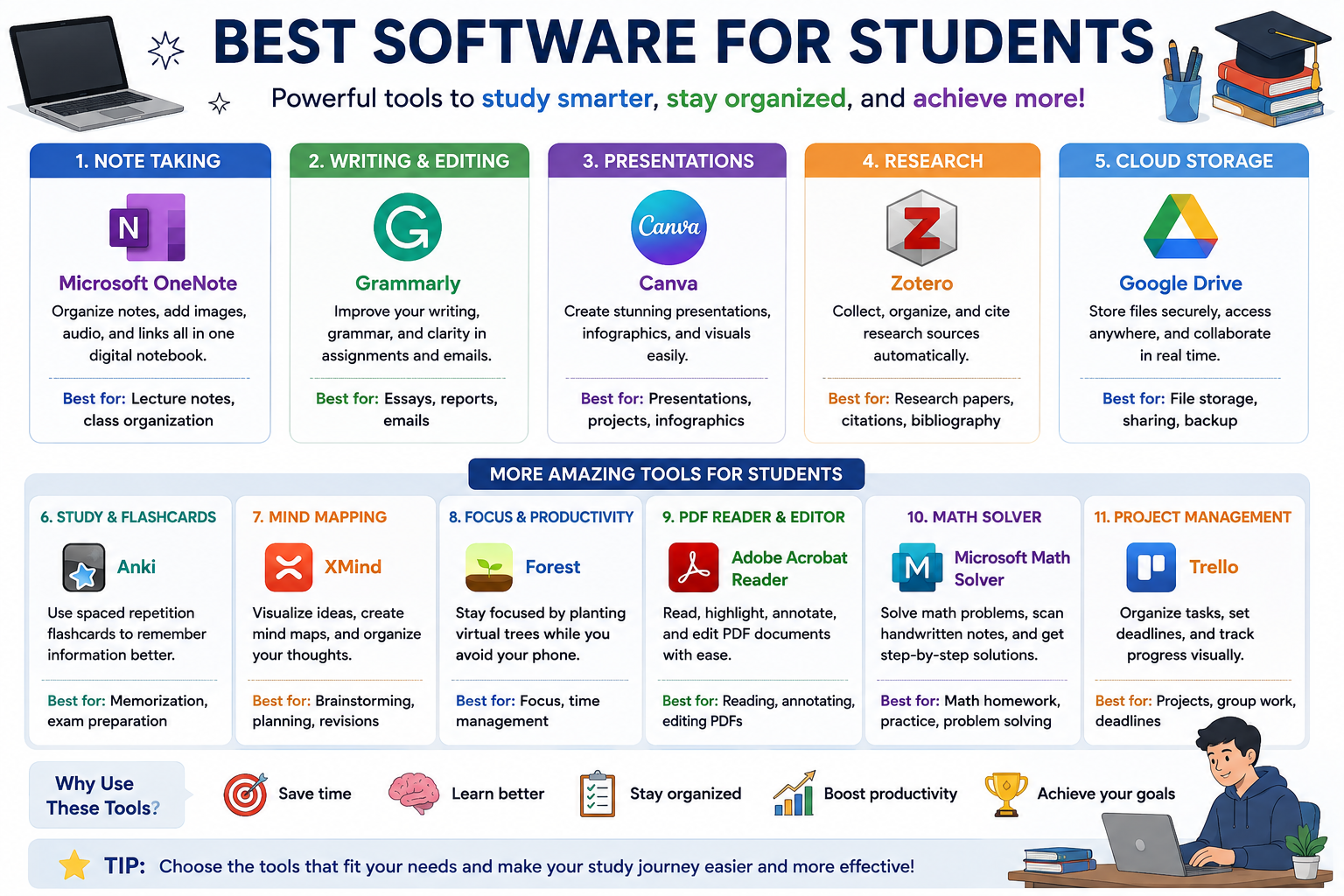
Students today juggle more responsibilities than ever before. Between attending classes, completing assignments, managing group projects, and preparing for exams, staying organized is a real challenge. Having the right tools makes a genuine difference. The best software for students helps with everything from writing essays and managing tasks to recording lectures and editing PDFs.
Not every student needs the same tools. The right software depends on your field of study, your budget, your device, and how you prefer to work. A computer science student has different needs than an arts student or a high school learner preparing for exams.
This guide covers the most useful software available in 2026, organized by purpose, so you can find exactly what you need.
Quick Answer
The most useful software for students covers five core areas: productivity and writing, note-taking, project management, PDF editing, and cloud storage. Tools like Microsoft Office, Google Workspace, Notion, Trello, and Adobe Acrobat handle most academic tasks well. Many offer free plans or student discounts, making them accessible regardless of budget.
Top Software at a Glance
| Software | Best For | Free Option | Main Platform | Ease of Use | Best Student Type |
|---|---|---|---|---|---|
| Microsoft Office | Writing and presentations | Limited (web) | Windows, macOS | Moderate | All students |
| Google Workspace | Collaboration and cloud work | Yes | Web, all devices | Easy | All students |
| Notion | Notes and organization | Yes | Web, Windows, macOS, mobile | Moderate | College students |
| OneNote | Digital notebooks | Yes | Windows, macOS, mobile | Easy | School students |
| Trello | Project and task management | Yes | Web, mobile | Easy | Group project teams |
| ClickUp | Assignment tracking | Yes | Web, mobile | Moderate | College students |
| Adobe Acrobat | PDF editing and reading | Limited | Windows, macOS, web | Moderate | All students |
| PDFgear | Basic PDF tasks | Yes | Windows, macOS | Easy | Casual users |
| Google Drive | File storage and sharing | Yes (15 GB) | Web, all devices | Easy | All students |
| OneDrive | Microsoft integration | Yes (5 GB) | Windows, web | Easy | Microsoft users |
| Canva | Presentations and visuals | Yes | Web, mobile | Easy | All students |
| PowerPoint | Academic presentations | Paid (free via Office 365) | Windows, macOS | Moderate | All students |
| Zoom | Online classes and meetings | Yes (limited) | All devices | Easy | Online learners |
| Google Meet | Virtual study sessions | Yes | Web, mobile | Easy | Google users |
| Visual Studio Code | Programming and coding | Yes | Windows, macOS, Linux | Moderate | CS students |
| GitHub Desktop | Code version control | Yes | Windows, macOS | Moderate | CS students |
| OBS Studio | Screen recording | Yes | Windows, macOS, Linux | Moderate | Content creators |
| Oracle VirtualBox | Virtual labs and OS testing | Yes | Windows, macOS, Linux | Moderate | IT and CS students |
| VMware | Virtual machines | Free (personal) | Windows, macOS | Moderate | IT students |
Best Productivity Software for Students
Productivity software helps students write assignments, create spreadsheets, build presentations, and collaborate with classmates. These are the tools you will use almost every day.
1. Microsoft Office
Microsoft Office is the most widely used productivity suite in the world. It includes Word for writing, Excel for spreadsheets, and PowerPoint for presentations. Most schools and universities expect students to submit work in Office-compatible formats.
Word is the standard tool for essays, reports, and research papers. It offers formatting tools, spell check, word count, and referencing features. Excel helps with data analysis, budgets, and science lab results. PowerPoint remains one of the most reliable tools for academic presentations.
Many educational institutions provide Microsoft Office 365 to students at no cost. If your school does not, a paid subscription gives full access to all desktop and web applications.
Best for: All students from school to university level.
Pros:
- Industry-standard software used globally
- Full-featured word processor, spreadsheet, and presentation tools
- Offline access available
- Strong collaboration features in the web version
- Widely accepted file formats
Cons:
- Full desktop version requires a paid subscription
- Can feel feature-heavy for simple tasks
- Requires a Microsoft account
To understand the full range of tools in this suite, read our guide on [What Is Microsoft Office?].
2. Google Workspace
Google Workspace gives students access to Docs, Sheets, Slides, Drive, Gmail, and Meet, all in one free package. It works entirely in a web browser, which means no installation is needed. Any device with internet access can run it.
Google Docs is a strong alternative to Word. It saves automatically, tracks changes, and lets multiple people edit the same document at the same time. Google Sheets handles basic data work well. Google Slides is useful for simple presentations, especially in group settings.
Google Drive stores all your files in the cloud with 15 GB of free storage. You can access your documents from any device, which is ideal for students moving between home, school, and the library.
Best for: Students who work across multiple devices or collaborate frequently.
Pros:
- Completely free for personal use
- Real-time collaboration with classmates
- Automatic saving prevents data loss
- Works on any device with a browser
- 15 GB of free cloud storage
Cons:
- Requires internet access for full functionality
- Fewer formatting options than Microsoft Office
- Limited offline capability without setup
Best Note-Taking Software for Students
Good note-taking is one of the most important study habits a student can develop. The right software makes it easier to capture, organize, and review information.
3. Notion
Notion is a flexible workspace that works as a note-taking tool, planner, database, and study organizer all in one. Students use it to build course wikis, organize class notes, track assignment deadlines, and create study schedules.
One of Notion’s biggest strengths is its template library. You can start with a ready-made study planner, lecture notes template, or weekly schedule without building anything from scratch. The free plan is generous and suitable for most students.
Best for: College and university students who want an all-in-one organization system.
Pros:
- Highly flexible and customizable
- Free plan covers most student needs
- Templates save setup time
- Works across desktop and mobile
- Supports collaboration with classmates
Cons:
- Takes time to learn and set up properly
- Can feel overwhelming for simple note-taking
- Offline access requires desktop app setup
Read our full review of [What Is Notion?] to see all its features.
4. OneNote
Microsoft OneNote is a free digital notebook that works well for students who prefer an organized, notebook-style interface. You can create separate notebooks for each subject, then add sections and pages within each one.
OneNote supports typed notes, handwritten notes with a stylus, drawings, and inserted images. It syncs automatically across all devices connected to your Microsoft account. It also integrates smoothly with other Microsoft tools, which makes it a natural choice for students already using Word or Teams.
Best for: School students and anyone already using Microsoft products.
Pros:
- Free with a Microsoft account
- Supports handwritten notes and stylus input
- Clean and familiar notebook layout
- Syncs across all devices
- Works offline
Cons:
- Less flexible than Notion for database-style organization
- Full features work best within the Microsoft ecosystem
- Mobile app can feel slower than the desktop version
Best Project Management Software for Students
Managing multiple assignments, deadlines, and group projects at the same time is one of the biggest challenges students face. Project management software helps you see everything clearly and stay on top of your workload.
5. Trello
Trello uses a visual board and card system to help you organize tasks. You create a board for a subject or project, add lists such as “To Do,” “In Progress,” and “Done,” and then move cards between them as you complete tasks.
For group projects, Trello lets all team members see the same board and update their tasks in real time. The free plan is fully functional for most student use cases. You can add due dates, checklists, attachments, and labels to each card.
Best for: Students managing group projects or multiple assignment deadlines.
Pros:
- Free plan is generous and feature-rich
- Visual layout is easy to understand
- Great for group project coordination
- Works on web and mobile
- Simple to set up immediately
Cons:
- Less suitable for complex, long-term projects
- Limited reporting and analytics in free plan
- Can feel too simple for detailed task management
Our guide on [What Is Trello?] covers all its features in detail.
6. ClickUp
ClickUp is a more feature-rich alternative to Trello. It supports tasks, subtasks, time tracking, goal setting, and document creation all in one place. Students use it to plan semester schedules, track multiple assignments, and collaborate with project teams.
The free plan includes unlimited tasks and several useful views including list, board, and calendar. ClickUp works well for students who want detailed control over their schedule without paying for multiple tools.
Best for: College students managing heavy workloads across multiple courses.
Pros:
- Generous free plan
- Multiple task views including calendar and board
- Subtasks and priority settings
- Goal tracking feature
- Available on all platforms
Cons:
- Steeper learning curve than Trello
- Can feel cluttered with too many features
- Notification system can become overwhelming
Best PDF Software for Students
Students deal with PDFs constantly. Lecture slides, research papers, forms, and reading materials almost always arrive as PDF files. Having good PDF software saves a lot of time.
7. Adobe Acrobat
Adobe Acrobat is the most complete PDF tool available. Students use it to read, highlight, annotate, fill in forms, sign documents, and convert files between formats. The annotation tools are particularly useful when studying from research papers or textbooks.
Acrobat also lets you merge multiple PDFs, split large documents, and compress files for easy submission. The paid version unlocks editing features that let you modify text and images within a PDF directly.
Best for: Students who regularly work with PDFs for academic reading and assignments.
Pros:
- Industry-standard PDF tool
- Strong annotation and highlighting tools
- Fill and sign forms digitally
- Convert PDFs to Word, Excel, and other formats
- Cloud-based file access
Cons:
- Full version requires a paid subscription
- Free version has limited editing features
- Can be expensive without a student discount
For a full breakdown of features, read [What Is Adobe Acrobat?].
8. PDFgear
PDFgear is a free PDF tool that covers basic student needs well. It lets you read, annotate, highlight, and merge PDFs without paying for a subscription. The interface is clean and straightforward, making it a good starting point for students who only need simple PDF features.
Best for: Students who need basic PDF reading and annotation without spending money.
Pros:
- Completely free for core features
- Clean and easy-to-use interface
- Handles most basic PDF tasks
- No account required for some features
Cons:
- Fewer advanced features than Adobe Acrobat
- Limited format conversion options
- Less suitable for complex PDF editing
Best Cloud Storage Software for Students
Cloud storage lets you access your files from any device and prevents data loss if your computer breaks or gets stolen. Every student should use at least one cloud storage service.
9. Google Drive
Google Drive offers 15 GB of free storage and integrates directly with Google Docs, Sheets, and Slides. You can store assignments, lecture notes, images, and project files all in one place. Sharing a file or folder with a classmate takes just a few seconds.
Best for: Students who use Google Workspace for their academic work.
Pros:
- 15 GB free storage
- Seamless Google Docs integration
- Easy file sharing and collaboration
- Available on all platforms
- Automatic backup
Cons:
- Storage fills up quickly with large media files
- Requires a Google account
- Privacy considerations with Google data policies
10. OneDrive
OneDrive is Microsoft’s cloud storage service and comes with 5 GB of free storage. It integrates directly with Microsoft Office, which means your Word documents and PowerPoint files save to OneDrive automatically. Students with an Office 365 Education account often get 1 TB of OneDrive storage at no cost.
Best for: Students who use Microsoft Office for their coursework.
Pros:
- Deep Microsoft Office integration
- Large storage for students with Office 365 Education
- Automatic file sync
- Works on Windows, macOS, and mobile
Cons:
- Only 5 GB free without a Microsoft 365 subscription
- Less intuitive than Google Drive for some users
- Full features work best on Windows
Best Software for Presentations
Academic presentations are a regular part of school and university life. The right software makes it easier to create slides that are clear, professional, and well-organized.
11. Canva
Canva is a browser-based design tool that works exceptionally well for student presentations. It offers hundreds of ready-made presentation templates that you can customize with your content. Students also use Canva to create posters, infographics, study visuals, and social media graphics for class projects.
Canva is especially useful for students who want visually appealing results without design experience. The free plan includes a very large library of templates, images, and fonts.
Best for: Students creating presentations, posters, or visual study materials.
Pros:
- Free plan is very generous
- Hundreds of student-friendly templates
- No design experience needed
- Works in a browser on any device
- Easy to share and collaborate
Cons:
- Some premium templates and elements require payment
- Less suitable for text-heavy academic slides
- Limited offline functionality
12. Microsoft PowerPoint
PowerPoint is the most commonly requested presentation format in academic settings. Lecturers often share their own slides as PowerPoint files, and many assignments require submissions in this format. PowerPoint offers more advanced animation and layout tools than most alternatives.
Best for: Students required to submit or create formal academic presentations.
Pros:
- Universally accepted in academic settings
- Advanced slide design and animation options
- Works offline
- Strong presenter tools
- Free via Office 365 Education for eligible students
Cons:
- Requires Microsoft Office subscription without student access
- Can produce generic-looking slides without effort
- Heavier on system resources than web-based alternatives
Best Software for Online Learning
Online learning has become a standard part of education at every level. Students need reliable video conferencing and virtual meeting tools for attending classes and studying with others.
13. Zoom
Zoom is the most widely used video conferencing platform in education. Most online classes, virtual office hours, and remote group meetings happen on Zoom. It supports screen sharing, breakout rooms for group discussions, and session recording.
Best for: Online students attending live virtual classes and group study sessions.
Pros:
- Widely used by educational institutions
- Screen sharing and recording features
- Breakout rooms for group work
- Works on all devices
- Stable performance for large classes
Cons:
- Free plan limits meetings to 40 minutes
- Requires a stable internet connection
- Privacy settings need careful configuration
14. Google Meet
Google Meet is a video calling platform built into Google Workspace. It is free to use and requires no software installation. Students can join a meeting directly from a browser link. It integrates with Google Calendar for easy scheduling.
Best for: Students already using Google Workspace for studying and collaboration.
Pros:
- Free with a Google account
- No installation required
- Integrates with Google Calendar and Drive
- Works on any device
- Clean and simple interface
Cons:
- Fewer advanced features than Zoom
- Screen sharing tools less feature-rich
- Recording requires a paid Google Workspace plan
Best Software for Programming Students
Computer science and IT students need reliable coding tools from their first day of study. The right development tools make learning to code significantly easier.
15. Visual Studio Code
Visual Studio Code, commonly called VS Code, is a free code editor used by beginners and professional developers alike. It supports virtually every programming language through its extension marketplace. Students use it for writing Python assignments, building web projects, and working with JavaScript, Java, C++, and more.
VS Code includes a built-in terminal, a debugger, and Git integration. Its clean interface and strong community support make it one of the best starting points for programming students.
Best for: Computer science students at all levels learning to code.
Pros:
- Completely free and open-source
- Supports hundreds of programming languages
- Large library of extensions
- Built-in Git integration
- Active community and documentation
Cons:
- Not a full IDE, so some advanced features need extensions
- Can require configuration for specific programming environments
- Performance can slow with too many extensions
Read our in-depth guide on [What Is Visual Studio Code?] to learn more.
16. GitHub Desktop
GitHub Desktop is a beginner-friendly application for managing Git repositories. It lets students track changes to their code, work on group programming projects, and submit assignments through GitHub without needing to use command-line tools.
Version control is an essential skill for any computer science student. GitHub Desktop makes this much easier to learn by providing a visual interface for common Git actions.
Best for: Programming students learning version control and team coding workflows.
Pros:
- Free to use
- Visual interface for Git workflows
- Simplifies branching and merging
- Integrates directly with GitHub
- Great for learning team-based coding
Cons:
- Requires a GitHub account
- Less control than command-line Git
- Not suitable for advanced Git workflows
Our guide on [What Is GitHub Desktop?] explains the full workflow in simple terms.
Best Screen Recording Software for Students
Screen recording is useful for students creating tutorial videos, recording online lectures for later review, or presenting digital projects.
17. OBS Studio
OBS Studio is a free and open-source screen recording and live streaming tool. Students use it to record their screen while working through a project, create video tutorials for class assignments, and capture online presentations. It supports high-quality video output and works on Windows, macOS, and Linux.
Best for: Students creating video assignments, tutorials, or recording study sessions.
Pros:
- Completely free and open-source
- High-quality screen and audio recording
- Supports multiple scenes and sources
- Works on all major operating systems
- Active community and support resources
Cons:
- Setup can take time for beginners
- Interface feels complex at first
- No built-in video editing tools
See our full guide on [What Is OBS Studio?] for a detailed walkthrough.
Best Software for Virtual Labs
IT and computer science students often need to run different operating systems or experiment with software environments without affecting their main computer. Virtual machine software makes this possible.
18. Oracle VirtualBox
Oracle VirtualBox is a free virtualization tool that lets you run a completely separate operating system inside your current one. A student using Windows can run Linux inside VirtualBox, for example. This is extremely useful for programming labs, cybersecurity practice, and IT coursework.
Best for: Computer science and IT students who need to test operating systems or run lab environments.
Pros:
- Completely free and open-source
- Supports a wide range of operating systems
- Safe environment for testing without affecting your main system
- Snapshot feature saves system states
- Large community and documentation
Cons:
- Requires a reasonably powerful computer
- Initial setup can be complex for beginners
- Performance depends heavily on available RAM
Learn more in our guide on [What Is Oracle VirtualBox?].
19. VMware
VMware offers a range of virtualization products, including VMware Workstation Player, which is free for personal and educational use. It provides a polished virtual machine environment suitable for running development setups, testing software, and practicing system administration.
Best for: IT and computer science students who need a more polished virtual machine experience.
Pros:
- Clean and professional interface
- Free personal use option
- Strong performance for virtual machines
- Widely used in enterprise IT environments
- Good documentation and support
Cons:
- Advanced versions require a paid license
- Heavier on system resources than VirtualBox
- Less customizable than open-source alternatives
Our guide on [What Is VMware?] provides a clear comparison with other virtualization tools.
Best Software for Students: Comparison Table
| Software | Best For | Free Option | Main Feature | Platform | Ease of Use | Best Student Type |
|---|---|---|---|---|---|---|
| Microsoft Office | Writing, spreadsheets, presentations | Limited | Full productivity suite | Windows, macOS | Moderate | All students |
| Google Workspace | Collaboration and cloud documents | Yes | Real-time collaboration | Web, all devices | Easy | All students |
| Notion | Notes, planning, organization | Yes | Flexible workspace | Web, desktop, mobile | Moderate | College students |
| OneNote | Digital notebooks | Yes | Notebook organization | Windows, macOS, mobile | Easy | School students |
| Trello | Task and project management | Yes | Visual boards and cards | Web, mobile | Easy | Group projects |
| ClickUp | Advanced task management | Yes | Tasks, goals, calendar | Web, mobile | Moderate | College students |
| Adobe Acrobat | PDF reading and editing | Limited | PDF editing and signing | Windows, macOS, web | Moderate | All students |
| PDFgear | Basic PDF tasks | Yes | Free PDF annotation | Windows, macOS | Easy | Casual users |
| Google Drive | Cloud file storage | Yes (15 GB) | Cloud storage and sharing | Web, all devices | Easy | All students |
| OneDrive | Microsoft file storage | Yes (5 GB) | Office integration | Windows, web | Easy | Microsoft users |
| Canva | Presentations and design | Yes | Design templates | Web, mobile | Easy | All students |
| PowerPoint | Academic presentations | Paid/free via O365 | Slide presentations | Windows, macOS | Moderate | All students |
| Zoom | Online classes and meetings | Yes (limited) | Video conferencing | All devices | Easy | Online learners |
| Google Meet | Virtual study groups | Yes | Video meetings | Web, mobile | Easy | Google users |
| Visual Studio Code | Programming and coding | Yes | Code editing | Windows, macOS, Linux | Moderate | CS students |
| GitHub Desktop | Version control | Yes | Git repository management | Windows, macOS | Moderate | CS students |
| OBS Studio | Screen recording | Yes | Screen capture and streaming | Windows, macOS, Linux | Moderate | Content creators |
| Oracle VirtualBox | Virtual labs | Yes | Virtual machine hosting | Windows, macOS, Linux | Moderate | IT and CS students |
| VMware | Virtual machines | Yes (personal) | Professional virtualization | Windows, macOS | Moderate | IT students |
Best Free Software for Students
Many students have limited budgets. The good news is that excellent free tools exist for almost every academic need.
Free note-taking: Notion (free plan), OneNote (free with Microsoft account), and Google Keep are all strong options with no cost attached.
Free office software: Google Workspace is entirely free for personal use. LibreOffice is a free desktop alternative that reads and writes Microsoft Office file formats.
Free cloud storage: Google Drive offers 15 GB free. OneDrive offers 5 GB free. Both are enough for most student documents and assignments.
Free PDF tools: PDFgear covers basic reading and annotation at no cost. Adobe Acrobat Reader (not the full Acrobat) is also free for viewing and basic PDF tasks.
Free project management: Trello’s free plan works well for most students. ClickUp’s free plan includes unlimited tasks and basic project views.
Free screen recording: OBS Studio is completely free and one of the most capable screen recording tools available. It works on Windows, macOS, and Linux.
Free code editors: Visual Studio Code is free and open-source. It is one of the most powerful free tools any programming student can use.
A note on free plan limitations: Most free plans restrict advanced features, storage space, or the number of users. For most students, free plans are more than sufficient. If you need more features, check whether your school provides a free or discounted subscription.
Best Software for College Students
College students need tools that handle heavy writing workloads, collaboration, research, and time management simultaneously.
For research and writing: Microsoft Word or Google Docs for essays and reports. Both support comments, tracked changes, and citation tools.
For assignments and submissions: Adobe Acrobat for handling PDF submissions and signed forms. [What Is Adobe Acrobat?] covers this in more detail.
For presentations: Canva for visually strong slides. PowerPoint for formally required academic presentations.
For group projects: Trello or ClickUp to track tasks, deadlines, and responsibilities across team members.
For note organization: Notion works particularly well for college students who need to manage notes across multiple courses and projects.
For time management: ClickUp’s calendar view or Google Calendar integrated with Google Workspace helps students plan their week around deadlines and class schedules.
For online classes: Zoom or Google Meet for attending virtual lectures and participating in study groups.
Best Software for School Students
School students generally need simpler tools that are easy to set up and use without much technical knowledge.
For homework: Google Docs or Microsoft Word both handle school assignments well. Google Docs is easier to share with teachers via a link.
For presentations: Canva is the most beginner-friendly option. Its templates make it easy to produce neat, well-designed slides quickly.
For notes: OneNote’s notebook structure suits younger students well. It is familiar, free, and easy to organize by subject.
For file organization: Google Drive keeps everything in one place and prevents the problem of losing work when a device breaks.
For online learning: Google Meet integrates with school Google accounts. Zoom is commonly used by schools for live lessons.
For collaboration: Google Workspace allows students to share documents with teachers and work together on group assignments in real time.
Best Software for Computer Science Students
Computer science students need a specific set of tools from early in their studies.
Code editing: [Visual Studio Code] is the most practical starting point. It supports all major programming languages and has a large extension ecosystem.
Version control: [GitHub Desktop] simplifies Git for beginners. Learning version control early is one of the most valuable habits a CS student can develop.
Virtual machines: [Oracle VirtualBox] lets students run Linux, test operating systems, and practice cybersecurity skills in a safe environment. [VMware] offers an alternative with a more polished interface.
Security awareness: As CS students work with networks and systems, understanding cybersecurity concepts becomes essential. Our guides on [What Is Cybersecurity?] and [Network Security] are useful starting points. Students working with cloud environments should also explore [What Is Cloud Security?].
Collaboration: GitHub handles code collaboration. Google Workspace or Microsoft Teams works well for project documentation and team communication.
How to Choose the Best Software for Students
Choosing the wrong software wastes time and sometimes money. Here are 15 practical tips to guide your decision.
- Define your exact need. Know whether you need a writing tool, note-taker, or project planner before searching.
- Check if your school provides free access. Many institutions offer Microsoft Office, Google Workspace, or other tools at no cost.
- Start with the free plan. Most tools offer a free tier. Use it before deciding to pay.
- Check device compatibility. Make sure the software works on your computer or phone before downloading.
- Consider ease of use. If you will spend hours learning a tool instead of studying, it is not saving you time.
- Think about collaboration. If group work is frequent, choose tools that support real-time sharing and editing.
- Check offline access. Some web-based tools require internet. Make sure your software works when your connection is poor.
- Review storage limits. Cloud tools have storage caps on free plans. Know the limits before you need more space.
- Check for student discounts. Many paid tools offer significant discounts for verified students.
- Read recent reviews. Check what other students say about the tool on trusted review sites.
- Confirm file format compatibility. Make sure your files can be opened by your teachers and classmates.
- Consider privacy policies. Understand what data the software collects, especially for tools you use daily.
- Check update frequency. Software that receives regular updates is more secure and reliable.
- Look for good documentation. Strong help guides and tutorials reduce learning time.
- Avoid installing tools you will not use regularly. Every unused app uses storage and can slow down your device.
Do Students Really Need So Many Software Tools?
The honest answer is no. Most students only need four or five core tools to handle their academic life effectively. The goal of a list like this is to help you find the right tools, not to suggest you install all of them.
A typical student can manage well with a word processor, a cloud storage service, a note-taking app, and a PDF reader. College students may add a project management tool and a video conferencing app. Computer science students will need coding and version control tools on top of that.
Start with one tool per category. Use it for a few weeks before adding anything else. You will quickly know whether it solves your problem or whether you need an alternative.
Common Mistakes Students Make When Choosing Software
Many students make avoidable errors when picking digital tools. Here are the most common ones and how to avoid them.
Choosing expensive software unnecessarily. Most student tasks can be handled with free tools. Pay for software only when the free version clearly falls short of your needs.
Installing too many apps. A cluttered device with ten overlapping tools creates confusion. Pick one tool per task and stick with it.
Ignoring privacy. Some free tools collect and sell user data. Read the privacy policy before creating an account, especially with note-taking and productivity apps.
Not checking system requirements. Some software requires a certain amount of RAM or a specific operating system version. Downloading incompatible software wastes time and can cause performance issues.
Not backing up files. Relying on a single device without cloud backup means one hardware failure can delete months of work. Always use a cloud storage service alongside local saving.
Using outdated software. Old versions often have security vulnerabilities and compatibility problems. Keep your software updated regularly.
Choosing the most complex tool available. Advanced software with dozens of features is not always the best choice. If a simpler tool does the job, use it.
Frequently Asked Questions
What is the best software for students?
The best software depends on your needs. For most students, Google Workspace or Microsoft Office covers writing and collaboration. Notion or OneNote handles note-taking. Trello manages tasks and projects.
What is the best free software for students?
Google Workspace, Notion (free plan), Trello (free plan), PDFgear, OBS Studio, and Visual Studio Code are all free and genuinely useful for students.
What software should every college student have?
Most college students benefit from a word processor, cloud storage, a PDF reader, a note-taking app, and a project management tool. Google Workspace covers several of these at once.
What is the best software for studying?
Notion is excellent for organizing study notes and planning revision schedules. OneNote works well for structured class notes. Anki is a popular free tool for flashcard-based memorization.
What is the best note-taking software for students?
Notion and OneNote are both strong choices. Notion offers more flexibility and organization features. OneNote has a more traditional notebook layout that school students often find easier to start with.
What is the best software for assignments?
Microsoft Word or Google Docs handles most written assignments. Adobe Acrobat is useful for PDF-based assignments and form submissions.
What is the best software for presentations?
Canva is the most beginner-friendly option. PowerPoint is the most academically accepted format. Both produce strong results for different needs.
What is the best PDF software for students?
Adobe Acrobat is the most capable PDF tool. PDFgear is a strong free alternative for basic annotation and reading tasks.
What is the best project management software for students?
Trello is the easiest option for most students. ClickUp offers more features for students managing heavy workloads across multiple courses.
What is the best software for computer science students?
Visual Studio Code for coding, GitHub Desktop for version control, and Oracle VirtualBox for virtual labs form a solid foundation for CS students.
Is Microsoft Office free for students?
Many schools and universities provide Microsoft Office 365 Education free to students. Check with your institution before purchasing a subscription.
Is Notion good for students?
Yes. Notion is one of the most popular productivity tools among students. Its free plan is generous, and its flexible structure works well for organizing notes, plans, and study schedules.
Is Google Workspace good for students?
Google Workspace is one of the best free options available. It handles documents, spreadsheets, presentations, email, and cloud storage all in one place.
Is Canva useful for students?
Yes. Canva makes it easy for students without design experience to create professional-looking presentations, posters, and visual study materials using ready-made templates.
What free software should students use?
Google Workspace for productivity, Notion for notes, Trello for tasks, PDFgear for PDFs, OBS Studio for screen recording, and Visual Studio Code for programming cover most student needs at no cost.
Final Thoughts
Finding the right tools does not need to be complicated. The best software for students is the software that actually helps you study, stay organized, and complete your work more efficiently.
Start by identifying your biggest academic challenges. If writing and submitting assignments is your main task, focus on a good word processor and PDF tool. If group projects cause the most stress, a project management tool will make a bigger difference than anything else.
Many of the tools covered in this guide offer strong free plans that are more than enough for everyday student needs. Check whether your school provides free access to Microsoft Office or Google Workspace before spending any money. Build your digital toolkit gradually, and only add new tools when you have a clear reason to do so.
The right combination of software will not replace studying, but it will remove unnecessary friction and help you focus on what matters most.
References
- Microsoft Education — Microsoft 365 for Education
Microsoft Education - Google for Education — Google Workspace for Education
Google Workspace for Education — Google describes tools such as Docs, Sheets, Slides, Drive, Meet, Classroom, and Calendar for student and educator collaboration. - Notion — Notion for Education
Notion for Education — Official information about Notion’s student features, education plan, templates, notes, and workspace tools. - GitHub Education — Student Developer Pack
GitHub Student Developer Pack — Useful for the section about programming and developer software available to students. - Google for Education — Compare Editions
Google Workspace for Education Editions — Official details about included tools, free Education Fundamentals, and paid education options. - GitHub Education — Student Eligibility
GitHub Student Developer Pack Eligibility — Official eligibility information for the Student Developer Pack.
By TechOriginHub Editorial Team
Disclaimer
This article is for educational and informational purposes only. Software features, pricing, student eligibility, and availability may change over time. Always check the official software website for current information.