
 By saman zahra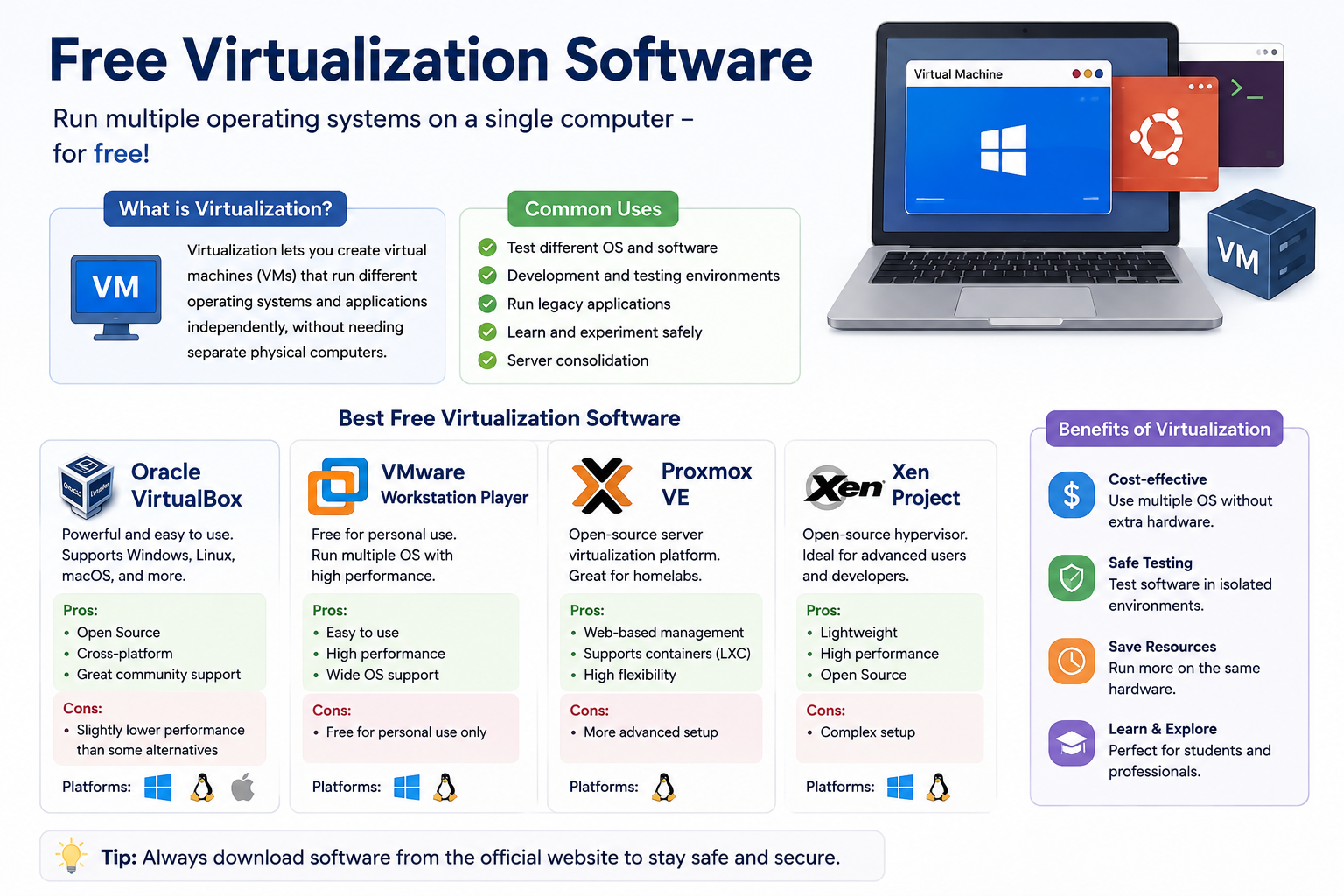
Running multiple operating systems on a single computer used to require separate physical machines. Today, free virtualization software makes it possible to run Windows, Linux, macOS, and other systems side by side on the same hardware. Whether you are learning Linux for the first time, building a development environment, or setting up a cybersecurity lab, virtualization gives you a safe and flexible way to do it.
Students, developers, IT professionals, and home users all have different reasons for needing virtual machines. Some want to test software without risking their main system. Others need to run older applications that no longer work on modern operating systems. Many use virtualization for IT training, networking labs, and learning new platforms.
This guide covers the best free virtualization software available in 2026, explains what each tool does best, and helps you choose the right one for your needs.
Quick Answer
Free virtualization software lets you create and run virtual machines on your existing computer. Popular options include Oracle VirtualBox, which is free and open-source for all platforms, Microsoft Hyper-V, which is built into Windows Pro and above, QEMU for advanced users, GNOME Boxes for Linux beginners, UTM for macOS, and Proxmox VE for server environments.
Best Free Virtualization Software at a Glance
| Software | Best For | Host OS | Guest OS Support | Free/Open Source | Ease of Use | Best User |
|---|---|---|---|---|---|---|
| Oracle VirtualBox | General use and learning | Windows, Linux, macOS | Windows, Linux, macOS, BSD | Free and open-source | Easy to moderate | Beginners, students, developers |
| VMware Workstation Pro | Professional development | Windows, Linux | Windows, Linux, macOS (limited) | Free for personal use | Moderate | Developers, IT pros |
| Hyper-V | Windows virtualization | Windows Pro/Enterprise/Education | Windows, Linux | Free (built into Windows) | Moderate | Windows users, IT learners |
| QEMU | Advanced emulation | Windows, Linux, macOS | Very wide range | Free and open-source | Advanced | Developers, advanced users |
| KVM | Linux server virtualization | Linux only | Linux, Windows | Free and open-source | Advanced | Linux admins, developers |
| GNOME Boxes | Quick Linux VMs | Linux (GNOME) | Linux, Windows | Free and open-source | Easy | Linux beginners |
| UTM | macOS virtualization | macOS | Linux, Windows, BSD | Free and open-source | Easy to moderate | Mac users |
| Proxmox VE | Server virtualization | Bare metal (Linux-based) | Linux, Windows | Free and open-source | Advanced | IT pros, homelab users |
Free Virtualization Software Reviews
Oracle VirtualBox
Oracle VirtualBox is one of the most widely used virtualization tools in the world. It is free, open-source, and runs on Windows, Linux, and macOS. Students, developers, and IT learners choose it because it is straightforward to install and has a large community offering guides and support.
VirtualBox lets you create virtual machines and assign them virtual CPU cores, RAM, storage, and network adapters. You can install almost any guest operating system, including various Linux distributions, Windows versions, and BSD systems. The interface uses a graphical wizard that guides you through each setup step.
Main features:
- Snapshot support lets you save and restore virtual machine states instantly
- Shared folders allow file transfer between the host and guest OS
- Guest Additions improve display resolution, mouse integration, and performance
- Supports bridged, NAT, host-only, and internal network modes
- USB 2.0 and 3.0 support via the Extension Pack (separate free download)
Licensing: VirtualBox is licensed under the GNU General Public License version 2. The Extension Pack is separately licensed under the Oracle VirtualBox Extension Pack Personal Use and Evaluation License, which allows free use for personal and educational purposes. Always check Oracle’s licensing page for commercial use conditions.
Host OS: Windows, Linux, macOS
Guest OS support: Windows, Linux, macOS, FreeBSD, Solaris, and more
Performance: Good for learning and development tasks. Not optimized for graphics-intensive workloads.
Ease of use: One of the most beginner-friendly options available.
Pros:
- Completely free and open-source
- Runs on Windows, Linux, and macOS
- Large community and documentation
- Snapshot and clone support
- Wide guest OS compatibility
Cons:
- 3D graphics performance lags behind commercial alternatives
- Guest Additions installation requires extra steps
- Extension Pack has separate licensing terms for commercial use
Best use case: Learning virtualization, running Linux on Windows, testing software, and IT training.
Read our full guide on [What Is Oracle VirtualBox?] for a complete walkthrough of installation and setup.
VMware Workstation Pro
VMware Workstation Pro is a professional-grade desktop virtualization application. In 2024, Broadcom changed VMware Workstation Pro’s licensing so that it became free for personal use. This was a significant change from its previous paid model. However, commercial and enterprise use still requires a paid license.
VMware Workstation Pro is available for Windows and Linux. It supports a wide range of guest operating systems and offers stronger 3D graphics performance than VirtualBox. Developers and IT professionals who need reliable, high-performance virtual machines often prefer it for personal environments.
Main features:
- Advanced networking tools including a network editor
- Strong snapshot and clone capabilities
- High-performance 3D acceleration
- Unity mode for running guest applications within the host desktop
- Supports encrypted virtual machines
Licensing: Free for personal use as of the Broadcom licensing change. Always verify current terms directly on the VMware by Broadcom website before use, as licensing policies can change.
Host OS: Windows, Linux
Guest OS support: Windows, Linux, macOS (limited and subject to Apple’s licensing), and more
Performance: Excellent for development workloads. Better 3D performance than VirtualBox.
Ease of use: Moderate. More feature-rich than VirtualBox, which adds some complexity.
Pros:
- Free for personal use
- High performance and stability
- Advanced networking options
- Strong snapshot management
- Industry-standard tool familiar in enterprise IT
Cons:
- Commercial use requires a paid license
- macOS guest support has restrictions under Apple’s licensing
- Not available for macOS host natively (VMware Fusion is the macOS version)
- Broadcom licensing changes may affect future availability
Best use case: Personal development environments, IT professional learning, and advanced testing on Windows or Linux.
Our guide on [What Is VMware?] covers both Workstation and Fusion in more detail.
Hyper-V
Hyper-V is Microsoft’s built-in virtualization platform. It comes included with Windows 10 Pro, Windows 10 Enterprise, Windows 11 Pro, Windows 11 Enterprise, and Windows 11 Education. If you are already running one of these Windows editions, you can enable Hyper-V at no additional cost through Windows Features.
Hyper-V is a Type 1 hypervisor, which means it sits closer to the hardware than typical desktop virtualization software. This gives it strong performance for Windows-based virtual machines. It supports both Windows and Linux guests, making it useful for developers working in mixed environments.
Main features:
- Built into compatible Windows editions
- Hyper-V Manager for creating and managing VMs
- Checkpoints (snapshots) for saving VM states
- Dynamic memory allocation
- Virtual switch management for networking
- Integration services for improved guest performance
Licensing: Free as part of Windows Pro, Enterprise, and Education. Not available on Windows Home editions.
Host OS: Windows 10/11 Pro, Enterprise, Education
Guest OS support: Windows, Linux
Performance: Strong for Windows guests. Good for Linux guests with integration services.
Ease of use: Moderate. The Hyper-V Manager interface is less intuitive than VirtualBox for beginners.
Pros:
- Free with Windows Pro and above
- Type 1 hypervisor performance
- Good Windows guest performance
- No third-party installation required
- Integrates with Windows Admin Center
Cons:
- Not available on Windows Home
- Enabling Hyper-V can interfere with some other virtualization tools
- Less intuitive for absolute beginners compared to VirtualBox
- Limited macOS and BSD guest support
Best use case: Windows professionals, IT administrators, and Windows developers who want built-in virtualization without extra software.
QEMU
QEMU, which stands for Quick Emulator, is a free and open-source emulation and virtualization tool. It is more powerful and more flexible than most desktop virtualization applications, but it has a steeper learning curve. QEMU can emulate different CPU architectures, which means you can run ARM software on an x86 machine, for example.
QEMU works on Windows, Linux, and macOS. Many other virtualization tools, including KVM and UTM, use QEMU as part of their underlying technology. On its own, QEMU is primarily a command-line tool, which makes it most suitable for advanced users and developers.
Main features:
- Emulates multiple CPU architectures including x86, ARM, RISC-V, and more
- Can be used with KVM on Linux for near-native performance
- Supports a wide range of guest operating systems
- Highly configurable networking and storage options
- No graphical interface by default (though frontends exist)
Licensing: GNU General Public License version 2 and other open-source licenses. Completely free.
Host OS: Windows, Linux, macOS
Guest OS support: Extremely wide range depending on configuration
Performance: Excellent when combined with KVM on Linux. Slower in pure emulation mode.
Ease of use: Advanced. Not recommended for beginners without a graphical frontend.
Pros:
- Free and open-source
- Supports the widest range of CPU architectures
- Extremely flexible and configurable
- Foundation for many other virtualization tools
- Strong performance with hardware acceleration
Cons:
- Command-line focused, which is difficult for beginners
- Requires significant configuration for complex setups
- No built-in graphical management interface
Best use case: Developers working with embedded systems, cross-architecture testing, and advanced Linux users building custom environments.
KVM
KVM, which stands for Kernel-based Virtual Machine, is a virtualization technology built directly into the Linux kernel. It is not a standalone application in the traditional sense. Instead, it is a kernel module that turns Linux itself into a hypervisor.
KVM provides near-native performance for Linux and Windows virtual machines when combined with QEMU. Most Linux-based server virtualization solutions use KVM under the hood. Desktop Linux users can access KVM-powered virtual machines through graphical tools like Virt-Manager or GNOME Boxes.
Main features:
- Built into the Linux kernel
- Near-native performance for guests
- Supports Windows and Linux guests
- Works with libvirt for management
- Supports CPU passthrough and hardware acceleration
Licensing: GPL license, part of the Linux kernel. Completely free.
Host OS: Linux only
Guest OS support: Linux, Windows, BSD, and others
Performance: Excellent. One of the highest-performing free virtualization solutions available.
Ease of use: Advanced for direct use. Easier when accessed through GNOME Boxes or Virt-Manager.
Pros:
- Free and open-source
- Excellent performance
- Integrated into Linux
- Enterprise-grade capabilities
- Basis for major cloud platforms
Cons:
- Linux host only
- Requires Linux kernel knowledge for direct configuration
- Not suitable for Windows or macOS hosts
- Graphical management requires additional tools
Best use case: Linux server administrators, developers running Linux hosts, and IT professionals building homelab environments.
GNOME Boxes
GNOME Boxes is a beginner-friendly virtual machine application for Linux. It uses KVM and QEMU under the hood but presents a simple and clean graphical interface that makes creating virtual machines much easier. You can download and install a guest operating system directly from within the application without needing a separate ISO file.
GNOME Boxes is particularly well suited to Linux users who want to try other Linux distributions quickly or run a Windows virtual machine without dealing with complex configuration.
Main features:
- Simple one-click VM creation
- Automatic OS download and installation for supported systems
- Snapshot support
- Remote desktop connections
- Clean GNOME interface
Licensing: GNU General Public License. Completely free and open-source.
Host OS: Linux (GNOME desktop environment preferred)
Guest OS support: Linux, Windows
Performance: Good for everyday tasks. Uses KVM for hardware acceleration.
Ease of use: One of the easiest Linux virtualization tools available.
Pros:
- Very easy to set up and use
- Can download OS images automatically
- Free and open-source
- Clean and minimal interface
- Good choice for Linux newcomers
Cons:
- Limited advanced configuration options
- Works best on GNOME-based Linux desktops
- Fewer features than Virt-Manager for complex setups
- Windows guest support requires a manual ISO
Best use case: Linux beginners who want to try other operating systems without complicated setup.
UTM
UTM is a free and open-source virtualization application designed for macOS. It uses QEMU under the hood and provides a clean graphical interface that makes it much easier to use than raw QEMU. UTM supports both Intel-based Macs and Apple Silicon Macs, including the M1, M2, M3, and M4 chip families.
On Apple Silicon Macs, UTM can run ARM-based operating systems at near-native speed using hardware virtualization. Running x86 operating systems on Apple Silicon is also possible through emulation, though performance is slower due to the architecture difference. UTM is available free from the UTM website or as a paid version from the Mac App Store, where the payment supports development.
Main features:
- Free and open-source on the UTM website
- Supports Apple Silicon and Intel Macs
- Near-native ARM guest performance on Apple Silicon
- x86 emulation on Apple Silicon (slower)
- Clean macOS-style interface
- Snapshot support
- Shared directory support
Licensing: Apache 2.0 License. Free from the official UTM website. The App Store version is paid and supports the developers.
Host OS: macOS (Intel and Apple Silicon)
Guest OS support: Linux, Windows (ARM), Windows (x86 via emulation on Apple Silicon), BSD
Performance: Excellent for ARM guests on Apple Silicon. Moderate for x86 emulation.
Ease of use: Easy to moderate. Much simpler than using QEMU directly.
Pros:
- Free from the official website
- Supports Apple Silicon natively
- Good performance for ARM guests
- Clean interface designed for macOS
- Active development and community
Cons:
- x86 guest performance on Apple Silicon is limited by emulation overhead
- Windows 11 on Apple Silicon requires ARM ISO
- Some features are easier to access in the paid App Store version
- Less documentation than VirtualBox
Best use case: Mac users who want to run Linux or test operating systems without leaving macOS.
Proxmox VE
Proxmox Virtual Environment, commonly called Proxmox VE, is a free and open-source server virtualization platform. It is important to understand that Proxmox VE is fundamentally different from desktop virtualization tools like VirtualBox. You install Proxmox VE directly on a physical server or dedicated machine as the primary operating system, not on top of an existing desktop OS.
Proxmox VE combines KVM virtualization and LXC container technology in one platform. It includes a powerful web-based management interface that lets you create, manage, and monitor virtual machines from any browser. It is widely used in homelabs, small businesses, and enterprise environments.
Main features:
- Web-based management console
- KVM and LXC container support
- Cluster support for multiple servers
- Built-in backup and restore
- Storage management
- Software-defined networking
- High availability support
Licensing: GNU Affero General Public License. The community edition is free. Enterprise support subscriptions are available but optional.
Host OS: Bare metal (installs as the primary OS)
Guest OS support: Linux, Windows, BSD, and any KVM-supported OS
Performance: Excellent. Type 1 hypervisor with direct hardware access.
Ease of use: Advanced. Not suitable for desktop beginners.
Pros:
- Completely free community edition
- Enterprise-grade features at no cost
- Excellent web management interface
- Active community and documentation
- Supports both VMs and containers
Cons:
- Requires a dedicated machine or server
- Not a desktop virtualization tool
- Learning curve is significant for beginners
- Enterprise support requires a paid subscription
Best use case: IT professionals, homelab enthusiasts, and system administrators building server environments.
What Is Virtualization Software?
Virtualization software creates virtual computers inside your existing computer. Each virtual computer, called a virtual machine or VM, behaves like a completely separate physical system. It has its own operating system, applications, and files, all running inside your main computer.
Several key terms help explain how this works.
A hypervisor is the software layer that creates and manages virtual machines. It sits between the physical hardware and the virtual machines running on top of it.
The host operating system is the OS installed on your real physical computer. The guest operating system is the OS running inside the virtual machine.
Each virtual machine has a virtual CPU, which is a share of your physical processor. It also has virtual RAM, which is a portion of your actual memory. A virtual disk is a file stored on your physical drive that acts as the VM’s storage device. Virtual network adapters connect your VM to the internet or to other VMs.
A simple real-world example: Imagine you use a Windows laptop and need to learn Linux. Instead of buying a second computer, you install VirtualBox, create a virtual machine, and install Ubuntu Linux inside it. Ubuntu runs in a window on your Windows desktop. You can switch between Windows and Ubuntu instantly, and nothing you do in the VM affects your main system.
How Does Virtualization Software Work?
Understanding the basic process helps you make better decisions when setting up your first virtual machine.
Step 1: Install the virtualization software.
You download and install a hypervisor such as VirtualBox or VMware Workstation Pro on your existing computer.
Step 2: Create a virtual machine.
You open the software and use a setup wizard to create a new VM. You give it a name and choose what type of operating system you plan to install.
Step 3: Assign virtual hardware.
You decide how much RAM, how many CPU cores, and how much storage space the VM will use. The hypervisor reserves these resources from your physical hardware.
Step 4: Install the operating system.
You attach an ISO file (a digital copy of an OS installation disc) to the VM and boot from it. The OS installs just as it would on a real computer.
Step 5: The guest OS runs inside the VM.
Once installed, the guest OS runs inside the virtual machine window. You interact with it using your keyboard and mouse just as you would with any computer.
Step 6: The hypervisor manages hardware access.
The hypervisor constantly manages how the VM accesses your physical CPU, RAM, storage, and network. It ensures the VM cannot interfere with your host system or other VMs.
Types of Virtualization Software
Type 1 Hypervisors
Type 1 hypervisors, also called bare-metal hypervisors, run directly on the physical hardware without needing a host operating system underneath them. They offer the highest performance because they have direct access to the hardware.
Examples include Proxmox VE, Microsoft Hyper-V (in its server form), and VMware ESXi. Type 1 hypervisors are most common in data centers, enterprise servers, and advanced homelab environments. Hyper-V on Windows desktop is technically a Type 1 hypervisor even in the desktop context, which is part of why it performs well for Windows guests.
Type 2 Hypervisors
Type 2 hypervisors run on top of an existing host operating system. They are the type most desktop users, students, and developers encounter. VirtualBox, VMware Workstation Pro, and UTM are all Type 2 hypervisors.
Type 2 hypervisors are easier to install and use because they work like any other application on your computer. The trade-off is a slight performance reduction because the hypervisor must go through the host OS to access hardware.
Desktop Virtualization
Desktop virtualization refers to running virtual machines on a personal computer for individual use. This is the most common form of virtualization for students, developers, and home users. Tools like VirtualBox and VMware Workstation Pro are designed specifically for this purpose.
Desktop virtualization is ideal for learning new operating systems, testing software safely, creating isolated development environments, and running applications that only work on specific platforms.
Server Virtualization
Server virtualization runs multiple virtual servers on a single physical machine. This is the standard model used in cloud computing, data centers, and enterprise IT. Proxmox VE is a popular free option for server virtualization in homelabs and small environments.
Server virtualization maximizes hardware utilization by running many workloads on fewer physical machines. It also simplifies backup, recovery, and resource management at scale.
Free vs Open-Source Virtualization Software
Many people use the terms “free” and “open source” interchangeably, but they mean different things.
| Feature | Free Software | Open-Source Software |
|---|---|---|
| Definition | No monetary cost to use | Source code is publicly available |
| Source code | May or may not be public | Always publicly available |
| Cost | Free to use | Usually free, but not always |
| Licensing | Varies widely | Governed by open-source licenses |
| Customization | Usually not possible | Possible if you can modify code |
| Examples | VMware Workstation Pro (personal) | VirtualBox, QEMU, KVM, Proxmox VE |
| Best users | Users who need no-cost tools | Developers and advanced users |
A tool can be free without being open-source. VMware Workstation Pro is currently free for personal use, but its source code is not publicly available. VirtualBox is both free and open-source. Understanding this difference matters when you are evaluating security, privacy, and long-term availability.
Free Virtualization Software Comparison
| Software | Free Status | Open Source | Windows Host | Linux Host | macOS Host | Guest OS Support | Snapshots | Best For | Difficulty |
|---|---|---|---|---|---|---|---|---|---|
| Oracle VirtualBox | Free | Yes | Yes | Yes | Yes | Wide | Yes | General use | Easy |
| VMware Workstation Pro | Free (personal) | No | Yes | Yes | No | Wide | Yes | Development | Moderate |
| Hyper-V | Free (Windows Pro+) | No | Yes | No | No | Windows, Linux | Yes (Checkpoints) | Windows VMs | Moderate |
| QEMU | Free | Yes | Yes | Yes | Yes | Very wide | Yes | Advanced use | Advanced |
| KVM | Free | Yes | No | Yes | No | Linux, Windows | Yes | Linux servers | Advanced |
| GNOME Boxes | Free | Yes | No | Yes | No | Linux, Windows | Yes | Linux beginners | Easy |
| UTM | Free | Yes | No | No | Yes | Linux, Windows, ARM | Yes | Mac users | Moderate |
| Proxmox VE | Free (community) | Yes | No (bare metal) | No (bare metal) | No (bare metal) | Linux, Windows | Yes | Server use | Advanced |
Best Free Virtualization Software for Beginners
If you have never used virtual machines before, starting with the right tool makes the learning process much smoother.
Oracle VirtualBox is the top recommendation for beginners. It installs like any regular application, works on Windows, Linux, and macOS, and provides a graphical wizard for creating virtual machines. The community is large, which means you can find tutorials and troubleshooting help easily. Read our guide on [What Is Oracle VirtualBox?] to get started.
GNOME Boxes is the best choice for Linux beginners. If you are already using a Linux desktop and want to try another distribution quickly, GNOME Boxes makes it as simple as a few clicks.
UTM is the most accessible option for Mac users, particularly those on Apple Silicon. Its interface feels native to macOS and makes setting up a Linux virtual machine straightforward.
All three of these tools are genuinely free, actively maintained, and suitable for users with no prior virtualization experience.
Best Free Virtualization Software for Students
Students in IT, computer science, networking, and cybersecurity courses regularly need virtual machines for practical lab work.
For learning Linux: VirtualBox is ideal. You can install Ubuntu, Fedora, Debian, or any Linux distribution as a guest on your existing computer. This is far more practical than partitioning your hard drive or buying a second machine.
For programming and development: VirtualBox or VMware Workstation Pro provides an isolated Linux environment for coding projects. Pair this with [Visual Studio Code] for writing code and [GitHub Desktop] for managing your project files and version history.
For IT and networking courses: VirtualBox supports internal networking and host-only adapter configurations, which let you build small virtual networks with multiple VMs communicating with each other.
For cybersecurity education: An isolated virtual machine environment is the safe and responsible way to practice security skills. Running Kali Linux or other security-focused distributions inside a VM keeps your main system protected. Our guides on [What Is Cybersecurity?] and [Network Security] provide useful context for students exploring this field.
For operating system practice: VirtualBox and GNOME Boxes both make it easy to install and experiment with different operating systems without making any permanent changes to your computer.
Best Free Virtualization Software for Developers
Developers use virtual machines to create isolated, consistent development environments that work the same way regardless of the host machine.
VirtualBox works well for developers who need to test their software on different operating systems. You can create separate VMs for Ubuntu, Fedora, Windows, and other platforms without maintaining multiple physical machines.
VMware Workstation Pro offers stronger performance for demanding development workloads. Its snapshot system is reliable and fast, which makes it practical for development environments where you frequently save and restore system states.
QEMU with KVM on Linux provides excellent performance for Linux-based development environments. Developers building cross-platform applications or working with embedded systems benefit from QEMU’s ability to emulate different CPU architectures.
A common developer workflow involves writing code in [Visual Studio Code], managing project versions with [GitHub Desktop], and testing the application in one or more virtual machines. This keeps the development environment clean and reproducible.
UTM is the strongest option for macOS developers who need Linux environments. Running an ARM Ubuntu VM on an Apple Silicon Mac through UTM provides near-native performance without needing a separate machine.
Best Free Virtualization Software for Cybersecurity Labs
Virtual machines are essential tools for cybersecurity education and practice. They provide isolated environments where you can experiment safely without risk to your main system or any real network.
VirtualBox is the most commonly used platform for cybersecurity lab setups. Students install security-focused Linux distributions such as Kali Linux or Parrot OS as guest VMs. These distributions include a wide range of security testing tools designed for ethical security research and education.
VMware Workstation Pro offers a network editor that lets you build more complex virtual network topologies. This is useful for simulating realistic network environments for study and practice.
The key principle for responsible cybersecurity practice is isolation. Virtual machines should remain disconnected from real networks when performing security research. Practice only in environments you own or have explicit permission to use.
Understanding the broader security context matters just as much as technical skills. Our guides on [What Is Cybersecurity?] and [Network Security] are good starting points for students building foundational knowledge. Students working in cloud security contexts will also find our article on [What Is Cloud Security?] useful.
Best Free Virtualization Software for Windows
Windows users have several strong free options.
Oracle VirtualBox is the most versatile choice. It installs easily on any Windows version, including Windows Home, and supports a wide range of guest operating systems.
Microsoft Hyper-V is available for free on Windows 10 and 11 Pro, Enterprise, and Education editions. It offers strong performance for Windows guests and is a good choice for IT learners who want to practice with Microsoft server environments. Note that enabling Hyper-V on Windows can affect the performance of other virtualization tools running on the same machine.
VMware Workstation Pro is free for personal use and offers the best overall performance and feature set for Windows users who need a professional-grade tool for development or testing.
For most Windows users who are new to virtualization, starting with VirtualBox is the practical recommendation. It is completely free, well-documented, and handles the most common use cases reliably.
Best Free Virtualization Software for Linux
Linux users benefit from a particularly strong set of virtualization options.
VirtualBox works on most Linux distributions and provides a familiar graphical interface. It is the easiest choice for Linux users who are new to virtualization.
GNOME Boxes is the simplest option for users running a GNOME-based desktop such as Ubuntu or Fedora. It requires minimal configuration and handles common use cases well.
KVM with Virt-Manager is the recommended choice for more experienced Linux users. KVM is built into the Linux kernel and provides excellent performance. Virt-Manager offers a graphical interface for managing KVM virtual machines. This combination is powerful, flexible, and completely free.
Proxmox VE is the right choice for Linux users who want to turn a dedicated machine into a full virtualization server. It is not a desktop tool, but it provides enterprise-grade capabilities at no cost for the community edition.
Best Free Virtualization Software for macOS
macOS users have fewer options than Windows and Linux users, but good free tools do exist.
UTM is the strongest free option for macOS. It works on both Intel and Apple Silicon Macs, handles Linux guests well, and has a clean interface that feels appropriate for macOS. On Apple Silicon, ARM-based guest OS images run with near-native performance.
VirtualBox supports Intel Macs and works reasonably well. However, Apple Silicon support has been limited and experimental in some VirtualBox versions. Always check the current VirtualBox release notes for Apple Silicon compatibility status before installing.
QEMU provides the most flexibility on macOS but requires significant technical knowledge. UTM is essentially a graphical frontend for QEMU, so using UTM gives you QEMU’s capabilities with a much easier interface.
An important note for macOS users: running macOS as a guest operating system is restricted by Apple’s licensing terms. Always review Apple’s software license agreement before attempting to virtualize macOS.
System Requirements for Virtual Machines
Running virtual machines requires more hardware resources than running a single operating system. Here is what to consider before setting up your first VM.
CPU: Your processor must support hardware virtualization. Intel calls this VT-x. AMD calls it AMD-V. Most modern processors support these features, but they may need to be enabled in your BIOS or UEFI firmware settings.
RAM: This is often the most limiting factor. Your host operating system needs enough RAM to run comfortably, and each virtual machine needs its own allocation.
Storage: Virtual machines store their data in large files on your drive. SSDs significantly improve VM performance compared to traditional hard drives. Each VM typically needs 20 to 80 GB of storage space depending on the guest OS and installed software.
CPU cores: More cores allow better multitasking between the host and multiple VMs. Assign no more than half your physical cores to any single VM.
Practical RAM recommendations:
- 8 GB RAM: Run one lightweight VM at a time. Allocate 2 GB to the VM and keep 6 GB for the host. Suitable for trying Linux or basic testing.
- 16 GB RAM: Run one or two standard VMs comfortably. Allocate 4 GB per VM for most Linux distributions. Good for student use and development.
- 32 GB RAM: Run multiple VMs simultaneously. Suitable for networking labs, development environments, and cybersecurity setups with several VMs active at once.
How to Choose Free Virtualization Software
Choosing the right tool requires thinking through several practical factors.
- Host OS compatibility. Make sure the software supports the operating system you are using on your main computer.
- Guest OS support. Confirm the tool can run the operating system you want to install inside the VM.
- CPU architecture. Apple Silicon Macs require tools that support ARM virtualization. x86 emulation is slower on these systems.
- RAM availability. Check how much RAM your computer has before choosing a VM configuration.
- Performance requirements. For graphics-intensive tasks, look for tools with better 3D acceleration support.
- Snapshot support. If you need to save and restore VM states, verify the tool supports snapshots.
- Networking options. Advanced networking setups require tools with flexible network configuration like VirtualBox or VMware.
- USB device support. Not all free tools handle USB devices the same way. VirtualBox requires the Extension Pack for USB 3.0.
- Graphics acceleration. For desktop environments, better display performance matters. VMware generally handles this better than VirtualBox.
- Ease of use. Beginners should prioritize tools with graphical interfaces and good documentation.
- Licensing terms. Verify whether the free license covers your intended use, particularly for commercial or business contexts.
- Community support. Active communities mean more tutorials, forums, and solutions to common problems.
- Update frequency. Regularly updated software stays secure and compatible with new host OS versions.
- Documentation quality. Good official documentation saves significant troubleshooting time.
- Hardware compatibility. Some tools work better with specific processor brands or chipsets. Check compatibility lists before committing to a setup.
Common Virtualization Problems and Solutions
Most beginners encounter the same set of problems when starting with virtual machines.
Virtualization disabled in BIOS/UEFI: If your VM software reports that hardware virtualization is not available, restart your computer and enter the BIOS or UEFI settings. Look for Intel VT-x, AMD-V, or SVM settings and enable them. The exact location varies by motherboard manufacturer.
VM running slowly: Check whether you assigned enough RAM. Also check if your host system is running too many other applications simultaneously. Closing background programs on the host frees up resources for the VM.
Not enough RAM: If the VM runs slowly or crashes, try reducing the RAM assigned to it while also closing unused applications on the host. Consider upgrading your physical RAM if you plan to use VMs regularly.
Not enough storage: VMs require significant disk space. Check your available storage before creating a new VM and use dynamically allocated virtual disks to save space when starting out.
Network not working: Check the network adapter settings in your VM software. NAT mode is the simplest configuration and works in most situations. Bridged mode gives the VM its own IP address on your network but requires more configuration.
USB device not detected: In VirtualBox, USB 3.0 support requires the Extension Pack. After installing it, add a USB filter in the VM settings to connect your device. In other tools, check the device passthrough settings.
Display resolution problems: Install the guest additions or integration tools provided by your VM software. VirtualBox Guest Additions and VMware Tools both improve display resolution, mouse integration, and overall performance significantly.
Guest OS not booting: Verify that the ISO file is correctly attached to the VM’s optical drive. Check that the VM boot order places the optical drive before the virtual hard disk. Also confirm the ISO is a valid, complete download by checking its file size.
Tips for Running Virtual Machines Efficiently
Getting good performance from your virtual machines requires attention to a few practical details.
- Use an SSD. Running VMs from a solid-state drive dramatically improves load times and overall responsiveness compared to a traditional spinning hard drive.
- Allocate RAM carefully. Give the VM enough RAM to run the guest OS comfortably, but leave sufficient RAM for the host to operate without slowing down.
- Avoid assigning all CPU cores. Leave at least two cores for the host system. Assigning all cores to a VM can cause the host to become unresponsive.
- Install guest tools immediately. VirtualBox Guest Additions and VMware Tools improve performance, display resolution, and mouse integration significantly. Install them right after setting up the guest OS.
- Use dynamically allocated virtual disks. These grow as needed instead of consuming maximum space from the start, which helps preserve storage on your physical drive.
- Keep virtual disks organized. Store VM files in a dedicated folder on your fastest drive. This keeps them easy to find and manage.
- Keep VM software updated. Updates often include performance improvements and security fixes. Outdated VM software can cause compatibility problems with newer host OS versions.
- Use snapshots before major changes. Before installing new software or making system changes in a VM, take a snapshot. This gives you a reliable restore point.
- Do not keep too many snapshots. Each snapshot uses additional storage. Delete snapshots you no longer need to free up space.
- Shut down VMs properly. Avoid simply closing the VM window. Always shut down the guest OS correctly to prevent file system corruption.
- Avoid running multiple VMs simultaneously unless necessary. Each active VM consumes RAM and CPU. Run only the VMs you need at any given time.
- Use bridged networking carefully. Bridged mode exposes the VM to your local network. For security testing VMs, prefer host-only or internal networking modes.
- Back up your VM files. Virtual machine files can become large and complex. Copying VM files to an external drive or cloud backup protects your work.
- Monitor host resource usage. Use Task Manager on Windows or System Monitor on Linux to check how much RAM and CPU your VMs are consuming.
- Defragment virtual disks periodically. On Windows hosts with HDD storage, running the compact or defragment function on virtual disks can improve performance over time.
Free Virtualization Software: Pros and Cons
Benefits of free virtualization software:
- Cost savings. Running multiple operating systems costs nothing beyond your existing hardware.
- Learning opportunities. Free tools let students and learners practice at home without institutional access.
- Safe testing environments. You can test unknown software, configurations, or scripts without risking your main system.
- Multiple OS access. Run Windows, Linux, and BSD without purchasing separate hardware.
- Isolated environments. Keep development, testing, and production environments completely separate.
Limitations of free virtualization software:
- Hardware requirements. Virtual machines need capable hardware. Older or underpowered computers struggle to run VMs effectively.
- Performance overhead. Type 2 hypervisors always incur some performance cost compared to running the OS natively on hardware.
- Storage demands. VM files consume significant storage space, which can be a constraint on laptops with limited drives.
- Compatibility issues. Not every combination of host OS, guest OS, and VM software works perfectly. Some configurations require troubleshooting.
- Licensing complexity. “Free” does not always mean free for all uses. Always verify that your intended use complies with the license.
Frequently Asked Questions
What is free virtualization software?
Free virtualization software lets you create and run virtual machines at no cost. Examples include Oracle VirtualBox, Microsoft Hyper-V, GNOME Boxes, UTM, QEMU, KVM, and Proxmox VE.
What is the best free virtualization software?
Oracle VirtualBox is the most widely recommended free option for beginners and general use. It works on Windows, Linux, and macOS and supports a wide range of guest operating systems.
Is VirtualBox completely free?
VirtualBox itself is free and open-source under the GPL. The Extension Pack, which adds USB 3.0 and some other features, is free for personal and educational use under a separate Oracle license. Check Oracle’s website for commercial use terms.
Is VMware free?
VMware Workstation Pro became free for personal use following Broadcom’s licensing changes in 2024. Commercial use still requires a paid license. Always verify the current terms on the VMware by Broadcom website.
Is Hyper-V free?
Hyper-V is included at no additional cost in Windows 10 and 11 Pro, Enterprise, and Education editions. It is not available on Windows Home.
What is the easiest VM software for beginners?
Oracle VirtualBox is the easiest option for Windows and Linux beginners. GNOME Boxes is the easiest for Linux users. UTM is the most beginner-friendly option for macOS users.
What is the best VM software for students?
VirtualBox is the best overall choice for students due to its broad compatibility, strong documentation, and completely free status. It works on Windows, Linux, and macOS.
Can I run Linux in a virtual machine?
Yes. All major virtualization tools support Linux guest installations. VirtualBox, VMware Workstation Pro, UTM, and GNOME Boxes all handle common Linux distributions well.
Can I run Windows in a virtual machine?
Yes. Windows can run as a guest OS in VirtualBox, VMware Workstation Pro, Hyper-V, and UTM. You need a valid Windows license and an ISO installation file.
How much RAM does a virtual machine need?
Most Linux distributions run adequately with 2 GB of RAM. Windows 10 and 11 perform better with 4 GB. Always ensure your host system retains enough RAM to operate comfortably alongside the VM.
Does virtualization slow down a computer?
Running a VM uses RAM, CPU, and storage resources from your host computer. This can slow down the host if resources are stretched. A computer with 16 GB of RAM or more handles typical VM workloads without significant host slowdown.
Is virtualization safe?
Yes, when used responsibly. Virtual machines are isolated from the host system, which makes them a safe environment for testing unknown software. However, always practice responsible and ethical use, especially in cybersecurity contexts.
What is a hypervisor?
A hypervisor is the software that creates and manages virtual machines. Type 1 hypervisors run directly on hardware. Type 2 hypervisors run on top of a host operating system.
What is the difference between Type 1 and Type 2 hypervisors?
Type 1 hypervisors run directly on bare hardware and offer the best performance. Examples include Proxmox VE and Hyper-V in server form. Type 2 hypervisors run on top of a host OS and are easier to use for desktop purposes. Examples include VirtualBox and VMware Workstation Pro.
Can I run multiple virtual machines at once?
Yes, if your computer has sufficient RAM, CPU cores, and storage. With 16 GB of RAM, you can typically run two or three lightweight VMs simultaneously. With 32 GB, more complex multi-VM setups become practical.
Final Thoughts
Virtualization is one of the most practical skills in modern computing. Whether you are a student trying Linux for the first time, a developer building isolated environments, or an IT professional running a homelab, the right free virtualization software makes it accessible without a significant financial investment.
For most beginners and students, Oracle VirtualBox remains the most reliable starting point. It is free, open-source, well-documented, and works across all major desktop platforms. Mac users are well served by UTM, while Linux users benefit from either GNOME Boxes for simplicity or KVM with Virt-Manager for more capability. Windows professionals who need stronger performance should explore VMware Workstation Pro under its current personal-use licensing. Those building server environments will find Proxmox VE an outstanding free and open-source platform.
The best free virtualization software is not the same for every user. Your host operating system, hardware configuration, experience level, and intended use all shape which tool will serve you best. Start with one tool, learn it well, and expand from there as your needs grow.
References
- Oracle — VirtualBox Documentation
Oracle VirtualBox Documentation - Microsoft Learn — Hyper-V Virtualization
Microsoft Learn: Hyper-V Virtualization - QEMU — Official Documentation
QEMU Official Documentation - QEMU — About QEMU
About QEMU - Proxmox — Proxmox Virtual Environment
Proxmox VE Official Documentation - Proxmox — Getting Started
Proxmox VE Getting Started - Microsoft Learn — Hyper-V Installation and Requirements
Install Hyper-V on Windows and Windows Server - Microsoft Learn — Hyper-V Architecture
Hyper-V Architecture
By TechOriginHub Editorial Team
Disclaimer
This article is for educational and informational purposes only. Software features, pricing, licensing, compatibility, and system requirements can change over time. Always check the official documentation and licensing terms before installation or commercial use.