
 By Saad Qureshi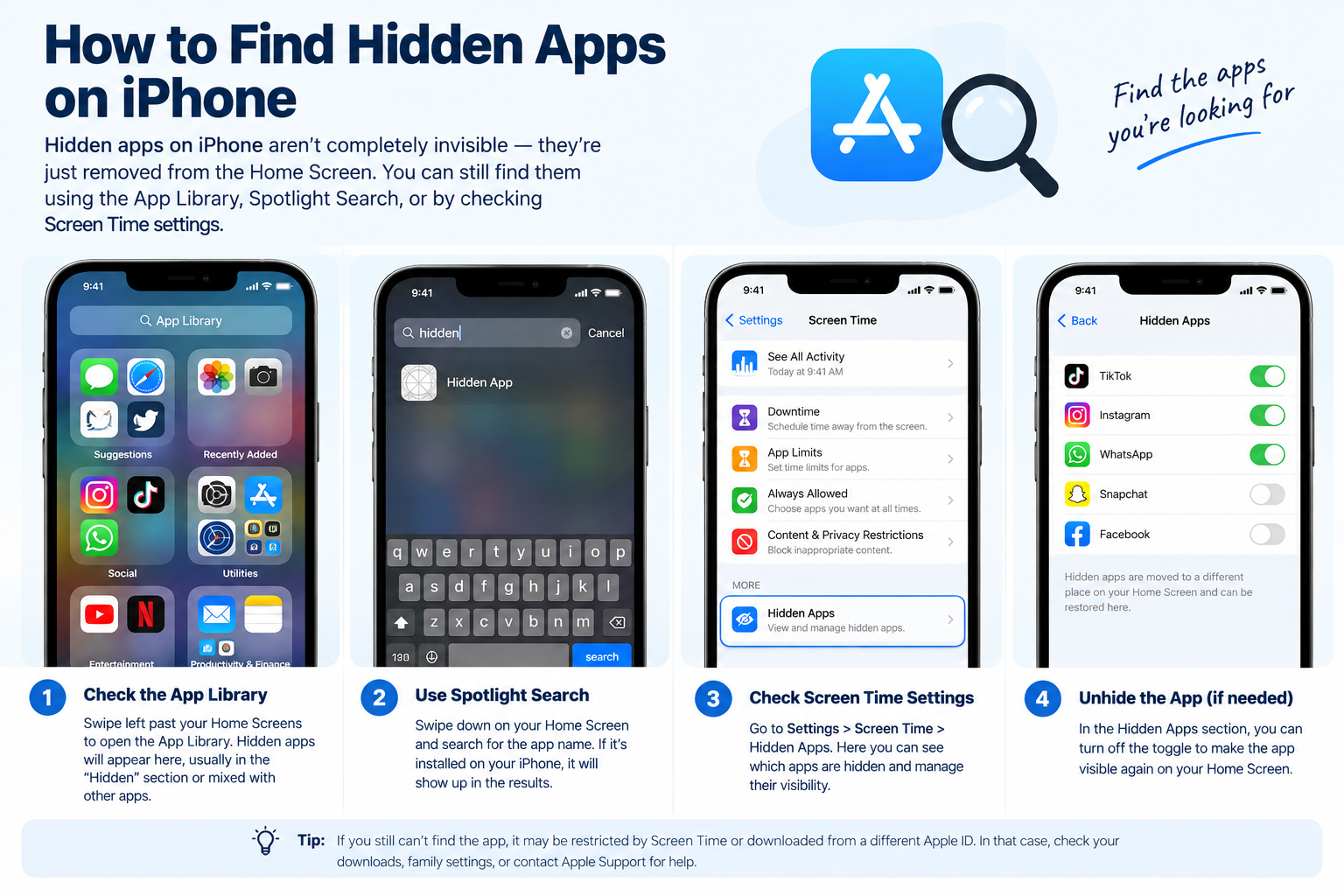
Introduction
To find hidden apps on iPhone, swipe left past all home screen pages to open the App Library, which shows every installed app whether it appears on the home screen or not. You can also swipe down from the middle of the home screen to open Spotlight Search and type the app name to locate it instantly. These two methods work for most situations and require no special settings or passcodes.
That said, there are several reasons an app might not be visible on your home screen, and different situations call for different approaches. Whether you accidentally removed an app from your home screen, are a parent checking what apps are on a child’s device, or simply want a complete picture of everything installed on an iPhone, this guide walks you through every method available in iOS.
Understanding what iPhone apps are and how iOS manages them makes it much easier to track down anything that has gone missing from view.
Why Are Apps Hidden on iPhone?
Before jumping into the methods, it helps to understand why an app might not be visible on your home screen in the first place. There are several common explanations, and most of them are easy to fix once you know what you are dealing with.
- The app was hidden from the home screen intentionally. iOS 14 introduced a feature that lets users remove an app from the home screen without deleting it. If someone selected “Remove from Home Screen” instead of “Delete App,” the app stays installed but moves to the App Library only.
- The app is in the App Library but not on any home screen page. The App Library holds every installed app automatically. An app can live there without ever appearing on a visible home screen page.
- The app was accidentally removed from the home screen. Many users tap “Remove from Home Screen” by mistake when trying to delete an app. The app still exists but is no longer visible on any page.
- Screen Time restrictions are hiding certain apps. Screen Time lets users or parents restrict specific app categories or individual apps, making them disappear from the visible interface entirely.
- The app is a disguised vault app. Some apps are designed to look like ordinary utilities such as calculators or notepads while secretly functioning as private storage for photos, messages, or other content.
- The app icon is buried inside a folder on a hidden home screen page. Folders can hold many apps, and if the folder itself is on a page that has been hidden, every app inside it becomes invisible.
- Parental controls have been applied to the device. A parent may have restricted certain app categories using Screen Time or Family Sharing, making those apps invisible to the child using the device.
Knowing which of these applies to your situation helps you choose the right method below.
Method 1: Check the App Library
The App Library is the single most important place to look when trying to find hidden apps on iPhone. Introduced in iOS 14, it is a complete, automatically organized collection of every app installed on the device, regardless of whether that app appears anywhere on the home screen.
When you remove an app from the home screen, it does not get deleted. It moves to the App Library. This means the App Library is always your first and most reliable stop.
How to Access the App Library
- On your iPhone home screen, swipe left repeatedly past all of your home screen pages.
- Keep swiping left until you reach a screen that shows automatically organized app folders with category names. This is the App Library.
- You will see category folders such as Suggestions, Recently Added, Social, and Entertainment, organized automatically by iOS.
- To see every installed app in alphabetical order, tap the search bar at the top of the App Library screen.
- Either type a few letters to search for a specific app or scroll through the full alphabetical list to browse every app on the device.
- Every app installed on the iPhone appears in this list, including those not visible on any home screen page.
Tips for Using the App Library Search
- Use the search bar to find a specific app quickly if you know its name.
- Scroll through the complete alphabetical list if you are not sure what you are looking for and want to see everything installed.
- If an app appears in the App Library but not on any home screen page, it was hidden from the home screen but is still fully installed and functional.
- The App Library cannot be hidden or removed from an iPhone. It is always accessible by swiping left past the last home screen page.
For more context on how iPhone apps are stored and organized on your device, it is worth understanding the relationship between home screen pages and the App Library before drawing conclusions about what is or is not installed.
Method 2: Use Spotlight Search
Spotlight Search is a system-wide search tool built into every iPhone. It can locate any installed app by name, even if that app has been removed from every home screen page, buried in a folder, or moved entirely to the App Library. It is one of the fastest ways to find a specific app when you know its name.
How to Use Spotlight Search to Find Hidden Apps
- On your iPhone home screen, swipe downward from the middle of the screen. This opens the Spotlight Search bar.
- Type the name of the app you are looking for in the search field.
- If the app is installed on the iPhone, it will appear in the search results, even if it is not visible on any home screen page.
- Tap the app in the search results to open it directly from there.
- Long-press the app icon in the search results to see additional options, including the option to add it back to the home screen.
Tips for Spotlight Search
- Spotlight Search finds apps even when they are hidden from every home screen page, inside folders, or moved to the App Library.
- If an app does not appear in Spotlight Search at all, it is most likely not installed on the device. It may have been fully deleted rather than just hidden.
- Spotlight Search also surfaces recently used apps at the top of results, which can reveal apps that have been opened and used recently even if they are not visible on the home screen.
- This method works fastest when you already know the name of the app you are looking for.
Method 3: Check Screen Time App Usage Reports
Screen Time is a built-in iPhone feature that records how much time is spent in each app on the device. Checking the Screen Time activity report gives you a clear record of every app that has been actively opened and used, even if those apps are not visible anywhere on the home screen.
This method does not just show you what is installed. It shows you what has actually been used, which is particularly valuable for parents checking a child’s device or for anyone who wants to understand how an iPhone has actually been used.
How to Check Screen Time Reports
- Open the Settings app on your iPhone.
- Scroll down and tap Screen Time.
- If Screen Time is enabled, you will see a summary showing today’s app usage on the main Screen Time screen.
- Tap “See All Activity” to view a full and detailed report.
- The report displays every app that has been opened on the device along with the amount of time spent in each app.
- Apps appearing in this usage report were actively used on the device, regardless of whether they are currently visible on the home screen.
What Screen Time Reveals
- Screen Time activity reports show apps that have been genuinely opened and used, not just installed.
- This is one of the most useful methods for parents who want to understand which apps their child has been actively using, even if those apps are not visible on the home screen.
- Screen Time requires a passcode to access if one has been configured. If you do not know the Screen Time passcode, you will not be able to view the full activity reports.
- App data and usage information shown in Screen Time reports can help you build a clear picture of how an iPhone is actually being used day to day.
Method 4: Check Through the Settings App
The iPhone Settings app is not just a place to configure your phone. It also lists many third-party apps that are installed on the device, because those apps create their own entries in Settings for configuration purposes. Scrolling through Settings can reveal apps you may not have noticed or remembered were installed.
How to Find Apps Through Settings
- Open the Settings app on your iPhone.
- Scroll down past all of the built-in Apple settings sections, which cover things like notifications, sounds, privacy, and the built-in Apple apps.
- Below those built-in sections, you will see a list of third-party apps installed on the device. Each has its own entry in this section of Settings.
- Any app listed here is installed on the device, regardless of whether it appears on the home screen.
- Tap any app’s listing in Settings to see its configuration options and confirm it is present on the device.
Tips for the Settings Method
- Not every installed app appears in Settings. Apps that do not require any configuration may not have a Settings entry.
- This method gives you a partial view of installed apps rather than a complete inventory.
- Use this method alongside the App Library and Spotlight Search for the most thorough picture of everything installed on the device.
Method 5: Check the App Store Purchase History
The App Store keeps a complete record of every app ever downloaded to an Apple ID account. This history includes apps that are currently installed, apps that were installed and then deleted, and apps downloaded on other devices linked to the same Apple ID. Checking this history can reveal apps that were downloaded at any point in the past.
How to Check App Store Purchase History
- Open the App Store app on your iPhone.
- Tap your profile icon in the top right corner of the App Store screen.
- Tap “Purchased” to see all apps ever downloaded using this Apple ID.
- Tap “Not on This iPhone” to filter the list and see apps associated with the account that are not currently installed on this device.
- Browse the full purchased list to see all apps ever downloaded, including those currently installed and those previously deleted.
What Purchase History Reveals
- Purchase history shows every app ever downloaded to the Apple ID, not just apps currently on the device.
- An app appearing in the “Not on This iPhone” list was previously installed and has since been deleted from the device.
- An app that does not appear in purchase history at all was never downloaded through this Apple ID on any device.
- Understanding how the App Store maintains this history is useful for tracking down apps that may have been installed and removed over time.
Method 6: Check Screen Time Restrictions to Find Restricted Apps
Screen Time includes a restrictions feature that allows users or parents to block access to specific app categories or individual built-in apps. When an app or category is restricted through Screen Time, it disappears from the home screen and the App Library entirely, making it effectively invisible to anyone who does not know to check Screen Time settings.
How to Check Screen Time App Restrictions
- Open the Settings app on your iPhone.
- Tap Screen Time.
- Tap “Content and Privacy Restrictions.”
- If restrictions are enabled, tap “Allowed Apps” to see which built-in Apple apps have been allowed or turned off.
- Tap “Content Restrictions” to see restrictions applied to app categories and content types.
- Any app or category that has been turned off in these settings is hidden from the device’s visible interface.
Turning Off Restrictions to Reveal Hidden Apps
- To make a restricted app visible again, go to Allowed Apps and toggle the relevant app back on.
- Turning off Content Restrictions for a category will restore visibility for apps in that category.
- Note that changing Screen Time restrictions requires the Screen Time passcode if one has been set up. Without the passcode, these settings cannot be changed.
Method 7: Unhide Apps from the Home Screen
If an app was hidden using the “Hide from Home Screen” option in iOS, it remains in the App Library and can be restored to the home screen at any time. This is the method to use when you want to make a hidden app visible again on your main home screen pages.
How to Unhide an App and Add It Back to the Home Screen
- Swipe left past all home screen pages to open the App Library.
- Find the app you want to restore by using the search bar at the top or by scrolling through the alphabetical list.
- Long-press the app icon in the App Library until a menu appears.
- A menu appears with several options. Tap “Add to Home Screen.”
- The app icon will appear on the first available space on your home screen.
Alternative Method Using Spotlight Search
- Open Spotlight Search by swiping down from the middle of the home screen.
- Search for the app by typing its name in the search bar.
- Long-press the app icon in the search results.
- Select “Add to Home Screen” from the options that appear.
- The app will be added back to a visible home screen page.
Method 8: Check Home Screen Pages That May Be Hidden
iOS allows users to hide entire home screen pages. When a page is hidden, every app on that page becomes invisible during normal home screen browsing. The apps are still installed and accessible through the App Library, but the page itself does not appear when you swipe through home screens.
This is an easy feature to activate by accident, and it can make it seem like a large number of apps have disappeared all at once.
How to Check and Show Hidden Home Screen Pages
- Long-press an empty area on your iPhone home screen until all the apps begin to jiggle, entering edit mode.
- Look at the bottom of the screen for a row of dots representing your home screen pages. Tap that row of dots.
- A page management view appears, showing thumbnail previews of all your home screen pages.
- Pages that are currently visible have a filled checkmark below their thumbnail.
- Pages that have been hidden have an empty circle below their thumbnail instead of a checkmark.
- Tap the empty circle below a hidden page to place a checkmark and make it visible again.
- Press “Done” in the top right corner to save your changes.
- The previously hidden page and all its apps are now visible on your home screen again.
Apple’s official iOS User Guide provides additional detail on managing home screen pages if you want to explore page organization further.
What Are Disguised or Vault Apps?
This is an important topic, particularly for parents. Some apps are designed from the ground up to appear as something completely ordinary, such as a calculator, a notepad, or a weather app, while actually functioning as a private vault or hidden storage area for photos, videos, messages, or other content.
These apps are sometimes called vault apps, secret calculator apps, or private photo apps. From the outside, they are indistinguishable from a legitimate utility app. Only someone who knows the specific PIN, gesture, or code can access the hidden content stored inside.
Common disguises include:
- A fully functional calculator that requires a specific number sequence entered as a PIN to reveal a hidden private vault behind the normal calculator interface.
- A note-taking app that appears to store ordinary notes but contains a hidden section accessible only with a special password.
- A photo editing or weather app that looks completely normal but conceals a private photo gallery accessible through a hidden menu or gesture.
These apps are available through the App Store and pass App Store review because they function as advertised on the surface. They appear as legitimate apps in all standard searches, the App Library, and Spotlight Search.
How to Identify Disguised Apps
- Look for apps whose icon suggests a simple utility, such as a calculator or notepad, but whose App Store page describes additional features that seem unusual for that type of app. You can check an app’s App Store page by long-pressing its icon and selecting “App Store” from the menu.
- Read user reviews carefully. Vault apps sometimes reveal their dual purpose in reviews left by users, either intentionally or because reviewers discuss the hidden features.
- Check what app permissions each app is requesting. A calculator app that requests access to your camera, photo library, or microphone has no obvious reason to need those permissions for its stated function. Unusual permission requests are a strong signal that an app may be doing more than it appears.
- Compare the app’s stated purpose with the permissions it has been granted. You can check permissions for any app by going to Settings, scrolling to the app name, and reviewing the access it has been granted.
- Understanding app permissions more broadly helps you evaluate whether any app on a device is behaving as expected or requesting access it does not genuinely need.
Unlike differences you might find when looking at how Android apps handle hidden content and app permissions, iOS apps are subject to App Store review guidelines that limit some behaviors, but vault apps that operate within those guidelines are still permitted.
All Methods for Finding Hidden Apps on iPhone Compared
| Method | What It Finds | Difficulty | Best Used When |
|---|---|---|---|
| App Library | All apps not on home screen | Very Easy | App was removed from home screen |
| Spotlight Search | Any installed app by name | Very Easy | You know the app name |
| Screen Time Activity | Apps that have been actively used | Easy | Checking usage without knowing app names |
| Settings App | Apps with configuration settings | Easy | Looking for third-party apps with settings |
| App Store Purchase History | All apps ever downloaded to Apple ID | Easy | Looking for previously downloaded or deleted apps |
| Screen Time Restrictions | Apps hidden by parental or self-imposed restrictions | Moderate | App categories have been restricted |
| Unhide from App Library | Restores hidden app to home screen | Very Easy | App needs to be made visible again |
| Home Screen Page Management | Entire hidden home screen pages | Easy | Multiple apps hidden on a whole page |
Tips for Parents: Finding Hidden Apps on a Child’s iPhone
For parents, the combination of Screen Time activity reports and Screen Time restrictions gives the most complete picture of what is happening on a child’s device. Here is how to approach this effectively.
- Use Screen Time activity reports first. These show every app that has been actively opened and used on the device, which gives you a real picture of actual usage rather than just what is installed.
- Set up Family Sharing with Screen Time. Through Family Sharing, you can view a child’s Screen Time reports and manage restrictions remotely from your own device, without needing to physically pick up the child’s iPhone every time.
- Enable Ask to Buy through Family Sharing. This setting requires your approval before any app can be downloaded to the child’s device, preventing new apps from being installed without your knowledge.
- Regularly review the App Library on a child’s device by swiping left past all home screen pages. This takes less than a minute and shows every installed app.
- Check App Store purchase history to see every app that has ever been downloaded to the child’s Apple ID, including apps that were installed and later deleted.
- Look carefully at utility apps. A basic calculator or notepad that has camera and photo access granted in its permissions is worth a closer look. Understanding app data and the permissions apps are using helps you identify apps that may be doing more than they appear to.
- Have honest conversations. Technical monitoring is a useful tool, but open communication about which apps are appropriate and why tends to be more effective long-term than relying on monitoring alone. Discussing iPhone apps openly with your child builds trust while keeping you informed.
For more information on setting up Family Sharing and Screen Time parental controls, refer to Apple’s official support documentation.
How to Prevent Apps from Being Hidden in the Future
If you want to maintain better awareness of what is on an iPhone going forward, these steps help prevent apps from being hidden without your knowledge.
- Set up Screen Time with a passcode that only you know. This prevents others from changing Screen Time settings, hiding apps, or removing restrictions without your authorization.
- Enable Require Screen Time Passcode in Screen Time settings to protect the entire Screen Time configuration from being modified.
- Review the App Library periodically. A quick swipe to the App Library every week or two keeps you aware of what is installed on the device.
- Set App Store restrictions in Screen Time to require approval before any new app can be downloaded. This stops new apps from being installed without your knowledge.
- Keep iOS updated. Apple regularly improves parental control features and app management tools with iOS updates. Running the latest iOS version ensures you have access to the most current tools. Staying on top of app cache and general app management habits also helps you stay aware of what apps are doing on the device.
- Check app permissions regularly. Go to Settings and review the permissions granted to each app. Permissions that seem out of place for what an app is supposed to do are worth investigating further.
Frequently Asked Questions
How do I find hidden apps on my iPhone?
Swipe left past all home screen pages to reach the App Library, which shows every installed app. You can also swipe down from the middle of the home screen to open Spotlight Search and type the app name. These two methods cover most situations.
What is the App Library on iPhone?
The App Library is a feature introduced in iOS 14 that automatically collects and organizes every app installed on your iPhone. It is always accessible by swiping left past your last home screen page and contains all apps regardless of whether they appear on any home screen page.
Can Spotlight Search find hidden apps on iPhone?
Yes. Spotlight Search finds any app installed on the device, even if it has been removed from every home screen page or is stored only in the App Library. Swipe down from the middle of the home screen to open it and type the app name.
How do I unhide an app on iPhone?
Open the App Library, find the app, long-press its icon, and tap “Add to Home Screen.” You can also find it through Spotlight Search, long-press it there, and select “Add to Home Screen.”
What are vault apps and how do I find them?
Vault apps are designed to look like ordinary utilities while secretly storing private content. They appear in the App Library and Spotlight Search like any other app. You can identify them by checking their App Store description and reviewing the permissions they have been granted in Settings. A calculator requesting photo library access is a common sign.
How do I check Screen Time to see all apps used on an iPhone?
Go to Settings, tap Screen Time, and tap “See All Activity.” This shows a complete report of every app that has been opened and used on the device, along with time spent in each.
Can Screen Time restrictions hide apps on iPhone?
Yes. Screen Time restrictions can hide specific built-in Apple apps and entire app categories from view. Hidden restricted apps do not appear on the home screen or in the App Library until the restriction is turned off.
How do I find hidden home screen pages on iPhone?
Long-press an empty area on the home screen until apps jiggle. Tap the row of dots at the bottom of the screen. Pages with an empty circle below them are hidden. Tap the circle to restore them.
How do I check App Store purchase history on iPhone?
Open the App Store, tap your profile icon in the top right, and tap “Purchased.” You can view all apps ever downloaded to the Apple ID and filter by “Not on This iPhone” to see previously deleted apps.
Why is an app not showing on my iPhone home screen?
The most common reasons are that the app was removed from the home screen using “Remove from Home Screen,” the home screen page it was on has been hidden, or Screen Time restrictions are hiding it. The app is likely still in the App Library.
How do parents find hidden apps on a child’s iPhone?
Screen Time activity reports and the App Library are the most effective tools. Family Sharing allows parents to view a child’s Screen Time reports remotely and manage restrictions from their own device.
Can you see all installed apps on an iPhone through Settings?
Settings shows many third-party apps that have their own settings entries, but it does not show all installed apps. Use the App Library for a complete list of everything installed on the device.
What does it mean when an app is removed from home screen on iPhone?
“Remove from Home Screen” hides the app from the home screen without deleting it. The app remains installed and fully accessible through the App Library and Spotlight Search. It is not the same as deleting the app.
How do disguised apps work on iPhone?
Disguised apps are built to look like standard utilities on the surface while containing a hidden section accessible through a PIN or gesture. They pass App Store review because their surface functionality is legitimate. Checking their permissions in Settings is the most practical way to identify unusual behavior.
How do I add a hidden app back to my iPhone home screen?
Find the app in the App Library or through Spotlight Search. Long-press the app icon and select “Add to Home Screen.” The app will be added to the first available space on your home screen.
Disclaimer:
This article is intended for educational purposes and provides a general guide to finding hidden apps on iPhone for everyday iPhone users, parents, and guardians. Steps and interface options described in this article reflect general iOS functionality. The exact appearance of menus and options may vary slightly between different iOS versions. Always refer to Apple’s official support documentation at support.apple.com for guidance specific to your iOS version. This article is intended to help users find apps on their own devices or on devices they are legally responsible for, such as a parent checking a child’s iPhone. Checking another person’s device without their knowledge or legal authorization may raise legal and ethical concerns depending on your jurisdiction. This article does not constitute an endorsement of any third-party app or service mentioned in this guide.