
 By Saad Qureshi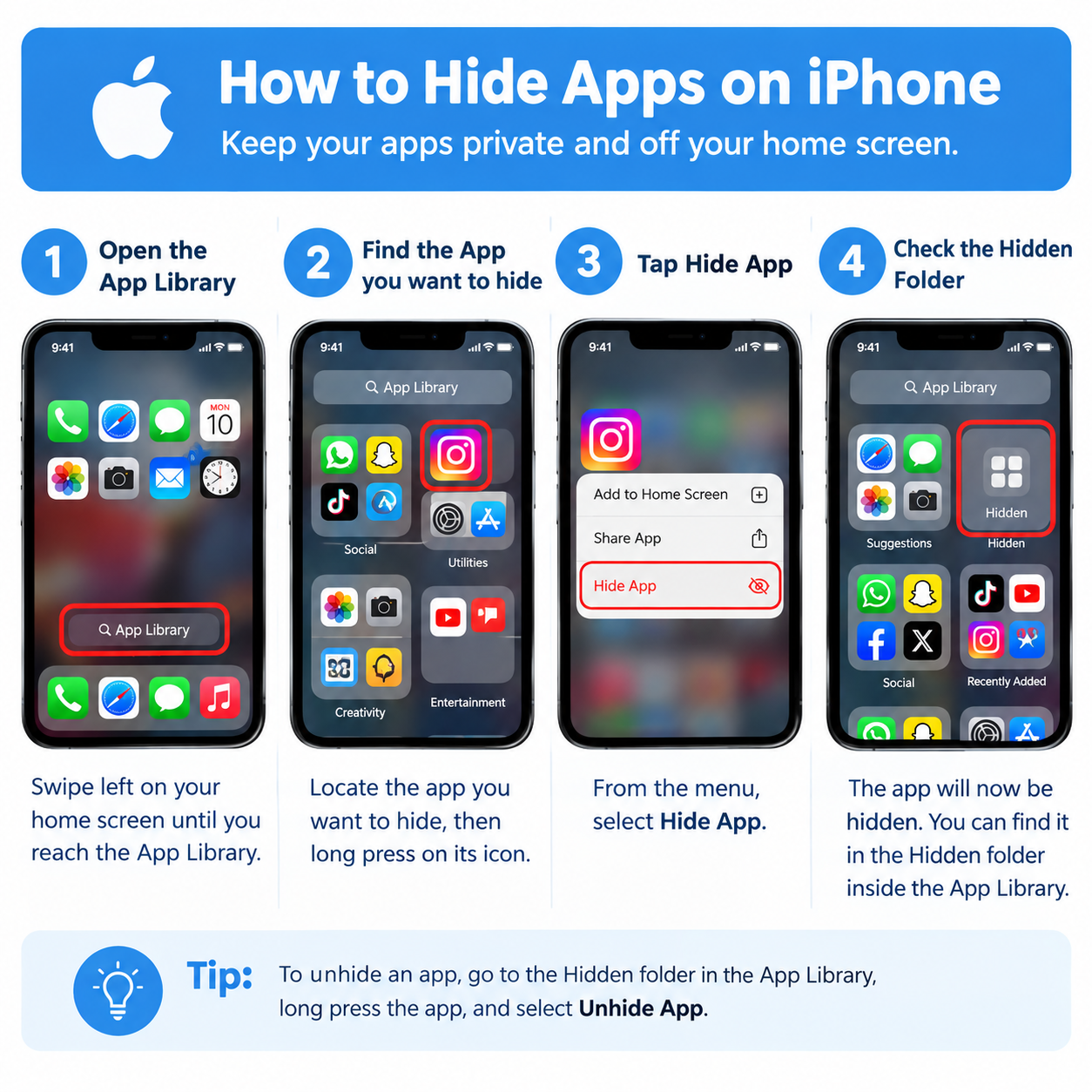
Introduction
To hide apps on iPhone, long-press any app icon on your home screen, tap “Remove App,” then select “Remove from Home Screen.” This moves the app out of sight without deleting it. The app stays installed and accessible through the App Library, but it disappears from your home screen immediately. For more thorough hiding, including options that make apps completely inaccessible, iOS offers several additional methods through Screen Time, Focus modes, and home screen page management.
This guide covers every available method for hiding apps on iPhone, explains exactly what each method does and does not do, and includes clear step-by-step instructions for each approach. Whether you want a cleaner home screen, more privacy, or parental controls for a child’s device, the right method is covered here.
Why Would You Want to Hide Apps on iPhone?
There are many perfectly legitimate reasons to hide apps on an iPhone. Understanding iPhone apps and how iOS manages their visibility helps you choose the right approach for your situation.
Here are the most common reasons people hide apps on iPhone:
- Home screen organization. Keeping the home screen clean and uncluttered by showing only the apps you use every day.
- Privacy. Hiding apps you use privately from others who might glance at or briefly use your phone.
- Parental controls. Removing access to apps that are inappropriate for children on a family-shared or child’s device.
- Reducing distractions. Moving time-consuming or distracting apps away from the main home screen so they are harder to open on impulse.
- Removing pre-installed clutter. Hiding built-in Apple apps you never use, such as Stocks or Tips, to keep things tidy.
- Protecting sensitive apps. Making banking, health, or personal finance apps less visible when others handle your phone.
None of these reasons require any technical expertise, and iOS provides built-in tools to handle all of them without needing any third-party software.
What Happens When You Hide an App on iPhone?
Before choosing a method, it is important to understand what hiding actually does. Not all hiding methods work the same way, and the difference matters depending on your goal.
Understanding what apps are and how iOS stores them helps clarify why hidden does not always mean gone.
Here is how each approach works:
- Removing from home screen moves the app to the App Library. The app is invisible on the home screen but remains fully installed and accessible through the App Library and Spotlight Search.
- Hiding via Screen Time restrictions makes the app completely inaccessible. It disappears from the home screen and the App Library and cannot be opened until the restriction is removed.
- Hiding an entire home screen page hides all apps on that page from the main home screen view. The apps remain accessible through the App Library and Spotlight Search.
- Hiding from App Store purchase history removes the app from the visible purchased apps list in the App Store. It does not remove the app from the device or hide it anywhere on the iPhone itself.
The key distinction to understand is this:
- Hidden from home screen means invisible but still accessible through the App Library and Spotlight Search.
- Hidden via Screen Time means inaccessible entirely until the restriction is removed.
Choosing the wrong method for your goal can lead to frustration. If you want privacy from a casual glance, removing from home screen is enough. If you need an app to be completely inaccessible, Screen Time restrictions are the right tool.
Method 1: Remove an App from the Home Screen
This is the simplest and fastest way to hide an app on iPhone. It removes the app icon from your home screen without deleting the app or any of its data. The app moves to the App Library, where it is stored but not displayed on any home screen page.
Step-by-Step Instructions
- Find the app you want to hide on your iPhone home screen.
- Long-press the app icon until a context menu appears, or until all apps begin to jiggle if you are on an older iOS version.
- If a context menu appears, tap “Remove App” from the list of options.
- A second prompt appears with two choices: “Remove from Home Screen” and “Delete App.”
- Tap “Remove from Home Screen.” Do not tap “Delete App,” as that will uninstall the app and delete all its data permanently.
- The app icon disappears from the home screen immediately. The app remains fully installed and accessible through the App Library.
What This Method Does and Does Not Do
- The app is no longer visible on any home screen page after being removed.
- The app is still fully accessible through the App Library, which you can reach by swiping left past all home screen pages.
- The app can still be found and opened through Spotlight Search by swiping down from the middle of the home screen and typing the app name.
- The app continues to appear in Screen Time usage reports if it is opened.
- Anyone who knows about the App Library or Spotlight Search can still locate and open the app.
This method is best for home screen organization and light privacy from casual viewers. It is not suitable for situations where you need the app to be truly inaccessible.
Method 2: Move Apps into a Folder and Hide the Folder
Grouping apps into a folder and placing that folder on a back home screen page is a classic organization technique that also makes apps significantly less visible during casual browsing. It takes a few more steps than simply removing from home screen, but it gives you more control over how your home screen looks.
Step-by-Step: Creating a Folder
- Long-press any app icon on your home screen until all apps begin to jiggle in edit mode.
- Drag one app icon on top of another app icon you want to group it with.
- iOS automatically creates a folder containing both apps.
- iOS assigns an automatic name to the folder based on the app category.
- Tap the folder name field at the top of the folder to rename it to something neutral that does not reveal the contents.
- Tap anywhere outside the folder to close it.
- To add more apps to the folder, long-press additional apps and drag them onto the folder icon.
Step-by-Step: Moving the Folder to a Back Page
- Long-press the folder icon until the apps start jiggling again in edit mode.
- Drag the folder slowly toward the right edge of the screen until the display shifts to the next home screen page.
- Release the folder on that page, or continue dragging it further right to place it on an even further back page.
- Tap “Done” in the top right corner or press the home button on older iPhones to exit edit mode.
Tips for Folder Hiding
- Place the folder on the last home screen page so it requires several swipes to reach and is easy to overlook.
- Use a neutral folder name that does not draw attention to its contents.
- You can fit up to nine apps on the first page of a folder and additional pages within the folder hold more. A folder can contain many apps while appearing as a single unassuming icon.
- This method does not prevent someone from finding the apps if they swipe through all home screen pages, so it works best as an organizational strategy rather than a privacy tool.
Method 3: Hide an Entire Home Screen Page
iOS allows you to hide entire home screen pages with a few taps. When a page is hidden, every app on that page disappears from the home screen entirely. The apps remain installed and accessible through the App Library, but the page does not appear when swiping through the home screen. This is the fastest way to hide multiple apps at the same time.
Step-by-Step Instructions
- Long-press an empty area on the home screen until all apps begin to jiggle and you enter edit mode.
- Look at the bottom of the screen for the row of dots representing your home screen pages. Tap that row of dots.
- A page management view appears, showing thumbnail previews of every home screen page you have.
- Below each thumbnail is a circle with a checkmark. Pages showing a filled checkmark are currently visible on the home screen.
- Tap the checkmark below any page you want to hide. The checkmark empties, and the thumbnail dims slightly to indicate the page is now hidden.
- Tap “Done” in the top right corner to save your changes.
- The selected page no longer appears when swiping through home screens. All apps that were on that page remain accessible through the App Library and Spotlight Search.
Tips for Page Hiding
- Before hiding a page, move all the apps you want to hide onto a single home screen page, then hide that entire page in one step.
- This is significantly faster than hiding individual apps one by one when you want to hide many apps at once.
- To restore a hidden page, long-press the home screen, tap the dots, and tap the empty circle below the hidden page to add the checkmark back, then tap “Done.”
- Apps on hidden pages are still fully accessible through the App Library. This method controls home screen visibility, not app accessibility.
Method 4: Hide Apps Using Screen Time Restrictions
Screen Time restrictions are the most thorough way to hide apps on iPhone. Unlike removing an app from the home screen, Screen Time restrictions make apps completely inaccessible. A restricted app disappears from the home screen, the App Library, and Spotlight Search results, and cannot be opened until the restriction is removed.
This is the appropriate method for parental controls, for preventing access to specific app categories, or for any situation where you need the app to be genuinely inaccessible rather than simply out of sight.
Step-by-Step: Setting Up Screen Time
- Open the Settings app on your iPhone.
- Tap “Screen Time.”
- If Screen Time has not been set up yet, tap “Turn On Screen Time” and follow the on-screen prompts.
- Tap “Use Screen Time Passcode” and set a four-digit passcode. Store this passcode safely. If you forget it, you will need to contact Apple Support to reset it. Do not use a passcode that others on the device could guess.
Step-by-Step: Restricting Specific App Categories
- In Screen Time, tap “Content and Privacy Restrictions.”
- Toggle “Content and Privacy Restrictions” on if it is not already enabled.
- Tap “Allowed Apps.”
- A list of built-in Apple apps appears, each with a toggle switch.
- Toggle off any built-in app you want to hide. For example, toggle off Safari to hide the browser, or toggle off Camera to hide the Camera app.
- The toggled-off apps disappear from the home screen and App Library immediately.
Step-by-Step: Setting App Limits for Specific Apps
- In Screen Time, tap “App Limits.”
- Tap “Add Limit.”
- Browse the app categories or use the search field to find the specific app or category you want to restrict.
- Select the app or category by tapping it.
- Set the daily time limit to one minute, which makes the app practically inaccessible for almost the entire day.
- Tap “Add” to confirm the limit.
- Ensure “Block at End of Limit” is enabled so the app becomes inaccessible when the one-minute limit is reached.
Tips for Screen Time Hiding
- Always configure the Screen Time passcode before setting up restrictions. Without a passcode, anyone can go into Settings and remove the restrictions.
- Screen Time is the only built-in iOS method that makes apps genuinely inaccessible rather than just hidden from view. For parental controls, this is the method to use.
- Screen Time restrictions apply at the device level and affect anyone using that iPhone.
- For more detailed guidance on Screen Time configuration, refer to Apple’s official Screen Time documentation.
Method 5: Use Focus Modes to Hide Apps from View
Focus modes, introduced in iOS 15, let you customize which home screen pages are visible depending on what you are doing. When a Focus mode is active, only the home screen pages you have associated with that Focus are shown. Pages not assigned to the active Focus are hidden automatically, along with all the apps on those pages.
This makes Focus modes ideal for temporarily hiding distracting apps during work, study, or personal time without permanently changing your home screen setup.
Step-by-Step: Creating a Custom Focus to Hide Apps
- Open the Settings app on your iPhone.
- Tap “Focus.”
- Tap the plus button in the top right corner to create a new Focus.
- Select “Custom” from the options and give your Focus a descriptive name, such as “Work” or “Focus Time.”
- Tap “Next” and configure notification preferences for this Focus, including which contacts and apps can notify you while it is active.
- When you reach the “Customize Screens” step, tap “Choose” under the Home Screen section.
- Select only the home screen pages you want to remain visible while this Focus is active. Pages you do not select will be hidden while the Focus is running.
- Tap “Done” to save the Focus configuration.
Activating a Focus Mode
- Swipe down from the top right corner of your screen to open Control Center.
- Tap “Focus” and select your custom Focus from the list.
- Your home screen immediately changes to show only the pages associated with that Focus. Apps on hidden pages are still accessible through the App Library and Spotlight Search.
- To turn off the Focus and restore all home screen pages, open Control Center again, tap Focus, and tap the active Focus to deactivate it.
Tips for Focus Mode Hiding
- Focus modes are best suited for temporarily hiding distracting apps during specific times or activities rather than permanently hiding apps for privacy.
- Focus modes can be scheduled to activate and deactivate automatically at specific times of day, making them useful for routine work or study schedules.
- Unlike Screen Time restrictions, Focus modes do not make apps inaccessible. Apps on hidden pages are still reachable through the App Library. For maximum privacy or parental control, use Screen Time instead.
- Unlike the way Android apps handle app organization through separate launchers and app drawers, iOS Focus modes work within the existing home screen structure and do not require any third-party tools.
Method 6: Hide Apps from App Store Purchase History
The App Store keeps a record of every app ever downloaded to your Apple ID. This list is visible to anyone who accesses your Apple ID account in the App Store. You can hide individual apps from this purchase history so they no longer appear in the list.
It is important to understand what this method does and does not do. Hiding an app from purchase history does not remove it from your device, hide it from your home screen, or make it inaccessible in any way. It only removes the app from the visible purchased apps list in the App Store. The app remains fully installed and visible on your device exactly as before.
Step-by-Step Instructions
- Open the App Store app on your iPhone.
- Tap your profile icon in the top right corner of the App Store.
- Tap “Purchased” to view your complete download history.
- Locate the app you want to hide from the list. You can scroll or search to find it.
- Swipe left on the app name in the list.
- A red “Hide” button appears on the right side of the row. Tap it.
- The app is removed from the visible purchase history list.
How to Unhide Purchased Apps
- Open the App Store and tap your profile icon in the top right corner.
- Tap your Apple ID name or email address near the top of the screen.
- Sign in with your Apple ID password or Face ID if prompted.
- Scroll down and tap “Hidden Purchases.”
- Find the app you want to restore and tap “Unhide” next to it.
- The app reappears in your standard purchase history.
Tips for This Method
- This method is useful if you want to keep your App Store purchase list private when family members or others can see your account.
- It has no effect on app visibility or accessibility on the device itself.
- It does not prevent the app from appearing in Screen Time reports if the app is opened and used.
Method 7: Hide Built-In Apple Apps on iPhone
iPhones come pre-installed with a range of Apple apps. Some of these are used daily, while others sit unused and take up space on your home screen. There are two main approaches to hiding built-in Apple apps, depending on which app you want to hide.
Step-by-Step: Hiding Built-In Apps via Screen Time
- Open the Settings app on your iPhone.
- Tap “Screen Time.”
- Tap “Content and Privacy Restrictions.”
- Enable “Content and Privacy Restrictions” by toggling it on if it is not already enabled.
- Tap “Allowed Apps.”
- Toggle off the built-in apps you want to hide. Options include Safari, Camera, FaceTime, Mail, Wallet, and others depending on your iOS version.
- The toggled-off apps disappear from the home screen and App Library immediately.
Tips for Built-In App Hiding
- Some core built-in Apple apps cannot be hidden or deleted because they are essential to iOS system functionality.
- Hiding the Camera app through Screen Time also disables camera access for other apps that rely on the camera, so consider this carefully before hiding it.
- Hiding Safari removes the browser from the home screen. If you have another browser installed, such as Chrome or Firefox, that browser remains accessible. If Safari is your only browser, removing it means no browser will be visible.
- Some less critical built-in apps, including Stocks, Compass, Tips, and Magnifier, can be deleted directly by long-pressing their icon and selecting “Delete App,” similar to third-party apps. Deleted built-in apps can be re-downloaded from the App Store if you change your mind.
Understanding which iPhone apps are deletable versus only hideable helps you manage your device more effectively without accidentally breaking features you need.
All iPhone App Hiding Methods Compared
| Method | What It Hides | Still Accessible Via | Difficulty | Best For |
|---|---|---|---|---|
| Remove from Home Screen | App from home screen only | App Library and Spotlight Search | Very Easy | Quick home screen cleanup |
| Move to Folder on Back Page | App behind folders on back pages | Home screen swipe to back pages | Easy | Organizing and reducing clutter |
| Hide Home Screen Page | All apps on a selected page | App Library and Spotlight Search | Easy | Hiding multiple apps at once |
| Screen Time Restrictions | App completely inaccessible | Nothing until restriction removed | Moderate | Parental controls and maximum privacy |
| Focus Mode | Apps on hidden pages while Focus is active | App Library and Spotlight Search | Moderate | Temporary context-based hiding |
| Hide from Purchase History | App from App Store purchase list only | Still on device completely normally | Easy | Hiding download history only |
| Delete Built-In Apps | App removed from device entirely | App Store re-download | Easy | Removing unwanted pre-installed apps |
How to Unhide Apps on iPhone
Every hiding method covered in this guide is reversible. Here is how to undo each one.
Unhiding from Remove from Home Screen
- Swipe left past all home screen pages to open the App Library.
- Find the app you want to restore by searching or scrolling the alphabetical list.
- Long-press the app icon and tap “Add to Home Screen.”
- The app icon returns to the first available space on your home screen.
Unhiding a Home Screen Page
- Long-press an empty area on the home screen to enter edit mode.
- Tap the row of dots at the bottom of the screen.
- Find the hidden page in the page management view. It will have an empty circle below it instead of a checkmark.
- Tap the empty circle to restore the checkmark and make the page visible again.
- Tap “Done” to save.
Removing Screen Time Restrictions
- Open Settings and tap “Screen Time.”
- Enter your Screen Time passcode when prompted.
- Tap “Content and Privacy Restrictions.”
- Toggle off “Content and Privacy Restrictions” entirely to remove all restrictions, or tap “Allowed Apps” and re-enable specific apps you want to restore.
Deactivating Focus Mode
- Swipe down from the top right corner of the screen to open Control Center.
- Tap “Focus” and tap the active Focus to turn it off.
- All home screen pages return to their normal visible state immediately.
Tips for Keeping Your iPhone Home Screen Organized
Hiding apps is often part of a broader goal of keeping your iPhone organized and manageable. Here are practical habits that make a real difference.
- Use the App Library as your primary app storage. Keep only the most frequently used apps on your home screen and let everything else live in the App Library.
- Organize remaining home screen apps into logically named folders to reduce visual clutter without hiding anything permanently.
- Reserve your first home screen page for truly essential daily apps. Move everything else off that page so your primary view stays clean.
- Audit your installed apps regularly and delete apps you no longer use rather than simply hiding them. Deleting apps you genuinely do not need also frees up storage and reduces clutter. Managing app cache and stored app data as part of regular iPhone maintenance keeps your device running efficiently.
- Review the app permissions granted to each installed app periodically. Checking what each app can access is good digital hygiene and helps you identify apps that may be accessing more than they need.
- Use Focus modes to automatically show only relevant apps for different contexts, such as a work Focus that shows only productivity apps and a personal Focus that shows only social and entertainment apps.
- When deciding whether to hide or delete an app, think about whether you might use it again. Hiding preserves the app and its app data, while deleting removes both the app and everything stored in it. If the data matters, hiding is the safer choice.
- Revisit your app permissions after major iOS updates, as updates can sometimes reset or change permission settings for installed apps.
Understanding what apps are actually doing in the background, including what data they store and what permissions they hold, makes it easier to manage them thoughtfully rather than just hiding them from view.
Frequently Asked Questions
How do I hide apps on iPhone?
Long-press the app icon, tap “Remove App,” then tap “Remove from Home Screen.” The app moves to the App Library but remains installed. For more complete hiding, use Screen Time restrictions in Settings.
Does hiding an app on iPhone delete it?
No. Removing an app from the home screen does not delete it. The app stays installed in the App Library with all its data intact. Only tapping “Delete App” removes the app from the device entirely.
How do I hide apps on iPhone without deleting them?
Long-press the app, tap “Remove App,” and select “Remove from Home Screen.” This hides the app from the home screen while keeping it fully installed. You can also hide entire home screen pages or use Screen Time restrictions.
How do I hide apps from the App Library on iPhone?
The only way to hide apps from both the home screen and the App Library is through Screen Time restrictions. Go to Settings, tap Screen Time, tap Content and Privacy Restrictions, enable restrictions, and toggle off apps in Allowed Apps.
How do I use Screen Time to hide apps on iPhone?
Go to Settings and tap Screen Time. Set up a Screen Time passcode, then tap Content and Privacy Restrictions. Enable restrictions and tap Allowed Apps to toggle off specific built-in apps. For third-party apps, use App Limits to set a one-minute daily limit with Block at End of Limit enabled.
Can I hide built-in Apple apps on iPhone?
Yes. Many built-in Apple apps can be hidden through Screen Time Allowed Apps settings, including Safari, Camera, FaceTime, and Mail. Some less critical built-in apps can be deleted entirely by long-pressing and selecting Delete App.
How do I hide apps on iPhone using Focus mode?
Go to Settings, tap Focus, and create a Custom Focus. During setup, choose which home screen pages remain visible while the Focus is active. Pages not selected are hidden while the Focus is running.
How do I hide my App Store purchase history on iPhone?
Open the App Store, tap your profile icon, tap Purchased, swipe left on any app in the list, and tap Hide. This removes the app from the visible purchase history list only. The app itself remains on your device unchanged.
How do I unhide an app on iPhone?
Open the App Library by swiping left past all home screen pages. Find the app, long-press it, and tap “Add to Home Screen.” Alternatively, find the app through Spotlight Search, long-press it, and select “Add to Home Screen.”
What is the difference between hiding and deleting an app on iPhone?
Hiding removes the app from view while keeping it installed. Deleting removes the app completely from the device along with all its stored data. Hiding is reversible without any data loss. Deleting is permanent unless you re-download from the App Store, and local app data is not recoverable after deletion.
Can someone find an app I hid on my iPhone?
It depends on the method used. Apps hidden by removing from the home screen can still be found through the App Library and Spotlight Search. Apps hidden through Screen Time restrictions cannot be found or opened at all until the restriction is removed.
How do I hide multiple apps at once on iPhone?
Move all the apps you want to hide onto a single home screen page, then hide that entire page at once. Long-press the home screen, tap the dots at the bottom, and uncheck the page you want to hide.
Does hiding an app on iPhone stop it from using data or battery?
No. Removing an app from the home screen or hiding it visually has no effect on background activity. The app continues to run background processes, use data, and consume battery exactly as it would if it were visible on the home screen.
How do I hide apps on iPhone from Screen Time without a passcode?
If no Screen Time passcode has been set, you can access and change Screen Time settings freely. However, without a passcode, anyone else with access to the iPhone can also undo the restrictions. Setting a passcode is strongly recommended if you want restrictions to be effective.
How do I hide apps on iPhone for parental controls?
Use Screen Time restrictions for the most effective parental controls. Go to Settings, tap Screen Time, set a passcode, and configure Content and Privacy Restrictions. Use Allowed Apps to restrict built-in apps and App Limits to restrict third-party apps. Enable Family Sharing to manage a child’s device remotely from your own iPhone.
Disclaimer:
This article is intended for educational purposes and provides a general guide to hiding apps on iPhone for everyday iPhone users who want to organize their home screen, manage privacy, or apply parental controls. Steps and interface options described in this article reflect general iOS functionality. The exact appearance of menus and options may vary slightly between different iOS versions. Always refer to Apple’s official support documentation at support.apple.com for guidance specific to your iOS version. Some methods described in this article, such as Screen Time restrictions, affect app accessibility and may require a passcode to reverse. Set up Screen Time passcodes carefully and store them safely, as forgotten Screen Time passcodes require contacting Apple Support to reset. This article does not constitute an endorsement of any third-party app or service mentioned in this guide.