
 By saman zahra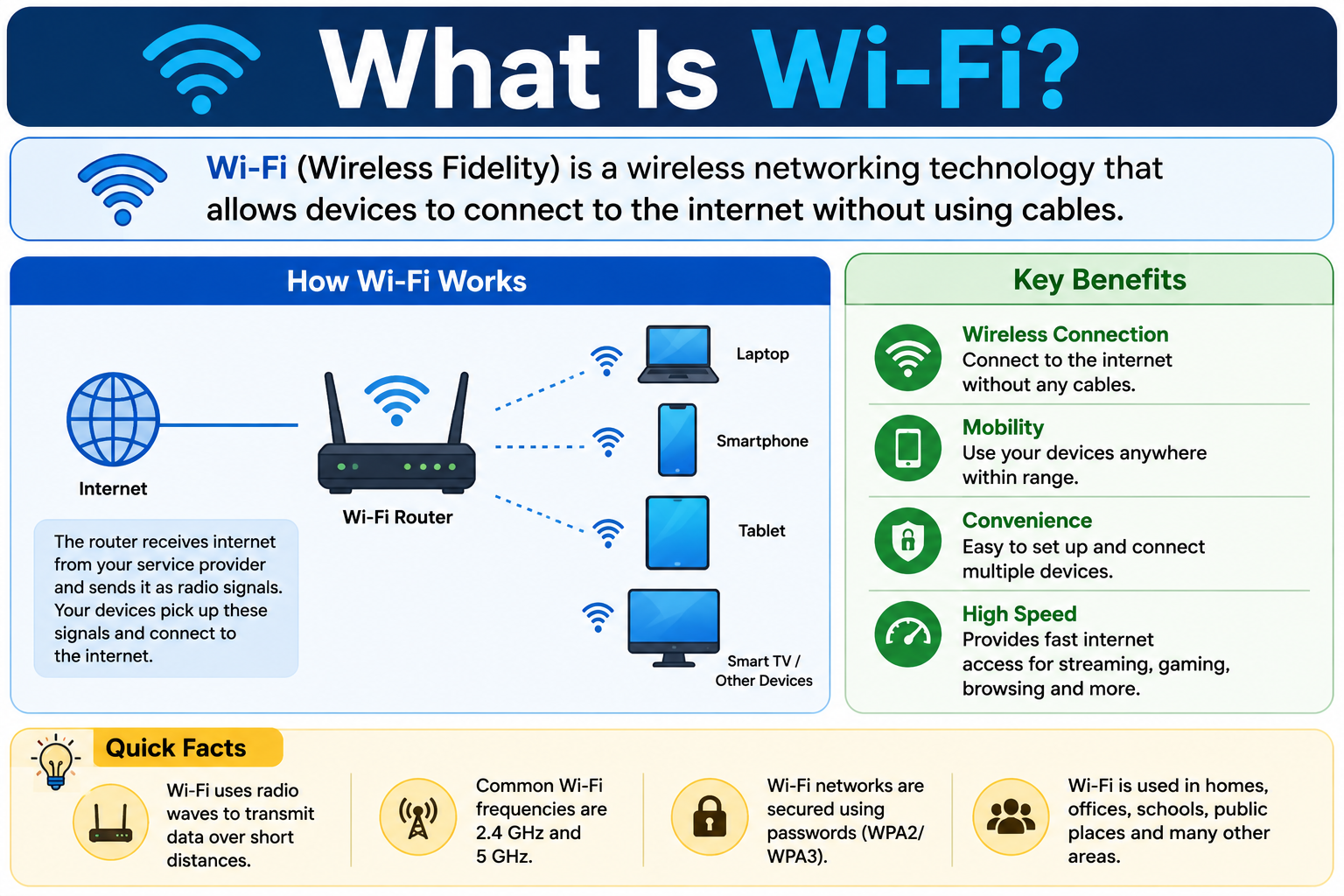
Walk into almost any home, office, cafe, or airport today and you will find devices connecting to networks without a single physical cable. Laptops, phones, tablets, smart TVs, printers, cameras, and smart home devices all communicate wirelessly using a technology that most people use every day without thinking much about.
Understanding what is Wi-Fi helps explain how this wireless connectivity actually works. Wi-Fi is a family of wireless networking technologies based on IEEE 802.11 standards that allows compatible devices to communicate over a local wireless network using radio signals. It is one of the most widely used networking technologies in the world, and it is what most people rely on to access the internet from their homes and workplaces.
Wi-Fi is commonly used to access the internet, but it is important to understand that Wi-Fi and the internet are not the same thing. What Is the Internet? How It Works, History, Types and Why It Matters explains the global network infrastructure that Wi-Fi helps you connect to, but Wi-Fi itself is a local wireless networking technology, not the internet itself.
Quick Answer: What Is Wi-Fi?
Wi-Fi is a wireless networking technology based on IEEE 802.11 standards that allows compatible devices to connect to a local network using radio signals rather than physical cables. A device connected to Wi-Fi can communicate with other devices on the same local network and, if that network has an internet connection, access internet services. Wi-Fi itself does not equal an internet connection. A device can be connected to a Wi-Fi network while the internet access on that network is unavailable.
What Is Wi-Fi?
Wi-Fi is a wireless networking technology that allows devices to connect to a local network without needing a physical cable. It uses radio signals to transmit data between devices and network equipment such as wireless access points and routers. The technology is based on a family of standards developed by the Institute of Electrical and Electronics Engineers, known as IEEE, under the designation 802.11.
Wi-Fi enables a wide range of devices to connect wirelessly to a network, including smartphones, laptops, tablets, smart TVs, game consoles, printers, security cameras, and smart home devices. These devices communicate with a wireless access point or router, which connects them to the local network and, when an internet service is available, to the broader internet.
One of the most important things to understand about Wi-Fi is the distinction between Wi-Fi and the internet. Wi-Fi provides the wireless connection between a device and a local network. The internet is a separate global network of interconnected networks that an ISP provides access to through a separate connection. A device can be connected to a Wi-Fi network without internet access if the ISP connection is unavailable, if the router is not connected to an internet service, or if the internet service itself is experiencing a problem.
What Does Wi-Fi Stand For?
Wi-Fi is a trademarked brand name used by the Wi-Fi Alliance, the industry organization that certifies wireless networking products for interoperability based on IEEE 802.11 standards.
The term is sometimes said to stand for Wireless Fidelity, but this is not the official technical definition of the name. The Wi-Fi Alliance has acknowledged that the term was created as a catchy brand name rather than as a formal technical acronym. Wi-Fi is primarily a commercial and branding term that identifies products certified as compatible with IEEE 802.11 wireless networking standards.
What matters practically is that when a device or router carries a Wi-Fi certification, it has been tested for compatibility with other certified devices based on the relevant IEEE 802.11 specifications.
How Does Wi-Fi Work?
Wi-Fi works by transmitting data as radio signals between a device and a wireless access point. Here is the basic process when a device connects to a Wi-Fi network.
- The device scans for available wireless networks and detects signals from nearby access points.
- Available networks are listed by their network name, called the SSID.
- The user selects the desired network.
- If the network is secured, the device and access point go through an authentication process, typically requiring the user to enter the network password.
- The device associates with the access point and establishes a wireless link.
- The device receives network configuration information, which commonly includes an IP address, default gateway, and DNS server address, typically provided automatically by the router’s DHCP service.
- The device can now communicate with other devices and resources on the local network.
- If the local network has an internet connection, the device can reach internet services through that connection.
The path for internet access looks like this: Device → Wi-Fi access point → Local network → ISP connection → Internet.
Wi-Fi provides the wireless segment of that path. It is not responsible for the internet connection itself. The ISP connection is a separate link between the local network and the broader internet.
When a device connects to a local network through Wi-Fi, it receives an IP address that allows it to communicate on that network. What Is an IP Address? Types, How It Works and Why It Matters explains how IP addressing works and why every networked device needs one.
What Is an SSID?
SSID stands for Service Set Identifier. It is the name assigned to a wireless network that users see when browsing available Wi-Fi networks on their devices. When you open your device’s Wi-Fi settings and see a list of networks to connect to, each name in that list is an SSID.
Common examples of SSIDs include HomeWiFi, OfficeNetwork, and GuestNetwork. The SSID simply identifies the wireless network. It is not the password, and knowing an SSID does not grant access to a secured network.
In larger deployments such as enterprise networks, hotels, or campuses, multiple physical access points can be configured to broadcast the same SSID. This allows users to roam between access points across a building or campus while staying connected to the same network, with the device transitioning between access points as the user moves.
Networks can also be configured to hide their SSID, meaning the network name does not appear in standard Wi-Fi scans. However, hiding an SSID is not a reliable security measure on its own, as the network can still be detected through other means.
What Is a Wi-Fi Router?
In a typical home setup, a Wi-Fi router is the central piece of equipment that manages local network traffic, provides wireless connectivity, and connects the home network to an ISP’s service. The term router is commonly used to describe the whole unit, though it often combines multiple functions in a single device.
The routing function directs network traffic between the local network and the internet connection. The wireless access point function provides the radio interface through which Wi-Fi devices connect. The DHCP function automatically assigns IP addresses to devices joining the network. The NAT function, or Network Address Translation, allows multiple devices with private IP addresses to share the ISP-provided public IP address. Many home routers also include basic firewall functionality.
In larger or more professionally managed networks, these functions are often provided by separate dedicated devices. A dedicated router handles routing and NAT, while one or more separate wireless access points provide Wi-Fi connectivity. Understanding this distinction helps avoid the assumption that a router and a wireless access point are always the same device.
What Is a Wireless Access Point?
A wireless access point is a device that provides wireless connectivity to a wired network. It transmits and receives radio signals, allowing Wi-Fi compatible devices to connect to the network wirelessly.
In a home setup, the wireless access point function is usually built into the combined router device. In enterprise environments such as offices, schools, hospitals, and hotels, standalone wireless access points are mounted throughout a building and connected back to the network infrastructure through wired Ethernet links. This design allows large facilities to provide Wi-Fi coverage across wide areas using many coordinated access points.
A wireless access point is not inherently a router. It provides the wireless radio interface. The routing, DHCP, and internet gateway functions are handled separately, either by a dedicated router or by the network infrastructure to which the access point connects.
What Frequency Bands Does Wi-Fi Use?
Wi-Fi networks operate on specific radio frequency bands. The three bands relevant to modern Wi-Fi are 2.4 GHz, 5 GHz, and 6 GHz, each with different characteristics.
| Band | General characteristics | Typical advantage | Common limitation |
|---|---|---|---|
| 2.4 GHz | Longer signal propagation, heavily used | Range in many environments | More congestion and interference |
| 5 GHz | More available channels, higher throughput potential | Speed and capacity | Shorter range than 2.4 GHz in many environments |
| 6 GHz | Additional spectrum, less legacy congestion | More capacity and cleaner spectrum | Requires compatible devices, range limitations |
The 2.4 GHz band has been used by Wi-Fi for a long time and is also used by other technologies including Bluetooth, baby monitors, and some cordless phones, which can contribute to congestion. Its radio waves generally travel farther and pass through walls more easily than higher-frequency signals under comparable conditions, making it useful for coverage in situations where range is a priority.
The 5 GHz band offers more available channels and higher throughput potential, which is beneficial in environments with many devices or high bandwidth demands. Its range in typical indoor environments is generally shorter than 2.4 GHz, and its signals are more affected by walls and obstacles.
The 6 GHz band, available to Wi-Fi 6E and Wi-Fi 7 compatible devices where regulations allow it, provides additional spectrum that is not shared with older Wi-Fi generations, reducing congestion concerns. It comes with its own range and penetration limitations compared to lower frequencies.
Real-world performance on any band depends on many factors beyond frequency alone, including transmit power, antenna design, channel width, interference, building materials, and regulatory constraints in the local area.
What Are Wi-Fi Channels?
Within each frequency band, Wi-Fi operates on specific channels, which are subdivisions of the available radio spectrum. Channels allow multiple networks to operate on the same band by using different portions of the available frequencies.
When many nearby Wi-Fi networks use the same or overlapping channels, they compete for the same radio airtime, which can reduce performance for all networks in the area. This is particularly noticeable in dense environments such as apartment buildings where many networks overlap.
Channel width affects how much data can be transmitted at once. Wider channels can carry more data but also occupy more spectrum, increasing the chance of overlap with other networks on that band.
Modern routers and access points often include automatic channel selection features that attempt to select the least congested channel available. Some environments benefit from manual channel selection based on a survey of the local radio environment, though for most home users, automatic selection is a reasonable starting point.
What Are Wi-Fi Standards?
Wi-Fi has evolved through several generations, each bringing improvements in speed, efficiency, or capacity. The Wi-Fi Alliance introduced a generation naming system to make it easier for consumers to understand the capabilities of compatible equipment.
| Wi-Fi generation | IEEE standard | Key focus |
|---|---|---|
| Wi-Fi 4 | 802.11n | Improved wireless performance |
| Wi-Fi 5 | 802.11ac | Higher throughput |
| Wi-Fi 6 | 802.11ax | Efficiency and capacity in dense environments |
| Wi-Fi 6E | 802.11ax | Extends Wi-Fi 6 into the 6 GHz band |
| Wi-Fi 7 | 802.11be | Higher performance and advanced capabilities |
Advertised maximum speeds for each generation reflect theoretical peak figures under ideal conditions. Real-world performance is always lower and depends on signal strength, interference, the number of connected devices, channel width, equipment capabilities, and many other variables. Upgrading to a newer Wi-Fi standard can improve performance in practical situations, but results vary based on the specific environment and equipment involved.
What Is Wi-Fi 6?
Wi-Fi 6, based on the IEEE 802.11ax standard, was designed with efficiency and capacity as primary goals, particularly in environments with many connected devices.
One of its key technologies is OFDMA, or Orthogonal Frequency Division Multiple Access, which allows a single transmission to be divided among multiple devices simultaneously, improving efficiency in busy networks. MU-MIMO, or Multi-User Multiple Input Multiple Output, allows the access point to communicate with multiple devices at the same time rather than sequentially.
Target Wake Time is another Wi-Fi 6 feature that allows devices to schedule when they communicate with the access point, which can reduce how long a device’s radio needs to be active. This can contribute to improved battery life on devices like smartphones and IoT devices.
Wi-Fi 6 is particularly beneficial in high-density environments such as stadiums, offices, apartment buildings, and homes with many connected devices, where it can deliver more consistent performance compared to previous generations.
What Is Wi-Fi 6E?
Wi-Fi 6E takes the capabilities of Wi-Fi 6 and extends them into the 6 GHz frequency band, where regulatory approval has been granted. As of the time of writing, the 6 GHz band for Wi-Fi has been opened in a number of countries and regions, with availability varying by location.
The 6 GHz band offers additional spectrum that is not occupied by older Wi-Fi generations, which means Wi-Fi 6E compatible devices can benefit from less congestion from legacy networks in supported environments.
Using the 6 GHz band requires both a Wi-Fi 6E compatible access point and a Wi-Fi 6E compatible client device. Devices that do not support Wi-Fi 6E will continue to connect using 2.4 GHz or 5 GHz as available. The 6 GHz band also has more limited range and penetration compared to lower-frequency bands, which is a consideration in deployment planning.
What Is Wi-Fi 7?
Wi-Fi 7, based on the IEEE 802.11be standard, represents the next generation of Wi-Fi technology. It is designed to deliver higher throughput potential, lower latency, and improved efficiency compared to its predecessors.
Key capabilities in Wi-Fi 7 include Multi-Link Operation, which allows a device to simultaneously use multiple frequency bands or channels for a single connection, improving reliability and throughput. Wi-Fi 7 also supports wider channel widths and introduces additional efficiency improvements compared to Wi-Fi 6.
As with previous generations, theoretical maximum speeds are achievable only under ideal conditions. Real-world performance depends on compatible equipment on both the access point and client device side, signal conditions, interference, and network configuration.
Wi-Fi 7 equipment has begun to reach the market, though widespread device compatibility is still developing. Organizations and consumers considering Wi-Fi 7 should verify compatibility across their specific equipment before making purchasing decisions.
What Is Wi-Fi Security?
Wi-Fi security is the set of mechanisms used to control who can access a wireless network and to protect the data transmitted over it. Without adequate security, an open Wi-Fi network allows anyone within radio range to connect and potentially observe traffic.
Wi-Fi security has evolved over time. Early protocols like WEP are considered insecure and should not be used. WPA2 became the widely adopted standard for home and enterprise networks. WPA3 is the current generation, offering stronger authentication and encryption.
Beyond the security protocol, other practices matter for Wi-Fi security. Using a strong, unique password prevents casual unauthorized access. Keeping router and access point firmware updated addresses known vulnerabilities. Configuring a separate guest network for visitors limits their access to your main network. Disabling outdated and insecure security modes reduces risk.
Wi-Fi security is part of a broader approach to protecting networked systems. What Is Cybersecurity? covers the wider field of protecting digital systems and data, and What Is a Firewall? explains how firewall functions, often built into home routers, contribute to network protection.
What Is WPA2?
WPA2, which stands for Wi-Fi Protected Access 2, is a widely used security protocol for Wi-Fi networks. It succeeded the original WPA and the earlier and insecure WEP protocol.
WPA2-Personal, commonly used in home networks, uses a Pre-Shared Key, meaning all devices connect using the same password. The password is used as part of a process that derives encryption keys for securing the wireless communication. WPA2-Enterprise, used in business and organizational networks, uses a more sophisticated authentication system rather than a shared password, allowing individual credentials for each user.
WPA2 remains in widespread use and provides adequate security when configured with a strong password. However, it has known vulnerabilities that WPA3 addresses, so using WPA3 is preferable where both the router and client devices support it.
What Is WPA3?
WPA3 is the current generation of Wi-Fi security protocol, introduced by the Wi-Fi Alliance as an improvement over WPA2. It brings several security enhancements relevant to both personal and enterprise wireless networks.
WPA3-Personal includes Simultaneous Authentication of Equals, a handshake mechanism that provides improved protection against offline dictionary attacks on Wi-Fi passwords compared to WPA2-Personal. This means that even if someone captures data from the authentication process, it is harder to use that data to guess the password offline.
WPA3-Enterprise offers stronger encryption options suited to high-security enterprise environments.
Using WPA3 requires that both the wireless access point or router and the connecting client device support the protocol. Many modern devices support WPA3, but older equipment may be limited to WPA2. Routers often support a transition mode that allows WPA3 and WPA2 devices to coexist on the same network.
Public Wi-Fi vs Private Wi-Fi
| Feature | Private or Home Wi-Fi | Public Wi-Fi |
|---|---|---|
| Typical location | Home, office, private premises | Cafes, airports, hotels, public spaces |
| Control | Controlled by the owner or administrator | Controlled by the organization or provider |
| Security | Depends on configuration and password | Depends heavily on provider setup |
| Users | Limited and known | Many unknown users |
Public Wi-Fi networks, such as those available in cafes, hotels, and airports, are convenient but carry different risks from a private home or office network. The operator of a public Wi-Fi network controls its configuration and security settings. Open public networks without any security protocol allow traffic to be observed by others on the same network unless the application itself uses encryption.
Using HTTPS websites when connected to public Wi-Fi helps protect the content of web communications. Keeping devices and applications updated reduces vulnerability to known exploits. Avoiding sensitive activities like banking or accessing confidential information on untrusted public networks is a reasonable precaution. Using a trustworthy VPN adds a layer of encryption between the device and the VPN server, though VPNs are not without their own considerations. Disabling automatic connection to unknown networks prevents devices from joining unfamiliar networks without your awareness.
None of these measures individually eliminate all risk. Layering multiple practices together provides stronger protection than relying on any single approach.
Wi-Fi vs Ethernet
| Feature | Wi-Fi | Ethernet |
|---|---|---|
| Connection | Wireless radio | Physical cable |
| Mobility | High, devices can move within range | Limited by cable length and connection point |
| Interference | Can be affected by radio interference | Generally less affected by wireless interference |
| Setup | Convenient, no cabling needed | Requires physical cable installation |
| Latency | Can vary depending on conditions | Often more consistent in comparable setups |
Wi-Fi and Ethernet are both ways to connect devices to a network. Wi-Fi provides the convenience of wireless connectivity, making it practical for mobile devices and situations where running cables is impractical. Ethernet uses a physical cable to connect a device to a network switch or router, which can provide a more stable and predictable connection.
Ethernet is often the preferred choice for stationary devices that benefit from consistent network performance, such as desktop computers, gaming consoles used for competitive play, and network-attached storage systems. Wi-Fi is the practical choice for mobile devices and equipment where running a cable is not feasible.
It is worth noting that claiming Ethernet is always faster than Wi-Fi in every real-world situation is an oversimplification. A high-quality Wi-Fi 6 connection can provide impressive throughput in favorable conditions, while a poorly configured or degraded Ethernet setup may underperform. The practical performance comparison depends on the specific equipment, network configuration, and conditions in a given situation.
Wi-Fi vs Mobile Data
Wi-Fi and mobile data are both ways for a device to access internet services, but they work through fundamentally different infrastructure.
Wi-Fi connects a device wirelessly to a local network, which then uses an ISP connection to reach the internet. The local network equipment, such as a router and access point, sits in a building or premises, and the ISP provides the link from that equipment to the broader internet.
Mobile data, sometimes called cellular data, connects a device directly to a cellular network operated by a mobile carrier. The device communicates with a nearby cell tower, which connects to the carrier’s network infrastructure and from there to the internet.
| Feature | Wi-Fi | Mobile Data |
|---|---|---|
| Infrastructure | Local wireless network | Cellular carrier network |
| Coverage | Where access points are available | Where cellular coverage exists |
| Data usage | Typically separate from mobile data plan | Uses mobile data allowance |
| Speed | Varies by equipment and ISP | Varies by generation and coverage |
| Battery use | Generally efficient for the device radio | Can use more power in weak signal areas |
| Availability | Requires access to a Wi-Fi network | Available where cellular coverage exists |
Many smartphones can switch between Wi-Fi and mobile data automatically, using Wi-Fi when available and falling back to cellular when not. Some devices can also share their mobile data connection as a mobile hotspot, creating a Wi-Fi network that other devices connect to.
Wi-Fi vs Bluetooth
Wi-Fi and Bluetooth are both wireless radio technologies, but they serve very different purposes and are not interchangeable.
| Feature | Wi-Fi | Bluetooth |
|---|---|---|
| Main purpose | Local network connectivity and internet access | Short-range connections between devices |
| Typical use | Connecting to networks and the internet | Headphones, keyboards, speakers, peripherals |
| Range | Depends on equipment and environment | Generally shorter |
| Network role | Network connectivity | Personal-area device connections |
Wi-Fi is designed for network connectivity, allowing devices to communicate with a local network and through it, with internet services. Bluetooth is designed for short-range connections between individual devices, such as pairing a phone with wireless headphones or connecting a keyboard to a computer.
Both technologies use radio signals, but they use different frequencies, protocols, and are designed for entirely different use cases. Many modern devices include both and use them simultaneously for different purposes.
How Fast Is Wi-Fi?
Wi-Fi speed is one of the most commonly asked questions, and the answer depends on many interacting factors rather than a single number.
The Wi-Fi standard and generation affect the maximum possible throughput. Wider channels and higher-frequency bands can support higher data rates under favorable conditions. Signal strength between the device and the access point significantly affects the actual throughput achieved. The farther the device is from the access point, or the more obstacles in between, the lower the signal quality and the lower the achievable data rate tend to be.
The number of devices sharing the wireless network affects available bandwidth for each. Interference from other networks and radio devices can reduce performance. The capabilities of both the access point and the client device matter, as the connection is limited by the lesser of the two.
An important distinction: Wi-Fi link speed and actual internet speed are different things. Wi-Fi link speed is the rate at which data moves between your device and the wireless access point. Internet speed is determined by the ISP connection and how fast data can travel between the local network and internet services. A fast Wi-Fi connection does not guarantee fast internet if the ISP connection is slow, congested, or limited by the plan purchased.
What Affects Wi-Fi Range?
Wi-Fi range, meaning how far from the access point a device can maintain a useful connection, is affected by multiple factors.
Distance between the device and the access point is the most straightforward factor. The farther away, the weaker the signal tends to be.
Physical obstacles such as walls, floors, furniture, and doors reduce signal strength. Building materials matter significantly. Concrete, brick, and metal are more challenging for Wi-Fi signals than wood or drywall.
Frequency band affects range characteristics. Radio signals at lower frequencies like 2.4 GHz generally propagate farther than higher-frequency signals under similar conditions, though actual range depends on the full set of factors involved.
Interference from neighboring networks, other radio devices, and competing signals can affect how well a connection is maintained at a given distance.
Access point transmit power, antenna design, and placement all influence the effective coverage area. Placing an access point in a central, elevated location and away from obvious interference sources can improve coverage.
Client device capabilities also play a role. A device with a less capable Wi-Fi radio or antenna may have a shorter effective range than a device with a more capable implementation.
What Causes Wi-Fi Interference?
Wi-Fi interference occurs when radio signals from other sources reduce the quality or reliability of a wireless connection.
Neighboring Wi-Fi networks operating on the same or overlapping channels are one of the most common sources of interference in residential and urban environments. In dense areas like apartment buildings, many networks compete for the limited available radio spectrum.
Bluetooth devices, baby monitors, some cordless phones, and other consumer electronics use frequencies that overlap with the 2.4 GHz band, which can contribute to interference in some environments.
Microwave ovens can temporarily affect 2.4 GHz Wi-Fi signals when in use, as they operate on frequencies that overlap with the band, though this effect is often minor and short-lived.
Physical obstacles do not cause interference in the traditional radio sense, but they absorb and reflect radio signals, which effectively reduces signal quality at the receiving device.
Modern Wi-Fi equipment includes mechanisms to adapt to interference conditions, such as selecting different channels and adjusting transmission parameters. However, in heavily congested environments, performance can still be affected despite these adaptations.
Why Is My Wi-Fi Slow?
Slow Wi-Fi can result from many different causes, and identifying the actual source of the problem is important before attempting a fix.
A weak signal between the device and the access point is a common cause. The device may be too far from the router, or there may be too many obstacles between them.
Network congestion from too many devices sharing the same wireless network or the same ISP connection can reduce available bandwidth for each device.
Interference from neighboring networks or other radio devices can degrade connection quality.
Outdated router or access point firmware may contain unresolved bugs that affect performance. Similarly, outdated network adapter drivers on a device can affect its wireless performance.
The internet plan itself may simply be slower than expected. The Wi-Fi connection may be working well while the ISP connection speed is the limiting factor.
Background applications downloading updates, streaming, or syncing data can consume bandwidth that appears to slow other activities.
An important troubleshooting step is determining whether the problem is with the Wi-Fi network or with the internet connection from the ISP. Testing internet speed both over Wi-Fi and through a direct Ethernet connection to the router, if possible, helps isolate whether the bottleneck is in the wireless link or the internet service.
How to Improve Wi-Fi Speed and Performance
There are practical steps that most users can take to improve their Wi-Fi experience without making unsafe modifications.
- Place the router or access point in a central location within the area you want to cover. Placing it in a corner of a building means one side is well covered and the other is not.
- Keep the router elevated and away from obvious interference sources such as microwaves, and away from large metal objects that can block signals.
- Update router and access point firmware to the latest version provided by the manufacturer, which may include bug fixes and performance improvements.
- Update network adapter drivers and operating system software on client devices.
- Use the 5 GHz band for devices that need higher throughput and are close to the access point, and 5 GHz or 2.4 GHz based on distance and device support.
- Reduce background network usage from applications updating or syncing when you need the connection for other tasks.
- Consider a mesh Wi-Fi system or additional access points for large homes where coverage is inconsistent.
- Use a wired Ethernet connection for stationary devices with high bandwidth needs where practical.
- Replace equipment that is significantly outdated if it limits the network’s capabilities.
- Test the internet connection separately from Wi-Fi to confirm whether the issue is the wireless network or the ISP service.
What Is Mesh Wi-Fi?
A mesh Wi-Fi system uses multiple interconnected nodes or access points distributed throughout a space to provide broader and more consistent wireless coverage than a single router typically can.
In a traditional single-router setup, devices far from the router may experience weak signal and reduced performance. Extending coverage with a simple range extender can sometimes help but may introduce other trade-offs.
A mesh system uses multiple nodes that communicate with each other and provide a unified wireless network with a single SSID. Devices connect to whichever node provides the best signal as they move through the space. The nodes coordinate with each other, often using a dedicated wireless or wired backhaul connection to carry traffic between them.
Mesh Wi-Fi is particularly useful in larger homes, multi-story buildings, or spaces with layouts that make coverage from a single point difficult.
It is important to understand that mesh Wi-Fi improves wireless coverage and network management. It does not increase the speed of the ISP internet connection. If the ISP plan provides a certain internet speed, a mesh system does not change that. What it can do is help more devices achieve better wireless connections to the local network.
What Is Wi-Fi Roaming?
In networks with multiple wireless access points, roaming refers to the ability of a client device to move between access points while maintaining network connectivity.
When a device moves away from one access point and closer to another, it can disconnect from the first and reconnect to the second, ideally without the user noticing a significant interruption. The two access points are configured with the same SSID, so from the user’s perspective, the network name stays the same throughout.
Enterprise Wi-Fi networks with many access points across large buildings or campuses typically support smooth roaming. The access points coordinate through a controller or management system to facilitate transitions.
Mesh Wi-Fi systems also support roaming within the mesh network, helping devices seamlessly connect to the nearest node as they move through the home.
The quality of roaming depends on how the access points are configured, the capabilities of the client device, and the distance and signal conditions involved in the transition.
How Does Wi-Fi Use an IP Address?
Wi-Fi provides the wireless network connection, but once a device is connected to the network, it needs an IP address to communicate using the Internet Protocol.
When a device joins a Wi-Fi network, it typically receives an IP address automatically from the router’s DHCP service. This address allows the device to send and receive data on the local network and, through the router, on the internet.
The path looks like this: phone or laptop connects through Wi-Fi to the access point, which connects to the router, which assigns an IP address through DHCP and manages traffic between the local network and the internet.
Wi-Fi is the radio link that provides connectivity. IP addressing is a separate layer that enables actual network communication. What Is an IP Address? Types, How It Works and Why It Matters explains IP addressing in full, including the difference between private addresses used within local networks and public addresses used on the internet.
How Does DNS Work Over Wi-Fi?
When a device connected to Wi-Fi wants to reach an internet service by its domain name, the Domain Name System helps translate that name into the IP address needed to make the connection.
The process works like this: the browser or application sends a DNS query asking for the IP address associated with a domain name. The DNS resolver, whose address the device received along with its IP configuration when it joined the Wi-Fi network, processes the query and returns the relevant information. The device then uses the returned IP address to connect to the appropriate server.
Wi-Fi simply carries the DNS query as network traffic. DNS is a separate service operating at a higher layer. Changing DNS settings does not change the Wi-Fi connection. Changing the Wi-Fi network does not change the DNS service, though the DNS resolver address may change depending on what the new network’s router provides.
What Is DNS? How the Domain Name System Works for Beginners explains how the Domain Name System works in detail, including resolvers, record types, and how caching affects resolution.
Wi-Fi and Web Browsing
When you open a web browser on a device connected to Wi-Fi and navigate to a website, multiple technologies work together to deliver the page.
The browser identifies the destination, DNS resolves the domain name to an IP address, the device establishes a connection to the web server using that IP address, and the server returns the content of the page. The Wi-Fi connection carries all of this traffic wirelessly between the device and the local network.
A simplified view of the path: device → Wi-Fi → router → DNS → destination server → response.
The browser handles the web-specific communication, including making HTTP or HTTPS requests and rendering the returned content. Wi-Fi is the wireless link through which all of that communication travels to and from the local network.
What Is a Web Browser? How It Works, Types, Features and Examples explains how browsers manage this process, including how they handle HTTPS connections, DNS, and rendering web content.
Wi-Fi and Cloud Computing
Wi-Fi is one of the most common ways that users access cloud-based services. When you use cloud storage to access a file, collaborate on a document in an online office suite, stream content from a cloud platform, or use a SaaS application, your device likely reaches those services through a Wi-Fi connection to your local network, which connects to the internet via your ISP.
Cloud services run on infrastructure in data centers. Wi-Fi connects your device to the local network. The internet connection from the local network to those data centers carries the actual traffic to and from cloud services.
What Is Cloud Computing? A Beginner’s Guide explains what cloud computing is and how cloud-delivered services work. What Is Cloud Storage? covers how cloud-based file storage functions, and What Is Cloud Hosting? explains how websites and applications are hosted in cloud environments. Wi-Fi is the local wireless link that enables you to reach those services from anywhere within range of a wireless network.
Wi-Fi and Smart Home Devices
The growth of smart home technology has made Wi-Fi connectivity more important than ever. Smart TVs, speakers, cameras, thermostats, lighting systems, appliances, and many other devices use Wi-Fi to connect to home networks and cloud services.
Each connected device is a potential entry point if the network is not properly secured. A poorly secured Wi-Fi network or a device with default or weak credentials can be a vulnerability in a home’s overall security.
Practical security steps for smart home Wi-Fi include using WPA3 or WPA2 with a strong password. Keeping firmware updated on both the router and connected devices addresses known vulnerabilities. Setting up a separate guest or IoT network for smart devices limits their access to other devices on your main network, which can contain the impact if any device is compromised. Using strong, unique credentials for the router administration interface prevents unauthorized configuration changes.
Understanding how cybersecurity applies to connected home devices is covered in What Is Cybersecurity?, which addresses the broader practices that protect devices and networks from threats.
Common Wi-Fi Problems
Several Wi-Fi-related problems affect users regularly, and understanding what each one means helps in troubleshooting.
Cannot connect to Wi-Fi means the device is not successfully joining the wireless network. Common causes include an incorrect password, the network being out of range, or a problem with the access point.
Connected but no internet is one of the most important distinctions in Wi-Fi troubleshooting. This means the device has successfully joined the local Wi-Fi network, but the internet connection from that network to the ISP is unavailable or not working. The problem is not with the Wi-Fi connection itself.
Wi-Fi keeps disconnecting can result from weak signal, interference, driver issues, or problems with the access point or router.
Weak signal indicates the device is too far from the access point or there are too many obstacles between them.
Slow speed has many possible causes, as discussed in the earlier section on Wi-Fi performance.
Wrong password prevents the device from authenticating to the network.
IP address problems can result from DHCP failures or configuration errors.
DNS problems can make the internet appear unavailable even when the network connection is working. What Is DNS? How the Domain Name System Works for Beginners explains what DNS problems look like and how they relate to connectivity.
How to Troubleshoot Wi-Fi Problems
Working through these steps systematically helps identify the source of most common Wi-Fi issues.
- Check that Wi-Fi is enabled on the device and that it is not in airplane mode.
- Confirm the correct network SSID is selected and that the device has not accidentally joined a different network.
- Check the Wi-Fi password and re-enter it if necessary.
- Restart the device to clear any temporary software issues.
- Restart the router or access point when appropriate, as this can resolve some connection issues.
- Check whether other devices on the same network are experiencing the same problem, which helps determine whether the issue is device-specific or network-wide.
- Move closer to the access point to rule out signal strength as a factor.
- Determine whether the issue is the Wi-Fi connection or the internet service. A device connected to the Wi-Fi network but unable to reach the internet has a different problem than a device unable to connect to Wi-Fi at all.
- Update network adapter drivers on the device and router firmware.
- Check IP and DNS configuration on the device to confirm it received valid settings.
- If available, test with an Ethernet connection to rule out the Wi-Fi network as the source of the problem.
- If the internet connection itself is failing and other troubleshooting has not resolved it, contact the ISP.
Is Wi-Fi Safe?
Modern Wi-Fi security protocols, particularly WPA3 and well-configured WPA2, provide meaningful protection when implemented correctly. However, no wireless network is completely immune from risk, and the actual security of any Wi-Fi network depends heavily on how it is configured and maintained.
A home Wi-Fi network protected with WPA3 and a strong, unique password, with up-to-date router firmware, is substantially more secure than an open network or one using outdated protocols. Layering additional practices, such as keeping connected devices updated and using separate networks for guest access and IoT devices, further strengthens the overall security posture.
Public Wi-Fi networks carry greater risk because you have no control over their configuration, other users on the network, or the trustworthiness of the operator.
Network Security covers how networks are protected at a broader level, and What Is a Firewall? explains how firewall functions help protect networked devices from unwanted traffic.
Can Someone Hack Your Wi-Fi?
Wi-Fi networks are not immune to unauthorized access attempts, and understanding the realistic risks helps motivate good security practices.
Weak passwords are one of the most significant risks. A Wi-Fi password that is short, simple, or based on obvious information like a name or common phrase can be vulnerable to guessing or offline attacks using captured authentication data.
Outdated security protocols present known vulnerabilities. Networks still using WEP or early WPA implementations are particularly at risk.
Unpatched router firmware can contain vulnerabilities that allow attackers to exploit the device through other means.
Unauthorized access to a home network can allow an attacker to use the internet connection, potentially intercept unencrypted traffic, or attempt to access devices connected to the network.
Defensive practices include using WPA3 or WPA2 with a strong password, keeping firmware updated, changing default administrator credentials on the router, and monitoring connected devices regularly.
No details of how to break into Wi-Fi networks are provided here. The intent of this section is to explain why security practices matter and motivate their adoption.
How to Secure Your Home Wi-Fi
Securing a home Wi-Fi network does not require advanced technical knowledge. These steps are practical for most home users.
Use WPA3 if your router supports it. If not, use WPA2. Avoid older security modes like WEP or WPA without additional context about the specific implementation.
Create a strong, unique password for the Wi-Fi network. Avoid short passwords or ones based on easily guessed information. A longer password that mixes different character types is harder to guess.
Change the default administrator username and password for the router’s management interface. Default credentials are widely known and should be replaced immediately.
Keep router firmware updated. Many routers have an update option in their management interface. Some modern routers update automatically, but checking periodically is a good practice.
Disable remote administration if you do not use it. Allowing router administration from outside the local network adds an attack surface that is unnecessary for most home users.
Set up a guest Wi-Fi network for visitors rather than sharing the main network password. This keeps guest devices on a separate network from your main devices.
Review the list of connected devices periodically in your router’s management interface and investigate any devices you do not recognize.
Consider using a DNS service with filtering capabilities to add an additional layer of protection against malicious domains. What Is DNS? How the Domain Name System Works for Beginners explains DNS configuration options.
Frequently Asked Questions
What is Wi-Fi?
Wi-Fi is a wireless networking technology based on IEEE 802.11 standards that allows compatible devices to connect to a local network using radio signals without physical cables.
What does Wi-Fi stand for?
Wi-Fi is a trademarked branding term used by the Wi-Fi Alliance for wireless networking products based on IEEE 802.11 standards. The name was created as a brand term rather than a formal technical acronym.
How does Wi-Fi work?
A device communicates wirelessly with an access point using radio signals. The access point connects to the local network, and if the network has an internet connection, the device can reach internet services.
Is Wi-Fi the same as the Internet?
No. Wi-Fi is a wireless local networking technology. The internet is a global network of interconnected networks. Wi-Fi is commonly used to access the internet, but they are different things.
Does Wi-Fi require the Internet?
No. A Wi-Fi network can operate without an internet connection. Devices can communicate with each other on the local network. Internet access requires a separate ISP connection.
What is an SSID?
SSID stands for Service Set Identifier. It is the name of a wireless network that users see when selecting a network to join.
What is a Wi-Fi router?
A Wi-Fi router in a home typically combines routing, wireless access, DHCP, NAT, and basic firewall functions in one device. In larger networks, these functions may be provided by separate devices.
What is a wireless access point?
A wireless access point provides the radio interface through which Wi-Fi devices connect to a wired network. In home routers, this function is built in. In enterprise environments, dedicated access points are deployed separately.
What is the difference between a router and an access point?
A router manages traffic between networks. A wireless access point provides wireless connectivity. Home routers typically combine both functions, while enterprise networks often use separate dedicated devices for each role.
What is 2.4 GHz Wi-Fi?
2.4 GHz is a frequency band used by Wi-Fi that generally provides wider coverage but is more susceptible to congestion from other networks and devices.
What is 5 GHz Wi-Fi?
5 GHz is a frequency band that offers more available channels and higher throughput potential than 2.4 GHz but has a shorter effective range in many environments.
What is 6 GHz Wi-Fi?
6 GHz is an additional frequency band available to Wi-Fi 6E and Wi-Fi 7 compatible devices where regulations permit. It offers additional spectrum with less legacy congestion.
What is Wi-Fi 6?
Wi-Fi 6, based on IEEE 802.11ax, focuses on efficiency and capacity, particularly in environments with many connected devices.
What is Wi-Fi 6E?
Wi-Fi 6E extends Wi-Fi 6 capabilities into the 6 GHz frequency band where supported by regulations and compatible hardware.
What is Wi-Fi 7?
Wi-Fi 7, based on IEEE 802.11be, delivers higher throughput potential and improved efficiency through features including Multi-Link Operation and wider channel support.
What is WPA2?
WPA2 is a widely used Wi-Fi security protocol. WPA2-Personal uses a shared password to authenticate devices and encrypt wireless communication.
What is WPA3?
WPA3 is the current Wi-Fi security protocol, offering stronger authentication and improved protection compared to WPA2.
Is public Wi-Fi safe?
Public Wi-Fi carries greater risks than private Wi-Fi. Using HTTPS websites, keeping devices updated, and using a trusted VPN can reduce but not eliminate risk on untrusted networks.
Is Wi-Fi secure?
Modern Wi-Fi security with WPA3 or properly configured WPA2 provides meaningful protection. No wireless network is completely immune from risk.
Why is my Wi-Fi slow?
Common causes include weak signal, interference, network congestion, outdated equipment or firmware, and a slow ISP connection.
Why does my Wi-Fi keep disconnecting?
Common causes include weak signal, interference, driver issues, and problems with the access point or router firmware.
Why does Wi-Fi say connected but no internet?
This means the device has joined the local Wi-Fi network but the network’s internet connection is unavailable. The problem is with the internet service, not the Wi-Fi connection itself.
How can I improve Wi-Fi speed?
Place the router centrally, update firmware, use appropriate frequency bands, reduce interference, and check whether the ISP connection is the limiting factor.
How can I improve Wi-Fi range?
Reposition the access point to a more central location, consider additional access points, use a mesh system, and ensure firmware is updated.
What is mesh Wi-Fi?
Mesh Wi-Fi uses multiple interconnected nodes to provide broader and more consistent wireless coverage than a single router.
What is the difference between Wi-Fi and Ethernet?
Wi-Fi uses radio signals for wireless connectivity. Ethernet uses physical cables. Wi-Fi offers mobility while Ethernet often provides more consistent connectivity for stationary devices.
What is the difference between Wi-Fi and mobile data?
Wi-Fi connects a device to a local wireless network. Mobile data connects a device directly to a cellular carrier network. They use different infrastructure and are billed differently.
What is the difference between Wi-Fi and Bluetooth?
Wi-Fi is designed for network connectivity. Bluetooth is designed for short-range connections between individual devices like headphones and keyboards.
Does Wi-Fi use an IP address?
Yes. When a device connects to a Wi-Fi network, it receives an IP address that allows it to communicate on the local network and access internet services.
Does Wi-Fi use DNS?
Yes. DNS queries travel over the Wi-Fi connection when devices look up domain names. The DNS resolver address is typically provided to the device along with its IP configuration.
Can Wi-Fi work without the Internet?
Yes. Devices can communicate with each other on a local Wi-Fi network without any internet connection.
Can someone hack my Wi-Fi?
A poorly secured Wi-Fi network can be vulnerable to unauthorized access. Using strong passwords, updated firmware, and current security protocols significantly reduces this risk.
How do I secure my home Wi-Fi?
Use WPA3 or WPA2, create a strong unique password, change default administrator credentials, keep firmware updated, disable unused remote access features, and use a guest network for visitors.
Final Thoughts
Wi-Fi has become one of the most relied-upon technologies in everyday life, enabling wireless connectivity for a vast range of devices across homes, workplaces, and public spaces. Understanding what it is and how it works helps users make better decisions about their networks, their security practices, and their device configurations.
This guide has covered what is Wi-Fi and how it differs from the internet, how devices connect to wireless networks through radio signals and the process of authentication and IP address assignment, the roles of routers and wireless access points and why they are not always the same device, the characteristics of the 2.4 GHz, 5 GHz, and 6 GHz frequency bands, the evolution of Wi-Fi from Wi-Fi 4 through Wi-Fi 7, the Wi-Fi security protocols WPA2 and WPA3 and why they matter, the differences between Wi-Fi and Ethernet, mobile data, and Bluetooth, how Wi-Fi performance is affected by signal strength, interference, equipment, and ISP speed, how mesh Wi-Fi extends coverage across larger spaces, the relationship between Wi-Fi, IP addressing, DNS, web browsing, and cloud computing, practical security steps for home Wi-Fi, and common problems and how to troubleshoot them.
Wi-Fi is a wireless networking technology that allows compatible devices to communicate over a local network using radio signals. It is commonly used to access the internet, but Wi-Fi and the internet are not the same thing. A device connected to Wi-Fi is connected to a local wireless network, and whether it can reach the internet depends on the connection that network has to an ISP.
References
- Wi-Fi Alliance. Wi-Fi Certified Technology Overview. wi-fi.org
- IEEE. IEEE 802.11 Wireless Local Area Networks. ieee.org
- Wi-Fi Alliance. WPA3 Specification. wi-fi.org
- Wi-Fi Alliance. Wi-Fi 6 Overview. wi-fi.org
- Wi-Fi Alliance. Wi-Fi 6E Overview. wi-fi.org
Technology Disclaimer:
This article is for educational and informational purposes only. Wi-Fi performance, available frequency bands, supported features, security options, and regulatory requirements can vary by device, location, network equipment, and software version. Always follow the manufacturer’s current documentation and applicable local regulations.
Author: TechOriginHub Editorial Team
TechOriginHub Editorial Team covers practical technology, software, cybersecurity, cloud computing, and internet topics with a focus on clear and useful guidance.