
 By saman zahra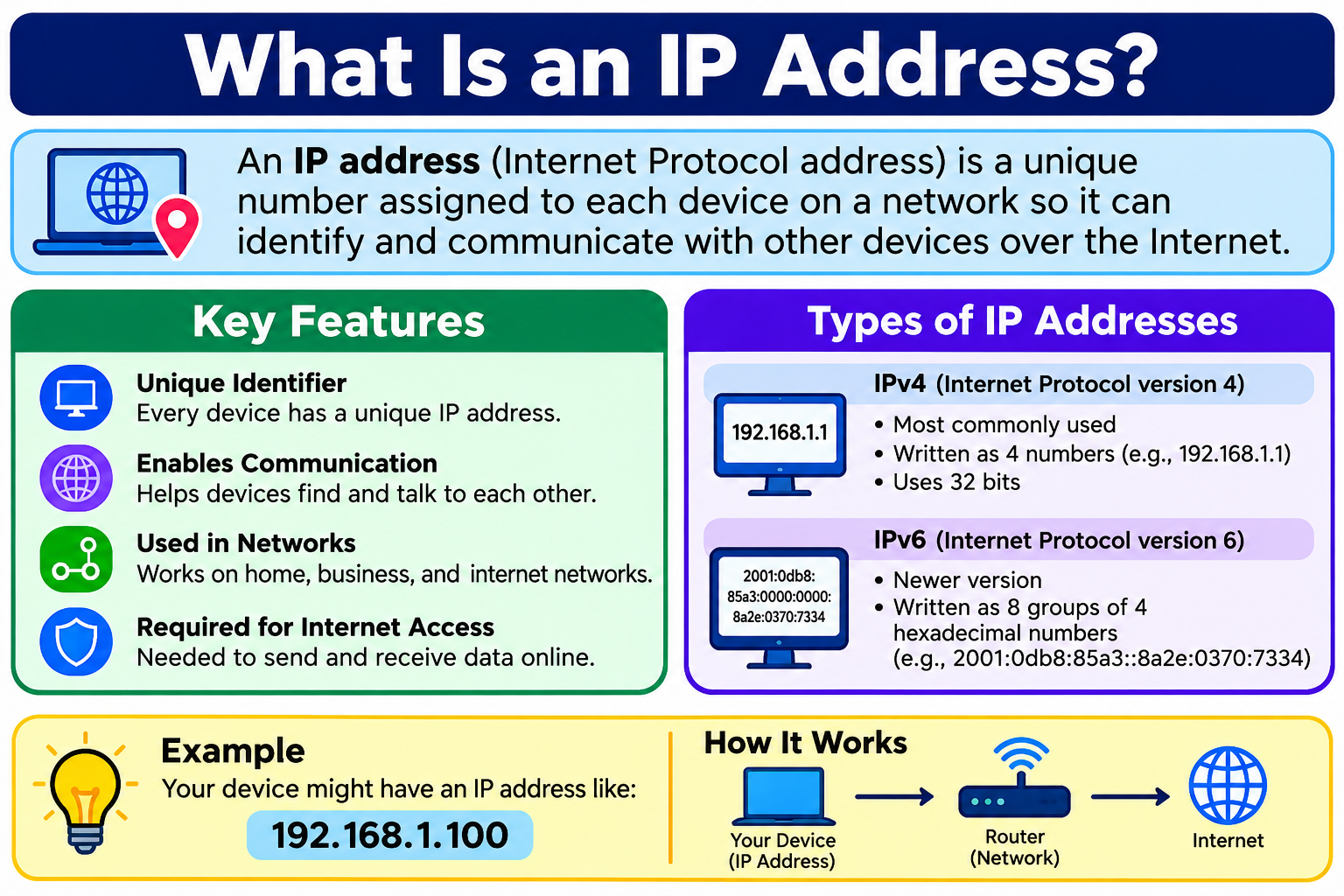
Every time your device sends or receives data over a network, something has to indicate where that data is coming from and where it needs to go. Without a way to identify network endpoints, data would have no clear destination and networks could not function. IP addresses solve this problem by providing a standardized way to address network interfaces so data can be delivered across networks.
Understanding what is an IP address helps explain a fundamental piece of how the internet and computer networks operate. IP addresses are involved every time you visit a website, stream a video, send an email, or use a cloud service. They work quietly in the background, but they are essential to every networked interaction.
The internet as a whole depends on this addressing system. For a broader understanding of how the internet connects billions of devices, What Is the Internet? How It Works, History, Types and Why It Matters provides a thorough foundation. When you access a website by name rather than by address, the Domain Name System handles the translation, which is explained in What Is DNS? How the Domain Name System Works for Beginners.
Quick Answer: What Is an IP Address?
An IP address is a numerical address assigned to network interfaces and used by devices and systems to identify network endpoints and exchange data using the Internet Protocol. It functions as a source and destination address so that data packets can be routed between networks and delivered to the correct location. IP addresses come in two main versions: IPv4 and IPv6.
What Is an IP Address?
An IP address is a numerical address assigned to a network interface that allows devices, servers, and systems to communicate using the Internet Protocol. It serves as both a source address and a destination address, so that data packets sent across a network know where they are coming from and where they need to go.
Think of an IP address as similar to a mailing address for a building. Just as a postal system uses addresses to deliver letters to specific locations, IP-based networks use IP addresses to deliver data to the correct destination. This analogy is simplified, but it conveys the basic idea. In practice, IP addresses can be shared through mechanisms like NAT, can change over time, and are assigned to network interfaces rather than directly to physical devices in a one-to-one relationship.
IP addresses are used by routers and networking systems to make forwarding decisions, moving packets from their source toward their destination across potentially many different networks. Without IP addresses, the kind of large-scale networked communication that the internet depends on would not be possible.
The internet infrastructure that IP addressing supports is described in detail in What Is the Internet? How It Works, History, Types and Why It Matters.
What Does IP Stand For?
IP stands for Internet Protocol.
The Internet Protocol is a set of rules that defines how data is addressed, transmitted, and routed across interconnected networks. It is one of the foundational protocols of the internet and operates at the network layer of the networking model.
IP provides two core functions. First, it defines the addressing system, meaning how network endpoints are identified. Second, it handles routing, meaning how packets are directed from a source across networks toward a destination. IP does not guarantee delivery or order by itself, but it provides the addressing framework that higher-level protocols like TCP use to enable reliable communication.
Both versions of IP, IPv4 and IPv6, serve these same core functions but differ in address format, address space, and other technical characteristics.
Why Do Devices Need IP Addresses?
Every device that participates in IP-based network communication needs an IP address so that other systems know how to reach it and so that it can identify where to send its own traffic.
When your device wants to load a web page, it needs to know the address of the server hosting that page so it can send a request. When the server responds, it needs to know your device’s address so it can send the response to the right place. IP addresses provide this addressing for both sides of the communication.
Beyond basic request and response communication, IP addresses enable routers to make forwarding decisions. As a packet travels across multiple networks to reach its destination, each router along the path examines the destination IP address and decides where to forward the packet next. Without IP addresses, this routing process would have no information to work with.
IP addresses also support a wide range of everyday activities. Visiting websites, streaming media, sending and receiving email, using cloud applications, making video calls, playing online games, and communicating between servers and clients all rely on IP addressing to function. Even devices like smart home gadgets and printers need IP addresses when they communicate over a local network.
How Does an IP Address Work?
IP addressing works as part of a broader process that involves your device, local networks, routers, and destination servers. Here is how the process works in basic terms.
- A device connects to a network, either through a wired connection or wirelessly, and receives or is configured with an IP address.
- An application on the device creates data to send, such as a request for a web page.
- The IP layer adds source and destination IP address information to the data being sent, packaging it into packets.
- The packets leave the device and reach a router, which examines the destination IP address.
- The router determines where to forward the packets based on its routing table and the destination address.
- Packets travel through potentially many networks and routers, each making forwarding decisions, until they reach the destination.
- The destination server or device receives the packets and processes the request.
- Responses are sent back to the source IP address using the same addressing and routing process.
In practice, many additional technologies are involved in real-world networking. Network Address Translation, or NAT, allows multiple devices using private IP addresses to share a public IP address. Firewalls filter traffic based on IP addresses and other factors. Load balancers distribute incoming traffic across multiple servers. VPNs route traffic through different paths. These technologies mean the actual path and addressing involved in a network connection can be more complex than a simple source-to-destination picture.
What Are the Two Main Versions of IP?
Two versions of the Internet Protocol are in use today: IPv4 and IPv6.
IPv4 is the older and still widely used version. It uses 32-bit addresses and has a limited number of possible unique addresses, which became a practical concern as the number of internet-connected devices grew rapidly.
IPv6 is the newer version, developed to address IPv4’s limitations. It uses 128-bit addresses, providing a vastly larger number of possible addresses. IPv6 also incorporates improvements in areas such as address autoconfiguration and the removal of some overhead that existed in IPv4.
Both versions coexist across the internet today, and many networks and devices support both simultaneously through configurations that allow them to communicate using either version depending on what is available.
What Is IPv4?
IPv4 stands for Internet Protocol version 4. It is the version of the Internet Protocol that has been in widespread use since the early days of the internet.
IPv4 addresses are 32 bits long and are written as four decimal numbers separated by periods. Each of the four sections, called octets, represents 8 bits and can range from 0 to 255.
A typical IPv4 address looks like this: 192.0.2.1
It is important to note that 192.0.2.1 is a documentation and example address from the range 192.0.2.0/24, which is reserved for use in documentation and examples according to RFC 5737. It does not represent the actual IP address of any public website or service.
The 32-bit address space of IPv4 allows for approximately 4.3 billion unique addresses. While that sounds like a large number, the explosive growth of the internet and internet-connected devices means IPv4 address space has been under significant pressure. Various techniques, including NAT and careful address management by regional internet registries, have helped extend the practical use of IPv4, but IPv6 was developed to provide a long-term solution.
What Is IPv6?
IPv6 stands for Internet Protocol version 6. It was developed to succeed IPv4 and address the limitations of IPv4’s address space.
IPv6 addresses are 128 bits long, compared to IPv4’s 32 bits. They are written as eight groups of four hexadecimal digits, separated by colons.
An example of an IPv6 address in documentation format looks like this: 2001:db8::1
The range 2001:db8::/32 is reserved for documentation and examples, as defined by RFC 3849, and should not be used in actual network configurations.
IPv6 supports address shortening to make addresses more manageable. Consecutive groups of all zeros can be replaced with a double colon, and leading zeros within each group can be omitted. This is why the full address 2001:0db8:0000:0000:0000:0000:0000:0001 can be written more concisely as 2001:db8::1.
The 128-bit address space of IPv6 provides an astronomically larger number of possible addresses compared to IPv4, which is sufficient to address the long-term growth of internet-connected devices. IPv6 adoption has been increasing over time, though IPv4 remains widely used and the two versions coexist across much of the internet.
IPv4 vs IPv6
| Feature | IPv4 | IPv6 |
|---|---|---|
| Address size | 32 bits | 128 bits |
| Notation | Decimal, four octets | Hexadecimal, eight groups |
| Example | 192.0.2.1 | 2001:db8::1 |
| Address space | Approximately 4.3 billion | Vastly larger |
| Main purpose | IP networking | Next-generation IP networking |
IPv6 is not simply a faster version of IPv4. The primary motivation for IPv6 was to solve the address exhaustion problem of IPv4 and to build in improvements from the lessons learned during decades of IPv4 use. IPv6 does not automatically make internet connections faster. Actual performance depends on many factors including network infrastructure, routing, and the capabilities of endpoints.
Both versions are used across the internet today, and the transition to IPv6 is an ongoing process across different regions and networks.
What Is a Public IP Address?
A public IP address is an IP address that is reachable over the public internet. Web servers, email servers, cloud services, and other internet-facing resources use public IP addresses so that other systems on the internet can reach them.
When you connect to the internet through an ISP, your connection is assigned a public IP address. This is the address that internet-facing services and websites can see when your device communicates with them. In many home network setups, this public IP address is assigned to your router rather than directly to your individual devices.
Public IP addresses are managed and distributed through a hierarchy of regional internet registries, including ARIN for North America, RIPE NCC for Europe and the Middle East, APNIC for the Asia-Pacific region, and others. ISPs receive allocations of IP addresses from these registries and assign them to their customers.
One important clarification: a public IP address does not reveal someone’s exact physical location. IP geolocation services can provide approximate location information, such as a city or region, based on available databases and network information. However, this information is approximate and can be inaccurate, and a public IP address on its own does not identify a specific individual or their precise home address.
What Is a Private IP Address?
Private IP addresses are ranges of IP addresses designated for use within private networks such as home networks, office networks, and internal corporate infrastructure. They are not directly routed across the public internet.
Three IPv4 address ranges are designated as private address space, as defined in RFC 1918:
- 10.0.0.0/8, which covers addresses from 10.0.0.0 to 10.255.255.255
- 172.16.0.0/12, which covers addresses from 172.16.0.0 to 172.31.255.255
- 192.168.0.0/16, which covers addresses from 192.168.0.0 to 192.168.255.255
Common examples you might see on a home network include 192.168.1.10 for a laptop or 10.0.0.5 for another device. These addresses are assigned by your router to devices on your local network and are not directly visible or reachable from the public internet.
Home routers typically assign private IP addresses to connected devices and use NAT to allow those devices to communicate with the internet through the router’s single public IP address.
Public IP vs Private IP
| Feature | Public IP | Private IP |
|---|---|---|
| Main use | Internet-facing communication | Local and private networks |
| Globally routable | Generally yes | No |
| Common example | ISP-assigned address | 192.168.1.10 |
| Visible on internet | To services you connect to | Not directly |
Public IP addresses are the addresses that the internet can route traffic to. Private IP addresses are used internally within a local network and require NAT or similar mechanisms to communicate with the public internet.
Most everyday users sit behind a router that holds a public IP address on the internet-facing side, while their individual devices receive private IP addresses for communication within the local network.
What Is NAT?
NAT stands for Network Address Translation. It is a technique that allows multiple devices using private IP addresses within a local network to share a single public IP address for communication with the internet.
In a typical home network, the devices connected to the router all have private IP addresses. When a device sends traffic to the internet, the router translates the source address from the device’s private IP address to the router’s public IP address before forwarding the traffic. When responses come back, the router translates them back to the appropriate private IP address of the device that made the request.
To use a simple example, consider a home network with three devices:
Laptop: 192.168.1.10
Smartphone: 192.168.1.11
Smart TV: 192.168.1.12
All three connect to the internet through a router that has a single public IP address. From the perspective of a web server, all three devices appear to be coming from the same public IP address.
NAT helps extend the practical use of IPv4 by allowing many devices to share a limited number of public addresses. However, it is important to understand that NAT is not a security system and should not be treated as a substitute for a properly configured firewall. While NAT does affect how inbound connections are handled, it is not designed or intended to be a security boundary. Proper network security requires additional measures, which What Is a Firewall? and Network Security cover in more detail.
What Is a Static IP Address?
A static IP address is an IP address that remains fixed and does not automatically change over time. It can be manually configured on a device, reserved through a DHCP server that consistently assigns the same address to a specific device, or assigned directly by an ISP for a consistent address.
Servers, network infrastructure devices, and services that need to be consistently reachable at a known address commonly use static IP addresses. A web server, for example, typically uses a consistent address so that DNS records pointing to it remain accurate and traffic can reliably reach it. Network printers and routers within an organization are often configured with static addresses for easier management.
Static IP addresses require more deliberate configuration and management than dynamic addresses, but they provide the consistency that certain use cases demand.
What Is a Dynamic IP Address?
A dynamic IP address is an IP address that can change over time. Dynamic addresses are typically assigned automatically by a network service called DHCP, or Dynamic Host Configuration Protocol, which assigns available IP addresses from a configured pool to devices as they connect to the network.
Home networks and most everyday devices use dynamic IP addressing. When your device connects to a Wi-Fi network, the router’s DHCP service assigns it an available private IP address. When your router connects to your ISP, it typically receives a dynamic public IP address from the ISP.
Dynamic does not necessarily mean that an address changes every few minutes. The duration of an IP address assignment, called a lease, depends on how the DHCP server is configured. In practice, a device on a home network may keep the same private IP address for extended periods, particularly if it connects to the same router regularly. Similarly, ISPs may reassign the same public IP address to a customer repeatedly. However, the address is not guaranteed to remain the same, and it can change.
Static IP vs Dynamic IP
| Feature | Static IP | Dynamic IP |
|---|---|---|
| Address stability | Usually consistent | Can change |
| Configuration | Manual or reserved assignment | Usually automatic via DHCP |
| Common use | Servers and network infrastructure | Everyday devices |
| Maintenance | Requires more deliberate management | Less manual management typically |
The right choice between static and dynamic addressing depends on the use case. Servers and services that need to be consistently reachable at a known address benefit from static assignments. Everyday client devices that do not need to be reached at a specific address are typically fine with dynamic addressing.
What Is a Loopback IP Address?
A loopback address is a special IP address used to refer to the local device itself. Traffic sent to a loopback address stays within the local system and does not leave through the network interface to another device.
In IPv4, the loopback address is 127.0.0.1. The hostname localhost typically resolves to this address. When a developer runs a web server on their own computer and tests it by opening localhost in a browser, the browser is connecting to the application running on the same machine rather than reaching anything over the internet.
In IPv6, the loopback address is ::1, which is the abbreviated form of 0000:0000:0000:0000:0000:0000:0000:0001.
Loopback addresses are useful for testing and development purposes. They allow software to communicate using network protocols without requiring an actual network connection to another machine. It is important to understand that localhost and 127.0.0.1 are not internet addresses. They refer to the local device only and have no meaning to external networks.
What Is an IP Address Used For?
IP addresses are involved in virtually every form of network communication. Here are some of the most common uses.
Browsing websites requires your device to connect to the server hosting the site, using that server’s IP address to route the request and your own IP address to receive the response.
Streaming video and audio involves continuous data exchange between streaming servers and your device, all identified by IP addresses.
Online gaming depends on IP addressing to connect players and game servers across the internet.
Email uses IP addressing at multiple levels, including delivery between mail servers and communication between your email client and the mail server.
Video calls rely on IP addresses to route audio and video data between participants.
Cloud services of all kinds, including file storage, productivity applications, and hosted databases, use IP addresses to receive connections from users and communicate between cloud components. What Is Cloud Computing? A Beginner’s Guide explains how cloud infrastructure operates and why networking, including IP addressing, is fundamental to it.
File transfers between systems on a network or across the internet use IP addresses to identify source and destination.
Network administration involves managing, monitoring, and configuring devices on a network using IP addresses to identify and communicate with them.
IoT devices such as smart home gadgets, security cameras, and connected appliances use IP addresses to communicate with each other and with cloud services.
How Does DNS Relate to IP Addresses?
DNS and IP addresses work together but serve different purposes. IP addresses are the numerical addresses that networking systems use to route data. DNS is the naming system that allows humans to use readable domain names rather than needing to remember numerical addresses.
When you type a domain name such as example.com into your browser, the browser does not automatically know which IP address to connect to. It needs to look up that information. This is where DNS comes in. The DNS resolution process translates the domain name into the IP address associated with the service you are trying to reach, and then your browser uses that IP address to establish the connection.
A simple way to see the relationship: example.com is the domain name. DNS provides the mechanism to look it up and find the IP address the browser needs. The IP address is what the network actually uses to route the traffic.
What Is DNS? How the Domain Name System Works for Beginners explains this process in full, including how DNS resolvers, record types, and the DNS hierarchy work together.
It is worth noting that the relationship between a domain name and an IP address is not always simple or permanent. A website may use multiple IP addresses for load balancing, different IP addresses in different regions through CDNs, or changing infrastructure over time. DNS is flexible enough to accommodate all of this, which is part of why it is so valuable.
IP Address vs DNS
| Feature | IP Address | DNS |
|---|---|---|
| What it is | Numerical network address | Distributed naming system |
| Main purpose | Identify and address network endpoints | Resolve names to IP addresses and other information |
| Example | 192.0.2.1 | example.com |
| Role in communication | Used for actual routing and delivery | Used to find the address to connect to |
IP addresses and DNS are complementary, not interchangeable. The IP address is what the network uses to route traffic. DNS is the system that makes it practical for humans to use domain names rather than remembering numerical addresses. When you use a browser to visit a website, both are involved: DNS finds the IP address, and the IP address is then used to deliver traffic to the correct server.
For a full explanation of how the DNS system works, What Is DNS? How the Domain Name System Works for Beginners is the definitive guide.
IP Address vs MAC Address
IP addresses and MAC addresses both play roles in network communication, but they operate at different layers and serve different purposes.
An IP address operates at the network layer and is used for routing packets between networks. It is what routers examine when deciding how to forward traffic.
A MAC address, or Media Access Control address, is a hardware-related identifier associated with a network interface. It operates at the link layer and is used for communication within the same local network segment. When a device on a local network sends data to another device on the same network, the MAC address is used for that local delivery.
| Feature | IP Address | MAC Address |
|---|---|---|
| Main role | Network-layer addressing | Link-layer addressing |
| Used for | Routing between networks | Local network communication |
| Common IPv4 example | 192.168.1.10 | 00:11:22:33:44:55 |
| Can change | Yes | Depends on device and configuration |
An important clarification: MAC addresses are not permanently fixed identifiers in all situations. Some operating systems and devices support MAC address randomization, where the MAC address presented to networks is changed periodically or per network for privacy reasons. MAC addresses can also be manually overridden in some environments. The idea that a MAC address is an immutable, permanent hardware identifier is not always accurate in modern networking contexts.
IP Address vs URL
A URL, or Uniform Resource Locator, is the complete address used to access a specific resource on the web. It is not the same as an IP address.
Consider this example URL: https://www.example.com/products
Breaking it down:
- https is the scheme, indicating the protocol being used
- www.example.com is the hostname
- /products is the path indicating the specific resource
An IP address is just a numerical network address. A URL is a complete structured address that includes a scheme, hostname, path, and potentially other components like query strings and port numbers.
Users can sometimes access services directly using an IP address in certain configurations, but modern websites often rely on hostnames for HTTPS certificates, virtual hosting that serves different sites from the same IP address, and other mechanisms that make host-based addressing essential. Simply knowing or using an IP address does not replicate all the functions that a properly formed URL with a hostname provides.
What Is a Web Browser? How It Works, Types, Features and Examples explains how browsers process URLs and connect to web servers as part of loading a page.
How Do Websites Use IP Addresses?
When you visit a website, your device uses an IP address to connect to the server or infrastructure serving that site. The general flow looks like this: you enter a domain name, DNS resolves it to an IP address, your browser connects to that IP address, and the server returns the content.
However, website infrastructure is rarely as simple as a single IP address pointing to a single server. Modern websites commonly use multiple servers to handle traffic, load balancers that distribute incoming requests across those servers, and content delivery networks that serve content from geographically distributed locations. A single domain name may resolve to different IP addresses depending on the resolver’s location, the time of the query, or how the CDN and load balancing are configured.
Cloud infrastructure plays a large role in modern website hosting. Many websites run on cloud platforms where virtual servers, load balancers, and managed services all use IP addressing as part of their operation. What Is Cloud Hosting? explains how cloud-based hosting works, and What Is Cloud Computing? A Beginner’s Guide covers the cloud model that underlies much of modern web infrastructure.
IP Addresses and Cloud Computing
IP addressing is fundamental to cloud computing at every layer. When you access a cloud application, your device connects to a cloud server using IP addresses to route the traffic. Within the cloud environment, virtual machines, containers, load balancers, databases, and APIs all communicate with each other using IP addresses assigned within the cloud provider’s networking infrastructure.
Cloud providers offer both public IP addresses for internet-facing resources and private IP addresses for internal cloud network communication. A cloud virtual machine might have a private IP address for communication within a cloud virtual network and a separate public IP address for receiving connections from the internet.
Cloud environments can support dynamic, static, private, and public IP addressing depending on how resources are configured. As cloud infrastructure scales up, scales down, or is replaced, IP addresses can change, which is one reason why DNS and service discovery mechanisms are so important in cloud architectures. How Does Cloud Computing Work? explains the mechanics of cloud infrastructure, and What Is Cloud Hosting? covers how cloud-based hosting uses this infrastructure.
IP Addresses and Cybersecurity
IP addresses play a significant role in network security. They are one of the fundamental pieces of information used in monitoring, access control, and threat detection.
Firewalls use IP addresses as one of the criteria for deciding whether to allow or block network traffic. Rules can permit traffic from specific trusted IP addresses or ranges and block traffic from others. What Is a Firewall? explains how firewalls use this and other information to protect networks.
Network monitoring systems log IP addresses involved in traffic flowing through a network, creating records that can be analyzed to detect suspicious patterns. Security teams examine logs to identify connections from known malicious IP addresses or unusual traffic patterns that may indicate an intrusion or attack attempt.
Access controls for servers and services often use IP address allowlists or blocklists as part of their security configuration. Organizations may restrict access to administrative interfaces to specific trusted IP address ranges.
Threat detection and incident response processes use IP address information to trace the origin of attacks, block malicious traffic, and understand the scope of security incidents.
What Is Cybersecurity? covers the broader security practices that IP-based controls are part of, and Network Security goes into more detail about how networks are secured. For endpoint protection that works alongside network security, What Is Antivirus Software? explains how security software protects devices.
Can Someone Find You From Your IP Address?
This is a question many people ask, and the answer requires some careful nuance.
An IP address is a piece of network information, not a personal identifier on its own. When someone knows your public IP address, they may be able to use IP geolocation services to get an approximate idea of a general geographic area, such as a city or region. However, this information is approximate and can be inaccurate. An IP address does not independently provide someone with your home address, full name, or other identifying information.
There are additional factors that complicate the picture. Many home users share a public IP address through NAT, meaning an ISP’s IP address might be associated with many different subscribers. Mobile networks often use carrier-grade NAT, where a very large number of mobile users share a smaller pool of public IP addresses. Networks where multiple users connect through the same internet connection, such as shared Wi-Fi in public spaces, further reduce the precision of any connection between an IP address and a specific individual.
VPNs and proxy services can make it appear that a user’s traffic is coming from a different IP address than their actual connection.
While IP addresses are useful network information in security and administrative contexts, a public IP address alone generally does not provide someone’s precise physical location or identity. Legal processes can be used by authorized authorities to request subscriber information from ISPs when IP addresses are involved in investigations, but this requires going through proper legal channels.
Can Your IP Address Change?
Yes. IP addresses can change for a variety of reasons.
The most common scenario for everyday users is DHCP lease management. Home networks use dynamic IP addressing, meaning the private IP addresses assigned to devices by the router and the public IP address assigned to the router by the ISP can both change. When a DHCP lease expires, the address may be renewed as the same address or a different one may be assigned, depending on the configuration and available addresses.
ISPs can reassign public IP addresses to customers, particularly if a router is restarted or after a connection reset. Not all ISPs reassign frequently, and some customers may keep the same public IP address for extended periods, but there is no guarantee of permanence.
Connecting to a VPN routes traffic through a different server, making it appear to external services as though the traffic is coming from the VPN server’s IP address rather than the user’s normal public IP.
Mobile networks can assign different IP addresses as a device connects to different cell towers or moves between networks.
Cloud infrastructure changes, such as restarting or replacing virtual machines, can result in different IP addresses being assigned unless static or reserved addresses are specifically configured.
How to Find Your IP Address
There is an important distinction between your public IP address and your private IP address, and the method for finding each is different.
Your public IP address is the address that internet-facing services see when you connect. You can find your current public IP address by visiting a web service that displays it, accessible through any search engine by searching for “what is my IP address.” The result shown will be your current public IP as seen by that service.
Your private IP address is the address assigned to your device on your local network. Here is how to find it on common platforms.
On Windows, you can go to Settings, then Network and Internet, select your active connection such as Wi-Fi or Ethernet, and look in the Properties or details section for your IPv4 address.
On macOS, open System Settings, go to Network, select your active connection, and look for the IP address listed for that interface.
On Android and iOS smartphones, go to Wi-Fi settings, tap on the connected network, and look for IP address information in the network details.
Keep in mind that the exact menu names and steps can vary depending on your operating system version. Checking current official documentation for your specific device and operating system version is recommended if these steps do not exactly match what you see.
How to Find an IP Address of a Website
You can look up the IP address associated with a domain name using several tools.
nslookup is a command-line utility available on Windows, macOS, and Linux. Running nslookup followed by a domain name returns DNS information including the IP address associated with that domain.
dig is a more feature-rich command-line DNS query tool common on macOS and Linux. It returns detailed DNS information including the specific record types and their values.
Online DNS lookup tools are available through various websites and provide DNS lookup functionality through a web interface without requiring command-line access. These are accessible to users who are not comfortable with command-line tools.
An important limitation to understand: the IP address returned by a lookup tool may represent a load balancer, a CDN edge server, or other network infrastructure rather than the final destination server. Modern websites commonly use infrastructure that means a single domain name may return different IP addresses for different users, resolvers, or points in time. The result of a simple lookup does not necessarily reflect the full picture of a website’s infrastructure.
Common IP Address Problems
Several common IP address-related problems can affect connectivity.
IP address conflict occurs when two devices on the same network are assigned the same IP address, causing communication problems for one or both devices.
No IP address assigned happens when a device fails to receive an IP address from DHCP, often appearing as a connection with limited or no connectivity.
Incorrect network configuration can result from manual IP settings that do not match the network’s actual configuration, causing routing problems.
Cannot reach the default gateway occurs when a device cannot communicate with the router that connects it to other networks, preventing internet access even if local connectivity works.
DNS problems appearing as IP problems are common. Sometimes what appears to be an IP connectivity problem is actually a DNS resolution failure. The network connection and IP addressing may be working correctly, but if DNS is not resolving names, it can appear that websites are unreachable.
DHCP problems can prevent devices from receiving valid IP address assignments, resulting in no connectivity or self-assigned link-local addresses.
Public IP changes affecting services that depended on a specific IP address, such as remote access configurations or whitelisting rules.
VPN-related changes that alter the apparent source IP address, which can cause problems with services that restrict access based on IP address.
How to Troubleshoot IP Address Problems
When you suspect an IP address-related problem, working through these steps methodically can help identify the issue.
- Check that the physical or wireless network connection is active and connected. A disconnected cable or dropped Wi-Fi connection is the simplest cause of connectivity problems.
- Restart the router if it is accessible and appropriate to do so, as this can resolve certain assignment or connectivity issues.
- Check whether your device has a valid IP address. An address in the 169.254.0.0/16 range on Windows indicates a self-assigned address, which usually means DHCP did not provide one.
- Check whether your device can reach the default gateway, typically your router’s private IP address, which confirms basic local connectivity.
- Check whether other devices on the same network have the same problem, which helps determine whether the issue is device-specific or network-wide.
- On Windows, you can run the network troubleshooter or use the command-line tools ipconfig and netsh. On macOS and Linux, similar tools are available through network settings and the terminal.
- Check DHCP settings on the router if you have access, particularly if multiple devices are affected.
- Test DNS separately from IP connectivity. If you can reach a website by IP address but not by domain name, the problem may be DNS rather than IP addressing.
- If using a VPN, temporarily disconnect it to determine whether it is affecting connectivity.
- Contact your ISP or network administrator if the problem appears to originate with the internet connection or network infrastructure outside your control.
Are IP Addresses Private?
IP addresses are not automatically secret. Your public IP address is visible to every service, website, and server you connect to over the internet. Website operators, online services, and internet infrastructure can log your public IP address as part of normal operation.
Your ISP has records of the IP addresses assigned to you and the traffic that flows through your connection. Network administrators on networks you use, such as workplace or school networks, can see the IP addresses involved in traffic on their network.
Using a VPN routes your traffic through the VPN provider’s servers, making internet-facing services see the VPN server’s IP address rather than your own. However, the VPN provider itself can see your traffic, and VPN use does not provide complete anonymity. The VPN provider’s policies, logging practices, and jurisdiction matter when evaluating privacy implications.
Online privacy is a complex topic that involves far more than just IP address visibility. Cookies, browser fingerprinting, account logins, and many other mechanisms can identify users regardless of their IP address. What Is Cybersecurity? covers privacy and security practices in a broader context.
What Is a VPN and How Does It Affect Your IP Address?
A VPN, or Virtual Private Network, creates an encrypted tunnel between your device and a VPN server. When you use a VPN, your internet traffic is routed through this tunnel and exits from the VPN server rather than directly from your device.
The general flow looks like this: your device connects to the VPN server, and your internet traffic is sent through that connection. Websites and services you access see the VPN server’s public IP address rather than your normal public IP address.
This is one reason people use VPNs, to make their traffic appear to come from a different location or to change which IP address internet services see. VPNs are also used to encrypt traffic on untrusted networks, to connect to private corporate networks remotely, and for other privacy and security purposes.
It is important to understand that VPNs do not provide complete anonymity. The VPN provider can see your traffic. Accounts you are logged into can still identify you. Your device can still be fingerprinted through other means. Claims that any VPN makes users completely anonymous should be approached with skepticism.
Frequently Asked Questions
What is an IP address?
An IP address is a numerical address used to identify network interfaces and enable communication between devices and systems using the Internet Protocol.
What does IP stand for?
IP stands for Internet Protocol, the set of rules governing how data is addressed and routed across interconnected networks.
How does an IP address work?
IP addresses are included in data packets as source and destination addresses. Routers use destination IP addresses to forward packets across networks toward their destination.
Why do devices need IP addresses?
Devices need IP addresses so that networked systems can identify endpoints and route data to the correct destination. Without IP addresses, network communication would not be able to reach specific destinations.
What is IPv4?
IPv4 is Internet Protocol version 4. It uses 32-bit addresses written as four decimal numbers separated by periods, such as 192.0.2.1.
What is IPv6?
IPv6 is Internet Protocol version 6. It uses 128-bit addresses written in hexadecimal groups separated by colons. It provides a vastly larger address space than IPv4.
What is the difference between IPv4 and IPv6?
IPv4 uses 32-bit addresses in decimal notation while IPv6 uses 128-bit addresses in hexadecimal notation. IPv6 was developed to provide more available addresses as IPv4 address space became limited.
What is a public IP address?
A public IP address is one that is reachable over the internet. It is assigned to internet-facing resources such as routers, servers, and cloud services.
What is a private IP address?
A private IP address is used within local or internal networks and is not directly routable across the public internet. Common IPv4 private ranges include 192.168.0.0/16, 10.0.0.0/8, and 172.16.0.0/12.
What is the difference between public and private IP?
Public IP addresses are internet-routable and visible to services on the internet. Private IP addresses are used within local networks and require NAT to communicate with the internet.
What is a static IP address?
A static IP address is one that remains consistent rather than changing automatically. It is commonly used for servers and infrastructure that need to be consistently reachable at a known address.
What is a dynamic IP address?
A dynamic IP address is one that can change over time. It is typically assigned automatically by DHCP and is common for everyday devices.
What is DHCP?
DHCP, or Dynamic Host Configuration Protocol, is a network service that automatically assigns IP addresses and other network configuration settings to devices connecting to a network.
What is localhost?
Localhost is a hostname that refers to the local device itself. It typically resolves to the IPv4 loopback address 127.0.0.1 or the IPv6 loopback address ::1.
What is 127.0.0.1?
127.0.0.1 is the standard IPv4 loopback address. Traffic sent to this address stays within the local system and does not travel over a network to another device.
What is an IPv6 loopback address?
The IPv6 loopback address is ::1, which is the abbreviated form of 0000:0000:0000:0000:0000:0000:0000:0001.
What is NAT?
NAT, or Network Address Translation, allows multiple devices using private IP addresses to share a single public IP address for internet communication.
Can an IP address change?
Yes. Dynamic IP addresses can change due to DHCP lease management, ISP reassignment, VPN connections, network changes, and other factors.
Can an IP address identify a person?
An IP address alone does not identify a specific person. It identifies a network interface or connection point. Identifying an individual from an IP address typically requires additional legal or investigative processes.
Can someone find your exact location from an IP address?
No. IP geolocation is approximate and may identify a general area such as a city or region. A public IP address does not independently provide an exact physical address.
What is the difference between an IP address and DNS?
An IP address is a numerical network address. DNS is a naming system that translates human-readable domain names into IP addresses and other information.
What is the difference between an IP address and a MAC address?
An IP address operates at the network layer for routing between networks. A MAC address operates at the link layer for local network communication. MAC addresses can be randomized or overridden in some environments.
What is the difference between an IP address and a URL?
A URL is a complete web resource address that includes a scheme, hostname, path, and other components. An IP address is just a numerical network address, which is one part of the information involved in accessing a web resource.
How do I find my IP address?
Search for “what is my IP” online to find your public IP. For your private IP, check your network settings through your operating system’s network configuration.
How do I find my private IP address?
On Windows, check Settings and then Network and Internet. On macOS, check System Settings and then Network. On smartphones, check Wi-Fi settings for your connected network.
How do I find a website’s IP address?
Use tools like nslookup, dig, or an online DNS lookup service. Be aware that the result may represent a CDN or load balancer rather than an origin server.
Does every device have an IP address?
Every device that communicates on an IP network needs an IP address to do so. Devices not connected to any network do not need or have IP addresses.
Can two devices have the same IP address?
On the same network, two devices should not have the same IP address, as this causes an IP conflict. However, the same private IP address can exist on different separate networks.
What is an IP address conflict?
An IP address conflict occurs when two devices on the same network are assigned the same IP address, causing communication problems for one or both devices.
Does a VPN change your IP address?
Using a VPN makes internet-facing services see the VPN server’s IP address rather than your own. However, the VPN provider can see your traffic, and VPNs do not provide complete anonymity.
Are IP addresses private?
No. Your public IP address is visible to services you connect to on the internet. Privacy depends on many factors beyond just the IP address.
Why is my IP address different from before?
Your IP address can change due to DHCP lease expiration, ISP reassignment, router restart, VPN connection, or network configuration changes.
Do websites see my IP address?
Yes. When you connect to a website, the server can see the IP address your connection is coming from.
Do cloud servers use IP addresses?
Yes. Cloud servers, load balancers, virtual machines, and other cloud infrastructure components use IP addresses for communication within cloud networks and with external users.
Final Thoughts
IP addresses are one of the foundational elements of networked communication. Every request your device sends and every response it receives involves IP addresses at some level, routing data through networks to reach the right destination.
This guide has covered what an IP address is and what the Internet Protocol does, how IPv4 and IPv6 differ and why both exist, the distinction between public and private IP addresses and how NAT allows private networks to connect to the internet, static versus dynamic addressing and when each is appropriate, the loopback address and what localhost means, how IP addresses relate to DNS, MAC addresses, and URLs, how websites and cloud infrastructure use IP addresses, the role of IP addresses in cybersecurity and network security, the realities of IP address privacy and geolocation, and practical steps for finding and troubleshooting IP addresses.
Understanding what is an IP address gives you a more accurate picture of how devices communicate across networks. An IP address is not just a label on a device. It is an essential part of Internet Protocol networking that helps identify network endpoints and enables data to move between networks, forming the foundation of how the internet and virtually all modern networked technology operates.
References
- Internet Engineering Task Force (IETF). RFC 791: Internet Protocol. ietf.org
- Internet Engineering Task Force (IETF). RFC 8200: Internet Protocol, Version 6 (IPv6) Specification. ietf.org
- Internet Engineering Task Force (IETF). RFC 1918: Address Allocation for Private Internets. ietf.org
- RIPE NCC. IPv6 Address Types. ripe.net
- Internet Engineering Task Force (IETF). RFC 3022: Traditional IP Network Address Translator (Traditional NAT). ietf.org
- NIST. Guidelines on Firewalls and Firewall Policy. csrc.nist.gov
Technology Disclaimer:
This article is for educational and informational purposes only. Networking configurations, IP address assignments, operating system settings, and security practices can vary by device, network, ISP, and technology provider. Always verify configuration details using current official documentation.
Author:
TechOriginHub Editorial Team covers practical technology, software, cybersecurity, cloud computing, and internet topics with a focus on clear and useful guidance.