
 By saman zahra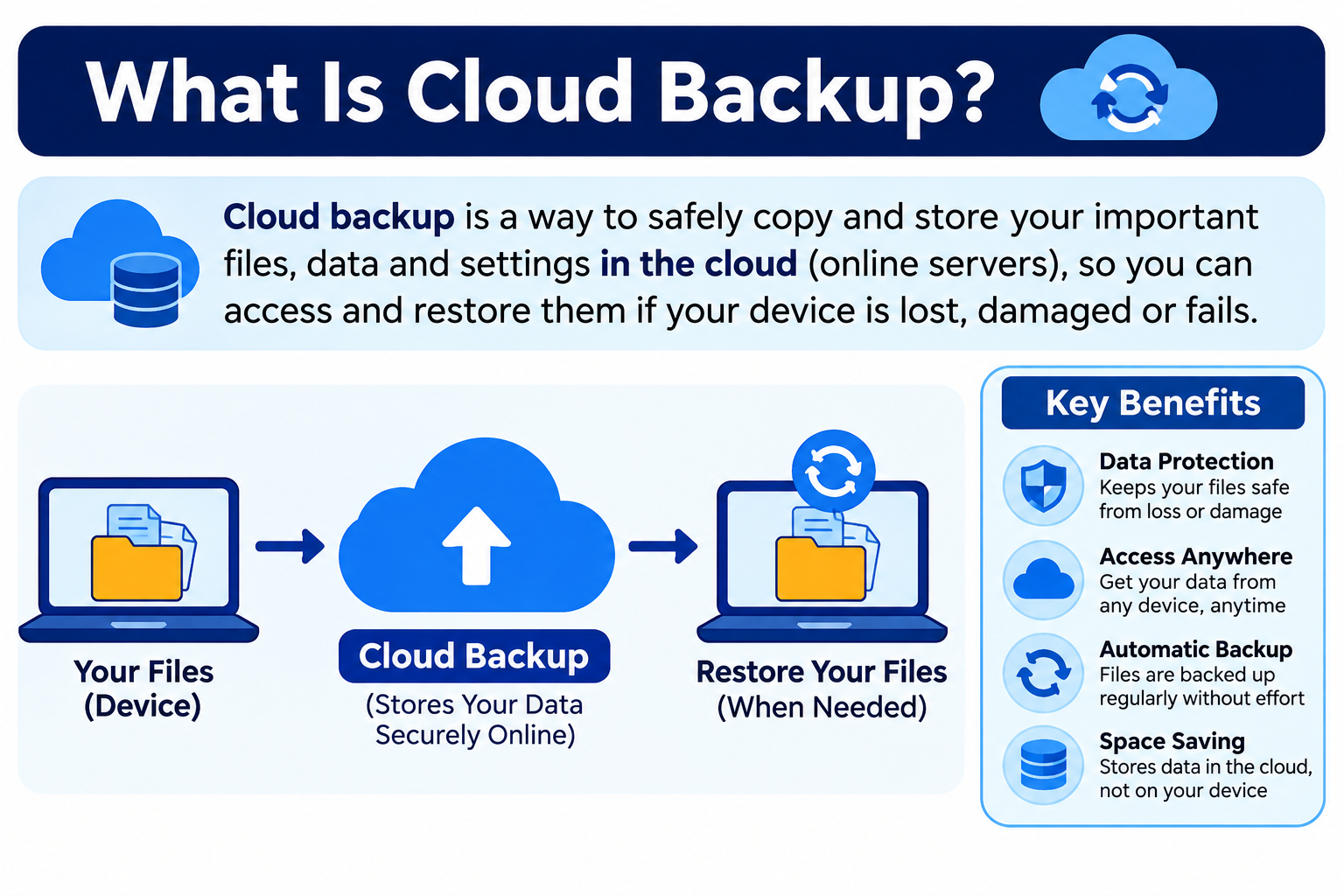
Data loss can happen to anyone at any time. A hard drive can fail without warning. A file can be deleted by mistake. Ransomware can encrypt an entire system overnight. A fire or flood can destroy physical equipment in minutes. Cloud backup is one of the most practical ways to protect against these risks. It is the process of copying data from a device or system to remote cloud infrastructure so it can be recovered if the original data is lost, damaged, or deleted. Understanding what is cloud backup, how it works, and how it differs from cloud storage and sync helps individuals and businesses make genuinely informed decisions about protecting their data. The broader technology behind it connects to cloud computing principles explained in [What Is Cloud Computing? A Beginner’s Guide].
Quick Answer: What Is Cloud Backup?
Cloud backup copies data from a device or system to remote cloud infrastructure managed by a provider, so it can be recovered if the original data is lost, corrupted, or deleted. Unlike cloud storage or sync, cloud backup is specifically designed for data protection and recovery. It typically runs on a schedule, retains multiple versions, and preserves deleted files for a defined period. Recovery speed and storage limits depend on the plan and provider.
What Is Cloud Backup?
Cloud backup is the practice of making copies of data and sending those copies to remote cloud infrastructure managed by a backup provider. The purpose is recovery. If the original data on a device, server, or system is lost, corrupted, accidentally deleted, or destroyed, the backed-up copy can be retrieved and restored.
This is different from simply storing files online. Cloud backup is specifically designed around the idea that something could go wrong and you will need to get your data back. Backup services typically retain copies over time, preserve deleted files for a set period, and allow you to restore data to a previous state.
The types of data that cloud backup can protect are broad. Documents, photos, videos, emails, databases, server data, application files, and business records can all be included in a backup plan depending on the service. The key is that the backup exists as a separate, protected copy that is not affected when the original is lost or damaged.
Cloud backup matters because no storage medium is permanent. Hard drives fail. Devices are stolen. Software corruption can render files unreadable. Having a separate copy in a different location is a fundamental principle of data protection.
How Does Cloud Backup Work?
Cloud backup involves several steps that work together to create and maintain protected copies of your data in a remote location.
- Backup software or a service agent is installed on the device or configured through the provider’s platform.
- The user or administrator selects which data to back up, such as specific folders, an entire drive, or a database.
- A backup schedule is defined, determining how often the backup runs, whether daily, weekly, or at another interval.
- At the scheduled time or trigger, the backup process begins automatically without requiring manual action.
- Data is compressed to reduce its size and often encrypted before it leaves the device to protect it during transmission.
- The compressed and encrypted data is transmitted over the internet to the backup provider’s cloud infrastructure.
- The provider stores the backup in its data centers, which typically include redundant storage systems to protect against hardware failure.
- The backup is indexed and metadata is recorded, making it possible to search for specific files and select which version to restore.
- If recovery is needed, the user initiates a restore through the provider’s software or web interface.
- Data is downloaded from the cloud to the device or system, or in some cases made available for recovery directly from the cloud.
Several components make this process reliable. Backup software or an agent runs on the device and manages the backup operation. Encryption protects data both during transmission and while stored at the provider. Compression reduces the amount of data sent over the network. Scheduling ensures backups happen regularly without depending on manual action. Incremental backups reduce the time and storage required after the first full backup. Data centers provide the physical infrastructure where backup copies live. The recovery process allows data to be retrieved and restored when needed.
For a broader understanding of how cloud infrastructure delivers services, visit [How Does Cloud Computing Work?].
Cloud Backup vs Cloud Storage
Cloud backup and cloud storage are frequently confused, but they serve fundamentally different purposes.
| Feature | Cloud Backup | Cloud Storage |
|---|---|---|
| Main purpose | Protecting data for recovery | Storing and accessing files |
| Typical access | Through restore process | Usually immediate |
| Sync behavior | Not typically real-time sync | Often syncs in real time |
| Version history | Usually retained | Depends on service |
| Recovery focus | Core feature | Not the primary purpose |
| Example | Dedicated backup service | Google Drive, Dropbox |
Cloud storage services such as Google Drive and Dropbox are designed for convenience. They make files accessible from any device and support real-time synchronization. Some offer limited version history. However, their primary purpose is file access and sharing, not systematic data protection and recovery.
Cloud backup services are built around recovery as the core objective. They retain multiple versions over time, preserve deleted files for defined retention periods, and provide structured restore processes for retrieving data after loss or damage. The experience of using them is different because you are not meant to access backed-up files daily. You access them when something goes wrong and you need them back.
[What Is Cloud Storage?] explains cloud storage in detail, including how it works and where it fits within the broader cloud computing ecosystem.
Cloud Backup vs Cloud Sync
Synchronization and backup may seem similar because both involve copying data to another location, but their behavior and purpose differ in ways that matter significantly during a data loss event.
| Feature | Cloud Backup | Cloud Sync |
|---|---|---|
| Purpose | Data recovery | Keeping files consistent across devices |
| Deletion behavior | Retains deleted files for recovery | May mirror deletions across devices |
| Recovery focus | Yes | Usually no |
| Real-time | Usually scheduled | Usually real-time |
| Example | Dedicated backup service | Dropbox sync, OneDrive sync |
Sync keeps files consistent across multiple devices. When you edit a document on your laptop, sync ensures the updated version appears on your phone and tablet automatically. This is genuinely useful for daily work.
However, sync can work against you during a data loss event. If ransomware encrypts files on your computer, sync may push those encrypted files to all connected devices before you realize what has happened. If you accidentally delete an important folder, the deletion may sync immediately across every device. Sync mirrors what happens to your files in real time, including mistakes and damage.
A backup retains protected copies that are not automatically overwritten when the original changes. A backup made before the ransomware attack or before the accidental deletion can be used to restore the original files regardless of what happened on the live device.
Understanding this distinction is one of the most important reasons to use dedicated backup services rather than relying on sync alone for data protection.
Cloud Backup vs Local Backup
Local backup stores copies of data on physical media near the original, such as an external hard drive, USB drive, or a network-attached storage device. Cloud backup sends copies to remote infrastructure over the internet.
| Feature | Cloud Backup | Local Backup |
|---|---|---|
| Location | Remote cloud infrastructure | Local device or external drive |
| Internet required | Yes for backup and recovery | Usually no |
| Off-site protection | Yes | Only if taken off-site |
| Recovery speed | Depends on connection and data volume | Usually faster for large data |
| Cost model | Usually subscription | Hardware cost |
| Disaster protection | Yes | Only if stored elsewhere |
| Access | Any location | Physical access required |
Local backup can recover data faster for large datasets because it does not depend on internet connection speed. However, local backup only provides off-site protection if the physical media is stored somewhere separate from the original device. A hard drive sitting next to a laptop offers no protection if both are stolen, flooded, or burned in the same event.
Cloud backup provides off-site protection automatically. The backup copy exists in a different location by definition. However, recovering large amounts of data over an internet connection takes significantly more time than restoring from a local drive.
Many individuals and organizations use both approaches. A local backup provides fast recovery from everyday data loss events. A cloud backup provides protection against disasters that affect a physical location. Using both reduces the risk that any single event can cause permanent data loss.
Cloud Backup vs Cloud Hosting
Cloud backup and cloud hosting serve completely different purposes and should not be confused.
Cloud hosting provides infrastructure for running websites, applications, and online services. When a business hosts its website in the cloud, the hosting environment keeps the website running and accessible to visitors. Cloud hosting is about delivery and availability.
Cloud backup protects data through remote copies designed for recovery. It does not run applications or serve content to users. It stores protected copies of data that can be retrieved when the original is lost. [What Is Cloud Hosting?] explains cloud hosting in detail, including how it works and who it is designed for.
What Are the Types of Cloud Backup?
Cloud backup is not a single uniform approach. Different backup types serve different needs in terms of storage efficiency, recovery speed, and data currency.
Full Backup
A full backup copies all selected data every time it runs. It is the most comprehensive approach because every file in the backup scope is included in each backup session. Full backups provide the simplest recovery process because the entire dataset is contained in a single backup. The trade-off is that full backups require more storage space and take longer to complete than other types, particularly as the dataset grows.
Incremental Backup
Incremental backup copies only the data that has changed since the last backup, whether that was a full backup or a previous incremental backup. The first backup in an incremental sequence is typically a full backup. Subsequent backups only capture new or modified files, making them significantly faster and more storage-efficient than repeated full backups. Recovery from an incremental backup requires the most recent full backup plus all subsequent incremental backups in sequence, which adds some complexity to the recovery process.
Differential Backup
Differential backup copies all data that has changed since the last full backup, regardless of whether a differential backup has already been made. Each differential backup grows larger over time as more changes accumulate since the last full backup. Recovery requires only the most recent full backup and the most recent differential backup, making restoration simpler than incremental recovery while still being more storage-efficient than repeated full backups.
The practical difference between incremental and differential is a trade-off between storage efficiency and recovery simplicity. Incremental is more efficient in storage but requires more files during recovery. Differential uses more storage but simplifies the recovery process.
Mirror Backup
A mirror backup creates an exact current copy of the selected data. Whatever exists in the source at backup time is exactly what exists in the mirror. If a file is deleted from the source, it is also deleted from the mirror during the next backup cycle. This makes mirror backup more of a real-time copy than a true backup, since it does not preserve historical versions or retain deleted files. Mirror backup can be useful as part of a broader backup strategy but should not be relied on as the sole backup method for data that needs historical protection.
Continuous Data Protection
Some cloud backup services offer continuous or near-continuous data protection, capturing changes very frequently or in real time rather than on a fixed schedule. This approach minimizes the window of data loss between backups, meaning that if a failure occurs, only a very small amount of recent work may be unrecoverable. Continuous data protection typically requires more bandwidth and storage compared to scheduled backups and is commonly used for high-value business systems where even small data loss windows are unacceptable.
Personal Cloud Backup
Personal cloud backup services are designed for individual users who want to protect documents, photos, videos, music, and device settings. They typically offer simple setup, automated backup, and consumer-friendly interfaces without requiring technical expertise. Free tiers with limited storage and paid plans with greater capacity are common in this category.
Business Cloud Backup
Business cloud backup addresses the more complex requirements of organizations. This includes backing up file servers, email systems, databases, business applications, and virtual machines. Business backup services typically offer more granular recovery options, longer retention periods, compliance-related features, and centralized management tools for IT administrators.
| Type | What It Backs Up | Key Characteristic |
|---|---|---|
| Full backup | All selected data | Comprehensive but larger |
| Incremental backup | Changes since last backup | Efficient storage |
| Differential backup | Changes since last full backup | Balance of speed and recovery |
| Mirror backup | Exact current copy | Deletes removed files |
| Continuous backup | Near real-time data | Minimal data loss window |
| Personal backup | Individual user data | Simple consumer use |
| Business backup | Servers and business systems | Enterprise recovery |
What Data Can Cloud Backup Protect?
Cloud backup can protect a wide range of data types depending on the service and how it is configured.
Documents and files including word processing documents, spreadsheets, presentations, and PDFs represent some of the most commonly backed-up personal and business data. Photos and videos from cameras, smartphones, and editing projects are frequently included because they are often irreplaceable. Music libraries, audio recordings, and podcasts can also be included in a backup scope.
Emails and their attachments represent critical business communication records that can be backed up through dedicated email backup services or as part of broader business backup solutions. Databases storing customer records, financial data, inventory information, and other structured business data require specialized backup approaches that preserve data integrity and support point-in-time recovery.
Servers including file servers, web servers, and application servers can be backed up at the system level, capturing the entire server state rather than just individual files. System images capture the complete state of an operating system and its configuration, allowing a device to be restored to a working state rather than just recovering individual files.
Virtual machines running on virtualization infrastructure can be backed up as complete images, preserving the entire virtual environment for recovery. Website files including code, media, and configuration can be included in backup strategies for web applications and online businesses. Business records, customer data, and compliance-related documents round out the broad range of data that cloud backup can protect when configured appropriately.
Common Causes of Data Loss
Understanding why data loss happens reinforces why backup is worth taking seriously.
Hardware failure is one of the most common causes of data loss. Hard drives, solid-state drives, and other storage components have finite lifespans and can fail without warning or visible symptoms beforehand.
Accidental deletion happens regularly. Files are moved to the wrong folder, entire directories are deleted during cleanup, and important documents are overwritten with incorrect versions. Human error is a consistent and underestimated source of data loss.
Ransomware and malware represent a serious threat to data. Ransomware encrypts files and demands payment for the decryption key. Without a backup that predates the infection, recovering the original files without paying the ransom may be impossible. [What Is Malware?] explains how malicious software works and the threats it poses to data and systems.
Natural disasters including floods, fires, and storms can destroy physical equipment and the data stored on it. Theft of laptops, external drives, and other physical devices removes both the device and whatever data was stored only on that device.
Power failures and power surges can damage storage hardware and corrupt data mid-write. Software corruption caused by failed updates, application crashes, or file system errors can render data unreadable. Vendor failure, where a software or hosting provider closes or experiences a service disruption, can cause data loss for customers who stored data only within that service.
Benefits of Cloud Backup
Cloud backup offers genuine protective advantages when used correctly.
Off-site data protection is the most fundamental benefit. Backup copies stored in remote cloud infrastructure are physically separate from the original data, protecting against local disasters that could destroy both the original and any co-located backup.
Recovery from hardware failure becomes possible when a drive dies or a device becomes unresponsive. With a current cloud backup, the data can be restored to a replacement device.
Protection against accidental deletion means that files deleted from the live system remain available in the backup for the duration of the retention period, allowing recovery even after the original is gone.
Ransomware recovery options exist when the backup predates the infection. Restoring from a clean backup made before the ransomware executed can recover encrypted files without interacting with the attackers.
Automated scheduling removes the dependence on manual action for data protection. Backups run according to a defined schedule without requiring the user to remember to initiate them.
Scalable storage allows backup capacity to grow as data volumes increase, typically by upgrading a plan rather than purchasing physical hardware.
Version history gives access to earlier versions of files, making it possible to recover not just the most recent copy but a version from days or weeks earlier when needed.
Geographic redundancy within the provider’s infrastructure means backup copies may be stored across multiple physical locations, reducing the risk that a single provider-side event destroys the backup.
Disaster recovery support makes cloud backup a meaningful component of a broader data protection and business continuity strategy.
No physical media management means there are no tapes to rotate, external drives to transport, or storage devices to maintain and eventually replace.
Remote access for recovery allows data to be restored from any location with internet access, not just from the physical location where the backup device is stored.
Centralized management for businesses allows administrators to monitor backup status, configure backup policies, and manage recovery operations for multiple devices and users from a single interface.
These benefits apply where the service, plan, and configuration support them. Cloud backup does not guarantee recovery in every scenario, and recovery outcomes depend on factors including backup frequency, retention settings, data volume, and internet connection speed.
Disadvantages of Cloud Backup
A complete picture of cloud backup includes its real limitations.
Internet dependency affects both the backup process and recovery. Devices without reliable internet access may not back up consistently. Recovering large datasets over a slow connection can take hours or days.
Recovery time for large data sets is a practical challenge. Downloading terabytes of data from cloud infrastructure takes significantly longer than restoring from a local drive regardless of how well the backup service functions.
Subscription costs for cloud backup accumulate over time. Unlike a one-time hardware purchase, cloud backup typically involves recurring monthly or annual fees that continue for as long as the service is used.
Initial backup time for large data volumes can be very long. The first full backup of a system with significant data may take days or weeks to complete over a typical internet connection.
Data transfer costs may apply depending on the provider and plan. Restoring large amounts of data from some cloud services can incur additional charges beyond the subscription fee.
Privacy considerations arise because backup data is stored on infrastructure managed by a third party. Understanding the provider’s data handling policies and encryption practices before backing up sensitive information is important.
Provider dependency means that the availability and security of the backup depend on the provider’s operational health. If a provider experiences significant technical problems or goes out of business, access to backups could be affected.
Vendor lock-in can develop when backup data is stored in proprietary formats that make migration to another service complex or when retention periods mean data cannot be easily exported.
Storage limits on some plans mean that backing up very large datasets may require upgrading to a more expensive tier or accepting that some data is not included.
Configuration complexity for business backup setups, particularly those involving servers, databases, and compliance requirements, can be significant and may require technical expertise to implement correctly.
Reducing these challenges involves choosing plans with appropriate storage and retention settings, maintaining a local backup for large or critical datasets, reviewing provider policies carefully, and testing restoration processes before they are urgently needed.
Is Cloud Backup Secure?
Cloud backup can be made very secure, but security is not automatic. It depends on both what the provider implements and what the customer configures and manages.
Encryption in transit protects data as it travels from the device to the provider’s infrastructure. Reputable backup services use strong encryption protocols to prevent interception during transmission. Encryption at rest protects stored backup copies from unauthorized access on the provider’s storage systems.
Access controls determine who can log into the backup account and initiate restores or view backup content. Authentication verifies identity before granting access. Multi-factor authentication adds a second verification step beyond the password, significantly reducing the risk of unauthorized account access.
Zero-knowledge encryption is a particularly strong security approach offered by some backup providers. It allows customers to encrypt their backup data with a key that only the customer holds. The provider stores the encrypted data but cannot read its contents because it does not have access to the encryption key. This means that even if the provider’s systems were compromised, the backup data would remain unreadable without the customer’s key. The trade-off is that if the customer loses the encryption key, the provider cannot help recover the data.
Provider security practices including physical data center security, infrastructure monitoring, redundant storage, and regular security updates contribute to the overall security of the backup environment. However, the customer’s own practices matter equally.
A backup account with a weak password, no multi-factor authentication, and shared credentials is vulnerable regardless of the provider’s infrastructure security. Phishing attacks that steal backup account credentials can give attackers the ability to delete backups or access sensitive backed-up data.
Cloud backup is not automatically secure. Treating it as a security priority rather than a set-and-forget service significantly reduces the risk of backup-related security incidents. [What Is Cloud Security?] covers cloud security principles in detail relevant to backup environments.
Cloud Backup Security Best Practices
Protecting a cloud backup account and the data within it requires consistent attention to both account security and configuration.
- Use a strong, unique password for the backup account that is not reused on other services.
- Enable multi-factor authentication to protect the account against unauthorized access even if the password is compromised.
- Choose providers that offer encryption in transit and encryption at rest as standard features, not optional add-ons.
- Consider zero-knowledge encryption for sensitive or confidential data where the strongest privacy protection is required.
- Review the provider’s security documentation, compliance certifications, and data handling policies before committing to a service.
- Limit who has access to the backup account, particularly for business setups where multiple administrators may not all need full access.
- Monitor backup success and failure notifications so that gaps in backup coverage are detected promptly rather than discovered only when recovery is needed.
- Keep backup software, agents, and client applications updated to protect against vulnerabilities in older versions.
- Test restorations regularly by actually restoring files and verifying that the recovered data is complete and usable.
- Maintain a separate local backup for the most critical data so that recovery from a provider outage or account issue does not depend entirely on cloud access.
- Review retention policies periodically to ensure that the backup keeps data for as long as you actually need it.
- Audit access logs to detect any unusual account access or unauthorized activity on the backup account.
- Use a trusted network for backup operations, avoiding public Wi-Fi for sensitive backup account management tasks.
- Keep backup account credentials stored securely and separately from other account information, using a password manager where appropriate.
Understanding social engineering attacks that target account credentials is important for anyone managing backup accounts. Recognizing phishing attempts that impersonate backup providers is a practical security skill. Keeping devices used to access backup accounts protected from malware reduces the risk of credential theft.
Cloud Backup Scalability
Cloud backup can scale to accommodate growing data volumes and more complex organizational requirements, but scalability depends on the plan and provider.
Personal plans typically include a defined storage limit measured in gigabytes or terabytes. As data volumes grow, upgrading to a larger plan increases the available backup storage capacity. Some personal plans cover a single device while others allow multiple devices under one subscription.
Business plans scale across more dimensions. Storage capacity, the number of users covered, the number of devices included, and the retention period all affect how the service scales for organizational needs. Adding new team members, new servers, or new business systems to the backup scope typically requires plan adjustments.
Storage scaling in cloud backup is generally simpler than adding physical backup hardware because it involves plan changes rather than purchasing and deploying new storage devices. User and device scaling follows similar logic, with higher-tier plans accommodating more users and endpoints.
Understanding the scaling options and their associated costs before committing to a provider helps avoid situations where growth requires migrating to a different service or paying unexpectedly high upgrade fees.
Cloud Backup Reliability and Recovery
A backup is only valuable if it can actually be used for recovery when needed. Reliability and recovery deserve as much attention as backup configuration.
Backup verification confirms that the backup process completed successfully and that the backed-up data is intact. Reputable backup services perform integrity checks on backup data and provide notifications when backups fail or produce errors.
Recovery testing is the practice of actually restoring data from the backup to confirm that it works correctly. Many organizations and individuals configure backups and never test recovery until a real data loss event forces them to. Testing regularly confirms that the backup is functional before it is urgently needed.
Recovery time for cloud backup depends on the volume of data being restored and the speed of the internet connection available during recovery. Restoring a few documents takes minutes. Restoring an entire server from cloud backup can take hours or days depending on data volume and connection speed.
Two concepts help organizations plan recovery expectations effectively.
RPO, or Recovery Point Objective, describes how much data the organization can afford to lose measured in time. An RPO of four hours means the organization can accept losing up to four hours of data, which means backups must run at least every four hours to meet that objective.
RTO, or Recovery Time Objective, describes how quickly systems need to be restored after an incident. An RTO of two hours means the organization needs to have its systems operational again within two hours of a failure. Meeting a short RTO from cloud backup requires either a small dataset that downloads quickly or pre-tested recovery procedures that minimize the time spent on manual steps.
Understanding RPO and RTO before choosing a backup service helps match the service’s capabilities to actual organizational needs.
Provider redundancy within the backup service means that backup data is typically stored across multiple physical systems or locations within the provider’s infrastructure, reducing the risk that hardware failure at the provider eliminates the backup copy.
Cloud Backup Use Cases
Cloud backup serves a wide range of practical data protection scenarios.
Personal computer backup protects the documents, photos, and files on a laptop or desktop computer against hardware failure, accidental deletion, or ransomware.
Smartphone backup captures photos, contacts, messages, app data, and device settings so that a lost or damaged phone can be restored to a new device.
Photo and video backup preserves irreplaceable personal and professional media libraries that would be impossible to recreate if the originals were lost.
Small business backup protects business-critical files, customer records, and financial data against loss events that could otherwise permanently damage business operations.
Server backup creates protected copies of server data and system state so that servers can be restored after hardware failure or other incidents.
Database backup captures the state of databases at regular intervals, enabling point-in-time recovery of business data when database corruption or data errors occur.
Email backup preserves business communication records that may be important for legal, compliance, or operational reasons beyond what the email service itself retains.
Website backup protects website files, databases, and configuration so that a website can be restored after a security incident, failed update, or hosting provider problem.
Remote work backup extends data protection to employee devices working from home or other locations outside the office, ensuring that work data is protected regardless of where it is created.
Disaster recovery as a use case positions cloud backup as the mechanism through which critical systems and data can be recovered after events that affect an entire physical location.
Legal and compliance backup retains data for the periods required by applicable regulations or legal hold requirements, which may be significantly longer than standard backup retention.
Virtual machine backup captures the complete state of virtualized environments so that virtual machines can be restored or migrated after infrastructure failures.
Cloud Backup for Personal Use
Individual users have straightforward cloud backup needs that many services address with simple, automated solutions.
Photos and videos are often the highest priority for personal backup because they are irreplaceable. Losing family photos or personal video recordings due to a failed phone or laptop is a loss that no technical recovery process can address if no backup exists.
Documents including personal records, financial files, creative projects, and important correspondence deserve regular backup. These files may be small individually but collectively represent significant personal and practical value.
Music libraries, particularly those including recordings not available through streaming services, benefit from backup against device failure.
Device data including application settings, contacts, and system preferences can be captured through device backup services, making it faster to set up a replacement device after loss or failure.
Most personal cloud backup services offer automated backup that runs in the background without requiring daily action from the user. Free tier plans with limited storage suit very small data volumes. Paid plans with greater storage accommodate larger photo libraries and more comprehensive device coverage.
Cloud Backup for Small Businesses
Small businesses face significant data loss risks and often have fewer resources to recover from them than larger organizations.
File server backup protects shared business files that multiple employees depend on for daily operations. Losing access to contracts, proposals, financial records, or project files can halt business activity immediately.
Email backup preserves business communication history that may be needed for legal disputes, regulatory inquiries, or operational continuity.
Business application data including customer relationship information, accounting records, and inventory data represents core business value that cannot be reconstructed from memory if the original is lost.
Customer records are both operationally critical and often subject to regulatory obligations about data retention. Losing customer data can affect both business operations and compliance standing.
Accounting data including transaction records, invoices, and financial reports must be retained for defined periods and is essential for business operations and tax obligations.
Automated backup removes the risk that backup is skipped during busy periods when staff have other priorities. Recovery planning, including testing restoration regularly, is particularly important for small businesses where a single data loss event can have a disproportionate operational impact.
Small businesses are particularly vulnerable to data loss because they typically have less redundancy in their systems, fewer IT resources to manage recovery, and less financial cushion to absorb the costs of extended downtime.
Cloud Backup for Enterprises
Enterprise backup requirements are significantly more complex than personal or small business backup, reflecting the scale and criticality of the data and systems involved.
Server backup at enterprise scale involves backing up many servers running different operating systems, applications, and roles. Each server may have different backup requirements, retention periods, and recovery time expectations.
Database backup for enterprise systems requires approaches that preserve data consistency and support point-in-time recovery, allowing the organization to restore a database to the exact state it was in at a specific moment rather than just the time of the last backup.
Virtual machine backup captures entire virtualized environments, enabling fast recovery of complex multi-component systems without needing to rebuild virtual machines from scratch.
Email backup for enterprise email systems covers large volumes of communication data that may be subject to legal hold requirements or compliance regulations mandating specific retention periods.
Compliance and regulatory backup responds to specific industry or legal requirements about how long certain data must be retained and in what form. Meeting these requirements demands backup services that support configurable retention policies and provide audit documentation.
Disaster recovery planning at enterprise scale requires understanding RPO and RTO requirements for each system category and choosing backup approaches that can meet those recovery objectives. [What Is Cloud Security?] provides context on the security considerations relevant to enterprise backup environments.
How Much Does Cloud Backup Cost?
Cloud backup pricing varies widely depending on the type of service, the volume of data, and the features included.
Storage volume is the primary cost driver for most cloud backup services. More data requires more storage, which increases the plan cost. Retention periods affect storage consumption because keeping backup copies for longer periods means more historical data is stored simultaneously.
The number of devices covered by a plan affects pricing for personal and business backup services. Plans covering a single device cost less than those covering multiple devices or an unlimited number of endpoints.
The number of users in a business backup plan typically determines pricing, with per-user pricing common in business-oriented services.
Retention period length affects how much historical backup data is stored and therefore how much storage the service consumes. Longer retention costs more than shorter retention for the same data volume.
Recovery options and speed may affect pricing. Some services charge for restores beyond a certain volume, while others include unlimited restores in the subscription.
Managed backup services that include monitoring, administration, and support from the provider carry higher costs than self-managed backup tools.
Free personal tiers offer limited storage suitable for small amounts of personal data. Paid personal plans increase storage capacity and typically extend retention periods. Business plans add features such as centralized management, compliance tools, and support for server and database backup. Enterprise plans provide the comprehensive coverage, extended retention, and advanced recovery capabilities that large organizations require.
Cloud backup is not always less expensive than alternatives. For very large data volumes, the ongoing subscription cost may exceed what local backup hardware would cost over the same period. The value of cloud backup lies in its off-site protection, automation, and accessibility rather than necessarily in lower total cost.
Cloud Backup Pricing: What Should You Check?
Before choosing a cloud backup plan, reviewing the following points helps avoid unexpected limitations and charges.
Storage included in the plan and what happens when that limit is reached, including whether additional storage is available and how it is priced.
Maximum file size limits that prevent backing up very large files, such as video files or database exports, which can leave critical data outside the backup scope.
Number of devices covered by the plan and whether additional devices can be added and at what cost.
Retention period for backups, defining how far back in time you can recover files and how long deleted files remain recoverable.
Deleted file retention, specifying how long files that were deleted on the original device remain accessible for recovery in the backup.
Restore options including whether full system restores, individual file restores, and bare-metal recovery are supported by the plan.
Restore speed or bandwidth indicating whether recovery speed is limited and whether priority recovery options exist.
Encryption options confirming whether client-side or zero-knowledge encryption is available for sensitive data.
Multi-factor authentication support as a standard security feature of the account.
Customer support channels and response time commitments at the plan level you are considering.
Renewal pricing compared to any introductory promotional rates, since some services offer significantly discounted first-year pricing that increases substantially at renewal.
Data transfer or restore fees that may apply when downloading large volumes of backup data, particularly in services with usage-based pricing components.
Examples of Cloud Backup Services
Cloud backup services fall into several broad categories based on who they serve and what they back up.
Personal cloud backup services focus on protecting individual user data including documents, photos, and device content. They typically offer easy setup, automated backup, and consumer-friendly interfaces designed for users without technical expertise.
Business cloud backup services address organizational data protection needs including file servers, email systems, and business application data. They offer centralized management, configurable retention policies, and more granular recovery options than personal services.
Server backup services specialize in protecting server infrastructure including operating systems, applications, and databases. They support more complex recovery scenarios including bare-metal recovery and point-in-time database restoration.
Backup as a Service providers offer managed backup solutions where the provider handles backup infrastructure management alongside the backup software, reducing the operational burden on the customer’s IT team.
Organizations should evaluate current service offerings, features, pricing, and terms directly from provider documentation before making a commitment. [Best Cloud Storage Services Comparison] covers a range of cloud services that may complement a backup strategy.
What Is Backup as a Service (BaaS)?
Backup as a Service is a managed cloud backup model where the provider delivers backup infrastructure, management tools, and often monitoring as a service rather than as software the customer deploys and manages independently.
In a BaaS arrangement, the provider manages the backup infrastructure, storage systems, and often the operational monitoring that confirms backups are running successfully. The customer defines what data to back up and manages recovery when needed, but does not manage the underlying backup platform.
BaaS differs from self-managed cloud backup in that the provider takes on more responsibility for the backup environment itself. With self-managed cloud backup, the customer deploys backup software, configures it, monitors it, and troubleshoots it independently. With BaaS, many of those responsibilities transfer to the provider.
BaaS is particularly useful for businesses without dedicated backup IT staff, where the expertise and time required to manage a self-administered backup platform are not available. Pricing is typically subscription-based, with costs reflecting storage volume, the number of protected systems, and the level of management service included.
Cloud Backup and Disaster Recovery
Cloud backup and disaster recovery are related but not the same thing. Understanding the relationship prevents organizations from assuming that having a cloud backup automatically means they have a complete disaster recovery strategy.
Backup is a component of disaster recovery. It provides the protected data copies that recovery processes depend on. Without a current backup, recovery from many types of incidents is impossible.
However, disaster recovery requires more than backup. A complete disaster recovery plan addresses how systems will be restored, where they will run during recovery, how users will access systems while primary infrastructure is unavailable, how long recovery will take, and what procedures govern the decision to declare a disaster and initiate recovery.
RPO and RTO requirements defined in the disaster recovery plan drive backup strategy decisions. If the organization needs to restore within two hours, the backup service and recovery process must be capable of meeting that timeline. If the organization can accept losing up to 24 hours of data, daily backups may be sufficient.
Business continuity planning extends beyond IT recovery to address how the organization continues operating during and after an incident, including communication plans, alternative work arrangements, and customer notification.
Simply uploading data to a cloud backup service is not a disaster recovery plan. It is one important step toward being able to recover. Building a genuinely effective disaster recovery capability requires planning, testing, and the other components that turn a backup into a recovery. For organizations running websites or applications, understanding [What Is Cloud Hosting?] provides context on the infrastructure side of recovery planning.
How to Choose a Cloud Backup Service
Selecting the right cloud backup service requires evaluating requirements before comparing provider options.
- Identify what data needs to be backed up, including all critical files, databases, emails, and system data that would be damaging to lose.
- Determine how much storage you need by estimating the total size of the data you want to protect and allowing room for growth.
- Set your recovery time requirements by considering how quickly you would need to restore data after a loss event and whether the service can support that timeline.
- Check encryption and security features to confirm that the service offers appropriate protection for the sensitivity of the data being backed up.
- Review retention policies to ensure the service retains backup versions for as long as you need to be able to recover historical data.
- Check supported devices and operating systems to confirm that all the devices and systems you need to protect are compatible with the service.
- Evaluate restore options and speed by understanding what types of restore the service supports and whether recovery performance aligns with your needs.
- Review pricing and renewal terms including introductory rates versus standard rates and any usage-based charges that could affect total cost.
- Check customer support availability and response time commitments to understand what assistance is available if problems occur.
- Test a free trial or free tier if available to evaluate the service before committing to a paid subscription.
- Read independent reviews and reliability reports to understand the service’s track record beyond what the provider’s own marketing describes.
- Confirm the provider’s data center locations and redundancy to understand where backup data is physically stored and how it is protected against provider-side infrastructure failures.
Cloud Backup Best Practices
Effective cloud backup requires more than selecting a service and configuring it once.
The 3-2-1 backup rule is a foundational data protection principle worth understanding and following. Keep at least three copies of your data, stored on two different types of media, with one copy stored off-site. For example, the original data on a laptop, a local backup on an external drive, and a cloud backup at a remote provider. This approach ensures that no single event can destroy all copies simultaneously.
Automating backups removes dependence on manual action. Backups that require someone to remember to initiate them are missed whenever other priorities take precedence.
Testing restorations regularly confirms that backup copies are functional and recoverable. A backup that has never been tested is an assumption rather than a verified protection.
Using encryption protects backup data against unauthorized access both during transmission and at rest in the provider’s infrastructure.
Enabling multi-factor authentication on backup accounts significantly reduces the risk of unauthorized access even when passwords are compromised.
Monitoring backup success notifications means that backup failures are detected promptly rather than discovered only when recovery is needed.
Keeping at least one local backup copy for critical data provides faster recovery for large datasets and protection against scenarios where cloud access is unavailable.
Reviewing retention settings periodically ensures that the backup retains data for as long as actually needed as retention requirements change over time.
Documenting the backup strategy means that recovery procedures are understood and accessible to relevant people rather than known only to whoever configured the system.
Including all critical data in the backup scope requires periodic review as new data sources, new devices, and new systems are added over time.
Reviewing backup logs periodically identifies patterns such as recurring failures or growing backup times that indicate problems developing before they become critical.
Storing backup credentials securely using a password manager and keeping them separate from other account credentials reduces the risk of credential-based attacks on backup accounts.
Updating backup software regularly ensures that security vulnerabilities in backup clients and agents are addressed through current patches.
Reviewing the backup strategy as data needs change means the protection in place continues to match actual requirements rather than the requirements that existed when the service was initially configured.
Common Cloud Backup Mistakes
Many data protection failures stem from avoidable errors in how backup is configured or managed.
Never testing restores is the most consequential mistake. Discovering that backup data cannot be recovered during an actual data loss event is the worst possible time to learn that the backup was not functioning correctly.
Backing up only some data leaves critical files outside the backup scope. A backup that does not include the most important files provides incomplete protection and a false sense of security.
Relying only on sync for data protection exposes data to the mirror effect of sync services, where deletions and ransomware damage propagate to the synced copy automatically.
Setting retention too short means that deleted or corrupted files may fall outside the retention window before the problem is discovered, making recovery impossible even though backups were running.
Ignoring backup failure notifications allows backup gaps to accumulate undetected until a recovery event reveals that the last successful backup was weeks or months earlier than expected.
Using weak passwords or not enabling multi-factor authentication on backup accounts creates vulnerability that no amount of provider-side security can compensate for.
Assuming the provider backs up everything automatically without reviewing what the service actually covers can leave entire categories of data unprotected.
Forgetting to include new data sources when new devices, new servers, or new applications are added means the backup scope does not expand with the organization’s data footprint.
Choosing based only on price without evaluating recovery capabilities, retention policies, encryption options, and support quality often leads to discovering that the cheapest option lacks essential features only when they are needed.
Cloud Backup for Students and Beginners
Students and beginners can benefit from cloud backup without needing extensive technical knowledge.
Simple personal backup covering documents, photos, and other important files is an accessible starting point. The data most important to protect is typically assignments, research notes, personal photos, and creative projects that cannot be easily recreated.
The distinction between cloud storage and cloud backup is worth understanding early. Services used daily for file access and sharing are not backup solutions. A backup specifically designed for recovery should complement those tools rather than replace them.
Free tier options from various backup services allow beginners to protect modest amounts of data without financial commitment while learning how backup works in practice.
Easy-to-use backup tools designed for personal use often require minimal configuration beyond selecting what to back up and setting a backup schedule. Starting simple and adding complexity as understanding grows is a reasonable approach.
Developing the habit of thinking about what would happen if a device were lost or damaged, and whether that data could be recovered, is the foundation of good data protection practice for any user.
For broader software recommendations relevant to students, visit [Best Software for Students].
Frequently Asked Questions
What is cloud backup?
Cloud backup copies data from a device or system to remote cloud infrastructure so it can be recovered if the original data is lost, corrupted, or deleted. It is specifically designed for data protection and recovery.
What is cloud backup in simple words?
Cloud backup means sending copies of your files and data to remote servers over the internet so you can get them back if something happens to the originals, such as a broken hard drive or accidental deletion.
How does cloud backup work?
Backup software selects and compresses data, encrypts it, and transmits it to the provider’s cloud infrastructure. The provider stores the backup in its data centers. When recovery is needed, you initiate a restore and the data is downloaded back to your device.
Is cloud backup safe?
Cloud backup can be very safe, but security depends on both the provider’s practices and the customer’s configuration. Using strong passwords, enabling multi-factor authentication, and choosing providers with strong encryption significantly improves backup security.
Is cloud backup the same as cloud storage?
No. Cloud storage is designed for accessing and sharing files. Cloud backup is designed for recovering data after loss. They serve different purposes, and cloud storage alone should not be treated as a backup.
What is the difference between cloud backup and cloud sync?
Sync keeps files consistent across devices in real time, including mirroring deletions and changes. Backup retains protected copies for intentional recovery, preserving deleted files and previous versions for the duration of the retention period.
What is the difference between cloud backup and local backup?
Cloud backup stores copies in remote cloud infrastructure, providing off-site protection automatically. Local backup stores copies on physical media near the original, typically enabling faster recovery but requiring intentional off-site storage for disaster protection.
What is the 3-2-1 backup rule?
The 3-2-1 rule recommends keeping at least three copies of data, stored on two different types of media, with one copy stored off-site. This approach ensures no single event can destroy all copies simultaneously.
What is incremental backup?
Incremental backup copies only the data that has changed since the last backup run, whether that was a full backup or a previous incremental backup. It is more storage-efficient than full backups but requires all incremental copies in sequence for a complete restore.
What is full backup?
A full backup copies all selected data every time it runs. It is comprehensive and provides the simplest restore process but requires more storage and takes longer to complete than incremental approaches.
What is differential backup?
Differential backup copies all data that has changed since the last full backup. It is more storage-efficient than repeated full backups and simpler to restore from than incremental backup, requiring only the most recent full backup and the most recent differential.
How much does cloud backup cost?
Cloud backup pricing varies widely based on storage volume, number of devices, retention period, and service features. Free personal tiers cover small data volumes. Paid personal plans, business plans, and enterprise plans offer greater storage, longer retention, and more advanced features at increasing cost.
Is cloud backup good for businesses?
Cloud backup can be very valuable for businesses, protecting critical data against hardware failure, accidental deletion, ransomware, and disaster. Small businesses are particularly vulnerable to data loss, making backup an important part of operational resilience.
Can cloud backup protect against ransomware?
Cloud backup can support recovery from ransomware when the backup predates the infection. Restoring from a clean backup avoids paying the ransom and recovers the original files. However, backup must be configured correctly and tested to ensure it can support this recovery scenario.
How long does cloud backup take?
Initial backup time depends on the volume of data and internet connection speed. Large datasets may take days for the first full backup. Subsequent incremental backups are typically much faster. Recovery time depends on the same factors.
What is Backup as a Service?
Backup as a Service is a managed cloud backup model where the provider delivers backup infrastructure and management as a service. The provider handles the backup platform while the customer configures what is backed up and manages recovery when needed.
What is RPO and RTO?
RPO, or Recovery Point Objective, is how much data loss an organization can accept, measured in time since the last backup. RTO, or Recovery Time Objective, is how quickly systems need to be restored after an incident. Both help organizations define appropriate backup frequency and recovery capabilities.
What data can cloud backup protect?
Cloud backup can protect documents, photos, videos, music, emails, databases, server data, applications, system images, virtual machines, website files, and business records depending on the service and configuration.
How do I choose a cloud backup service?
Identify what data needs protection, how much storage is required, and what recovery time you need. Then evaluate encryption, retention policies, supported devices, restore options, pricing, support, and the provider’s reliability track record before choosing.
What are the best practices for cloud backup?
Follow the 3-2-1 backup rule, automate backups, test restorations regularly, use encryption, enable MFA, monitor success notifications, review retention settings, document the backup strategy, and include all critical data in the backup scope.
Final Thoughts
Cloud backup is one of the most practical steps anyone can take to protect data against the genuine and varied risks of data loss. Hardware fails, files get deleted, ransomware attacks happen, and disasters occur. In each of these scenarios, a current, tested backup is what makes the difference between recovery and permanent loss.
Understanding what is cloud backup means understanding its specific purpose. It is not cloud storage, which is designed for everyday file access and sharing. It is not cloud sync, which mirrors changes across devices in real time. It is not cloud hosting, which runs websites and applications. Cloud backup has one core function: creating and maintaining protected copies of data that can be recovered when the original is lost.
The types of cloud backup, from full and incremental to continuous data protection, serve different needs in terms of storage efficiency, recovery speed, and how current the protected copy remains. The right approach depends on how much data loss is acceptable, how quickly recovery must happen, and what the budget allows.
Security in cloud backup requires attention from the customer as well as the provider. Strong passwords, multi-factor authentication, encryption, and regular testing are customer responsibilities that no provider can fulfill on the customer’s behalf.
The 3-2-1 backup rule provides a practical framework for data protection that applies regardless of which specific services are used. Multiple copies, multiple media types, and off-site storage together reduce the risk that any single event permanently destroys all copies.
Choosing a cloud backup service requires matching the service’s capabilities to actual data protection requirements rather than selecting based on price alone. Testing restoration before it is needed, monitoring backup success, and reviewing the backup strategy as data needs change are habits that turn a configured backup into genuine data protection.
What is cloud backup in practice? It is the difference between a data loss event being a recoverable problem and a permanent loss. Approaching it seriously, understanding its capabilities and limitations, and maintaining it actively is how individuals and organizations turn cloud backup into reliable data protection.
References
National Institute of Standards and Technology. “Guide to Enterprise Telework, Remote Access, and Bring Your Own Device Security.” NIST Special Publication 800-46. https://csrc.nist.gov/publications/detail/sp/800-46/rev-2/final
Microsoft. “Cloud Backup and Recovery.” Microsoft Azure Documentation. https://azure.microsoft.com/en-us/solutions/backup-and-disaster-recovery/
Amazon Web Services. “Cloud Backup.” AWS Backup Documentation. https://aws.amazon.com/backup/
Google Cloud. “Backup and Disaster Recovery.” Google Cloud Documentation. https://cloud.google.com/solutions/backup-disaster-recovery
Cloud Security Alliance. “Security Guidance for Critical Areas of Focus in Cloud Computing.” https://cloudsecurityalliance.org/research/guidance/
Backblaze. “What Is Cloud Backup?” Backblaze Resources. https://www.backblaze.com/cloud-backup/
NIST. “Contingency Planning Guide for Federal Information Systems.” NIST Special Publication 800-34. https://csrc.nist.gov/publications/detail/sp/800-34/rev-1/final
Microsoft. “Shared Responsibility in the Cloud.” Microsoft Azure Security Documentation. https://learn.microsoft.com/en-us/azure/security/fundamentals/shared-responsibility
TECHNOLOGY DISCLAIMER
This article is for educational and informational purposes only. Cloud backup services, pricing, features, security controls, and provider policies can change over time. Always verify current information through official provider documentation before choosing a backup service.
Published by the TechOriginHub Editorial Team, covering practical technology, software, cybersecurity, and cloud computing topics with a focus on clear and useful guidance.