
 By Saad Qureshi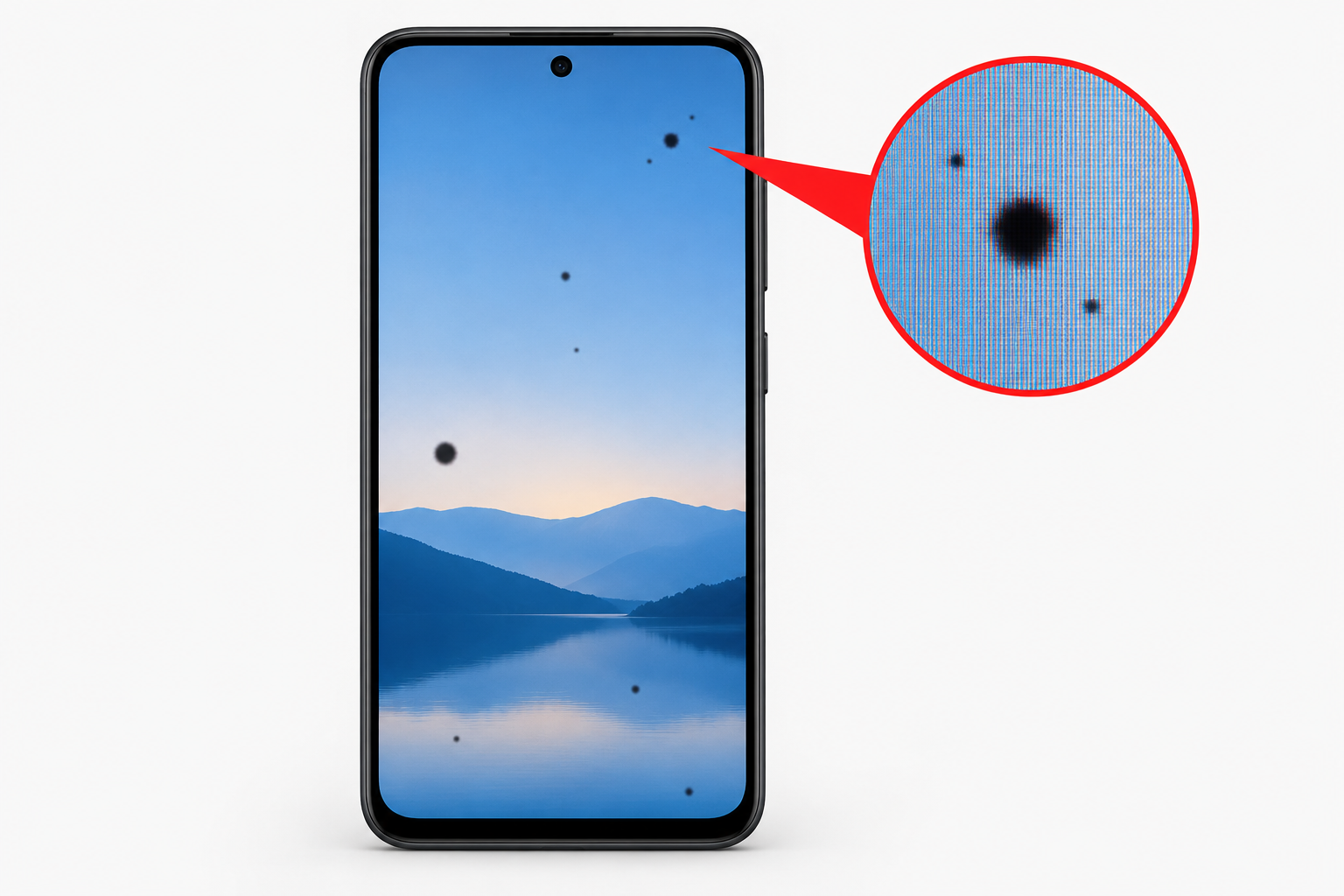
Spots appearing on a mobile phone screen are among the most visually alarming display problems a smartphone user can encounter. One morning you pick up your phone and notice a white patch, a dark circle, a cluster of discolored pixels, or an ink-like bleed spreading across part of the display. The phone still works but the screen looks damaged and wrong, and you have no idea what caused it or whether it can be fixed.
Screen spots on mobile phones are not all the same. Different types of spots have completely different causes, affect different layers of the display, require different fixes, and have very different prognoses for repair. A white spot caused by pressure on an LCD display behaves entirely differently from a dark spot caused by a cracked OLED panel, which in turn is completely different from a software-caused rendering artifact that appears to be a spot but has no physical cause at all.
Understanding what type of spot you are dealing with is the essential first step toward understanding what caused it and what can be done about it. This guide covers every major type of mobile screen spot, explains exactly what causes each one, identifies which display layer is affected, and provides honest guidance about which fixes are available and when professional repair is the only realistic solution.
Understanding how Android phones and other modern smartphones manage their display hardware helps put screen spot problems in context. The display is one of the most complex and delicate hardware components in any smartphone, consisting of multiple precision-engineered layers that work together to produce the image you see. When any of these layers is damaged the result can be visible as spots, lines, discoloration, or other display anomalies.
Understanding Mobile Display Technology and Why Spots Occur
To understand what causes spots on a mobile screen it helps to understand what a smartphone display actually consists of. Modern smartphone displays are not single pieces of glass. They are multilayer assemblies where each layer serves a specific function and where damage to any layer produces characteristic visible symptoms.
The Layers of a Smartphone Display
Outer protective glass: The topmost layer is a chemically strengthened glass such as Corning Gorilla Glass that protects the underlying layers from scratches, impacts, and everyday wear. This glass can crack or chip but cracks in the outer glass alone do not always cause display spots.
Touch digitizer layer: Beneath the outer glass is the capacitive touch sensing layer that detects finger touch input. This layer is transparent and is bonded to the glass above and the display panel below. Damage to the digitizer affects touch response rather than visual display but if the damage is severe enough it can affect the display layers beneath it.
Display panel: This is the layer that actually produces the image. In LCD displays this layer contains the liquid crystal material and color filters. In OLED displays this layer contains the organic light-emitting compounds that produce light and color. Damage to the display panel is directly visible as display anomalies including spots, lines, and discoloration.
Backlight layer (LCD only): LCD displays require a separate backlight layer behind the display panel because liquid crystal material does not produce its own light. Damage to the backlight layer produces specific types of spots including bright patches and uneven illumination. OLED displays do not have a backlight because each pixel produces its own light independently.
Adhesive and bonding layers: The layers described above are bonded together using optical adhesives. Air gaps, delamination, and moisture infiltration between these adhesive layers can produce visible display anomalies that appear as spots.
Why Different Spot Types Occur
Different types of spots occur because different types of physical events damage different layers of this multilayer assembly in characteristic ways. Pressure on an LCD screen compresses the liquid crystal layer and produces white or bright spots at the point of pressure. Impact damage that cracks the display panel allows ink or liquid crystal material to spread and produces dark ink-bleed spots. Moisture infiltration between layers creates the conditions for corrosion and discoloration. OLED pixel degradation produces dark dead pixel clusters. Understanding which mechanism produced a particular type of spot identifies both the cause and the likely solution.
Type 1: White Spots on Mobile Screen
White spots on a mobile phone screen are bright, lighter-than-surrounding-area patches that appear consistently in the same location regardless of what content is displayed. They are visible as a bright white or washed-out area that washes out the colors and content that should be displayed in that region of the screen.
Understanding the specific characteristics and causes of white spots on Android screens provides deep context for this particular type of display problem. White spots have specific causes related to the physical structure of the display panel and the mechanisms by which pressure and impact damage manifest visually.
What Causes White Spots on Mobile Screens
Pressure damage to LCD backlights and liquid crystal layer:
The most common cause of white spots on LCD smartphone displays is localized pressure applied to the screen surface. This can occur from:
- The phone being kept in a pocket or bag with a hard object pressing against the screen
- The phone being sat on or having a heavy object placed on top of it
- The phone being carried in a tight-fitting case that applies continuous pressure to specific areas of the screen
- Bending or flexing forces applied to the phone body that create pressure on the display
When sufficient pressure is applied to a specific area of an LCD screen it physically compresses the liquid crystal layer beneath. Liquid crystals are a material that exists between the liquid and solid states and their optical properties are precisely controlled by electrical fields to produce the image. Physical compression of the liquid crystal layer disrupts this precise control, causing the compressed area to transmit maximum backlight rather than displaying correctly. The result is a persistently bright or white area at the point of pressure damage.
Backlight damage on LCD displays:
The backlight assembly in LCD phones consists of light guide plates, diffusers, and edge or array LEDs that collectively produce uniform illumination across the entire display area. Physical impact or pressure can damage the backlight components in a specific area, causing that area to receive more light than surrounding regions and appear as a brighter or white spot.
Display layer delamination:
The optical adhesive layers that bond the display assembly together can separate at specific points due to physical stress, manufacturing defects, or thermal cycling from temperature extremes. Where layers separate an air gap forms, and this air gap changes how light travels through the display at that location, producing a visibly brighter or whiter appearance compared to properly bonded surrounding areas.
Moisture infiltration:
Liquid that has penetrated the display assembly can wick between layers and create areas where the display material is affected by the moisture. On LCD displays this can produce bright or white patches as the liquid crystal material is disrupted by the infiltrated moisture.
How to Identify White Spots
- The white area appears in the same location regardless of what app or content is displayed
- The spot is visible at all times including on the lock screen and during the boot animation
- The spot appears brighter or more white than the surrounding screen area
- The spot has relatively defined edges rather than gradually fading into surrounding normal display
What to Do About White Spots
Check whether the spot is software related:
Display a solid black color across the full screen. Open a solid color app or visit a web page with a completely black background. If the white spot remains clearly visible on a solid black background it is definitively a hardware issue not a software rendering artifact.
For minor pressure damage on LCD screens:
Some users report that very gentle circular pressure applied around the edges of a fresh white spot with a fingertip can help redistribute the liquid crystal material back toward its normal state. This technique is not guaranteed to work, carries the risk of making the spot larger if excessive pressure is applied, and should only be attempted with extremely light touch if the spot appeared recently. Stop immediately if the spot grows larger.
The reality of white spot repair:
The vast majority of white spots on mobile screens are hardware damage that cannot be resolved through software or simple user intervention. The affected layer of the display has been physically altered. Professional screen replacement is the definitive solution for persistent white spots that do not resolve with the gentle pressure technique described above.
Type 2: Dark Spots on Mobile Screen
Dark spots appear as areas of the screen that are darker than surrounding areas, may appear completely black, and are consistently visible in the same location regardless of screen content. They do not illuminate even when the surrounding screen is at full brightness.
What Causes Dark Spots on Mobile Screens
OLED display panel damage:
Dark spots on OLED displays most commonly result from physical damage to the organic light-emitting compounds that produce the image. OLED pixels produce their own light through electroluminescence in the organic material. When this material is physically damaged through impact, crushing, or puncture the damaged pixels cannot produce light and appear as permanently dark areas.
The characteristic appearance of impact-caused dark spots on OLED screens is often a dark center surrounded by an irregular pattern of discoloration or color distortion radiating outward from the point of impact, sometimes described as an ink bleed appearance. This pattern develops as the impact damages the display panel at the point of contact and the organic material responds to the physical disruption.
LCD display panel damage:
Dark spots on LCD displays occur when the liquid crystal layer or color filter layer is damaged to the point where light cannot pass through correctly. Severe impact can crack the display panel internally without cracking the outer protective glass, and these internal cracks produce dark areas where the liquid crystal material can no longer be electrically controlled.
Dead pixel clusters:
Individual pixels or groups of pixels can fail and stop illuminating due to manufacturing defects, electrostatic discharge, or display panel degradation over time. Dead pixels appear as permanently dark dots or clusters. On OLED displays dead pixels are permanently black. On LCD displays dead pixels may appear as dark spots or as fixed-color spots depending on whether the subpixel that fails is permanently off or permanently on at its filter color.
Pressure delamination creating dark areas:
Severe pressure that causes internal layer delamination can produce areas where the display panel is no longer in proper contact with the backlight system on LCD screens, resulting in dark areas where insufficient backlight reaches the display layer.
How to Identify Dark Spots
- The dark area appears in the same location on all content and all apps
- The spot is visible during the boot animation before any software loads confirming it is hardware
- Turning screen brightness to maximum does not illuminate the dark spot
- On OLED screens the spot may be surrounded by distorted or discolored pixels indicating impact damage radiating outward
What to Do About Dark Spots
Dark spots on mobile screens are almost exclusively hardware damage that cannot be resolved through software. There are no software fixes for dead pixels or physically damaged display panel material.
Pixel refresh utilities for OLED screens:
Some Android manufacturers include pixel refresh or display maintenance utilities in the display settings. These utilities cycle the display through color sequences designed to help equalize organic pixel wear. They can reduce the appearance of minor OLED degradation but cannot repair physical pixel damage from impact.
Professional screen replacement:
The definitive solution for dark spots caused by display panel damage is screen replacement by a qualified repair technician. The display assembly is replaced with a new panel that does not have the damaged pixels or compromised areas.
Type 3: Ink Bleed or Spreading Dark Spots
Ink bleed spots are one of the most alarming-looking types of mobile screen damage. They appear as spreading dark patches that often have irregular, amoeba-like edges and may appear to be spreading outward from a central point. The name comes from the resemblance to ink dropped on paper and spreading outward.
What Causes Ink Bleed on Mobile Screens
Impact damage causing internal panel cracking:
Ink bleed spots on OLED displays are caused by physical impact that cracks or fractures the display panel internally. When the organic material within an OLED panel is disrupted by physical fracture the damage spreads beyond the immediate point of impact as the compromised organic material continues to break down in the affected area. The characteristic spreading appearance results from this ongoing degradation of the organic layer radiating outward from the point of initial damage.
LCD liquid crystal leakage:
On LCD displays an internal crack in the display panel can allow liquid crystal material to flow out of its normal position between the alignment layers. This spreading liquid crystal material produces the ink bleed appearance as it migrates through the display panel away from the crack point. The liquid crystal material appears dark where it has spread outside its designed alignment because it is no longer being controlled by the electrical field that produces the correct image.
Progressive damage spread:
A critical characteristic of ink bleed damage is that it can progress over time after the initial impact. The spot may appear small immediately after the phone is dropped and grow visibly larger over the following hours, days, or weeks as the damage continues to spread through the affected display material. This progression is a strong indicator that the damage is physical and ongoing rather than stable.
Identifying Ink Bleed Spots
- The spot has irregular, non-uniform edges that look like spreading liquid
- The spot may have grown in size since it first appeared
- The center of the spot is typically at or near the point of physical impact
- The spot is visible on all content and all apps including during boot animation
- Surrounding pixels near the spot edge may show color distortion or incorrect behavior
What to Do About Ink Bleed Spots
Ink bleed spots are hardware damage that cannot be reversed. Once the display panel is cracked or the liquid crystal material has spread the damage is progressive and will likely continue to grow.
Do not press on the affected area:
Applying pressure to an ink bleed spot can accelerate the spread of the damage by pushing the affected material further through the display panel.
Act quickly for screen replacement:
Because ink bleed damage is often progressive the longer a damaged screen is used the larger the unusable area may become. Seeking professional screen replacement promptly after this type of damage occurs minimizes the spread before replacement.
Document the current extent of damage:
Take a photo of the screen showing the current extent of the ink bleed. This helps track whether the damage is progressing and provides documentation for insurance or warranty claims.
Type 4: Pressure Marks and Temporary Spots
Some screen spots on mobile phones are caused by physical pressure being applied to the screen and are visible while the pressure is being applied or immediately after, then fade or resolve over time. Understanding the difference between pressure marks that resolve and pressure damage that is permanent is important for assessing the seriousness of screen spots.
What Causes Pressure Marks and Temporary Spots
Temporary LCD compression:
LCD displays can show temporary bright or dark spots when pressure is applied directly to the screen surface. The electrical field controlling the liquid crystal layer in the pressed area is temporarily disrupted by the physical compression. When the pressure is released the liquid crystal material may return to its normal orientation, causing the spot to fade and disappear.
Whether a pressure mark is temporary or permanent depends on the amount of pressure applied and the duration. Light, brief pressure may produce a temporary spot that resolves within minutes. Heavy or sustained pressure causes permanent damage.
Trapped objects in cases:
Small particles of sand, grit, or debris that become trapped between a phone case and the screen surface create concentrated pressure points that produce marks visible as small spots or clusters of spots. If the particle is removed promptly and has not been pressed with significant force the marks may resolve. If the particle has been pressed between the case and screen for extended time with significant pressure the damage may be permanent.
Tight screen protectors:
Low-quality or improperly applied screen protectors that apply uneven pressure to specific areas of the display can produce pressure marks that become visible over time.
How to Distinguish Temporary from Permanent Pressure Marks
- A temporary pressure mark typically fades or disappears completely within minutes to hours of the pressure being removed
- A permanent pressure mark remains in the same location with the same appearance for days and does not change
- Displaying a solid white or bright color makes pressure-caused spots more visible and helps assess their extent
- Displaying a solid black color confirms that spots visible on black backgrounds are permanent hardware damage
What to Do About Pressure Marks
Remove the source of pressure immediately:
Take the phone out of any tight case or bag. Remove any screen protector that may be applying uneven pressure. Check for debris between the screen and any case or protector.
Allow time for temporary marks to resolve:
Leave the phone face-up on a flat surface without any case or pressure for several hours. Many temporary pressure marks from light pressure exposure resolve completely given sufficient time.
Avoid further pressure:
If the spots have appeared do not apply any additional pressure to the screen surface. Any further pressure risks converting a potentially temporary mark into permanent damage.
Type 5: Dead Pixels and Stuck Pixels
Individual pixels or small clusters of pixels that are not displaying correctly produce the appearance of small spots on the mobile screen. These pixel-level defects are distinct from the larger spots caused by physical damage to the display panel.
What Causes Dead and Stuck Pixels
Dead pixels:
A dead pixel is a pixel that has completely ceased to function. On OLED displays a dead pixel produces no light at all and appears as a permanently black dot. On LCD displays a dead pixel in the strict sense means the pixel is receiving no light and appears black, though LCD pixel failures often manifest differently depending on which subpixel has failed.
Dead pixels are caused by manufacturing defects in the display panel, electrostatic discharge that damages the pixel driver circuitry, physical impact damage to a specific pixel location, or natural OLED material degradation over the display’s lifetime.
Stuck pixels:
A stuck pixel is different from a dead pixel in that the pixel is receiving power and attempting to display but is locked into a single color rather than displaying the correct color for the current content. Stuck pixels on LCD displays appear as a consistently red, green, or blue dot regardless of what surrounding pixels are displaying. They occur when a subpixel transistor fails in an always-on state.
Hot pixels:
A hot pixel is a pixel that appears as a bright white or brightly colored dot. Hot pixels are caused by subpixel transistor failures that result in the pixel being continuously at maximum brightness regardless of the intended display content.
How to Identify Dead and Stuck Pixels
- Dead pixels appear as consistently black dots of approximately one to three pixels in size
- Stuck pixels appear as consistently bright colored dots of similar size that show a fixed color regardless of screen content
- Pixel defects maintain their exact size and position regardless of display brightness or content
- Pixel defects are visible during the boot animation before any software loads confirming they are hardware
Fixes for Dead and Stuck Pixels
Pixel refresh techniques for stuck pixels on OLED:
Some Android manufacturers include pixel refresh utilities in the display settings designed to cycle through color values and potentially free stuck pixels. These utilities are most effective for pixels that are stuck rather than truly dead.
On Samsung Galaxy devices look in Settings then Display then Screen Protection for a Screen Burn Protection or Pixel Refresh option. Using this feature as directed may resolve some cases of stuck pixels.
Third-party pixel repair apps:
Several apps on the Google Play Store claim to fix stuck pixels by cycling through rapid color changes. The effectiveness of these apps varies and they are more likely to help with stuck pixels than with truly dead pixels. They work by rapidly flashing the stuck pixel through many colors in an attempt to free the pixel from its stuck state.
Manufacturer warranty coverage:
Many smartphone manufacturers warrant displays against dead pixel defects above a certain threshold, typically more than a specified number of dead pixels within a defined pattern. If dead pixels appear on a phone under warranty contact the manufacturer to inquire about warranty coverage. Samsung warranty information is available at samsung.com/support and Apple warranty information at apple.com/support.
Professional repair for persistent dead pixels:
Dead pixels that do not respond to pixel refresh utilities or third-party cycling apps require screen replacement. A single dead pixel in a non-prominent location may be tolerable but clusters of dead pixels or dead pixels in the center of the display significantly affect usability and warrant repair.
Type 6: Screen Burn-In Spots on OLED Displays
Screen burn-in on OLED displays produces a different kind of spot that is characterized by a ghost image or permanent impression of content that was displayed for extended periods. Burn-in spots appear as areas where a faint outline or shadow of a previously displayed image is permanently visible.
What Causes Screen Burn-In
OLED displays produce light through organic compounds in each pixel. These organic materials degrade gradually with use, and pixels that display certain colors particularly at high brightness degrade faster than others. When the same pixel pattern is displayed continuously for extended periods such as the navigation bar at the bottom of the screen or a persistent logo or clock, those specific pixels degrade faster than surrounding pixels.
The result is that those faster-degrading pixels eventually produce slightly less light than surrounding fresher pixels. When the screen then displays content in that area the degraded pixels display it slightly differently from the surrounding pixels, creating the appearance of a ghost image or shadow of the previously burned content.
How to Identify Screen Burn-In
- The affected area shows a faint ghost image of a previously displayed element such as a navigation bar outline or app icon
- The ghost image is most visible when displaying gray or mid-tone content and may be nearly invisible on very bright or very dark content
- The ghost image appears in the same location consistently across all content
- The pattern of the ghost image corresponds to interface elements that were displayed persistently such as navigation buttons or status bar icons
What to Do About Screen Burn-In
Use pixel refresh utilities:
Manufacturer-provided pixel refresh utilities cycle the display through color patterns designed to help equalize pixel wear across the panel. These can reduce the visibility of mild burn-in and are worth using before considering hardware replacement.
Use burn-in correction apps:
Several apps available through the Google Play Store display specific color patterns designed to help reduce the visibility of screen burn-in by attempting to wear the non-burned surrounding pixels slightly to match the burned pixels. These apps work with varying effectiveness depending on the severity of the burn-in.
Reduce conditions that cause burn-in:
Switch to gesture navigation to eliminate persistent on-screen navigation buttons. Reduce screen brightness. Enable screen protection features that shift the displayed image periodically. Use dark themes that put less sustained load on the organic pixels.
Screen replacement for severe burn-in:
Severe burn-in that significantly affects the viewing experience cannot be reversed. The organic material in the burned pixels has genuinely degraded and screen replacement is the only permanent solution.
Type 7: Liquid Damage Spots
Water and other liquid infiltrating the display assembly produces distinctive spot patterns that can appear progressively after exposure and may change in appearance over time as the liquid evaporates, spreads, or causes corrosion within the display components.
What Causes Liquid Damage Spots
Even phones with IP water resistance ratings can sustain liquid-related display damage if the water resistance has been compromised by previous drops, if the liquid is something other than fresh water such as saltwater or drinks that contain corrosive compounds, or if the phone was submerged beyond its rated depth or duration.
When liquid infiltrates the display assembly it affects different layers depending on how it enters. Liquid that reaches the LCD liquid crystal layer disrupts the precise molecular alignment of the crystal material, producing dark or discolored patches. Liquid that reaches electrical connections within the display produces spots through corrosion and short circuits. Liquid that becomes trapped between optical layers causes interference patterns and discoloration at the infiltrated areas.
How to Identify Liquid Damage Spots
- Spots appeared after confirmed or suspected liquid exposure
- The spots may have changed in size or appearance in the days following exposure
- The spots may have an irregular water stain appearance rather than the sharp edges of impact damage
- Spots may be accompanied by touch response problems in the affected areas
- The spots may appear to dry out and change as moisture evaporates from within the display assembly
What to Do About Liquid Damage Spots
Immediate response to liquid exposure:
Turn the phone off immediately after liquid exposure. Do not attempt to charge it. Place it in a dry environment and allow it to dry naturally. Do not use heat sources such as hair dryers to accelerate drying as heat can damage display components and battery cells.
Allow extended drying time:
For minor liquid exposure allowing 24 to 48 hours of drying in a dry environment before turning the phone on allows moisture within the assembly to evaporate. Some liquid-caused display spots resolve after complete drying if the liquid has not reached components that it damaged during contact.
Professional assessment and cleaning:
If spots persist after drying professional assessment is recommended. Technicians can disassemble the device and clean corrosion from display connections and components, potentially restoring function if the damage is not severe.
Screen replacement for persistent liquid damage:
Liquid damage that has affected the display panel itself requires screen replacement. Display panels that have been reached by corrosive liquid typically show progressive damage rather than improving over time.
Type 8: Software-Caused Display Artifacts That Look Like Spots
Not all spots on a mobile screen are caused by hardware damage. Occasionally software rendering issues, graphics driver bugs, or corrupted display system processes produce visual artifacts that appear as spots or patches but have no physical cause and can be resolved through software troubleshooting.
What Causes Software Display Artifacts
System UI or graphics rendering bugs:
The smartphone operating system manages display rendering through a graphics pipeline that involves the GPU, display driver software, and system UI processes. Bugs in any of these components can produce visual artifacts including spots, patches of incorrect color, and areas of distorted rendering.
Corrupted system cache:
Corrupted cached display data within the system can cause rendering errors that appear as visual artifacts. Understanding what app cache is and how it can become corrupted explains why cache clearing is a relevant troubleshooting step even for display-related software issues. System cache corruption can affect how the display system renders content, potentially producing visible artifacts.
Third-party app display overlay conflicts:
Apps that use screen overlay permissions to draw content on top of other apps can sometimes produce rendering conflicts that appear as spots or patches of incorrect rendering in specific areas of the screen.
GPU driver issues:
Graphics processing unit drivers can occasionally produce rendering errors that manifest as display artifacts including spots or patches of incorrect rendering. These typically appear only in certain apps or under certain rendering conditions.
How to Identify Software-Caused Display Spots
The critical distinction between software artifacts and hardware damage is whether the spot persists during the boot animation before any third-party software has loaded.
- If the spot is visible during the boot animation it is hardware damage
- If the spot is not visible during the boot animation but appears once the system has loaded it may be software related
- Software-caused spots often appear only in specific apps or under specific rendering conditions
- Software artifacts may be intermittent rather than constant
- Restarting the device may resolve software-caused spots temporarily
Fixes for Software Display Artifacts
Restart the device:
Many software rendering glitches resolve after a full system restart that resets the graphics pipeline and all rendering processes to a clean state.
Boot into Safe Mode:
If the artifact does not appear in Safe Mode with all third-party apps disabled a third-party app with screen overlay permissions is causing the rendering issue. Identify and remove the responsible app.
Clear the system cache partition:
Corrupted system cache can cause persistent rendering artifacts. Boot into Recovery Mode and perform a Wipe Cache Partition to clear system-level cached data without affecting personal data.
Check for system software updates:
Graphics rendering bugs are addressed in system updates. Install any available system updates through Settings then Software Update.
Factory reset as last resort:
If software-caused spots persist through all other software troubleshooting a factory reset restores the display rendering system to its original state.
How to Determine If Screen Spots Are Hardware or Software
The single most important diagnostic step for any screen spot is determining whether it is caused by physical hardware damage or by a software issue. This determination changes everything about the appropriate response.
The Boot Animation Test
Power off the phone completely. Then power it back on and observe the display very carefully during the boot animation or manufacturer splash screen, before the Android system interface loads. This is the best moment to check because the display is showing content but no third-party software is running.
- If the spot is visible during the boot animation: The cause is hardware. No software fix will resolve it.
- If the spot is not visible during the boot animation: The cause may be software. Proceed with software troubleshooting before assuming hardware damage.
The Solid Color Test
Display a solid single color across the entire screen using a solid color app or webpage.
- Display solid white: If spots are visible as darker areas they show the location of pixels not producing full light output
- Display solid black: If spots are visible as lighter or brighter areas they show the location of backlight damage or liquid crystal disruption on LCD screens
- Display solid red, green, and blue individually: Spots that appear on all colors are likely display panel damage; spots that appear only on specific colors may indicate subpixel damage patterns
The Physical History Check
Consider the physical history of the phone:
- Has the phone been dropped recently? Physical impact is the most common cause of hardware spots
- Has the phone been exposed to liquid?
- Has the phone been kept in a tight pocket or bag with objects pressing against the screen?
- Did the spots appear immediately after a software update or app installation?
- Did the spots appear gradually without any physical event?
Spots that appeared after a physical event are almost certainly hardware damage. Spots that appeared after a software change without any physical event are more likely software related and worth troubleshooting through software methods first.
Preventing Spots on Mobile Screens
Prevention is significantly more effective and less expensive than repair. Most causes of mobile screen spots are preventable through straightforward protective measures.
Use a Quality Case with Proper Screen Protection
A case that provides raised edges around the screen perimeter prevents the screen from making flat contact with surfaces when placed face down. This protects against both direct impact damage and pressure damage from flat surfaces. Choose cases from reputable manufacturers that are designed specifically for your device model.
Apply a Quality Screen Protector
A tempered glass screen protector absorbs and distributes impact force that would otherwise concentrate on the display panel. Quality tempered glass protectors significantly reduce the likelihood of display panel damage from drops and impacts. Choose protectors that are rated for the specific display type of your device.
Avoid Pressure on the Screen
Be mindful of situations where pressure is applied to the screen surface:
- Do not place heavy objects on top of the phone when it is screen-side up
- Be careful about carrying the phone in tight jeans pockets where the phone can be compressed against the leg
- Avoid carrying the phone face-to-face with keys, coins, or other hard objects in pockets or bags
- Be careful when applying screen protectors not to apply excessive pressure during installation
Maintain Appropriate Temperature
Extreme temperatures stress all display components. High temperatures accelerate OLED organic material degradation and can cause adhesive failure between display layers. Cold temperatures affect LCD liquid crystal behavior and can make displays temporarily behave unusually. Keep the phone within the manufacturer’s specified operating temperature range.
Handle the Phone Carefully Around Liquids
Even phones with IP water resistance ratings have limits. Avoid submerging phones in saltwater or other non-fresh liquids. Be aware that IP ratings can degrade over time as seals age. Handle phones carefully around any liquid and address liquid exposure immediately if it occurs.
Check Cases and Screen Protectors for Trapped Debris
Periodically remove the phone’s case and inspect both the case interior and the phone back and edges for debris that could scratch the screen or create pressure points. Before reapplying a screen protector ensure the screen surface is completely clean and free of particles that could become trapped beneath the protector and create pressure spots.
When to Seek Professional Repair for Screen Spots
Understanding when professional repair is the appropriate course of action prevents wasted time on ineffective home remedies for hardware problems that require physical repair.
Seek Professional Repair When:
- The spot is visible during the boot animation confirming hardware damage
- The spot appeared after a physical drop, impact, or liquid exposure
- The spot has grown in size since it first appeared indicating progressive damage
- The affected area covers enough of the screen to significantly impair usability
- Dead pixels appear in clusters or in prominent screen locations
- Ink bleed spots are actively spreading
- The spot is accompanied by touch failure in the affected area
- All software troubleshooting has been completed without resolving the spot
Professional Repair Options
Manufacturer authorized service:
Using the device manufacturer’s authorized repair service ensures that genuine replacement parts are used and that the repair is performed by technicians trained for that specific device. Manufacturer repairs often preserve any remaining warranty. Samsung authorized service is available at samsung.com/support. Apple authorized service information is at apple.com/support. Google Pixel repair information is at support.google.com/pixelphone.
Third-party repair services:
Independent repair shops can often perform screen replacements at lower cost than manufacturer service. For the best outcome choose shops that use quality replacement parts, have verifiable experience with your specific device model, and provide a warranty on their repair work.
Device insurance claims:
If the phone is covered by device insurance a screen damage claim may cover all or most of the repair cost. Contact your insurance provider to understand the claim process and any applicable deductibles.
Screen Spot Issues Related to Android System Problems
Some display spot issues that appear hardware-related actually occur alongside or as a result of broader Android system problems. When a phone is experiencing both display anomalies and system errors the two issues may share a common cause or may be compounding each other’s impact on usability.
Understanding how Android lines on the screen relate to display spot problems helps users recognize the connection between different types of display damage. Lines and spots frequently co-occur because they are caused by the same underlying physical damage to the display panel. An impact that causes a dark spot at the point of contact may also cause lines radiating outward from the impact area as cracks in the display panel affect rows or columns of pixels.
Similarly when Android setup keeps stopping during device configuration alongside visible display problems the combination of symptoms suggests that the device may have experienced more significant damage than is immediately apparent from the display alone, potentially affecting other components alongside the screen.
When both system errors and display spots appear together professional assessment of the complete device is more appropriate than attempting to address only the visible display symptoms.
Frequently Asked Questions About Spots on Mobile Screens
What causes white spots on mobile phone screens?
White spots on mobile phone screens are most commonly caused by localized pressure on LCD displays that compresses the liquid crystal layer at the pressure point, causing that area to transmit maximum backlight as a bright white patch. Other causes include backlight damage from impact, display layer delamination, and moisture infiltration.
Can screen spots be fixed without replacing the screen?
Software-caused display artifacts that appear as spots can be fixed through software troubleshooting including restarting the device, clearing cache, and updating software. Hardware-caused spots including those from impact damage, pressure damage, dead pixels, and liquid damage almost always require screen replacement to resolve permanently. Minor temporary pressure marks on LCD screens sometimes resolve on their own when the pressure source is removed.
How do I know if my screen spot is hardware or software?
Observe the phone carefully during the boot animation before the Android interface loads. If the spot is visible during the boot animation it is hardware damage. If the spot does not appear during boot but appears once the system loads it may be software-related and worth troubleshooting through software methods first.
Why is there a dark spot on my phone screen after dropping it?
A dark spot appearing after dropping the phone indicates physical damage to the display panel at or near the point of impact. On OLED displays the impact disrupts the organic light-emitting material causing those pixels to go dark permanently. On LCD displays internal panel cracks prevent light from passing through the affected area. This type of damage requires screen replacement.
Do screen spots get worse over time?
Some types of screen spots are stable and do not progress while others are actively progressive. Ink bleed spots caused by cracked OLED panels frequently grow larger over time as the damage continues to spread. Dead pixel clusters from OLED degradation may expand slowly. Pressure-caused LCD spots that were not severe may remain stable. Liquid damage spots may change as moisture evaporates or corrosion progresses.
Can water cause spots on a phone screen?
Yes. Liquid infiltrating the display assembly can cause various types of spots depending on which display layer is reached. Liquid crystal material on LCD screens is disrupted by moisture contact, causing dark or discolored patches. Electrical connections corroded by liquid cause spots and display failures. Some liquid-caused spots resolve after complete drying if the liquid did not cause permanent damage.
Why do I have multiple small spots on my phone screen?
Multiple small spots may indicate a cluster of dead pixels from display panel damage or manufacturing defects, pressure damage from debris trapped between the phone and a case, burn-in spots showing a ghost of previously displayed content, or a liquid damage pattern. The arrangement and appearance of the spots helps identify the cause. Spots arranged in a geometric pattern may indicate trapped debris pressure points while irregular clusters suggest impact or liquid damage.
Is a white spot on an Android screen covered by warranty?
Warranty coverage for screen spots depends on the cause and the manufacturer’s specific warranty terms. Spots resulting from manufacturing defects in the display may be covered. Spots resulting from accidental physical damage such as drops or pressure are typically not covered under standard manufacturer warranties but may be covered by separate device insurance or accidental damage protection plans. Contact your manufacturer’s support for specific warranty assessment.
How much does it cost to fix screen spots on a mobile phone?
Repair costs for screen spots that require screen replacement vary significantly by device model, manufacturer, whether manufacturer or third-party service is used, and regional pricing. High-end flagship phone screen replacements through manufacturer service can cost several hundred dollars. Third-party repair shops typically offer lower prices using aftermarket replacement screens. Budget phones may cost less to repair but in some cases the repair cost approaches the device’s replacement value.
Can I prevent spots from appearing on my phone screen?
Yes. Using a quality case with raised screen edges, applying a tempered glass screen protector, avoiding heavy pressure on the screen, keeping the phone away from extreme temperatures, handling it carefully around liquids, and checking cases regularly for trapped debris that could create pressure points all significantly reduce the risk of spots developing.
Disclaimer
This article is intended for educational and informational purposes and provides general guidance for understanding and addressing spots on mobile phone screens. The information provided reflects general knowledge about mobile display technology and common causes of screen spots. Not all screen spots can be diagnosed or fixed without professional assessment. Attempting DIY physical repairs on smartphone screens without proper tools, training, and experience may cause additional damage and void manufacturer warranties. Always back up device data before attempting any repair. Refer to your device manufacturer’s official support documentation for device-specific guidance. This article does not constitute professional repair advice.