
 By Saad Qureshi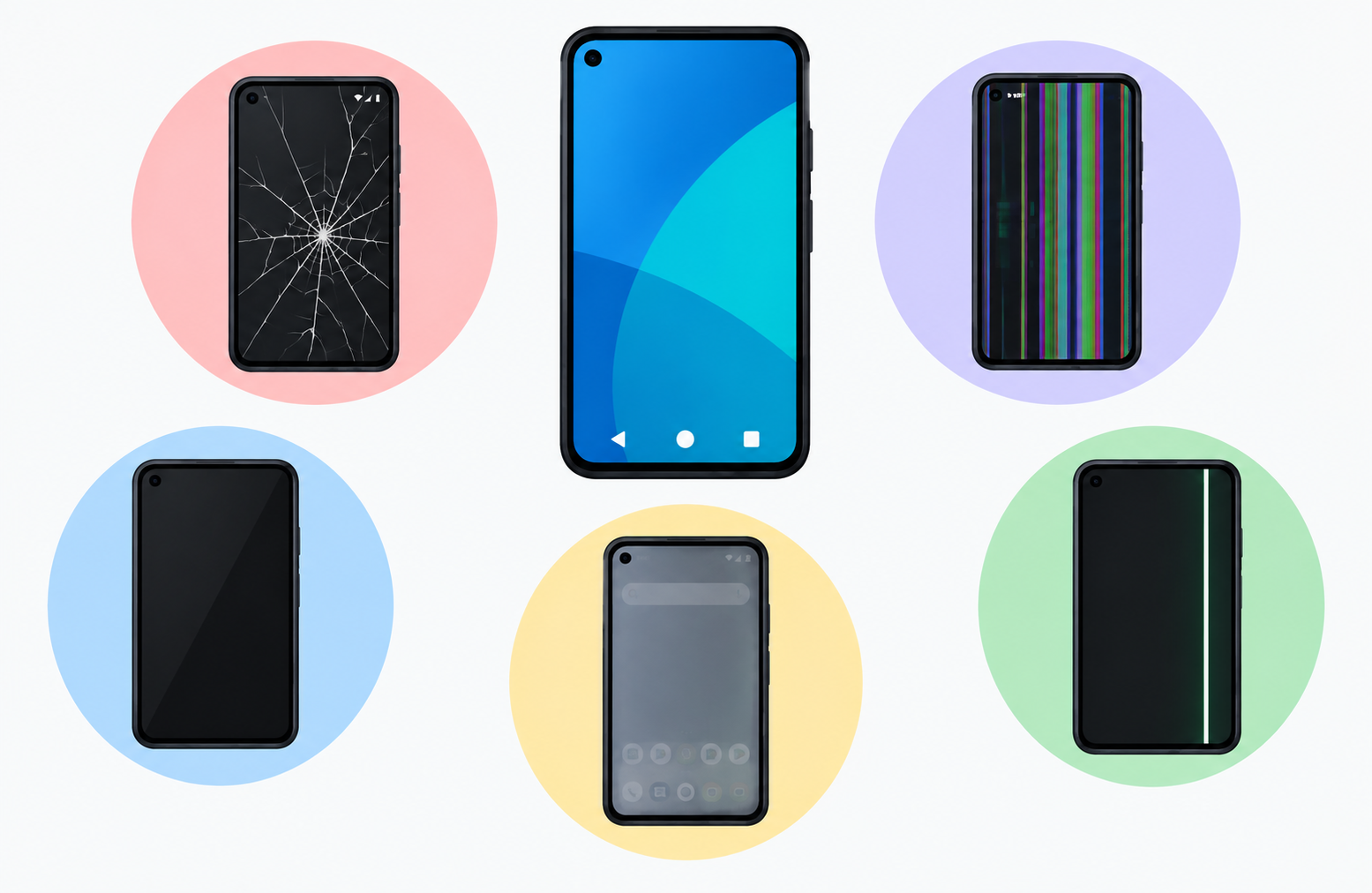
Android display problems range from minor software glitches that resolve with a simple restart to serious hardware damage that requires professional screen replacement. The key to solving any Android screen issue efficiently is identifying whether the problem is rooted in software or hardware before attempting any fix. Applying software solutions to hardware problems wastes time and effort, while sending a device in for repair when a simple settings change would resolve the issue wastes money.
This complete guide covers every major category of Android display problem, explains what causes each issue, and provides step-by-step solutions organized from the simplest fixes to try first through to more advanced troubleshooting steps. Understanding how the Android operating system manages display functions helps users recognize which problems are within their power to fix and which require professional attention.
How to Determine If Your Android Display Problem Is Software or Hardware
Before attempting any specific fix the most important diagnostic step is determining whether the display problem is caused by software or by physical hardware damage. This single determination changes everything about the correct approach to solving it.
Signs That a Display Problem Is Software Related
- The problem appeared suddenly after installing a new app or system update
- The problem appears only in certain apps but not others
- The problem disappears temporarily after restarting the device
- The problem started after a settings change
- The screen works normally during the boot animation or splash screen before the operating system fully loads
- The problem is intermittent and inconsistent rather than constant and permanent
Signs That a Display Problem Is Hardware Related
- The problem appeared after the phone was dropped, crushed, exposed to water, or subjected to physical impact
- Visible physical damage is present such as cracks, chips, or dents on the screen surface
- The problem is constant, consistent, and does not change regardless of what app is open or whether the phone is restarted
- Dead pixels, permanent lines, or fixed color distortions appear in exactly the same location every time
- The problem exists during the boot screen before any software has loaded
- Part of the touchscreen permanently fails to respond to touch in a specific fixed area
The Safe Mode Test
Booting Android into Safe Mode is one of the most reliable ways to distinguish software from hardware display problems. In Safe Mode all third-party applications are disabled and only system apps run. If a display problem disappears completely in Safe Mode it is caused by a third-party app. If the problem persists in Safe Mode the cause is either a system software issue or hardware damage.
To boot into Safe Mode on most Android phones press and hold the power button, then press and hold the Power Off option on screen until a Safe Mode prompt appears, then tap Safe Mode to confirm. The device restarts with Safe Mode visible at the bottom of the screen. To exit Safe Mode restart the device normally.
Problem 1: Android Screen Flickering
Screen flickering is one of the most commonly reported Android display problems. It manifests as rapid flashing, pulsing brightness, or unstable image display that makes the screen uncomfortable or difficult to use.
What Causes Android Screen Flickering?
Screen flickering on Android has several distinct causes that require different solutions:
Adaptive brightness conflicts: The automatic brightness adjustment system can sometimes react too aggressively to lighting changes, causing visible brightness fluctuations that appear as flickering.
Refresh rate settings: Incorrect or unstable refresh rate configuration can cause display flickering, particularly on devices with variable refresh rate displays.
Third-party app conflicts: Some apps use display overlay features or aggressive screen manipulation that interferes with the system display rendering, causing flickering when those apps are active.
Outdated or buggy system software: Software bugs introduced in system updates can affect display rendering and cause flickering that was not present before the update.
Display hardware degradation: Physical damage to the display panel, degradation of the OLED or LCD panel, or damaged display connectors inside the device can cause flickering that software solutions cannot fix.
GPU or graphics driver issues: Problems with the graphics processing system can manifest as display flickering when the GPU is under load.
How to Fix Android Screen Flickering
Fix 1: Disable Adaptive Brightness
- Open the Settings app on your Android phone.
- Tap Display.
- Find Adaptive Brightness or Auto Brightness.
- Toggle it off.
- Manually set a comfortable brightness level using the brightness slider.
- Observe whether the flickering stops.
Fix 2: Adjust the Refresh Rate
- Open Settings on your Android phone.
- Tap Display.
- Look for Screen Refresh Rate or Motion Smoothness.
- If your device is set to adaptive or high refresh rate try switching to a fixed standard 60Hz refresh rate.
- Test whether the flickering resolves at the fixed refresh rate.
Fix 3: Boot into Safe Mode to Test for App Conflicts
Boot into Safe Mode as described in the diagnostic section above. If flickering stops in Safe Mode identify and uninstall recently installed apps one at a time until the offending app is found. Pay particular attention to apps that use screen overlay permissions.
Fix 4: Check and Revoke Screen Overlay Permissions
- Open Settings on your Android phone.
- Tap Apps or Application Manager.
- Tap the three-dot menu or Special App Access.
- Tap Display Over Other Apps or Appear on Top.
- Review which apps have this permission enabled.
- Disable the permission for apps that do not genuinely need it.
- Test whether flickering resolves after revoking unnecessary overlay permissions.
Fix 5: Update the System Software
- Open Settings on your Android phone.
- Tap System or About Phone.
- Tap Software Update.
- Download and install any available updates.
- After the update completes test whether flickering is resolved.
Fix 6: Perform a Factory Reset
If all software solutions fail to resolve persistent flickering and you have confirmed the device has not suffered physical damage a factory reset may resolve a deep software issue causing the flickering. Always back up all data before proceeding. If flickering persists after a factory reset the cause is hardware and professional repair is required.
Problem 2: Lines on Android Screen
Horizontal or vertical lines appearing on an Android screen are a visually disruptive display problem that can range from a single thin line to multiple thick colored or black stripes covering significant portions of the display.
What Causes Lines on Android Screen?
Lines on an Android screen are most commonly caused by physical damage to the display panel or the connection between the display and the device’s main circuit board. Understanding the specific causes helps determine the correct solution.
Physical impact damage: Dropping the phone or applying pressure to the screen can damage the display panel internally even without visible external cracking. The LCD or OLED panel layers can separate or crack internally, producing lines.
Damaged display connector: The ribbon cable or connector that links the display panel to the phone’s main circuit board can become loose or damaged, disrupting the signal to portions of the display and producing lines.
Display panel degradation: Over extended time OLED panels in particular can experience degradation that manifests as lines, though this is more common in very old devices.
Software rendering glitches: In rare cases software bugs in the graphics rendering system can produce what appear to be lines on screen that are actually rendering artifacts rather than hardware damage. These are far less common than hardware-caused lines and typically appear inconsistently.
For a detailed examination of what causes lines on Android screens and how to diagnose whether the cause is software or hardware, the complete guide to lines on Android screen covers this specific problem in full depth.
How to Fix Lines on Android Screen
Fix 1: Restart the Device
If lines appeared suddenly without any physical impact a restart can resolve lines caused by a temporary software rendering glitch. Press and hold the power button, select Restart, and observe whether the lines disappear after the device has fully restarted.
Fix 2: Boot into Safe Mode
If lines disappear in Safe Mode a third-party app is causing a rendering conflict. Identify and remove the responsible app. If lines persist in Safe Mode the cause is hardware or a system software issue.
Fix 3: Check for Software Updates
System updates sometimes include display rendering fixes. Go to Settings, then System Update, and install any available updates. Test whether lines resolve after updating.
Fix 4: Factory Reset
If the lines are software-related and persist through all other software troubleshooting steps a factory reset may resolve the issue. If lines remain after a factory reset the cause is definitively hardware and professional display repair or replacement is required.
Fix 5: Professional Repair
Lines caused by physical display damage require professional screen replacement. A qualified repair technician can replace the damaged display panel and restore normal function. Contact your device manufacturer’s service center or a reputable third-party repair service.
Problem 3: White Spot on Android Screen
White spots or bright patches on an Android display appear as localized areas where the screen is brighter than the surrounding area or shows a white discoloration that does not change regardless of what content is displayed.
What Causes White Spots on Android Screen?
White spots on Android screens have specific causes that are almost always related to physical display hardware:
Pressure damage to the LCD backlight: On LCD displays physical pressure applied to a specific point on the screen can compress the liquid crystal layer or damage the backlight diffuser, creating a permanent bright spot at the point of pressure application.
Impact damage without cracking: Dropping a phone or having an object strike the screen at a specific point can create internal damage at the impact site that manifests as a white or bright spot even when the outer glass remains intact.
Display panel delamination: The multiple layers that make up a smartphone display can separate at specific points due to manufacturing defects or physical stress, creating bright spots where the layers no longer align correctly.
Moisture or liquid infiltration: Water or other liquid that has penetrated the display assembly can create discoloration and bright spots as it affects the display panel layers.
For a comprehensive explanation of what causes white spots on Android screens and the full range of solutions available, the detailed guide to white spot on Android screen covers this specific problem thoroughly.
How to Fix White Spot on Android Screen
Fix 1: Soft Pressure Method for Minor Pressure-Caused Spots
For white spots caused by mild pressure on LCD displays some users report success with very gently applying and releasing pressure around the edges of the white spot with a fingertip. This can sometimes help redistribute the liquid crystal material. Apply only the lightest touch and stop immediately if the spot grows larger or the display shows signs of further damage. This method carries risk and should be approached with extreme caution.
Fix 2: Check for Software Causes
Restart the device and check whether the white spot persists through the boot animation and across all apps. A software-caused display anomaly might resolve after a restart. A persistent white spot that appears in the same location regardless of screen content is a hardware issue.
Fix 3: Professional Display Replacement
White spots caused by physical display damage require professional screen replacement. Software solutions cannot address physical damage to display panel layers. Contact a qualified repair service to assess the damage and replace the affected display.
Problem 4: Black Screen on Android
A black screen on an Android phone where the display shows nothing even though the device appears to be powered on is one of the most alarming display problems users encounter. It can have multiple causes ranging from simple software states to serious hardware failures.
What Causes Black Screen on Android?
Screen timeout or sleep mode: The most common cause of a black screen is simply that the screen has turned off due to the inactivity timeout. This is normal behavior and resolves by pressing the power button once to wake the screen.
System crash or freeze: The Android system or a running app may have crashed in a way that leaves the phone unresponsive but powered on. The screen appears black because no content is being rendered to it.
Proximity sensor stuck in active state: During phone calls the proximity sensor turns off the screen to prevent accidental touches. If the proximity sensor becomes stuck in an active state it may keep the screen off even when the phone is not being held to the ear.
Failed software update: A software update that did not complete successfully can leave the device in a state where it powers on but cannot load the display correctly, resulting in a black screen with or without system sounds.
Hardware failure: The display panel, display connector, or the main circuit board components responsible for driving the display may have failed, preventing any image from being shown.
Battery completely drained: A phone with a fully depleted battery may appear to have a black screen because it lacks sufficient charge to power the display. It may still vibrate or play sounds if residual charge exists.
How to Fix Black Screen on Android
Fix 1: Press the Power Button
Press the power button once to wake the screen from sleep. If this resolves the black screen the device simply had its screen turned off by the automatic timeout. No further action is needed.
Fix 2: Charge the Device
Connect the phone to a charger and wait several minutes. A completely drained battery may need several minutes of charging before the device has sufficient power to display anything on screen. After charging for five to ten minutes try pressing the power button again.
Fix 3: Force Restart the Device
A force restart bypasses the normal shutdown process and forces the device to reboot. This resolves black screens caused by system crashes or software freezes.
On most Android phones press and hold the power button and the volume down button simultaneously for approximately ten to fifteen seconds until the device vibrates or shows a restart animation.
On Samsung Galaxy phones press and hold the power button and the volume down button together for approximately seven seconds.
Release the buttons when the device begins to restart and allow it to complete the reboot process.
Fix 4: Boot into Recovery Mode
If the device restarts but returns to a black screen boot into recovery mode to access factory reset options without going through the normal operating system startup.
The method to enter recovery mode varies by device. On most Android phones press and hold the power button and volume up button simultaneously during startup. Consult your device manufacturer’s documentation for the specific key combination for your model.
Fix 5: Check the Proximity Sensor
If the black screen appears specifically during or after calls the proximity sensor may be stuck. Make a test call and move your hand away from the screen area completely during the call. If the screen turns on the proximity sensor is functioning but was being triggered by something near the sensor. Clean the sensor area at the top of the phone with a soft cloth to remove any debris or screen protector obstruction.
Fix 6: Professional Repair
A black screen that persists through all software troubleshooting steps and force restart attempts indicates a hardware failure. Professional diagnosis by a qualified technician is required to determine whether the display, display connector, or main board component is at fault and to perform the appropriate repair.
Problem 5: Touchscreen Not Responding
A touchscreen that does not respond to touch input or responds inaccurately makes an Android phone extremely difficult or impossible to use. Touch input problems range from partial unresponsiveness in specific screen zones to complete failure of the entire touch system.
What Causes Android Touchscreen Problems?
Screen protector interference: Some thick, poorly fitted, or low-quality screen protectors reduce touch sensitivity by creating too large a gap between the finger and the actual touchscreen digitizer beneath.
Moisture or wet screen: Water on the screen surface can interfere with capacitive touch technology by creating false touch signals or preventing the touchscreen from detecting genuine touch input.
Physical damage to the touch digitizer: The touch digitizer is a separate layer from the display panel that detects touch input. Physical damage to this layer causes permanent touch failure in the damaged area.
Software glitch in touch processing: The software system that processes touch input can experience glitches that cause incorrect or absent touch response. These glitches often resolve after a restart.
Third-party app conflicts: Apps that use screen overlay permissions or aggressive display management can interfere with touch input processing, causing unresponsive or inaccurate touch behavior.
Display damage affecting the touch layer: Problems like lines on the Android screen are sometimes accompanied by touch failure in the same area because the physical damage that caused the lines also damaged the touch digitizer in that zone.
How to Fix Android Touchscreen Not Responding
Fix 1: Dry the Screen and Your Fingers
If the screen is wet or your fingers are wet dry both thoroughly with a clean cloth. Capacitive touchscreens require dry finger contact to detect touch correctly. Water on either the screen or the finger disrupts capacitive touch detection.
Fix 2: Remove the Screen Protector
Remove any screen protector and test whether touch response improves. If the screen protector was causing reduced sensitivity or had air bubbles trapping dust beneath it removing it may restore normal touch function. Replace with a higher quality screen protector if protection is still desired.
Fix 3: Restart the Device
A simple restart resolves touch problems caused by software glitches in the touch processing system. Hold the power button and select Restart, then test touch response after the device has fully loaded.
Fix 4: Boot into Safe Mode
Test touch response in Safe Mode. If touch works normally in Safe Mode a third-party app is interfering. Remove recently installed apps to identify the responsible application.
Fix 5: Adjust Touch Sensitivity Settings
Some Android phones and manufacturer software overlays include touch sensitivity settings that adjust how the touchscreen responds. On Samsung Galaxy phones go to Settings, then Display, then Touch Sensitivity and enable or adjust the setting. This is particularly relevant for users who have applied screen protectors that reduce touch sensitivity.
Fix 6: Clear the Cache Partition
Clearing the system cache partition removes temporary system files that may be causing software issues affecting touch processing.
- Power off the device completely.
- Boot into Recovery Mode using the appropriate button combination for your device.
- Navigate the recovery menu using volume buttons to highlight Wipe Cache Partition.
- Press the power button to select it.
- Confirm the action and wait for the process to complete.
- Select Reboot System Now and test touch response after restart.
Fix 7: Factory Reset
If all software solutions fail and the touch problem is not caused by physical damage a factory reset may resolve a deep software issue affecting the touch system. Back up all data before proceeding.
Problem 6: Screen Brightness Problems
Screen brightness issues on Android include a screen that is too dim even at maximum brightness, a screen that randomly changes brightness unexpectedly, a screen that will not adjust brightness at all, or a screen that appears to have uneven brightness across different areas.
What Causes Android Screen Brightness Problems?
Adaptive brightness algorithm conflicts: The adaptive brightness system learns from usage patterns to predict preferred brightness in different lighting conditions. If it learns incorrect patterns it can produce seemingly random or inappropriate brightness adjustments.
Ambient light sensor blocked or damaged: The ambient light sensor that measures surrounding light levels to drive adaptive brightness adjustments can be blocked by a screen protector, debris, or a case, causing incorrect brightness responses.
Power saving mode restrictions: Battery saver and power saving modes on Android typically reduce maximum screen brightness to conserve battery. If power saving mode has been activated inadvertently the screen may appear permanently dimmer than expected.
Display hardware degradation: OLED displays in particular experience gradual brightness reduction over time as the organic materials that produce light age. Very old devices may show noticeably reduced maximum brightness as a result.
Software bug in brightness control: Bugs in the system software or a third-party app that controls brightness can prevent the brightness system from responding correctly to user adjustments.
How to Fix Android Screen Brightness Problems
Fix 1: Disable Adaptive Brightness and Set Manually
- Open Settings on your Android phone.
- Tap Display.
- Disable Adaptive Brightness or Auto Brightness.
- Use the manual brightness slider to set your preferred level.
- Observe whether brightness remains stable at your set level.
Fix 2: Check for Battery Saver Mode
- Pull down the notification shade and check Quick Settings for a Battery Saver or Power Saving icon.
- If battery saver is active tap it to disable it.
- Check whether maximum brightness is restored after disabling battery saver.
Fix 3: Clean the Ambient Light Sensor
The ambient light sensor is typically located near the front camera at the top of the screen. Clean this area gently with a soft cloth to remove any dirt, dust, or residue that may be blocking the sensor’s light readings. If a screen protector is covering the sensor check whether it is compatible with the sensor location or has a cutout for it.
Fix 4: Reset Adaptive Brightness Learning
Some Android versions and manufacturer software overlays provide an option to reset the adaptive brightness learning data. Go to Settings, then Display, then Adaptive Brightness, and look for a Reset Adaptive Brightness or similar option. Resetting this data causes the system to relearn brightness preferences from scratch rather than applying incorrect learned patterns.
Fix 5: Update Software
Install available system software updates through Settings, then System Update. Brightness control bugs are sometimes addressed in software updates.
Problem 7: Screen Not Rotating
Android screens should automatically rotate between portrait and landscape orientation based on how the device is physically held when auto-rotate is enabled. When rotation stops working the device stays locked in one orientation regardless of how it is held.
What Causes Android Screen Rotation Problems?
Rotation lock enabled: The screen rotation lock in Quick Settings may have been accidentally enabled, preventing any rotation from occurring.
Gyroscope or accelerometer hardware problem: The sensors that detect device orientation can fail, preventing the system from detecting that the device has been rotated.
App not supporting landscape mode: Some apps are designed to function only in portrait orientation and will not rotate regardless of device orientation or rotation settings. This is normal app behavior and not a system problem.
Software glitch in the rotation system: A temporary software issue can prevent the rotation system from functioning. This typically resolves after a restart.
How to Fix Android Screen Not Rotating
Fix 1: Check Rotation Lock in Quick Settings
Pull down the notification shade fully to access Quick Settings. Look for a Screen Rotation or Auto Rotate icon. If the icon shows a locked padlock with a rotation arrow the rotation lock is active. Tap it to enable auto-rotation. The icon should change to show an active rotation state.
Fix 2: Check Display Settings
- Open Settings on your Android phone.
- Tap Display.
- Look for Auto-Rotate Screen or Screen Rotation.
- Ensure it is enabled.
Fix 3: Restart the Device
A restart resolves rotation problems caused by temporary software glitches in the sensor processing or rotation management system.
Fix 4: Check Individual App Rotation Support
If rotation works in some apps but not others the apps where rotation does not work likely do not support landscape mode by design. This is expected behavior and not a device problem. Check whether the app supports landscape mode by consulting the app’s description or developer documentation.
Fix 5: Calibrate or Test Sensors
Some Android devices include a sensor testing utility in the developer options or through dialer codes. Testing the accelerometer and gyroscope can confirm whether these sensors are functioning correctly. A failed sensor requires hardware repair.
Problem 8: Screen Color Problems
Display color problems on Android include a screen that appears overly yellow or warm, a screen that looks too blue or cool, colors that appear washed out or oversaturated, a screen that has taken on a green or pink tint, or a screen that appears entirely in grayscale.
What Causes Android Screen Color Problems?
Night mode or reading mode active: Android’s night mode, blue light filter, or reading mode features deliberately shift the screen color toward warmer yellow tones to reduce blue light emission. These modes are sometimes activated accidentally.
Display color profile settings: Android 10 and later versions include display color profile settings that allow switching between different color rendering modes such as Natural, Boosted, Adaptive, or AMOLED cinema. Different profiles produce noticeably different color presentations.
Accessibility color settings: Accessibility features including Grayscale mode, Color Inversion, and Color Correction can significantly alter how colors appear on screen. These settings are designed for users with specific visual needs but can produce alarming-looking color changes when activated accidentally.
Display hardware damage: Physical damage to the display panel can affect how colors are produced, potentially causing permanent color shifts, tinting, or distortion in affected areas.
Software rendering bug: In rare cases software bugs in the graphics rendering system can produce incorrect color output.
How to Fix Android Screen Color Problems
Fix 1: Check Night Mode and Blue Light Filter
- Pull down Quick Settings and look for Night Mode, Blue Light Filter, or Eye Comfort Shield icons.
- If any of these are active tap to disable them.
- Observe whether colors return to normal.
Also check Settings, then Display, and look for Night Mode, Eye Comfort, or Blue Light Filter settings and disable any that are active.
Fix 2: Adjust Display Color Profile
- Open Settings on your Android phone.
- Tap Display.
- Look for Screen Mode, Display Mode, or Color Profile.
- Select Natural or Default mode to reset color rendering to standard settings.
- Observe whether colors improve.
Fix 3: Check Accessibility Color Settings
- Open Settings on your Android phone.
- Tap Accessibility.
- Tap Vision or Display.
- Check whether Grayscale, Color Inversion, or Color Correction is enabled.
- Disable any active color modification settings.
Fix 4: Restart the Device
For software-caused color problems a restart often resolves the issue by clearing the graphics rendering state.
Fix 5: Update Software
Display color rendering bugs are sometimes addressed in system software updates. Check for and install available updates through Settings, then System Update.
Problem 9: Screen Keeps Turning Off Too Quickly
When the Android screen turns off much faster than expected or turns off immediately after the screen is activated, it disrupts normal use and makes the phone difficult to operate.
What Causes Android Screen to Turn Off Quickly?
Screen timeout set too short: The screen timeout setting controls how long the screen stays on after the last touch interaction. If this is set to a very short duration such as 15 seconds the screen appears to turn off almost immediately.
Proximity sensor triggering incorrectly: The proximity sensor that turns off the screen during calls can malfunction and trigger the screen off when the phone is not near the ear, making it appear that the screen keeps turning off unexpectedly.
Battery saver aggressive settings: Aggressive battery saving configurations may include very short screen timeout settings to minimize display power consumption.
Smart Stay or attention-based display features: Some Android devices and manufacturer software overlays include features that use the front camera to detect whether the user is looking at the screen and keep it on only while the user’s face is detected. If these features malfunction they can cause the screen to turn off unexpectedly.
How to Fix Android Screen Turning Off Too Quickly
Fix 1: Adjust Screen Timeout Setting
- Open Settings on your Android phone.
- Tap Display.
- Tap Screen Timeout or Sleep.
- Select a longer duration such as 2 minutes or 5 minutes.
- Observe whether the screen stays on for the expected duration.
Fix 2: Check Proximity Sensor
Make a test call and during the call deliberately keep the phone away from your face and ear. If the screen turns off while the phone is held away from your face check whether a screen protector is covering the proximity sensor at the top of the phone. Clean the sensor area and retest.
Fix 3: Disable Smart Stay or Attention Features
- Open Settings on your Android phone.
- Look for Advanced Features or Display.
- Find Smart Stay, Attention Aware, or similar features.
- Disable the feature if it is enabled.
- Test whether screen timeout behavior normalizes.
Problem 10: Ghost Touch or Phantom Touch on Android
Ghost touch refers to the screen responding to touches that the user did not make. The display appears to operate on its own, opening apps, typing characters, or navigating menus without any user input.
What Causes Ghost Touch on Android?
Damaged touch digitizer: Physical damage to the touch digitizer layer of the display is a common cause of ghost touch, particularly after a drop or impact that damaged the screen.
Screen protector issues: A poorly applied screen protector with air bubbles, dust trapped beneath it, or damage to the protector itself can create false touch signals.
Moisture interference: Liquid on the screen surface can create capacitive signals that the touch system interprets as ghost touches.
Software or firmware bug: In some cases bugs in the touch processing firmware can cause the system to generate false touch events.
Electrical interference: Certain chargers, particularly low-quality third-party chargers, can introduce electrical noise that interferes with the capacitive touch system while the phone is charging, causing ghost touches specifically during charging.
How to Fix Ghost Touch on Android
Fix 1: Remove Screen Protector and Clean Screen
Remove any screen protector and clean the screen surface thoroughly with a dry microfiber cloth. Test whether ghost touches persist after removing the protector and cleaning the screen.
Fix 2: Disconnect the Charger
If ghost touches occur specifically while charging disconnect the charger and test whether the behavior stops. If it does try using the original manufacturer charger or a certified third-party charger rather than an unbranded cable or adapter.
Fix 3: Restart the Device
Restart the device to clear any software state that may be generating false touch events.
Fix 4: Boot into Safe Mode
Test whether ghost touches occur in Safe Mode. If they do not a third-party app is causing the issue. If they persist in Safe Mode the cause is hardware or system software.
Fix 5: Factory Reset
If ghost touches persist in Safe Mode and no physical damage is present a factory reset may resolve a deep firmware or software issue causing the phantom inputs.
Fix 6: Professional Repair
Ghost touches caused by physical display damage to the touch digitizer require professional screen replacement.
Problem 11: Android Setup and Display Initialization Problems
Some display problems occur specifically during device setup or after a factory reset when the device is going through its initial configuration process. Understanding the relationship between setup processes and display function helps diagnose these specific scenarios.
When Android setup keeps stopping during the initial device configuration process it can sometimes manifest as display problems including a frozen screen during setup, a blank display during configuration steps, or an unresponsive touch screen during the setup wizard. These display symptoms during setup are often caused by the setup process itself encountering errors rather than by genuine display hardware or software problems.
If display problems appear specifically during the Android setup process try clearing the setup app’s data, performing a fresh factory reset, and attempting setup again. If the display works normally in all other contexts but fails specifically during setup the problem is with the setup process rather than with the display hardware.
Problem 12: Screen Burn-In on Android OLED Displays
Screen burn-in is a display degradation phenomenon specific to OLED displays where a ghost image or faint permanent impression of content that was displayed for extended periods becomes permanently visible on the screen.
What Causes Screen Burn-In?
OLED displays produce light through organic compounds in each pixel. When the same pixel combination is kept at high brightness for very extended periods the organic materials in those specific pixels degrade faster than surrounding pixels. This uneven degradation results in those pixels appearing different from their neighbors, creating the appearance of a permanent ghost image.
The navigation bar, persistent on-screen elements, and other constantly displayed interface elements are the most common sources of burn-in patterns on Android OLED screens. The back key on Android and other navigation icons that remain visible constantly on devices using the three-button navigation bar are common sources of burn-in patterns because they occupy the same pixel positions continuously.
How to Prevent and Address Screen Burn-In
Prevention: Use Gesture Navigation
Switching from three-button navigation to gesture navigation removes the permanent on-screen navigation bar and eliminates one of the most common sources of OLED burn-in. Go to Settings, then Display, then Navigation Bar or System, then Gestures to switch to gesture navigation.
Prevention: Reduce Screen Brightness
High brightness accelerates OLED pixel degradation. Using the lowest comfortable brightness level extends the life of the display and reduces burn-in risk.
Prevention: Use Dynamic Wallpapers and Shift Pixel Features
Some Android devices and manufacturer software overlays include pixel shift or screen protection features that periodically move the entire screen image by a tiny amount to prevent any single pixel combination from being displayed continuously. Enable these features if available on your device.
Addressing Existing Burn-In: Pixel Refresh Tools
Some device manufacturers include pixel refresh or OLED panel repair utilities in the display settings or service menu that run the display through a series of color sequences designed to help equalize OLED pixel wear across the panel. These utilities can reduce the visibility of mild burn-in but cannot eliminate severe burn-in.
Addressing Existing Burn-In: Professional Display Replacement
Severe burn-in that significantly affects the viewing experience cannot be reversed through software and requires display panel replacement by a qualified service technician.
General Troubleshooting Steps for Any Android Display Problem
When encountering any Android display problem that does not fit neatly into one of the specific categories above these general troubleshooting steps apply broadly and should be attempted before more specific interventions.
Step 1: Restart the Device
The simplest and most consistently effective first response to any display problem is a full device restart. Restarting clears temporary software states, reloads system processes including the display management system, and resolves many common software-caused display issues without requiring any further intervention.
Step 2: Check for Software Updates
System software updates frequently include display-related bug fixes and performance improvements. Keeping the device updated through Settings, then System, then Software Update ensures known display bugs that have been identified and fixed by the manufacturer are resolved.
Step 3: Clear Display App Cache and Data
The System UI application manages the Android display interface. Clearing its cache can resolve display rendering glitches.
- Open Settings on your Android phone.
- Tap Apps.
- Enable viewing of System Apps through the menu.
- Find System UI and tap it.
- Tap Storage.
- Tap Clear Cache.
- Restart the device and test the display.
Step 4: Boot into Safe Mode
Boot into Safe Mode to isolate whether the display problem is caused by a third-party application. If the problem resolves in Safe Mode systematically remove recently installed apps to identify the source.
Step 5: Wipe Cache Partition
The system cache partition stores temporary files used by the Android system. Wiping it can resolve display problems caused by corrupted cache files without affecting personal data.
- Power off the device.
- Boot into Recovery Mode using your device’s specific button combination.
- Navigate to Wipe Cache Partition using volume buttons.
- Confirm the action with the power button.
- Reboot the device and test the display.
Step 6: Factory Reset
A factory reset should only be attempted after all other software solutions have been exhausted and after confirming that physical hardware damage is not the cause of the problem. Always back up all data before performing a factory reset as it erases all content on the device.
- Open Settings on your Android phone.
- Tap System or General Management.
- Tap Reset or Reset Options.
- Tap Factory Data Reset or Erase All Data.
- Confirm the reset and wait for the process to complete.
- Set up the device and test the display.
Step 7: Seek Professional Repair
If all software troubleshooting steps have been completed and the display problem persists, or if physical damage is evident, professional repair is the appropriate next step. Contact your device manufacturer’s authorized service center or a reputable third-party repair service. For manufacturer-specific support Samsung provides service information at samsung.com/support and Google provides Pixel support at support.google.com/pixelphone.
When to Seek Professional Repair for Android Display Problems
Knowing when software troubleshooting has reached its limit and professional hardware repair is the appropriate solution saves time and prevents further damage from improper repair attempts.
Seek Professional Repair When:
- The display problem appeared immediately after a physical drop, impact, or liquid exposure
- Visible cracks, chips, or physical damage are present on the screen surface
- Dead pixels, permanent lines, or fixed spots appear in exactly the same location regardless of screen content, restart, or factory reset
- The touch digitizer fails to respond in a specific fixed area of the screen consistently
- The display shows no image at all despite the device appearing to power on, and all software troubleshooting including force restart has been attempted
- Screen burn-in is severe enough to affect normal device use
- The problem persists unchanged through Safe Mode, cache partition wipe, and factory reset
Do Not Attempt DIY Physical Repair Without Proper Training:
Opening a smartphone and attempting to repair or replace display components without proper training, tools, and experience carries significant risks including:
- Damaging the display ribbon cable during disassembly
- Breaking the new replacement display during installation
- Damaging other internal components including the battery
- Voiding the manufacturer’s warranty
- Creating fire or injury hazards if the battery is punctured
Professional repair by a qualified technician with the correct tools and replacement parts is the safest and most reliable solution for hardware display problems.
Frequently Asked Questions About Android Display Problems
Why is my Android screen flickering?
Android screen flickering is most commonly caused by adaptive brightness conflicts, refresh rate settings issues, third-party app overlay conflicts, or software bugs. In some cases flickering indicates physical display hardware degradation. Start with disabling adaptive brightness, testing in Safe Mode, and installing software updates.
Why does my Android screen have lines on it?
Lines on an Android screen are most commonly caused by physical damage to the display panel from dropping or impacting the device. In rare cases they can be caused by software rendering glitches that resolve after a restart. Persistent lines in the same location after a restart and factory reset indicate hardware damage requiring display replacement.
Why is there a white spot on my Android screen?
White spots on Android screens are typically caused by physical pressure applied to the screen, impact damage creating internal panel damage, or display layer delamination. These are hardware issues that require professional display replacement in most cases.
How do I fix a black screen on my Android phone?
Start by pressing the power button to wake from sleep. If that fails charge the device for several minutes, then try a force restart by holding power and volume down simultaneously for ten to fifteen seconds. If the black screen persists through all troubleshooting the cause may be hardware requiring professional repair.
Why is my Android touchscreen not responding?
Common causes include a wet screen, a poorly fitted screen protector, physical damage to the touch digitizer, or a software glitch. Dry the screen, remove the screen protector, restart the device, and test in Safe Mode. Persistent touch failure in a specific fixed area indicates hardware damage.
How do I fix screen burn-in on my Android phone?
Mild burn-in may be reduced using manufacturer-provided pixel refresh utilities in display settings. Severe burn-in cannot be reversed through software and requires display panel replacement. Prevent burn-in by using gesture navigation, reducing screen brightness, and using available screen protection features.
Why are the colors on my Android screen wrong?
Wrong colors are most commonly caused by night mode, blue light filter, or accessibility color settings being active. Check Quick Settings for night mode and check Settings, then Accessibility for grayscale or color correction settings that may have been activated. Adjust the display color profile in Settings, then Display to restore standard color rendering.
Can I fix Android display problems without factory reset?
Many display problems resolve without a factory reset through simpler steps including restarting the device, disabling adaptive brightness, booting into Safe Mode to identify app conflicts, clearing app cache, and installing software updates. Factory reset is a last resort for software-caused problems that do not respond to other solutions.
How do I know if my Android display problem is hardware or software?
Hardware problems are typically constant, appear in the same location every time, persist through Safe Mode and factory reset, and often follow a physical drop or impact. Software problems are often intermittent, appeared after a software change, disappear in Safe Mode, or resolve after a restart.
What should I do if my Android display problems are caused by hardware damage?
Contact your device manufacturer’s authorized service center or a reputable third-party repair service for professional assessment and repair. Do not attempt to open the device or replace the display without proper training and tools.
Disclaimer
This article is intended for educational and informational purposes and provides general troubleshooting guidance for common Android display problems. The steps and solutions described reflect general Android functionality and may vary depending on your device manufacturer, Android version, device model, and software configuration. Not all display problems can be resolved through software troubleshooting. Physical display damage requires professional hardware repair and attempting to repair physical screen damage without proper tools and expertise may cause further damage and void your device warranty. Always back up your data before performing factory resets or major software changes. Refer to your device manufacturer’s official support documentation for device-specific guidance. This article does not constitute professional repair advice.