
 By saman zahra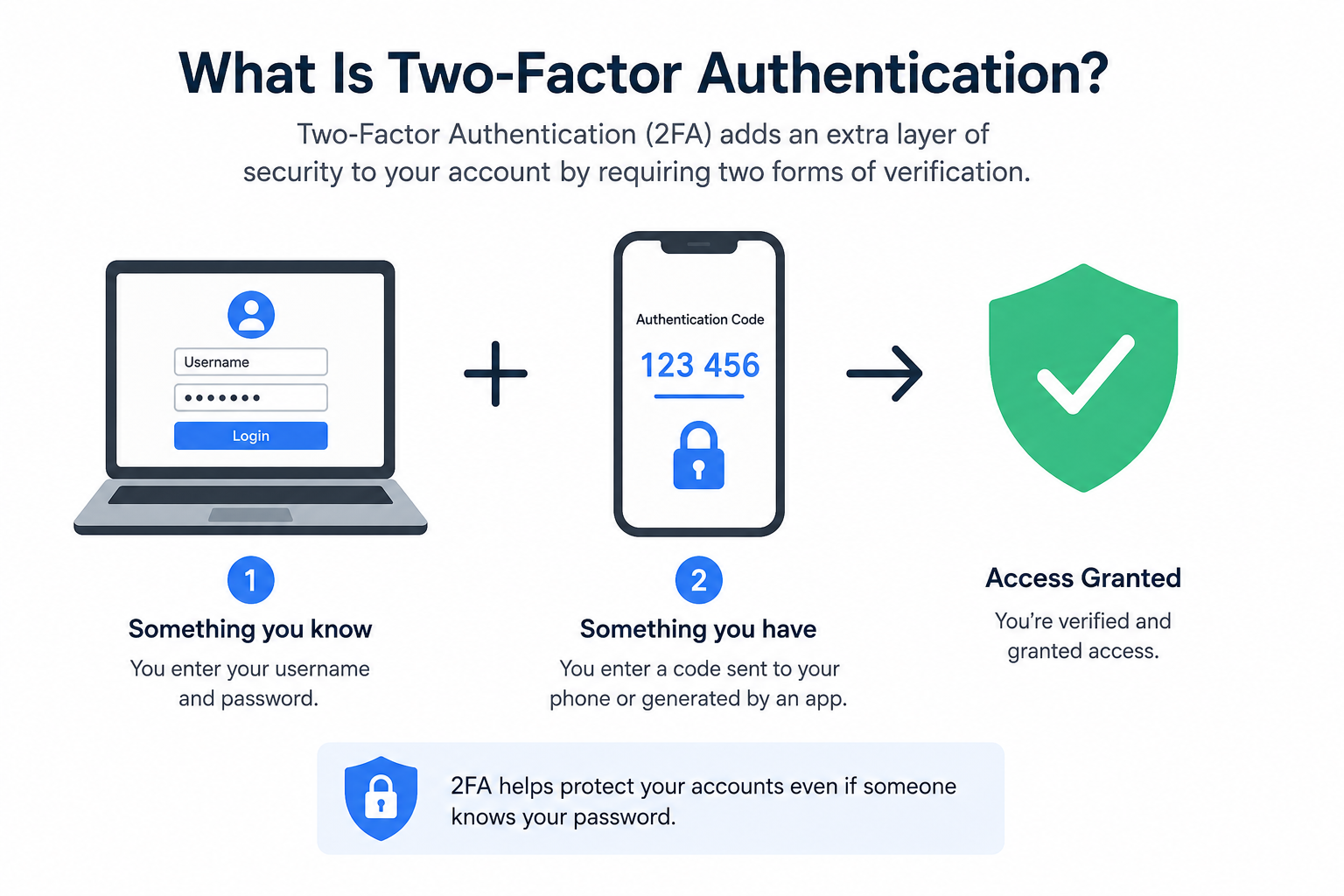
Introduction
Passwords used to be enough. But that is no longer true in 2026. Cybercriminals steal passwords through phishing attacks, data breaches, and malware every single day. Once they have your password, they can access your bank account, email, and social media within seconds.
Understanding what is Two-Factor Authentication (2FA) is now one of the most essential skills in digital security. Cyber attacks are increasing at an alarming rate. Identity theft costs victims billions of dollars annually. A single stolen password can unravel your entire online life.
The good news is that 2FA provides a powerful and simple layer of protection. Even if a hacker obtains your password, they still cannot get into your account without your second verification factor. This guide explains everything you need to know about 2FA, how it works, and why you should enable it on every important account today.
Quick Answer
Two-Factor Authentication (2FA) is a security process that requires two separate forms of verification before granting access to an account. First, you enter your password. Then, you verify your identity using a second method, such as a one-time code sent to your phone or generated by an authentication app. This extra step makes it significantly harder for hackers to access your accounts.
What Is Two-Factor Authentication (2FA)?
Two-Factor Authentication, commonly known as 2FA, is a security method that requires you to prove your identity in two distinct ways before accessing an account. Think of it as having two locks on your front door instead of one. A burglar might pick one lock, but getting through both is significantly harder.
The first factor is almost always something you know — your password or PIN. The second factor is something you have or something you are. This could be a one-time code on your smartphone, a fingerprint scan, or a physical security key.
2FA matters because passwords alone have become dangerously unreliable. According to CISA, over 80% of data breaches involve compromised credentials. Adding a second verification layer dramatically reduces the risk that a stolen password leads to a successful account takeover.
A simple real-world example: Imagine you log into your online banking account. You enter your username and password as usual. Immediately, your bank sends a six-digit code to your registered phone number. You enter that code on the website, and only then does your banking dashboard open. That entire process is 2FA in action.
The core principle is straightforward. Even if a cybercriminal steals your password, they cannot access your account without also controlling your second factor. This makes 2FA one of the most effective tools in modern cybersecurity.
How Does Two-Factor Authentication Work?
The 2FA process follows a clear, logical sequence. Understanding each step helps you see exactly why it provides such strong protection.
Step 1 — Enter Username and Password
You begin by entering your username and password on the login screen as you normally would. This is the first authentication factor, something you know. If your credentials are correct, the system recognizes your account and moves to the next stage.
At this point, the system has confirmed that you know the password. However, it has not yet confirmed that you are the actual account owner. That is where the second factor becomes critical.
Step 2 — Verify Your Identity
After the system accepts your password, it immediately requests a second form of verification. Depending on how you have set up 2FA, this might involve entering a six-digit code from an authenticator app, approving a push notification on your phone, inserting a hardware security key, or scanning your fingerprint.
This step proves that you physically possess a trusted device or a biometric identifier linked to your account. A hacker sitting across the world with only your stolen password cannot complete this step without access to your second factor.
Step 3 — Access Your Account Securely
Once you successfully provide both factors, the system grants you full access to your account. The entire process typically takes less than 30 seconds. Yet that brief additional step creates an enormous security barrier for anyone attempting unauthorized access.
From this point, your session proceeds normally. Many platforms also remember your trusted device for a set period, so you do not need to complete the second step every single time you log in from the same device.
Types of Two-Factor Authentication
Several different 2FA methods exist, and each has distinct characteristics. Understanding your options helps you choose the best approach for each account.
SMS Verification Codes
SMS-based 2FA sends a one-time numeric code to your registered mobile number via text message. You then enter this code into the login screen to complete authentication.
How it works: The platform generates a temporary code and delivers it through the mobile network to your phone number. These codes typically expire within 60 to 120 seconds.
Advantages: It requires no additional app installation. Almost every smartphone can receive SMS messages. Setup is quick and familiar to most users.
Disadvantages: SMS 2FA is vulnerable to SIM swapping attacks, where a criminal tricks your mobile carrier into transferring your phone number to their SIM card. It also depends on mobile network availability and is considered the weakest form of 2FA by cybersecurity standards.
Best use cases: SMS 2FA is acceptable for low-to-medium sensitivity accounts when no better option is available. For banking and email, always use a stronger method when possible.
Authentication Apps
Authenticator apps like Google Authenticator, Microsoft Authenticator, and Authy generate time-based one-time passwords (TOTP) directly on your device. These codes refresh every 30 seconds.
How it works: During setup, you link the app to your account by scanning a QR code. The app then continuously generates new codes without requiring an internet connection or cell service.
Advantages: Authentication apps work offline, which makes them far more reliable than SMS. They are not vulnerable to SIM swapping attacks. They are free to download and use.
Disadvantages: If you lose your phone without backing up recovery codes, regaining access to your accounts can be challenging. Setting up the app requires a few extra minutes initially.
Best use cases: Authentication apps are ideal for email accounts, social media, financial accounts, and any platform handling sensitive data. Most cybersecurity experts recommend them over SMS 2FA.
Hardware Security Keys
Hardware security keys are small physical devices, typically USB or NFC-based, that you insert or tap to authenticate your identity. Popular examples include YubiKey and Google Titan Security Key.
How it works: During login, you plug the key into a USB port or tap it against an NFC-enabled device. The key communicates with the platform using cryptographic protocols to confirm your identity.
Advantages: Hardware keys provide the highest level of 2FA security currently available. They are completely resistant to phishing attacks because they verify the actual website domain during authentication. They require no battery or internet connection.
Disadvantages: They come with a purchase cost, typically between $25 and $70. Losing the key without a backup method can lock you out of accounts. They are less convenient for everyday use than app-based methods.
Best use cases: Hardware security keys are strongly recommended for security professionals, businesses, journalists, activists, and anyone managing highly sensitive accounts or large amounts of financial data.
Email Verification
Email-based 2FA sends a one-time code or login confirmation link to your registered email address. You click the link or enter the code to complete the login.
How it works: After entering your password, the platform emails a verification code or link to your registered address. You open your email, retrieve the code, and enter it on the login page.
Advantages: Email verification requires no additional setup beyond your existing email address. It works on any device with email access.
Disadvantages: The security of email 2FA depends entirely on the security of your email account. If your email is compromised, email-based 2FA offers little additional protection. It is also slower and less convenient than app-based methods.
Best use cases: Email verification is suitable for low-sensitivity accounts but should not serve as the primary 2FA method for banking, email, or any account containing sensitive personal information.
Biometric Authentication
Biometric authentication uses unique physical characteristics — such as fingerprints, facial recognition, or iris scans — to verify your identity. Many smartphones now use biometrics as a 2FA method within apps.
How it works: Your device stores a mathematical representation of your biometric data locally. During login, the platform asks your device to verify your biometric. Your device confirms the match without sending your actual biometric data to the platform.
Advantages: Biometrics are unique to each individual and extremely difficult to replicate. They provide fast, frictionless authentication. Your fingerprint and face are always with you, so you cannot forget or lose them.
Disadvantages: Biometric data, once compromised, cannot be changed like a password can. Identical twins and high-quality photos have occasionally fooled some facial recognition systems. Biometrics raise privacy concerns for some users.
Best use cases: Biometric authentication works excellently as a second factor on mobile banking apps and corporate systems. It is particularly effective when combined with app-based authentication.
Push Notifications
Push notification 2FA sends an approval request directly to your registered mobile device. You simply approve or deny the login attempt with a single tap.
How it works: When you attempt to log in, the platform sends a push notification to your smartphone via an authenticator app or the platform’s own app. The notification shows details about the login attempt, including the device and location. You approve or deny it.
Advantages: Push notifications are fast and user-friendly. They show contextual details about the login attempt, helping you spot suspicious access. Denial is as easy as approval.
Disadvantages: Push notification fatigue is a real risk. Determined hackers sometimes bombard users with repeated notifications hoping they will accidentally approve one. This technique is called MFA fatigue or push bombing.
Best use cases: Push notifications work well for corporate accounts and platforms using dedicated security apps. Users should pay careful attention to the login details shown in each notification before approving.
Two-Factor Authentication vs Multi-Factor Authentication (MFA)
Many people use the terms 2FA and MFA interchangeably, but there is an important distinction between them.
Two-Factor Authentication specifically uses exactly two verification factors. Multi-Factor Authentication uses two or more factors, which means that 2FA is technically a subset of MFA.
2FA vs MFA Comparison Table
| Feature | Two-Factor Authentication (2FA) | Multi-Factor Authentication (MFA) |
|---|---|---|
| Number of Factors | Exactly two | Two or more |
| Security Level | Strong | Very strong to extremely strong |
| Ease of Use | User-friendly | Can be more complex with more factors |
| Common Examples | Password + SMS code | Password + app code + fingerprint |
| Best Use Cases | Personal accounts, social media, email | Banking, enterprise systems, government |
| Industry Adoption | Widely available on most platforms | Common in corporate and regulated sectors |
| Setup Complexity | Simple | Moderate to complex depending on factors |
Authentication Factors Table
| Factor Type | What It Is | Examples |
|---|---|---|
| Something You Know | Knowledge-based information | Password, PIN, security questions |
| Something You Have | A physical object you possess | Phone, hardware key, smart card |
| Something You Are | A biometric characteristic | Fingerprint, face, iris scan |
| Somewhere You Are | Your physical location | IP address, GPS location |
| Something You Do | A behavioral pattern | Typing speed, mouse movement |
In practice, most consumer platforms offer 2FA, while enterprise environments increasingly adopt full MFA with three or more factors. Both provide substantially better security than a password alone.
Benefits of Two-Factor Authentication
Enabling 2FA on your accounts delivers significant security improvements and peace of mind. Here are the most important benefits.
Benefits of 2FA Table
| Benefit | Description |
|---|---|
| Blocks unauthorized access | Prevents login even when passwords are stolen |
| Reduces identity theft risk | Adds a barrier hackers cannot easily overcome |
| Protects financial accounts | Secures banking and payment platforms |
| Defends against phishing | Stolen passwords alone become useless |
| Stops credential stuffing | Reused passwords cannot be exploited |
| Alerts you to suspicious login attempts | Push notifications and alerts reveal intrusion attempts |
| Builds trust with platforms | Many services require 2FA for compliance |
| Protects business data | Reduces corporate data breach risk significantly |
| Satisfies regulatory requirements | Helps meet GDPR, HIPAA, and PCI-DSS standards |
| Works alongside password managers | Combines two complementary security tools effectively |
| Reduces account recovery headaches | Prevents unauthorized password resets |
| Protects remote workers | Secures access to corporate systems from anywhere |
| Low cost for individual users | Most 2FA methods are completely free |
| Easy to set up on most platforms | Usually takes less than five minutes to activate |
| Widely supported across platforms | Available on virtually all major online services |
Beyond these tangible security benefits, 2FA also changes the behavior of attackers. When hackers know that a platform enforces 2FA, they frequently move on to easier targets. This protective effect benefits all users on that platform, not just those who actively enabled 2FA.
Common Threats That 2FA Helps Prevent
Two-factor authentication does not just add a small bump in the road for hackers. It fundamentally changes the attack landscape.
Password Theft
Hackers steal passwords through data breaches, phishing, and malware. With 2FA active, a stolen password alone is worthless. The attacker still needs your second factor, which they typically cannot obtain.
Phishing Attacks
Phishing involves tricking you into entering your credentials on a fake website. Even if you fall for a phishing attempt and hand over your password, 2FA limits the damage. The hacker cannot use that password without your second factor. (Note: advanced phishing kits can sometimes intercept 2FA codes in real time, which is why hardware security keys offer the strongest phishing resistance.)
Credential Stuffing
Credential stuffing occurs when hackers take username and password combinations leaked from one data breach and automatically try them on hundreds of other websites. Because 2FA requires a second step, credential stuffing attacks fail even when they find a matching password.
Brute-Force Attacks
Brute-force attacks use automated tools to guess passwords by trying millions of combinations. Even if such an attack eventually guesses your password correctly, it cannot proceed past the second authentication factor.
Account Takeover
Account takeover is when a criminal gains full control of your account. This type of attack causes significant harm, especially when it involves email, social media, or financial accounts. 2FA makes account takeovers dramatically more difficult to execute.
Identity Theft
Criminals steal identities by accessing personal accounts and gathering enough information to impersonate a victim. Two-factor authentication closes many of the entry points that identity thieves exploit.
Data Breaches
When companies suffer data breaches, leaked credentials often appear on the dark web within hours. If 2FA is enabled, those leaked credentials cannot be immediately weaponized against individual users.
Limitations of Two-Factor Authentication
While 2FA is an excellent security tool, it is important to understand its limitations. No security measure is completely foolproof.
SIM Swapping
SIM swapping is a social engineering attack where a criminal convinces your mobile carrier to transfer your phone number to a SIM card they control. Once successful, they receive all SMS messages intended for you, including 2FA codes. This is the primary weakness of SMS-based 2FA.
Real-Time Phishing Kits
Sophisticated phishing kits can capture your 2FA code the moment you enter it on a fake site and immediately use it on the real site. This attack is particularly effective against TOTP codes with 30-second expiry windows. Hardware security keys largely eliminate this risk because they verify the actual website domain.
Lost or Stolen Devices
If you lose your phone and have not saved your backup codes, recovering access to accounts protected by 2FA can be a lengthy and frustrating process. Always store backup codes safely in advance.
MFA Fatigue Attacks
As mentioned in the push notification section, attackers can flood you with repeated 2FA approval requests until you accidentally approve one. Staying alert and denying unexpected requests immediately prevents this.
User Errors
Some users disable 2FA after finding it inconvenient, particularly when they change phones. Others lose access to their authenticator app during a device switch. Proper setup and backup code management prevent most of these issues.
Despite these limitations, 2FA still provides vastly superior security compared to passwords alone. Microsoft reports that enabling MFA blocks over 99.9% of automated account attacks. The limitations of 2FA are real, but the benefits enormously outweigh the drawbacks for virtually all users.
How to Enable 2FA on Popular Platforms
Most major platforms make enabling 2FA straightforward. Here is how to activate it on the most widely used services.
Google Account
Go to your Google Account settings and select “Security” from the left menu. Under the “How you sign in to Google” section, find “2-Step Verification” and click it. Follow the on-screen prompts to choose your preferred second factor, such as Google Authenticator, a security key, or SMS. Confirm your choice and activate 2-Step Verification.
Microsoft Account
Sign in to your Microsoft account and navigate to “Security.” Select “Advanced security options” and then “Two-step verification.” Click “Set up two-step verification” and follow the guided setup. Microsoft Authenticator is the recommended option for the best experience.
Apple ID
Open your iPhone Settings, tap your name at the top, and select “Sign-In and Security.” Tap “Two-Factor Authentication” and follow the prompts. Apple will use a trusted device or phone number as your second factor.
Facebook
Go to “Settings and Privacy,” then “Settings,” and select “Security and Login.” Find “Two-Factor Authentication” and click “Edit.” Choose your preferred method — authentication app, SMS, or security key — and complete the setup steps.
Instagram
Open the Instagram app and go to your profile. Tap the menu icon, select “Settings,” then “Security,” and finally “Two-Factor Authentication.” Choose your verification method and follow the activation steps.
X (formerly Twitter)
Navigate to “Settings and Support,” then “Settings and Privacy,” then “Security and account access,” and select “Security.” Find “Two-factor authentication” and choose your preferred method. Authenticator app and security keys are the strongest options available.
LinkedIn
Click your profile icon and go to “Settings and Privacy.” Select “Sign in and security” and find “Two-step verification.” Toggle it on and select your verification method to complete the setup.
GitHub
Go to your GitHub account settings and select “Password and authentication.” Click “Enable two-factor authentication” and choose between a TOTP authenticator app or SMS. GitHub strongly recommends using an authenticator app for enhanced security.
Best Practices for Using 2FA
Following these best practices ensures you get the maximum benefit from 2FA on all your accounts.
- Always prefer an authenticator app over SMS-based 2FA when both options are available.
- Enable 2FA on your email account first, as email recovery gives access to nearly every other account.
- Save your backup codes immediately after enabling 2FA on any account.
- Store backup codes in a secure, encrypted location such as a password manager or an encrypted document.
- Never store backup codes in your email inbox, as this defeats the purpose of 2FA.
- Enable 2FA on every financial account, including banking, investment, and payment platforms.
- Protect your authenticator app with biometric lock or a strong PIN.
- Back up your authenticator app when your app supports it (such as Authy), or export account codes before switching phones.
- Use a hardware security key for your most critical accounts when possible.
- Keep your recovery phone number and email address updated on every platform.
- Never approve a 2FA push notification that you did not personally initiate.
- Immediately deny and investigate any unexpected 2FA request, as it likely signals an unauthorized login attempt.
- Use strong, unique passwords alongside 2FA because both layers work together for maximum protection.
- Enable 2FA on your password manager itself to protect your entire credential vault.
- Regularly audit which accounts have 2FA enabled and activate it on any accounts that do not.
- Keep your smartphone’s operating system updated to prevent vulnerabilities that could compromise 2FA apps.
- Avoid using SMS 2FA for accounts linked to financial transactions or sensitive data.
- Consider using a dedicated device for critical authentication when managing sensitive business accounts.
- Inform household members about 2FA so they do not accidentally interfere with authentication requests.
- Test your 2FA setup by logging out and back in after activation to confirm everything works correctly.
2FA Best Practices Checklist
| Best Practice | Status |
|---|---|
| 2FA enabled on email account | |
| 2FA enabled on all banking accounts | |
| 2FA enabled on social media accounts | |
| Authenticator app used instead of SMS | |
| Backup codes saved securely | |
| Recovery information kept current | |
| Password manager also protected by 2FA | |
| Authenticator app locked with biometrics | |
| Unexpected push notifications denied | |
| 2FA audit conducted across all accounts |
Common Mistakes to Avoid
Even well-intentioned users make 2FA mistakes that reduce the effectiveness of this security layer. Avoid these common errors.
Using SMS as the Only Option Without Exploring Alternatives
Many people enable SMS 2FA simply because it appears first in the settings menu. Always check whether an authenticator app or security key option is available before defaulting to SMS.
Not Saving Backup Codes
This is one of the most common and most painful mistakes. Without backup codes, losing your phone can permanently lock you out of your accounts. Always save backup codes the moment you enable 2FA.
Storing Backup Codes Insecurely
Saving backup codes in an email draft, a notes app, or a plain text file creates a significant security risk. Store them in an encrypted password manager or a physically secure offline location.
Approving Push Notifications Without Reading Them
Some users automatically approve push notifications out of habit. Always read the login details shown in the notification. If the location, device, or time looks unfamiliar, deny the request immediately.
Disabling 2FA After Changing Phones
Many users disable 2FA before switching phones but forget to re-enable it afterward. Always re-enable 2FA on a new device before considering your accounts properly secured.
Not Enabling 2FA on the Email Account
Email is the master key to most of your online accounts. Neglecting to protect your email with 2FA while securing other accounts creates a critical vulnerability.
Sharing 2FA Codes With Anyone
Legitimate companies never ask you for your 2FA code. If someone requests your code by phone, email, or chat, it is a social engineering attack. Never share your codes with anyone.
Reusing Backup Codes
Backup codes are typically single-use. After using one, it is permanently invalidated. Generate a fresh set of backup codes periodically and after using any existing ones.
Using Compromised Devices
Running an authenticator app on a device infected with malware exposes your 2FA codes to theft. Keep your devices clean, updated, and protected with reputable security software.
Failing to Update Recovery Information
If your recovery phone number belongs to an old carrier or your recovery email no longer exists, you may be unable to recover your account in an emergency. Review and update recovery information regularly.
Ignoring 2FA Alerts
Many platforms send alerts when a new device logs in or when 2FA is disabled. Pay attention to these notifications. An alert you did not generate signals a potential compromise that requires immediate action.
Only Enabling 2FA on One or Two Accounts
Some users enable 2FA only on their bank and ignore everything else. Hackers frequently use compromised social media or email accounts as stepping stones to reach financial accounts. Protect all important accounts.
Future of Authentication
The way we verify our identities online is changing rapidly. Several exciting and significant developments are already reshaping authentication in 2026 and beyond.
Passwordless Authentication
Passwordless authentication eliminates the traditional password entirely. Instead of typing a password, users verify their identity through a biometric scan, a push notification, or a hardware key. Major platforms including Microsoft and Google already offer passwordless login options. This approach removes the weakest link in the security chain — the password itself.
Passkeys
Passkeys represent one of the most significant advances in authentication technology in decades. Developed through the FIDO Alliance and adopted by Apple, Google, and Microsoft, passkeys use cryptographic key pairs rather than passwords. When you create a passkey, your device stores a private key locally while the platform keeps a public key. During login, your device uses the private key to sign a challenge, proving your identity without ever transmitting a password. Passkeys are phishing-resistant by design.
Biometrics at Scale
Biometric authentication is becoming increasingly sophisticated and widely deployed. Advanced facial recognition, vein pattern recognition, and behavioral biometrics — which analyze patterns in how you type, move your mouse, and interact with your device — are becoming mainstream security tools. These methods add invisible, continuous authentication that does not interrupt the user experience.
AI-Powered Authentication
Artificial intelligence is enabling context-aware authentication systems that analyze dozens of signals simultaneously. These include your typical login location, the device you normally use, your behavioral patterns, and the time of day. When something deviates from your normal patterns, the system requests additional verification. When everything matches, it streamlines the login process.
Zero Trust Security
Zero Trust is a security philosophy built on the principle of “never trust, always verify.” Rather than trusting users automatically once they log in, Zero Trust systems continuously verify identity and device health throughout each session. This approach is gaining significant adoption in enterprise environments, where it significantly reduces the risk of insider threats and lateral movement by attackers who manage to gain initial access.
The direction is clear. Authentication is moving toward stronger, more seamless, and increasingly phishing-resistant methods. However, until these technologies reach universal adoption, 2FA remains an essential and highly effective layer of protection for everyone online.
Frequently Asked Questions
What is Two-Factor Authentication?
Two-Factor Authentication (2FA) is a security process that requires users to verify their identity using two distinct factors before accessing an account. The first factor is usually a password. The second factor is typically a one-time code from an app, an SMS message, a hardware key, or a biometric scan. Together, these two factors make unauthorized account access extremely difficult.
Is 2FA the same as MFA?
Not exactly. Two-Factor Authentication uses exactly two verification factors. Multi-Factor Authentication uses two or more. This means 2FA is a specific type of MFA. In practice, consumer platforms typically offer 2FA, while enterprise systems often implement full MFA with three or more factors for higher-security environments.
Is SMS 2FA secure?
SMS 2FA is significantly better than using no 2FA at all. However, it is the weakest form of 2FA because it is vulnerable to SIM swapping attacks and mobile network interception. Whenever possible, use an authenticator app or hardware security key instead of SMS for your most important accounts.
What is the safest type of 2FA?
Hardware security keys, such as YubiKey or Google Titan, are currently the most secure form of 2FA available. They use cryptographic protocols to verify your identity and are completely resistant to phishing because they verify the actual website domain during authentication. For most everyday users, authenticator apps represent an excellent balance of strong security and convenience.
Should everyone enable 2FA?
Absolutely. Every person who uses online accounts should enable 2FA, especially on email, banking, social media, and any account containing personal or financial data. The setup takes only a few minutes, and the security improvement is enormous. There is no category of user for whom 2FA is not beneficial.
Can hackers bypass 2FA?
Sophisticated attackers can occasionally bypass weaker forms of 2FA, particularly SMS-based methods, through SIM swapping or real-time phishing kits. However, bypassing 2FA requires significantly more effort, skill, and resources than simply stealing a password. Hardware security keys are currently virtually impossible to bypass remotely. Even imperfect 2FA is far better than no 2FA.
What happens if I lose my phone?
If you lose your phone, you can use your backup codes to access your accounts. That is exactly why saving backup codes immediately after enabling 2FA is so important. Most platforms also offer account recovery options through a trusted email address or phone number. Some authenticator apps, like Authy, also provide cloud backup of your authentication accounts.
What are backup codes?
Backup codes are single-use emergency codes that platforms provide when you enable 2FA. Each code can be used once to access your account if your primary 2FA method is unavailable. Most platforms generate eight to ten backup codes at setup. Store them in a secure, accessible location, such as an encrypted password manager.
Are authenticator apps free?
Yes. The most widely used authenticator apps, including Google Authenticator, Microsoft Authenticator, and Authy, are completely free to download and use. They work without an internet connection or mobile data once set up, making them both reliable and cost-free for individual users.
What are security keys?
Security keys are small physical devices, usually connecting via USB or NFC, that serve as a hardware-based second factor. During login, you insert or tap the key to authenticate. They use public-key cryptography to verify your identity and are completely resistant to phishing attacks. Popular options include YubiKey and Google Titan Security Key.
Is biometric authentication safe?
Biometric authentication is generally very safe, particularly when used as a second factor. Most modern implementations store your biometric data locally on your device rather than on a central server, which limits exposure in case of a data breach. The main concern with biometrics is that, unlike passwords, you cannot change your fingerprint or face if the data is somehow compromised.
Which accounts should use 2FA?
Enable 2FA on every account that offers it, prioritizing in this order: your primary email account, online banking and investment accounts, social media profiles, shopping accounts with saved payment methods, cloud storage services, password managers, and work or business accounts. Any account holding personal data or financial information deserves 2FA protection.
Can businesses require 2FA?
Yes, and many do. Businesses can enforce mandatory 2FA across all employee accounts using identity management platforms and security policies. Regulatory frameworks including GDPR, HIPAA, PCI-DSS, and SOC 2 increasingly require or strongly recommend MFA for systems handling sensitive data. Enterprise 2FA enforcement significantly reduces the risk of costly data breaches.
What is passwordless login?
Passwordless login is an authentication method that removes the traditional password entirely. Instead, users verify their identity through biometrics, a hardware key, a magic link sent to their email, or a passkey stored on their device. Passwordless login eliminates the most common attack vector — the password — while often providing a more seamless user experience.
What is the future of authentication?
The future of authentication is moving toward passkeys, biometrics, and AI-powered contextual verification. Passkeys, already supported by Apple, Google, and Microsoft, offer phishing-resistant authentication without passwords. Behavioral biometrics and Zero Trust principles will add continuous, invisible identity verification throughout user sessions. The goal is authentication that is both more secure and more seamless than today’s password-and-code systems.
People Also Ask
What is Two-Factor Authentication?
Two-Factor Authentication is a login security method that requires two separate forms of identity verification — typically a password plus a one-time code or biometric scan — before granting account access. It significantly reduces the risk of unauthorized access even when a password is stolen.
How does 2FA work?
2FA works by adding a second verification step to the standard login process. After entering your password, the system requests a second factor such as a code from an authenticator app, a text message, a hardware key tap, or a biometric scan. Only after providing both factors does the system grant account access.
Is 2FA safe?
Yes. 2FA is one of the most effective account security measures available to everyday users. While no security method is completely infallible, enabling 2FA blocks over 99.9% of automated account takeover attempts according to Microsoft research. It is safe, proven, and strongly recommended by all major cybersecurity authorities.
What is the difference between 2FA and MFA?
2FA uses exactly two verification factors, while MFA uses two or more. All 2FA is technically MFA, but not all MFA is 2FA. MFA with three factors, such as a password plus an app code plus a fingerprint, provides even stronger security than two-factor authentication alone.
Which type of 2FA is best?
Hardware security keys are the most secure option. Authenticator apps offering time-based one-time passwords are the best practical choice for most users. SMS-based 2FA is the weakest option and should be avoided for high-sensitivity accounts whenever a stronger alternative is available.
Should I enable 2FA?
Yes, without hesitation. Enabling 2FA on your important accounts is one of the single most impactful security steps you can take. It takes only a few minutes to set up and provides substantial protection against the most common types of account attacks. Start with your email and banking accounts today.
Can hackers bypass 2FA?
In rare cases involving sophisticated attacks like SIM swapping or advanced phishing kits, certain 2FA methods can be circumvented. However, these attacks require significant effort and skill. Hardware security keys are currently the most phishing-resistant option. For the vast majority of users, 2FA provides excellent and reliable protection.
What if I lose my phone?
If you lose your phone, use your pre-saved backup codes to access your accounts. You can then update your 2FA settings from a trusted device. To prevent this situation from becoming a crisis, always save backup codes immediately when enabling 2FA, keep your recovery email and phone number current, and consider using an authenticator app that supports encrypted cloud backup.
What are passkeys?
Passkeys are a new form of passwordless authentication developed through the FIDO Alliance and supported by Apple, Google, and Microsoft. They use cryptographic key pairs stored on your device to verify your identity without a traditional password. Passkeys are phishing-resistant by design and represent the most significant advancement in authentication security in recent years.
Is SMS authentication secure?
SMS authentication is better than using no second factor at all, but it is the weakest form of 2FA. It is vulnerable to SIM swapping attacks and SMS interception. Cybersecurity experts recommend using an authenticator app or hardware security key instead of SMS, especially for financial and email accounts.
Final Thoughts
Two-factor authentication is not just a technical feature. It is a fundamental layer of protection that every person using the internet should activate immediately. Understanding what is Two-Factor Authentication and why it matters puts you far ahead of the vast majority of online users who still rely on passwords alone.
Passwords are stolen, guessed, and leaked every day. But with 2FA properly enabled, a stolen password becomes almost useless to an attacker. That simple fact represents an enormous improvement in your personal online security.
Start today by enabling 2FA on your email account. Then move to your banking and financial accounts. Work through your social media profiles, cloud services, and any account containing personal or sensitive information. Use an authenticator app wherever possible and save your backup codes securely.
The setup takes minutes. The protection it delivers lasts for as long as your accounts exist. No other single security step provides a better return on your time investment. Enable 2FA today and make it significantly harder for anyone to compromise what you have worked hard to build online.
References
- Cybersecurity and Infrastructure Security Agency (CISA). “More Than a Password.” https://www.cisa.gov
- National Institute of Standards and Technology (NIST). “Digital Identity Guidelines — NIST Special Publication 800-63B.” https://www.nist.gov
- Open Web Application Security Project (OWASP). “Authentication Cheat Sheet.” https://owasp.org
- Microsoft Security. “Your Pa$$word Doesn’t Matter — MFA Blocks 99.9% of Attacks.” https://www.microsoft.com/security
- Google Safety Center. “Protect Your Account with 2-Step Verification.” https://safety.google
Technology Disclaimer
The information in this article is provided for educational and informational purposes only. TechOriginHub does not endorse any specific product, service, or vendor mentioned in this guide. Cybersecurity threats, authentication technologies, and best practices evolve continuously. Always consult official sources such as CISA, NIST, and OWASP for the most current recommendations. While Two-Factor Authentication significantly improves account security, no method can guarantee absolute protection against all forms of cyber attack. Users should combine 2FA with strong passwords, updated software, and ongoing security awareness for the best overall protection.