
 By Saad Qureshi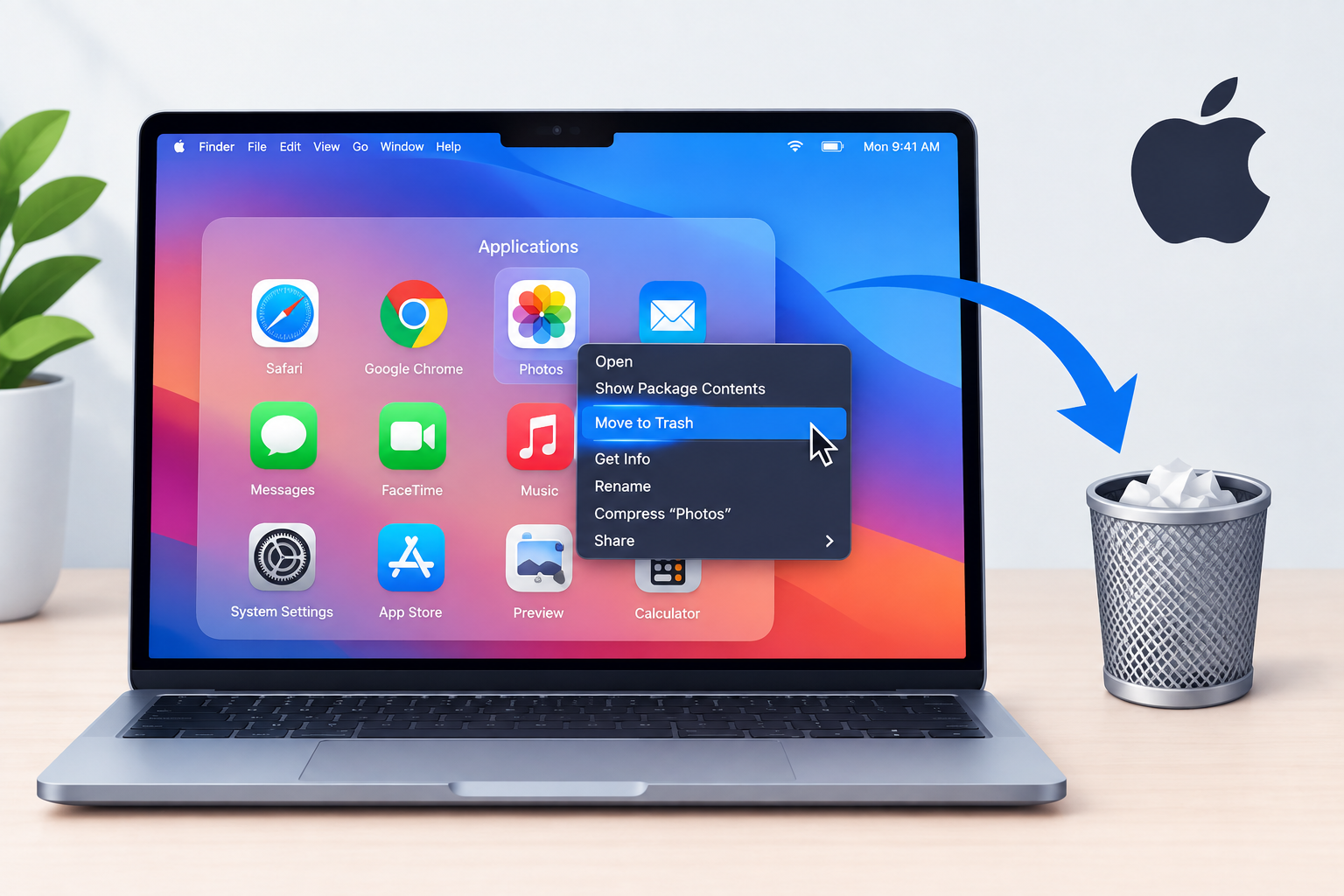
Uninstalling apps on Mac is straightforward once you know which method to use. The quickest way is to open Launchpad, click and hold an app icon until it jiggles, then click the X button that appears. Alternatively you can open Finder, navigate to the Applications folder, right-click an app, and select Move to Trash. For a more complete removal that also clears leftover support files, you can manually clean the Library folder or use a free third-party tool like AppCleaner. The right method depends on how the app was installed and how thoroughly you want to remove it.
This guide covers every method available for uninstalling apps on Mac with clear step-by-step instructions for each approach.
Why You Might Want to Uninstall Apps on Your Mac
There are several practical reasons to remove applications from a Mac. Understanding your reason helps you choose the most appropriate removal method.
Freeing up storage space. MacBooks with smaller SSD capacities fill up faster than users expect. Removing large unused apps is one of the most effective ways to recover meaningful storage space quickly.
Removing apps you no longer use. Over months and years of use most Macs accumulate applications that were downloaded once for a specific purpose and never opened again. Clearing these out keeps the Applications folder organized and reduces background resource consumption.
Resolving performance issues or crashes. An app that conflicts with macOS or other software can cause system slowdowns, unexpected crashes, or other stability problems. Removing and reinstalling a fresh copy often resolves these issues.
Removing trial or demo software. Many Mac applications offer free trial periods. After a trial ends and a purchasing decision is made either way the trial version typically needs to be removed.
Preparing a Mac for sale or transfer. Before selling or giving away a Mac, removing all personal applications and signing out of associated accounts is an important step in protecting your data and accounts.
Reinstalling to fix a broken app. When an app behaves incorrectly, corrupted settings or support files are sometimes the cause. Fully removing the app and reinstalling a clean copy can resolve the problem.
One important thing to understand before starting is that apps on Mac do more than simply exist in the Applications folder. Over time they accumulate app data including preferences, support files, databases, and logs stored in separate locations on the drive. A simple drag to Trash removes the app itself but leaves these files behind.
What Happens When You Uninstall an App on Mac?
When you drag an app to the Trash and empty it, macOS removes the application bundle from the Applications folder. The application bundle is the main file you see in Finder, the icon that you double-click to launch the program. Removing this bundle means the app can no longer be launched.
However this is only part of what the app has placed on your Mac. Most Mac applications create additional files stored in separate locations that are not deleted when the app bundle is removed. These include:
- Application Support files stored in the Library folder containing user data, internal databases, and core configuration files the app created during use
- Preference files stored in the Preferences folder recording the app’s settings and configuration choices
- Cache files stored in the Caches folder containing temporary data the app created to load content faster
- Log files stored in the Logs folder recording the app’s activity and any errors it encountered
- Saved application state files that record what the app had open when it was last closed
- Container folders used by sandboxed Mac App Store apps to store all their working data
Understanding what app cache files are explains why they persist after an app is removed. Cache files are created by the app during normal operation and stored separately from the app bundle itself. macOS has no automatic mechanism to remove them when the app bundle is deleted.
Similarly the broader category of app data that apps store in the Library folder, including Application Support folders, preference lists, and container data, remains on the Mac after the app bundle is gone. For most everyday apps these leftover files are small and cause no problems. For large professional applications used heavily over a long time these files can accumulate to several gigabytes.
Method 1: Uninstall Apps on Mac Using Launchpad
Launchpad is the simplest and most beginner-friendly way to uninstall apps on Mac. It displays all installed applications in a full-screen grid and provides a one-step deletion process that works similarly to deleting apps on an iPhone or iPad.
This method works reliably for apps installed through the Mac App Store and for many other standard applications.
How to Uninstall Apps Using Launchpad
- Open Launchpad by clicking its icon in the Dock. The Launchpad icon looks like a silver rocket on a grey background. Alternatively press F4 on your keyboard, or pinch inward with your thumb and four fingers on the trackpad to open Launchpad directly.
- Find the app you want to remove. If you have many apps installed use the search bar at the top of the Launchpad screen to search by app name.
- Click and hold the app icon with your mouse or trackpad until all the app icons on screen begin to jiggle. This is the same editing behavior used when rearranging apps on iPhone.
- Look for a small black X button that appears in the top left corner of apps that can be deleted through this method.
- Click the X button on the app you want to remove.
- A confirmation dialog appears asking whether you want to delete the app.
- Click Delete to confirm the removal.
- The app is immediately removed from your Mac.
Tips for the Launchpad Method
- If an app does not display an X button when icons are jiggling it means that app was not installed through the Mac App Store or it is a protected system application. Use the Finder method described in Method 2 for those apps.
- Launchpad deletes the app bundle but does not remove associated files stored in the Library folder. If complete removal including leftover files is needed follow up with Method 6 or Method 7.
- Press Escape or click anywhere outside the jiggling icons to exit edit mode without deleting anything.
Method 2: Uninstall Apps on Mac Using Finder
The Finder method is the most universally applicable approach for uninstalling apps on Mac. It works for virtually every application regardless of where it was downloaded or how it was installed, including apps from the Mac App Store, apps downloaded directly from developer websites, and apps installed from physical media.
How to Uninstall Apps Using Finder
- Open a Finder window by clicking the Finder icon in the Dock. It is the blue and white smiley face icon at the far left of the Dock.
- In the Finder sidebar click Applications to open the Applications folder. Alternatively press Shift, Command, and A together on your keyboard to jump directly to the Applications folder from any Finder window.
- Browse the Applications folder to find the app you want to uninstall. The folder displays apps in a list, grid, or column view depending on your Finder preferences.
- Right-click or Control-click the app icon.
- Select Move to Trash from the context menu that appears. Alternatively click the app icon once to select it and then drag it to the Trash icon in the Dock.
- If macOS prompts you to enter your administrator password type it and click OK to authorize the removal.
- After the app is in the Trash right-click the Trash icon in the Dock and select Empty Trash to permanently remove the app from your Mac. Alternatively press Shift, Command, and Delete together and confirm when prompted.
Tips for the Finder Method
- Before moving an app to the Trash confirm it is not currently running. Check the Dock for a small dot beneath the app icon which indicates an active running process. Right-click the app in the Dock and select Quit before attempting to move it to the Trash.
- Some commercial applications include their own dedicated uninstaller file inside the Applications folder. Before using the generic Finder method check whether the app’s folder contains a file named Uninstall or Uninstall AppName. If it does use that dedicated uninstaller instead for more thorough removal.
- The Finder method removes the app bundle but leaves Library files behind just as Launchpad does.
Method 3: Uninstall Apps on Mac Using the App Store
Apps downloaded from the Mac App Store can be found and managed through the App Store application, though the removal process itself is handled through Launchpad or Finder rather than through a dedicated uninstall button within the store interface.
How to Uninstall Apps Through the App Store Workflow
- Open the App Store on your Mac from the Dock, from Launchpad, or by pressing Command and Space to open Spotlight and typing App Store then pressing Return.
- Click your Apple ID name or profile icon in the bottom left corner of the App Store sidebar.
- Your purchase history shows all apps ever downloaded to your Apple ID. This helps you identify which of your apps came from the App Store.
- To remove an App Store app navigate to Launchpad as described in Method 1 and use the X button deletion process. This is the most direct removal path for Mac App Store apps.
- Alternatively use the Finder method described in Method 2. Navigate to the Applications folder, find the App Store app, and move it to the Trash.
It is worth noting that the Mac App Store does not include a dedicated one-click uninstall button within the store interface the way the iOS App Store does on iPhone and iPad. Removal of Mac App Store apps is handled through Launchpad or Finder as described above. For official guidance on managing Mac App Store purchases refer to Apple Support.
Method 4: Use an App’s Built-In Uninstaller
Some Mac applications, particularly large commercial software packages, creative production suites, and professional developer tools, include their own dedicated uninstaller. Using the official uninstaller provided by the developer is often the most thorough removal method available for these applications because it is specifically designed to find and remove every file the application placed on the Mac during installation and use.
Applications That Commonly Include Their Own Uninstaller
- Adobe Creative Cloud applications including Photoshop, Premiere Pro, and Illustrator are removed through the Adobe Creative Cloud desktop application’s dedicated uninstall function rather than by dragging to the Trash
- Microsoft Office for Mac has a dedicated removal process outlined at Microsoft Support which covers removing all Office components including framework files installed system-wide
- Many antivirus and security applications install system-level kernel extensions or security agents that require a specific removal process. These applications typically include their own uninstaller or provide clear removal instructions on their support pages
- Some developer tools and programming environments install system extensions or frameworks that require guided removal rather than simple Trash deletion
How to Use a Built-In App Uninstaller
- Open a Finder window and navigate to the Applications folder.
- Look for a file or folder named Uninstall, Uninstall AppName, or similar within the app’s installation location.
- If no uninstaller is visible in the Applications folder visit the app developer’s official website and navigate to their support section. Search for uninstall instructions or a dedicated removal tool.
- Download and run the official uninstaller following its guided process.
- Restart your Mac if the uninstaller prompts you to do so to complete the removal process.
Method 5: Force Quit and Then Uninstall a Stubborn App
Occasionally an app cannot be moved to the Trash because macOS detects that it is still running, even if the app does not appear to be active on screen. This commonly happens with apps that run background processes, menu bar utilities, or system agents that continue running after the main window is closed.
Force quitting the app before attempting to delete it resolves this situation in most cases.
How to Force Quit an App Before Uninstalling
- Press Command, Option, and Escape together on your keyboard simultaneously.
- The Force Quit Applications window opens displaying all currently running applications and processes.
- Find the app you want to uninstall in the list. If the app is frozen or unresponsive it may show the label Not Responding in red.
- Click the app name to select it.
- Click the Force Quit button in the bottom right of the window.
- Confirm the force quit when the confirmation dialog appears.
- Close the Force Quit window and return to Finder or Launchpad to proceed with deleting the app using the methods described above.
Alternative Method: Use Activity Monitor
- Press Command and Space to open Spotlight Search.
- Type Activity Monitor and press Return to open it.
- In the Activity Monitor window browse the process list or use the search field in the top right to search for the app’s name.
- Click the process associated with the app you want to quit to select it.
- Click the X button in the top left area of the Activity Monitor toolbar.
- Select Force Quit when prompted to confirm.
- Return to Finder and proceed with removing the app.
Method 6: Remove Leftover Files After Uninstalling an App on Mac
This is the step that most Mac users skip, and it is the step that makes the difference between a partial removal and a complete one. When you delete an app bundle using Launchpad or Finder the application is gone but the files it stored in the Library folder remain on your Mac.
The Library folder is hidden by default in macOS to prevent accidental modification of important system and application files. Accessing it requires a specific step.
Where Mac Apps Store Leftover Files
Mac applications store their associated files in several specific locations within the user Library folder. Each location serves a different purpose:
- ~/Library/Application Support/ is where apps store user data, internal databases, project files, and core configuration data separate from the app bundle. This folder typically contains the most significant leftover data for apps that have been used extensively.
- ~/Library/Preferences/ is where apps store preference and settings files in .plist format. These files record every configuration choice made within the app and persist after the app is deleted.
- ~/Library/Caches/ is where apps store temporary app cache data to help content load faster on subsequent launches. These files can grow large for apps that process significant amounts of media or network content.
- ~/Library/Logs/ is where apps write activity and error log files. These files are typically small but accumulate over time.
- ~/Library/Containers/ is where sandboxed Mac App Store apps store all of their working data. Deleting the relevant container folder removes the App Store app’s data completely.
- ~/Library/Application Scripts/ is where some apps store automation scripts and associated files.
Understanding what app data consists of in these folders makes it clear why a simple app bundle deletion leaves a meaningful amount of material on the drive, particularly for apps that have been in use for months or years.
How to Access the Hidden Library Folder and Remove Leftover Files
- Open a Finder window by clicking the Finder icon in the Dock.
- In the menu bar at the top of the screen click Go.
- Before clicking anything in the Go menu, hold the Option key on your keyboard. The Library option appears in the Go dropdown menu only when the Option key is held. It does not appear under normal circumstances because the folder is hidden.
- Click Library while still holding Option to open your user Library folder.
- Navigate into the Application Support folder. Look for a folder named after the app you deleted or named after the app’s developer. Move any clearly associated folders to the Trash.
- Navigate back to the Library folder and open the Preferences folder. Look for .plist files whose names begin with the app’s name or its bundle identifier, which typically follows a format like com.developername.appname. Move relevant .plist files to the Trash.
- Navigate to the Caches folder and look for any folders associated with the app you removed. Move them to the Trash.
- Check the Logs folder and Containers folder for any data associated with the deleted app and move relevant items to the Trash.
- Once you have finished removing all identifiable leftover files empty the Trash to permanently delete them.
Important Warning About Working in the Library Folder
Working in the Library folder requires careful attention. Only delete files and folders that you can clearly identify as belonging to the app you just removed. The Library folder also contains files belonging to macOS itself, other applications, and system services. Deleting unrelated files can cause other apps to malfunction or create macOS system issues.
If you encounter a file you are not certain about, do not immediately delete it. Instead move it to the Desktop temporarily. If nothing breaks after a day or two of normal use you can then move it to the Trash with more confidence.
Always maintain a current Time Machine backup before manually modifying any Library folder contents. For detailed guidance on macOS Library folder management refer to Apple Support.
Method 7: Use a Third-Party Uninstaller App for Complete Removal
Third-party Mac uninstaller applications automate the process of finding and removing both the app bundle and all associated Library files in a single workflow. They eliminate the need to manually navigate the hidden Library folder and search for leftover files by name. They are a reliable option for users who uninstall apps frequently, want complete removal without manual Library navigation, or are not comfortable working directly in system folders.
Third-party uninstaller tools are themselves a type of app designed specifically to manage the installation and removal of other Mac applications. They work by scanning known Library locations for files associated with a target app and presenting those files for review before any deletion occurs.
AppCleaner
AppCleaner is a free and widely used Mac uninstaller available at freemacsoft.net/appcleaner. When you drag an app onto the AppCleaner window or select it through the AppCleaner interface, the tool immediately scans the Library folder and other relevant locations for all files associated with that application. It displays a complete list of what it found and allows you to review everything before confirming deletion. This review step is important because it shows exactly what will be removed before anything is permanently deleted.
CleanMyMac
CleanMyMac is a comprehensive Mac maintenance application that includes a full uninstaller module among its many features. Its uninstaller identifies all files associated with an installed application and allows selective or complete removal. CleanMyMac operates on a paid subscription model. It is worth evaluating its full feature set to determine whether the broader maintenance functionality justifies the cost for your situation.
How to Use AppCleaner to Uninstall Apps on Mac
- Download AppCleaner from its official site at freemacsoft.net/appcleaner and open the downloaded file to install it.
- Open AppCleaner from your Applications folder or Launchpad.
- Open a separate Finder window and navigate to the Applications folder.
- Locate the app you want to uninstall in the Applications folder.
- Drag the app icon from the Finder Applications folder directly onto the AppCleaner window.
- AppCleaner immediately scans for all associated files across the Library folder and displays a complete list of everything it found including the app bundle and all related support files, preferences, and cache files.
- Review the list carefully. All items are selected for removal by default. Deselect any files you want to keep if applicable.
- Click the Remove button to proceed with deletion.
- Enter your Mac administrator password if macOS prompts you to authorize the removal.
- Empty the Trash after AppCleaner completes the removal to permanently delete all files from the drive.
How to Uninstall Apps on Mac That Won’t Delete
Some apps resist standard removal attempts. Understanding why helps you resolve the issue quickly.
Common Reasons an App Won’t Uninstall
The app is still running. This is the most common reason. macOS prevents deletion of an app that is actively in use. Solution: Use Method 5 to force quit the app before attempting to delete it.
Insufficient administrator permissions. If your Mac user account does not have administrator privileges you may not be authorized to delete certain applications. Solution: Enter your administrator password when macOS prompts you during deletion, or verify that your account has administrator status in System Settings under Users and Groups.
The app has an active system extension. Some apps install kernel extensions or system extensions that run at a deeper level than standard applications. macOS may prevent deletion of the app bundle while these extensions are active. Solution: Open System Settings, navigate to Privacy and Security, and check for installed extensions. Disable the relevant extension before attempting to remove the app.
The app is a built-in macOS system application. macOS includes native applications like Safari, Mail, Calendar, Photos, and Messages that are integral parts of the operating system. These apps cannot be removed through standard methods and are not designed to be deleted. Attempting to force their removal can destabilize macOS.
How to Check and Resolve Permission Issues
- Open a Finder window and navigate to the Applications folder.
- Right-click or Control-click the app you are trying to remove.
- Select Get Info from the context menu.
- In the Get Info window scroll down to the Sharing and Permissions section at the bottom.
- Verify that your user account shows Read and Write permission.
- If your account shows Read Only permission click the padlock icon at the bottom of the Get Info window and enter your administrator password to unlock it.
- Click the permission dropdown next to your account name and change it to Read and Write.
- Close the Get Info window and attempt to move the app to the Trash again.
How to Uninstall Apps on Mac to Free Up Storage Space
Uninstalling unused applications is one of the most direct ways to recover storage space on a Mac, particularly on MacBook models with smaller SSD capacities. Before starting an app removal session it is worth checking exactly how much space each application is consuming so you can prioritize which ones to remove first.
How to Check App Storage Usage on Mac
- Click the Apple menu in the top left corner of the screen.
- Select System Settings if you are running macOS Ventura or later, or System Preferences on older macOS versions.
- Click General in the sidebar.
- Click Storage to open the storage overview.
- macOS displays a color-coded breakdown of storage usage across different categories including Applications, Documents, Photos, and System Data.
- Click the Applications entry or the information button next to it to see a full list of installed applications sorted by the amount of storage each one occupies.
- Review the list and identify large applications you no longer use or need. Note their names.
- Use the appropriate uninstall method from this guide to remove them.
For official guidance on using macOS storage management tools refer to Apple’s storage management documentation.
Beyond removing app bundles, clearing app cache files left behind by both current and previously deleted apps can recover additional storage space. Cache files from large applications such as video editors, browsers, and creative tools can accumulate to significant sizes over time and are safe to remove since apps regenerate cache as needed.
Uninstalling Apps on Mac: Method Comparison Table
| Method | What It Removes | Works For | Difficulty | Removes Leftover Files |
|---|---|---|---|---|
| Launchpad drag and delete | App bundle only | App Store apps and most standard apps | Very easy | No |
| Finder drag to Trash | App bundle only | All apps | Easy | No |
| Built-in app uninstaller | App bundle and associated files | Apps with dedicated uninstallers | Easy to moderate | Usually yes |
| Manual Library cleanup | App bundle plus all leftover Library files | All apps | Moderate, requires care | Yes when done thoroughly |
| Third-party uninstaller such as AppCleaner | App bundle and all associated files | All apps | Easy | Yes |
| Force quit then delete | App bundle only after ending the running process | Apps that resist deletion while running | Easy | No |
| App Store workflow via Launchpad | App bundle only | Mac App Store apps | Very easy | No |
Tips for Keeping Your Mac App Library Clean
Maintaining a clean and organized Applications folder is an ongoing practice rather than a one-time task. These habits keep your Mac running efficiently and prevent storage from filling up with unused software.
Review your Applications folder regularly. Set a reminder to open the Applications folder every two or three months and look for apps you have not opened since your last review. If you cannot remember why you installed an app it is likely safe to remove it.
Use macOS Storage Management proactively. The storage overview in System Settings provides a sorted list of apps by size. Checking this periodically makes it easy to spot large unused apps that are consuming significant space without providing value.
Track trial apps carefully. When you download a trial version of an app note its name and make a deliberate decision at the end of the trial period. Either purchase it and keep it or remove it completely using Method 6 or Method 7 to ensure nothing is left behind.
Avoid accumulating demo and sample software. Many professional applications install demo content and sample files alongside the app itself. These can consume significant storage. Remove apps you are not using and check whether their associated sample content was also removed.
Run AppCleaner periodically to find orphaned files. Even if you use Launchpad or Finder for regular app removal, running AppCleaner occasionally to scan for orphaned Library files from previously deleted apps can recover storage that simple Trash deletion left behind.
Back up before making significant changes. Before any substantial app removal session, particularly one that involves Library folder cleanup, verify that your Time Machine backup is current. This ensures you can restore anything if a file you removed turns out to be needed.
Managing app data accumulation is an ongoing part of Mac maintenance. Apps add files to the Library folder throughout their entire lifecycle and regular review of your installed application list is the most effective way to prevent this from becoming a storage problem over time.
Frequently Asked Questions
How do I uninstall apps on Mac?
The simplest methods are using Launchpad, where you click and hold an app icon until it jiggles and then click the X button, or using Finder, where you navigate to the Applications folder and drag the app to the Trash. Empty the Trash after either method to complete the removal.
How do I delete apps on Mac that won’t delete?
First check if the app is still running by looking for a dot under its Dock icon. Force quit it using Command, Option, and Escape, then try deleting again. If it still won’t delete check your user permissions in the app’s Get Info window or look for a system extension that needs to be disabled first in System Settings under Privacy and Security.
Does deleting an app on Mac remove all its files?
No. Dragging an app to the Trash and emptying it removes the application bundle but leaves behind support files, preferences, cache files, and logs stored in the Library folder. To remove these leftover files you need to manually clean the Library folder or use a third-party uninstaller like AppCleaner.
How do I remove leftover files after uninstalling an app on Mac?
Open a Finder window, click Go in the menu bar, hold the Option key to reveal the Library option, and click Library. Then check the Application Support, Preferences, Caches, Logs, and Containers folders for files and folders associated with the app you removed. Move relevant items to the Trash and empty it.
What is the easiest way to uninstall apps on Mac?
For a simple removal, Launchpad is the easiest method. For a thorough removal that also cleans up leftover files, AppCleaner is the easiest tool since it handles both the app bundle and Library files in one step.
Can I uninstall built-in Mac apps?
Built-in macOS system apps like Safari, Mail, Calendar, and Messages cannot be removed through standard methods. They are part of the operating system and are not designed to be deleted. Third-party apps installed by the user can be removed using the methods in this guide.
How do I uninstall apps on Mac using Launchpad?
Open Launchpad by pressing F4 or clicking the rocket icon in the Dock. Click and hold any app icon until all icons start jiggling. Click the X button that appears on the app you want to remove and confirm by clicking Delete.
How do I uninstall apps on Mac using Finder?
Open Finder and click Applications in the sidebar. Right-click the app you want to remove and select Move to Trash. Enter your administrator password if prompted. Then right-click the Trash icon and select Empty Trash to permanently delete the app.
What is the best free uninstaller for Mac?
AppCleaner available at freemacsoft.net/appcleaner is widely considered the best free Mac uninstaller. It finds and removes both the app bundle and all associated Library files in one straightforward process without any cost.
How do I free up space by removing apps on Mac?
Go to System Settings, then General, then Storage to see a list of your installed apps sorted by size. Identify large apps you no longer use and remove them using Launchpad, Finder, or AppCleaner. Also clear leftover Library files from previously deleted apps to recover additional space.
Why can’t I delete an app on Mac?
The most common reasons are that the app is still running in the background, your user account lacks administrator permissions to delete it, the app has an active system extension, or the app is a built-in macOS system application that cannot be removed.
How do I uninstall Adobe apps on Mac?
Adobe applications should be uninstalled through the Adobe Creative Cloud desktop application rather than by dragging to the Trash. Open Adobe Creative Cloud, find the app you want to remove in the All Apps section, click the three-dot menu next to it, and select Uninstall. This ensures Adobe’s full uninstaller runs and removes all associated components.
How do I uninstall Microsoft Office on Mac?
Microsoft provides a dedicated removal process for Office on Mac. Visit Microsoft Support and search for how to uninstall Office for Mac for step-by-step instructions specific to your Office version. The process involves removing multiple components beyond the main application files.
Does emptying the Trash permanently delete an app on Mac?
Yes. Once you empty the Trash the app bundle is permanently removed from the Mac’s drive and cannot be recovered without a backup. This is why maintaining a current Time Machine backup before significant deletions is recommended.
How do I check which apps are taking up the most space on Mac?
Go to System Settings, click General, then click Storage. Click the Applications section to see a list of all installed apps sorted by the storage space each one uses. This makes it straightforward to identify the largest apps on your Mac before deciding which to keep or remove.
Disclaimer
This article is intended for educational and informational purposes and provides a general guide to uninstalling applications on Mac for everyday Mac users. Steps and interface options described in this article reflect general macOS functionality. The exact appearance of menus and options may vary between different macOS versions including Ventura, Sonoma, and Sequoia. Always refer to Apple’s official support documentation at support.apple.com for guidance specific to your macOS version. Deleting an application removes it from your Mac. Some actions such as deleting system files or leftover application support files manually cannot be undone without a backup. Always ensure you have a current backup using Time Machine or another backup method before making significant changes to your system files or application library. This article does not constitute an endorsement of any third-party uninstaller app or cleanup tool mentioned in this guide.