
 By Saad Qureshi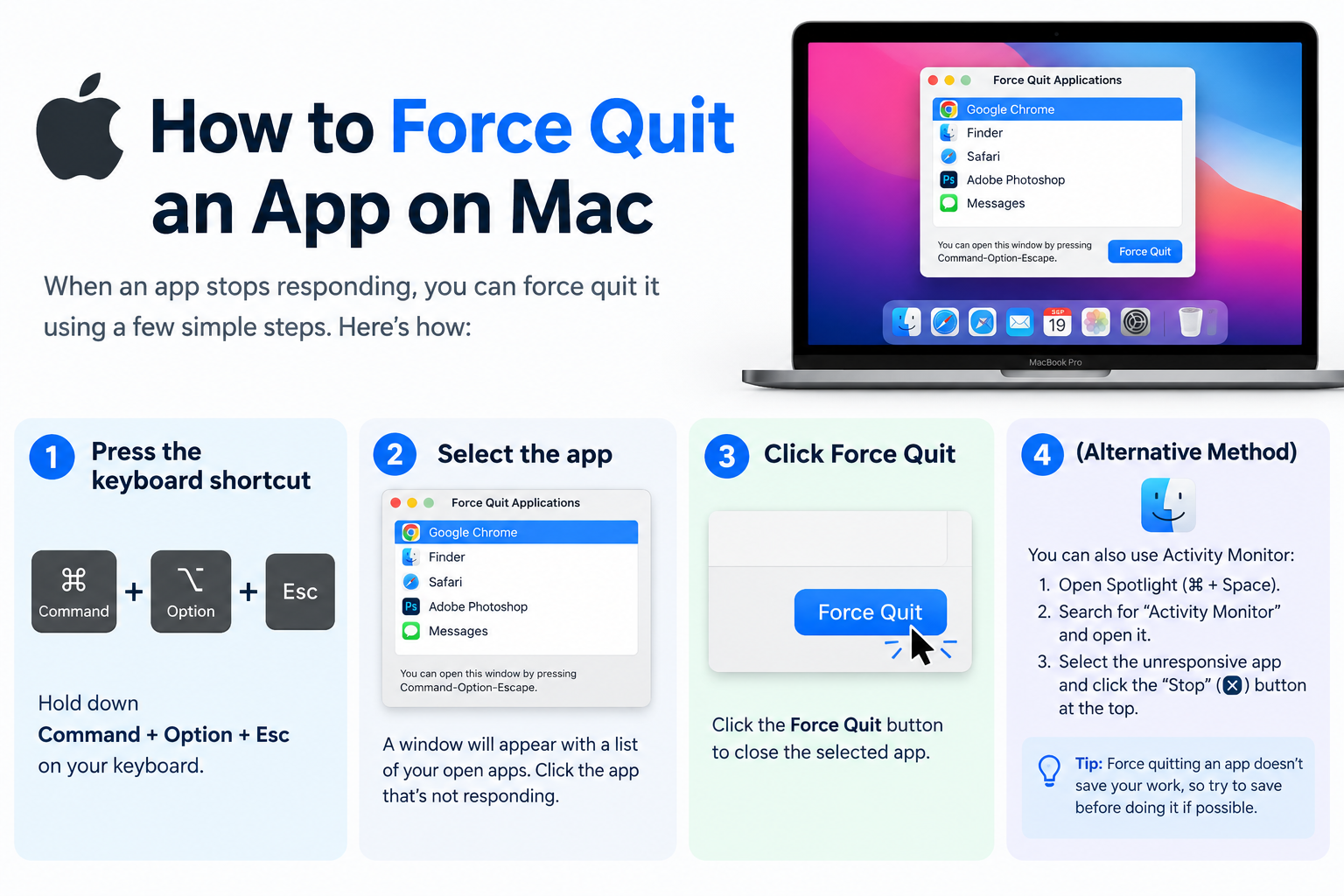
Introduction
The fastest way to force quit an app on Mac is to press Command + Option + Escape on your keyboard, select the frozen app from the list that appears, and click Force Quit. That works in most situations and takes less than ten seconds.
But that is not the only method, and it is not always the right one. This guide covers every way to force quit a frozen or unresponsive app on Mac, from the quickest keyboard shortcut to the Terminal for situations where everything else has failed.
What Does Force Quit Mean on Mac?
Force quitting is the process of immediately closing an application that has stopped responding, frozen, or is stuck and cannot be closed through normal means such as clicking the red close button or choosing Quit from the application menu.
If you are new to Mac and want context on what an app is before diving into troubleshooting one, this overview of what an app is provides a clear starting point.
On a Mac, the signs that an app needs to be force quit include:
-
The spinning beach ball cursor, sometimes called the spinning wheel or pinwheel, appears and does not stop
-
The app is completely unresponsive to mouse clicks and keyboard input
-
The app title bar or the Window menu shows the text Not Responding
-
The app window is frozen, will not scroll, and cannot be closed by normal means
Force quitting is safe to perform and will not damage your Mac. There is one important caveat: any unsaved work that was open in the app at the moment you force quit it will be lost permanently. If you can, try saving your work before force quitting, even in a frozen app, though this is often not possible when the app is fully unresponsive.
macOS provides five different methods to force quit an app, each suited to different situations and levels of technical comfort.
Why Do Mac Apps Stop Responding?
Understanding why apps freeze helps you decide what to do after force quitting to prevent it from happening again.
Apps freeze or stop responding on Mac for several common reasons:
- Software bugs: The app encounters an error in its code that causes it to get stuck in a loop it cannot exit on its own
- Insufficient RAM: The Mac has run low on available memory, leaving the app without enough working space to continue running
- Network timeouts: The app is waiting for a response from a server or online service that is taking too long or has become unavailable
- Heavy processing: The app is working through an unexpectedly large or complex task and temporarily appears frozen while it works
- Corrupted cache: The app’s stored temporary data has become corrupted, causing the app to malfunction when it tries to access it. Understanding what app cache is and why it can cause problems is useful context here
- Software conflicts: A conflict between the app and another running process causes both to become unresponsive
- Compatibility issues: The app has not been updated and is running into incompatibilities with the current version of macOS
Occasional app freezes are normal on any computer and are usually resolved by a simple force quit followed by relaunching the app. If the same app freezes repeatedly, it likely needs to be updated, its cache cleared, or in some cases reinstalled.
Method 1: Force Quit Using the Keyboard Shortcut
The keyboard shortcut is the fastest method to force quit an app on Mac and works even when the frozen app is taking up the full screen or is in the foreground.
The Force Quit Keyboard Shortcut
Press Command + Option + Escape simultaneously on your keyboard.
On Mac keyboards, Command is the key marked with the clover symbol or the Apple symbol, typically to the left of the spacebar. Option is sometimes labeled Alt and is next to Command. Escape is the key in the top-left corner of the keyboard.
Step-by-Step Instructions
- Press and hold the Command key on your keyboard.
- While holding Command, also press and hold the Option key.
- While holding both keys, press the Escape key.
- Release all three keys together.
- The Force Quit Applications window opens, showing a list of all currently running apps.
- Click on the name of the app you want to force quit. Apps that are not responding often appear with the text “Not Responding” in red beside their name.
- Click the Force Quit button in the bottom-right corner of the window.
- A confirmation dialog appears asking whether you are sure you want to force quit.
- Click Force Quit to confirm.
- The app closes immediately.
Tips for This Method
- The Force Quit Applications window stays open after you force quit an app, so you can force quit additional apps in the same session if needed.
- Close the Force Quit Applications window by clicking the red close button in its top-left corner when you are finished.
- If the frozen app is completely dominating your system and the keyboard shortcut seems not to register, wait a few seconds and try the shortcut again. The system usually responds within a moment.
Method 2: Force Quit from the Apple Menu
The Apple menu in the top-left corner of your screen provides a Force Quit option that opens the same Force Quit Applications window as the keyboard shortcut. This is the preferred method for users who are more comfortable with the mouse than keyboard shortcuts.
Step-by-Step Instructions
- Click the Apple logo icon in the very top-left corner of your screen. This opens the Apple menu dropdown.
- Look for Force Quit in the menu list. The option typically shows the name of the currently active app next to it, such as “Force Quit Safari” or “Force Quit Chrome.”
- Click Force Quit.
- The Force Quit Applications window opens, showing all currently running apps.
- Click on the name of the app you want to force quit from the list.
- Click the Force Quit button in the bottom-right corner of the window.
- Click Force Quit again in the confirmation dialog to complete the action.
Tips for This Method
- If the frozen app is the active window when you click the Apple menu, that app may already be selected in the Force Quit Applications window, making the process even quicker.
- This method works well when the keyboard shortcut feels unfamiliar or when you want to see the full list of running apps before deciding which to close.
- Apple’s official support documentation at support.apple.com provides additional guidance on using Force Quit for specific macOS versions.
Method 3: Force Quit from the Dock
The Dock at the bottom of your Mac screen offers a direct way to force quit an app without opening any additional windows. This is one of the fastest single-step methods when the frozen app’s icon is visible in the Dock.
Step-by-Step Instructions
- Locate the icon of the frozen app in the Dock at the bottom of your screen.
- Right-click on the app icon. If you are using a one-button mouse or trackpad without right-click configured, hold the Control key and click the icon to produce the right-click context menu.
- A context menu appears with several options including Quit at the bottom.
- Do not click Quit yet. If the app is frozen, Quit alone may not close it.
- While the context menu is visible, hold the Option key on your keyboard.
- Watch the Quit option in the context menu. It changes to Force Quit when the Option key is held.
- Click Force Quit while still holding the Option key.
- The app closes immediately without a confirmation dialog.
Tips for This Method
- This is the fastest method for closing a single frozen app when its Dock icon is readily accessible, as it does not open any additional windows.
- The Option key trick that converts Quit to Force Quit in the Dock context menu works across most current macOS versions.
- If the app you want to close is not visible in the Dock, use the keyboard shortcut or Apple menu method instead.
Method 4: Force Quit Using Activity Monitor
Activity Monitor is a built-in macOS utility that displays every running process on your Mac, including apps, background services, and system processes. It allows you to force quit any of these processes and also shows how much CPU and memory each one is consuming.
This is the most powerful force quit method available without using Terminal. It is particularly useful when you need to close a background process that does not appear in the standard Force Quit Applications window, or when you want to see which apps are consuming excessive resources.
How to Open Activity Monitor
Option A: Open via Spotlight Search
- Press Command + Spacebar to open Spotlight Search.
- Type Activity Monitor in the search box.
- Click Activity Monitor in the results list to open it.
Option B: Open via Finder
- Click Finder in the Dock.
- Click Go in the top menu bar.
- Select Utilities from the dropdown menu.
- Double-click Activity Monitor in the Utilities folder to open it.
Force Quitting an App in Activity Monitor
- Open Activity Monitor using either method above.
- In the Activity Monitor window, you will see a list of all running processes organized by name, along with columns showing CPU usage, memory usage, and other data.
- Click the CPU tab at the top of the window to sort processes by processor usage, which can help you spot a frozen app consuming excessive resources.
- Look for the app you want to force quit in the Process Name column. To find it quickly, type the app’s name in the search box in the top-right corner of the window.
- Click on the app’s name in the list to select it.
- Click the X button in the top-left area of the Activity Monitor toolbar. This button resembles a stop sign with an X inside it.
- A dialog appears offering two options: Quit and Force Quit.
- Click Force Quit to immediately terminate the process.
Tips for Activity Monitor
- Apps displayed in red text in Activity Monitor are currently not responding and are prime candidates for force quitting.
- Activity Monitor shows CPU and memory usage for every process. This makes it useful not only for closing frozen apps but for identifying apps that are quietly consuming excessive resources and slowing your Mac even when they appear to be working.
- Use the search box to locate a specific app by name rather than scrolling through a long list of processes.
- Exercise caution when considering force quitting processes with unfamiliar names. Some processes are essential macOS system components. If you are unsure what a process is, search its name before closing it.
Method 5: Force Quit Using the Terminal
Terminal is the Mac command-line interface and provides a way to force quit apps and processes using typed commands. This method is more technical than the others and is best used as a last resort when other methods have not worked, or when a process is not visible in the standard Force Quit Applications window or Activity Monitor.
How to Open Terminal
- Press Command + Spacebar to open Spotlight Search.
- Type Terminal and press Enter.
- Terminal opens as a text-based window where you can type commands.
Force Quitting Using the Kill Command
Step 1: Find the Process ID
Every running process on Mac has a unique Process ID number, commonly called a PID. To find the PID of a frozen app, type the following command in Terminal and press Enter:
pgrep -l ApplicationNameReplace ApplicationName with the exact name of the frozen app, such as Safari, Finder, or Chrome. Terminal will return the PID number alongside the app name. Note the number on the left side of the result.
Step 2: Force Quit the Process
Type the following command, replacing PID with the number you found in the previous step, and press Enter:
kill -9 PIDThe process is immediately terminated. The -9 flag sends a signal that cannot be ignored or handled by the app, making it the most forceful way to close a process through Terminal.
Alternative Terminal Command
If you want to skip finding the PID and close an app directly by name, use the killall command:
killall -9 ApplicationNameReplace ApplicationName with the exact name of the app as it appears in the system. Press Enter to execute the command. This terminates all instances of the named process simultaneously.
Tips for Terminal Method
- Accurate typing is essential. A misspelled app name will cause the command to fail or target the wrong process.
- The kill -9 and killall -9 commands perform an immediate hard termination with no save dialog and no confirmation. There is no undo.
- Use Terminal as a last resort after all other force quit methods have failed.
- Do not use kill or killall commands on system processes with names you do not recognize. If you are unsure, look up the process name before running a command against it.
All Force Quit Methods Compared
| Method | How to Access | Speed | Skill Level | Best Used When |
|---|---|---|---|---|
| Keyboard Shortcut (Command + Option + Escape) | Press three keys simultaneously | Very fast | Beginner | Quick access to Force Quit window from any situation |
| Apple Menu Force Quit | Click Apple logo in top-left corner | Fast | Beginner | You prefer using the mouse over keyboard shortcuts |
| Dock Right-Click Force Quit | Right-click app icon in Dock, hold Option key | Fast | Beginner | The frozen app’s icon is visible in the Dock |
| Activity Monitor | Open from Spotlight or Utilities folder | Moderate | Intermediate | You need to see resource usage or close background processes |
| Terminal Kill Command | Open Terminal and type kill or killall command | Slower | Advanced | Other methods have failed or the process is not visible in standard tools |
What to Do After Force Quitting an App
Force quitting closes the frozen app, but the steps you take afterward determine whether the problem recurs and whether you can recover any lost work.
Relaunch the App
After force quitting, you can relaunch the app immediately by clicking its icon in the Dock or opening it from the Applications folder. Most of the time the app will launch normally and the freeze will not happen again. Some apps, including Safari, may offer to restore your previous session when relaunched, which can recover tabs or documents you had open.
Check for Unsaved Work
Any work that was open but not saved at the time of the force quit is permanently lost. After relaunching the app, check whether it recovered any recent work through its auto-save or crash recovery feature. Apps including Pages, Numbers, Microsoft Word, and many other document editors have auto-save functionality that may have preserved a recent version of your work. Check the app’s recent documents or recovery prompts immediately after relaunching.
Going forward, save frequently using Command + S to minimize what you might lose if an app freezes again.
Update the App
If an app freezes repeatedly, an available update may contain a fix for the bug causing the problem. Open the Mac App Store and check the Updates tab for available updates. For apps downloaded outside the App Store, check the developer’s official website or use the app’s built-in Check for Updates option if it has one. Keeping apps current is one of the most effective ways to prevent repeated freezes. You can find apps to update or reinstall through the official app store on your Mac.
Clear the App Cache
If updating does not resolve repeated freezes from a specific app, clearing its cache can help. Corrupted app cache is a common but overlooked cause of persistent app misbehavior on Mac. Cache files for most apps are stored in the Library folder of your user account.
To access them, open Finder, click Go in the menu bar, hold the Option key, and select Library. Inside the Library folder look for the Caches or Application Support folder and find the subfolder corresponding to the problem app. Move that folder to the Trash and then relaunch the app. The app will create fresh cache files when it starts.
For more detail on what app cache is and why clearing it helps, this guide on app cache covers the topic clearly.
Restart Your Mac
If multiple apps are freezing in the same session or your Mac feels generally sluggish after force quitting an app, a full restart resolves many temporary system issues by clearing memory and refreshing all system processes. Click the Apple menu and select Restart, then wait for the Mac to restart fully before reopening your apps.
Reinstall the App
If an app consistently freezes despite updating and clearing its cache, reinstalling it replaces any corrupted application files that may be causing the problem. Drag the app from the Applications folder to the Trash to delete it, then reinstall from the Mac App Store or the developer’s official website.
Understanding what an app is at a foundational level can be helpful if you are new to the process of managing and reinstalling software on a Mac.
What If Force Quit Is Not Working?
In some situations, even force quit methods may not successfully close a severely frozen app. Here is how to handle those cases.
Wait a Few Minutes
What appears to be a completely frozen app is sometimes an app that is processing an unexpectedly large task in the background. Before force quitting, wait two to three minutes to see if the spinning beach ball stops on its own and the app recovers. If it does, you will avoid losing unsaved work unnecessarily.
Try a Different Force Quit Method
If the Command + Option + Escape keyboard shortcut does not produce results, try the Apple menu method. If neither of those works, open Activity Monitor, which operates at a system level and can close processes that resist the standard Force Quit Applications window. If Activity Monitor cannot terminate the process, proceed to the Terminal kill command as a final software-based option.
Log Out and Back In
If standard force quit methods are not working, logging out of your Mac user account closes all running apps and processes and may successfully close the stubborn frozen app in the process. Click the Apple menu and select Log Out. When prompted, confirm the log out. After logging back in, you can relaunch your apps normally.
Force Restart Your Mac
If the app is frozen and the system itself is becoming unresponsive, a force restart is the last resort. Hold the Power button on your Mac for several seconds until the machine powers off completely. Wait a few seconds, then press the Power button again to start up.
Use a force restart only when all other options have failed. Forcing the Mac to power off without a normal shutdown closes all apps immediately without saving and can in rare cases cause minor file system inconsistencies. macOS typically runs an automatic disk check after an unexpected shutdown to identify and address any issues, so allow this process to complete if it begins during the next startup.
How to Prevent Mac Apps from Freezing
Preventing app freezes is more straightforward than dealing with them after the fact. These practices reduce how often you need to force quit anything.
- Keep macOS updated to the latest version your Mac model supports. System updates include fixes for bugs and compatibility issues that cause apps to freeze and crash.
- Keep all apps updated through the Mac app store and directly from developer websites for apps installed outside the store. App updates regularly address specific bugs that cause freezing.
- Avoid running too many apps simultaneously, particularly on Macs with limited RAM. Quit apps you are not actively using to free up working memory for the apps you are using.
- Restart your Mac regularly rather than always putting it to sleep. Regular restarts clear temporary memory allocations and refresh system processes that can become sluggish over extended uptime.
- Ensure your Mac has adequate free storage space on its startup drive. Running low on storage can degrade overall system and app performance and contribute to freezes.
- Clear app caches periodically for apps that show repeated freezing behavior. Fresh cache files prevent the corruption that can develop in cache stored over long periods.
- Check Activity Monitor occasionally to see which apps are consuming the most CPU and memory even during normal use. An app consuming excessive resources in the background may be heading toward a freeze before it becomes obvious.
- Download apps only from the official Mac App Store or from developers’ official websites. Apps from unofficial sources may be poorly optimized or incompatible with your macOS version, both of which increase the risk of freezes. Unlike mobile apps which are distributed exclusively through controlled app stores, Mac apps can come from multiple sources, making the origin of what you install worth thinking about.
Frequently Asked Questions
How do I force quit an app on Mac?
Press Command + Option + Escape to open the Force Quit Applications window, select the frozen app, and click Force Quit. Alternatively, right-click the app icon in the Dock while holding the Option key and select Force Quit.
What is the keyboard shortcut to force quit on Mac?
The keyboard shortcut is Command + Option + Escape pressed simultaneously. This opens the Force Quit Applications window where you can select and close any frozen app.
How do I open Force Quit on Mac?
Press Command + Option + Escape, or click the Apple menu in the top-left corner of your screen and select Force Quit. Both methods open the Force Quit Applications window.
What should I do if Command + Option + Escape is not working?
Try the Apple menu Force Quit option, right-click the app icon in the Dock with the Option key held, or open Activity Monitor from Spotlight Search to force quit the process directly from there.
Will I lose my work if I force quit an app?
Yes. Any unsaved work open in the force-quit app at the time of the force quit will be lost permanently. Some apps with auto-save features may recover recent changes when relaunched, but this is not guaranteed.
How do I force quit an app using Activity Monitor on Mac?
Open Activity Monitor from Spotlight Search or the Utilities folder. Find the frozen app in the process list or use the search box to locate it. Click on it to select it, then click the X button in the toolbar and choose Force Quit from the dialog.
How do I force quit from the Dock on Mac?
Right-click the frozen app’s icon in the Dock, then hold the Option key while the context menu is open. The Quit option changes to Force Quit. Click Force Quit while still holding Option.
What does the spinning beach ball mean on Mac?
The spinning beach ball, sometimes called the spinning wheel, indicates that the app or system is busy and cannot respond to input at that moment. If it persists for more than a minute or two without resolving, the app may need to be force quit.
How do I force quit using Terminal on Mac?
Open Terminal, type pgrep -l AppName to find the process ID, then type kill -9 PID replacing PID with the number found. Alternatively, type killall -9 AppName to close the app directly by name without needing the process ID.
What is the difference between Quit and Force Quit on Mac?
Quit asks the app to close gracefully, which allows it to save data and clean up properly. Force Quit terminates the app immediately without giving it a chance to save, and is only necessary when the app is frozen and cannot respond to a normal Quit command.
Why does my Mac app keep freezing?
Repeated freezing is commonly caused by software bugs in the app, insufficient available RAM, corrupted app cache, compatibility issues with the current macOS version, or corrupted app files. Updating the app, clearing its cache, or reinstalling it usually resolves persistent freezing.
What should I do after force quitting an app?
Relaunch the app, check for any recovered auto-saved work, and check for available updates. If freezing recurs, clear the app’s cache or consider reinstalling the app.
How do I force restart a Mac when everything is frozen?
Hold the Power button for several seconds until the Mac powers off completely. Wait a few seconds, then press the Power button to restart. Use this only as a last resort when the system is fully unresponsive.
Can force quitting damage my Mac?
Force quitting apps does not damage your Mac or its hardware. You may lose unsaved work in the closed app, and very rarely force quitting a system process could cause temporary system instability, but a restart resolves this.
How do I prevent apps from freezing on Mac?
Keep macOS and all apps updated, restart your Mac regularly, avoid running too many apps simultaneously, ensure adequate free storage space, and clear app caches for apps that freeze repeatedly.
Where is Activity Monitor on Mac?
Activity Monitor is in the Applications folder inside the Utilities subfolder. You can also open it quickly by pressing Command + Spacebar to open Spotlight Search and typing Activity Monitor.
How do I find a frozen app in Activity Monitor?
Open Activity Monitor and type the app’s name in the search box in the top-right corner of the window. Frozen apps typically appear in red text in the process list.
Is force quitting an app the same as closing it normally?
No. Closing an app normally allows it to save data, close files cleanly, and shut down its processes in an orderly way. Force quitting bypasses all of that and terminates the app immediately. Force quit should only be used when an app cannot respond to a normal close or quit command.
DISCLAIMER
This article is intended for educational purposes and provides a general guide to force quitting apps on Mac for everyday users. Steps and interface options described in this article reflect general macOS functionality. The exact appearance of menus and dialogs may vary slightly between different macOS versions. Always refer to Apple’s official support documentation at support.apple.com for guidance specific to your macOS version. Force quitting an app closes it immediately without saving. Any unsaved work in the force-quit app will be lost. Save your work frequently to minimize data loss risk. If your Mac is experiencing frequent app freezes or crashes, consult Apple Support or an authorized service provider as this may indicate an underlying hardware or software issue. This article does not constitute an endorsement of any third-party software mentioned in this guide.