
 By saman zahra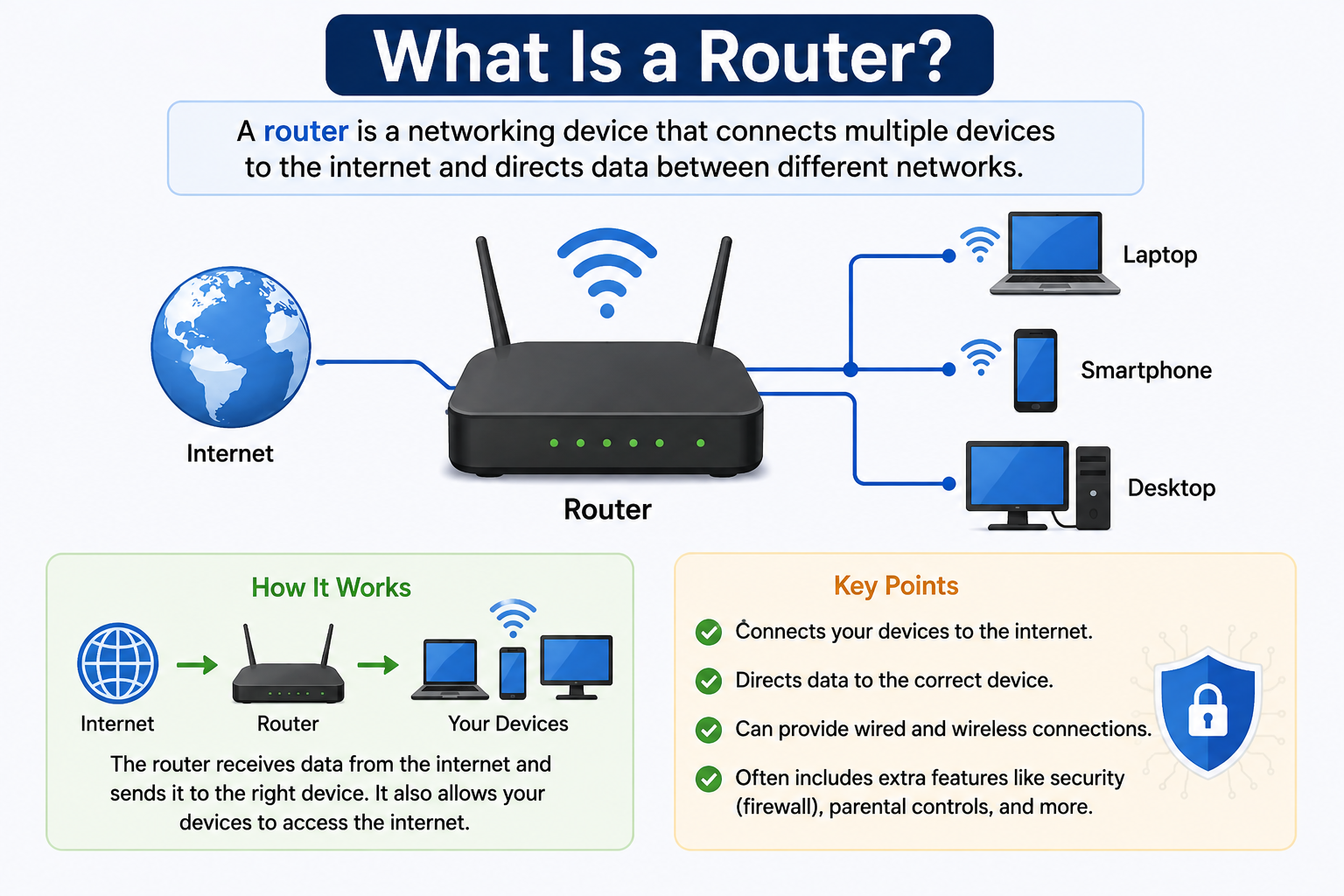
Introduction
Every time you load a webpage, send an email, or stream a video, data travels across multiple networks to reach you. But something must decide which path that data should take at every step of the journey. That something is a router.
If you have ever wondered what is a router and why it sits at the center of nearly every network, you are in the right place. A router is a networking device that forwards data packets between networks, making decisions based on destination IP address information. Without routers, data would have no reliable way to travel from one network to another.
Understanding how the internet works helps put routers in context. As explained in our guide on what is the internet and how it works, the internet is a global system of interconnected networks. Routers are the devices that make that interconnection possible at every level, from your home to global infrastructure.
Routers also depend heavily on IP addressing. Our article on what is an IP address and how it works explains the addressing system that routers use to identify where packets should go. Keep that in mind as you read through this guide.
Quick Answer: What Is a Router?
A router is a networking device that forwards data packets between networks by examining destination IP addresses and making routing decisions. In a home environment, a router typically also provides functions such as Network Address Translation (NAT), Dynamic Host Configuration Protocol (DHCP), basic firewall capabilities, and often wireless access. It connects the local network to an internet service provider’s service, acting as the entry and exit point for internet-bound traffic.
What Is a Router?
A router is a networking device that receives data packets and forwards them toward their destination based on IP address information. It operates at the network layer of communication, meaning its primary job is to move data between separate networks rather than within a single network.
To understand this with a simplified analogy, think of a router like a postal sorting facility. When a letter arrives, workers look at the destination address and decide which route the letter should take to get there. A router does something similar with data packets, reading the destination IP address and deciding where to send the packet next. This analogy is simplified because real routing involves additional logic, but it captures the core idea.
In a typical home setup, the flow looks something like this:
Your Device → Router → Internet
The router sits between your local devices and the wider internet, inspecting each outgoing packet and directing it toward the correct network. For a deeper look at how this all connects globally, see our guide on what is the internet and how it works.
It is important to note that while many people think of a router simply as “the device that gives you Wi-Fi,” that description is incomplete. Wi-Fi is one feature that many home routers include, but routing itself is a distinct function that can exist without wireless connectivity at all.
What Does a Router Do?
A router performs several important functions, and the exact combination depends on the type of router and its configuration.
Forwarding data packets between networks is the core function. The router reads each packet’s destination IP address and sends it in the right direction.
Maintaining routing information allows the router to make informed forwarding decisions. The router keeps track of which paths are available and which are most efficient for reaching different destinations.
Network Address Translation (NAT) is a function most home routers perform. It allows multiple devices on a private local network to share a single public IP address when communicating with the internet.
Dynamic Host Configuration Protocol (DHCP) is commonly built into home routers. It automatically assigns IP addresses to devices joining the local network, so users do not need to configure addresses manually.
Basic firewall functions are included in many home routers. These typically allow basic traffic filtering and can block certain types of unsolicited inbound connections.
Connecting the local network to the ISP service is the practical outcome of all these functions working together. The router bridges the gap between your private local network and the public internet infrastructure.
In enterprise and managed networks, these functions are often handled by separate dedicated devices for better performance, control, and security. In those environments, a dedicated firewall, a dedicated DHCP server, and separate routing hardware may each handle one of these roles independently.
How Does a Router Work?
Understanding how a router works helps clarify why it is such a critical piece of networking equipment. The process follows a logical sequence every time a device on your network wants to send or receive data.
Step 1: A device on your local network, such as a laptop or smartphone, creates a data packet. This packet contains the destination IP address, the source IP address, and the actual data being sent.
Step 2: The packet travels from your device to the router, typically over a wired Ethernet connection or a Wi-Fi connection.
Step 3: The router reads the destination IP address in the packet header.
Step 4: The router consults its routing information to determine where to send the packet next. If the destination is outside the local network, the router forwards the packet toward the internet.
Step 5: The packet moves through the ISP’s network and continues across internet infrastructure, passing through additional routers along the way, each one making its own forwarding decision based on the destination address.
Step 6: The packet reaches its destination server, which processes the request and prepares a response.
Step 7: The response travels back through the network in the reverse direction.
Step 8: Your router receives the returning packet and delivers it to the correct device on your local network, often using NAT to map the response back to the originating device.
The role of IP addresses is central throughout this entire process. Without destination IP addressing, routers would have no basis for making forwarding decisions.
What Is a Routing Table?
A routing table is a data structure that a router uses to store information about available network paths. When a packet arrives, the router checks this table to decide where to forward the packet next.
Each entry in a routing table typically contains information about a destination network, the next hop to reach that destination, and the network interface to use. The router matches the destination IP address of the incoming packet against entries in its routing table and selects the best match.
Static routes are manually configured entries. A network administrator adds them directly, and they do not change unless manually updated. These are common in simple or controlled network environments.
Dynamic routing allows routers to share information with each other and update their routing tables automatically. Routing protocols such as OSPF and BGP are used in enterprise and internet infrastructure environments to exchange routing information between routers. This is an advanced topic, but the key point is that dynamic routing allows routers to adapt when network paths change.
The default route is a special entry that acts as a catch-all. If the router cannot find a more specific match for a destination address, it sends the packet along the default route, which in home networks typically points toward the ISP’s infrastructure.
What Is NAT?
Network Address Translation, commonly called NAT, is a process that allows multiple devices on a private local network to share a single public IP address when communicating with the internet.
On your local network, devices are assigned private IP addresses. These addresses are not routable on the public internet. When a device sends a packet to an internet destination, the router translates the private source IP address into its own public IP address before forwarding the packet. When the response comes back, the router translates the address in reverse and delivers the packet to the correct local device.
This is important because the global supply of public IPv4 addresses is limited. NAT helps conserve public addresses by allowing an entire home or office network to use just one public address externally.
It is important to clarify a common misconception: NAT is not a security system, and it is not a replacement for a firewall. NAT does affect how inbound connections are handled because unsolicited inbound packets cannot easily be routed to internal devices without a prior outbound request, but NAT was not designed as a security boundary. For actual security functions, a dedicated firewall is the appropriate tool.
For more context on how IP addresses work in this process, see our guide on what is an IP address and how it works.
What Is DHCP on a Router?
Dynamic Host Configuration Protocol, or DHCP, is a service that automatically assigns IP addresses to devices on a network. Many home routers include a built-in DHCP server, which means they handle this assignment automatically without any manual configuration from the user.
When a device joins your network, it sends a request asking for network configuration information. The router’s DHCP server responds by assigning the device a private IP address, a subnet mask, the default gateway address (typically the router’s own LAN IP address), and DNS server information.
This DHCP lease is temporary. After a set period, the lease expires and the device may request a renewal or receive a different address. In most home environments, users never notice this process because it happens automatically in the background.
In larger enterprise networks, a dedicated DHCP server is often used separately from the router. This gives administrators more control and allows DHCP to serve multiple network segments independently of routing functions.
What Is the Default Gateway?
The default gateway is the device that a local network device sends packets to when the destination is outside the local network. In most home and small office environments, the router serves as the default gateway.
When your laptop wants to reach a server on the internet, it first checks whether the destination is on the local network. If not, it sends the packet to its configured default gateway, which is the router. The router then takes responsibility for forwarding the packet toward its destination.
A simple way to visualize this:
Your Device → Default Gateway (Router) → Internet
The default gateway address is one of the pieces of information that the router’s DHCP server provides to your devices automatically. Without a correctly configured default gateway, local devices cannot reach external networks.
What Are Router Ports?
Routers have physical ports that connect them to different parts of the network. Understanding the difference between these ports helps clarify how a router connects to the internet and to local devices.
WAN Port
The WAN port, which stands for Wide Area Network port, is the internet-facing connection on a router. This is where you connect the router to a modem, an Optical Network Terminal (ONT) for fiber service, or directly to an ISP-provided device. The WAN port carries traffic between your local network and the ISP’s infrastructure. There is typically only one WAN port on a home or small business router.
LAN Ports
LAN ports, which stands for Local Area Network ports, are used to connect local devices to the router via Ethernet cables. Common devices connected this way include desktop computers, network switches, gaming consoles, and smart TVs. Home routers typically include between two and eight LAN ports. These ports carry traffic between devices within your local network and between local devices and the router itself.
USB Ports
Some routers include one or more USB ports. These can be used for connecting USB storage devices, allowing the router to function as a basic network-attached storage (NAS) device. Some routers also support USB-connected printers, making them available across the network. USB ports are a secondary feature and not present on all router models.
Types of Routers
Routers come in a range of types designed for different environments and use cases. The right type depends on the size of the network, the required performance, and the level of management needed.
Home Routers
Home routers are consumer-grade devices designed for small residential networks. They combine multiple functions in a single unit: routing, NAT, DHCP, a basic firewall, and in most cases a wireless access point. This combination makes them convenient and easy to set up, though they offer limited configuration options compared to enterprise equipment.
Small Business Routers
Small business routers offer more management features, greater configuration flexibility, and support for more simultaneous connected devices than typical home models. They may support VPN connections, more granular firewall rules, and better traffic management.
Enterprise Routers
Enterprise routers are designed for large organizations and high-demand environments. They handle significantly higher traffic volumes, support advanced routing protocols, offer redundancy options, and are managed by network administrators. Performance and reliability are the primary design priorities.
Core Routers
Core routers operate at the center of large networks, including the internet backbone infrastructure. They handle extremely high traffic volumes and route data between major network providers. These are not consumer or business edge devices but rather specialized high-capacity systems that form the infrastructure of the internet itself.
Edge Routers
Edge routers sit at the boundary between an organization’s internal network and external networks or ISPs. They manage the flow of traffic entering and leaving the network and often work alongside firewalls and other security infrastructure.
Virtual Routers
Virtual routers are software-based routing implementations rather than dedicated physical hardware. They run within cloud environments, virtual machines, or software-defined networking platforms. As cloud infrastructure has expanded, virtual routers have become increasingly important for connecting virtual networks and cloud-hosted resources.
Wireless / Wi-Fi Routers
Wireless routers include a built-in wireless access point, allowing devices to connect over Wi-Fi in addition to wired Ethernet. These are the most common type in homes and small offices. However, providing Wi-Fi is a feature of the access point component, not a function of routing itself. For a detailed look at how wireless connectivity works, see our guide on what is Wi-Fi and how it works.
Mesh Routers
Mesh router systems use multiple nodes placed around a home or building to provide consistent wireless coverage. One node connects to the modem or ISP device, and the others work together to extend coverage. The nodes communicate with each other to route traffic efficiently across the mesh. This approach addresses coverage gaps that a single router may not reach.
Router vs Modem
A modem and a router are two different devices with different roles, though many home setups use a combined device that performs both functions.
| Feature | Router | Modem / ONT |
|---|---|---|
| Main role | Forwards packets between networks | Connects to ISP service |
| Manages local network | Yes | No |
| Assigns IP addresses | Often (via DHCP) | Generally no |
| Connects to ISP | Through modem or ONT | Directly |
| Wi-Fi | Often included in home routers | Generally not included |
A modem converts the signal from your ISP’s infrastructure, such as a cable line or fiber connection, into a form that your network equipment can use. A router then takes that internet connection and manages local network traffic, assigns addresses, and forwards packets between your devices and the internet.
Many ISPs provide a combined gateway device that includes both modem and router functions in one unit. While convenient, these combined devices may offer fewer configuration options than separate dedicated devices.
For more on wireless connectivity in these setups, see our article on what is Wi-Fi and how it works.
Router vs Switch
A router and a switch are both networking devices, but they serve different purposes and operate at different layers of the network.
| Feature | Router | Switch |
|---|---|---|
| Main function | Forwards packets between networks | Connects devices within a network |
| Operates at | Network layer (Layer 3) | Typically data link layer (Layer 2) |
| Separates networks | Yes | No |
| IP routing | Yes | No |
A switch connects multiple devices within the same local network, allowing them to communicate with each other efficiently. It does not perform routing between networks. A router connects separate networks, making it possible for local devices to reach the internet or other external networks.
In a typical home setup, the router handles both functions because it includes a small built-in switch for the LAN ports. In larger environments, separate managed switches handle local network traffic while routers handle inter-network traffic.
Router vs Access Point
An access point and a router are often discussed together because many home routers include both functions in one device. However, they are distinct capabilities.
| Feature | Router | Wireless Access Point |
|---|---|---|
| Main function | Forwards packets between networks | Provides wireless connectivity |
| Handles routing | Yes | No |
| Provides Wi-Fi | Often included in home models | Yes |
| Connects separate networks | Yes | No |
A wireless access point provides Wi-Fi connectivity for devices. It does not make routing decisions or manage network addressing. In enterprise environments, standalone access points are deployed separately from routers, with the router handling inter-network traffic and the access points handling wireless client connections.
For a deeper look at wireless networking, see our guide on what is Wi-Fi and how it works.
Router vs Firewall
Routers and firewalls are related but distinct tools.
| Feature | Router | Firewall |
|---|---|---|
| Main function | Routes packets between networks | Controls traffic based on security rules |
| Security focus | Connectivity and forwarding | Traffic filtering and access control |
| Built-in basic firewall | Often included in home routers | Core function |
A firewall inspects traffic and allows or blocks it based on configured security rules. Many home routers include basic firewall capabilities, but this does not mean they provide the same protection as a dedicated firewall appliance. Enterprise networks typically deploy dedicated firewall systems separately from routers to apply more granular and robust security policies.
It is worth noting that a home router’s built-in firewall is a basic layer of defense, not a comprehensive security solution.
Router vs Gateway
The term “gateway” is broader than “router” in networking terminology. A gateway refers to any device that connects two different networks or protocols, enabling communication between them.
A router can act as a default gateway, which is its most common role in a home or small business network. But a gateway may also refer to devices that translate between entirely different network protocols or systems, not just forward packets based on IP addressing.
In common everyday use, the terms are sometimes used interchangeably, especially in home networking contexts. However, technically speaking, a router is a specific type of device that performs network-layer packet forwarding, while a gateway is a broader concept. Understanding the distinction helps when reading technical documentation or configuring more complex networks.
How Does a Router Connect to the Internet?
In a typical home setup, the connection sequence follows a clear path from the ISP’s service to your local devices.
ISP service → Modem or ONT → Router WAN port → Router → Local devices
The ISP delivers service to a modem (for cable or DSL) or an Optical Network Terminal (for fiber). The modem or ONT translates that signal and passes it to the router’s WAN port. The router then manages the local network, assigns addresses via DHCP, performs NAT, and forwards traffic between local devices and the internet.
In some setups, a single combined device from the ISP handles both modem and router functions. In others, especially in small business environments, the modem, router, firewall, and switch are all separate devices.
The router receives a public IP address from the ISP on its WAN interface. This is the address the wider internet sees when your network communicates externally. Your local devices receive private IP addresses from the router’s DHCP server.
What Is a Router’s IP Address?
Every router has at least two IP addresses: one on the WAN side facing the ISP, and one on the LAN side facing your local network.
The LAN IP address is also called the default gateway address for your local devices. Common examples of private address ranges used for this purpose include addresses beginning with 192.168 or 10.0.0, though the exact address depends entirely on the manufacturer’s default settings and your specific network configuration. No single address is universal.
You can typically find your router’s LAN IP address by checking the network settings on a connected device and looking at the default gateway field.
It is important to understand that specific IP addresses vary widely. What works on one network may be completely different on another. Always check your own network configuration rather than assuming a particular address.
How Does a Router Use DNS?
The Domain Name System, or DNS, translates human-readable domain names like example.com into IP addresses that routers and other networking equipment can use. Our guide on what is DNS and how it works covers this process in detail.
Routers are involved in DNS in several ways. When your router connects to the ISP, it is typically configured with upstream DNS server addresses provided by the ISP. The router then passes these DNS server addresses to local devices via DHCP, so when your laptop needs to resolve a domain name, it knows where to send its DNS query.
Some routers perform DNS forwarding, meaning they accept DNS queries from local devices and forward them to upstream resolvers. Others perform local DNS caching, storing recent responses temporarily to speed up repeated lookups.
Many users choose to configure custom DNS resolvers on their router instead of using the ISP’s default DNS servers, which can offer potential privacy or performance benefits depending on the service chosen.
Router Security
A router occupies a critical position in your network. It sits at the boundary between your local devices and the internet, which makes it both an important line of defense and a potential target.
Router security matters because a compromised router can affect every device on the network. Attackers who gain access to a router can redirect traffic, intercept data, modify DNS settings, or use the router as a platform for further attacks.
Several factors affect router security. Default administrator credentials are a common vulnerability because many users never change them, and default usernames and passwords for popular router models are publicly known. Outdated firmware can leave known security vulnerabilities unpatched. Enabled remote administration exposes the router’s admin interface to the internet, increasing attack surface. Weak or outdated Wi-Fi security protocols can allow unauthorized network access.
A router’s basic built-in firewall provides a foundational layer of defense, but it is not equivalent to a dedicated firewall appliance. Home routers should not be treated as providing complete network security on their own. A broader understanding of cybersecurity principles and network security helps put router security in proper context.
How to Secure Your Router
Securing your router is one of the most practical steps you can take to protect your home or small business network. The following checklist covers the most important actions.
- Change the default administrator username and password. Default credentials are widely known and represent one of the easiest ways for an unauthorized person to access your router.
- Use WPA3 or WPA2 with a strong, unique Wi-Fi password. Avoid short or obvious passwords, and avoid using personal information in your Wi-Fi password.
- Keep router firmware updated. Firmware updates patch known vulnerabilities. Check the manufacturer’s website or the router’s admin interface for updates regularly.
- Disable remote management if you do not need it. Remote administration access from outside your network increases exposure unnecessarily.
- Disable WPS if you do not use it. Wi-Fi Protected Setup has known security weaknesses and is not necessary on most networks.
- Enable the router’s built-in firewall where available. Basic firewall protections should be active even if you plan to add other security measures.
- Use a guest network for visitors and IoT devices. Isolating guests and smart home devices from your main network limits the risk if any of those devices are compromised.
- Review connected devices periodically. Check your router’s connected device list to identify any unfamiliar connections.
- Disable unused services and ports. Any service running on your router that you do not need is unnecessary risk.
- Consider using a reputable DNS service. Some DNS providers offer filtering features that can block known malicious domains.
Note that exact steps and menu locations vary by router manufacturer and model. Always refer to your router’s documentation for specific instructions. For guidance on broader digital protection, see our article on what is antivirus software.
How to Set Up a Router
Setting up a router for the first time is manageable for most users. The steps below provide a general overview. Specific details will vary depending on your router model and ISP.
- Connect the router’s WAN port to the modem or ONT using an Ethernet cable. This links the router to your ISP’s service.
- Connect a device to the router via a LAN Ethernet port or over the default Wi-Fi network. Check the router label for default Wi-Fi credentials if connecting wirelessly.
- Open a web browser on the connected device and navigate to the router’s administration interface using the local IP address printed on the router or in the documentation.
- Follow the setup wizard if one appears, or manually configure the settings. The wizard typically walks through internet connection type, Wi-Fi setup, and basic security settings.
- Set a strong Wi-Fi password using WPA2 or WPA3.
- Change the default administrator credentials immediately. Do not leave default usernames and passwords in place.
- Check for and apply firmware updates before completing the setup.
- Test internet connectivity from multiple devices to confirm everything is working correctly.
Always refer to your specific router’s quick start guide or manufacturer documentation for the most accurate instructions.
How to Access a Router’s Admin Interface
The router’s administration interface allows you to configure settings, review connected devices, update firmware, and manage security options.
To access it, open a web browser on a device connected to your local network. Type the router’s local IP address into the browser’s address bar. Common private address ranges are used, but the exact address depends on your router’s configuration. Check the label on the router or the documentation that came with it for the correct address.
You will see a login prompt asking for an administrator username and password. Enter the credentials you set during setup, or the defaults if you have not yet changed them. After logging in, you will have access to configuration menus covering wireless settings, connected devices, security settings, firmware updates, and more.
Keep in mind that the layout, menus, and options in admin interfaces vary significantly between manufacturers and models. What you see on one router may look completely different on another.
Do not attempt to access router admin interfaces on networks you do not own or have explicit authorization to manage.
Router Placement for Best Performance
Where you place your router affects the quality of wireless coverage throughout your space. Physical placement does not change the router’s routing functions, but it significantly affects Wi-Fi signal quality for wireless clients.
For best results, follow these general guidelines:
- Place the router in a central location relative to the devices that need coverage. Placing it in a corner or at one end of a building reduces coverage on the opposite side.
- Elevate the router rather than placing it on the floor. Signals tend to spread outward and slightly downward, so elevated placement improves coverage.
- Keep the router away from interference sources such as microwave ovens, cordless phones, baby monitors, and other devices that operate on similar radio frequencies.
- Avoid placing the router near thick walls, large metal objects, or metal filing cabinets. These materials absorb or reflect wireless signals.
- Position the router closer to the devices that need the strongest connection if certain areas of your space are more critical.
- For large homes or multi-floor buildings, consider a mesh router system. Multiple nodes provide more consistent coverage than extending a single router’s range.
For a more detailed look at wireless signal behavior, our article on what is Wi-Fi and how it works covers the underlying technology.
Router and Cloud Computing
Routers play a foundational role in connecting local devices to cloud services, even though routers themselves are local network devices. Every time you access cloud storage, use a cloud application, or connect to a SaaS platform, your data travels from your device through your router and across the internet to cloud infrastructure.
The connection path looks like this:
Your Device → Router → Internet → Cloud Service
Without a router providing internet access, local devices cannot reach cloud-hosted resources. Whether you are using cloud storage, cloud-hosted software, or cloud-based computing infrastructure, the router is the local network’s gateway to those services.
As cloud adoption has grown, reliable and capable routers have become increasingly important for both home and business users. For a broader understanding of cloud services, see our guides on what is cloud computing and what is cloud hosting.
Router and Cybersecurity
A router is often described as the front door of a network from a security perspective. Because all traffic entering and leaving a local network passes through the router, it is both an important security point and a target for attackers.
Routers can be targeted by malware designed specifically to compromise networking equipment. A compromised router can intercept traffic, redirect users to malicious websites, alter DNS responses, or serve as a launching point for attacks on other devices. Understanding cybersecurity fundamentals helps put this risk in context.
The basic security functions built into many home routers, including NAT and a basic firewall, provide a starting layer of defense. However, these should be viewed as one part of a broader security posture rather than a complete solution. For comprehensive protection, network security practices including firmware management, strong credentials, and network segmentation all contribute to a more secure environment.
Router firmware vulnerabilities are a real and documented concern. Manufacturers release firmware updates to address these vulnerabilities, which is why keeping firmware current is consistently recommended by security organizations including NIST and CISA.
Traffic logging, where supported and enabled, can help identify unusual activity on the network. Reviewing logs periodically is a good practice for anyone managing a network.
Common Router Problems
Even well-configured routers can experience issues. Recognizing common problems helps speed up troubleshooting.
Cannot connect to the internet. This can result from ISP outages, modem problems, incorrect WAN configuration, or physical cable issues.
Wi-Fi not working. Wireless may be disabled in settings, the SSID may not be broadcasting, or the wireless radio may have encountered a software fault.
Slow internet speed. This can result from ISP-side limitations, congestion on the local network, interference affecting Wi-Fi performance, or outdated equipment. Note that a router does not improve on the speed your ISP plan provides.
Router dropping connections intermittently. This may indicate overheating, firmware issues, ISP signal instability, or hardware problems.
Cannot access the router admin interface. This may occur if the device is not connected to the local network, the IP address has changed, or browser settings are interfering.
IP address conflicts. When two devices on the same network are assigned the same IP address, both may experience connectivity problems.
DNS resolution failures. If domain names cannot be resolved but IP address connections work, the problem likely involves DNS configuration on the router or the upstream resolver.
Router overheating. Routers generate heat during operation. Placing a router in a confined space without ventilation can cause thermal throttling or unexpected reboots.
Outdated firmware. Running outdated firmware may cause instability, introduce security risks, or limit compatibility with newer devices.
How to Troubleshoot Router Problems
When something goes wrong with your network, a structured approach saves time and helps identify the real cause.
- Check physical connections first. Confirm all cables are securely connected, including the WAN cable to the modem and the power adapter to the router.
- Restart the router. Power the router off completely, wait 30 seconds, and power it back on. This resolves a wide range of temporary software and connectivity issues.
- Check whether other devices are affected. If only one device has a problem, the issue is likely with that device rather than the router. If all devices are affected, the router or ISP connection is more likely the source.
- Determine whether the issue is with the router or the ISP. Connect a device directly to the modem if possible. If internet access works without the router, the issue is with the router. If it does not, the issue may be with the ISP.
- Check IP configuration on connected devices. Confirm that devices are receiving IP addresses from the router’s DHCP server. A missing or incorrect IP address points to a DHCP problem.
- Check DNS settings. If web browsing fails but direct IP connections work, DNS may be misconfigured. Try using a known reliable DNS address on the affected device temporarily to test.
- Test with a wired Ethernet connection. If Wi-Fi is the problem but a wired connection works, the issue is specific to the wireless component of the router.
- Update router firmware. Check the admin interface or manufacturer website for available firmware updates, especially if the router has been experiencing recurring issues.
- Factory reset only as a last resort. A factory reset returns the router to its original manufacturer settings, erasing all configuration including Wi-Fi passwords, custom DNS settings, port forwarding rules, and your administrator password. Only perform a factory reset if other troubleshooting steps have failed, and be prepared to reconfigure the router from scratch afterward.
- Contact ISP or manufacturer support if needed. If you have exhausted local troubleshooting options, your ISP or the router manufacturer’s support team can assist with more advanced diagnosis.
Router Best Practices
Following good practices with your router improves both performance and security over time.
- Keep router firmware updated. Check for updates regularly and apply them promptly. Firmware updates address security vulnerabilities and may improve stability.
- Use strong, unique passwords. Apply this to both the Wi-Fi password and the admin interface password. Avoid reusing passwords from other accounts.
- Separate guest and main networks. A guest network isolates visitors and IoT devices from your primary network, reducing risk if any of those devices are compromised.
- Regularly review connected devices. Periodically check which devices are connected to your network to identify anything unexpected.
- Enable firewall features. Make sure the router’s built-in firewall is active. Understand its limitations and consider additional security measures for sensitive environments.
- Disable unused services. Features you do not use, such as remote administration or media serving, represent unnecessary attack surface.
- Place the router centrally. Good placement improves wireless performance and reduces the need for signal boosters or additional equipment.
- Replace equipment that is no longer supported. Routers that no longer receive firmware updates from the manufacturer should be replaced, as unpatched vulnerabilities will not be addressed.
- Use current Wi-Fi security protocols. WPA3 is the current recommended standard. WPA2 with AES is an acceptable alternative where WPA3 is not supported.
- Monitor for unusual network activity. Unexpected devices on the network, unusual traffic patterns, or unexplained slowdowns may indicate a problem worth investigating.
Frequently Asked Questions
What is a router?
A router is a networking device that forwards data packets between networks by examining destination IP addresses. In home settings, it typically also handles NAT, DHCP, basic firewall functions, and often Wi-Fi.
What does a router do?
A router forwards data packets between networks, connects local devices to the internet, assigns local IP addresses via DHCP, performs NAT, and provides basic firewall functions in many home models.
How does a router work?
When a device sends a packet, the router reads the destination IP address, consults its routing information, and forwards the packet toward its destination. Responses travel back through the same process in reverse.
What is a routing table?
A routing table is a set of information a router uses to decide where to forward each incoming packet. It contains destination network entries, next-hop addresses, and interface information.
What is NAT?
Network Address Translation allows multiple devices on a private local network to share a single public IP address when communicating with the internet. The router translates private addresses to the public address on outbound traffic and reverses this for inbound responses.
What is DHCP on a router?
DHCP is a service that automatically assigns IP addresses and network configuration information to devices joining the local network. Many home routers include a built-in DHCP server.
What is the default gateway?
The default gateway is the device that local devices send packets to when the destination is outside the local network. In most home networks, this is the router’s LAN IP address.
What is the WAN port on a router?
The WAN port is the internet-facing port that connects the router to the modem or ISP service. It carries traffic between the local network and external networks.
What is the LAN port on a router?
LAN ports connect local devices to the router via Ethernet cables. Home routers typically include between two and eight LAN ports.
What is the difference between a router and a modem?
A modem connects to the ISP’s service and converts the incoming signal into a usable format. A router manages local network traffic and connects local devices to the internet through the modem.
What is the difference between a router and a switch?
A router forwards packets between separate networks. A switch connects devices within the same network and does not perform routing.
What is the difference between a router and a wireless access point?
A wireless access point provides Wi-Fi connectivity but does not perform routing. A router manages packet forwarding between networks. Many home routers include a built-in access point.
What is the difference between a router and a firewall?
A router forwards packets between networks. A firewall controls traffic based on security rules. Home routers often include basic firewall functions, but enterprise networks use dedicated firewall systems.
What is the difference between a router and a gateway?
Gateway is a broader term for any device connecting different networks or protocols. A router is a specific type of networking device. A router commonly acts as the default gateway on a local network.
Do all routers have Wi-Fi?
No. Wi-Fi is a feature of a wireless access point component. Many home routers include this function, but wired-only routers and enterprise routers exist without wireless capability.
Can a router work without a modem?
A router can function for local network traffic without a modem, but it will not be able to connect to the internet without a modem or ONT providing the ISP connection.
What is a mesh router?
A mesh router system uses multiple nodes placed around a space to provide consistent wireless coverage. The nodes work together, with one connecting to the internet source and others extending coverage.
What is an edge router?
An edge router sits at the boundary between an organization’s network and external networks or ISPs. It manages traffic entering and leaving the network.
What is a virtual router?
A virtual router is a software-based routing implementation running in cloud environments, virtual machines, or software-defined networking platforms instead of dedicated physical hardware.
How do I find my router’s IP address?
Check the network settings on a connected device and look at the default gateway field. The IP address shown there is your router’s LAN address. The router label may also display it.
How do I access my router’s admin interface?
Open a web browser on a device connected to your local network, enter your router’s local IP address in the address bar, and log in with your administrator credentials.
Is my router secure?
Security depends on your configuration. Routers with default credentials unchanged, outdated firmware, or weak Wi-Fi passwords are at higher risk. Regular review and applying the practices in this guide improves security.
How do I secure my router?
Change default credentials, use WPA3 or WPA2 with a strong password, update firmware regularly, disable remote management if not needed, enable the built-in firewall, and use a guest network for visitors and IoT devices.
Why is my router slow?
Router performance is affected by the ISP plan speed, connected device count, network congestion, Wi-Fi interference, hardware limitations, and firmware issues. A router does not improve on the speed the ISP delivers.
Why does my router keep disconnecting?
Possible causes include overheating, ISP signal instability, outdated firmware, hardware faults, or interference affecting wireless connections.
Can a router be hacked?
Yes. Routers can be targeted through default or weak credentials, unpatched firmware vulnerabilities, exposed remote administration interfaces, and other attack methods. Keeping firmware updated and following security best practices reduces this risk.
Does a router affect internet speed?
A router’s hardware and configuration can affect throughput, but it cannot exceed the speed your ISP plan provides. An underpowered or outdated router can become a bottleneck, but a capable router will not increase your ISP plan speed beyond what you pay for.
Does a router use DNS?
Yes. Routers are configured with DNS server addresses and pass this information to local devices via DHCP. Some routers also perform DNS forwarding or caching.
How does a router connect to the internet?
The router connects its WAN port to a modem or ONT, which provides the ISP service. The router then uses this connection to forward local device traffic to and from the internet.
Can I use a router without an ISP?
A router can manage a local network without an ISP connection. Devices on the same local network can communicate with each other. However, internet access requires an ISP connection and a modem or ONT.
What happens if I reset my router?
A factory reset returns the router to its original manufacturer default settings. This erases all custom configuration including Wi-Fi passwords, admin credentials, and any other changes you made. It is useful as a last resort but requires complete reconfiguration afterward.
Final Thoughts
A router is a fundamental networking device that makes modern connectivity possible. Understanding what a router is, how it works, and what it does helps you make better decisions about your network, your security, and your equipment.
At its core, a router examines destination IP addresses and forwards data packets between networks. In home environments, a single device typically combines routing, NAT, DHCP, basic firewall functions, and wireless access in one convenient unit. In larger and more complex environments, these functions are separated across dedicated devices for better performance and control.
Routing tables provide the information routers use to make forwarding decisions. NAT allows an entire network of devices to share a single public IP address. DHCP assigns addresses automatically to local devices. The default gateway concept explains how local devices reach external networks. WAN ports connect routers to ISP services. LAN ports connect local devices.
Routers come in many forms, from basic home models to enterprise-grade hardware to software-based virtual routers in cloud environments. Each type serves a different purpose and scale.
Understanding the distinctions between a router, a modem, a switch, a wireless access point, a firewall, and a gateway prevents common misconceptions. Each device has a specific role, and knowing those roles helps you troubleshoot problems and design better networks.
Router security is not automatic. It requires active attention: updated firmware, strong passwords, appropriate firewall settings, and regular review of connected devices. A router’s built-in security features provide a starting layer of protection, but they are not a substitute for broader network security practices.
From cloud services to DNS resolution to basic web browsing, everything you do online depends on the router correctly forwarding your traffic between networks. Understanding what is a router and how it operates gives you a clearer picture of the technology that powers modern digital life.
References
- Internet Engineering Task Force (IETF). RFC 1812 — Requirements for IP Version 4 Routers. https://www.rfc-editor.org/rfc/rfc1812
- Internet Engineering Task Force (IETF). RFC 2131 — Dynamic Host Configuration Protocol. https://www.rfc-editor.org/rfc/rfc2131
- Internet Engineering Task Force (IETF). RFC 3022 — Traditional IP Network Address Translator (Traditional NAT). https://www.rfc-editor.org/rfc/rfc3022
- National Institute of Standards and Technology (NIST). NIST Special Publication 800-41 Revision 1 — Guidelines on Firewalls and Firewall Policy. https://csrc.nist.gov/publications/detail/sp/800-41/rev-1/final
- Cisco Systems. Cisco IOS IP Routing: Protocol-Independent Configuration Guide. Cisco Documentation. https://www.cisco.com/c/en/us/td/docs/ios-xml/ios/iproute_pi/configuration/xe-16/iri-xe-16-book.html
- Wi-Fi Alliance. Wi-Fi Security. https://www.wi-fi.org/discover-wi-fi/security
- Internet Engineering Task Force (IETF). RFC 4632 — Classless Inter-domain Routing (CIDR). https://www.rfc-editor.org/rfc/rfc4632
- National Institute of Standards and Technology (NIST). NIST Special Publication 800-189 — Resilient Interdomain Traffic Exchange. https://csrc.nist.gov/publications/detail/sp/800-189/final
- Internet Society (ISOC). How the Internet Works: Routing. https://www.internetsociety.org/
- Cybersecurity and Infrastructure Security Agency (CISA). Router Security Guidance. https://www.cisa.gov/
Technology Disclaimer
This article is for educational and informational purposes only. Router features, security options, configuration interfaces, and performance characteristics vary by manufacturer, model, firmware version, and network environment. Always follow the manufacturer’s current documentation and applicable best practices.