
 By saman zahra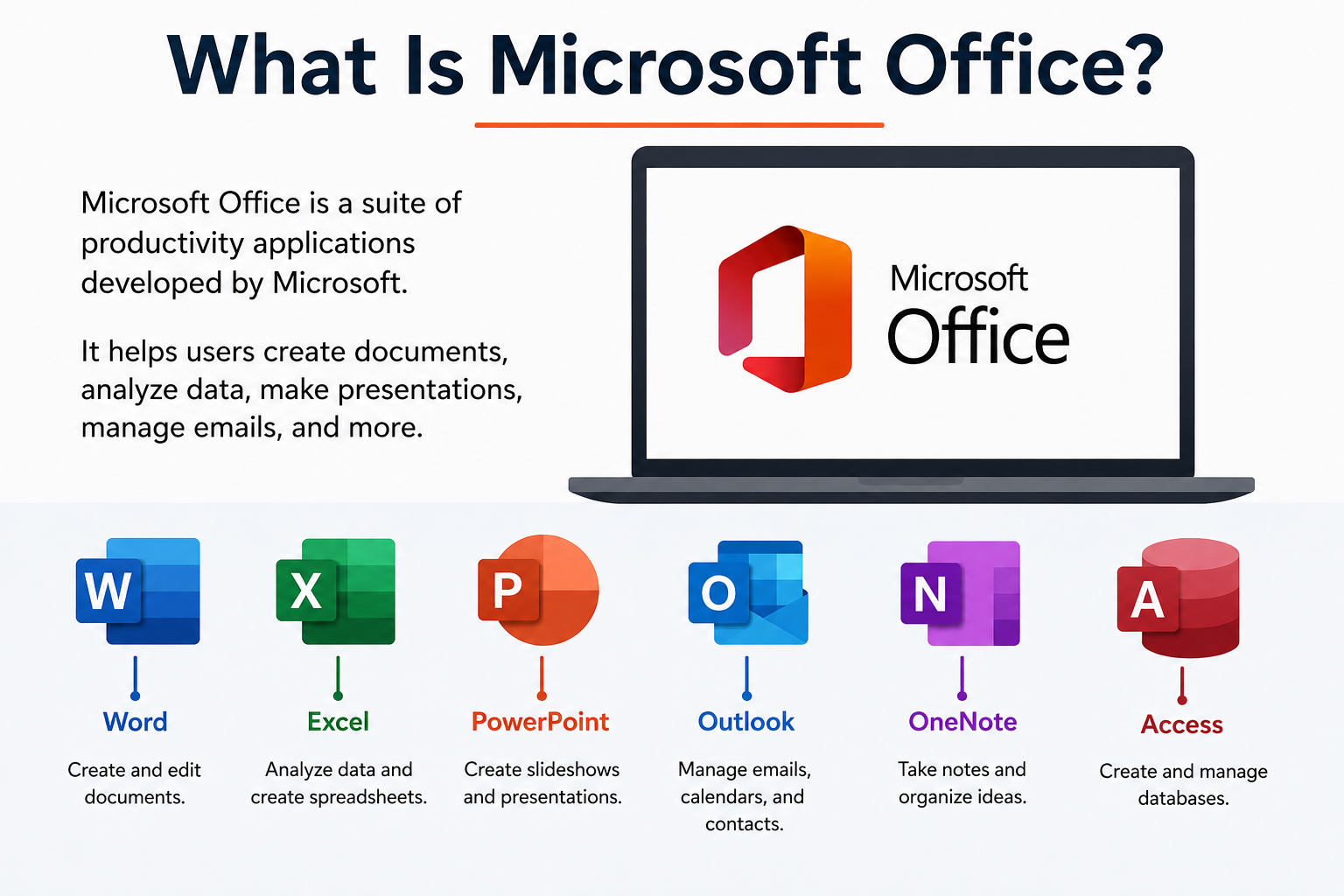
Introduction
If you have ever used a computer to write a document, build a spreadsheet, or send a professional email, chances are you have already used Microsoft Office. What is Microsoft Office, exactly? It is one of the most widely used productivity software suites in the world, trusted by students, teachers, business professionals, and everyday users across the globe.
Microsoft Office brings together a powerful collection of applications designed to help you work smarter and faster. Whether you are preparing a school report, managing a company budget, or collaborating with a remote team, Microsoft Office gives you the right tools for the job.
In 2026, Microsoft Office continues to evolve with artificial intelligence, cloud technology, and deeper cross-device support. This complete beginner’s guide walks you through everything you need to know, from what it includes to how it works and whether it is the right choice for you.
Quick Answer (Featured Snippet)
Microsoft Office is a suite of productivity applications developed by Microsoft Corporation. It includes popular tools such as Word, Excel, PowerPoint, Outlook, OneNote, and Teams. These apps help users create documents, analyze data, build presentations, manage emails, and collaborate in real time. Microsoft Office is available as a one-time purchase or through a subscription plan called Microsoft 365.
What Is Microsoft Office?
Definition
Microsoft Office is a collection of desktop productivity applications created and maintained by Microsoft Corporation. It is designed to help users perform everyday tasks like writing, calculating, presenting, communicating, and organizing information. The suite is available on Windows, macOS, iOS, and Android devices.
Microsoft first released Office in 1989 for Apple Macintosh computers. It then launched for Windows in 1990. Since then, Microsoft has continuously updated and expanded the suite to meet the growing demands of modern users.
A Brief History of Microsoft Office
The original Microsoft Office package included Word, Excel, and PowerPoint. Over the years, Microsoft added applications like Outlook, Access, Publisher, OneNote, and Teams. Each version brought significant improvements in design, speed, and functionality.
In 2011, Microsoft introduced Office 365, which later became Microsoft 365 in 2020. This shift marked a transition from a one-time purchase model to a cloud-based subscription service. The subscription model allows users to always access the latest features and updates without buying a new version every few years.
Why Microsoft Office Is Popular
Microsoft Office dominates the productivity software market for several strong reasons. First, it offers a comprehensive set of tools that cover virtually every professional and academic need. Second, it integrates seamlessly with Windows operating systems, which power the majority of computers worldwide.
Additionally, Microsoft Office is widely taught in schools and universities. Most employers expect new hires to have basic Office skills. This widespread familiarity makes it the industry standard for productivity software across nearly every sector.
How Microsoft Office Has Evolved
Today’s Microsoft Office looks very different from its 1990 version. Modern Office applications now feature AI-powered writing assistance, real-time co-authoring, cloud storage integration, and voice commands. Microsoft Copilot, the company’s AI assistant, is now embedded across Office apps to help users draft content, analyze data, and automate repetitive tasks faster than ever before.
What Is Included in Microsoft Office?
Microsoft Office includes several core applications. Each app serves a specific purpose and is designed to integrate smoothly with the others. Below is a detailed look at the most important applications.
Microsoft Office Applications Comparison Table
| Application | Primary Use | Best For |
|---|---|---|
| Microsoft Word | Document creation and editing | Writers, students, professionals |
| Microsoft Excel | Spreadsheets and data analysis | Analysts, accountants, businesses |
| Microsoft PowerPoint | Presentation creation | Teachers, marketers, students |
| Microsoft Outlook | Email and calendar management | Professionals, businesses |
| Microsoft OneNote | Digital note-taking | Students, researchers, teams |
| Microsoft Teams | Communication and collaboration | Remote workers, businesses |
| Microsoft Access | Database management | IT professionals, data managers |
| Microsoft Publisher | Desktop publishing and design | Designers, marketers |
Microsoft Word
Microsoft Word is the world’s most popular word processing application. It allows users to create, edit, format, and share text-based documents with ease. Word supports a wide range of document types, including letters, reports, resumes, and academic papers.
Key features of Word include spell check, grammar correction, formatting tools, style templates, and the Track Changes feature for collaborative editing. The built-in AI writing assistant, powered by Microsoft Copilot, helps users draft and refine content much faster. Anyone who needs to create professional written documents should use Microsoft Word.
Microsoft Excel
Microsoft Excel is a powerful spreadsheet application used to organize, analyze, and visualize data. It uses rows and columns to create grids where users can enter numbers, text, and formulas. Excel is essential for tasks like budgeting, financial modeling, data tracking, and statistical analysis.
Excel’s most notable features include hundreds of built-in formulas, PivotTables, charts, conditional formatting, and Macro automation. Business analysts, accountants, researchers, and small business owners rely heavily on Excel every day. Even beginners can quickly learn to use basic spreadsheets to manage household budgets or track personal goals.
Microsoft PowerPoint
Microsoft PowerPoint is the leading presentation software in the world. It allows users to create visually engaging slide-based presentations using text, images, charts, animations, and videos. PowerPoint is widely used in classrooms, boardrooms, conferences, and training sessions.
Its key features include hundreds of design templates, transition effects, slide master controls, and Presenter View for live presentations. The Designer feature uses AI to suggest professional slide layouts automatically. Students, teachers, corporate trainers, and marketing professionals all benefit greatly from using PowerPoint.
Microsoft Outlook
Microsoft Outlook is a professional email client and personal information manager. It allows users to send and receive emails, manage contacts, schedule meetings, and organize tasks all in one place. Outlook integrates directly with Microsoft Teams and Microsoft 365 for seamless workplace communication.
Important Outlook features include a focused inbox, calendar sharing, email filtering rules, meeting scheduling, and task management. Outlook also supports multiple email accounts from different providers. Business professionals, government workers, and anyone managing multiple communication channels will find Outlook particularly valuable.
Microsoft OneNote
Microsoft OneNote is a digital notebook application that helps users capture, organize, and share notes in flexible formats. Unlike traditional note-taking apps, OneNote allows users to mix typed text, handwritten notes, images, audio recordings, and web clippings all on the same page.
OneNote’s key features include free-form page layouts, notebook and section organization, real-time syncing across devices, and integration with other Office apps. Students can use OneNote to organize lecture notes by subject and date. Research teams also use it to collect and share information efficiently.
Microsoft Teams
Microsoft Teams is a communication and collaboration platform built for modern workplaces. It combines chat messaging, video conferencing, file sharing, and app integration into a single hub. Teams became especially popular during the rise of remote work and continues to grow rapidly in 2026.
Teams features include channels for organized conversations, video and audio calls, live meeting transcription, task management through Microsoft Planner, and direct integration with SharePoint and OneDrive. Remote workers, educational institutions, and large enterprises use Teams as their primary communication platform every day.
Key Features of Microsoft Office
Microsoft Office packs an impressive range of features that support productivity across every type of task. Here are more than 20 key features worth knowing.
- Cloud Storage via OneDrive: Office integrates directly with OneDrive, giving users easy access to files from any device.
- Real-Time Collaboration: Multiple users can edit the same document simultaneously and see each other’s changes instantly.
- Thousands of Templates: Office provides ready-made templates for resumes, invoices, reports, presentations, and more.
- Spell Check and Grammar Tools: Built-in writing assistance helps users catch errors and improve writing quality automatically.
- AI-Powered Copilot: Microsoft Copilot assists with drafting, summarizing, and analyzing content across all Office apps.
- AutoSave: Documents saved to OneDrive or SharePoint are automatically saved every few seconds to prevent data loss.
- Cross-Device Support: Office works smoothly on Windows, macOS, iOS, Android, and web browsers.
- Dark Mode: Users can switch to a dark interface to reduce eye strain during long work sessions.
- Accessibility Features: Tools like Immersive Reader, screen reader support, and accessibility checker help all users work effectively.
- Advanced Security: Office includes data encryption, multi-factor authentication, and Microsoft Defender integration.
- File Sharing: Users can share documents with specific people or generate shareable links with custom permission settings.
- Version History: Office saves previous versions of documents so users can restore earlier drafts at any time.
- Offline Access: Most Office applications work fully offline and sync changes automatically when reconnected to the internet.
- Mail Merge: Word and Outlook work together to send personalized bulk emails or letters efficiently.
- Macro Automation: Excel and Word support Macros and VBA scripting to automate repetitive tasks.
- Power Query in Excel: Users can connect to external data sources and transform large datasets without writing code.
- Designer in PowerPoint: AI automatically suggests visually appealing slide layouts based on your content.
- Focus Mode in Word: A distraction-free writing environment helps users concentrate on their content.
- Smart Lookup: Users can research topics from within Office apps using Bing-powered search without leaving the document.
- Dictation Tool: Users can speak their content aloud and Office will transcribe it into text in real time.
- Linked Data Types in Excel: Excel connects to real-time data sources for stocks, geography, and more.
- Teams Integration: Office apps connect directly to Microsoft Teams for instant communication and file collaboration.
Benefits of Microsoft Office
Using Microsoft Office brings a wide range of practical advantages for users in every situation. Below is a checklist of more than 20 meaningful benefits.
Microsoft Office Benefits Checklist
| Benefit | Description |
|---|---|
| Industry Standard | Recognized and required by most employers worldwide |
| Easy to Learn | Intuitive interface suitable for all skill levels |
| Comprehensive Toolset | Covers writing, data, communication, and presentation needs |
| Cloud Integration | Access files from anywhere with OneDrive |
| Regular Updates | Continuous feature improvements and security patches |
| Strong Collaboration | Real-time co-authoring for teams and students |
| AI Assistance | Copilot helps draft, analyze, and automate work |
| Cross-Platform | Available on Windows, Mac, mobile, and web |
| Professional Templates | Saves time with pre-built document designs |
| File Compatibility | Opens and saves industry-standard file formats |
| Offline Functionality | Full access without an internet connection |
| Data Security | Enterprise-grade encryption and privacy controls |
| Scalability | Works for individuals, small teams, and large enterprises |
| Educational Support | Widely taught in schools and universities |
| Free Web Apps | Basic Office apps available free via Office.com |
| Customization | Ribbons, shortcuts, and themes can be personalized |
| Multilingual Support | Available in over 100 languages worldwide |
| Accessibility Tools | Designed to support users with disabilities |
| Integration Ecosystem | Connects with thousands of third-party applications |
| Trusted Brand | Over 30 years of proven reliability and innovation |
| Mobile Apps | Powerful apps for smartphones and tablets |
| Student Discounts | Free or discounted access for eligible students |
Microsoft Office vs Microsoft 365
Many people confuse Microsoft Office with Microsoft 365. Although they share the same core applications, they differ significantly in how they are delivered, updated, and priced.
Microsoft Office vs Microsoft 365 Comparison Table
| Feature | Microsoft Office (One-Time) | Microsoft 365 (Subscription) |
|---|---|---|
| Purchase Model | One-time payment | Monthly or annual subscription |
| Price (2026 approx.) | $149.99 one-time (Home & Student) | From $6.99/month per user |
| Updates | No feature updates after purchase | Continuous updates and new features |
| Cloud Storage | Not included | 1 TB OneDrive storage per user |
| Collaboration | Limited | Full real-time collaboration |
| AI Features (Copilot) | Limited or not included | Full Copilot integration available |
| Device Limit | One PC or Mac | Up to 5 devices per user |
| Mobile Apps | Not included (Office only) | Included with subscription |
| Support | Limited | Priority technical support |
| Best For | Occasional users, one-device users | Students, professionals, businesses |
In simple terms, Microsoft Office as a one-time purchase gives you the basics without ongoing costs. Microsoft 365, however, delivers a much richer experience with cloud storage, AI tools, collaboration features, and continuous upgrades. For most users in 2026, Microsoft 365 offers significantly better value.
Who Should Use Microsoft Office?
Microsoft Office serves a remarkably diverse audience. Here is a closer look at who benefits most from using it.
Students rely on Word for essays and research papers, Excel for data projects, and PowerPoint for class presentations. Many universities provide Microsoft 365 for free to enrolled students, making it highly accessible.
Teachers and Educators use PowerPoint to create engaging lesson materials and Teams to manage virtual classrooms. OneNote serves as an excellent digital teaching journal and grading organizer.
Business Professionals depend on Outlook for email management, Excel for financial reporting, and Teams for daily communication. Microsoft Office is the backbone of most modern office environments worldwide.
Freelancers use Word for client proposals and contracts, Excel for tracking invoices, and PowerPoint for pitching new projects. The professional output quality of Office apps helps freelancers present themselves credibly.
Remote Workers benefit enormously from Teams, OneDrive, and real-time document collaboration. These tools allow distributed teams to work together just as effectively as they would in a physical office.
Government Organizations choose Microsoft Office for its enterprise-grade security, compliance certifications, and trusted reputation. Government agencies worldwide rely on Office for secure document management and communication.
How to Install Microsoft Office
Installing Microsoft Office is straightforward. Follow the steps below to get set up quickly.
System Requirements
Before installing, make sure your device meets the minimum requirements for Microsoft Office in 2026.
- Operating System: Windows 10 or later, macOS Monterey or later
- Processor: 1.6 GHz dual-core or faster
- RAM: 4 GB minimum (8 GB recommended)
- Storage: 4 GB of available disk space
- Internet: Required for installation, activation, and cloud features
- Screen Resolution: 1280 x 768 minimum
Download Methods
You can download Microsoft Office through several official channels.
- Visit the official Microsoft website at microsoft.com and purchase or sign in to your Microsoft 365 subscription.
- Download Office directly from the Microsoft Store on Windows.
- Log in to Office.com and use the web-based versions without installing anything.
- Students may access Microsoft 365 free through their educational institution’s portal.
Installation Steps
First, sign in to your Microsoft account at microsoft.com/microsoft-365. Next, click the “Install Office” button from your account dashboard. Then, run the downloaded installer file and follow the on-screen prompts. The installation typically completes within 5 to 15 minutes depending on your internet speed.
Activation
After installation, open any Office application such as Word or Excel. Sign in with the Microsoft account linked to your Office purchase or subscription. The software will activate automatically once it verifies your license online. If activation fails, visit support.microsoft.com for troubleshooting assistance.
Updates
Microsoft Office updates automatically by default when connected to the internet. To check for updates manually, open any Office app and navigate to File, then Account, then Update Options, and click Update Now. Keeping Office updated ensures you have the latest security patches and features.
Tips to Use Microsoft Office More Efficiently
Getting more out of Microsoft Office is easy once you know the right techniques. Here are more than 20 actionable tips to boost your productivity.
Microsoft Office Productivity Tips Checklist
| Tip | How It Helps |
|---|---|
| Learn keyboard shortcuts (Ctrl+C, Ctrl+Z, Ctrl+S) | Saves significant time compared to using the mouse |
| Use AutoSave with OneDrive | Prevents accidental data loss automatically |
| Create custom templates | Eliminates repetitive formatting for regular documents |
| Use Styles in Word | Creates consistent formatting and enables automatic table of contents |
| Master PivotTables in Excel | Analyzes large datasets quickly without complex formulas |
| Pin frequently used files | Gives fast access to important documents directly from the app |
| Use the Tell Me search bar | Finds any Office feature without browsing menus |
| Enable Focus Mode in Word | Removes distractions for more productive writing sessions |
| Use Excel’s Flash Fill | Automatically detects patterns and fills data in seconds |
| Record Macros in Excel | Automates repetitive tasks with a single click |
| Use Presenter View in PowerPoint | Displays speaker notes while the audience sees the clean slide |
| Set up Quick Steps in Outlook | Automates multi-step email actions with one click |
| Use OneNote for meeting notes | Captures and organizes notes that sync automatically across devices |
| Share documents directly from Office | Avoids the extra step of attaching files to emails |
| Use Comment and Track Changes in Word | Makes collaborative editing organized and transparent |
| Utilize Excel’s Conditional Formatting | Highlights important data patterns visually and automatically |
| Insert SmartArt in presentations | Creates professional-looking diagrams without any design skills |
| Use Outlook’s Rules and Filters | Organizes incoming emails into folders automatically |
| Explore Microsoft Editor | Gets advanced writing suggestions beyond basic spell check |
| Use Teams Channels for projects | Keeps all project communication and files organized in one place |
| Try Copilot for drafting | Generates first drafts and summaries in seconds using AI |
| Use Read Aloud in Word | Proofreads your document by listening to it being read back |
Common Microsoft Office Problems and Solutions
Even experienced users encounter occasional issues with Microsoft Office. Here are the most common problems and how to resolve them quickly.
Activation Issues
If Office fails to activate, first check that your internet connection is stable. Then verify that you are signed in with the correct Microsoft account. If the problem persists, try running the Microsoft Support and Recovery Assistant tool, available free at support.microsoft.com.
Slow Performance
Office applications may run slowly if your device has limited RAM or if too many add-ins are enabled. To fix this, disable unnecessary add-ins by navigating to File, Options, and then Add-Ins. Also, make sure your device meets the recommended system requirements for Office 2026.
Office Crashes Unexpectedly
Crashes are often caused by corrupted installation files or conflicting software. Try repairing your Office installation by going to Control Panel, Programs, and selecting Repair. Keeping your Windows or macOS updated also prevents many crash-related issues.
File Recovery After Crashes
Office automatically saves recovery files when it crashes. When you reopen the application after a crash, Office will display a Document Recovery pane on the left side of the screen. You can select and restore the most recent auto-saved version of your file from there.
Compatibility Problems
Sometimes files created in older Office versions may not display correctly in newer versions. To resolve this, save files in the latest format such as .docx or .xlsx. You can also use the Compatibility Mode feature to maintain backward compatibility when sharing files with others.
Update Errors
If Office updates fail to install, first ensure your internet connection is active and stable. Then open any Office app, go to File, Account, and click Update Options, followed by Update Now. If errors continue, use the Microsoft Support and Recovery Assistant to diagnose and fix update issues automatically.
Best Microsoft Office Alternatives
While Microsoft Office remains the market leader, several strong alternatives exist. Here is a look at the top competitors and how they compare.
Google Workspace
Google Workspace includes Docs, Sheets, Slides, and Gmail. It operates entirely in the browser and excels at real-time collaboration. However, it offers fewer advanced features than Microsoft Office, particularly for complex Excel-level data analysis.
LibreOffice
LibreOffice is a free, open-source office suite that closely mirrors Microsoft Office in appearance and functionality. It is an excellent choice for users who need a cost-free desktop alternative. However, it lacks cloud integration and AI features.
WPS Office
WPS Office is a lightweight, free alternative that is highly compatible with Microsoft Office file formats. It works well on both desktop and mobile devices. The free version includes ads, and some advanced features require a paid subscription.
Apple iWork
Apple iWork includes Pages, Numbers, and Keynote. It is free for all Mac and iOS users and offers beautiful design templates. However, its compatibility with Microsoft Office file formats is limited compared to other alternatives.
ONLYOFFICE
ONLYOFFICE is an open-source office suite designed for businesses and teams. It offers strong Microsoft Office compatibility and real-time collaboration features. It is available as both a cloud service and a self-hosted solution.
Microsoft Office Alternatives Comparison Table
| Software | Cost | Cloud Collaboration | MS Office Compatibility | Best For |
|---|---|---|---|---|
| Microsoft Office / 365 | Paid (free web version) | Excellent | Native | All users |
| Google Workspace | Free / Paid plans | Excellent | Good | Teams and students |
| LibreOffice | Free | Limited | Good | Budget-conscious users |
| WPS Office | Free / Paid | Moderate | Excellent | Mobile-first users |
| Apple iWork | Free (Apple users) | Moderate | Limited | Mac and iOS users |
| ONLYOFFICE | Free / Paid | Good | Excellent | Business teams |
Frequently Asked Questions
What is Microsoft Office?
Microsoft Office is a suite of productivity applications developed by Microsoft Corporation. It includes tools like Word, Excel, PowerPoint, Outlook, OneNote, and Teams. These apps help users create documents, analyze data, build presentations, manage emails, and collaborate effectively.
Is Microsoft Office free?
Microsoft Office is not completely free in its full desktop version. However, Microsoft offers free web-based versions of Word, Excel, PowerPoint, and other apps through Office.com. Microsoft 365 also offers a limited free tier and paid plans with additional features.
What is Microsoft 365?
Microsoft 365 is a subscription-based version of Microsoft Office that includes the core Office applications plus cloud services like 1 TB of OneDrive storage, Microsoft Teams, advanced AI features, and continuous updates. It replaced the older Office 365 branding in 2020.
What is the difference between Microsoft Office and Microsoft 365?
Microsoft Office refers to the traditional one-time purchase version of the productivity suite. Microsoft 365 is a subscription service that delivers the same apps along with ongoing updates, cloud storage, multi-device access, and AI-powered tools like Microsoft Copilot. Most users in 2026 benefit more from Microsoft 365 due to its added value.
Can I use Microsoft Office offline?
Yes, the desktop versions of Microsoft Office applications work fully offline. You can create, edit, and save documents without an internet connection. Changes made offline will automatically sync to OneDrive when you reconnect to the internet.
Which Microsoft Office app is the most useful?
The most useful app depends on your specific needs. Microsoft Word is the most universally used for writing and documentation. Excel is indispensable for data analysis. Outlook is essential for professional email management. Teams is critical for collaboration and remote work. Most users find all of these apps valuable depending on their role.
Is Microsoft Office available for Mac?
Yes, Microsoft Office is fully available for Mac computers. Microsoft 365 supports macOS Monterey and later versions. The Mac version includes Word, Excel, PowerPoint, Outlook, OneNote, and Teams with feature parity close to the Windows version.
Can students get Microsoft Office for free?
Many students can access Microsoft 365 for free through their school or university. Eligible educational institutions provide Microsoft 365 Education at no cost to students and teachers. Students should check with their school’s IT department or visit microsoft.com/education to find out if they qualify.
What devices support Microsoft Office?
Microsoft Office supports a wide range of devices including Windows PCs, Mac computers, iPhones, iPads, Android smartphones, and Android tablets. Web-based Office apps also work on any device with a modern browser, including Chromebooks.
How do I update Microsoft Office?
To update Microsoft Office, open any Office application and go to File, then Account, and then Update Options. Click Update Now to check for and install the latest updates. You can also enable automatic updates so Office stays current without manual intervention.
Is Microsoft Office safe?
Yes, Microsoft Office is one of the most secure productivity platforms available. It includes data encryption, multi-factor authentication, Microsoft Defender integration, and compliance with major data protection regulations. Microsoft regularly releases security updates to address new vulnerabilities.
Can I use Office on multiple devices?
With a Microsoft 365 subscription, you can install Office on up to five devices simultaneously. This includes PCs, Macs, tablets, and smartphones. The traditional one-time purchase version of Office is typically licensed for use on one device only.
What are the best alternatives to Microsoft Office?
The best alternatives to Microsoft Office include Google Workspace, LibreOffice, WPS Office, Apple iWork, and ONLYOFFICE. Each offers different strengths depending on your budget, platform preference, and collaboration needs. However, none currently matches the full breadth of features that Microsoft Office provides.
Is Microsoft Office worth buying?
For most users, Microsoft Office is absolutely worth the investment. It delivers professional-grade tools, ongoing updates, AI-powered features, and cross-device access. Microsoft 365 subscriptions start at an affordable monthly rate, and the productivity gains far outweigh the cost for students, professionals, and businesses alike.
What is the latest version of Microsoft Office?
As of 2026, Microsoft 365 represents the current and continuously updated version of Microsoft Office. Microsoft 365 users always have access to the latest features and security improvements. Microsoft also offers Office 2024 as the most recent one-time purchase version for users who prefer not to subscribe.
People Also Ask
What is Microsoft Office?
Microsoft Office is a productivity software suite developed by Microsoft that includes applications for writing, spreadsheets, presentations, email, note-taking, and collaboration.
What is Microsoft 365?
Microsoft 365 is a cloud-based subscription service from Microsoft that delivers the full Office application suite along with 1 TB of OneDrive cloud storage, Teams access, AI tools, and automatic feature updates.
Is Microsoft Office free?
The full desktop version of Microsoft Office is not free, but Microsoft offers free web versions of Word, Excel, PowerPoint, and other apps at Office.com. Students may also qualify for free Microsoft 365 access through their educational institution.
What applications are included in Microsoft Office?
Microsoft Office includes Word, Excel, PowerPoint, Outlook, OneNote, Teams, Access, and Publisher, among other tools depending on the edition or plan selected.
What is the difference between Office and Microsoft 365?
Microsoft Office traditionally refers to a one-time purchase product, while Microsoft 365 is a subscription service that includes the same apps plus cloud storage, multi-device access, and ongoing updates.
Can I use Microsoft Office without the internet?
Yes, desktop versions of Microsoft Office work completely offline. An internet connection is only needed for installation, activation, cloud syncing, and accessing web-based features.
Is Microsoft Office good for students?
Microsoft Office is excellent for students. It covers every academic need, from writing papers in Word to creating presentations in PowerPoint and managing research notes in OneNote. Many institutions provide it free to enrolled students.
Can I install Microsoft Office on multiple devices?
With a Microsoft 365 subscription, you can install and use Office on up to five devices at the same time, including PCs, Macs, tablets, and smartphones.
Is Microsoft Office available on Mac?
Yes, Microsoft Office is fully available on Mac computers through a Microsoft 365 subscription or a one-time purchase of the Mac version of Office.
What are the best Microsoft Office alternatives?
The best alternatives include Google Workspace for cloud collaboration, LibreOffice for a free desktop option, WPS Office for strong file compatibility, Apple iWork for Mac users, and ONLYOFFICE for self-hosted business environments.
Final Thoughts
Microsoft Office remains one of the most powerful, versatile, and widely trusted productivity software suites available in 2026. Whether you are a student writing your first college essay, a business analyst building complex financial models, or a remote team leader managing projects across time zones, Microsoft Office has the right tools to help you succeed.
Understanding what Microsoft Office is and how it works gives you a significant advantage in both academic and professional environments. The suite’s constant evolution through AI integration, cloud connectivity, and cross-device support ensures it stays relevant for years to come.
If you want to maximize your productivity, improve your professional output, and work more efficiently every day, investing in Microsoft Office or Microsoft 365 is a decision that pays off remarkably well. Start with the free web apps at Office.com, explore the features at your own pace, and build the skills that employers and educators worldwide already expect. Microsoft Office truly is the foundation of modern digital productivity, and it continues to set the standard for what great productivity software should look like.
References
- Microsoft. (2026). Microsoft 365 Official Website. https://www.microsoft.com/microsoft-365
- Microsoft Support. (2026). Microsoft Office Support and Troubleshooting. https://support.microsoft.com
- Microsoft Learn. (2026). Microsoft Office Training and Documentation. https://learn.microsoft.com
Technology Disclaimer
This article is for educational and informational purposes only. Microsoft Office, Microsoft 365, and all related product names mentioned in this article are registered trademarks of Microsoft Corporation. All features, pricing, availability, and subscription details described in this article are based on information available at the time of writing and may change over time without notice. Always refer to Microsoft’s official website at microsoft.com for the most current and accurate information regarding their products and services. TechOriginHub is not affiliated with or endorsed by Microsoft Corporation.