
 By Saad Qureshi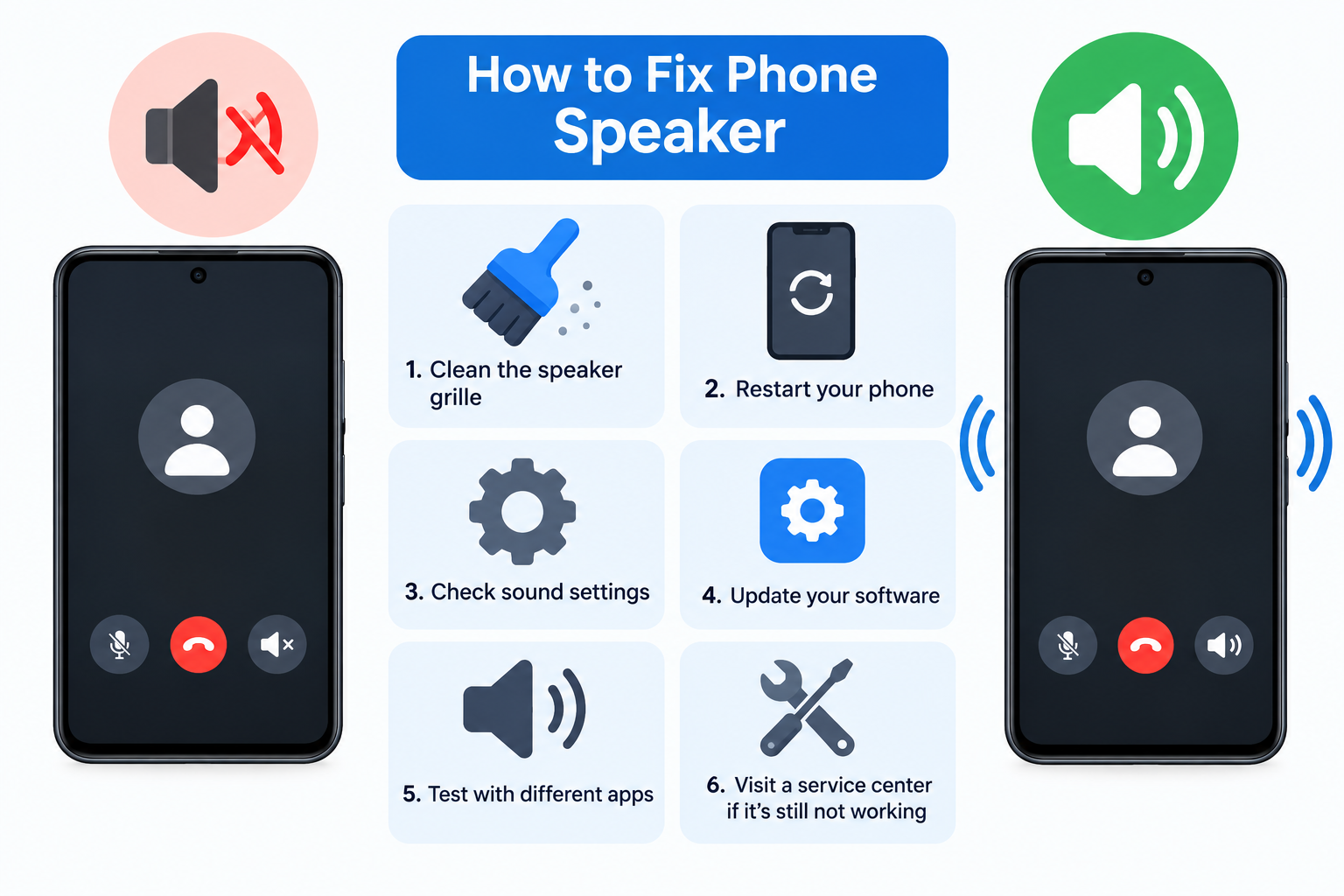
A phone speaker usually stops working properly for simple reasons: silent mode is on, Bluetooth is grabbing the sound, a case or dirt is blocking the opening, or a small software glitch needs a restart. To fix it, check the volume and silent mode, turn off Do Not Disturb and Bluetooth, remove the case, gently clean the speaker opening, then restart the phone. If the sound is still bad, update the software, test in safe mode, and contact the maker for service.
Quick Info: The 60-second version
- Turn the volume up and make sure silent mode is off.
- Switch Bluetooth off, in case sound is going to another device.
- Take off the case and any screen protector.
- Look at the speaker holes. Clean them gently if they look blocked.
- Restart the phone, then test with a call, a song, and a video.
Key Takeaways
- Most speaker problems are settings, blockages, or software. Real hardware failure is the less common cause, so rule the easy things out first.
- Test the speaker with more than one thing: a phone call, music, and a video from different apps. This tells you whether the problem is the phone or one app.
- Water in the speaker opening can muffle sound until it dries out. Apple notes it can degrade speaker performance until it has completely evaporated.
- Never poke into the speaker holes with sharp objects. A soft, dry brush is the safer tool.
- If nothing works after a restart, an update, and safe mode, the speaker may need repair. Get it checked by the maker or an authorized service provider.
How This Guide Was Put Together
A fair question for any troubleshooting article is: where does this advice come from? Here is the honest answer.
Every step in this guide comes from the official support documentation of the companies that make the phones: Apple Support, Google’s Pixel and Android help pages, and Samsung’s support pages. I did not make up my own repair tricks, and I did not include fixes that need you to open the phone. Where a company’s page does not mention a step, I say so or label it as general advice.
That matters because bad speaker advice is common online. Some tips tell you to blast the speaker with compressed air, push pins into the holes, or leave the phone in rice. None of those appear in the official guidance used here, and some could make things worse. You will find the sources listed at the end of the article so you can check them yourself.
Infographic: The Speaker Fix Order
The visual guide below puts the steps in the order that makes the most sense: easiest and safest first, repair last. It is built only from the official steps covered in this article.
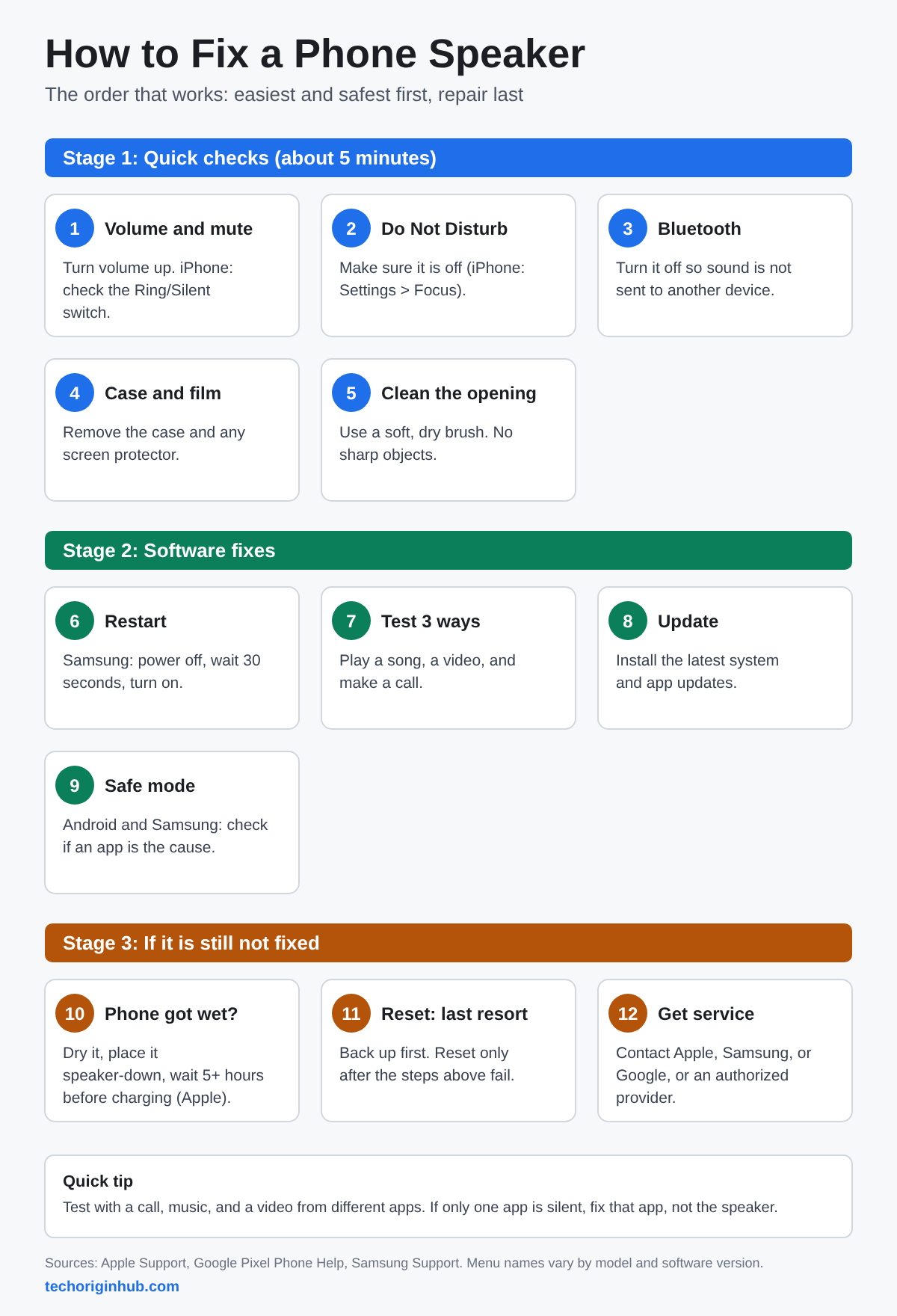
Save it or print it if you want a quick reference. The sections below explain each step in more detail.
First, Work Out What Kind of Problem You Have
“My speaker is broken” can mean several different things, and each points to a different fix. Match your symptom in the table before you start.
| What you notice | Likely cause | Start with |
|---|---|---|
| No sound at all | Silent mode, Do Not Disturb, Bluetooth, or a software glitch | Volume, silent mode, Bluetooth, restart |
| Sound is quiet or muffled | Dirt, a case, a screen protector, or water in the opening | Remove the case, clean gently, let the phone dry |
| Crackling or distorted sound | Blocked speaker, a sound setting, or damage | Clean gently, test other media, update software |
| Sound works in one app only | A problem with that one app | Update or reinstall the app |
| Sound works in videos but not calls (or the reverse) | A settings or network problem | Test calls on another network or place, check call volume |
| Others cannot hear you | This is a microphone problem, not the speaker | Check the microphone and app permissions |
If the last row sounds like your problem, you are looking at the wrong part. Our guide to app permissions explains how to check whether an app is allowed to use your microphone.
Quick Info: Speaker, receiver, or microphone?
Your phone has more than one audio part. The loudspeaker plays music, videos, and speakerphone calls. The receiver (the small earpiece at the top) plays the voice during a normal call when you hold the phone to your ear. The microphone picks up your voice. A problem with one does not always mean the others are broken, so test each one separately.
The Universal Checks That Fix Most Problems
These steps work on almost every phone. Do them in order. Each one takes a minute or less.
1. Check the volume and silent mode
It sounds too simple, but it is the most common cause. Press the volume up button and watch the on-screen slider. Phones keep separate volume levels for ringtone, media, and calls, so make sure you are adjusting the right one.
On an iPhone, check the Ring/Silent switch on the side. If you can see orange, silent mode is on. Move the switch toward the screen to turn it off, or check Control Center. Apple lists this as its very first step.
2. Turn off Do Not Disturb
Do Not Disturb and similar focus modes can silence calls and alerts. On an iPhone, open Settings, then Focus, then Do Not Disturb, and make sure it is off. On a Samsung Galaxy phone, Samsung points to Settings, then Notifications, then Do not disturb.
3. Turn off Bluetooth
This is a sneaky one. If your phone is still connected to a speaker, car, or earbuds nearby, the sound goes there instead of the phone speaker. Turn Bluetooth off completely and test again. Google lists this step in its Pixel sound guide, and Samsung includes it too, with the path Settings, then Connections, then Bluetooth.
4. Unplug anything connected
Remove headphones, adapters, or cables. A phone that thinks headphones are plugged in may send sound to them instead of the speaker.
5. Remove the case and screen protector
Cases and film can cover or partly block the speaker opening. Apple, Google, and Samsung all suggest removing them while you test. If the sound improves, the case is your problem, and you may need a different one with proper speaker cutouts.
6. Look at the speaker opening and clean it gently
Hold the phone under good light and look at the speaker grille. Lint, dust, and pocket dirt can pack into the holes and muffle sound.
Apple suggests using a small, soft-bristled brush that is clean and dry to gently clean the openings. Samsung suggests a dry toothbrush for the speaker openings. Google suggests cleaning speakers, microphones, and the charging port with a soft cloth.
Quick Info: What to use and what to avoid
Use: a clean, dry, soft brush or a soft cloth.
Avoid: pins, needles, paper clips, and other sharp objects. They can push dirt deeper or tear the speaker mesh. Also avoid wet cleaners and liquids. This is common-sense safety advice rather than a quote from a manufacturer.
7. Restart the phone
A restart clears many temporary software glitches. On a Samsung phone, Samsung recommends powering off completely, waiting 30 seconds, then turning the phone back on. On a Pixel, hold the power button (on Pixel 6 and newer, Google lists Power plus Volume up) to open the power menu and restart.
8. Test with different sounds
Do not rely on one test. Play two or three different songs or videos from different apps, and also test with a phone call. Google recommends this approach for Pixel phones. It tells you whether the speaker itself is faulty or only one app is acting up.
If the sound works in some places but not others, jump ahead to the section on apps and software.
Fixing the Speaker on an iPhone
Apple has a dedicated support page for iPhone speakers that produce no sound or distorted sound. Here is the order it follows, with a few extra notes from the other Apple pages.
- Turn off silent mode. Check the Ring/Silent switch, or look in Control Center.
- Turn off Do Not Disturb. Go to Settings, then Focus, then Do Not Disturb.
- Remove cases, films, and screen protectors. Make sure nothing covers the openings.
- Check the speaker and the receiver for blockages. Look for dirt or debris.
- Clean the openings gently. Use a small, clean, dry, soft-bristled brush.
- Adjust the volume slider. Go to Settings, then Sounds (on some models, Sounds & Haptics), and drag the Ringtone and Alerts slider.
- Test with a call or FaceTime. See if the problem is static, crackling, or no sound at all.
Apple’s page also says that if the Speaker button looks dimmed during a call, the iPhone may need service. And if the problem is only on calls, Apple suggests trying again later or from a different location, which rules out a network issue.
If all of that fails, Apple directs you to get service. You can read the full steps on Apple’s page about no sound or distorted sound from an iPhone speaker.
Quick Info: A real example of a known hardware issue
Apple once ran a service program for iPhone 12 and iPhone 12 Pro for “sound issues due to a component that might fail on the receiver module.” It covered devices made between October 2020 and April 2021, for 3 years after the first retail sale, and the service was free. It did not include iPhone 12 mini or iPhone 12 Pro Max. The page is dated August 2022 and that three-year window has passed for many phones, so check Apple’s current page before assuming your phone qualifies. It shows that sound faults are sometimes a known hardware issue and worth checking with Apple.
Fixing the Speaker on a Google Pixel or Other Android Phone
Google’s Pixel help page on sound problems gives a clear list. Most of it applies to other Android phones too, though menu names vary.
- Check your signal if the problem is on calls. Look at the mobile signal icon at the top of the screen. A weak signal can make calls sound bad even when the speaker is fine.
- Turn Bluetooth off. Sound may be going to a connected device.
- Change the volume up and down. Check each volume type.
- Turn Wi-Fi off and make a call. This tests whether Wi-Fi calling is the issue.
- Toggle the speakerphone on and off during a call.
- Turn video off and on if the problem is during a video call.
- Restart the phone.
- Play two or three different songs or videos from different apps.
- Remove the screen protector and case.
- Clean the speakers, microphones, and USB-C port with a soft cloth.
- Check headphones. Unplug and reconnect them, or try a different pair.
- Factory reset as a last step, only after you have backed up your data.
Read the original on Google’s Pixel Phone Help page for fixing sound problems.
Use safe mode to rule out apps on any Android phone
Safe mode starts your phone with only the apps it came with. If the speaker works normally in safe mode, a downloaded app is likely causing the problem. Google explains how to do it on its help page about finding problem apps by rebooting to safe mode. The exact button combination depends on your phone, so follow the page for your device.
If safe mode fixes it, restart normally and remove recently installed apps one by one until the problem stops.
Fixing the Speaker on a Samsung Galaxy Phone
Samsung has its own set of steps, and some of them use Samsung-specific menus.
- Update the software first. Go to Settings, then Software update, then Download and install.
- Remove anything plugged into the headphone port or charging port, and take off cases that could muffle sound.
- Check Bluetooth. Go to Settings, then Connections, then Bluetooth, and make sure audio is not being sent to another device.
- Raise the volume. Go to Settings, then Sounds and vibration, then Volume.
- Check Do not disturb. Go to Settings, then Notifications, then Do not disturb.
- Check Separate app sound. Go to Settings, then Sounds and vibration, then Separate app sound. This setting can send an app’s audio to a different output.
- Check left and right balance. Go to Settings, then Accessibility, then Hearing enhancements. An unbalanced setting can make one side sound quiet.
- Clean the speaker with a dry toothbrush or soft brush.
- Check the vent holes. Samsung notes that a case or film can block air vent holes near the camera.
- Restart. Power off completely, wait 30 seconds, and turn it back on.
- Try Safe mode. Long-press the Power off option and tap Safe mode.
- Reset all settings as a last resort. Go to Settings, then General management, then Reset, then Reset all settings. Samsung warns to back up data first.
If none of that works, Samsung recommends booking a repair or visiting a Samsung service centre. You can read more on Samsung’s pages about what to do if the sound on your Galaxy is not working properly and troubleshooting speaker and sound issues.
When Only One App Has No Sound
If music plays fine but one app is silent, the speaker is almost certainly healthy. The cause is the app.
Every iPhone app and every Android app can have its own sound settings, and some include their own mute buttons. Work through these in order.
- Check the app’s own volume and mute controls. Many video and call apps have a separate switch.
- Update the app. Open the App Store on iPhone or the Play Store on Android and install any waiting update.
- Clear the app’s cache (Android). A damaged app cache can cause odd behavior. On many Android phones you can find this in Settings, then Apps, then the app, then Storage. iPhone does not offer a simple cache button, so reinstalling the app is the usual alternative.
- Restart the app, then the phone.
- Reinstall the app as a last step. Check first that your login details are safe and that anything important is backed up, because deleting an app can remove its app data from the phone.
If the problem follows you into other apps, go back to the earlier steps.
When Water Is the Problem
If your phone got wet and the speaker now sounds muffled, take the problem seriously but do not panic. Apple’s guidance on water gives a useful routine.
Apple notes that “splash, water, and dust resistance are not permanent conditions and resistance might decrease as a result of normal wear.” So even a water-resistant phone can have trouble over time.
If your iPhone gets wet, Apple’s steps are:
- Rinse it with tap water if a liquid other than water touched it.
- Wipe it with a soft, lint-free cloth.
- Tap it gently against your hand with the connector facing down.
- Leave it in a dry area with some airflow.
- Wait at least 5 hours before charging it with a cable.
Apple also says you can place the iPhone speaker-down on a lint-free cloth to check for water draining out. It adds that water in the port might degrade speaker or microphone performance until it completely evaporates.
Samsung gives similar advice: dry the phone straight away with a soft cloth, paying attention to the earpiece, microphones, speaker, and USB port.
Quick Info: What not to do with a wet phone
Do not charge it right away, do not use heat such as a hair dryer, and do not poke anything into the openings. Patience and airflow are the safest approach. The rice trick is not part of any official advice used for this guide.
Know this too: Apple states that servicing for liquid damage to an iPhone is not covered by the Apple One-Year Limited Warranty, although you may have rights under consumer law depending on where you live. Apple also describes small Liquid Contact Indicators that turn fully red when exposed to liquid. Read more on Apple’s page about liquid damage and warranty and its page on splash, water, and dust resistance.
Platform Steps at a Glance
| Step | iPhone | Google Pixel | Samsung Galaxy |
|---|---|---|---|
| Check silent mode | Ring/Silent switch, Control Center | Volume slider | Volume slider |
| Check Do Not Disturb | Settings, Focus | Quick settings | Settings, Notifications |
| Turn off Bluetooth | Control Center or Settings | Quick settings | Settings, Connections |
| Remove case and film | Yes | Yes | Yes |
| Clean the opening | Soft, dry brush | Soft cloth | Dry toothbrush |
| Restart | Restart iPhone | Power menu | Power off, wait 30 seconds |
| Update software | Settings, General | System update | Settings, Software update |
| Test in safe mode | Not available | Yes | Yes |
| Last-resort reset | After backup | Factory reset | Reset all settings |
Menu paths vary by model and version, so treat this as a map and not an exact script.
When It Is Hardware: Getting It Repaired
If you have tried everything above and the speaker is still silent, crackling, or distorted in every app and in safe mode, the speaker itself may have failed. The signs that point to hardware include:
- No sound from any source, even after a restart and an update.
- Crackling or buzzing at all volumes in every app.
- The Speaker button is dimmed during calls, which Apple says may mean service is needed.
- The problem started right after a drop or water exposure.
At that point, stop troubleshooting and get it checked. A few practical tips:
- Back up your data first. Repairs sometimes involve erasing or replacing parts.
- Check your warranty. Look at what your warranty covers and whether your model has an active service program.
- Use the maker or an authorized provider. For iPhones, contact Apple or an Apple Authorized Service Provider. For Samsung, use Samsung service. For Pixel, use Google’s support.
- Do not open the phone yourself unless you are trained. A wrongly seated part, a damaged seal, or a bent connector can turn a small repair into a big one.
- Ask for a quote before agreeing if you are going outside the manufacturer.
Common Mistakes That Make Speaker Problems Worse
- Using sharp objects to clean the holes. They can tear the mesh and push dust inside.
- Using liquids or wet wipes on the speaker grille. Moisture can make a muffled speaker worse.
- Charging a wet phone right away. Apple says to wait at least 5 hours after the phone gets wet.
- Skipping the case check. Many “broken” speakers are just covered.
- Factory resetting too early. A reset is a last resort. Most problems are fixed long before that.
- Trusting random apps that claim to “clean the speaker with sound waves.” Not every one is useful, and none are part of the official guidance used for this article. Be careful about the permissions any such app asks for.
How to Keep Your Phone Speaker Healthy
A few small habits can prevent most problems.
- Use a case with proper speaker cutouts. Check that the holes line up.
- Brush the openings now and then. A quick, gentle pass with a soft, dry brush keeps lint from packing in.
- Keep the phone away from liquids and extreme conditions. Apple’s own guidance says to avoid swimming, bathing, steam rooms, and pressurized water, and to be careful with soap, perfume, and sunscreen.
- Keep software updated. Update the phone and your apps regularly. Updates fix bugs, including audio bugs.
- Back up often. If a repair or reset is ever needed, you will not lose anything. This is where your app data and photos stay safe.
- Do not leave the phone in hot cars or direct sun. Heat is hard on every part inside a phone.
Frequently Asked Questions
Why is my phone speaker not working?
The usual causes are silent mode, Do Not Disturb, a Bluetooth connection, a blocked speaker opening, a case, a software glitch, or water. Hardware failure is possible, but check the simple things first.
How do I fix a muffled phone speaker?
Remove the case and screen protector, then gently clean the speaker opening with a soft, dry brush. If the phone was wet, let it dry with airflow. Apple says water in the port can reduce speaker performance until it evaporates.
How do I clean a phone speaker safely?
Use a clean, dry, soft-bristled brush or a soft cloth, as Apple, Google, and Samsung suggest. Avoid sharp objects and liquids.
Why can I hear calls but not music, or music but not calls?
Phones use different volume levels and sometimes different audio paths for each. Check the call volume and media volume separately, and test with several apps.
Can a software update fix a speaker problem?
Sometimes. Samsung lists installing the latest software update as an early step. Updates can fix audio bugs, so check for one.
What does safe mode do for speaker problems?
Safe mode loads only the apps that came with the phone. If the speaker works normally in safe mode, a downloaded app is probably the cause. Google and Samsung both describe this on their support pages.
Should I factory reset my phone to fix the speaker?
Only as a last resort, and only after backing up your data. Resets are listed at the end of the official steps, after the simpler fixes.
Will rice fix a wet phone speaker?
The rice trick is not part of the official advice used here. Apple suggests wiping the phone, letting it sit speaker-down in a dry place with airflow, and waiting at least 5 hours before charging.
Does warranty cover speaker problems?
It depends on the cause. A manufacturing fault may be covered, but Apple says liquid damage is not covered by the One-Year Limited Warranty, although consumer law may give you extra rights depending on your country. Check your own warranty terms.
Why does my speaker crackle at high volume?
It can be a blocked or dirty speaker, a sound setting, or damage. Clean it gently, test in several apps, update the software, and get it checked if it continues in all apps.
How do I tell if it is the speaker or the app?
Play sound from at least two or three different apps and also make a call. If only one app is silent, fix that app. If everything is silent, the problem is the phone.
When should I take my phone to a repair shop?
When you have checked volume, silent mode, Bluetooth, the case, cleaning, a restart, an update, and safe mode, and the speaker is still faulty. The same applies if a drop or water started the problem.
Disclaimer
This article is for general educational purposes. It collects troubleshooting steps from the official support pages of Apple, Google, and Samsung and explains them in plain language.
Menu names and screens differ between phone brands, models, and software versions. If a step looks different on your phone, follow the linked official page for your device.
Opening a phone yourself can damage it and may affect your warranty. This guide only covers safe, non-invasive checks.
Apps, brands, and services are mentioned for information only. This article is not sponsored and does not endorse any third-party product.
Back up your important data before you try a reset. A reset cannot be undone.